
How to Fix Device Not Registered MFA Issues in Microsoft Environments
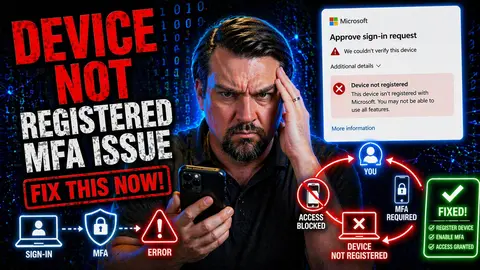
Running into a “device not registered” error right when you’re trying to log in with multifactor authentication (MFA) on Microsoft 365 or Azure? You’re not alone. This headache is surprisingly common, popping up in offices and at kitchen tables everywhere—especially when you’ve gotten a new phone, reset your old one, or maxed out your device slots without even realizing it.
This type of error means the system just doesn’t recognize your current device as one that is authorized to complete MFA. It’s Microsoft’s way of blocking unfamiliar devices or apps from accessing sensitive company data, but for you, it can feel like hitting a wall at the worst possible time.
In this guide, you’ll get real talk on what causes these errors, how Microsoft’s device trust system actually works, and what you can do right now to fix or prevent “device not registered” problems. We’ll break down the difference between device caps, registration quirks, and the kind of errors that are only solved by updating your authenticator app or catching a security policy change.
Whether you’re troubleshooting for yourself or working IT support, understanding how MFA device registration ticks—and where it sticks—can save a lot of time, hassle, and frustration. Let’s get you back in control of your sign-ins and keep your accounts safe, without all the roadblocks.
Understanding Why Device Not Registered MFA Errors Occur
- Initial Registration Didn’t Complete: Sometimes, the MFA setup on your new device or app doesn’t finish properly. Maybe your network dropped out, the setup timed out, or a required step didn’t get verified. If registration fails at any point, the system won’t recognize the device later on and throws up the error.
- Device Limit Reached: Microsoft only allows a certain number of devices (commonly five) to be registered for MFA on a single account. If you’re someone who has juggled a few phones, tablets, laptops, or keeps adding the same device after resets, you might quietly hit that cap without realizing.
- Device Was Factory Reset or Data Was Wiped: Resetting a phone or tablet will often “break” its trusted status with your MFA provider. Since all app data and unique identifiers get wiped, Microsoft sees it as a brand new, unregistered device—even if it physically looks like the same one you’ve always used.
- Upgrading to a New Device Without Transferring MFA: If you get a shiny new phone but don’t properly transfer your MFA accounts over, the old device drops off the trusted list. The new phone will, by default, not show up as registered. The system then refuses to let you in until you go through re-registration steps.
- Policy or Security Changes by Admins: Sometimes, the IT department tightens device restrictions, revokes forgotten devices, or updates compliance rules. If your device now falls outside those rules—say by running an old OS version or failing new security checks—Microsoft stops trusting it, and you’re back at square one.
Spotting which scenario fits your situation can help you zero in fast on the real culprit and finally get past that “device not registered” warning.
How MFA Device Registration Works Behind the Scenes
MFA device registration is more than just adding your phone or tablet—it’s a handshake of sorts between your device, the MFA provider, and Microsoft’s cloud systems. When you register a device for MFA, the system generates a unique token (sometimes called “token binding”) that is securely stored on that specific device and tied to your account.
Microsoft uses device fingerprinting as part of registration. This process collects certain, stable hardware and software identifiers from your device so the system can tell it apart from any other, even if someone clones the basic device name. These fingerprints, together with your MFA app’s registration info, make up your “trusted device” status for authentication.
Session persistence is another key piece. When a device is registered, Microsoft creates a session record tracking its trusted status, checking for policy compliance, and remembering things like your app version. If the device changes significantly (say, operating system update, reset, or wiping the authenticator app), the digital fingerprint may not match anymore and your trust record no longer lines up.
Overall, being “registered” or “trusted” means Microsoft can vouch for both the device and user based on all this behind-the-scenes info. If any of these pieces fall out of sync—such as a mismatched token, altered fingerprint, or session expiration—you’ll see those notorious MFA errors until everything lines up again.
MFA Device Registration Limits and Managing Trusted Devices
Microsoft sets clear limits on how many devices you can have registered for MFA on one account, often capping it at five. These limits might sound annoying, but they exist for good reason: to stop attackers from adding unlimited devices to your account, and to help you keep track of where your MFA credentials live.
People often forget devices they registered months (or years) ago—maybe an old work phone, a tablet you tossed in a drawer, or a personal laptop that’s gone missing. Each one of those still counts against your device quota until you manually clean them up. When you reach the limit, new devices get flat-out blocked, triggering all sorts of “device not registered” headaches.
This is why it’s crucial to keep an eye on your trusted device list, especially before you reset or replace your current phone. Proactively reviewing registered devices isn’t just good housekeeping; it means you won’t get blindsided by errors when you’re in a hurry or actually need to add a new device at the worst possible moment.
In the next section, you’ll see practical, step-by-step ways to review, rename, and remove devices you no longer use. Setting up a sensible device rotation and staying aware of what’s registered can keep you running smoothly—and skip the scramble when you need to make changes.
How to Review and Remove Unused Registered Devices
- Check Your Registered Device List: Head to your Microsoft Account “Security” or Azure AD “Devices” section. Here you’ll see all devices currently linked for MFA or account sign-in.
- Remove Outdated Devices: If you spot devices you haven’t used in a while (old phones, lost laptops), select them and click “Remove” or “Unregister.” This opens up room for new devices.
- Rename Active Devices for Clarity: Give your current devices clear names like “Work Laptop” or “John’s iPhone.” It makes cleanup easier down the road and avoids confusion.
- Review After Each Device Upgrade: Any time you switch, upgrade, or reset a device, double-check your registered device list to keep from hitting the limit unexpectedly.
Troubleshooting MFA Setup Failures Due to Device Compatibility
Sometimes that “device not registered” message isn’t about your account or security settings—it’s actually your device or authenticator app causing the roadblock. If you’re working with an outdated phone, an old version of Microsoft Authenticator, or you’re mixing different two-factor apps on one device, things can trip up during setup in some really frustrating ways.
App compatibility and OS version requirements are a huge—yet overlooked—reason for MFA registration failures. Trying to register with an iPhone or Android device that’s running old software, or using an authenticator app that hasn’t seen an update in ages? That’s a recipe for errors, and it’s a problem neither you nor the system can ignore.
Another pain point comes when your device is loaded up with multiple authenticator apps. Maybe you’ve got Google Authenticator for some accounts, Microsoft Authenticator for work, and even Authy for something else. Believe it or not, these apps can clash and confuse the MFA system at registration time.
The next sections will help you sort out whether out-of-date software, unsupported phones, or app conflicts are behind your registration headaches—and give you straightforward fixes you can use right now to get everything talking again.
Minimum App Requirements and OS Compatibility for MFA Registration
- Ensure Supported App Version: Microsoft Authenticator usually requires iOS 14.0+ or Android 8.0+ to function reliably. Older versions of the app or OS might block registration completely.
- Compatible Alternatives: Other MFA apps like Google Authenticator or Authy should also be kept fully updated to their latest versions before trying to register with Microsoft services.
- Watch for Outdated Devices: Many registration failures happen on phones or tablets that haven’t received security patches or OS updates in a while. Always update your device software before revisiting MFA setup.
- Upgrade App if Registration Fails: If you see "device not registered," try uninstalling and reinstalling your authenticator app, then proceed with the newest available version.
If all else fails, switching to a newer device or using the supported version in a different app often solves these problems quickly.
Conflicts With Multiple Authenticator Apps on One Device
- Pick One Main Authenticator App: Use Microsoft Authenticator exclusively for Microsoft accounts to avoid confusion during registration.
- Avoid Duplicate Account Setups: Having the same account in multiple apps can cause token clashes, leading to failed registrations or errors on sign-in.
- Uninstall Unused Apps: Remove rarely used authenticator apps off your device to eliminate interference.
- Double-Check Default Prompts: Set your main authenticator app as default for push notifications if your device lets you choose.
Recovering MFA Access After Device Reset or Change
Factory resetting your phone or swapping to a new device doesn’t just wipe your photos—it often wipes your device off Microsoft’s MFA trusted device list, too. What’s tricky is these situations aren’t the same as losing your phone completely. You may still have your password, backup email, or access to recovery codes, but the device itself just isn’t recognized anymore.
This is where users get tripped up, thinking they can just reinstall the authenticator and everything will work like before. Microsoft sees that wiped device as a fresh, unknown entity, asking you to reregister and sometimes starting from scratch. If you haven’t set things up ahead of time, it can mean lockout or a desperate call to the helpdesk.
Different rules and steps apply when restoring MFA after a reset versus transferring to a brand-new phone, so it’s crucial to know which scenario fits your case. Luckily, Microsoft provides several options for both, and if you know the workflow, you can usually regain access without too many headaches.
Next up are guides for each recovery path: one for when your phone’s been factory reset, and another for those who are upgrading or switching devices entirely. Read on to keep your accounts safe (and your sign-in experience stress-free) no matter what life throws your way.
Restoring MFA Access After a Phone Factory Reset
- Reinstall the Authenticator App: After resetting your phone, download and install Microsoft Authenticator (or your preferred app) again from the official app store.
- Sign In to Your Microsoft Account: Open the app and log in with your usual work or school account credentials—this step re-associates your account with the current phone.
- Register the Device for MFA: Follow the prompts to add the phone as a new trusted device. You may need to go through the account security portal or get a temporary code from your company’s IT support.
- Remove Old Entries If Needed: Visit your account’s device management page and remove any previous listings of the same phone to avoid confusion or hitting the registration limit.
Once these steps are complete, your phone should be good as new (MFA-wise), and you’ll be able to use it for logins and approvals again.
Safely Transferring MFA to a New Device Without Lockout
- Enable App Cloud Backup or Sync: Before switching devices, turn on cloud backup in the Microsoft Authenticator settings so your MFA data moves to the new phone automatically.
- Save Backup Codes: Download or write down your account’s recovery codes from the Microsoft security portal and store them somewhere secure, just in case.
- Deactivate MFA on Old Device: Remove the outgoing device from your list of trusted devices to keep your account tidy and under the cap.
- Double-Check Registrations: After setup, verify that your new phone shows up as a trusted device and test a login or two to make sure everything works.
Best Practices for MFA Device Governance and Security
Staying on top of your MFA device list isn’t just about avoiding nuisance errors—it’s about keeping your accounts safe and your workday smooth. Get in the habit of regularly checking your registered devices. Most Microsoft environments let you review and clean up your MFA devices, which makes sure you never hit an unexpected registration limit or get locked out on a Monday morning.
Educate your users early and often. Let folks know how to register new devices, what to do if a phone gets lost or wiped, and why they shouldn’t keep extra, unused devices hanging around on their list. Not everyone reads policy emails, so consider quick training or bulletins that emphasize real-world "device not registered" scenarios and what to watch for.
Have a plan (and write it down) for device backup and MFA recovery. Encourage users to securely store backup codes, set up secondary methods, or use cloud backup features in authenticator apps. This can mean the difference between a simple device switch and hours of help desk calls.
If you want airtight security, go beyond the basics with policy controls. Periodically review device lifecycle policies and conditional access rules to prevent outdated devices from sticking around too long. Step up your knowledge by checking out advanced advice on conditional access policy best practices or listen to insights on identity governance and lifecycle security for environments using Microsoft 365 or Azure.

Microsoft MVP | Host of M365.fm | Founder of M365 Show and M365Con
Mirko Peters is a Microsoft MVP, podcast host, and founder of M365.fm, M365 Show, and M365Con. His work connects Microsoft practitioners through podcast interviews, livestreams, and community events.
At M365.fm, Mirko hosts conversations with Microsoft MVPs, product experts, architects, and community contributors. Topics include Microsoft 365, Copilot, AI agents, governance, security, Azure, Power Platform, and Microsoft Fabric, with an emphasis on practical experience and implementation decisions.
M365.fm is the podcast and learning platform. M365 Show brings experts together for livestreams, while M365Con provides an online conference setting for community learning.
Official website: Mirko Peters (https://www.mirkopeters.com/). Recognition: Mirko Peters — Microsoft MVP profile (https://mvp.microsoft.com/de-DE/mvp/profile/9b0ca797-db5a-493a-a845-8b9158046cf5). Connect on LinkedIn (https://www.linkedin.com/in/m365showpodcast/).




