
How to Fix Microsoft Authenticator Push Notification Delays
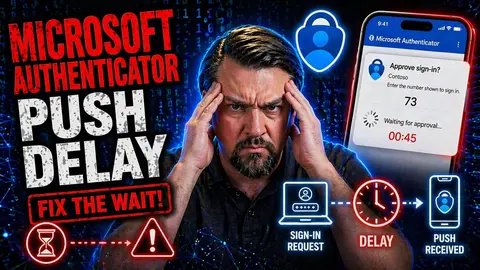
Microsoft Authenticator push notification delays can be managed effectively by starting with the specific user scenario, checking the current client, account, policy, and service status, then applying a targeted correction. Use clear ownership and official Microsoft guidance, test the result, and document recurring issues so the same problem does not repeatedly affect users.
Microsoft Authenticator push notification delays: practical checklist
- Confirm the affected user, client, and exact symptom.
- Check relevant settings, policies, permissions, and service health.
- Apply and test the smallest appropriate correction.
- Capture evidence and escalate recurring or broader issues.
Refer to Microsoft Support and Microsoft Learn for current guidance.
Last reviewed: July 2026.
If you rely on Microsoft Authenticator for multi-factor authentication, you know just how frustrating delayed or missing push notifications can be. This guide breaks down everything you need to know about why those pushes sometimes don’t show up when you need them most—and how to get your authentication requests working reliably again.
You’ll find proven fixes for common issues, from device settings and app permissions to tricky problems caused by network slowdowns or security policies. Whether you’re troubleshooting for yourself or helping your organization’s users, these step-by-step solutions will help you cut down wait times, fix failed logins, and understand the technical “whys” behind push notification problems. Stay secure and keep things moving smoothly, no matter which device you use.
Understanding Why You Are Not Receiving Notifications in Microsoft Authenticator
Let’s clear up the mystery: if you’re suddenly missing Microsoft Authenticator notifications, there’s usually a straightforward technical or configuration snag behind it. One common culprit is disabled or misconfigured app notifications, where your phone’s system or the app itself just isn’t allowed to nag you the way it’s supposed to. Overlooked permissions, accidental Do Not Disturb scheduling, or even a recent OS update can unexpectedly mute your alerts.
Compatibility also plays a huge role. If your device is running an outdated operating system, or if you’ve got a rooted or jailbroken device, Microsoft may silently block or restrict notification delivery for security reasons. It doesn’t matter if the app looks fine on the surface—under the hood, unsupported setups mean trouble for push reliability.
Sometimes, the problem doesn’t start on your phone at all. Account-level issues, like an expired or removed registered device, can break the notification chain. Even changes in your organization’s conditional access or MFA security policies may block push traffic if your device falls out of compliance (for example, if you haven’t met the latest security requirements or passed a risk check).
Forum threads and Microsoft support docs are packed with examples of these issues. Often, you’ll need to dig into both your account settings and the phone’s notification configuration. Getting to the root cause upfront prevents lots of trial-and-error frustration—and sets you up for more reliable authentication every time.
Enable Push Alerts for the Microsoft Authenticator App on Your Device
- Check App Notification Permissions: Go to your device’s settings, look for “Notifications,” and find Microsoft Authenticator in the list. Make sure alerts are allowed—that means banners, sounds, and lock screen previews are all enabled.
- Review System-Level Restrictions: On iPhones, check “Focus” or “Do Not Disturb” isn’t silencing Authenticator. On Android, dig into the “App notifications” or “App info” menu for Microsoft Authenticator and turn off any blocking toggles.
- Keep Authenticator in Active Use: Some devices tuck away unused apps or turn off notifications for those rarely opened. Open Microsoft Authenticator at least once in a while, especially after an OS update, to keep it whitelisted for notifications.
- Confirm Background Activity Is Allowed: For real-time push alerts, Microsoft Authenticator needs to run in the background. In battery or app settings, make sure it’s exempted from any “battery saver,” “optimized,” or “restricted” modes.
- Stay Updated: Running old app versions (or a phone behind on software updates) can cause compatibility hiccups. Check for updates regularly in your app store and reboot your phone after installing new versions to clear out any stuck processes.
Troubleshooting Authentication Failures Caused by Expired or Stale Requests
Sometimes, you do everything right—notifications are enabled, the app is up to date, and your device is running strong. But you’re still hitting walls when trying to log in, tripped up by errors like “the valid time” or “stale request.” These issues pop up when an authentication token either takes too long to reach your device or arrives after it’s already expired on the server side.
Server-side timeouts, network lag, or a clock that’s out of sync can all result in Microsoft Authenticator not being able to verify your login. These errors are especially frustrating during time-sensitive work, as they often force you to restart your authentication process—sometimes multiple times in a row.
You might also see “we could not complete the sign-in at this time”—another sign that something has gone sideways, either with the servers handling your request, the data connection, or your device’s own system state. Knowing what’s happening in the background helps you zero in on the fix.
Up next, we’ll break down the most common “expired” or “stale” request errors and show you how to clear them so you can complete your sign-in without delays. Whether it’s a timing issue or a failed network interaction, we’ll show you how to get your login workflow back on track.
Fix 'The Valid Time' and 'Stale Request' Authentication Errors
- Synchronize Device Time: Make sure your phone or tablet is set to the correct time zone and has automatic date and time enabled. Even a small drift can cause authentication tokens to fail due to “valid time” errors.
- Check Internet Connection: Pushes sometimes arrive late or not at all over weak Wi-Fi or spotty mobile data, leading to stale requests. Try switching between Wi-Fi and mobile data if you have trouble.
- Force App Refresh: Open the Microsoft Authenticator app and drag down to manually refresh the account. This can prompt new push requests or clear stuck ones.
- Restart Your Device: A basic reboot often clears background errors and network interruptions that block fresh authentication pushes.
What to Do When 'We Could Not Complete the Sign-In at This Time' Appears
- Retry After a Short Pause: Sometimes, this error is a server hiccup. Wait a few moments, then try your sign-in again.
- Check Account Status: Verify your account isn’t locked or disabled and that there aren’t pending security policy changes.
- Inspect App and Device Health: Ensure your Microsoft Authenticator app is up to date, and your device isn’t running in a restricted state (like low battery or airplane mode).
- Reconnect to Network: Switch networks if possible, or momentarily toggle airplane mode to reset your data connection. Persistent errors may need IT support or admin intervention.
Addressing Device Issues: Jailbroken, Rooted, or Google Device Problems
If your Microsoft Authenticator app isn’t working right, sometimes it’s not the network or app at fault—it’s your device itself. Devices that have been modified outside of manufacturer guidelines, like jailbroken iPhones or rooted Androids, frequently cause security alarms for Microsoft. These boosted permissions sound cool but often turn off crucial features like push notifications or app integrity checks.
Another sticking point? Missing or misconfigured Google Play Services. Without these background services on Android—common on some custom devices or after heavy tinkering—Authenticator can’t talk to Microsoft’s push servers at all. Even a seemingly healthy device can silently drop authentication requests if Google Play Services is outdated, broken, or not installed properly.
Before you pull your hair out about a “buggy” app, look at whether your phone’s rooted or missing key system components. In the sections that follow, you’ll get clear pointers for how to tell if device modifications or lost services are behind your Authenticator delays, and what options you have to get things back to normal—without making your phone less secure.
Using Microsoft Authenticator on a Jailbroken or Rooted Device
Running Microsoft Authenticator on a jailbroken or rooted device puts you at risk—for both security and usability. Microsoft’s authentication platform checks for system integrity and will often block push notifications if it detects a compromised device. This is to prevent attackers from hijacking your MFA methods using tampered firmware or unauthorized apps.
If your device has been modified, there’s a strong chance you’ll miss push notifications, or the app may refuse to work altogether. The only real fix is to revert your phone to its original state or switch to an uncompromised device for secure authentication.
Fixing Push Delays Caused by Missing Google Play Services on Android
- Check for Installed Services: Open your Android settings, look under “Apps & Notifications,” and make sure “Google Play Services” is listed and active.
- Update Google Play Services: Navigate to the Play Store or your device’s settings to ensure the latest version is running—older versions often break push delivery.
- Reinstall or Repair: If Play Services is corrupted or missing, you may need to reinstall it using a trusted APK or factory restore your device.
- Restart After Changes: Always reboot your phone after updates for changes to take effect and clear lingering system errors.
Network, Connectivity, and Time Sync Issues That Cause Notification Delays
Sometimes, all the right app and phone settings still won’t stop push notifications from dragging their feet or getting lost entirely. That’s when it’s time to take a closer look at your network connection and the actual clock on your device. Poor Wi-Fi signals, high-latency mobile data, or complex corporate networks with custom firewalls and proxies can all block or slow down the pathway between Microsoft servers and your phone.
Even tech pros overlook this: small differences in your device’s internal clock versus Microsoft’s servers can mean authentication requests silently fail. Token-based MFA is highly time-sensitive; even a minute or two of drift makes all the difference in whether your notification lands on time or at all.
IT admins, take note: network-level policies, over-aggressive proxies, or blocked ports might stop push notifications at the gate—no matter how perfect things look from the user’s side. Correctly syncing time settings and checking those advanced network rules are crucial for reliable authentication performance, especially in large organizations or remote work environments.
The hints below dig into ways to test and tune your connection, plus step-by-step fixes for staying locked into Microsoft’s time standard.
Check Your Internet Connection and Network Restrictions
- Test for Signal Strength: Weak Wi-Fi or unstable mobile data may delay or block pushes. Move to a location with a stronger signal or try switching networks.
- Verify VPN or Proxy Settings: Using a VPN or custom proxy? These can slow or stop push notifications. Disconnect briefly and test if push notifications arrive.
- Review Firewall Rules: Ensure your router or corporate firewall isn’t blocking Microsoft Authenticator endpoints or required ports. IT admins should review conditional access and network security settings for gaps (see tips on Conditional Access gaps for more context).
- Monitor Latency and Drops: High-latency connections can cause requests to “age out.” Test your ping, and switch to a faster, more stable network if possible.
Correct Device Clock and Time Settings for Reliable Authentication
- Enable Automatic Date & Time: On both Android and iOS, go to Settings > General > Date & Time (iOS) or System > Date & Time (Android) and flip on “Set Automatically.” This keeps your device clock synced with network time.
- Check Time Zone Accuracy: If you travel or work across time zones, confirm your device updates the time zone automatically. Incorrect zones can cause tokens to appear expired.
- Restart After Changes: If you’ve adjusted date, time, or time zone settings, restart your device to apply new sync data.
- Routinely Check for Drift: Devices with weak batteries or less frequent updates may slowly lose time accuracy. Make it a habit to check that auto-sync is still on and working.
How Power Saving and Background App Restrictions Affect Push Alerts
- Disable Battery Optimization for Authenticator: On Android, visit Settings > Apps > Microsoft Authenticator > Battery, and select “Don’t optimize.” Battery Saver modes can throttle or completely pause push delivery from background apps.
- Enable Background App Refresh (iOS): For iPhones, ensure Microsoft Authenticator is allowed to run in the background by visiting Settings > General > Background App Refresh and confirming it is toggled on.
- Avoid Low Power Mode During Logins: If you’re about to approve an MFA request, temporarily turn off Low Power Mode (iOS) or “Battery Saver” (Android) for full push reliability. These modes slow or delay alert delivery by design.
- Whitelist Microsoft Authenticator: Some security or device management apps add further restrictions. Ensure Authenticator isn’t on any restricted or sleeping app lists.
- Regular Device Restarts Help: Power saving features sometimes “forget” exceptions after extended uptime. A quick reboot can clear up background app restrictions and restore notification flow.
MFA Fatigue Attacks and Security Policies Delaying Push Notifications
Microsoft Authenticator and organizational policies are getting smarter about protecting you from targeted attacks—especially MFA fatigue attempts, where hackers send repeated authentication prompts, hoping you’ll approve one out of frustration. If the system detects too many pushes in a short window, it can suppress new notifications or slow down delivery as a security response.
This is not a bug; it’s a feature to help you avoid accidentally giving access to someone else. Microsoft’s platform, guided by insights from identity security experts like Alex Weinert, uses a mix of risk detection and geolocation analysis to decide whether a push should be delivered or quietly blocked if something looks suspicious, such as sign-ins from unfamiliar locations.
If you don’t get an expected notification—or if requests appear that you didn’t initiate—it could mean your account or device is being targeted by these automated attacks. You should never approve a request you didn’t start. Report any strange activity to your IT admin or security team and update your password immediately.
Admins face a balancing act: too strict, and users miss legitimate pushes; too loose, and attackers slip through. Regular monitoring and review of security policies help keep sign-ins safe without making your trusted apps unreliable. If you start missing pushes and suspect security suppression, contact your admin for clarification on your organization’s policies.
🎧 You Should Also Listen To
- Teams Admin Center Governance
Learn the policy and adoption choices behind a reliable Teams experience.
- Identity Governance in Microsoft Entra
Understand identity controls and ownership in Microsoft 365.
- Microsoft Purview – Simply Explained
Explore the audit, compliance, and information-governance context.

Microsoft MVP | Host of M365.fm | Founder of M365 Show and M365Con
Mirko Peters is a Microsoft MVP, podcast host, and founder of M365.fm, M365 Show, and M365Con. His work connects Microsoft practitioners through podcast interviews, livestreams, and community events.
At M365.fm, Mirko hosts conversations with Microsoft MVPs, product experts, architects, and community contributors. Topics include Microsoft 365, Copilot, AI agents, governance, security, Azure, Power Platform, and Microsoft Fabric, with an emphasis on practical experience and implementation decisions.
M365.fm is the podcast and learning platform. M365 Show brings experts together for livestreams, while M365Con provides an online conference setting for community learning.
Official website: Mirko Peters (https://www.mirkopeters.com/). Recognition: Mirko Peters — Microsoft MVP profile (https://mvp.microsoft.com/de-DE/mvp/profile/9b0ca797-db5a-493a-a845-8b9158046cf5). Connect on LinkedIn (https://www.linkedin.com/in/m365showpodcast/).




