
How to Fix the AADSTS50126 Invalid Username or Password Error in Microsoft 365
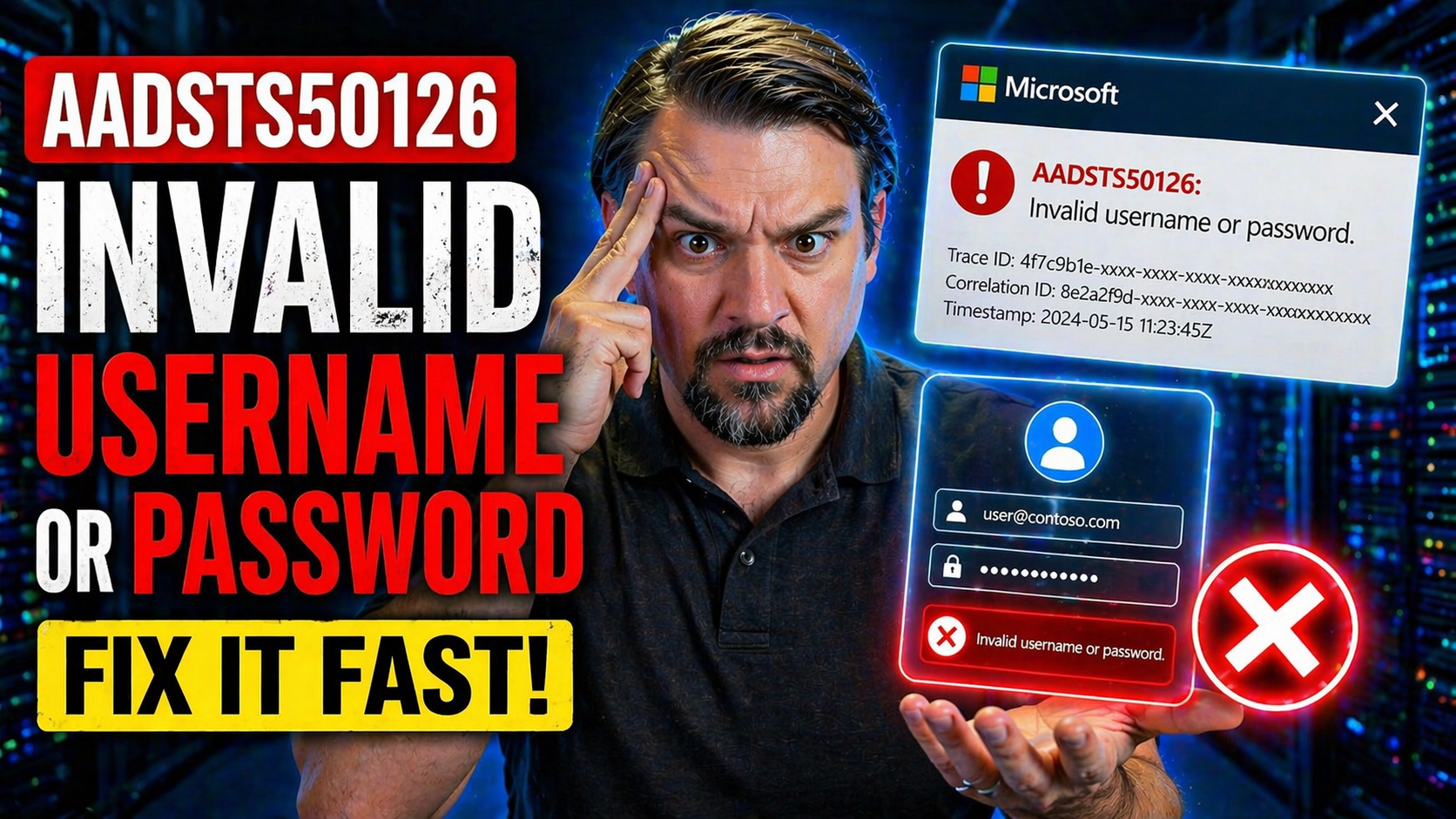
The AADSTS50126 error in Microsoft 365 pops up when you try to sign in and the system thinks your username or password isn’t right. You might see this code during login attempts, which feels like hitting a locked door even when you’re sure you have the key. This guide breaks down what that message actually means, why it happens, and—most importantly—what you can do about it.
We’ll walk you through the most common causes, user and admin troubleshooting steps, advanced backend fixes, best practices to prevent the error from happening again, and where to go for support if you get stuck. Whether you’re resetting your own password or managing an entire organization’s sign-in issues, this page is your go-to resource for resolving the AADSTS50126 "invalid username or password" roadblock.
Understanding the AADSTS50126 Error Message and Its Causes
When you see the AADSTS50126 error message, it means something didn’t add up in the sign-in process on Microsoft 365 or Microsoft Entra ID. At its core, this message is Microsoft’s way of telling you that the credentials provided can’t be validated. On the outside, it seems simple: invalid username or password. But, under the hood, there’s a whole mix of reasons that could be triggering it.
This error can turn up during different authentication attempts—whether it’s a typical browser login, trying to access email through Outlook, or connecting legacy apps and scripts. Sometimes, it really is a typo or a forgotten password. But other times, there’s a lot more going on, like expired passwords, backend sync delays, or something off with the company’s authentication setup. You could even have all your credentials correct but still get stopped by tricky access controls or outdated connectors.
Knowing what causes the AADSTS50126 error is a game-changer for troubleshooting. The more you understand the “why,” the less likely you are to chase after dead ends. Sometimes, the problem sits with a single user and their credentials; other times, it’s affecting multiple people due to a bigger system setting or policy. Spotting this difference right away helps you fix issues faster and keeps your accounts running smoother for everyone involved.
Common Causes and Problems Leading to Invalid Username Errors
- Mistyped Credentials: The most common culprit is simple human error—misspelling the username, leaving caps lock on, or entering an old password. Even a small typo can cause Microsoft to flag the login as invalid.
- Expired Passwords: If your organization enforces password changes, an unchanged or expired password will trigger AADSTS50126. Users often forget to update credentials across all devices, leading to repeated failures.
- Account Lockout or Disablement: Multiple failed sign-in attempts can result in a lockout policy kicking in, or an admin might have disabled the account for some reason. Both scenarios will produce this error, regardless of how accurate your latest login attempt actually is.
- Directory Synchronization Issues: Organizations with on-premises Active Directory synced to Microsoft 365 can face delays or problems pushing password changes. If the on-premises password hasn’t synced yet or gets stuck, sign-in fails in the cloud environment until everything matches up.
- Misconfigured Identity Providers or Connectors: Third-party connectors or misconfigured settings in systems like Cloudiway can store outdated credentials. Even with the right password, these backend issues may still prompt an invalid username or password error.
Step-by-Step Solutions to Fix AADSTS50126 Sign-In Issues
If you’re staring down the AADSTS50126 error, don’t sweat—it can be fixed, but you’ve got to pick the right remedy based on your setup. This section gives you practical troubleshooting steps for both everyday users and more technical admins. You’ll find go-to actions like resetting your Microsoft 365 password using the Admin Center, along with advanced fixes using PowerShell scripts for those running bigger or hybrid environments.
These solutions are designed to address the most common reasons behind the error, but read through and choose what fits your scenario. For single user lockouts or simple mistakes, the admin-driven password reset might be all you need. In more complex scenarios—like bulk user problems, automated onboarding, or integrations—the advanced scripting path will save you time. Dive into the details below to get step-by-step help and restore smooth sign-ins without missing a beat.
Microsoft 365 Password Reset Solutions Using the Admin Center
- Log into the Microsoft 365 Admin Center: Navigate to https://admin.microsoft.com/ using a browser. Use an account with admin permissions.
- Find the affected user: In the left menu, select ‘Users’ > ‘Active users.’ Search for the username experiencing sign-in issues.
- Begin the password reset: Select the user, then click ‘Reset password’ in the user’s account settings panel.
- Choose password delivery: Generate a secure new password, then select whether to let the user change their password upon next login or send the reset email directly.
- Save and advise the user: Confirm the change and share the login instructions securely. Ask the user to sign in using the new credentials and ensure all connected apps update with the new password.
Updating M365 Passwords with Microsoft Graph PowerShell
- Install Microsoft Graph PowerShell: Run Install-Module Microsoft.Graph in an elevated PowerShell session if not already installed.
- Connect to Microsoft Graph: Use Connect-MgGraph -Scopes "User.ReadWrite.All" and sign in with admin credentials.
- Update the user’s password: Run:
- Update-MgUser -UserId <username> -PasswordProfile @{ Password = 'NewStrongPass!123'; ForceChangePasswordNextSignIn = $true }
- Replace <username> with the user’s email or UPN.
- Notify the user: Advise the affected person on the new password, and remind them to update saved credentials in all apps and devices.
This method is especially helpful for admins managing resets in bulk or working in automated or hybrid environments. (For more tips on Microsoft 365 automation, you can check the latest podcast discussions on PowerShell automation and governance.)
Admin Troubleshooting for AADSTS50126: Connectors and Conditional Access Checks
Not every AADSTS50126 error is about a forgotten password. For admins with larger Microsoft 365 or hybrid environments, backend systems and policies often play a big role. Sometimes, stale credentials in connectors like Cloudiway or a misstep in your hybrid setup can block access for many users. Other times, the issue might be caused by tight conditional access policies that accidentally deny valid users.
This section covers advanced troubleshooting for those more persistent cases. You’ll get an overview of how to pinpoint whether it’s a connector credential causing the headache, or if it’s a security rule shutting the door. Fixing these typically means syncing up your integrations and thoroughly reviewing every conditional access and identity policy for potential gaps. If you want a deeper dive into keeping your identity security tight and managing conditional access risks, you might find value in the Entra ID security loop podcast or the guidance on Conditional Access policy trust issues.
How to Update Connector Credentials in Cloudiway and Hybrid Setups
- Access your connector management tool: Log in to Cloudiway, your hybrid identity portal, or the relevant admin dashboard where connector settings are managed.
- Identify outdated credentials: Review each connector’s authentication settings. Look for expiration dates or last updated fields that can reveal stale credentials.
- Update authentication data: Enter the most recent username and password, re-authorizing the connector as required by the system.
- Save and test integration: After updating, validate the connector works by running a connection test or initiating a workflow that uses the updated integration.
- Monitor sign-ins: Watch for immediate improvements in login success rates. Persistent errors may need a deeper review of system permissions or identity configurations.
Verify User Access and Conditional Access Policies for Troubleshooting
- Review account status: In the admin portal, check that the user is enabled and not locked out or disabled for any reason.
- Check Conditional Access assignments: Open the Azure admin or Entra ID portal and review which Conditional Access policies apply to the affected users or groups.
- Look for block rules: Check for policies that could be blocking sign-ins based on location, device compliance, or risk level—even with correct credentials.
- Audit policy effectiveness: Use sign-in logs and policy insights (and explore strategies like those in this identity security loop podcast or on building predictable access policies) to track down unexpected denials or policy conflicts.
- Re-evaluate and adjust: Modify or remove unnecessary restrictions, and set a regular review schedule to prevent future access roadblocks from outdated or overbroad policy settings.
Preventing Future AADSTS50126 Issues: Password and Sign-In Management
Fixing an AADSTS50126 error is great, but stopping it from happening again is even better. The secret? Stay proactive instead of just playing catch-up each time a user gets locked out. This section sets you up with practical strategies to reduce future incidents for both individuals and organizations.
Consistent password policies—enforced with reminders before passwords expire—go a long way in keeping disruption to a minimum. Regular password updates, strong credential standards, and real-time notifications all help users keep their access smooth. On the admin side, digging into sign-in logs and catching patterns of failed logins or system glitches can surface issues before they start impacting users across the board. With early detection and solid management practices, you turn “crisis mode” into simple, predictable maintenance.
Implement Strong Password Policies and Expiration Reminders
- Set strong password rules: Configure your organization’s password policy to require long, complex passwords with a mix of uppercase, lowercase, numbers, and symbols.
- Enable automatic expiration notices: Turn on features—either built-in to Microsoft 365 or via a third-party tool—that remind users before their passwords expire, giving them time to update proactively.
- Encourage regular password changes: Mandate periodic password resets to avoid outdated credentials lingering in the system.
- Educate on password hygiene: Send out simple reminders about password safety, such as not reusing passwords across different apps or sharing them via email.
- Monitor compliance: Use regular audits to make sure everyone follows password policy. Catching non-compliance early helps break bad habits and keeps the error rates down.
Monitor Entra ID Sign-In Logs to Troubleshoot Code Issues Early
- Access sign-in logs: Log into the Entra ID or Azure AD portal and view the sign-in activity for your organization.
- Look for failure patterns: Filter for AADSTS50126 codes or repeated failed login attempts, especially at odd hours or from unexpected locations.
- Investigate recurring issues: If multiple users experience failures at the same time, it might suggest a system-wide misconfiguration rather than just user error.
- Automate alerts: Set up notifications for repeated AADSTS50126 events to address problems before they turn into big outages.
- Expand auditing for compliance needs: Consider using tools like Microsoft Purview Audit for advanced monitoring, especially in regulated environments where long-term tracking and compliance are critical. (For more, learn about auditing user activity with Microsoft Purview.)
Support Resources and Community Feedback for AADSTS50126 Help
If you’ve burned through all the standard fixes and still find yourself battling the AADSTS50126 error, it’s time to call in backup. This last section is here to point you toward the best official resources, documentation, and support channels out there. Whether you’re a business user who needs a quick answer, or an IT admin troubleshooting a stubborn system issue, you’ll find helpful links and avenues for resolving even the trickiest sign-in problems.
We’ll also touch on how to share your feedback or suggest improvements to Microsoft or third-party vendors like Cloudiway. User-driven input is vital for shaping future updates—for both everyday headaches and those persistent issues that don’t quite fit any official help guide. With the right support, you’ll cut down on downtime and help improve the sign-in experience for everyone.
Official Support Resources and Cloudiway Assistance
- Microsoft Documentation: Microsoft’s official docs offer updated guidance on sign-in errors, code explanations, and step-by-step fix instructions. Always start here for verified and current solutions.
- Microsoft Support Portal: Submit tickets directly to Microsoft if your issue persists or requires deeper investigation. The portal provides tracking and escalation pathways for urgent problems.
- Cloudiway Help Center: If you use Cloudiway for migration or hybrid connections, their help center provides troubleshooting articles focused specifically on authentication and connector-related AADSTS50126 errors.
- Community Forums: Platforms like Microsoft Tech Community or Reddit often feature real-world problem-solving from other admins and end-users who’ve faced (and solved) similar issues.
Submit Feedback or Request Improvements for Persistent Issues
- Microsoft Feedback Portal: Share unresolved sign-in problems or suggest features. Your reports drive product improvements and bug fixes.
- Cloudiway Support Ticket: Escalate persistent connector or migration errors directly to Cloudiway engineers for hands-on troubleshooting.
- UserVoice and Community Channels: Add your voice to community requests or vote for features that would improve authentication workflows for everyone.
- Describe your case clearly: When submitting feedback, include detailed error messages, affected user counts, and steps already taken. This speeds up accurate responses from support.
🎧 You Should Also Listen To
Conditional Access – Simply Explained
Learn how Conditional Access evaluates identity, device, risk, and context before allowing access.
Privileged Identity Management (PIM) – Simply Explained
Explore just-in-time privileged access and the governance controls behind safer administrator roles.
Microsoft Entra Permissions Management – Simply Explained
Understand modern permissions governance and why visibility into access matters for Microsoft identity operations.

Microsoft MVP | Host of M365.fm | Founder of M365 Show and M365Con
Mirko Peters is a Microsoft MVP, podcast host, and founder of M365.fm, M365 Show, and M365Con. His work connects Microsoft practitioners through podcast interviews, livestreams, and community events.
At M365.fm, Mirko hosts conversations with Microsoft MVPs, product experts, architects, and community contributors. Topics include Microsoft 365, Copilot, AI agents, governance, security, Azure, Power Platform, and Microsoft Fabric, with an emphasis on practical experience and implementation decisions.
M365.fm is the podcast and learning platform. M365 Show brings experts together for livestreams, while M365Con provides an online conference setting for community learning.
Official website: Mirko Peters (https://www.mirkopeters.com/). Recognition: Mirko Peters — Microsoft MVP profile (https://mvp.microsoft.com/de-DE/mvp/profile/9b0ca797-db5a-493a-a845-8b9158046cf5). Connect on LinkedIn (https://www.linkedin.com/in/m365showpodcast/).




