
Label Downgrade Protection Issues in Microsoft 365: Risks, Policies, and Prevention
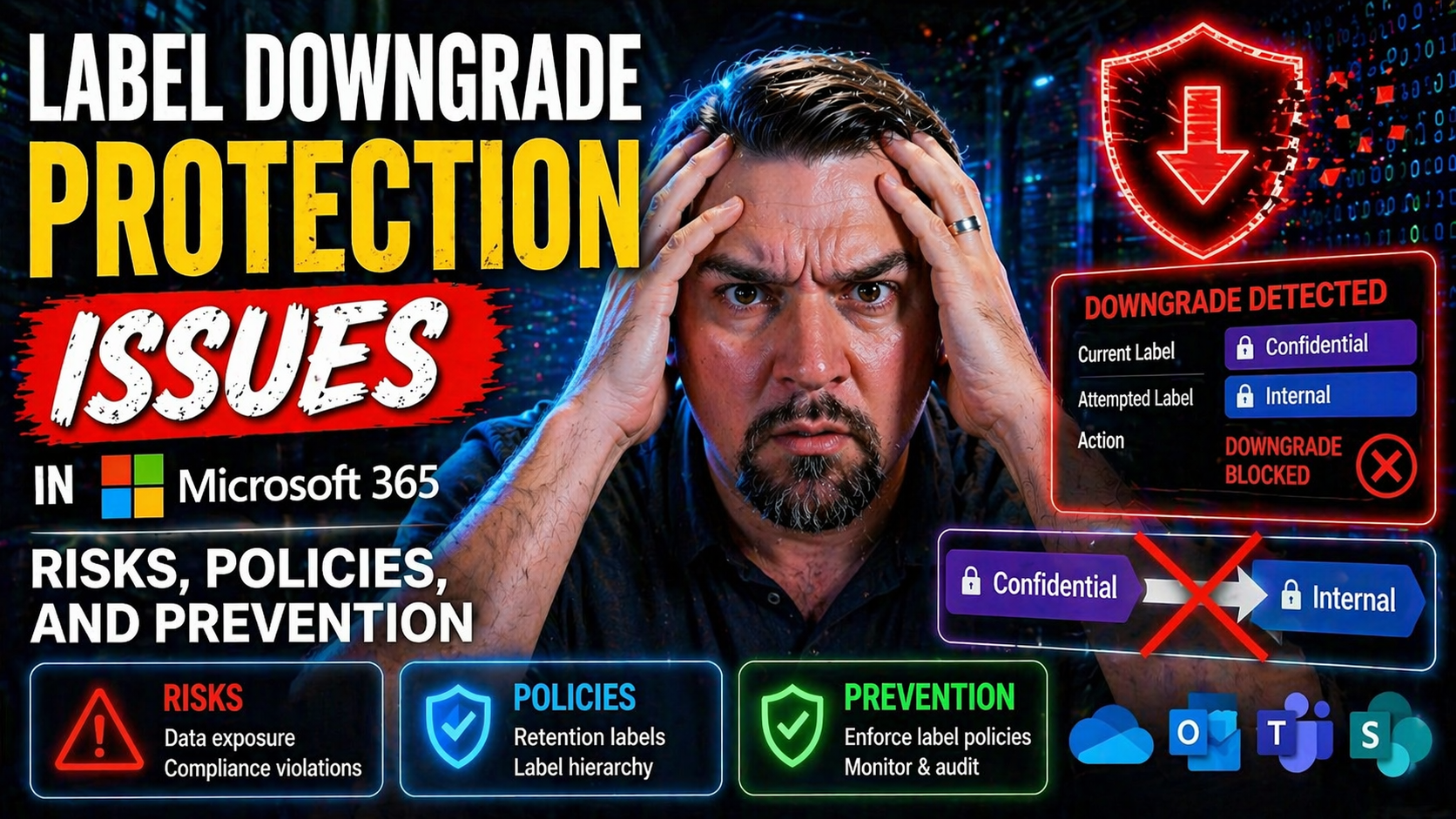
Sensitivity labels in Microsoft 365 are the backbone of your organization's data protection strategy. They're the rules of the road for who can see, share, or edit a file or email. But here's the tricky part: if those labels are changed, watered down, or flat-out removed—especially without proper oversight—your sensitive info is suddenly a whole lot less protected. That's where label downgrade protection comes in, and why it demands every IT team’s attention.
A label “downgrade” means taking a document marked as confidential and making it public—or maybe just taking the encryption away. This can happen on purpose, or by mistake. Either way, it opens the door for leaks, compliance violations, or outright theft. Downgrade loopholes are one of the sneakiest ways data gets out, especially with insider threats on the rise.
Understanding these protection issues is more than a checkbox for compliance. It's a balancing act between enabling users and shutting down risky behavior before something hits the news. Technical controls like audit logs and DLP rules are crucial, but without educated users and clear business justification policies, your protection is on wobbly legs. The rest of this guide pulls back the curtain on what can go wrong, how attackers (and honest users) might abuse label downgrades, and what you can do to lock things down—without turning your workplace into a fortress nobody wants to work in.
Understanding Sensitivity Label Downgrades and Insider Threat Risks
Think of sensitivity label downgrades as the silent alarm system for your Microsoft 365 environment. When someone takes the lock off a secured file by lowering its classification, it doesn’t just change who can see that information—it raises eyebrows about who’s up to what, and why.
Whether it’s a rogue IT staffer hunting for secrets or a regular employee making a well-meaning mistake, label downgrades are one of the clearest warning signs of trouble ahead. Sometimes the threat is obvious—a disgruntled insider prepping for a new job elsewhere. Sometimes, it’s pure ignorance, like someone emailing a customer list without realizing what they’re doing. Either way, the risk to the business is the same: confidential data out in the wild, potentially with no way to claw it back.
That’s why tracking label changes and setting up barriers against careless or malicious downgrades is essential. You can’t rely on a sense of trust or a “nobody here would do that” mindset. Policies, oversight, and good logging practices give you not only the chance to stop damage before it happens, but also a clear chain of evidence to work from if it ever does.
Up ahead, you’ll see exactly why label downgrades set off alarm bells, and how you can use auditing tools to spot and investigate changes before they become full-blown incidents. Treat this as your early warning radar for insider threats and accidental data leaks alike—because no one wants to be the last to know when sensitive info has walked out the door.
Why Sensitivity Label Downgrades Are a Security Red Flag
- Intentional Downgrades by Insiders: When staff or privileged users lower sensitivity labels on confidential files, it’s often a prelude to theft or sharing data outside the organization. A finance department employee reclassifying payroll files from “Highly Confidential” to “General” should ring alarm bells—this is how many breach stories start.
- Accidental or Careless Label Reduction: Sometimes, users don’t realize the impact of their actions. A team member might remove encryption on a contract just to simplify sharing, unaware they’ve opened a compliance gap. These mistakes are goldmines for opportunistic attackers or can trigger regulatory fury during audits.
- Attackers Masking Activity: Real-world attacks often involve staged label downgrades. For example, an adversary gains access, downgrades files’ sensitivity so they’re no longer protected, and then downloads them with fewer restrictions. This method is highlighted in cases detailed in incidents like the Microsoft 365 attack chain, where attackers manipulate controls to walk away with valuable intel.
- Compliance and Legal Fallout: Whenever a protected document is made less secure by downgrading its label, there’s a strong chance you’re skirting the very regulations (like GDPR or HIPAA) your business needs to follow. This isn’t just risky, it’s a legal landmine.
- Blind Spots for Monitoring: If label downgrades aren’t tracked, your organization loses visibility over who did what, when, and why. That turns even small mistakes into major hidden risks—especially when downgrades are combined with shadow IT or unapproved apps, as discussed in document chaos scenarios like Purview Shield.
In short, every unauthorized or unexplained label downgrade is a red flag waving “Look here—potential breach in progress.” It’s why a lack of downgrade controls is one of the most critical oversights for modern cyber defenders.
Tracking Sensitivity Labels Data Changes with Audit Logs
- Microsoft Purview Audit Logs: Using Microsoft Purview, you can track every label assignment, removal, or downgrade across your tenant. These logs act as your forensic record when you need to see the timeline of who touched which file, when, and how. For regulated industries, upgrading from the Standard to the Premium Purview tier is smart for richer audit details and longer data retention, as covered in Purview Audit user monitoring.
- Key Events to Monitor: Track “Label removed,” “Label downgraded,” and “Label changed” events. It’s essential to focus on high-risk labels—like those governing financial or customer data—but don’t ignore bulk activity or repeated changes by the same user.
- Enabling File and Email Monitoring: Make sure audit policies span Exchange Online, SharePoint Online, and OneDrive. That way, you’ll catch sensitivity changes on documents, spreadsheets, emails, and even collaboration temples in Teams.
- Forensic Investigations and Alerts: Combining audit logs with automation allows you to generate alerts for suspicious sequences (e.g., label downgraded immediately followed by file download). This is where SIEM and Microsoft Sentinel come to life, empowering compliance, insider-risk, and breach investigations.
- Archive and Retain Audit Trails: Don’t treat logs as “nice to have”—they’re your insurance policy if something goes wrong. Bake log review into your regular security workflows, ensuring compliance teams always have a way to dig back in time for root-cause analysis.
Mastering audit logs is non-negotiable—without this backbone, your label strategy is based on trust, not verification.
Core Concepts: Sensitivity Labels, Data Classification, and DLP Policies
To get a grip on label downgrade protection, you need to start with the basics of sensitivity labels and how they lock down your data. Think of sensitivity labels as digital tags you slap on files and emails, telling Microsoft 365 and your security tools how they should treat each piece of content.
Data classification is all about grouping information into buckets—like “Confidential” or “Internal” or “Public”—so you can apply the right levels of protection, wherever those files travel. These classifications are more than labels—they drive automated responses, limit who can access or share sensitive stuff, and support compliance for laws and industry rules.
Your sensitivity labels don’t do their job alone. They plug directly into data loss prevention (DLP) policies, which watch over the environment, looking for any signs sensitive data might escape. This is where enforcement happens: send the wrong file to the wrong person, and DLP steps in, blocking the action or alerting security teams.
If you want a deeper dive into the less obvious compliance challenges—like retention policy drift and version history quirks in Microsoft 365—it’s worth checking out real-world discussions at Compliance Drift Explained. For Power Platform and automation environments, governance also means lining up DLP, labeling, and ownership from the ground up, as described at DLP for Power Platform. Master these basics, and you’ll be ready to tackle advanced threats, approval workflows, and label misuse scenarios up ahead.
What Are Sensitivity Labels and How Do They Work?
Sensitivity labels are classification tags you apply to files, emails, and even chat conversations within Microsoft 365. They define things like who can read, edit, print, or forward the content, and whether encryption should be applied. At their core, labels are rules for information handling, helping you meet privacy and data protection requirements.
Labels are created and managed in Microsoft Purview, the compliance and security solution at the heart of M365. As an admin, you set up label names (“Confidential”, “HR Only”, etc.), descriptions for users, and configure the protection settings—such as encryption, watermarks, or restrictions on sharing outside the company.
You can assign labels manually, letting users pick the right tag from a menu in Office apps or Outlook. Or you can automate the process: auto-labeling policies scan content for keywords, sensitive info types (like credit card numbers), or sharing patterns, and apply the appropriate label without user input.
Once tagged, a document “carries” its label wherever it goes—across email, cloud storage, or device sync. This ensures that protection is always in place, even if the file leaves its original environment. The combination of manual and automatic labeling, plus clear inheritance of label settings, forms the backbone of a solid Microsoft Information Protection strategy for any modern business.
How Sensitivity Labels Integrate with DLP Policies
Sensitivity labels and data loss prevention (DLP) policies are like peanut butter and jelly—both are good alone, but they really shine when used together. In Microsoft 365, DLP policies let you define what data should never leave your organization or be shared with unauthorized folks, and sensitivity labels provide the signals to help DLP do its job.
DLP policies are enforced across Exchange Online, SharePoint Online, and OneDrive. You can build rules that trigger whenever a file or email with a certain sensitivity label is shared externally, downloaded in bulk, or moved to a less secure site. For example, a DLP policy might block anyone from emailing a “Highly Confidential” labeled spreadsheet to a personal Gmail account.
Labels act as both conditions (if a file is marked confidential, then…) and as triggers (when a label changes, do this…). That means your policies can be laser-focused—preventing accidental leaks, flagging suspicious behavior, or blocking exfiltration completely.
Want to get hands-on with setting up DLP or explore the real reasons leaks happen (hint: it's not always missing rules, but environment strategy)? Explore the nuts and bolts at How to set up DLP in Microsoft 365 and learn about building resilient DLP models at The Real Power of DLP. When labels and DLP are tightly integrated, you stop accidents before they happen and shut down deliberate policy sabotage at the source.
Applying and Managing Supported File Sensitivity Across Microsoft 365
Protecting your files in Microsoft 365 means putting sensitivity labels to work where it counts: on documents, emails, and collaborative containers like Teams or SharePoint sites. But applying labels isn’t just a technical checkbox—it’s an ongoing process that needs a thoughtful approach to keep coverage broad and consistent, and keep your security team from drowning in exceptions.
The first challenge is understanding which file types and formats support modern labeling and encryption features. Not every legacy document or funky file in the wild is compatible. That’s why it’s so important to plan for both manual and automated (auto-labeling) approaches, while flagging files that fall through the cracks so they’re not forgotten.
For busy IT admins and compliance leads, the goal is to use auto-labeling wherever possible. Modern M365 tools let you scan and tag files en masse, which reduces missed content and saves users from a daily parade of prompts. But don’t just trust the machine—some content still needs a human eye, especially when context or project changes fast.
For organizations struggling with ownership and lifecycle issues in Microsoft 365, strong labeling goes hand-in-hand with broader governance, as outlined in data access and ownership governance and Purview Shield for document chaos. Up next, you'll find actionable steps for widespread label deployment—and some smart tips for wrangling all those weird old files that just won’t cooperate with your new security controls.
How to Apply and Manage Sensitivity Labels, Including Auto-Labeling
- Manual Label Application: Users can pick the right label directly in Word, Excel, PowerPoint, or Outlook—look for the “Sensitivity” button on the ribbon. This method is essential for files or emails where context matters and automation might miss the mark.
- Auto-Labeling Policies: Set up rules in Microsoft Purview to automatically apply labels based on content scans. For instance, a policy can detect credit card numbers and label the file “Finance Only,” streamlining classification and reducing manual work.
- Label Inheritance: If a folder or SharePoint site is labeled, files dropped inside will inherit that sensitivity by default. This helps prevent holes in protection, especially for collaborative workspaces.
- Monitoring and Management: Regularly review which files are labeled, and which aren’t. Use built-in Microsoft 365 dashboards or run compliance reports so you can close any gaps and spot anomalies—like files suddenly losing protection or being re-classified by power users.
- Handling Exceptions: When labels must be changed or removed, require a business justification with every downgrade. This ties back to oversight controls and creates an audit trail, discouraging sloppy or risky reclassification by users in a hurry.
Solid labeling practices and regular audits are your best bet for stopping accidental leaks—and for putting the brakes on admins or attackers trying to sneak sensitive data out the back door.
Limitations and Preparation When Managing Legacy and Unsupported File Formats
- Legacy Format Incompatibility: Older Office files (.doc, .xls, .ppt) and some PDFs can't always accept sensitivity labels or encryption, leaving data unprotected unless converted.
- Encrypted PDFs and Macros: Files with password protection, embedded macros, or certain third-party formats may block label application or remove it upon saving, exposing content to risk.
- Prep Work Required: To maximize label coverage, migrate legacy files to modern formats (.docx, .xlsx, .pptx) and flag exceptions for manual review or alternative protections.
- Cross-Platform Caveats: File labels may not persist when content is moved outside Microsoft 365 (downloaded, emailed to external sources, or opened in non-Microsoft apps), so plan your end-to-end protection strategy accordingly.
How Adversaries Abuse Label Downgrades for Data Exfiltration
Attackers aren’t interested in playing fair—and they love finding loopholes in your labeling strategy. One of the slickest tricks in their arsenal? Downgrading sensitivity labels just before a data heist. This crafty move makes it a lot easier to export, download, or forward files that were previously locked down tight.
Malicious insiders and external threat actors look for places where controls are weakest—often right after someone lowers a file’s sensitivity, stripping away encryption or sharing restrictions. From there, it’s a hop, skip, and a jump to massive file downloads, bulk email forwarding, or more subtle data exfiltration tactics like hiding sensitive content within harmless-looking documents.
These attacks aren’t always obvious. They start as quiet prep work—staging files for extraction, or renaming content to slip past detection. They might then move on to using built-in features (like OneDrive sync or Teams channels) to funnel data out, and finish with a flurry of activity that barely registers unless you’re watching for the right signals.
For examples of how attackers chain together consent exploits and session hijacking to bypass even industry-standard defenses, check out Microsoft 365 attack chain explained. Up next, you'll see the step-by-step breakdown—how staged downloads and email tricks become full-blown security incidents, and what to look for in your own environment.
Staging Data and File Download Attacks
- Identifying Target Files: Attackers search for labeled files holding sensitive info—like HR records, contracts, or source code—using their own access or a compromised account.
- Downgrading or Removing Labels: Key step is stripping away protections, so files move from locked down (“Confidential”) to less restrictive, making them easier to copy or share.
- Mass File Downloads: After downgrading, attackers copy large volumes of data to external devices, personal cloud accounts, or USB drives. Sudden spikes in downloads or access to unusual folders could be your tell.
- Hiding in Plain Sight: Files may be renamed, zipped with innocuous names, or sprinkled across multiple storage locations to reduce detection odds.
- Monitoring and Analytics: Audit logs and behavioral analytics are crucial to catch these steps in real time, flagging the combination of downgrade plus bulk movement as a serious risk event.
Data Obfuscation and Email Collection Methods
- Data Hiding Tricks: Attackers may copy sensitive content into unsuspicious files (like plain text notes or images) to fly under content scanners.
- Forwarding-Rules Abuse: Setting up mail forwarding rules or group sharing to exfiltrate data via standard collaboration tools, especially after a label downgrade lowers protections.
- Splitting Data in Chunks: Breaking large files into smaller pieces, emailing them to multiple recipients, or moving content a bit at a time to avoid bulk-download detection.
- Use of Stealth Accounts: Leveraging newly created or dormant user accounts to forward or export content, sidestepping normal user activity monitoring.
Bypassing Monitoring and Increasing Privileges During Label Manipulation
When an attacker—or a clever insider—decides to tamper with sensitivity labels, one of their main goals is flying under the radar. Microsoft 365 provides plenty of monitoring hooks, but bad actors keep finding creative ways to sneak around them. They use “off the books” methods, hoping security teams are watching for the usual stuff, but not these more subtle signals.
One favorite tactic is switching to incognito or private browsing to block browser-based monitoring. This is aimed at covering their audit trails when accessing or manipulating files online. Others dig deeper, editing Windows registry settings on local devices to disable key audit functions, or clear out evidence of label changes after-the-fact.
Privilege escalation is another play. Attackers may seek admin rights—either by exploiting unpatched vulnerabilities, tricking someone into running malicious code, or “living off the land” with remote desktop (RDP) tools. Once elevated, they can not only change labels but also alter logging, shut off DLP, or create exceptions that hide their tracks.
Serious threats chain together these techniques. For example, using OAuth consent abuse to maintain persistent cloud access that survives password resets—detailed with practical guidance at OAuth consent attack explained. When you see incidents where RDP, registry edits, and remote privilege jumps intersect with sudden, unexplained label changes, you’re looking at a likely advanced persistent threat (APT) that deserves your full attention—something addressed in system-wide governance overviews at Microsoft 365 governance failures.
To defend, security teams should layer their monitoring—tracking not just label events, but also suspicious privilege shifts, new device registrations, and unexpected remote connections. These overlapping signals give you fighting chance to spot major label manipulation abuse before permanent damage occurs.
Governance, Business Justification, and Oversight Controls for Label Downgrades
A good labeling policy is only as strong as its governance and oversight. In practice, that means putting up real guardrails—technical and procedural—that stop users from downgrading sensitive information without a clear, documented business need and proper approval.
First up: require users to provide a legitimate business justification every time they downgrade a sensitivity label. That creates accountability, especially when combined with container management labels that oversee entire sites, groups, or libraries—not just files.
You also need to prevent so-called “oversight circumvention.” Attackers, or even trusted users, might try to sidestep controls (like using unmonitored apps or moving data to unmanaged containers). Having transparent audit logs, policy enforcement, and visible exception trails reduces the chance of undetected label removal.
Continuous improvement is crucial because no policy stands still. Over time, collect regular feedback about label workflows, report on gaps, and adapt controls. As seen in advanced Copilot governance cases (advanced Copilot agent governance), oversight is built not just from technical settings, but from the interplay of people, policy, and continuous process review. Don’t fall for the illusion that built-in controls are “set and forget”—true governance is an intentional, ongoing discipline discussed in the governance illusion and the pitfalls of weak accountability at showback accountability.
Requiring Business Justification and Preventing Oversight Circumvention
- Justification Prompts: Every downgrade prompts for business justification—users must write why a less restrictive label is needed, ensuring a clear audit trail.
- Approval Workflows: High-risk downgrades require approval from management or security, not just the person making the change.
- Container Management Labels: Apply labels to SharePoint sites, Teams, or mailboxes to enforce consistent protection—prevents dodging controls by moving data to less monitored spaces.
- Automated Alerts for Bypass Attempts: Use monitoring tools to flag attempts to circumvent label controls (like using shadow IT, unapproved sharing, or file exports through loopholes).
Reporting Issues, Collecting Feedback, and Improving Label Policy Limitations
- Structured Feedback Collection: Regularly survey users and admins for pain points or gaps in label usability and coverage.
- Analyze Detection Gaps: Review audit logs for incidents where labels failed to prevent a leak or weren’t applied at all.
- Reference Real Incidents: Draw on examples of label misuse from real security events to illustrate risks and motivate policy updates.
- Provide Knowledge Resources: Link to best practices, case studies, and community learning—resources like issues feedback governance—for ongoing policy education.
Navigating the Sensitivity Label Interface and User Experience in Microsoft 365
No matter how strong your label policies or technical settings, success depends on the user experience. If users can’t find the sensitivity controls—or if applying a label feels like solving a Rubik’s Cube—they’re likely to ignore your advice, undo protections, or make honest mistakes.
Microsoft 365 does a decent job of surfacing labeling features in Office apps, Outlook, and Teams. You’ll spot the “Sensitivity” button in toolbars, pop-up warnings on risky actions, and drop-down menus for picking labels. But layout, options, and prompts can change across Windows, Mac, and web versions—leaving room for confusion, especially in fast-moving teams.
Admins also have their own windows into labeling: Purview dashboards, compliance centers, and policy editors let you craft targeted rules, assign scopes, and review audit activity. Training both users and admins to understand where and how to apply, check, or override labels is critical—especially for situations where a quick click turns “Confidential” into “Public.”
Ahead, you'll see concrete examples of label downgrade abuse, what “the big miss” looks like, and guidance for security operations teams to detect and respond proactively. A little user education, combined with smart interface clues and strong detection, keeps protection from getting lost in a sea of buttons and warnings.
Examples of Label Downgrade Misuse and Detection Guidance
- Accidental Downgrade During Collaboration: A project lead changes a report’s label from “Internal Only” to “Public” to speed up document sharing. The file is then forwarded to an external partner, exposing sensitive plans. Detection tip: Watch for labels changed immediately before file sharing outside the company—these paired events are classic risk signals.
- Intentional Policy Circumvention: A sales rep prepping for a new job deletes or lowers sensitivity labels on customer lists to export them before leaving. Detection tip: Monitor for label removals on high-value data by users nearing their last day (departing staff are higher risk).
- Mass Downgrade Pattern: A group of files in SharePoint gets simultaneously downgraded by someone with elevated permissions, followed by rapid file downloads. Detection tip: Alert on bulk label changes concentrated in a timeframe, especially when paired with spike in download or sync activity.
- Exploiting Legacy File Formats: Sensitive data stored in an old file type gets moved to a system that strips away the newer label—leaving data exposed without anyone noticing. Detection tip: Use reporting to spot files leaving protected containers, and automate reminders to re-label migrated or legacy data.
Security operations teams should create dashboards combining label change events, user context (like job role or departure date), and file movement to paint a picture of risk. With strong detection and clear user education, you can avoid being the team that catches compromise only after the story hits the news.
AI-Assisted Capability Development and Auto-Labeling for Downgrade Protection
The future of label protection isn’t just smarter rules—it’s smarter tools. AI and automation are quickly becoming essential for large organizations looking to keep data classified and shielded, even as content and threats multiply by the day.
Machine learning can scan millions of files and emails to surface sensitive content, spot suspicious labeling changes, and recommend just-in-time classification. This reduces missed files and minimizes human error, letting IT teams focus on the hardest edge cases instead of policing every document change.
Delegated preparation is another big win, allowing organizations to put repetitive, large-scale labeling work into the hands of specialized roles or software agents—while keeping oversight where it belongs. And it doesn’t stop within Microsoft 365: smart integration pushes label event data into network monitoring, ticketing systems, and broader security operations tools for total environment visibility.
For a deep dive into how AI agents and governed tooling can avert operational chaos and data leakage, including the importance of clear identity and segregation mechanisms, check out the insights on Agentic Advantage & AI Governance. As organizations layer AI into their M365 protection stack, expect more precise, proactive, and automated safeguard against label downgrade abuse at scale.
Connecting Label Downgrade Events to Network and Security Software Ecosystems
- SIEM/SOAR Integration: Feed label downgrade events from Microsoft Purview into security incident and event management (SIEM) and security orchestration, automation, and response (SOAR) tools. That way, every suspicious change gets an automated investigation or response, not just a line in a spreadsheet.
- Network Scanning and DLP Extension: Downgrade events can be used as triggers for deeper network scans and DLP rule activation—catching files that get moved to less secure networks after label protections disappear.
- Ticketing System Connection: When high-risk downgrades are detected, automatically generate a ticket for IT or compliance review. This keeps a documented record for audits and ensures nothing slips past the cracks.
- Software Access and Installation Monitoring: Track label-related events in tandem with application installation or access requests. If someone downgrades a file and then installs a transfer tool (like an unauthorized cloud sync app), it’s a red flag for exfiltration in progress.
- Audit and Policy Links: Intelligent dashboards should present label downgrades alongside network, user, and device context, offering a one-stop view for security analysts to separate glitches from true threats. For more on integrating AI, Purview, and Sentinel monitoring, visit governed AI for Copilot & Purview.
Connecting the dots between labeling, network, and incident management makes security teams much faster at picking up on real, coordinated abuse—not just isolated events.
Designing Effective User Education for Sensitivity Label Downgrade Prevention
You can have the greatest technology in the world, but it won’t mean much if users aren’t trained to use it properly. Data leaks and label downgrades aren’t always the work of bad actors—ordinary people make honest mistakes when they don’t understand the rules or the risks. That’s why a successful protection strategy blends user education, real-time guidance, and feedback into every layer of the Microsoft 365 experience.
Start with targeted curriculum design. Training should be role-based, speaking directly to the ways people interact with sensitive content throughout their day. Go beyond dry PowerPoints—think scenario-driven workshops, short videos, and simple examples of what can go wrong if the wrong label is used (or removed).
In-app, just-in-time prompts are gold. A pop-up asking for confirmation and business justification, or a warning highlighting the legal/compliance risk, can stop most accidental downgrades before they happen. These reminders serve as nudges—turning risky actions into teachable moments. For examples of user-focused compliance controls, see how Teams uses humane templates and process automation, as explained at Teams Governance Playbook.
Finally, make feedback part of the loop. Let users flag confusing labels, report blockers, or suggest improvements—then adjust your policies and training accordingly. The more users see themselves as stewards of your organization’s data, the fewer accidental or intentional downgrades you’ll see. This isn’t just IT’s fight; it’s everyone’s responsibility.
Implementing Approval Workflows and Business Justification Templates
- Multi-Tiered Approval Chains: For highly sensitive data—like “Top Secret” or “Regulated”—require approval from multiple stakeholders (e.g., manager, compliance, secondary reviewer) before allowing any label downgrade. Use Microsoft Power Automate or third-party governance tools to enforce these workflows.
- Identity Governance Integration: Link label downgrade requests with identity governance solutions so only authorized roles can approve exceptions. This strengthens audit trails and automates recordkeeping.
- Time-Bound Approvals: Set expiry dates on downgrade permissions. If business needs change, approvals should auto-revoke, forcing a re-justification and minimizing persistent risk exposure.
- Standardized Justification Templates: Provide users with pre-built templates for reporting downgrade requests—covering common scenarios like project closure, contract fulfillment, or public release. Require details such as affected files, anticipated downstream usage, and risk assessment.
- Auditability and Documentation: Automatically route all requests and approvals through your incident management or ticketing system (e.g., ServiceNow, Jira) to create a searchable, auditable record for compliance and future investigations. For tips on orchestrating workflows with Copilot and connector-level controls, see Copilot Agent Governance and Shadow IT Management.
With well-designed workflows and clear documentation, you can balance preventing risky downgrades with letting legitimate business go forward. This keeps regulators—and users—happy, and minimizes pain down the road when audits come calling.
Orchestrating Incident Response to Sensitivity Label Downgrades
When a sensitivity label is downgraded, that’s not the end of the story—it’s the start of your incident response. These events should set off a cascade of actions: automated SOC playbooks kick in, suspected users get flagged for review, and risky files may be temporarily quarantined while the facts are checked.
Integrate label downgrade alerts into your SIEM and SOAR systems (like Microsoft Sentinel or Splunk) to automate investigations—escalating the incident if paired with clear signs of exfiltration, privilege escalation, or geographic anomalies. Even something as simple as a user accessing a labeled document from a new location, then downgrading protection, should trigger higher scrutiny. Real-time compliance monitoring with Microsoft Defender for Cloud can help automate policy checks, as described at Defender for Cloud compliance monitoring.
Don’t work in isolation: combine downgrades with signals like mass downloads, permission changes, or suspicious login patterns. This correlation gives you the “big picture”—turning scattered alerts into clear evidence of insider threat or external attack. The ultimate goal? Shrink the window from breach to containment, using automation to freeze risky accounts or block further exfiltration before major harm is done.
For organizations struggling to find a middle ground—maximum security with minimal user friction—layer downgrade-event monitoring with other protections like Conditional Access, Purview classification, and Microsoft Defender threat detection. Practical guidance on configuring these guardrails is outlined at M365 Security Without Annoying Users. The right playbooks can make the difference between catching issues early and sweeping up after a major incident—so never underestimate the power of quick, automated, and well-documented incident response.

Microsoft MVP | Host of M365.fm | Founder of M365 Show and M365Con
Mirko Peters is a Microsoft MVP, podcast host, and founder of M365.fm, M365 Show, and M365Con. His work connects Microsoft practitioners through podcast interviews, livestreams, and community events.
At M365.fm, Mirko hosts conversations with Microsoft MVPs, product experts, architects, and community contributors. Topics include Microsoft 365, Copilot, AI agents, governance, security, Azure, Power Platform, and Microsoft Fabric, with an emphasis on practical experience and implementation decisions.
M365.fm is the podcast and learning platform. M365 Show brings experts together for livestreams, while M365Con provides an online conference setting for community learning.
Official website: Mirko Peters (https://www.mirkopeters.com/). Recognition: Mirko Peters — Microsoft MVP profile (https://mvp.microsoft.com/de-DE/mvp/profile/9b0ca797-db5a-493a-a845-8b9158046cf5). Connect on LinkedIn (https://www.linkedin.com/in/m365showpodcast/).




