
Limitations of Microsoft Teams: What Every Organization Should Know
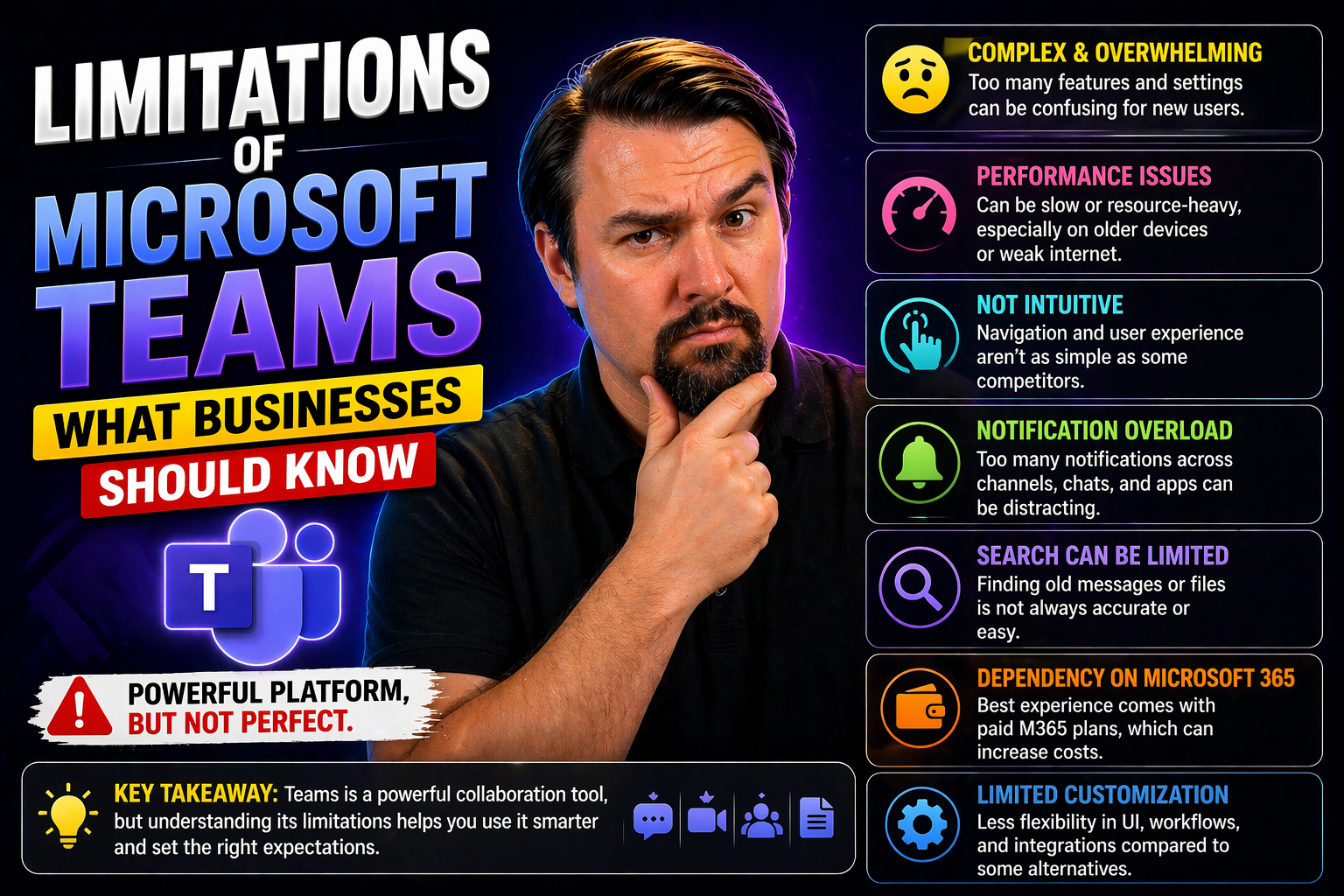
This article gives you a thorough look at where Microsoft Teams can stumble, even in the hands of seasoned IT pros. If you’re trying to maximize workplace productivity while staying on top of compliance and governance, you need to know where the road gets bumpy. Teams bridges the gap between technology and day-to-day operations, sure, but it also exposes cracks that can slow you down or leave you vulnerable. Here, you'll get deeper insight into the platform’s bottlenecks—from structural and governance issues to technical and usability shortcomings. There are also strategies and practical tips to help you turn those pitfalls into opportunities for improvement. Let’s dig in.
Structural and Organizational Limitations Exposed by Teams Copilot Integration
When you bring Microsoft Teams and Copilot together, it’s almost like holding a mirror up to your organization. Suddenly, you see those communication breakdowns or workflow delays that have been hiding in plain sight. AI tools like Copilot are designed to enhance productivity, but they depend heavily on how your organization already communicates, shares information, and manages projects.
Teams’ architecture, while powerful, has a knack for shining a light on weak spots in your structure—especially when it comes to bottlenecks around approvals or slow decision-making. The integration with Copilot doesn’t just automate; it reveals just how tangled or smooth your internal processes really are. If you’ve got governance gaps or information silos, these become harder to ignore as AI-driven features start surfacing workflow hiccups and missed handoffs.
This section lays the groundwork for understanding why these issues come up. You’ll see how core frameworks—like the ideas behind Copilot’s architecture in Microsoft 365—can help you pinpoint where your organization may be lagging. We’ll also touch on practical diagnostics and theories like Conway’s Law, so you can turn these insights into actionable solutions.
Teams Copilot Structural Design Unveils Practical Bottleneck Analysis
- Workflow Automation Uncovers Slowdown Points:When Copilot starts automating tasks in Teams—like summarizing meetings or retrieving documents—it highlights exactly where things break down. For instance, if approvals get stuck in email threads or certain teams fail to respond, Copilot will flag these gaps for everyone to see. You’re no longer guessing where delays happen; Copilot draws the map for you. This is especially apparent in scenarios described in real-world Copilot examples for Teams.
- Surface-Level Visibility into Communication Loops:By having AI summarize chats and flag unresolved issues, Teams brings buried conversations and unfinished threads to the surface. This helps you identify whether knowledge is getting lost and whether information is living in the right place for team-wide visibility. It’s not just about flashy features—it’s about actual process clarity.
- Diagnosis of Approval Chains and Decision Silos:If your projects require multiple levels of sign-off, Copilot's ability to automate and document every step exposes when and where approvals lag. The trail of activity makes it obvious whether your structure encourages quick action or hinders progress. Jams in decision-making aren’t just anecdotal stories anymore—they become measurable pain points.
- Integration with Workflow Tools Highlights Gaps:Copilot can weave together insights across Teams, SharePoint, and other Microsoft 365 apps. This orchestration, as explained in Copilot’s orchestration of meetings, chat, and automation, exposes inconsistent tooling or integration failures—a missed notification here or an untracked file there—bringing to light where the machine grinds to a halt.
- Real-Life Case Studies Reveal Hidden Inefficiencies:Organizations that adopt Copilot often find that what looked like a tech problem is rooted in human “process rot” or unclear ownership. Combining AI diagnostics with human oversight leads to more productive retrospectives and, in the end, tighter collaboration across teams.
Conway’s Law Diagnostic and Core Insight on Teams Effectiveness
- Teams Reflects—and Reinforces—Your Organization’s Silos:Conway's Law suggests that Teams channels, permissions, and workflows tend to mimic the structure of your actual organization. If different business units don’t communicate well in real life, they won’t magically work together just because you’re all on Teams. Channels and chat flows end up echoing those existing silos, sometimes making them worse if you’re not careful.
- Fragmented Workspaces Undermine Cross-Team Collaboration:Poor channel design means essential tools and files wind up scattered across too many places. This fragmentation is especially common in organizations with many ad hoc or temporary teams, which leads to duplicated work and confusion over where ‘the real’ source of truth lives. Guidance from automated lifecycle governance techniques can help reduce Teams sprawl, but the root of the problem is always the org chart itself.
- Rigid Channel Structure Hinders Agility:Because Teams doesn’t allow you to easily move, merge, or reorganize channels, any changes in how your organization operates aren’t easily reflected in your digital workspace. This reinforces the status quo, making it hard for new cross-functional teams or hybrid workgroups to operate effectively.
- Governance Automation as a Corrective Shift:Standardized team request processes, automation, and metadata enforcement—using things like Power Platform and Microsoft Graph as discussed in Teams automated governance guides—can help shift your Teams environment towards greater flexibility, but you must intentionally design the org structure and not just the tech layout.
- Hybrid Workplaces Require Intentional Design:Integrations like Microsoft Places, featured in this overview of Microsoft Places, try to coordinate physical and virtual work, but if your core team design is fragmented, no amount of tooling can overcome those human boundaries. True digital agility starts with honest reflection of how your teams are structured—and fixing the gaps from there.
Channel Management and Collaboration Challenges in Teams
Managing channels is at the heart of getting work done in Microsoft Teams, but a lot of real-world challenges bubble up once you try to use it as your project hub. You might start out organized, but soon enough run into roadblocks moving channels, updating collaboration spaces, or even keeping all your project info in one place.
The way Teams is structured was supposed to make teamwork more efficient—but it actually makes some types of project management harder. Need to reorganize or shift a channel to another team? That’s not as easy as dragging and dropping. And when you copy a team workspace, there’s a real risk of leaving behind important files or discussions, especially from private or shared channels. This means your project’s knowledge base can get fractured fast—and that’s not good for anyone trying to trace decisions or keep things compliant.
If your goal is centralized project oversight and clean collaboration, you’ll want to pay close attention to Teams’ structural limits. We’ll walk through the details of where these limitations show up, including handy tips and links for smarter project organization, like the strategies outlined in this Teams project organization guide and admin advice on channel best practices in selecting the right channel types and controls.
Channels In Teams Restrict Centralized Project Management and Collaboration
- Rigid Channel Architecture:Teams channels can't be freely moved between teams, making it a headache if you ever need to reassign projects or merge groups. This rigidity locks you into your original setup, cutting down agility especially when project scopes change or teams reorganize.
- Poor Support for Cross-Department Projects:Because channels are tied to their parent team, cross-functional projects often end up duplicated—one in each relevant team or department. This leads to fragmented communication and confusion about where to find the latest files or updates, as highlighted in project management in Teams guides.
- Lack of Channel Merging Tools:If two project teams decide to consolidate, you’re looking at a largely manual, error-prone migration process. There’s no easy “merge channels” button—users must manually move files and content, risking data loss and project delays.
- Inconsistent File and Task Integration:Although Teams connects to tools like Planner, SharePoint, and Power Automate, real centralized management requires heavy configuration. Out-of-the-box, files and tasks can end up stuck in silos, with separate tabs and links instead of a true command center, as detailed in this Teams project command center guide.
- Workarounds Are Tedious and Not Foolproof:Some organizations resort to complex templates or automation flows to simulate project mobility, but these require ongoing admin effort and training—not a scalable solution for dynamic project portfolios.
Copying Team Shared Workspace Leads to Data Loss Risks
When you duplicate a team in Microsoft Teams, private and shared channel content doesn’t follow along. Only standard channels are copied, while sensitive information and files tucked into private or shared channels are left behind. This results in knowledge loss, broken collaboration threads, and a compliance mess—especially for organizations that rely on copying workspaces as a shortcut for onboarding new projects or cross-team partnerships. Manual remediation is time-consuming and leaves plenty of room for error. For a deeper breakdown on channel usage, see guides like this private/shared channel decision guide and when to use shared channels.
Governance and Administrative Challenges Impacting Teams Effectiveness
Let’s face it—without a handle on governance, your Teams environment can go sideways fast. The very tools that make it easy for people to spin up new spaces or projects can also lead to chaos if you’re not careful. There are risks lurking around ownerless (orphaned) teams, directories that grow out of control, and poor practices managing the metadata that ties everything together.
Poor onboarding, abandoned Teams, and lack of structured oversight multiply compliance risks. If you don’t have checks in place from day one, expect data sprawl and regulatory headaches. Also, Teams’ metadata features are pretty thin, which means weak analytics for your intranet, harder compliance monitoring, and—frankly—a drop in employee engagement as staff lose faith in finding what they need.
We’ll zero in on where these administration gaps open up, why governance matters so much, and smart moves you can make to keep collaboration productive but under control. Insights on workspace structure, metadata, and automation, like those found in Teams governance best practice guides, will help shed light on these admin blind spots.
Ownerless Teams and the Need for Smooth Compliant Start
- Risk of Orphaned Data:Teams without clear owners can end up with unmonitored files and chats, increasing the risk of forgotten or outdated data clogging your digital workspace.
- Security and Compliance Gaps:Without ownership, there’s no one watching who has access to sensitive info, leaving you open to compliance violations or unauthorized exposure.
- Poor Lifecycle Management:Unmanaged teams rarely get reviewed or archived, adding to organizational clutter and compliance headaches.
- Best Practices:Start each new Team with clear owners and a defined onboarding process. Enforce policies and automate reminders to keep team directories fresh and manageable. For more, see detailed Teams governance strategies.
Metadata Usage in Teams Undermines Intranet Analytics and Employee Engagement
- Limited Metadata Tagging:Teams offers very basic metadata features (like channel names and tabs), but doesn’t let you use rich, custom tags or properties. This limits your ability to categorize files or conversations meaningfully throughout the workspace.
- Inadequate Content Organization:With only simple folders and default categories, it’s easy for files and chats to get lost in the shuffle. Improved metadata could connect documents to related projects or teams, making retrieval much faster and analytic tracking more insightful.
- Weak Intranet Analytics:Because metadata is sparse and inconsistently applied, intranet reporting is incomplete. You can’t easily track engagement, surface trending topics, or identify expert contributors—hurting your ability to adjust strategies or coach teams effectively.
- Lost Opportunities for Employee Engagement:When users can’t tag content or find related resources, they’re less likely to interact beyond basic chat and meetings. This undermines the digital ‘community’ feel and decreases the use of productivity-enhancing features.
- Potential for Improvement:Deploying more robust governance frameworks, as outlined in Teams governance and compliance best practices, would allow for more structured metadata capture. Not only does this improve search and compliance—it drives meaningful employee engagement across the intranet.
Technical and Connectivity Dependencies Limit Teams Reliability
Behind a good Teams experience is solid technical infrastructure and clean integration with everything else in Microsoft 365. But it doesn’t take much—a spotty Wi-Fi connection or an out-of-sync calendar—to bring down the whole house of cards. Reliability suffers the moment you’re remote, or something in the 365 suite isn’t playing nice.
Remote or hybrid users depend on Teams more than ever—yet many find themselves logged out, frozen, or missing files during key meetings due to connection issues. And for those who rely deeply on SharePoint, Outlook, and Planner integrations, the experience can be uneven, with data sometimes missing where you expect it or work lost in translation.
This section will look at both the infrastructural and software dependencies that make or break Teams’ reliability. You'll see how these technical gaps affect not just the user experience but also larger business outcomes.
Reliance on Stable Internet Hampers Remote Performance
Microsoft Teams’ core strength—real-time chat, meetings, and collaboration—turns into a liability when internet connections wobble. Without a stable, high-speed connection, video and audio calls degrade, file uploads lag, and some messages never get through. This causes major headaches for remote and hybrid workers who need reliability but often get the exact opposite during outages or slowdowns. Even brief interruptions can throw off entire meetings, project milestones, or crucial decision threads, cutting directly into productivity and team morale.
Microsoft Integration 365 Gaps Disrupt Seamless Collaboration
Although Teams is marketed as the centerpiece of Microsoft 365 collaboration, users regularly hit snags from mismatched calendar invites, missing files, or broken automation between tools. For example, syncing with Outlook or Planner may be incomplete or delayed, and file versioning between Teams and SharePoint isn’t always seamless. These inconsistencies frustrate users who expect a unified experience and end up wasting time troubleshooting or duplicating effort. Even integrating CRM tools, such as Dynamics 365, requires careful configuration and ongoing governance, as highlighted in Dynamics 365 Teams integration tips. Switching between apps kills momentum and can erode confidence in the platform’s reliability.
User Experience and Cost Barriers in Microsoft Teams
Let’s talk about the real-world barriers—money and user experience. Teams isn’t always a shoe that fits every foot, especially if your organization doesn’t live and breathe Microsoft 365. The cost of licensing for full-feature access can be a bitter pill, particularly if you’re a small team or only need the basics. Meanwhile, the complexity of Teams’ interface—with all its tabs, nested options, and hidden features—can feel like running an obstacle course.
Entry costs and subscription confusion make it hard for smaller organizations to justify investment, especially when compared to more nimble collaboration tools. Those who take the plunge find that user training becomes an ongoing campaign. New users, or those unfamiliar with Microsoft tech, can get overwhelmed and make mistakes—sometimes multiplying support tickets, not productivity.
We’ll break down the practical impact of licensing costs, subscription models, and the challenges of navigating Teams’ interface. Plus, you’ll see how these hurdles can slow adoption—even if the platform promises future savings. For more, see this Microsoft Copilot licensing guide for a taste of how complex licensing management can get.
Costs and Subscription Models Limit Teams Accessibility
- Full Functionality Requires Paid Licensing:Many core features—like advanced meeting scheduling, cloud recording, or Copilot integration—are locked behind Microsoft 365 Business or Enterprise plans.
- Free Versions Are Basic Only:The free tier of Teams provides basic chat and calls but leaves out key integrations, management controls, and security/compliance features.
- Complex Subscription Structures:Trying to match the right plan to your needs is confusing, with different tiers based on user roles, workloads, and regional availability. See the Copilot licensing breakdown for a snapshot of this complexity.
- ROI Demands Careful Planning:Before adopting, organizations must carefully assess usage, projected growth, and governance requirements to avoid overspending.
Complexity of Teams Interface Challenges User Adoption
The Microsoft Teams interface piles on features—chat, meetings, apps, files, channels—but for many users, it’s just too much. The layered tabs, menus, and features create a steep learning curve for those who aren’t already Microsoft 365 power users. New employees or non-technical staff often struggle to find what they need, leading to frustration and mistakes.
Navigation isn’t always intuitive, with important controls hidden under several clicks or mixed in with less-used tools. Onboarding slows down as users need extra training to become even moderately efficient, and higher error rates inevitably drag out support workloads and user satisfaction.
Smaller teams and organizations outside the Microsoft ecosystem typically feel the most pain. Without dedicated training or IT support, even experienced professionals can find themselves bogged down by Teams’ busy interface. This complexity is a real barrier to the smooth adoption and long-term use that’s essential for getting full ROI from the platform.
Search and Information Discovery Limitations in Teams
No matter how organized you try to be, teams lose precious time when important messages or files hide in plain sight. Efficient search is the backbone of any productive digital workspace, but Teams’ built-in search and discovery tools lag behind what most organizations actually need.
Users often complain about not being able to locate key decisions, documents, or project details spread across chats, channels, or stored files. The absence of advanced search, poor semantic filtering, and lack of a central knowledge graph mean information gets trapped in silos, creating real headaches for knowledge retention and onboarding new team members.
This deep-dive section uncovers the gaps in Teams’ search capabilities—an often overlooked pain point, but one that can cripple productivity and increase frustration the larger or more complex your environment gets.
Ineffective Search Across Chats and Channels Leads to Lost Information
- Poor Filtering and Inconsistent Results:Teams’ basic search rarely delivers the exact message, file, or decision you’re after. Filters are limited, and results often span across unrelated chats or channels, wasting valuable minutes scrolling for that one note you need.
- Lack of Semantic or Contextual Search:The system doesn’t understand nuance in your queries—no “find the last decision about Q3 budgets” magic here. You’re stuck with literal keyword matching that can’t connect related context across projects.
- No Central Record for Organizational Memory:Retracing past decisions or resurfacing lessons learned is tough because information is buried deep in lengthy chat logs. There is no easy way to highlight or archive key moments for future reference, causing important knowledge to slip through the cracks.
- Lost Productivity and Frustrated Users:Poor search isn’t just annoying; it derails workflow, requires redundant explanations, and chips away at morale. Teams becomes cluttered and bogged down without a clear system to surface the right info at the right moment.
- Dashboard Visibility Challenges:Trying to extract data or embed useful dashboards—such as those discussed in this Teams vs. SharePoint dashboard comparison—only highlights further discrepancies between intended visibility and actual data discoverability.
Absence of Knowledge Graph and Cross-Team Content Indexing
Microsoft Teams does not include a centralized knowledge graph or unified expertise index. There’s no single dashboard or engine that catalogs cross-team skills or connects related content, as more advanced intranets might do. The result? Projects duplicate work, knowledge is forgotten between teams, and newcomers struggle to get up to speed. Especially in organizations juggling multiple projects and clients, the inability to quickly locate expertise or documents from other groups leads to missed opportunities and wasted effort.
Summary of Microsoft Teams Limitations and Highlights
As we wrap up, let’s tie all these threads together. Microsoft Teams offers robust features for modern collaboration, but it’s far from perfect—especially when you look closely at how organizations actually use it on the ground. From structural bottlenecks exposed by Copilot and rigid channel management, to governance gaps and search challenges, there are plenty of places where Teams can hold you back if you don’t anticipate these issues.
The real secret to maximizing Teams isn’t more tech, but smarter process and governance choices. Key takeaways include the need to map team structures intentionally, get serious about ownership and metadata, and stay vigilant about interface complexity and cost. There are ways to work around many of these obstacles, but it takes proactive effort and realistic planning.
In our closing sections, you’ll find a concise summary of the biggest Teams limitations and practical, field-tested strategies to overcome them. If you want even more insights, don’t miss the curated resources and further reading recommendations to help your organization get ahead of these stumbling blocks.
Conclusion: Key Highlights and Microsoft Teams Limitations
- Structural Constraints:Teams’ rigid channels and mirrored organizational silos limit cross-team collaboration and flexibility.
- Governance Shortfalls:Ownerless workspaces and poor metadata management threaten compliance and make oversight tough.
- Technical Dependencies:Performance drops with unstable internet; gaps in Microsoft 365 integration disrupt workflows.
- User and Cost Barriers:Complex licensing costs and a dense interface slow adoption—especially for small organizations or non-technical teams.
- Discovery & Search Gaps:Ineffective search and cross-team knowledge indexing cause lost information and duplicated work.
Works Realistic Shifts and Powerful Boosts to Overcome Teams Constraints
- Centralize Governance and Ownership:Enforce policies so every Team workspace has a clear owner and predefined lifecycle. Use workflow automation and templates to avoid sprawl and ensure compliance. Automation guidance, such as those found in advanced governance guides, makes this a scalable fix.
- Embrace Metadata and Smart Tagging:Rolling out additional metadata tagging and structured directories helps employees find, organize, and leverage content more efficiently. This also boosts analytics and compliance controls.
- Train and Support Users Continuously:Don’t let complexity scare off your users. Build friendly onboarding, offer just-in-time training, and appoint “power users” to troubleshoot and mentor. Periodic refresher training keeps the team up to speed as features evolve.
- Integrate Complementary and Custom Apps:Make Teams work harder for you by adding the right bots, dashboards, or integration with other business-critical tools. Examples from Teams extensibility with apps and bots show how custom solutions can close workflow gaps and maximize data visibility.
- Optimize Cost and Subscription Management:Frequently audit license usage and needs, and reassign or downgrade licenses where possible. This controls costs while still delivering necessary capabilities to your teams.
- Champion Search Best Practices:Encourage good channel naming, file organization, and decision archiving to help users make the most of Teams’ search—until more advanced solutions come along.
Articles You Might Like for Teams Governance and Copilot Strategies
- Copilot in Microsoft Teams: Real-World Scenarios and ExamplesSee how AI-driven features actually play out in day-to-day teamwork and decision-making.
- Best Practices for Microsoft Teams GovernanceTransform chaos into confident, efficient collaboration with step-by-step governance strategies.
- Best Prompts for Microsoft CopilotUnlock the full productivity of Copilot and Teams with expert advice on prompt engineering for business workflows.

Microsoft MVP | Host of M365.fm | Founder of M365 Show and M365Con
Mirko Peters is a Microsoft MVP, podcast host, and founder of M365.fm, M365 Show, and M365Con. His work connects Microsoft practitioners through podcast interviews, livestreams, and community events.
At M365.fm, Mirko hosts conversations with Microsoft MVPs, product experts, architects, and community contributors. Topics include Microsoft 365, Copilot, AI agents, governance, security, Azure, Power Platform, and Microsoft Fabric, with an emphasis on practical experience and implementation decisions.
M365.fm is the podcast and learning platform. M365 Show brings experts together for livestreams, while M365Con provides an online conference setting for community learning.
Official website: Mirko Peters (https://www.mirkopeters.com/). Recognition: Mirko Peters — Microsoft MVP profile (https://mvp.microsoft.com/de-DE/mvp/profile/9b0ca797-db5a-493a-a845-8b9158046cf5). Connect on LinkedIn (https://www.linkedin.com/in/m365showpodcast/).




