
Microsoft Teams Beginner Guide: Start Using Teams With Confidence
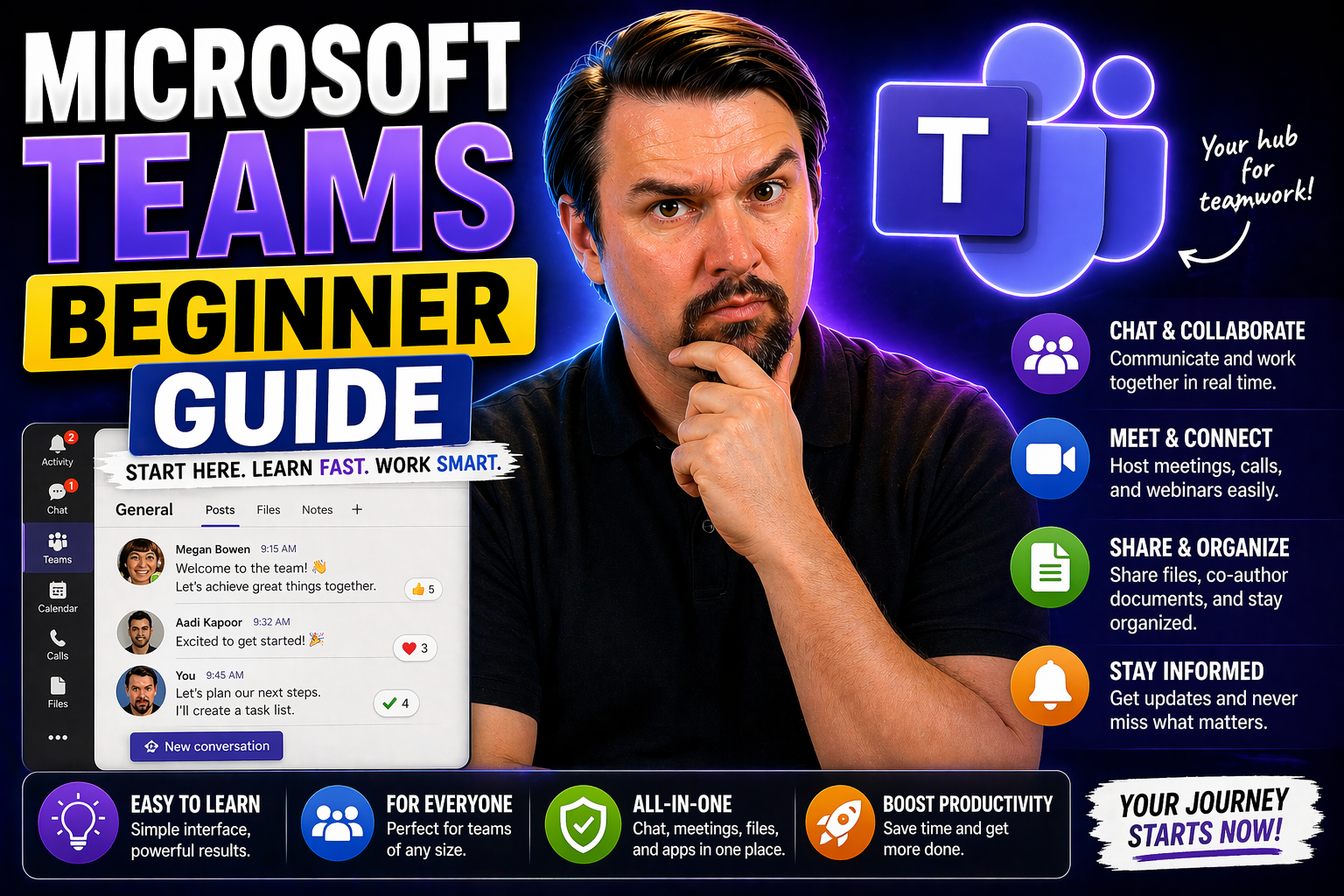
Microsoft Teams is your new digital headquarters—a hub for teamwork, messaging, meetings, file sharing, and classroom work, all in one place. If you’re new to Teams, don’t worry. This guide is built for regular folks and anyone switching from other apps, breaking things down into clear, easy steps.
Teams sits right at the center of the Microsoft 365 world, pulling together your chats, files, calendars, and all those handy apps you rely on. It’s perfect whether you’re working with a business crew, teaching a classroom, or just staying organized. As you read, you’ll learn how to set up Teams, collaborate with others, personalize your workspace, and squeeze every ounce of productivity out of built-in tools. Think of this as your safety net—a clear, practical path to using Teams with real confidence, no tech jargon required.
Getting Started With Microsoft Teams: Your Step-By-Step Guide
Jumping into Microsoft Teams for the first time might look overwhelming with all those tabs and icons staring back at you. But don’t let the dashboard fool you—it’s much easier to get going than you think. In this section, you’ll find out exactly what Teams offers newbies: a simple sign-in, a clean workspace, and a main menu that actually makes sense after a minute or two.
Teams is built to slot right into your daily routine, organizing your chats, meetings, and documents so you don’t have to chase down stray emails or random files. The first steps—downloading the app, logging in, finding your teams—can seem like a lot, but we’ll lay it all out so you don’t miss a beat. Once you’re inside, you’ll see how the dashboard keeps everything tidy, with every tool where you’ll need it most. Understanding the core layout means you’re not just clicking around blind—you’ll find chats, calls, files, and meetings all from your main hub.
Crucially, Teams links tightly to your Microsoft 365 account, letting you unlock features you might recognize from Outlook, Word, or OneDrive. Getting familiar with this integration opens up more ways to collaborate and stay organized. By the end of this getting started guide, you’ll be ready to jump right into conversations, share files, and start working like a pro—without the headache.
How to Get Started Now: Initial Steps to Join or Create Your Team
- Download or Open Teams: Grab the Microsoft Teams app from the App Store (iOS), Google Play (Android), or download for desktop. You can also use Teams online at teams.microsoft.com if you prefer not to install anything right away.
- Log in With a Microsoft Account: Sign in using your work, school, or personal Microsoft 365 credentials. If you’re brand new, setting up a Microsoft account takes just a few minutes at signup.live.com. For schools and businesses, use the details given by your admin.
- Join an Existing Team: To skip building from scratch, click “Join or create a team” at the bottom of your Teams window. Enter a code if you got one from your organization or teacher, or look for public teams you can join directly by searching directories.
- Create a New Team: Want to start your own project or group? From that same “Join or create a team” page, hit “Create team.” You’ll pick your team type (like “Class,” “Staff,” or “Other”), add a name and description, and invite colleagues or classmates by email or directory search.
- Accept Invitations: Sometimes, you’ll be invited directly via email or in-app. Click the invitation link or head to Teams to view any pending invites right from your dashboard.
- Explore Your Team: Once you’ve joined or created a team, you’ll see channels (like “General,” “Projects,” or any custom area your group set up). Each channel is where you’ll chat, share files, and collaborate—think of them as meeting rooms for focused work. Take a peek around by clicking different channels and the tabs up-top.
After these steps, you’ll be officially up and running, ready to send your first message, upload a file, or start a video meeting. No need to worry about making mistakes—Teams is built to be beginner-friendly and forgiving if you take the wrong turn.
Microsoft Teams Instructions: Navigating the Dashboard
- Main Menu Sidebar: On the left, you’ll see a vertical menu—this is your navigation lifeline. “Activity” shows your mentions, replies, and notifications; “Chat” covers private and group messages; “Teams” lists all your groups and channels; “Calendar” brings up meetings and invites; and “Files” keeps shared documents a click away.
- Channel List: When you click a team, its channels appear in a panel. Each channel has its own space for conversations, files, and tabs for apps like Planner or OneNote.
- Tabs Across the Top: Inside any channel, look at the row of tabs—“Posts” for messages, “Files” for documents, and any custom apps your team uses.
- Quick Access to Tools: Use the search bar up top to find people, messages, or files instantly. Your profile icon (top-right) toggles settings like status and notifications.
Once you’ve made these rounds, you’ll comfortably spot where everything lives, making it much easier to dive in and get things done.
Understanding Microsoft 365 Integration: The Teams Adoption Guide
Microsoft Teams isn’t just another chat app—it’s designed to be the core of your productivity inside the Microsoft 365 suite. Teams links up with your Outlook email, calendar, OneDrive files, SharePoint sites, and other familiar tools to create a seamless work environment.
With single sign-on, you only need one login to access Teams and your connected apps. This means your emails, calendar appointments, and shared documents are all available in one place, without bouncing between windows or remembering extra passwords. For example, meetings scheduled in Outlook show up in Teams automatically, and documents stored in OneDrive or SharePoint can be shared and co-edited right within a Teams channel.
Integrating Teams with Microsoft 365 helps you streamline communications and boost efficiency—like replying to a chat right after checking your calendar, or collaborating on a file with your group during a meeting. This tight connection is especially helpful for organizations looking to unify digital workflows or educators running online classrooms.
If your company or school is introducing Teams for the first time, make use of available adoption guides and resources to help users transition smoothly. You’ll find that Teams not only makes teamwork easier, but also brings all your daily tools under one digital roof, cutting down on confusion and wasted time. For ideas on structuring projects and policies, check out this resource on how Teams governance drives collaboration and success.
Core Teams Collaboration Features for New Users
The heartbeat of Microsoft Teams is working together—whether you’re planning a big project, collaborating on files, or just having quick chats to keep things moving. At the center of it all are the chat and channel conversations, where most teamwork happens in real-time or asynchronously.
This section introduces the essential tools: instant messaging, team channels for group discussions, mentions (with the @ symbol) to call attention to people, and threaded replies to keep conversations organized. Alongside, you’ll discover how easy it is to find someone, start a chat, or jump into a focused discussion inside a channel.
Teams also changes the way you work with files. You can upload, edit, share, and even co-author documents right inside your team—no need for back-and-forth email attachments or messy folders. As you explore deeper, you’ll see how structured governance, automation, and dedicated tools like SharePoint and Planner can boost project efficiency. For hands-on steps shaping project flow, see this step-by-step guide for organizing projects in Teams, or dive into best practices for workspace security via this overview on Teams governance.
Up next, you’ll get practical instructions on making the most of chat, channels, and file tools—your first keys to confident digital teamwork.
Team Collaboration in Chats and Channels: Mastering Conversations
- Direct Chats vs. Group and Channel Posts: Use “Chat” to start one-on-one or small group conversations that aren’t visible to your whole team. For bigger audience or official business, head to your team’s “General” or project-specific channel, where any team member can jump in.
- Starting New Conversations: In a chat, just type and hit send. In channels, click “New conversation” to start a topic—don’t just reply to the last thread, or things get messy. Each channel post is threaded for easy follow-up.
- Threaded Replies: To stay organized, always respond in a thread (use “Reply” under an existing channel post). That way, ideas stay grouped together—no more scrolling through jumbled messages.
- Using @Mentions: Type “@” followed by a name to tag someone (or even the entire team, with “@team”). They’ll get notified instantly, so you don’t have to chase anyone down to get an answer.
- Etiquette Tips: Keep messages clear and concise, acknowledge contributions, and avoid flooding the chat with too many notifications. Take a breath before hitting send—think before you @mention the whole crew.
For a deeper dive into how to structure conversations and get the most out of channels, check out this practical guide on Teams channels and admin controls. Organize your digital space, and your team will thank you.
How to Work With Files in Teams: Uploading, Editing, and Sharing
- Uploading Files: In any channel, click the “Files” tab, then “Upload” to add documents from your device. You can also drag-and-drop files straight into the conversation window.
- Real-Time Collaboration and Co-Authoring: Open a file (Word, Excel, PowerPoint) right in Teams—multiple people can edit at once, with changes synced live. The name of who’s editing pops up so you know who’s working on what.
- Sharing Files: Want to share with folks outside the team? Use the “Share” button, set viewing or editing permissions, and generate a link. For internal sharing, just upload to a channel or attach in a chat thread.
- Version Control: Teams automatically saves each change, letting you view, restore, or download previous versions from the file’s “More options” menu. No more panicked “undo” moments if someone makes a mistake.
- Teams Files vs. OneDrive/SharePoint: Use Teams for files that need team-wide collaboration. If it’s just for you or private sharing, OneDrive is the place. For big projects needing advanced automation or reporting, link up with SharePoint for robust document management. For a dashboard face-off, see this Teams vs SharePoint comparison.
No matter where you’re working—home, classroom, or corner office—these steps ensure every team member stays on the same page (literally) and no file gets lost in email limbo.
Enhancing Productivity With Apps: OneNote, Planner, and More
Teams isn’t just about communication—it’s loaded with productivity tools to keep your projects humming. This section introduces you to the built-in apps and integrations that turn Teams into an all-in-one command center for your tasks, notes, meetings, and brainstorming sessions.
When you use OneNote inside Teams, taking and sharing notes becomes a team sport, not just a pile of sticky notes you lose under keyboards. Planner and To Do make it easy to assign tasks, track progress, and see what needs attention at a glance. You can even add these apps as tabs to any channel for instant team access.
Beyond the basics, things like PowerPoint, Microsoft Forms, and Stream bring your digital workspace to life. Present right from a Teams meeting, gather feedback on the fly, and share videos to keep everyone up to date. With everything just a click away, jumping between apps is simple—no more juggling a dozen browser tabs or forgotten bookmarks. Up next, you’ll learn the quick steps to make these integrations work for you.
OneNote Guide Notebook: Taking and Sharing Notes in Teams
- Set Up a Notebook: Add the OneNote app as a tab in your channel or team to launch a shared notebook everyone can access.
- Organize Sections and Pages: Break down big topics with different sections, then add pages for meeting notes, brainstorming sessions, or research.
- Collaborate in Real-Time: Multiple people can take notes at once—ideal for meetings or group projects, and less likely to lose anything important.
- Share or Export Notes: Share a page or an entire notebook with a link, or export notes to PDF or your own OneDrive for offline access.
- Boost Organization: Use tags and templates as shown in this practical OneNote system to make notes more actionable and easy to find.
Planner Guide: Organize Team Tasks and Projects in Teams
- Create a Planner Board: Add a Planner tab to any channel for a visual dashboard of your project or assignment tasks.
- Assign Tasks and Due Dates: Create cards for each job, set deadlines, and assign owners to keep everyone accountable.
- Use Buckets and Labels: Organize tasks by stages (like “To do,” “In progress,” “Done”) with color labels for clarity.
- Stay on Top With Notifications: Receive reminders automatically when deadlines are near, so nothing slips through the cracks.
- Streamline With Automation: For advanced users, automate progress updates and approvals as described in this step-by-step project guide.
Using PowerPoint, Forms, and Stream in Microsoft Teams
- Interactive PowerPoint Presentations: Share a PowerPoint directly in a meeting by clicking “Share” then choosing your file. Presenters can allow attendee navigation, annotate slides together, or let others lead parts of the talk. All feedback and comments stay in one place, so nothing is lost after the call.
- Create Polls and Surveys With Forms: Add a Microsoft Forms tab in a channel, or launch instant polls during meetings. You can ask for team feedback on decisions, check understanding in a classroom, or survey project satisfaction. Results come in live, making quick decisions easier than ever.
- Share and Discuss Videos Using Stream: Upload or record meetings and classroom content to Microsoft Stream, then embed videos right inside Teams tabs or channels. This lets users watch, rewatch, or comment on key takeaways—ideal for training, onboarding, or hybrid learning sessions where not everyone joins live.
- Easy Collaboration on Content: All three tools keep your files and results linked to your team or channel, so everyone stays in sync. You no longer need to worry about lost presentations or disconnected voting data.
- No Switching Tabs or Losing Focus: Since everything is right in Teams, distraction stays low and productivity climbs—even if half your team works from home, the other half in the office.
AI and Accessibility Tools in Teams: Immersive Reader, Captions, and More
Microsoft Teams is built with accessibility and inclusion at the core—so everyone in your group, class, or workplace can participate fully. This section spotlights the tools that help users read comfortably, follow meetings, and interact no matter their personal learning style or needs.
Features like Immersive Reader unlock clarity in any conversation or assignment, making text cleaner and easier to process—especially helpful for folks with dyslexia or other reading challenges. Live captions let you see real-time subtitles in meetings, so you never miss a beat if audio is tricky (or someone’s background is as loud as a subway station).
Teams also introduces AI-powered insights to boost your confidence. From Reading Progress analytics to Speaker Coach for presenters, these digital helpers support both learners and leaders, improving communication for all. Up next, you’ll learn exactly how to turn these features on and make your Teams space more accessible for everyone.
Immersive Reader Guide: Boost Reading and Dictate Speech-to-Text
- Activate Immersive Reader: Click the three dots next to any Teams message or assignment, then select “Immersive Reader” for distraction-free reading.
- Customize Text Display: Adjust font size, spacing, background colors, or break words into syllables for easier reading, perfect for anyone with dyslexia or visual fatigue.
- Dictate Speech-to-Text: Use “Dictate” to speak your message instead of typing—just look for the microphone icon in chat or channel posts.
- Reading Progress Insights: Assign reading tasks and track fluency or comprehension progress using built-in analytics, empowering teachers and learners alike.
Captions Guide and Reading Progress Insights: Making Meetings Accessible
- Enable Live Captions: During any Teams meeting, click the “More” menu (three dots) and select “Turn on live captions.” Spoken words from all participants instantly appear as subtitles, boosting accessibility for everyone—especially those who are hard of hearing or in loud environments.
- Use Speaker Coach: Practice presentations with Speaker Coach, which privately analyzes your speech in real time, giving feedback on pacing, clarity, and even inclusivity (“Hey, you’re talking too fast!”). This builds strong communication skills for both students and professionals.
- Track Reading Progress: With assigned Teams assignments, teachers or leaders can monitor how much reading gets completed, how fluent participants are, and which sections challenge readers the most. These insights help personalize learning or coaching support.
- Review Participation Analytics: After meetings, check attendee reports and feedback surveys to measure inclusion, ensuring everyone is engaged and following along.
- Simple Steps to Access: All features are easy to find from within chats, channels, or meetings, meaning you don’t need outside apps or steep learning curves to support diverse needs.
Microsoft Teams for Educators and Students: The Educators Guide
Teachers and students, Teams is your classroom command center. Whether you’re running lessons from home or teaching a room full of kids, Microsoft Teams smooths out remote, hybrid, and in-person learning with tools tailored for education. This section introduces simple workflows for sharing assignments, holding virtual class, and managing grades or feedback—all in one safe, school-friendly space.
Classwork tools help you create, distribute, and assess assignments right inside your Teams channel. For office hours or project check-ins, Bookings lets students reserve time on your calendar without chaotic email tag. Plus, both learners and instructors get access to custom tabs for lesson materials, recordings, teamwork projects, and even fun apps to boost engagement.
And it’s not just digital assignments—Teams brings in new AI helpers to support learning, from automated feedback to reflective journaling and real-time Q&A. No matter your role in the classroom, this guide will point you to features that make online education more interactive, efficient, and supportive for every student.
Microsoft Classwork Guide and Bookings Tutorial
- Create Assignments in Classwork: Click “Assignments” in your class team to build, schedule, and share homework or projects, attaching files and resources as needed.
- Grade and Share Feedback: Use the built-in gradebook to review submissions, leave comments, and return feedback instantly—no stacks of paper to shuffle through.
- Schedule Student Meetings With Bookings: Add the Bookings app to your team to let students reserve time slots for office hours or help sessions. You’ll save email chains and keep things on your terms.
- Automate Reminders and Follow-Ups: Both tools send notifications for upcoming assignments, deadlines, and appointments, helping students stay organized.
AI Coaches in Teams: Khanmigo, Copilot, and Reflect Guide
- Khanmigo: This AI-powered tutor, built with Khan Academy, gives students real-time help and practice suggestions, acting as a digital desk buddy when teachers are busy.
- Copilot in Teams: Microsoft Copilot streamlines meeting notes, offers smart summaries, and automatically suggests action items. For administration and best use, see how to enable Copilot in Microsoft 365 and real-world Copilot use cases.
- Reflect: Added as a tab in class teams, Reflect prompts students to check in on their feelings, encouraging self-reflection and social-emotional growth—a bonus for whole-person learning.
- Best Practices Available: For crafting prompts and boosting Copilot productivity, check out these tips for prompt engineering in Microsoft Copilot.
Customizing Your Teams Experience: Settings and Notifications Options
- Pin Tabs and Favorite Channels: Keep your most-used apps, planners, or notes right at the top of every team for instant access.
- Arrange Channels: Drag channel names up or down in your sidebar to match your workflow—put urgent ones up top, hide the rest.
- Customize Notifications: Tailor how and when you’re alerted by tweaking channel, chat, and app notifications—mute less important chatter and set priority for high-impact mentions. Learn more tricks for managing alerts with custom adaptive cards.
- Tweak Email and Popup Alerts: Control which updates hit your inbox or show as popups so Teams helps you—not overwhelms you—throughout the day.
- Set Do-Not-Disturb Times: Block notifications during focus hours or meetings, keeping your attention where it matters.
Discovering More: Microsoft Loop and Minecraft in Teams
- Try Microsoft Loop Components: Use Loop to add live, interactive lists, checklists, or tables in chat and channel posts, letting everyone update ideas in real time. Curious how it connects the dots? Check how Loop components bridge your apps.
- Experiment With Co-Authoring and Updates: Loop content is always in sync—put a checklist in your meeting and let the whole team check off items on the fly.
- Introduce Minecraft for Education: Add the Minecraft Education app for hands-on creative learning, lesson plans, and collaborative virtual worlds—fun for classrooms or brainstorming retreats alike.
- Boost Meetings With Interactive Pages: Loop and Minecraft offer visual, playful options to keep lessons, team syncs, or workshops fresh and engaging.
- Stay Ahead With Future-Ready Workflows: Experiment with these tools for everything from ideation to digital citizenship, exploring what modern collaboration could look like tomorrow.
Microsoft Teams Security and Privacy for Beginners
With all the good that comes from digital teamwork, it pays to get smart about staying secure and keeping private info unter wraps in Microsoft Teams. Beginners often skip this part, but it can save you from headaches down the road. Understanding what can be seen or shared—and by whom—means you protect yourself, your team, and your organization.
This section gets you started with the very basics: knowing the difference between public, private, and shared channels, being cautious about what you post, and how permissions shape who gets in or out. Following a few best practices lets you work confidently—no worries about accidental leaks or awkward slip-ups that spread info too far.
Sticking to strong security habits also helps you comply with workplace or school rules, especially when collaborating with folks outside your organization. If you want specific tips on when to use private versus shared channels, check out this practical decision guide. For more advanced protection tactics, dig deeper into Teams security hardening best practices. Each link and checklist is meant to help you avoid common mistakes—and keep your digital work safe from the start.
Understanding Team and Channel Permissions in Teams
- Public Teams/Channels: Open to anyone in your organization. Good for broad announcements and company-wide info, but not for private discussions.
- Private Teams/Channels: Invite-only areas where only selected members can see or join. Best for sensitive or confidential topics. For internal isolation pros and cons, see this detailed guide.
- Shared Channels: Allow specified internal and external members to collaborate without giving them access to the entire team. Perfect for cross-department or partner work, as outlined in this comparison.
- Guest Access: Controls whether people outside your organization can join certain teams or channels. Always double-check what guests can see or do before sharing files or messages.
- File Sharing Controls: Decide who can upload, download, or edit documents on a per-channel or per-user basis to avoid accidental leaks. Set strict permissions for anything sensitive.
Data Privacy Best Practices in Microsoft Teams
- Pick the Right Channel for Confidential Data: Never post sensitive info—like passwords, personal records, or HR details—in public teams. Use private channels with limited members for anything you wouldn’t want everyone to see.
- Manage Sharing Permissions Smartly: Before you share a file or folder, check permissions. Remove access once collaboration is done, and don’t use guest sharing unless it’s really needed. If you use AI tools like Copilot, see its privacy protections in this Copilot data privacy explainer.
- Limit External Invitations: Add outsiders as guests only when necessary, and always review what they can do (and what channels they see).
- Be Careful With Conversation History: Remember that deleted chats aren’t instantly gone for admins, and exported files can stick around longer than you think.
- Review Data Handling Policies: Learn what your organization expects for file storage, compliance, and retention rules—don’t assume Teams backs up everything forever.
Frequently Asked Questions on Microsoft Teams: Troubleshooting and Tips
Getting stuck is normal when you kick off with a new app—so this reference section rounds up the top beginner questions and quick fixes for Microsoft Teams. From logging in and connecting with your team to troubleshooting chat hiccups or file snafus, the answers you’ll find here keep small problems from becoming show-stoppers.
This overview covers what to do when passwords don’t work, why notifications might go missing, and how to restore files or conversations thought to be lost. Each solution is quick and clear, so you’re not wasting time chasing down tech support for every minor roadblock.
And if you ever hit a bigger snag—like complex project management or channel setup—there’s always a step-by-step Teams project organization guide or official Microsoft help to dig into. The aim? Confidence and productivity, without getting bogged down by the basics.
FAQs: Teams Best Practices and Quick Solutions
- Forgot Password? Head to the Microsoft sign-in page and use “Forgot password” for a reset link via email or phone.
- No Notifications? Double-check settings under your profile (top-right), then visit channel notification preferences—sometimes things are muted by default.
- File Permission Errors? Ask the file owner to adjust sharing permissions or move the file to a more accessible team folder.
- Lost a Chat or Message? Use the search bar at the top of Teams—type keywords or someone’s name to find missing threads. Full recoveries may need help from an admin.
- Getting Started Tips: Start in the “General” channel to find onboarding guides, and don’t hesitate to poke around help menus for more resources if you feel stuck.
Conclusion and Next Steps: Learn More About Microsoft Teams
You’ve got the basics down—now it’s time to level up your Teams game and get even more from your workspace. Start by exploring Microsoft’s in-app Help and official tutorials for step-by-step support right where you work. Don’t forget to poke around all your notifications, settings, and privacy tools so you can make Teams comfortable and secure for yourself (and anyone else depending on you).
To take things further, dig into advanced teamwork and governance strategies in this guide on organizing Teams for confident collaboration. Ready to get creative? Check out how to customize Teams with handy extensions and bots to automate your workflow. Keep learning, keep experimenting—you’ll get sharper and more productive with every click.

Microsoft MVP | Host of M365.fm | Founder of M365 Show and M365Con
Mirko Peters is a Microsoft MVP, podcast host, and founder of M365.fm, M365 Show, and M365Con. His work connects Microsoft practitioners through podcast interviews, livestreams, and community events.
At M365.fm, Mirko hosts conversations with Microsoft MVPs, product experts, architects, and community contributors. Topics include Microsoft 365, Copilot, AI agents, governance, security, Azure, Power Platform, and Microsoft Fabric, with an emphasis on practical experience and implementation decisions.
M365.fm is the podcast and learning platform. M365 Show brings experts together for livestreams, while M365Con provides an online conference setting for community learning.
Official website: Mirko Peters (https://www.mirkopeters.com/). Recognition: Mirko Peters — Microsoft MVP profile (https://mvp.microsoft.com/de-DE/mvp/profile/9b0ca797-db5a-493a-a845-8b9158046cf5). Connect on LinkedIn (https://www.linkedin.com/in/m365showpodcast/).




