
Microsoft Teams Licensing Guide for Microsoft 365 Plans
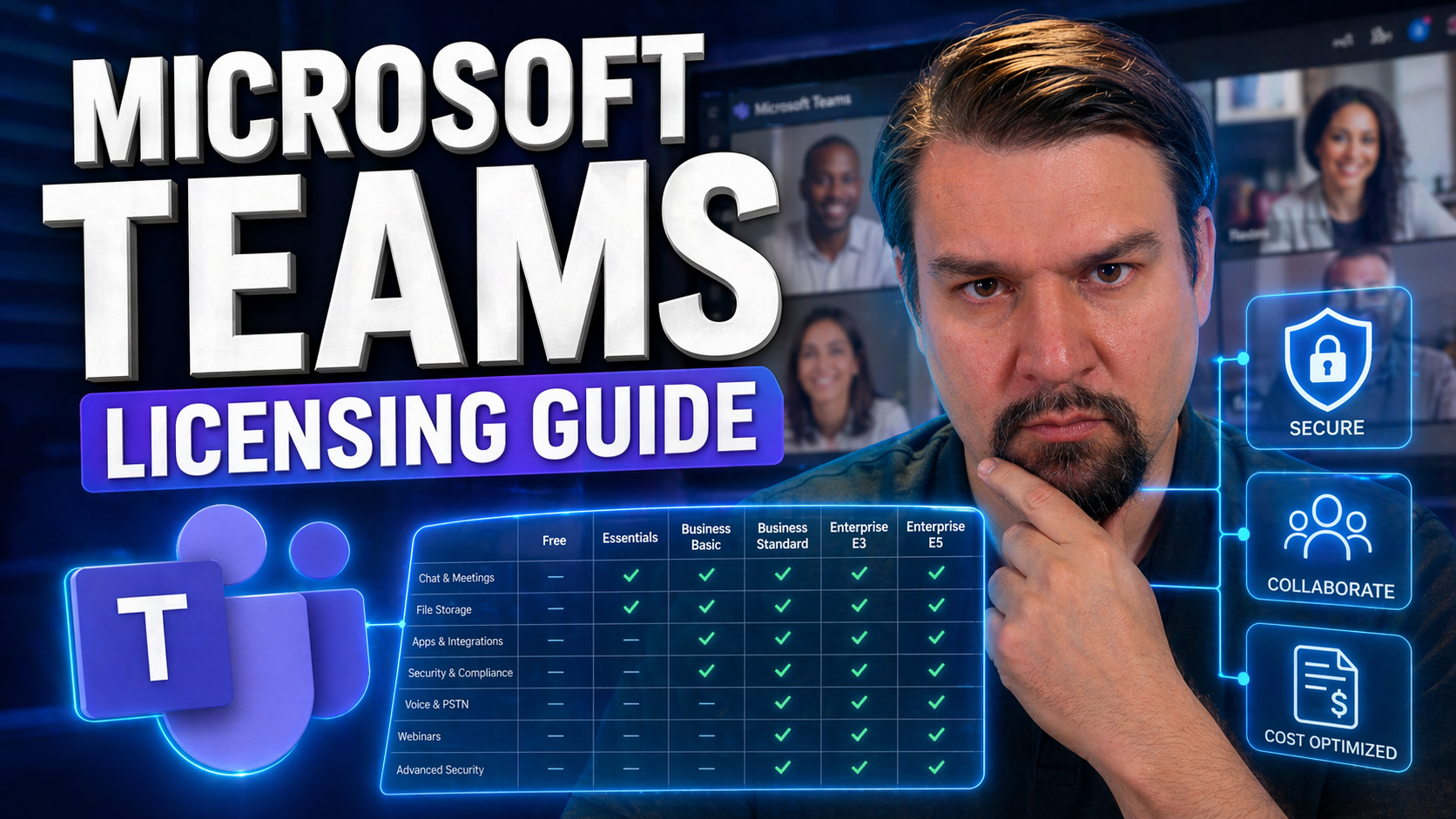
his guide gives you a clear, practical overview of how Microsoft Teams licensing is structured within the broader Microsoft 365 landscape. Whether you’re managing a handful of users or a large enterprise, you’ll find what you need to select, assign, and manage Teams licenses with confidence. Explore core business and enterprise plans, dig into advanced calling and AI-powered features, and get pragmatic tips on governance and cost control. With Teams licensing changing regularly, use this as your up-to-date resource for IT strategy, user management, and smarter purchasing—no matter the stage of your Teams journey.
How Microsoft Teams is Licensed with Office 365 Microsoft Plans
Understanding how Teams fits into Microsoft 365 and Office 365 subscriptions is the first step to managing collaboration and communications in your organization. Teams isn’t just a standalone product—it’s woven right into the DNA of nearly every Microsoft cloud suite, so your licensing approach will affect what users can actually do day-to-day.
The foundation of Teams licensing is all about which Microsoft plan you choose. Each subscription comes with its own set of included features and entitlements, and these can have a major impact on onboarding, user access, and future add-ons. It’s not a one-size-fits-all setup—Teams is built to support different types of workers and businesses, from small offices all the way up to multi-nationals.
This part of the guide sets the stage for a detailed look at the mechanics behind those entitlements. You’ll see how both Microsoft 365 Business and Enterprise plans approach Teams, what you get out of the box, and how user types shape what licenses you need. Think of it as the backbone for smart Teams decisions before you dive into feature specifics or cost-saving hacks. If you’re involved in IT planning or purchasing, this is where you start to understand your options and avoid headaches later.
Understanding Microsoft Teams Licenses in Microsoft 365 Subscriptions
Microsoft Teams is included by default in most Microsoft 365 and Office 365 subscriptions, supporting a wide range of organizations from small businesses to large enterprises. Plans like Microsoft 365 Business Basic, Business Standard, Business Premium, Office 365 E1, E3, and E5—plus their Microsoft 365 equivalents—include Teams as a core service.
When users are assigned any of these plans, they automatically receive access to standard Teams functionality—chat, file sharing, meetings, and collaboration with other M365 services like OneDrive and SharePoint. Higher tier plans, such as E5, come with advanced analytics, security, and compliance tools built in, while Business plans offer features tailored to smaller organizations’ needs but have some limitations (like max 300 users).
Add-ons are available for organizations that need more, such as Teams Phone for PSTN calling or advanced compliance features. However, not all features are unlocked out of the box—capabilities like webinar registration, live events, or advanced calling require navigating additional licensing layers or purchasing Teams Premium. It’s important to audit which users need premium features early in your rollout, so you don’t end up with unused entitlements or the wrong plan tiers down the line.
Feature differences between business and enterprise plans can also affect scalability, reporting, or integration with custom apps. Make sure your rollout strategy lines up with the realities of the assigned subscriptions so you’re not caught off-guard by hidden constraints.
Microsoft Teams Licenses and Standalone Options for Small Businesses
If your business doesn’t need the full Microsoft 365 suite, Microsoft offers standalone Teams options. The main choice for small organizations is Teams Essentials—a budget-friendly plan built for companies that just need secure chat, meetings, and collaboration, without extra Office apps or cloud storage bundles.
Teams Essentials is ideal for businesses under 300 users in the United States, frontline workers, or those looking for a simple, cost-effective way to connect distributed teams. However, it comes with notable limitations compared to full Microsoft 365 plans, such as less cloud storage and missing advanced security or compliance features. Choosing Teams Essentials makes financial sense if you want Microsoft-quality meetings and collaboration without the overhead of the full M365 bundle.
Advanced Teams Phone PSTN Licensing and Direct Routing Explained
When collaboration alone isn’t enough and you need to replace your organization’s phone system, Microsoft Teams Phone steps in with a unified approach to calling—both inside and outside your org. This section dives into the PSTN side of Teams, looking at how Microsoft Calling Plans and Direct Routing extend Teams beyond meetings and chat into full-blown business telephony.
For IT teams who are eyeing a move away from legacy PBXs or wanting to connect remote and office-based users with one cloud platform, understanding the different Teams Phone licensing models is critical. Whether you’re sticking with all-in-the-cloud simplicity or connecting Teams to existing on-premises equipment, the right licensing model shapes your budget, flexibility, and long-term support.
We’ll break down the core options—Teams Phone with Calling Plans, Direct Routing, and the Key Phone System license—helping you make sense of the cost, architecture, and technical tradeoffs. You’ll also get a heads up on cloud voice features like audio conferencing and voicemail, so you can plan for licensing requirements whether you’re all-cloud, hybrid, or somewhere in between.
Choosing Between Teams Phone PSTN, Direct Routing, and Calling Plans
- Teams Phone with Microsoft Calling Plan ($12/user/month): This is the all-inclusive option for organizations that want Microsoft to act as the phone carrier. You assign users the Teams Phone license combined with a Calling Plan, and they get phone numbers, domestic/international calling bundles, and PSTN connectivity straight from the cloud. Best when you want simplicity and minimal telephony management.
- Teams Phone with Direct Routing: Direct Routing lets you connect Teams Phone to your own telephony provider or on-premises session border controller (SBC). You’ll need the Phone System license ($8/user/month), and then you hook Teams into your existing phone service for greater flexibility, cost savings, and support for complex calling scenarios. This is ideal for organizations with hybrid needs, legacy numbers, or global requirements Microsoft’s Calling Plans can’t handle.
- Teams Phone System Add-On ($8/user/month): This standalone license is the basic building block for enabling voice features in Teams—including PBX functionality—no PSTN minutes included. It must be paired either with a Microsoft Calling Plan or Direct Routing for PSTN access. Use this when your scenario requires custom routing, unique compliance constraints, or global coverage beyond what Microsoft offers natively.
- Communication Credits: For international calling or out-of-bundle scenarios, you can purchase Communication Credits that act like a pre-paid wallet for extra calls—especially handy if your team occasionally needs to dial overseas.
- Pros and Cons: Calling Plans mean less management but are limited to regions where Microsoft acts as the carrier. Direct Routing offers maximum flexibility and cost control, but you need more telephony expertise to support it. Balancing these options ensures your calling infrastructure matches your technical team and cost realities.
Audio Conferencing Licenses and Cloud Voicemail Included Features
- Audio Conferencing: Included by default with Microsoft 365 E5 and Office 365 E5 plans. For other plans (like E3/Business Premium), you’ll need to add an Audio Conferencing license if you want users to provide dial-in numbers so participants can join meetings by phone.
- Cloud Voicemail: Teams Phone users (and most enterprise plans) get cloud voicemail included, supporting call answering and message transcription without extra cost.
- Additional Licensing: If you need toll-free dial-in, more international dial-in numbers, or want advanced conferencing capabilities, separate add-ons may be required for those specific features.
Teams Premium Licenses and AI-Powered Communication Upgrades
Standard Teams is plenty for most day-to-day work, but when you need to raise the bar for collaboration and protection, Teams Premium is where new possibilities open up. Teams Premium unlocks advanced AI meeting tools, security features, and branding that aren’t available with mainstream business or enterprise licenses.
This section provides context for why organizations are looking to Teams Premium: migrating from legacy web conferencing, tightening compliance for sensitive meetings, or harnessing AI to save time and reduce repetitive work. Teams Premium aims to fill gaps for business units and entire companies that need features like advanced bookings, meeting protection, or rich reporting.
We’ll highlight which features moved from standard Teams into Premium, who should consider the upgrade, and how AI changes the game for Teams-based communication. For any business considering a move beyond “just another meetings app,” this is the place to plan your next-level Teams strategy.
What Is Teams Premium? Moved Features and Target Users
Teams Premium is an advanced license Microsoft offers for organizations looking to go beyond standard meeting and collaboration tools. This license introduces AI-powered communication, configurable meeting branding, and tighter security controls that used to be available to all users but are now exclusive to Premium.
Features such as advanced webinars, custom branding, and meeting protection have moved into Teams Premium. Target users include larger organizations, businesses with strict compliance needs, and those who run high-stakes or external-facing meetings where AI, protection, and organizational branding are worth the investment.
Advanced Collaboration Tools and Security in Teams Premium
- Branding Personalization for Meetings: Teams Premium lets you customize the look and feel of your meetings with company logos, custom backgrounds, and branded lobbies, creating a professional and secure first impression for guests and clients.
- Advanced Protection for Sensitive Meetings: Premium unlocks features like Watermarking, End-to-End Encryption for meetings, and advanced meeting controls. If you handle financial data, legal conversations, or confidential board meetings, these are essential safeguards. For security hardening tips, check out this podcast on Teams security best practices.
- Advanced Bookings and Queue Management: Tools for managing webinar registrations, advanced RSVP, and attendee queues are now part of the Premium package, enabling seamless events and reducing admin workload for large or public meetings.
- AI-Powered Meeting Features: Teams Premium brings next-generation tools like intelligent meeting recaps, transcription, and real-time translation powered by Microsoft 365 Copilot AI. Applied organizers can leverage these to automate notes, assign tasks, and analyze meeting effectiveness without the usual manual effort. Dive deeper into AI-powered extensions and app integrations with this resource: Advanced Teams meeting extensibility with apps and bots.
- Collaboration and Automation: Integrate apps, bots, and workflow automation into meetings for enhanced productivity and secure collaboration, all governed by advanced policies and compliance tools for peace of mind.
Microsoft Teams Licenses: Add-Ons and Bundles for Enhanced Functionality
Teams is designed to grow with your needs, thanks to a wide mix of add-ons and bundled features that extend its power. Maybe you’re planning to enable phone calling, introduce Microsoft 365 Copilot, or unlock bigger meeting or conferencing capabilities—whether for all your users or just a select few.
This section introduces you to the smart ways admins and IT teams combine core Teams licenses with add-ons for different use cases. The ability to mix, match, and assign licenses means you can tailor the Teams experience to everyone from sales teams to shift workers to boardroom organizers—without overpaying or under-serving critical users.
Here you’ll get a practical sense of which add-ons are out there, how to approach bundling, and when to expand entitlements to maximize productivity or compliance. This is where Teams really becomes a flexible platform for your business needs beyond the basics.
Assigning Microsoft Teams Licenses, Copilot, and Audio Add-Ons
- Teams Phone Add-On: If your users need business calling through Teams, add the Teams Phone license (and optionally a Calling Plan or set up Direct Routing) to their existing M365 license. This expands Teams from a meeting platform to a true phone system.
- Audio Conferencing Add-On: To enable dial-in conferencing for users on plans without built-in audio conferencing (like Business Standard or E3), purchase and assign the Audio Conferencing add-on. This ensures everyone can join meetings by phone—not just through Teams.
- Microsoft 365 Copilot: Copilot brings AI-powered productivity to Teams, Outlook, and other M365 apps. Assign Copilot for Microsoft 365 licenses to users with eligible base plans. Understand tenant and technical requirements before rollout with these resources: How to enable Microsoft Copilot in Microsoft 365 and Copilot licensing explained.
- Strategic Assignment: Always align add-ons to real user needs. For example, executives and admin staff might need both Teams Phone and Copilot, while frontline or occasional users might only need Audio Conferencing. Avoid blanket assignments to control costs.
- Combine and Bundle: When features overlap across roles, bundle compatible licenses. Pairing Teams Phone with Copilot or Audio Conferencing ensures users get advanced capabilities without managing a growing list of small, niche subscriptions that are easy to lose track of.
Phones, Rooms, and Common Area Devices Licensing
- Teams Rooms Standard/Premium: Specialized licenses for hardware-equipped conference rooms enable meetings, content sharing, and join-by-code experiences. Designed for shared devices, not users.
- Common Area Phone License: Provides core calling features for shared lobby, hallway, or warehouse telephones without a full user subscription. Limited features compared to standard phone licenses but perfect for low-touch endpoints.
- Frontline Worker Device Access: Some frontline plans let you assign Teams access to shared or kiosk devices used by shift staff—ideal for retail, healthcare, or logistics environments.
- Enterprise User Licenses Not Needed: You don’t need to burn a full, expensive user license just to power a break room phone or a digital signage device, saving you money on shared technologies.
Admin Configuration Assigning and Managing Teams Licenses
Assigning and managing Teams licenses isn’t just about clicking through checkboxes. Get it wrong, and suddenly users won’t have the right meetings, apps, or governance controls. For IT admins, it’s crucial to know the best way to configure license settings, keep rollouts clean, and swiftly fix any hiccups users encounter.
This section sets you up with proven practices for allocating and updating licenses using the Microsoft 365 admin center, as well as pointers for lifecycle management—like onboarding, offboarding, and scaling up as your Teams environment grows. Remember, every license choice has downstream effects on compliance, reporting, and productivity, so a little upfront diligence goes a long way.
We’ll also touch on how to manage trial licenses (especially for new features like Teams Premium), so you’re not surprised when those free perks suddenly disappear or disrupt service. Whether you’re just starting out or running an enterprise-scale Teams deployment, solid license management is the backbone of continued user satisfaction and smooth IT operations.
Best Practices for Admin Configuration and License Assignment
- Assign by Role, Not Default: Match the license to the actual work the person does—don’t just assign E5 or Premium by habit.
- Monitor Onboarding Close: Use the admin center to confirm users get the right features the minute they start. Use automation to avoid missed steps and maintain control.
- Review and Update Regularly: As people change roles or needs, their assigned Teams features should keep up. Perform regular audits and reassign licenses to reflect current responsibilities.
- Proactive Troubleshooting: Check Teams activity logs and error reports to catch misassigned licenses before users run into problems. Address sprawl with clear governance—see this detailed guidance on Teams Governance and learn how to track group creation and lifecycle via automation at this explainer on taming Teams sprawl.
Managing Users’ Trial Licenses and Teams Premium License Expiration
When you enable a trial license for Teams Premium or another feature, it acts as a full version for a limited period—typically 30 or 60 days. Monitor these trials closely within the Microsoft 365 admin center to see usage, track expiration dates, and plan for upgrades if features become business-critical.
As a trial nears expiration, users may see in-app notifications, and features will stop working unless a paid license replaces the trial. To avoid disruption, ensure you either upgrade to the required license or communicate clearly before expiration. This helps maintain uninterrupted access to critical Teams Premium tools for your organization.
Budgeting Pro: Avoiding Over-Licensing and Real-World Scenarios
Licensing Microsoft Teams the right way isn’t just about IT; it’s about smart business. The wrong mix of plans, or over-provisioning, can quietly drain your budget—and the bigger your user base, the more this hurts. On the flip side, cutting corners might mean missing critical features or security controls.
This section is dedicated to tactical advice for getting every dollar’s worth from Microsoft 365 investments. From mapping plans to user roles, to making sense of real-world licensing scenarios, you’ll find techniques for controlling costs and ensuring every license serves a purpose.
We’ll also highlight key stats and compare plan updates so you can benchmark your current costs, spot possible savings, and stay ahead of Microsoft licensing changes. For IT managers, finance teams, and procurement leads, this is your roadmap for smarter, leaner Teams deployments that don’t leave users short on what they need.
Matching Teams Licenses to Roles: Real-World Scenarios
- Frontline Workers: Consider Microsoft 365 F1, F3, or Teams Essentials for staff who don’t need full desktop apps or advanced analytics—like retail, healthcare, or field workers. These plans trim costs while still enabling chat and basic meetings.
- Executives & Power Users: Assign E5 licenses for those who require advanced analytics, compliance, and calling. Copilot or Teams Premium may be smart add-ons for leaders who run complex meetings or need top-shelf security.
- Shared Devices: Deploy Common Area Phone or Teams Rooms licenses for lobby phones, warehouses, and conference rooms—don’t waste a full user subscription here.
- Business Standard Users: Most standard office workers do fine with Business Standard and occasional add-ons for bookkeeping or coordination roles.
Snapshot: Numbers That Count and What’s Changed?
Microsoft 365 Business Basic (with Teams) starts at $6/user/month, Business Standard at $12.50, and Business Premium at $22—each for up to 300 users and with core Teams features baked in. Enterprise E1, E3, and E5 come in at roughly $10, $23, and $38/user/month, with E5 adding in Teams Phone, Audio Conferencing, and compliance tools.
Recent changes: Teams Premium shifted key webinar and meeting controls into a separate $10-12/user/month license. Microsoft 365 Copilot (AI) is a $30/user/month add-on with strict base license requirements. Carefully benchmarking plans and watching for these shifts lets decision-makers spot consolidation and upgrade opportunities that save real dollars each month.
Frontline Worker Licensing for Microsoft Teams: The Missing Guide
Frontline workers—from retail clerks to healthcare staff—have licensing needs that are different from traditional office employees. Many competitors skim over this group, but it’s vital to get the balance right—especially when every user doesn’t need advanced Office tools or all the bells and whistles of enterprise plans.
This section brings the focus sharply onto frontline Teams licensing. You’ll find not just which plans are available, but who qualifies, how to assign them, and where cost-effective tradeoffs sit. With options like Teams Essentials and Microsoft 365 F1/F3, there’s finally a toolkit built for shift work, mobility, and large-scale, low-footprint deployment—without breaking the bank.
We’ll give you quick-hit plan comparisons and help IT leaders avoid costly over-provisioning and compliance gaps, while still keeping your shift teams and deskless workers engaged on Teams. If nobody else is talking about these nuances, rest assured you’ll find them covered right here.
Teams Frontline Worker Licensing Models and Eligibility
- Teams Essentials: Budget standalone offering for businesses that only want Teams meetings/chat and don’t need full desktop Office or bundled cloud storage. Targeted at smaller orgs and shift-based staff.
- Microsoft 365 F1: Low-cost plan for true deskless workers—think retail, warehouses, and large field teams. Offers Teams and web-based productivity apps with limited editing and compliance features. Must not be assigned to users with a desk or dedicated device.
- Microsoft 365 F3: A step up, including limited desktop Office, Teams, and some advanced security features. Good for staff who need more than just messaging but still don’t need the whole enterprise stack. Assignment strategies often include mixing F1/F3 with Business Standard for supervisors in the same workflow.
Comparing Full and Frontline Licenses for Teams Features
- Chat and Meetings: Full plans (Business Standard, E3/E5) offer unlimited chat, meetings, and advanced scheduling. Frontline plans provide core chat and video but may have attendee limits and short meeting durations.
- Calling Features: Full M365 plans support advanced calling and PBX integrations; F1/F3 might have calling disabled unless upgraded via add-ons.
- App Access: Business/E plans allow custom apps and broader integration; frontline plans limit app access for streamlined, secure environments.
- Compliance: E5 includes advanced DLP, legal hold, and auditing; F1/F3 get essential compliance only, with fewer retention controls and analytics.
Contact Support, Feedback, and More Information on Teams Licensing
After mapping your licensing strategy, sometimes you need a little backup—whether for troubleshooting, official documentation, or specialized features like security and Copilot. Microsoft and its partner ecosystem offer a wide range of support channels, expert guidance, and in-depth learning for everything from Teams configuration to advanced governance and compliance.
This section connects you with curated resources to answer deeper questions, solve complex scenarios, or keep pace as Microsoft 365 evolves. From step-by-step admin guides and security best practices to practical governance tips and proactive community support, you’ll find everything required to keep your Teams investment healthy and future-proof.
If you run into one of those “nobody’s seen this before” moments, don’t worry—there’s always a path to escalate issues or consult with experts who’ve navigated these challenges many times over. Continuous learning and staying connected to updates and best practices will ensure you keep your Teams deployment secure, compliant, and running at full speed. For tight security strategies, you might want to visit this Teams Security Hardening podcast.
Steps: ProArch, Clarity, and Expert Assistance for Licensing Complexities
Partnering with Microsoft-certified experts, solution providers, or trusted resellers is a smart way to simplify everything from initial Teams license selection to ongoing optimization. These professionals help you clarify your requirements, assess user needs, and ensure your investments in productivity apps and secure cloud storage deliver maximum value per user.
With advanced scenarios—like hybrid voice, governance, and compliance—strategic licensing consultations pay for themselves. The right partner brings peace of mind for compliance, and helps you avoid pitfalls like needless over-licensing or missed compliance requirements. Look for vendors with a track record in Microsoft 365 deployments to keep your Teams journey cost-effective and hassle-free.
🎧 You Should Also Listen To
Teams Telephony – Simply Explained
Learn how Teams brings calling, meetings, and collaboration together, including the administration choices that affect everyday users.
Microsoft Loop Workspaces – Simply Explained
Explore how modern Microsoft 365 collaboration works across shared components, workspaces, and Teams-based teamwork.
Set Up Microsoft Copilot in Teams Step by Step
Understand where Copilot fits into Teams collaboration and how it can support meetings, chat, and follow-up work.

Microsoft MVP | Host of M365.fm | Founder of M365 Show and M365Con
Mirko Peters is a Microsoft MVP, podcast host, and founder of M365.fm, M365 Show, and M365Con. His work connects Microsoft practitioners through podcast interviews, livestreams, and community events.
At M365.fm, Mirko hosts conversations with Microsoft MVPs, product experts, architects, and community contributors. Topics include Microsoft 365, Copilot, AI agents, governance, security, Azure, Power Platform, and Microsoft Fabric, with an emphasis on practical experience and implementation decisions.
M365.fm is the podcast and learning platform. M365 Show brings experts together for livestreams, while M365Con provides an online conference setting for community learning.
Official website: Mirko Peters (https://www.mirkopeters.com/). Recognition: Mirko Peters — Microsoft MVP profile (https://mvp.microsoft.com/de-DE/mvp/profile/9b0ca797-db5a-493a-a845-8b9158046cf5). Connect on LinkedIn (https://www.linkedin.com/in/m365showpodcast/).




