
Microsoft Teams Terminology Explained: The Ultimate Glossary and User Guide
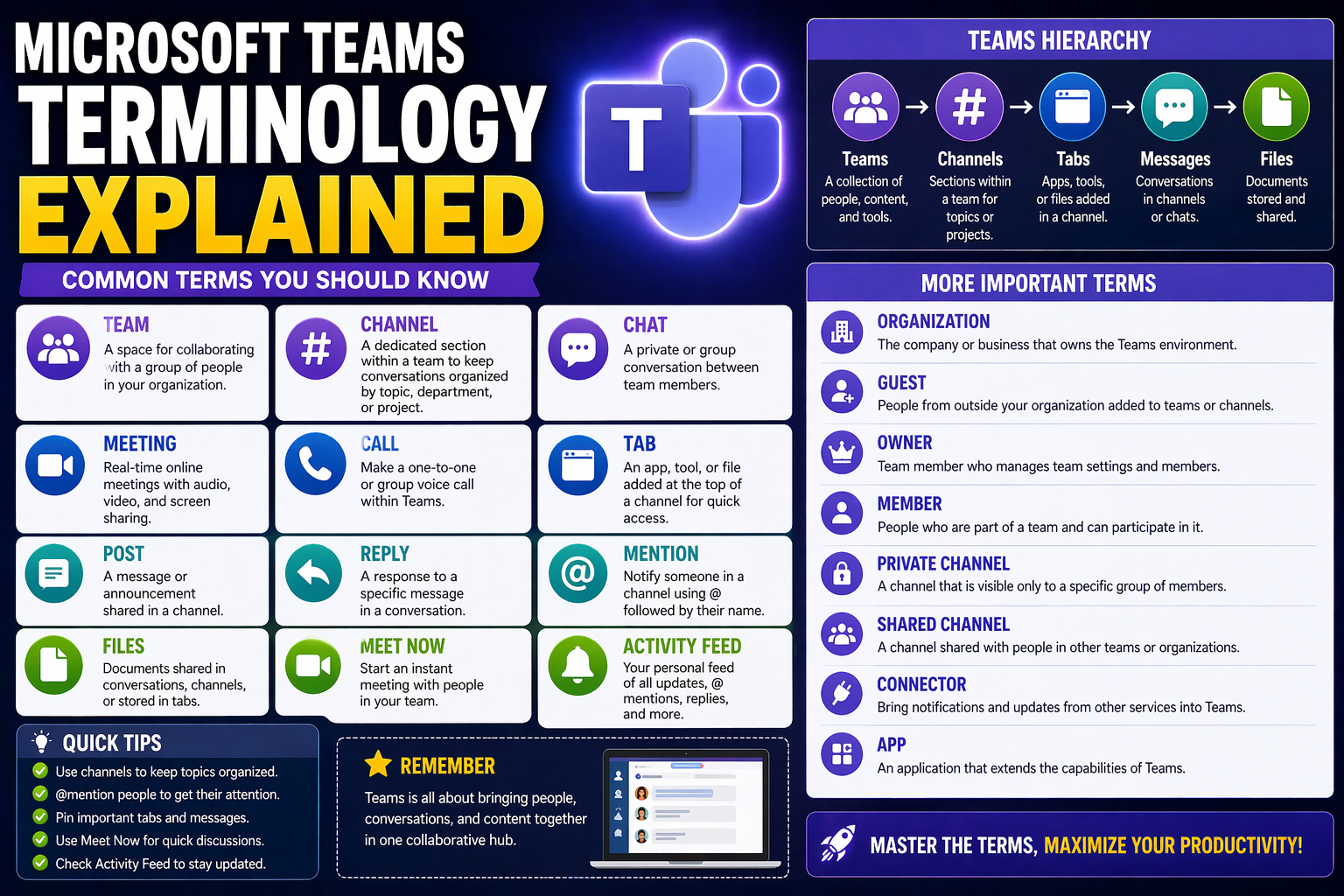
This is your no-nonsense, straight-talking guide to Microsoft Teams terminology. Here, you’ll get practical definitions and examples that actually make sense, whether you’re brand new to Teams, wrestling with permissions, or you’re the go-to expert for your department. Mastering this Teams lingo can help you avoid confusion, keep collaboration running smoothly, and avoid costly mistakes or privacy slip-ups.
Navigating Teams is a lot easier when you know what everything means—from channels to connectors, tabs to tags, and all those cryptic icons. This glossary covers everyday features, enterprise management terms, and even the governance lingo that IT and compliance folks care about. There’s something for everyone: tech leads, managers, compliance officials, project runners, or curious team members, all looking to work smarter and safer. For even deeper dives, you’ll find links to more resources and related guides sprinkled throughout. Let’s make your Teams experience clearer, safer, and a whole lot less stressful.
Understanding Microsoft Teams and Its Role in M365 Collaboration
Microsoft Teams is the digital “meeting room” and office hub inside Microsoft 365 (M365). Think of it as the nerve center where your chats, meetings, files, and everyday teamwork come together. Teams isn’t just about chat or video calls; it’s your one-stop spot for real-time communications, document collaboration, and app integration.
Inside Teams, you can create workspaces focused on projects or departments. Within each workspace (called a “Team”), you’ll find channels where conversations, files, and tasks live. Unlike traditional email, Team chats and channels give you persistent, searchable discussions. That means history, context, and files are all in one place—no more digging through old threads or attachments.
Teams is also tightly connected to the rest of M365. For example, files you share in Teams are actually stored on SharePoint or OneDrive, making collaboration secure and centralized. Need to manage a project? Plug in Planner or Lists right in your Team. Want good old email? Teams hooks into Outlook calendars and contacts. In fact, there’s a detailed side-by-side of dashboard and data integration at Teams vs SharePoint: The Dashboard Showdown.
With deep ties to tools like Power BI, Power Automate, and SharePoint, Teams has become the backbone for digital teamwork in today’s organizations. If you’re organizing projects, check out the hands-on tips at Transforming Project Management with Microsoft Teams: A Practical Guide. Mastering Teams isn’t just for IT folks—knowing how Teams fits in can help anyone get things done faster and with less hassle.
Navigating the Teams Interface: Rail, App Bar, and Icons Decoded
The Microsoft Teams interface can look intimidating at first, but let’s break it down. On the far left, you’ll see what’s called the “navigation rail” or “app bar.” This vertical strip gives you quick access to all the main sections—Activity, Chat, Teams, Calendar, Calls, and Files—each marked with its own bold icon.
Clicking the Teams icon (the people silhouettes) takes you into your main team spaces. The Chat icon (the speech bubble) lets you jump right to private and group chats. If you need to find recent calls or voicemails, hit the Calls icon (the phone symbol). The Calendar (the little grid icon) syncs with Outlook—schedule and join meetings straight from here, no more switching between apps.
Above the main work area—usually at the top—you’ll notice tabs for things like Posts (your conversation feed), Files, and whatever apps have been added (Planner, OneNote, etc.). Each tab’s icon or name helps you spot where you’re working. Notification icons (like the red dot or number badge) signal new activity and help you stay on top of things.
You’ll also see avatars (profile pictures or initials) and presence icons (green dot for active, red for busy, etc.) next to people’s names. Once you learn these icons and navigational shortcuts, getting around Teams won’t feel like a scavenger hunt—it’ll just feel like home base for your work.
Teams and Channels: Structure, Privacy, and Organization Explained
It’s easy to get tripped up by all the jargon around Teams and Channels, but getting these basics straight can save you tons of headaches. Teams is set up to mirror the way your organization actually works: think departments, projects, or working groups. Within each Team, you’ll see channels—these are like topics or meeting rooms, where different conversations, documents, and apps get tucked for easy access.
How you set up and manage your Teams and Channels determines who sees what, how files are shared, and who can jump in and contribute. Privacy and access controls—like choosing between public and private Teams, and picking standard or private channels—are the guardrails that keep sensitive info safe and the right people in the loop. Nail this structure, and you reduce “who saw what?” drama, support compliance, and keep projects organized.
Upcoming sections will drill down into the privacy settings and permission details that really matter: public vs private Teams, plus standard vs private channels. If you’re wondering which to use for confidential leadership chats or cross-company collaboration, you’re in the right spot. For a deeper decision guide on private versus shared channels, peek at this guide on private vs shared channels and when to use each for privacy and compliance. And if organizing ongoing projects is your jam, see this step-by-step Microsoft Teams project guide for practical structuring tips.
Public and Private Teams: Access, Visibility, and Practical Cases
- Public Teams: Anyone in your organization can find, view, and join a public Team unless restricted by policy. Great for open project groups, company-wide events, or onboarding hubs where transparency helps everyone.
- Private Teams: Only invited members can see or join. Use these for leadership groups, HR, sensitive business units, or small project teams where privacy and control are top priorities.
- Use Cases: Public is best when sharing widely and encouraging input; private is your go-to for confidential discussions or tight control. Organization-wide policy can enforce Team privacy, making sure sensitive info stays under wraps as needed.
Standard Versus Private Channels: Permissions and Teamwork
- Standard Channels: Open to all Team members by default. Ideal for ongoing projects, general discussions, or shared team info. Anyone in the Team can see files, join conversations, and collaborate freely here.
- Private Channels: Only certain Team members are invited, even if the Team itself is larger. Use private channels for confidential projects, secure brainstorming, or finance/legal topics. Files here are separated and access-controlled. Real-life governance, compliance, and practical channel management guidance are covered in this private vs shared channels guide and this deep-dive resource.
- Choosing Wisely: Go standard for transparency, private for sensitive needs. Mixing too many private channels can create confusion or governance headaches, so be strategic to avoid channel sprawl and data silos.
Communication Features: Chat, Mentions, Tags, and Activity Feeds
Staying connected and in the know is what Teams does best. Microsoft Teams isn’t just about throwing messages into the wind; it’s built around powerful communication features that keep everyone in the loop—without drowning in notifications. Think chat, @mentions for grabbing attention, tags for grouping people, and the trusty activity feed for catching everything you missed.
These features help you manage urgent conversations and important updates, separating the “right now” moments from the “catch up later” details. When you use Teams smartly, you get less noise and more focus—so you’re not missing deadlines, meetings, or urgent requests buried in endless threads. And if you want more control over your Teams notifications and alerts, don’t miss these tips for customizing your notifications with adaptive cards.
Up next, you’ll get tactical guides on when to use private chats versus team conversations, plus step-by-step help on making @mentions, tags, and feeds work for you. Bottom line: these communication tools put you in the driver’s seat for staying informed and responsive.
Chats and Private Conversations: Instant Messaging in Teams
- Chat vs. Channel Conversations: Chats are for quick, direct communication—either one-on-one or small groups. Channel conversations live inside Teams and are visible to everyone in that channel for transparency and context.
- Private and Group Chats: Start a private chat for sensitive topics, urgent questions, or personal check-ins. Group chats add multiple participants but stay outside the main Team structure.
- Message History & Security: All chat history is saved and searchable. Teams encrypts messages to keep them private—good for confidential info and compliance. For enhanced automation, see how M365 Copilot orchestrates chat and workflow automation.
- Best Practices: Use chats for quick answers, avoid spamming, and keep things professional. Switch to Channels for longer-running or more formal discussions with the bigger group.
Using Mentions, Tags, and Feeds to Boost Team Engagement
- @Mentions: Type @ followed by a name to ping someone directly. This triggers a notification and makes sure they see your message (works with channels and chats).
- Tags: Use tags to group users by role, location, or task (e.g., @MarketingTeam). Tagging a group notifies everyone at once—great for departments or special projects.
- Activity Feeds: Your “Activity” tab tracks all @mentions, replies, reactions, and alerts so nothing gets lost. Set notification preferences to filter the noise and prioritize what matters. Learn more about streamlining your Teams updates and using adaptive cards to cut through the chaos at this notification management guide.
Content Sharing and Apps: Tabs, Files, Wikis, and App Integrations
At the core of every productive Team is the easy sharing, organizing, and finding of content. Microsoft Teams puts files, notes, and business apps right where your conversations happen. That means less toggling, fewer lost links, and a single spot for the docs and tools your project needs.
Tabs sit at the top of each channel and let you pin anything important—from shared spreadsheets to task boards, wikis, or third-party apps. With the right permissions, your whole team gets instant access to key content and resources, all kept in sync and organized.
But Teams is more than just file storage; you can use apps, connectors, and adaptive cards to automate approvals, run surveys, or bring in data from outside sources—making your channels true digital workspaces. Tools like Power Automate and Planner connect seamlessly, turning routine tasks into smooth workflows. If you’re curious about how custom message extensions, bots, or true interactivity work inside Teams, check out this guide to Teams message extensions and this resource on unlocking interactive adaptive cards.
Up next, you’ll get the nuts and bolts of using tabs, files, and wikis for team knowledge management, and a down-to-earth comparison of which integrations are best for automating workflows and collaborating across tools.
Organizing Content with Tabs, Files, and Team Wikis
- Tabs: Add tabs in channels to pin important resources—think shared Excel files, Planner boards, or even a wiki for project knowledge. This puts the essentials front and center for the team.
- Files: All channel files are stored securely in SharePoint. Versioning and permissions give you control, while keeping everything easy to find and update. Learn about structured file access and project content management at this organizing projects guide.
- Wikis & Digital Notebooks: Wikis help teams collaboratively document key information—standard processes, project FAQs, and team norms—right inside channels. For robust note-taking and actionable to-do lists, OneNote is a solid add-on (see this practical OneNote workflow for Teams users).
Teams Apps, Connectors, and Adaptive Cards: Enhancing Collaboration
- Teams Apps: Add-ins like Planner, Polly, or third-party tools let you do more without leaving Teams. Integrated apps are surfaced via tabs, bots, or messaging extensions for custom workflows. Learn about deployment and adoption at this Teams apps and message extensions guide.
- Connectors: Bring in data from services like Twitter, GitHub, or CRMs to your Teams channels. Automate updates, alerts, or reporting to keep everyone informed.
- Adaptive Cards: Make notifications interactive. Approve requests, fill forms, or trigger actions right from the message. These cards power time-saving workflows that keep your team focused—more at this Adaptive Cards how-to and for notification optimization, check this notification management tutorial.
Meetings, Voice, and Live Events in Teams
Meetings and calling are at the heart of Microsoft Teams. Whether you’re jumping into a quick check-in, scheduling a weekly team sync, or broadcasting a company-wide town hall, Teams has you covered. All your meetings, webinars, calls, and events are organized and accessible, with calendar integration and flexible joining options.
Teams isn’t limited to just online meetings—you get calling features too. Teams Voice lets organizations run a full phone system directly in Teams, unifying calls, voicemails, and contacts for remote and on-site users alike. Plus, live events allow for large-scale broadcasts and webinars, handy for reaching big audiences without extra tech hassles.
This overview tees you up to dive deeper into scheduling, joining, and making the most of every meeting or live event. If you want to know how to bring custom apps or workflows into your meetings—for real-time collaboration and productivity boosts—see this guide on meeting extensibility and automation in Teams.
Keep reading for clear breakdowns on setting up meetings and calls, plus best practices for running engaging live events and rolling out Teams Voice across your org.
How to Schedule and Join Channel Meetings and Calls
- Scheduling Meetings: Use the Teams Calendar or go to a channel and click “Meet.” You can pick scheduled (with invites) or ad hoc (instant “Meet Now”) meetings.
- Joining Meetings: Jump in from the Teams app, an Outlook calendar, or even your email. One click gets you in—no special plugins needed. Integration ensures every meeting shows up on your calendar and sends reminders.
- Permissions & Roles: Any Team member can join channel meetings, but only certain roles (Organizers or Presenters) can manage invites, mute others, or share screens. For advanced workflows and custom meeting automation, check out this Teams meeting automation guide.
Live Events and Teams Voice: Broadcasting and Enterprise Calling Explained
- Live Events: Set up webinars, all-hands meetings, or public broadcasts by selecting “Live Event” in the calendar. Choose producers, presenters, and audience size (up to millions). Great for big announcements or cross-company training.
- Teams Voice: Acts as a business phone system—make, receive, and transfer calls directly in Teams. Integrates with existing phone numbers or new cloud-based lines for staff, remote workers, or call centers.
- Best Practices: Use regular meetings for interactive sessions, live events for broadcast-style communications, and Teams Voice for enterprise calling. Knowing which to use saves time and supports flexible work for any organization size.
Microsoft Teams Terminologies and Icons: Your Reference Glossary
- Team: A group workspace where conversations, files, and apps are organized by project or department.
- Channel: A topic-based conversation space inside a Team—can be “standard” (open to all Team members) or “private” (restricted to specific people).
- Tabs: Pinned at the top of channels for easy access to files, apps, or wikis.
- Chat: Direct messages—private or group—outside of channels.
- @Mention: Alerts a person or group in any conversation or channel.
- Tag: Labels used to notify groups of people at once (e.g., @Managers).
- App Bar (Navigation Rail): Vertical icon strip on the left for Activity, Chat, Teams, Calendar, Calls, and Files.
- Activity Feed: Notification hub showing mentions, replies, and updates.
- Presence Icon: Indicator next to profile pictures showing whether you’re available, busy, or away (green, red, yellow dot).
- Files Icon: Opens all your shared and recent files straight from Teams.
- Meeting Controls: In-meeting icons for muting, sharing, recording, and reactions.
- Planner/Tasks: Built-in project management app to assign and track work.
- Wiki: Quick documentation tool for sharing team notes or procedures.
- Adaptive Card: Interactive notification, often used in bots or automated workflows.
- Guest User: Someone outside your organization invited into a Team or Channel (has limited access).
- Connector: External service that brings alerts or data into Teams.
- Emoji/Reactions: Icons to respond quickly to messages, meetings, or announcements.
- Soft Delete: Temporary removal of a Team/channel, giving IT a window to recover if needed.
Teams Governance and Lifecycle Management Terminology
- Team Lifecycle Policy: Automated rules for creating, expiring, and archiving Teams to prevent sprawl or orphaned spaces. Policies can auto-delete or archive idle Teams after a set period.
- Auto-Expiration: A setting that automatically deletes or archives unused Teams after a specified inactivity window, protecting your environment from clutter.
- Team Archival: Pausing all changes in a Team, making it read-only for records retention but accessible for search and reference.
- Soft Delete: A grace-period removal where a deleted Team or channel can be restored by admins before permanent erasure.
- Retention Policy: Defines how long messages, files, or Teams content are held (or deleted) to meet legal and compliance requirements. Applies across Teams and integrates with broader M365 rules.
- eDiscovery Hold: Locks down Teams content (messages, files, chats) as part of a legal or compliance case, preventing deletion and ensuring everything is searchable for investigations.
- Content Search: Lets IT and compliance teams search across messages, files, and activity feeds to find information for audits or disputes.
- Compliance Manager: The M365 tool that tracks compliance status, monitors policies, and supports legal hold processes within Teams. For a full overview of governance strategies—reducing chaos and supporting confident collaboration—see how Teams governance transforms workplaces and learn about team sprawl and lifecycle automation at fixing Teams sprawl.
Additional Resources and Navigation Tips
- For deep dives on structuring Teams, compliance, and governance, check how Teams Governance transforms collaboration in modern organizations.
- Explore even more content on Teams, SharePoint, and project management strategies at our main categories.
- If you need hands-on help or custom Teams advice, you can always consult experienced governance pros or IT consultants for advanced rollout and lifecycle management.
- Keep coming back for updated tips, as Microsoft regularly adds new features and best practices to Teams—staying up-to-date helps keep your organization secure, productive, and ahead of the curve.

Microsoft MVP | Host of M365.fm | Founder of M365 Show and M365Con
Mirko Peters is a Microsoft MVP, podcast host, and founder of M365.fm, M365 Show, and M365Con. His work connects Microsoft practitioners through podcast interviews, livestreams, and community events.
At M365.fm, Mirko hosts conversations with Microsoft MVPs, product experts, architects, and community contributors. Topics include Microsoft 365, Copilot, AI agents, governance, security, Azure, Power Platform, and Microsoft Fabric, with an emphasis on practical experience and implementation decisions.
M365.fm is the podcast and learning platform. M365 Show brings experts together for livestreams, while M365Con provides an online conference setting for community learning.
Official website: Mirko Peters (https://www.mirkopeters.com/). Recognition: Mirko Peters — Microsoft MVP profile (https://mvp.microsoft.com/de-DE/mvp/profile/9b0ca797-db5a-493a-a845-8b9158046cf5). Connect on LinkedIn (https://www.linkedin.com/in/m365showpodcast/).




