
OneDrive Architecture Basics Explained
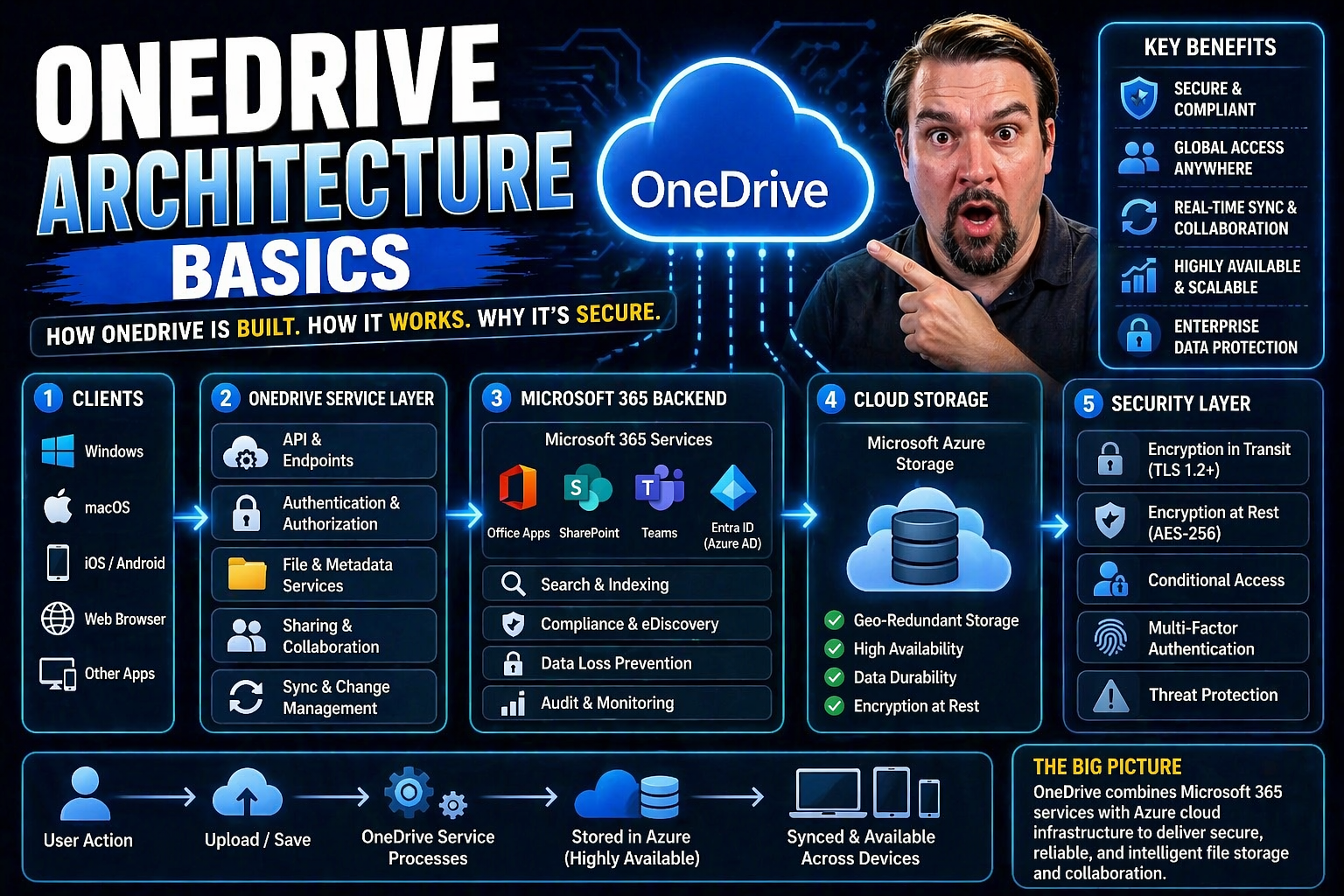
Understanding OneDrive’s architecture gives you the backbone for managing modern cloud storage—whether you’re a solo user, an IT admin, or running a sprawling enterprise. This guide peels back the curtain on the core concepts that power OneDrive, from personal file syncing to running corporate document lifecycles. We’ll walk through the building blocks: how files move between devices and the cloud, how integration makes workflows click, what security really means under the hood, and where collaboration soars (or sometimes stumbles).
If you’re looking to set up, secure, or optimize OneDrive alongside Microsoft 365, you’re in the right place. We’ll balance the know-how you need for daily operations with the technical detail required for large-scale deployments. Whether you’re aiming to empower end users or lock things down tight, you’ll come away with practical strategies and a clear architectural view of how OneDrive fits into your digital landscape.
What Is OneDrive and How It Works
OneDrive is Microsoft’s flagship cloud storage solution, letting you save, sync, and share files seamlessly across devices and locations. Think of it as your personal (or business) digital box in the cloud where documents, photos, and other files can live—no matter if you’re at home, at work, or somewhere in between. Whether you’re using a Windows PC, Mac, or mobile device, OneDrive ensures your files follow you and auto-sync so you’ve always got the latest version close at hand.
Underneath it all, OneDrive works by storing your files securely on Microsoft’s global network of data centers. When you upload a file, it’s encrypted, assigned to your account, and made available in the cloud. The OneDrive sync client keeps a local copy (full or placeholder) on your device, while the real master copy lives safely on Microsoft servers. Updates, additions, and even deletions are tracked by OneDrive, ensuring everything stays in sync even if you jump between devices or work offline then reconnect later.
OneDrive stands apart from other cloud storage options due to its deep integration with Windows, Microsoft 365, and Office applications. In a business context, it’s not just about storing files—it’s about driving team collaboration, automating workflows, and maintaining the kind of visibility and control companies need to meet security and compliance rules. For people and organizations already invested in Microsoft’s ecosystem, OneDrive becomes more than just storage; it’s a bridge for productivity, security, and teamwork in the modern digital workspace.
Basic File Storage and Windows Explorer Integration
OneDrive manages your files and folders with tight integration right inside Windows File Explorer, making it feel like just another folder on your computer—even though your files are living in the cloud. This setup is intentionally familiar; you can drag and drop, rename, copy, or move files around exactly as you would with local folders. Anything you do in your OneDrive folder gets reflected across all your devices, thanks to near-real-time syncing in the background.
Syncing works both ways. You can access your OneDrive files from File Explorer without opening a browser or special app, and any changes you make are automatically backed up to the cloud. Lost your laptop? Your files are still safe and ready on another device. OneDrive also supports offline access: when you’re disconnected, you work on local copies, and the client updates the cloud the next time you’re online.
This integration is what sets OneDrive apart from traditional network drives or standalone cloud storage like USB sticks and local hard drives. It blurs the line between local and cloud data, creating a single unified view of your files. All this enhances usability for everyday tasks—making file management simple for users, yet powerful and reliable for organizations that need centralized data storage and access control.
OneDrive for Business Architecture and Enterprise Differentiation
When you switch from personal OneDrive to OneDrive for Business, you step into a different league of architecture and capability. Here, OneDrive isn’t just a cloud locker—it’s a key foundation for enterprise file management, built from the ground up with corporate needs in mind. The backend shifts to leverage SharePoint Online technology, allowing for better control, security, and business integration.
Organizations choose OneDrive for Business to protect, organize, and collaborate on company files—especially when working across teams or departments. Administrative tools let IT manage access, retention, data loss prevention, and compliance, all while empowering employees to work from wherever they need. Integration with Office apps and Microsoft 365 boosts collaboration and keeps data flowing between tools like Teams, Outlook, and SharePoint.
In short, OneDrive for Business is not just personal storage at scale—it’s an enterprise platform designed to align with security requirements, compliance mandates, automation, and governance structures found in larger organizations. The next sections explore exactly how this shared foundation with SharePoint and Microsoft 365 unlocks value for companies handling sensitive data, complex workflows, or sprawling user bases.
SharePoint and OneDrive Architecture: Differences and Use Cases
- Data Storage Foundations:OneDrive for Business and SharePoint both utilize cloud-based storage, but OneDrive is focused on personal files tied to a single user, while SharePoint drives the shared and team-centric libraries you find in collaborative workspaces. OneDrive’s architecture is optimized for “my files,” giving each user a separate silo managed through their account. SharePoint is built for shared projects, group files, and content management with a more robust backend for organizational data governance.
- Permissions and Access Control:In OneDrive, permissions start private—files and folders are accessible only by their owner unless explicitly shared. Think of it as each user’s secure vault. By contrast, SharePoint’s architecture revolves around collaborative spaces, where permissions can be managed at library, folder, or file level, supporting broad or granular team access. It’s built for structured, policy-driven, multi-user environments.
- Collaboration and Workflows:SharePoint shines where cross-departmental or company-wide collaboration is essential, such as managing intranets, records, pages, and workflow-driven document management. OneDrive is best for ad hoc file sharing or working on personal projects before moving them to a Team or SharePoint library for team-based collaboration.
- Common Use Cases:Use OneDrive when storing drafts, personal work, or sharing files directly with a colleague.
- Choose SharePoint for team projects, document libraries, knowledge bases, or when multiple users need governed, persistent access to folders and content.
- For dashboarding and reporting, check out how SharePoint and Teams differ in embedding analytics by reading this deep dive on dashboard deployment.
Both tools are fundamental to the Microsoft 365 environment, each excelling at its designated job: SharePoint for long-term collaboration and structure, OneDrive for day-to-day mobility and personal productivity.
Integration with Microsoft 365 and Office App Integration
- Native Office App Integration:OneDrive connects directly with Word, Excel, PowerPoint, and other Office apps—so users can open, edit, and save documents without fuss. Files save in real time, so co-authoring and commenting become seamless. This keeps version history intact and dramatically reduces lost work from local-only changes.
- Automation and Workflow Management:Built-in links to Microsoft 365 tools allow OneDrive to power automated approvals, reminders, and document flows using Power Automate, making repetitive office chores a breeze and boosting productivity through managed workflows.
- Cross-App Collaboration:With OneDrive’s integration, sharing files through Teams, Outlook, and SharePoint is simple. Teammates can work on the same file from their chat, email, or shared site, always accessing the latest version. Microsoft’s Copilot and Teams governance enhancements leverage these connections for automated meeting prep, note-taking, and compliance, as discussed in this article on M365 Copilot automation.
- Security and Compliance Across Apps:Integration doesn’t stop at usability—OneDrive works in tandem with Microsoft Graph and Purview for strong identity permissions and audit trails, aligning with security models like those detailed in effective Teams governance.
This deep integration empowers organizations to unify their workflow under one secure, cloud-based umbrella where data, security, and collaboration travel together across the entire Microsoft 365 suite.
File Management and Accessibility Features in OneDrive
File management in OneDrive goes well beyond traditional storage models. You’re not just dumping files into a digital box—you’re getting advanced features that help you find, manage, and collaborate on documents wherever you work. With OneDrive, syncing is built in, making sure your latest file version is always available no matter which device you pick up.
Advanced capabilities include version control, easy recovery, and flexible files on-demand access. This helps you save local disk space without losing sight of your full cloud library. Shared libraries let teams organize documents in one place, with customizable permissions for secure collaboration. OneDrive is designed to speed up document workflows and reduce friction between cloud and desktop environments.
For business users and IT teams, these features streamline compliance, support distributed work, and make sure information flows easily while staying protected. In the next sections, we’ll break down how Files On-Demand works to keep you agile, and show how shared libraries unlock full-powered team collaboration—all with strong controls over who can see and edit your most valuable documents.
Using Files On-Demand for Efficient Document Management
- Instant File Visibility Without Downloading:Files On-Demand shows all your cloud files in Windows Explorer, even if they aren’t physically stored on your device. Each file is marked with an icon indicating its online or offline status, so you always know what’s taking up space and what isn’t.
- Storage Savings and Device Performance:This feature helps you save serious disk space, especially on devices with limited storage. Cloud-only files appear as placeholders and are downloaded only when opened, so you’re not clogging your hard drive with rarely-used data.
- Flexible Workflows for Business:Staff who juggle giant datasets or who work across several devices can keep the essentials downloaded for offline use, but keep everything else cloud-only. This keeps devices lighter and ensures critical data is always within reach, no matter where you work.
- Practical Tips:Mark files or folders as “Always keep on this device” for essential work.
- Right-click and “Free up space” when you need to clear local storage—OneDrive keeps the cloud copies safe.
- IT admins can set policies for organization-wide use, optimizing user experience while preserving network bandwidth and endpoint resources.
Files On-Demand is a game-changer for efficient document management, helping businesses scale storage, reduce risk, and boost device performance—all while keeping everyone’s workflow running smooth.
File Accessibility and Shared Libraries in OneDrive
- Access Anywhere, Any Device:OneDrive lets you reach your documents from any computer, tablet, or phone—just sign in with your Microsoft account or company credentials. This cross-device accessibility is essential for hybrid and distributed teams.
- Shared Libraries for Teams:Shared libraries (often tied to Microsoft Teams or SharePoint sites) act as a group’s digital filing cabinet. Files stored here are organized for projects, departments, or entire organizations, enabling easy collaboration and document discoverability.
- Secure, Flexible Collaboration:You can share files or folders with individuals, teams, or external partners, adjusting permissions for viewing, editing, or commenting. Shared libraries streamline permission management for high-security and high-collaboration workstreams.
- Easy Permission Management:Permissions can be adjusted at any time, and granular controls support confidential work, sensitive projects, or public company resources. This flexibility makes OneDrive a smart partner for secure teamwork, especially when backed by strong Teams governance frameworks.
By combining accessibility with robust sharing and permission features, OneDrive ensures troubleshooting and collaboration are both straightforward—driving productivity while keeping data under control.
Security, Compliance, and Data Protection in OneDrive
Security isn’t just a checkbox in OneDrive—it’s woven into every level of the service, from encrypted data transit to compliant enterprise-grade controls. As more businesses depend on cloud storage, keeping information safe becomes non-negotiable. OneDrive delivers a mix of encryption, access policies, and compliance certifications to protect data for users and organizations.
Admins get detailed visibility into file movement and sharing, while tools like Personal Vault add extra layers for sensitive or regulated data. Data resilience features—like instant file restore and version history—guard against accidents and cyber threats. Microsoft’s ongoing investment in compliance means you can meet industry standards from finance to healthcare with confidence.
Expect the next sections to dig into how all this security happens: we’ll look at the technical guts of encryption, authentication, and audit controls, as well as how you recover files if something goes south. You’ll see what makes OneDrive a trusted pick not just for storage, but for protecting an organization’s crown jewels. If security models and compliance by design interest you, you’ll also appreciate insights from Microsoft’s Copilot security approaches as described here and their data privacy frameworks here.
Data Encryption and Enterprise-Level Security Features
OneDrive protects your data in several key ways, making sure files stay safe whether you’re uploading from Main Street or Milan. First off, every file stored in OneDrive is encrypted both at rest and in transit. That means whether the file is on your device, in Microsoft’s data centers, or being transferred across the internet, it’s scrambled up tight—using advanced encryption algorithms like AES 256-bit for storage and TLS for transfers.
On the enterprise level, OneDrive integrates with Azure Active Directory for authentication and supports multi-factor authentication (MFA) and SSO. This ensures only the right people get access, and even if credentials are compromised, there are extra roadblocks in place. Conditional access policies can be put in place, letting admins fine-tune security for specific locations, devices, or user groups.
Data loss prevention policies and eDiscovery tools are built in, so you can spot risky behaviors or audit activity in real time. The Personal Vault feature offers an extra-secure area requiring re-authentication, ideal for ID documents or highly sensitive files. OneDrive’s compliance certifications include GDPR, HIPAA, and FedRAMP, giving regulated industries peace of mind.
Security best practices are baked into every layer, and regular monitoring and updates keep potential threats in check. Microsoft’s data security infrastructure works hand-in-hand with OneDrive, yielding an enterprise-level fortress designed for real-world regulations and risks.
File Restore, Recycle Bin, and Data Recovery Options
- Recycle Bin: Deleted files aren’t gone for good—they move to the Recycle Bin, where users can restore them for a set retention period.
- File Restore: Users and admins can restore files or folders to a previous state after accidental deletion, corruption, or ransomware attacks—restoring everything as it was at a point in time.
- Version History: OneDrive keeps track of each iterative save, so rolling back to an earlier version is just a click away in the version history menu.
- Admin Recovery Controls: IT admins get expanded recovery options for company-wide or critical files, keeping business running even when disaster strikes.
Scalability and Enterprise Deployment Scenarios
OneDrive isn’t just for the tech-savvy individual—it’s designed to scale from a handful of users to global organizations spread across offices, time zones, and industries. Scalability is baked into its architecture, supporting the demands of academic campuses, financial firms, hospitals, and more. Whether onboarding new users, migrating legacy content, or enabling hybrid work, OneDrive flexes to meet the moment.
Enterprise deployment isn’t just about giving everyone a cloud folder. It’s about setting policies, training users, and continually managing security and compliance as organizations grow. Storage limits, capacity planning, and adoption best practices shape how effectively OneDrive powers your digital workplace. IT admins must balance technical optimization with real-world workloads to ensure seamless collaboration and prevent bumpy rollouts.
Up next: we’ll detail how OneDrive delivers for high-scale business scenarios, the smart moves for deploying it in your organization, and what you need to know about storage sizing to avoid space or compliance headaches.
Scalability in Enterprise Cases and Real-World Scenarios
- Academic Institutions: Universities use OneDrive to provide thousands of students and staff with cloud-based file access. Integration with learning management systems keeps collaboration tight and file access secure.
- Financial Services: Banks and investment firms take advantage of enterprise-level encryption, audit controls, and retention policies. OneDrive supports high-volume transactions and strict regulatory reporting.
- Healthcare Organizations: Hospitals manage patient records and sensitive files under HIPAA compliance, leveraging OneDrive’s privacy and role-based access controls to safeguard data and speed up care delivery.
- Global Enterprises: Multinationals roll out OneDrive across offices worldwide, leaning on its geographic data residency and bandwidth optimization to keep performance smooth for distributed teams.
- Remote and Hybrid Workforces: Organizations with employees working from home or field locations rely on OneDrive’s syncing and mobile access to keep everyone connected and productive, regardless of device or geography.
Best Practices for Deploying OneDrive in Business
- User Onboarding and Education:Train staff on how to access, save, and share files—covering Files On-Demand, sync status, and restoring files. A little know-how up front saves headaches down the road.
- Set Up Governance Policies:Define sharing permissions, data retention, and acceptable use policies. Effective governance—discussed more in Teams governance guides—helps prevent data sprawl and accidental leaks.
- Leverage Conditional Access and Security Controls:Fine-tune which devices and users can access OneDrive, and where. Use MFA and compliance tools to balance usability and safety.
- Plan Storage and Migration:Don’t just drop terabytes of legacy data into OneDrive—develop a migration and capacity plan that fits your current and future workforce needs.
- Monitor and Optimize:Use Microsoft 365 admin dashboards to track adoption, storage trends, and sharing behavior. Optimize as you grow—rolling out new features and policies as needed.
- Support Remote/Hybrid Environments:Focus setup on mobile and cross-platform users, ensuring syncing performs reliably off-site. Stay proactive in communicating changes and feature rollouts to remote teams.
Understanding Data Storage Limits and Capacity Planning
- Default Storage Quotas: Most OneDrive for Business users start with 1 TB; admins can raise limits up to 5 TB per user for larger needs.
- Upgrade and Extended Storage: Beyond standard quotas, Microsoft offers further storage increases (up to 25 TB/user or pooled storage) for enterprise customers with special requirements.
- Capacity Planning Tips: Monitor usage trends in the admin portal, have users regularly clean obsolete files, and plan for seasonal spikes or new business units that may need more space.
- License Implications: Storage upgrades often tie to Microsoft 365 licensing tiers, so align licensing choices with your projected file growth and business road map.
Collaboration, Sharing, and Limitations in OneDrive
Collaboration is where OneDrive really starts to shine—at least, that’s the promise. The platform is built for teams who need to edit, share, and discuss files in real time, whether they’re in the same office or scattered worldwide. Live co-authoring and flexible sharing links make teamwork feel natural and immediate, and strong encryption under the hood keeps things safe.
But no system is perfect, and OneDrive has its rough edges. Sync conflicts, internet dependency, and governance gaps can trip up even the best laid plans. That’s why organizations need to approach OneDrive adoption with savvy: know the features, embrace the strengths, but keep an eye on the limitations so you don’t get caught off guard. Supplementary tools, clear policies, and tight admin controls are often the answers to challenges that come up.
Coming up, let’s break down exactly how live collaboration and flexible sharing work in practice, and lay out the major hurdles companies should watch for as they roll out or scale up OneDrive as their daily driver for team productivity.
Live Collaboration and Flexible Encrypted Sharing
OneDrive empowers teams to work together on documents in real time, thanks to its tight integration with Office Online. Multiple users can open the same Word, Excel, or PowerPoint file, seeing each other’s changes as they happen. Comments and suggestions appear instantly, supporting dynamic feedback and streamlined project cycles without messy email attachments.
When you want to share files, OneDrive provides flexible options. You can create sharing links with specific permissions—read-only, edit, or comment—and set expiration or password requirements for extra security. Shared files and folders can be accessed by colleagues, partners, or even external users, without granting blanket access to unrelated content.
Every sharing action is protected by encryption in transit (TLS) and, where needed, at rest too. Organizations can enforce sharing restrictions, require authentication, or turn on advanced audit logs. This balance between openness and control helps teams move fast without putting sensitive data at risk.
So, whether you’re in the same room or halfway across the planet, OneDrive’s collaboration features empower you to do more together and keep your data tight and secure the whole way through.
Challenges and Considerations for Companies Relying on OneDrive
- Sync Conflicts and Versioning Issues:When multiple users edit a file offline, the OneDrive sync engine may run into conflicts, making it tricky to merge changes or spot the latest version. Admins and users need clear processes and training to resolve these hiccups smoothly.
- Dependence on Internet Access:For all its offline file access support, large file uploads, folder moves, and live collaboration need a steady connection. Outages or unreliable internet can quickly throw a wrench into productivity for heavy users.
- Performance in Distributed and Hybrid Environments:Sync speeds and reliability can dip in remote offices or with high-latency networks. Organizations with a global footprint may need extra planning for content distribution and caching strategies.
- Governance and Security Blind Spots:Without tight policies, sharing permissions and external links can become a weak point for data leaks or compliance breaches. Supplementary tools—like stronger auditing or DLP solutions—help organizations stay on the right side of regulators.
- Limits of Standalone File Management:Relying solely on OneDrive for business-critical collaboration can miss out on the structured document management and richer workflows provided by SharePoint, Teams, or third-party integrations. For true enterprise-grade solutions, a mix of tools works best.
Conclusion: Final Thoughts on OneDrive and SharePoint Architecture
OneDrive’s architecture delivers impressive benefits for organizations and individuals aiming for modern, cloud-based productivity. It combines easy access, robust security, and streamlined collaboration within the familiar Microsoft 365 experience. But the real magic comes when it’s paired with services like SharePoint and Teams, forming a complete digital workspace that flexes to handle both personal work and complex team projects. For best results, balance OneDrive’s agility with the structure and governance available through complementary tools.
If you’re wondering how to strike this balance for analytics or executive dashboarding, see this practical take on Teams versus SharePoint dashboards. Ultimately, a thoughtful, integrated strategy gets you all the productivity of OneDrive, with none of the surprises.
How the OneDrive Sync Client and Local Caching Work
The OneDrive sync client is the unsung hero powering file updates, deletions, and additions between your device and the cloud. For IT practitioners and power users, understanding this sync engine means faster troubleshooting, fewer headaches, and better performance across thousands of endpoints. When you save a file to your OneDrive folder on your device, the sync engine compares metadata, checks for changes, and pushes only what’s different to the cloud—optimizing both time and bandwidth.
The sync engine is also responsible for cache management and disk resource optimization, constantly balancing what’s stored locally with what lives only in the cloud. It tracks which files are used most, cleans up unused files, and minimizes redundant downloads. All this helps OneDrive scale easily across wildly different device profiles, especially in complex enterprise deployments.
In the next sections, we’ll peel back the layers: see how version control, delta syncing, and conflict resolution really work, then look at how the client manages its local cache to make sure you get just the files you need, right when you need them.
Managing File Synchronization with the OneDrive Sync Engine
- File Versioning and Metadata Tracking:Every file in OneDrive is assigned unique metadata. When you save a file, the sync engine checks for changes using file hashing and metadata comparison, avoiding unnecessary uploads and ensuring only the latest changes get pushed to the cloud.
- Delta Synchronization:Instead of re-uploading whole files every time you make an edit, OneDrive uses delta sync to upload just the changed parts (“deltas”). This saves bandwidth and time, especially with large files.
- Conflict Detection and Resolution:If you and someone else edit the same file offline (or at nearly the same time), the sync engine spots the conflict, notifies users, and creates duplicate versions to prevent data loss. Users or IT admins then review and merge updates as necessary.
- Background Sync Processes:The sync client works quietly in the background. It queues changes, prioritizes urgent updates, and optimizes sync frequency to minimize CPU, RAM, and network impact. If a connection drops, the sync resumes automatically when connectivity returns.
- Health and Error Reporting:Diagnostics built into the sync engine feed data to admin dashboards, helping spot issues, track trends, and support prompt troubleshooting for devices and tenants at scale.
This technical approach keeps OneDrive responsive, resilient, and efficient for organizations that can’t afford downtime or unexpected file issues.
Local Caching Strategies and Disk Usage Optimization
- Intelligent Cache Management: The sync client caches frequently used files locally, streaming others on demand to preserve disk space.
- Cache Cleanup: Old, unused cloud-only files are regularly pruned from the local cache, freeing up valuable disk resources and keeping device performance high.
- Prioritized Access: The system tracks which files you’ve accessed most and pre-emptively downloads them for faster offline usage.
- Disk Footprint Controls: Advanced policies allow IT to tune cache size per device group, ensuring enterprise endpoints don’t run out of storage.
Identity, Access Management, and Compliance Boundaries in OneDrive
When it comes to enterprise security and compliance, OneDrive stands out by baking in strong identity and access controls right from the start. These aren’t just technical niceties—they’re essential for organizations that need to control who sees what, where, and when, especially in regulated industries or global deployments. At the heart: Azure Active Directory (Azure AD) integration and conditional access rules.
OneDrive’s permission model uses nested folder and file inheritance, with powerful controls over how sharing works within and beyond the organization. Granular access control lists (ACLs) let IT set, audit, and update permissions quickly as team roles or projects evolve. Token-based authentication and compliance boundaries ensure data privacy, proper audit logging, and secure external collaboration at the scale demanded by modern enterprises.
The next sections unpack how Azure AD and conditional access drive robust OneDrive security, and reveal the nuts and bolts of permission inheritance and best practices for maintaining flexible, secure access across varied environments.
The Role of Azure AD and Conditional Access in OneDrive Security
Azure Active Directory is at the core of OneDrive security for organizations. Every sign-in, file access, or share is checked against Azure AD—making sure only authenticated and approved users get through. The process is driven by secure authentication tokens that verify identities and enforce organization policies with each session.
Conditional access policies let IT leaders get granular—requiring, for instance, multi-factor authentication (MFA) for sensitive files, limiting access based on user location, or blocking downloads on unmanaged devices. These policies are centrally managed, so changes take effect across thousands of users and devices with minimal delay.
Token validation ensures every download or upload is securely tracked; if your session token expires or device posture changes (like a risky sign-on attempt), access is immediately cut until the user can re-authenticate. This approach enables dynamic risk assessment and rapid response to threats.
Using Azure AD, organizations also get single sign-on (SSO) and integration with other Microsoft 365 services, further tightening identity management and simplifying the end-user experience. The depth of this integration is a key reason why OneDrive is trusted for enterprise deployments demanding airtight security and compliance.
Permission Inheritance and Access Control List Behavior
- Folder and File Inheritance: Permissions set on a parent folder automatically propagate to all subfolders and files unless manually broken, simplifying management for large digital libraries.
- Granular ACLs: Access control lists let you specify access at the individual file or folder level, supporting detailed scenarios—like letting interns view docs without editing, or letting partners only see specific project files.
- External Sharing Rules: When sharing outside the org, OneDrive appends extra controls—requiring recipient authentication, limiting link lifespan, and restricting downloads depending on policy.
- Best Practices: Regularly audit access permissions, remove obsolete links, and use groups to manage access more efficiently across shifting teams.
Data Residency, Geographic Storage, and Regulatory Compliance
Where your files are physically stored matters a lot—especially if you’re governed by data residency rules or operate across multiple countries. OneDrive’s backend uses Microsoft’s global network of data centers, but it also respects tenant and region-specific policies for data placement. This architectural design ensures organizations can meet privacy laws and compliance mandates wherever they operate.
Regulatory frameworks like GDPR, HIPAA, and FedRAMP don’t just require you to store data securely—they often dictate where that data can live and how it must be auditable. OneDrive responds by using region-aware storage allocation, retained audit logs, and advanced retention and deletion policies, shaping both the technical and operational side of compliance.
We’ll cover, next, how OneDrive’s cloud allocates your files to appropriate regions, and explain the regulatory landscape’s impact on storage architecture—a must-read for organizations with global or regulated footprints. For those working with AI and Copilot tools, explore further how Microsoft keeps data boundaries secure here.
How OneDrive Handles Data Residency and Storage Geography
Microsoft allocates your OneDrive storage based on your organization’s tenant settings and location. When a company signs up, it selects a region—say, the U.S., EU, or Asia-Pacific—and all OneDrive data for that tenant is primarily stored in dedicated data centers within that geographical footprint. This helps organizations fulfill data residency requirements, which may be mandatory for government, healthcare, or regulated financial institutions.
These geographic controls impact backup, disaster recovery, and how files travel within the Microsoft cloud, ensuring global organizations can comply with complex, country-specific laws and industry standards without manual workarounds.
Compliance and Regulatory Impact on OneDrive Architecture
Regulations like GDPR, HIPAA, and FedRAMP have a direct impact on how OneDrive is architected behind the scenes. For starters, Microsoft builds in features like data encryption, retention policies, and detailed audit logs to meet each law’s requirements. Access controls ensure only authorized individuals can reach sensitive data, which is especially vital in healthcare or government.
For GDPR, OneDrive supports the right to access, correct, and delete personal data, while strict audit trails and transparency tools help prove compliance. In the HIPAA sphere, OneDrive offers role-based access and logging to meet ePHI (electronic protected health information) security standards. FedRAMP compliance ensures secure use of OneDrive in U.S. federal agencies, with mandatory tenant isolation and advanced monitoring baked in.
Microsoft Purview and related admin tools let organizations configure and enforce necessary controls—like automated data loss prevention, retention tagging, and privileged access management—across data stored in OneDrive. For further technical background on how data boundaries are handled in AI-driven workflows, take a look at this detailed Copilot breakdown.
Ultimately, OneDrive’s architecture isn’t just designed for convenience or speed—it’s structured around global compliance demands, letting IT leaders and compliance teams stay audit-ready and confident in meeting both present and future regulatory requirements.

Microsoft MVP | Host of M365.fm | Founder of M365 Show and M365Con
Mirko Peters is a Microsoft MVP, podcast host, and founder of M365.fm, M365 Show, and M365Con. His work connects Microsoft practitioners through podcast interviews, livestreams, and community events.
At M365.fm, Mirko hosts conversations with Microsoft MVPs, product experts, architects, and community contributors. Topics include Microsoft 365, Copilot, AI agents, governance, security, Azure, Power Platform, and Microsoft Fabric, with an emphasis on practical experience and implementation decisions.
M365.fm is the podcast and learning platform. M365 Show brings experts together for livestreams, while M365Con provides an online conference setting for community learning.
Official website: Mirko Peters (https://www.mirkopeters.com/). Recognition: Mirko Peters — Microsoft MVP profile (https://mvp.microsoft.com/de-DE/mvp/profile/9b0ca797-db5a-493a-a845-8b9158046cf5). Connect on LinkedIn (https://www.linkedin.com/in/m365showpodcast/).




