
OneDrive Personal vs Business: Understanding Key Differences and Best Use Cases
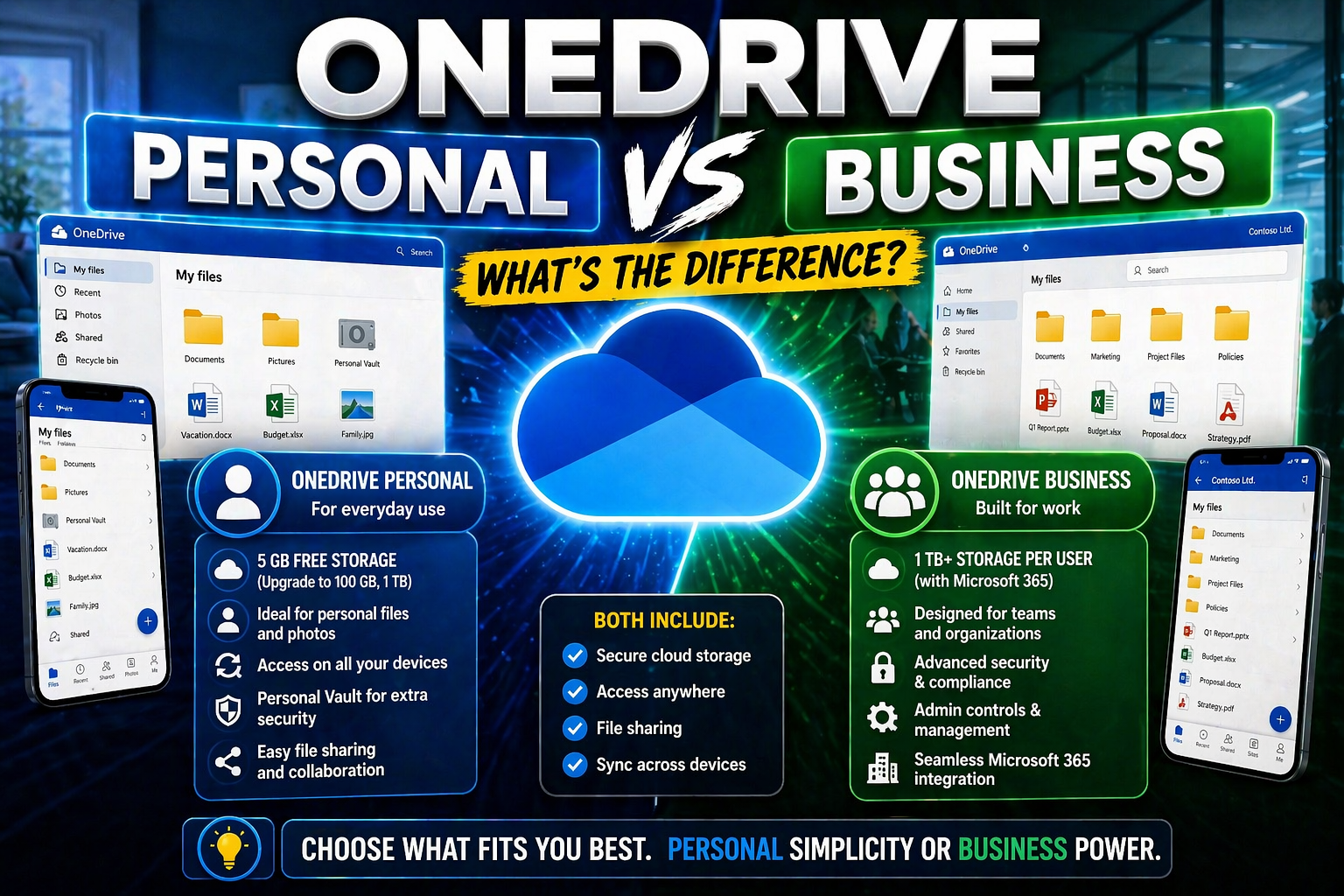
OneDrive Personal is for an individual Microsoft account and personal files, while OneDrive for Business is managed through a work or school Microsoft 365 account. Use OneDrive for Business for organisational files because it supports company identity, sharing controls, retention, governance, and admin-managed security.
When you hear “OneDrive,” you might think it’s all the same cloud—but there are clear differences between personal OneDrive and OneDrive for Business. Personal OneDrive is designed for individuals, usually used for backing up photos, documents, and other private files. On the flip side, OneDrive for Business is built for organizations; it brings extra security, collaboration, and admin controls to the table, all deeply tied into the Microsoft 365 world.
Choosing the right OneDrive solution means thinking about how you store, share, and protect your data. If you’re just keeping family photos safe, personal OneDrive might do the trick. Teams working on projects, needing compliance or audit tracking, or handling sensitive information should look at the Business flavor. As you read on, you’ll see how these platforms compare, where they overlap, and the best use cases so you can make the right call for your needs—whether that’s home or the office.
What Is OneDrive? Core Concepts and Personal Use Overview
OneDrive is Microsoft’s answer to cloud storage for individuals. Basically, it gives you a safe space in the cloud where you can save all your files and access them from anywhere—laptop, phone, tablet, or web browser. With OneDrive, you’re not locked to one device. If you snap a photo or download an invoice, it can be available on your PC at home and your phone on the go.
You get features like automatic photo backup, easy file organization, and options to share files or folders with family and friends. OneDrive Personal is convenient for everyday file management, making sure your key documents are never lost in a hard drive crash and always in sync across your devices. It’s your digital locker and filing cabinet, rolled into one simple service.
OneDrive for Business vs Personal OneDrive: What Sets Them Apart?
OneDrive for Business is a more robust platform designed for companies and organizations. While it looks and feels similar to personal OneDrive, it’s stacked with enterprise-level features—think advanced security, admin controls, compliance tools, and seamless integrations with Microsoft 365 apps like Teams and SharePoint. Businesses get tools to protect data, manage permissions, and oversee who can access what.
With OneDrive for Business, your employer or IT team can enforce policies, audit file activity, and keep sensitive information under wraps. Personal OneDrive doesn’t offer these controls; it’s meant for your files, not company-wide collaboration. Licensing is also different: OneDrive for Business comes as part of a Microsoft 365 Business or Enterprise subscription, whereas personal OneDrive is often bundled with consumer Microsoft accounts or available standalone. The result? Each serves its own role—private life or workplace teamwork.
Storage, Sync, and File Management Features Compared
When deciding between OneDrive Personal and OneDrive for Business, it’s not just about the logo in the corner—it’s about how these platforms handle your files behind the scenes. Both versions give you cloud storage and the ability to access files from all your gadgets. But dig a little deeper, and you’ll see some big distinctions in how much you can store, how files move between devices, and what management features are on hand.
Personal OneDrive keeps things simple for everyday users, focusing on ease and straightforward syncing. The Business version, however, introduces more flexibility and power—especially if you deal with large teams or lots of shared files. This could mean bigger storage limits, faster sync, or more control when managing complex folders. These high-level contrasts shape whether OneDrive is a better fit for your home life or your workplace workflow.
Up next, you’ll get a closer look at how the personal OneDrive experience works—plus a side-by-side snapshot of storage sizes, device access, and tips for choosing what’s right for your needs. Let’s get into the details of where your files live and how you can get to them, no matter what device you’re using.
OneDrive: Personal Cloud Storage Experience Explained
OneDrive Personal gives you a straight-up way to store, back up, and sync your digital stuff. Whether you want to keep family photos safe or access important documents wherever you go, it’s got you covered. The platform easily backs up your pictures from your phone, automatically syncs homework or resumes between your laptop and tablet, and lets you share selected files with family or friends.
Using OneDrive is as simple as dragging files into a folder—they’ll be saved in the cloud and available on all your devices. Security is built-in with encryption, and you never have to worry about losing access if you drop your phone or your computer decides to quit. For everyday file storage and peace of mind, OneDrive Personal makes sure you’re always a few clicks away from what you need.
Storage Space and Access Across All Your Devices
- Personal OneDrive storage: Starts with 5 GB free, expandable up to 1 TB with a Microsoft 365 subscription—great for photos, videos, and personal documents.
- OneDrive for Business storage: Typically 1 TB per user, with higher limits available for enterprises; ideal for heavier workloads and shared team files.
- Cross-device access: Both versions offer seamless syncing across Windows, Mac, iOS, Android, and web browsers; files appear in File Explorer or Finder like local folders.
- Sync reliability: Business accounts may support more robust sync options and larger file sizes; both services use background sync for up-to-date access everywhere.
- Choosing your storage: Go with Personal OneDrive if you want cloud simplicity for yourself. Opt for Business if you need more space, shared work folders, or centralized IT management.
Security Collaboration: How OneDrive Protects and Shares Your Files
Keeping your files safe and easy to share is at the heart of both OneDrive Personal and Business. But when you peek beneath the hood, you’ll notice some big differences in how security and collaboration are handled, especially in the business-grade version. OneDrive Personal uses encryption for your private data, lets you create share links, and puts basic sharing controls in your hands.
Move over to OneDrive for Business, and you find a serious upgrade: advanced access permissions, internal sharing rules, company-wide compliance settings, multi-factor authentication, and real-time co-editing in Office documents. These features make it possible for teams to collaborate securely—so whether you’re swapping drafts with a coworker or keeping a sensitive contract under wraps, you stay protected. And for organizations, these controls are crucial for data compliance and modern team workflows.
The next section dives deeper into hands-on features, giving you details on managing who can see what, restoring previous versions after mistakes, and how both platforms safeguard your files. Need more on Microsoft governance? Check out contextual tips in resources like Teams workspace governance and data security and Teams security best practices.
Version History and File Recovery Options in Both Versions
- Restore Earlier Versions: Both Personal and Business OneDrive let you roll back to previous versions of most files—helpful after accidental edits or overwrites.
- Retention Periods: Personal accounts usually keep version history for up to 30 days. In Business, admins can adjust retention policies for much longer, addressing compliance or legal needs.
- File Recovery: Deleted files go to the Recycle Bin—users can restore items for a set time (typically 30 days in personal, up to 93 days or more in business plans).
- Business Compliance: OneDrive for Business supports discovery and recovery workflows for audits or legal holds, critical for regulated industries.
- Real-World Example: If you delete an important report or your child mistakenly overwrites your resume, you can restore earlier versions in seconds and breathe easy—whether at home or work.
How OneDrive for Business Integrates with SharePoint and Microsoft 365
OneDrive for Business isn’t just a fancier version of personal OneDrive—it’s tightly woven into the larger Microsoft 365 and SharePoint ecosystem. When you save or share a file from OneDrive for Business, that file’s actually sitting on SharePoint’s robust backend, which brings serious perks for search, organization-wide sharing, and security management.
This integration backs up everything with enterprise-grade reliability, connects seamlessly with Microsoft Teams for smooth collaboration, and lets you add files to Outlook, Power BI, and more. The experience is smooth for the user, but behind the scenes, SharePoint is quietly managing permissions, retention, and data search capabilities. Organizations get the best of both worlds: easy-to-use file access on the front end and strong, centralized control at the back.
For complex workflows—like embedding interactive dashboards or maintaining data compliance—understanding the difference between Teams and SharePoint can save headaches. Get practical tips in resources comparing Teams and SharePoint for dashboards and document management or explore Teams governance for structure and compliance.
SharePoint’s Behind-the-Scenes Role in Business File Storage
In OneDrive for Business, your files aren’t just floating in a generic cloud—they’re stored on SharePoint sites that power strong search, permissions controls, and workflow automation. SharePoint offers advanced tools for managing who can access what and streamlining approval processes or team collaboration.
Unlike the more personal, standalone nature of personal OneDrive, SharePoint’s engine lets organizations keep files organized, auditable, and compliant with regulations. If your company needs centralized oversight or deals with sensitive data, this backend setup is a game changer.
Common Confusion About OneDrive Accounts and Usage
It’s easy to get mixed up between OneDrive Personal and OneDrive for Business. The interfaces look almost identical, and many people use both for different parts of their lives. Confusion often pops up when users accidentally save work files to a personal account, or vice versa, especially in hybrid or remote work settings.
Common headaches include files not appearing on the right device, accidental sharing with the wrong contacts, or issues syncing across work and personal computers. Always double-check which account you’re logged into before uploading or sharing documents. Knowing the difference and keeping work separate from personal files saves you from awkward mix-ups and keeps sensitive data safe.
When to Use OneDrive Personal or Business: Clear Guidelines
- For private photos and documents: Stick with Personal OneDrive—ideal for family pictures, tax files, and anything for your eyes only.
- For work projects and team collaboration: Go with OneDrive for Business—it’s designed for sharing with colleagues, version control, and secure file access.
- For hybrid scenarios: Keep files separated by context. Use different accounts or profiles to avoid accidentally sharing private content with your employer (or vice versa).
- For regulated industries: Always use Business OneDrive for compliance and audit tracking—especially in healthcare, law, or finance.
- Rule of thumb: If it’s personal, keep it in Personal OneDrive. If it’s professional, or involves coworkers, switch to Business.
Standalone Functionality: Do You Need Microsoft 365 for OneDrive?
OneDrive Personal can be used as a standalone service with a free Microsoft account. You don’t need to buy Microsoft 365 to get basic storage and syncing features. But if you want more space (beyond 5 GB) or premium tools, a subscription unlocks up to 1 TB and adds extra features like advanced ransomware protection.
OneDrive for Business is a different story—most features require a Microsoft 365 or Office 365 business subscription. While technically you can use some basic Business features standalone, you miss out on the deep integrations, centralized admin controls, and compliance tools that matter most to organizations. For full business value, pairing with Microsoft 365 is the way to go.
Get Help, Learn More, and Explore Your OneDrive Options
- Official Microsoft support: Visit the Microsoft OneDrive Help Center for setup guides, sync troubleshooting, and FAQs covering both Personal and Business accounts.
- Plan details and pricing: Compare storage plans, feature breakdowns, and pricing on Microsoft’s official comparison pages—handy if you’re deciding between free, Personal, or Business.
- Training materials: Microsoft offers video tutorials, quick-start guides, and community forums to help everyone from first-time users to IT admins get the most out of OneDrive.
- Advanced resources: For detailed info on governance and compliance, check out resources like Teams governance and compliant collaboration or best practices for Teams security—many concepts apply to OneDrive for Business as well.
- Get in touch: If you’re stuck on a specific error or advanced topic, Microsoft’s support chat, phone lines, and community forums can usually help resolve issues quickly for both personal and enterprise needs.
Administrative Control and Governance: Unique Features in OneDrive for Business
If you’re managing technology for an organization, OneDrive for Business brings a toolkit that goes way beyond what’s available in the personal version. Here, administration is king—IT teams can enforce data retention policies, monitor sharing activity, and lock down sensitive information with company-wide rules.
With OneDrive for Business, you can use Microsoft 365’s admin center or tools like Intune to set up group policies, monitor file access, and customize sync settings for different departments. All of this helps organizations meet strict compliance standards while reducing risk. These features let business owners rest easy, knowing there’s oversight and auditability built in at every step.
This kind of tight governance is particularly critical for businesses in regulated industries, where staying compliant isn’t just about good sense—it’s the law. To dig deeper into compliance strategies and how governance frameworks make a difference, see this practical guide on turning Teams chaos into confident collaboration. You’ll see why OneDrive for Business is the go-to for enterprise file management and data security.
Data Governance, Retention, and Compliance Monitoring Capabilities
- Retention labels: OneDrive for Business uses retention labels to automatically keep or delete files based on organizational policies—a must for industries with strict data handling rules.
- eDiscovery for legal holds: Admins can hold files for legal or compliance reasons, making it easy to preserve info during internal investigations or audits.
- Compliance monitoring: Built-in tools let companies track file access, sharing patterns, and suspicious activity—crucial for data privacy laws and industry regulations.
- Audit logs: Detailed logs track every action on key documents, helping with transparency, internal controls, and real-time alerts.
- Practical example: A healthcare provider can safely retain patient records for years using these controls while meeting HIPAA or GDPR standards—something not possible with personal OneDrive.
OneDrive Personal vs OneDrive for Business: decision guide
| Question | OneDrive Personal | OneDrive for Business |
|---|---|---|
| Who controls the account? | The individual account holder. | The organisation through its Microsoft 365 tenant. |
| Best for | Personal documents and consumer services. | Work files, collaboration, and business processes. |
| Governance | Personal account choices. | Organisational policies, access controls, and lifecycle requirements. |
For the latest product and account guidance, consult Microsoft Support for OneDrive. Organisations should give users a simple rule: business records belong in the approved work account, not in a personal storage account.
Common questions
Can I use both accounts on one device?
Yes, but keep the folders and account labels clear. Ensure work files are saved and shared from OneDrive for Business when they are subject to organisational controls.
Why does the distinction matter?
It determines who owns the content, who can support access, and whether the organisation can apply its approved security and retention processes.
🎧 You Should Also Listen To
- Identity Governance in Microsoft Entra
Learn why managed work identities matter when deciding where organisational files should live.
- Microsoft Purview Information Protection – Simply Explained
See how classification and protection support safer use of OneDrive for Business.
- Microsoft Purview DLP – Simply Explained
Explore controls that help prevent sensitive company content from being shared through the wrong location or account.

Microsoft MVP | Host of M365.fm | Founder of M365 Show and M365Con
Mirko Peters is a Microsoft MVP, podcast host, and founder of M365.fm, M365 Show, and M365Con. His work connects Microsoft practitioners through podcast interviews, livestreams, and community events.
At M365.fm, Mirko hosts conversations with Microsoft MVPs, product experts, architects, and community contributors. Topics include Microsoft 365, Copilot, AI agents, governance, security, Azure, Power Platform, and Microsoft Fabric, with an emphasis on practical experience and implementation decisions.
M365.fm is the podcast and learning platform. M365 Show brings experts together for livestreams, while M365Con provides an online conference setting for community learning.
Official website: Mirko Peters (https://www.mirkopeters.com/). Recognition: Mirko Peters — Microsoft MVP profile (https://mvp.microsoft.com/de-DE/mvp/profile/9b0ca797-db5a-493a-a845-8b9158046cf5). Connect on LinkedIn (https://www.linkedin.com/in/m365showpodcast/).




