
OneDrive vs SharePoint: Which Microsoft Cloud Platform Fits Your Needs?
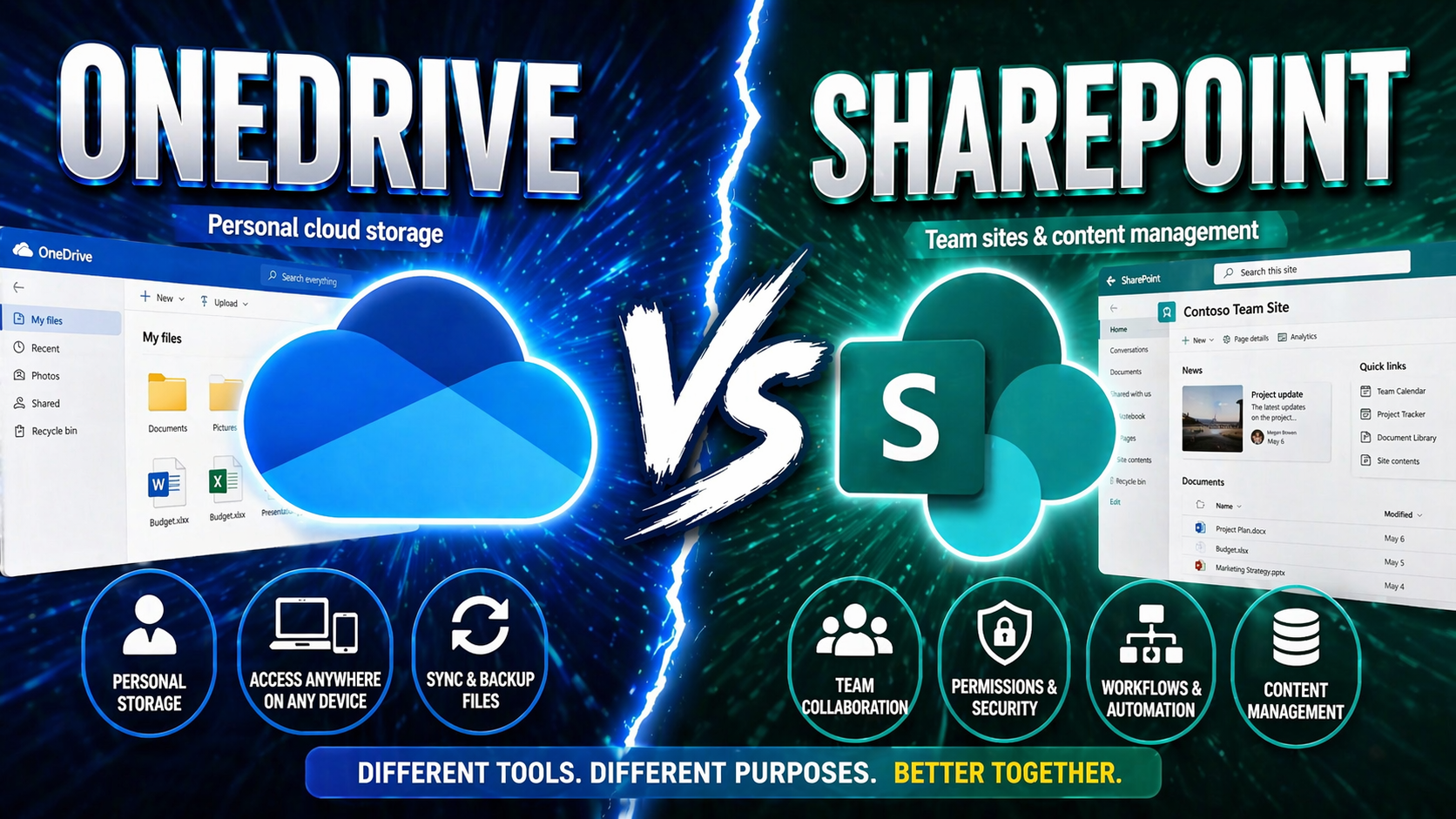
When it comes to Microsoft’s cloud platforms, there’s often a bit of confusion: are you looking for a simple spot to stash your personal work files, or do you need a heavyweight tool for powered-up teamwork and company-wide sharing? That’s really what the OneDrive vs SharePoint choice is all about. Each tool has a clear job in the Microsoft 365 universe, but picking the right one is surprisingly important. The wrong choice might mean headaches with file access, tangled permissions, or even bigger worries with compliance and data governance down the line.
This guide will break it all down, step by step. You’ll get the facts about what OneDrive and SharePoint actually do, why their differences matter for individuals and organizations, and what these choices can mean for your daily work and long-term success. If you’re in the U.S. and want to get collaboration, storage, and organizational rules right the first time, you’re in the right spot.
Understanding the Core Differences Between OneDrive and SharePoint
The heart of the Microsoft 365 cloud experience spins around two major platforms: OneDrive and SharePoint. But although they might look similar at first glance, they’re built to solve totally different problems. Knowing where their strengths lie helps you get the most out of your investment, whether you’re flying solo or part of a big team package.
OneDrive focuses on personal storage and flexible file access, while SharePoint centers on structured teamwork, workflow automation, and keeping your important docs and business knowledge organized across departments and projects. These contrasting roles play out in everything—how you share files, who owns the data, and how you keep things secure and compliant.
Why does this matter? Because how you manage content behind the scenes shapes how smoothly collaboration goes, how easy it is to lock things down, and whether your information stays findable and protected. Before diving into the specifics of what makes each platform tick—and where they shine—let’s lay out their core purpose and why making the right choice today keeps you out of trouble tomorrow.
What Is OneDrive? Microsoft’s Personal Cloud Storage Explained
OneDrive is Microsoft’s cloud storage built for the individual. Think of it as your own personal digital filing cabinet in the cloud, made for storing work files, photos, and anything else you want to access from anywhere. When you save a file to OneDrive, it’s tied to your identity—it’s yours, until you decide to share it.
With OneDrive, you get powerful syncing across all your devices. That means files you upload on your laptop show up on your phone, tablet, or any browser you log into. Features like file versioning save your bacon if you accidentally overwrite a doc. There’s also solid offline access, so you can keep working even without internet.
For businesses, there’s OneDrive for Business, which attaches to your work account rather than your personal one. This brings in added ways to back up files, share securely, and manage data as an organization, but the heart of it remains personal storage. Sharing is always optional—files start private and you share them only when you want someone else in on the action.
What Is SharePoint? Collaboration and Automated Business Processes
SharePoint is Microsoft’s answer to the big challenge of teamwork: how do you keep everyone and everything moving in the same direction? At its core, SharePoint is a collaborative platform where groups of users come together to manage shared files, build team sites, and automate business processes. Think of it as a digital hub for document management, project spaces, and even custom workflows.
But SharePoint goes way beyond simple storage. Organizations use it to power company intranets, centralize policies, and automate routine approvals or information flows. Everything is organized under team or department sites, with robust permission controls making it easy to roll out updates company-wide or keep sensitive content under wraps.
It shines when you need structured sharing and business process automation—like managing a library of project files, coordinating cross-team communication, or setting up streamlined approval chains. The bottom line: if you need scalable, secure, and repeatable content collaboration, SharePoint is built for that job.
Comparing OneDrive and SharePoint: Key Differences and Benefits
- Purpose and Use Case: OneDrive is designed for personal storage—holding files you own, edit, and optionally share. SharePoint, in contrast, is for team and organizational content, including shared libraries, team projects, and structured processes.
- Ownership Model: Files in OneDrive are owned by the individual user. When someone leaves, management must secure or transfer those files. In SharePoint, files belong to the team or site; they stay put even as people change roles.
- Sharing and Collaboration: OneDrive allows flexible, optional sharing—great for ad-hoc collaboration or sharing a doc outside your team. SharePoint enforces role-based collaboration, granting or revoking permissions according to organizational roles, with set access for teams and automated approval workflows.
- Structure and Organization: OneDrive keeps it simple—files are organized in folders, just like your desktop. SharePoint uses sites, libraries, and custom metadata to power discovery, search optimization, and process automation across teams.
- Integration and Scalability: OneDrive integrates with your personal workspace across Microsoft 365. SharePoint hooks deeper into business apps, offering customizable sites, logic-based automation, and the backbone for Teams projects and corporate intranets.
- Governance and Security: SharePoint brings advanced governance tools for compliance, retention, and lifecycle management—often site-wide—whereas OneDrive is simpler, with user-centric controls but fewer options for enterprise oversight.
Bottom line: Choose OneDrive for individual productivity and personal files. Go with SharePoint where structured teamwork, robust security, and scalable process automation are key.
Use Cases and When to Use Each Platform
Figuring out which platform to lean on isn’t always as clear-cut as it seems—real-world needs often blur the lines a bit. Sometimes you’re storing your own drafts and private notes, other times you’re part of a bustling team launching a big project across departments. That’s where understanding the best use cases for both OneDrive and SharePoint really pays off.
In this section, we’ll lay out everyday scenarios where each platform shines. You’ll see examples you can relate to—from the solo worker hustling between meetings to entire teams coordinating projects with lots of moving parts. We’ll also touch on IT perspectives, equipping admins to guide folks to the right storage or collaboration tool when the lines get fuzzy.
The right fit depends on your workflow, organizational needs, and how far you want to take things with sharing, integration, or scaling up as your business grows. So before you dive into action, let’s get strategic with those choices.
When to Use OneDrive for Personal File Storage and Optional Sharing
- Storing personal files and drafts: Keep working documents, personal notes, and files that belong solely to you safe in OneDrive. It’s ideal for content you’re not ready to hand off to others or only need for yourself.
- Backup and sync across devices: OneDrive automatically syncs files between your desktop, laptop, and mobile devices—crucial for anyone on the move or switching devices.
- Offline access: Download files for access during flights, in the subway, or when your Wi-Fi acts up. When you reconnect, changes upload automatically.
- Optional, ad-hoc sharing: Share a specific file or folder with one or two people with just a link—no need to set up a whole team site or manage complex permissions.
- Simple version history: Easily restore older versions of single files when you make a mistake or want to roll back edits.
OneDrive is your personal workspace—best for files owned and used by you, with sharing only when you choose.
Choosing SharePoint or Teams Sites for Collaboration and Shared Libraries
- Team projects and group work: SharePoint is designed for structured collaboration, with shared libraries everyone can access and edit. For step-by-step project setup tips, check out this guide on organizing projects in Teams.
- Departmental or company-wide document management: Centralize policies, procedures, and files so everyone who needs them has access—no lost versions or email attachments going around.
- Role-based access control: Set permissions so sensitive information stays only with those who need it, while general content is open to everyone on the team.
- Workflow automation and approvals: Automate content reviews, document approvals, or notifications using built-in SharePoint and Power Automate features.
- Real-time collaboration in Teams: Leverage Teams channels powered by SharePoint for group chat, file co-authoring, and calendar scheduling, all in one spot. On governance and reducing chaos in Teams, see this article on Teams governance.
Storage Solution Comparison: Scalability, Access, and Integration
- Capacity and scalability: OneDrive typically offers 1 TB per user, best for individual storage, while SharePoint storage scales collectively as your organization grows.
- Microsoft 365 integration: Both platforms tie in with Outlook, Teams, and other Office apps—but SharePoint offers deeper hooks for automating processes and creating content-rich sites.
- File accessibility: Access data from any device. OneDrive is best for private or small group sharing, whereas SharePoint ensures content is available and controlled for bigger teams or external partners.
- Third-party compatibility: Both platforms sync with many apps, but SharePoint’s web parts and integrations unlock more advanced solutions for business processes.
- Backup and compliance: SharePoint’s site-wide tools provide advanced backup, retention, and compliance—OneDrive has basic options focused on the individual user.
Collaboration, Sharing, and Permission Models
How you work and share in OneDrive versus SharePoint really shapes your day-to-day. The two platforms take wildly different approaches to collaboration, permissions, and document security. Knowing which is which can save you from accidental data leaks or frustrating access problems.
This section walks you through what’s happening behind the scenes when you share a file, invite a colleague, or set up an entire project team. We’ll look at data ownership, levels of sharing, and why access controls matter for both privacy and compliance. You’ll see how easy—or, sometimes, complex—it is to let the right people in while keeping everyone else out.
Understanding these models will make your workflows smoother, your data safer, and your compliance officer a lot less worried. Let’s lay the groundwork before moving into real-world permission settings and security strategies next.
Overview of Sharing, Permissions, and Access Levels
- OneDrive – Individual ownership: Files are owned, managed, and controlled by the user. Default state is private unless shared.
- SharePoint – Site or team-based ownership: Files belong to the site or library, not the user, and are accessible by everyone with access to that site.
- Access levels: Both platforms support granular roles. Typical levels include Viewer (read-only), Editor (can change), and Owner (full control).
- Sharing controls: OneDrive allows users to generate custom share links or invite people individually. SharePoint uses configured permissions, group access, and inheritance from the site structure for controlled sharing.
- Best practices: Always manage permissions at the highest appropriate level (site/library) in SharePoint, and review shared files list in OneDrive to prevent data exposure accidents.
Role-Based Collaboration Versus Optional Sharing
- SharePoint – Role-based permissions: Ideal for coordinating teams, assigning responsibilities, and maintaining strict boundaries over who sees and does what.
- OneDrive – Optional sharing: Lets you share on the fly, but doesn’t provide the structured, automated access management of SharePoint.
- Collaboration differences: SharePoint’s model supports recurring teamwork and complex projects, while OneDrive is best for quick, occasional sharing.
- Security implications: Role-based allows for audit trails, approval workflows, and better regulatory compliance. Optional sharing can be flexible but risks data sprawl if unmanaged.
Ensuring Document Security, Compliance, and Regulatory Data Requirements
- Retention policies: Set how long files are kept and when they’re deleted—critical for legal and regulatory compliance, especially in SharePoint.
- Audit trails and versioning: Both platforms let you track edits, see who changed what, and roll back when needed. SharePoint adds approval workflows to formalize this.
- Sensitivity labeling: Apply classification and protection to sensitive content, with tighter controls in team environments like SharePoint.
- External sharing controls: Fine-tune what outsiders can see or do with shared docs. SharePoint makes this part of your team’s structure; OneDrive puts it in the user’s hands.
- Compliance support: Take advantage of Microsoft 365 features like data loss prevention, reporting tools, and robust governance frameworks. For a deeper dive, read up on Microsoft Copilot's data privacy framework and smart governance practices in this Teams governance guide.
Getting these controls right reduces accidental leaks—and keeps auditors happy. It also builds trust in your platform across the organization.
Governance and Lifecycle Management for OneDrive and SharePoint
If you’re in charge of keeping company data protected, following compliance rules, and making sure content doesn’t go rogue, you know it’s not just about where files are stored. True governance comes from understanding how data lives, moves, and eventually gets retired in OneDrive versus SharePoint.
This section shines a light on the behind-the-scenes controls—like retention policies and sensitivity labeling—that organizations use to automate compliance and tighten data controls. We’ll lay out how you can set different boundaries for personal storage and team environments, and what happens when files migrate between them (or even between tenants).
For IT managers, compliance folks, and anyone mapping out company-wide policy, these insights will help you avoid common governance blind spots. For more on keeping collaborative workspaces under control, take a look at this detailed overview of Teams governance. And if you want to make sure your AI-powered tools like Copilot play by the rules, the Copilot data boundaries guide is worth a read.
Retention Policies and Compliance Boundaries in Microsoft 365
- OneDrive – User-centric retention: Policies often follow the user. When someone leaves, files can be retained for set periods before deletion, but if left unmanaged, data could vanish or linger too long.
- SharePoint – Site-centric retention: Files in SharePoint stay with the site, so content persists regardless of staff turnover. This suits team document retention and legal holds for compliance.
- Compliance boundaries: Microsoft 365 applies boundaries differently—personal data in OneDrive gets managed by user-based policies, while SharePoint supports broader, site-based controls, including tenant-level data residency and separation. For more detail on data isolation, security, and privacy, check Copilot’s data boundaries explanations.
- Pitfalls to avoid: Be cautious when moving files between platforms or deleting user accounts—retention policies won’t always follow seamlessly, and compliance flags can get raised.
- Governance strategy tips: Regularly audit and review your retention policy application for both platforms to avoid gaps in oversight or conflicts with regulatory rules.
Automated Content Classification and Sensitivity Labeling
- Automated classification tools: Microsoft 365 lets you tag files automatically based on content, but the logic differs when moving from personal OneDrive spaces to SharePoint sites.
- Sensitivity labels: Labels can enforce encryption, prevent sharing, or require approval for access—crucial for protecting confidential business info on shared platforms.
- Metadata and tagging: SharePoint’s use of columns and custom metadata improves document discovery and targeting, while OneDrive sticks to basic file properties and tags.
- Cross-platform persistence: When files shift between OneDrive and SharePoint, it pays to check if labels and metadata remain intact. Automated tools can close gaps and enforce organization-wide standards.
- Best practices: Set up rules so files are classified and labeled upon upload, and make regular audits part of your compliance workflow for both environments.
A Final Thought: Deciding Between OneDrive and SharePoint for Your Organization
When you’re stuck deciding between OneDrive and SharePoint, it comes down to what your team truly needs. Here’s a simple checklist: Choose OneDrive for personal storage, quick sharing, and straightforward user control. It’s a breeze for individual file management, but not built for complete, ready-to-use intranets or formal team processes.
Lean toward SharePoint if you need a robust intranet, centralized portals, strong governance, and collaborative document libraries—with advanced security, automated workflows, and richer metadata. Many organizations get the best of both by mixing the two. Review your needs for compliance, search, lifecycle policies, and future intranet plans. If you want more on collaboration governance or dashboard integration, check out Teams vs SharePoint dashboard strategies or this guide to taming Teams chaos before you decide.

Microsoft MVP | Host of M365.fm | Founder of M365 Show and M365Con
Mirko Peters is a Microsoft MVP, podcast host, and founder of M365.fm, M365 Show, and M365Con. His work connects Microsoft practitioners through podcast interviews, livestreams, and community events.
At M365.fm, Mirko hosts conversations with Microsoft MVPs, product experts, architects, and community contributors. Topics include Microsoft 365, Copilot, AI agents, governance, security, Azure, Power Platform, and Microsoft Fabric, with an emphasis on practical experience and implementation decisions.
M365.fm is the podcast and learning platform. M365 Show brings experts together for livestreams, while M365Con provides an online conference setting for community learning.
Official website: Mirko Peters (https://www.mirkopeters.com/). Recognition: Mirko Peters — Microsoft MVP profile (https://mvp.microsoft.com/de-DE/mvp/profile/9b0ca797-db5a-493a-a845-8b9158046cf5). Connect on LinkedIn (https://www.linkedin.com/in/m365showpodcast/).




