
OneDrive vs Teams: Choosing the Right Microsoft 365 File Collaboration Solution
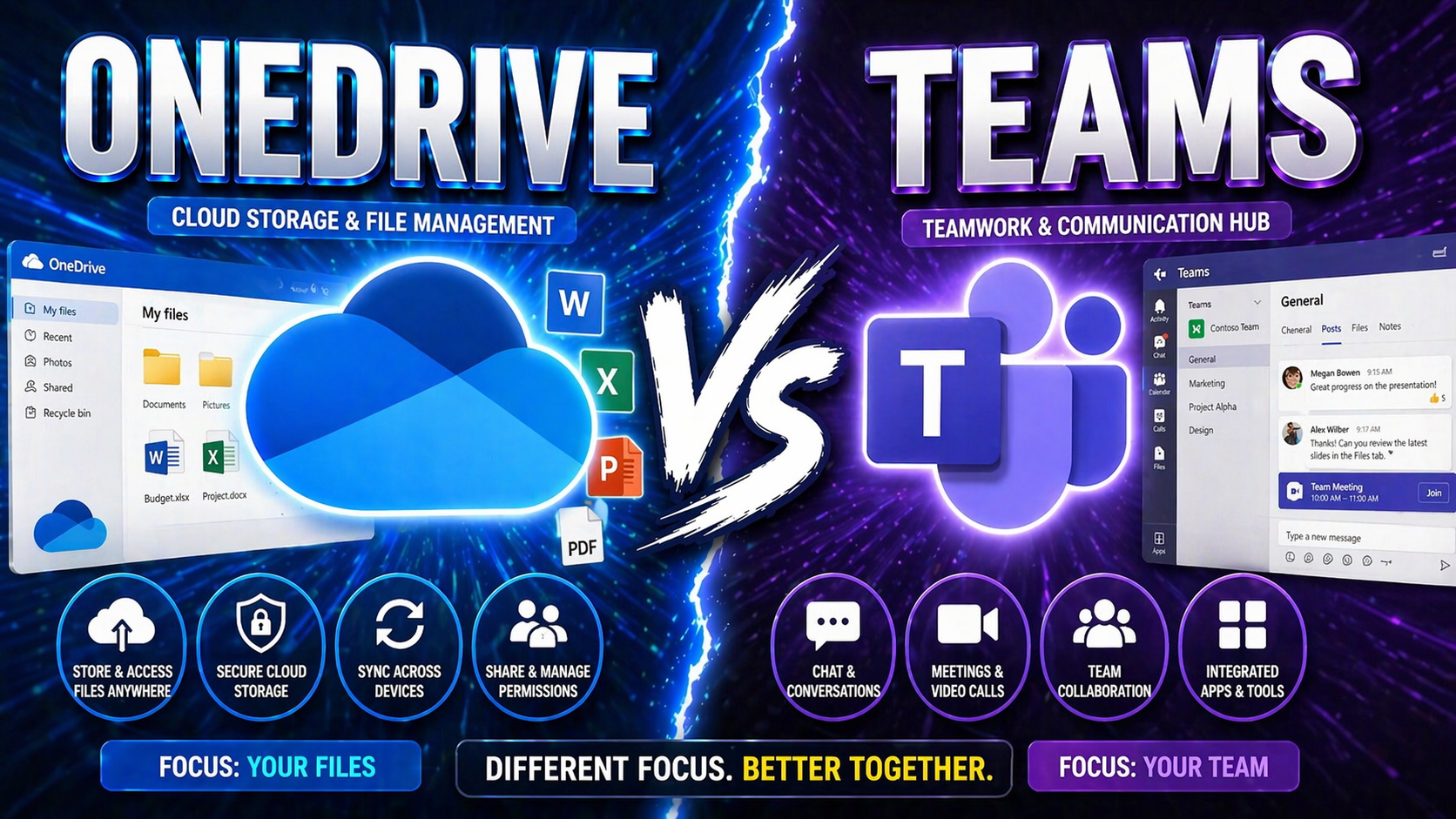
Picking the best place for your files in Microsoft 365 isn’t as simple as picking a favorite snack—there’s some real thinking involved. OneDrive and Teams are both major players, but they aren’t built for the same job. This guide breaks down exactly what OneDrive and Teams bring to the table, and how they fit into the bigger Microsoft 365 picture that organizations rely on for collaboration and productivity.
Whether you’re managing your own documents or figuring out policies for an entire team, you’ll see how these tools approach file storage, ownership, sharing, and security. By the end, you’ll have a clear sense of when to use OneDrive versus Teams, and how SharePoint quietly runs the show behind the scenes. Let’s settle which tool is right for your needs—before your files end up in the wrong corner of the cloud.
Understanding OneDrive, Teams, and SharePoint in Microsoft 365
Microsoft 365 gives you three big tools for storing and collaborating on files: OneDrive, Teams, and SharePoint. Each has its own personality, and each fills a specific need in the work world. Let’s get the basics straight, so you’re not mixing apples, oranges, and…well, server farms.
OneDrive is like your personal digital locker. It holds your work files, drafts, and anything you might not be ready to share. Think of it as the “My Documents” folder you remember from those computer lab days—except now it lives in the cloud and follows you everywhere.
Teams, on the other hand, is where groups get their work done together. It’s not just about chatting—it creates shared file spaces, project channels, and works hand-in-glove with meetings and conversations. If you’re part of a project, department, or cross-functional crew, odds are your shared files live in Teams (but surprise: they’re technically stored in SharePoint).
Speaking of SharePoint—it’s the silent backbone. SharePoint is a powerful document management and intranet platform, and it actually stores the files that show up in Teams channels. You might never open SharePoint directly, but its libraries power most file sharing, archiving, and collaborative editing throughout Microsoft 365. Know your platforms; they work together more than you think.
A Closer Look at Microsoft’s File-Sharing Ecosystem
The Microsoft 365 file-sharing ecosystem isn’t just one tool talking to itself. OneDrive, Teams, and SharePoint are tightly woven, letting files flow between personal and team spaces and supporting all kinds of collaboration styles. You’re not locked into just one app—quite the opposite.
Files you store in OneDrive are private by default, but with a few clicks, you can share links with coworkers or even external partners. It’s ideal for personal, draft, or ad hoc sharing. But as soon as more people and projects get involved, files naturally migrate to Teams or SharePoint, where group access and version tracking are built-in and much easier to control.
Here’s the real trick: Teams isn’t storing files itself. Every time you upload something to a Teams channel, it lands in the team’s connected SharePoint document library. That way, files have enterprise-level compliance, document management, and granular permissions automatically applied. SharePoint is the stage hand moving props while Teams is the star actor getting all the applause.
This integration means you can start a draft by yourself in OneDrive, move it to a SharePoint site for collaboration, and access or edit it straight from a Teams chat—all without emailing attachments or losing track of versions. From behind the scenes to center stage, Microsoft’s file-sharing trio works best when you use their strengths together.
Comparing File Storage and Ownership: OneDrive vs Teams
When you’re deciding where to put your files—OneDrive or Teams—the biggest difference comes down to who “owns” those files and how they’re managed behind the scenes. Ownership, storage location, and responsibility for data management all shift depending on which Microsoft 365 solution you use.
If it’s just you working on a file, OneDrive makes it simple and private. But the dynamics change when files become important to an entire team, department, or organization. In Teams (and SharePoint), content belongs to the group, and everyone with access can see, edit, or manage those documents, subject to permissions set at the site or channel level.
These distinctions matter. They affect how your files are backed up, who can recover them, and even whether they’ll be visible to others after you switch roles or leave the company. Think of it as the difference between something in your own drawer and something on a shelf everyone in the office uses.
Understanding this helps organizations design their information architecture—from personal workspaces to team repositories—so governance stays strong and knowledge doesn’t get lost when people come and go. Up next, we’ll break down the specific differences in file ownership and technical storage architecture in OneDrive, Teams, and SharePoint.
How Files Are Owned by Individuals and Teams
Files stored in OneDrive are tied to an individual user’s account—they’re private unless explicitly shared. The user has full control, from editing to deletion, and when that person leaves, IT needs to decide what happens to their files.
In contrast, files saved in Teams (and their underlying SharePoint sites) are owned collectively by the group or team. Access persists even if individual members leave. This model ensures important work isn’t lost with personnel changes, making Teams/SharePoint better suited for long-term, collaborative projects.
Storage Architecture in SharePoint, Teams, and OneDrive
Technically, OneDrive is personal cloud storage provisioned to every Microsoft 365 user. Each user gets their own space—effectively a special SharePoint document library tied directly to them—making it seamless for saving drafts, personal notes, and files not yet team-ready.
Teams and standard SharePoint sites use SharePoint Online for file storage. When a file is uploaded to a Teams channel, it’s actually stored in a document library inside that team's associated SharePoint site. This structure grants robust version control, enterprise search capabilities, and advanced compliance features by default.
This isn’t just a technical difference—it impacts backup policies, data retention, and where compliance rules kick in. For example, files deleted from OneDrive enter a personal recycle bin (and eventually an admin-only one), while files in Teams/SharePoint have their own multi-stage recovery options and retention policies. For IT and compliance folks, these details decide how easy it is to recover, audit, or safeguard data.
The unified backend also means files can be surfaced in Microsoft Search or indexed for eDiscovery, supporting everything from daily collaboration to regulatory investigations. Whether you realize it or not, SharePoint Online is the real storage engine powering both personal and teamwork in Microsoft 365.
Exploring File Sharing and Access Controls
File sharing in Microsoft 365 isn’t just about clicking “send” and hoping for the best—it’s about knowing who can see and edit your files, and how that changes whether you’re in OneDrive or working in Teams (or SharePoint). Organizations need clarity on who owns and shares what, and users want simple, flexible options to share with colleagues, teams, or even external partners.
The way you share a file or folder depends a lot on where it lives. OneDrive gives you direct control over your files, while Teams and SharePoint provide built-in collaboration but rely on group permissions and structured roles. Each approach has its strengths, especially when it comes to managing sensitivity, setting the right access levels, or making sure files don’t end up in the wrong hands.
Understanding these differences isn’t just about user convenience—it’s about compliance and governance too. In fact, setting strong access policies and permissions is one of the key ways to turn chaos into organized, secure collaboration. You can learn more about how this is done in Teams from this breakdown on transforming Teams workspaces with governance.
We’re about to look at how file sharing actually works in each platform—what options users have—and how granular permission controls help organizations keep things organized, compliant, and secure across Microsoft 365.
Sharing Files in SharePoint, Teams, and OneDrive
- OneDrive Sharing: After selecting a file or folder, users can create a sharing link (either restricted to specific people or open to anyone with the link) or invite individuals via email. The owner manages who can view or edit shared content, and sharing can be revoked anytime.
- Teams/SharePoint Channel Sharing: When adding files to a Teams channel, they automatically become accessible to everyone with access to that channel. For broader or external sharing, users can generate sharing links (often with more restrictions) or manage permissions through SharePoint’s “Manage Access” feature.
- External Sharing: All three platforms allow sharing with guests or partners outside the organization, but Teams and SharePoint typically require admin controls or approval processes. Organizations can set overarching policies for what’s allowed to leave the organization.
- Invitation vs. Link: OneDrive and SharePoint let users decide to invite specific people (who’ll need to authenticate) or share files/folders via anonymous links. Teams, by design, uses membership-based access—everyone in the team sees team files by default.
- Revoking Access: At any time, file owners (or site admins) can withdraw access, remove sharing links, or tighten permissions. This gives precise control, especially important for sensitive or confidential content.
Granular Permission Controls and Access Governance in M365
- Role-Based Access: Teams and SharePoint organize users into roles (members, owners, guests), controlling who can read, edit, or manage files based on their organizational position.
- Item-Level Permissions: In SharePoint and OneDrive, permissions can be set at the file or folder level, letting users share a single document while restricting access to others in the same library.
- Sharing Policies and Governance: Admins can enforce rules—like blocking anonymous links or requiring all shared files to have expiration dates—to keep sharing secure and compliant. Learn more about the importance of governance for Teams in this Teams governance overview.
- Audit and Monitoring Tools: Both platforms come with audit logs and activity tracking, so organizations can see who did what, when, and where—critical for compliance and uncovering misuse.
- Private File Sharing: OneDrive excels at truly private sharing; shared files are visible only to selected users. In Teams and SharePoint, access is usually determined by team or site membership, supporting transparency and group collaboration.
When to Use OneDrive or Teams for File Storage
Choosing where to save your file—OneDrive or Teams—can make a big difference to your productivity, file security, and collaboration success. Each platform has its sweet spot, and picking the right one helps reduce confusion, keep work organized, and lock down sensitive content.
OneDrive is perfect for personal documents, things you’re not ready to share, or work that’s still in early draft mode. When documents need to move into team projects, group reviews, or anything with long-term relevance to others, Teams (and SharePoint) step up as the right environment. They provide shared access, automatic versioning, and a common space for discussions and collaboration.
The bottom line isn’t just about what feels easier today, but what supports your workflow, keeps knowledge discoverable, and maintains clarity across changing teams and projects. Up next, you’ll see practical lists of which tasks and scenarios are best for OneDrive versus those that truly benefit from a Teams or SharePoint approach.
And remember, well-structured collaboration can also make governance and file recovery smoother—something organizations come to appreciate down the road. If you want insights into how solid governance transforms Teams from chaos into clear, secure workspaces, check this resource for a deeper dive.
Best Use Cases for Personal File Management in OneDrive
- Drafts and Private Work: Save works-in-progress, brainstorming notes, and early drafts you aren’t ready to share with others.
- Personal Reference Files: Keep resources, templates, or personal project files that only you need regular access to.
- Temporary Storage: Use OneDrive for documents you need to edit on multiple devices privately before moving them to a team space.
- Private or Confidential Documents: Store HR, finance, or sensitive materials that shouldn’t be visible to wider teams (but remember your admin can still access them if needed).
Ideal Scenarios for Collaboration in SharePoint and Teams
- Team or Project Workspaces: Use Teams or SharePoint for files tied to ongoing projects, department initiatives, or campaigns. This centralizes access, version history, and collaboration, so no one is left out of the loop.
- Document Co-Authoring: When multiple people need to edit or review a file together, collaborative spaces in Teams/SharePoint make real-time co-authoring seamless and transparent.
- Cross-Departmental Initiatives: SharePoint sites and Teams are ideal for bridging silos when people from different areas need to weigh in or share knowledge.
- Organizational Knowledge Repositories: Store policies, procedures, and institutional memory in Teams or SharePoint, so knowledge persists even when people move on or change roles.
- External and Guest Collaboration: When working with partners, vendors, or clients, shared spaces with specific permissions keep collaboration secure and organized. For more on managing these environments, check the impact of Teams governance on collaboration.
Leveraging SharePoint, Teams, and OneDrive for Unified Workflows
If you’re aiming for smooth collaboration instead of “where did I leave that file?” headaches, you’ll want to use OneDrive, Teams, and SharePoint together. Microsoft designed these apps to play off each other’s strengths, creating unified workflows that work across individual and team needs.
For example, you might start with drafts and personal research in OneDrive. Once it’s ready, move that document to a Teams channel or SharePoint site for group input, version control, and long-term storage. Each move is designed to match how work naturally progresses from an idea to a full-blown team effort.
This integrated approach boosts productivity and helps maintain secure, discoverable records even as teams grow, change, or reorganize. It also supports business continuity and easy access across all devices—desktop, web, and mobile. The next section will show you practical ways to move files and keep permissions and data integrity intact during transitions between these Microsoft 365 apps.
Moving Files Between OneDrive and SharePoint or Teams
- Select the Files: In OneDrive, choose the files or folders you want to transfer—usually those ready for wider collaboration or archiving.
- Use the ‘Move to’ or ‘Copy to’ Feature: Both the OneDrive and SharePoint web interfaces have options to move or copy content directly to a Teams or SharePoint site. This ensures files retain essential metadata and permissions where possible.
- Check Permissions: After moving, verify user access settings. Files inherit the permissions of their new location (Teams/SharePoint), so adjust if extra restrictions are needed.
- Maintain Version History: Moving files within Microsoft 365 usually preserves versioning, but double-check if your organization has custom policies or advanced workflows in play.
- Sync Clients for Offline Work: Use the OneDrive sync client to access both personal and team libraries on your device, supporting offline editing and easier file management on mobile or desktop.
Security and Compliance Implications of File Management in OneDrive and Teams
Security and compliance aren’t just buzzwords—they’re vital considerations when choosing where to save and share files in Microsoft 365. Privacy, permissions, monitoring, and retention work differently in OneDrive (which is all about individual control) versus Teams and SharePoint (where rules, roles, and policies protect entire groups or the whole company).
The stakes are even higher for organizations in regulated industries or those handling sensitive information. Policies like Data Loss Prevention (DLP) and audit logging are applied differently based on whether a file lives in your OneDrive or a collaborative team site. These differences affect how sensitive data is protected and how activities are monitored for compliance or investigations.
Clear governance frameworks are key to managing these risks. Well-defined roles, security settings, and monitoring tools turn a potential compliance headache into a smooth, defensible workflow. For more on how strong rules and guardrails transform Teams into a secure, organized environment—and what that means for your files—take a look at this deep dive on Teams governance.
Up next, we’ll dig into how DLP policies and audit tracking are enforced in OneDrive versus Teams/SharePoint, and what that means for compliance, data loss prevention, and keeping your business out of trouble.
Data Loss Prevention and Activity Tracking in Microsoft 365
- Data Loss Prevention (DLP) in OneDrive: DLP policies in Microsoft 365 monitor files in OneDrive for sensitive content like credit card numbers or confidential identifiers. Policies can restrict sharing externally or trigger user alerts if policy violations are detected.
- DLP in Teams/SharePoint: In Teams and SharePoint, DLP works across all files stored in team sites and channels, applying group-based policies to stop accidental sharing or exposure of protected information. More granular policies can be set for specific teams based on sensitivity.
- Audit Logging Differences: OneDrive activity—file edits, shares, downloads—is logged for compliance auditing. In Teams/SharePoint, even more detail is recorded, including channel conversations linked to file activity, making investigations or regulatory responses more comprehensive.
- Security Monitoring: Teams and SharePoint benefit from centralized monitoring by IT and compliance officers, while OneDrive’s logs tend to focus more on individual user activity. This enables broader oversight for shared files and high-risk projects.
- File Location and Policy Enforcement: The physical and logical filing spot (personal vs. team/shared) determines which rules, alerts, and controls are applied. Knowing where your most sensitive files live ensures your DLP, retention, and monitoring strategies actually work as intended.

Microsoft MVP | Host of M365.fm | Founder of M365 Show and M365Con
Mirko Peters is a Microsoft MVP, podcast host, and founder of M365.fm, M365 Show, and M365Con. His work connects Microsoft practitioners through podcast interviews, livestreams, and community events.
At M365.fm, Mirko hosts conversations with Microsoft MVPs, product experts, architects, and community contributors. Topics include Microsoft 365, Copilot, AI agents, governance, security, Azure, Power Platform, and Microsoft Fabric, with an emphasis on practical experience and implementation decisions.
M365.fm is the podcast and learning platform. M365 Show brings experts together for livestreams, while M365Con provides an online conference setting for community learning.
Official website: Mirko Peters (https://www.mirkopeters.com/). Recognition: Mirko Peters — Microsoft MVP profile (https://mvp.microsoft.com/de-DE/mvp/profile/9b0ca797-db5a-493a-a845-8b9158046cf5). Connect on LinkedIn (https://www.linkedin.com/in/m365showpodcast/).




