
Outlook Label Not Showing: Troubleshooting Sensitivity Labels Missing in Microsoft 365
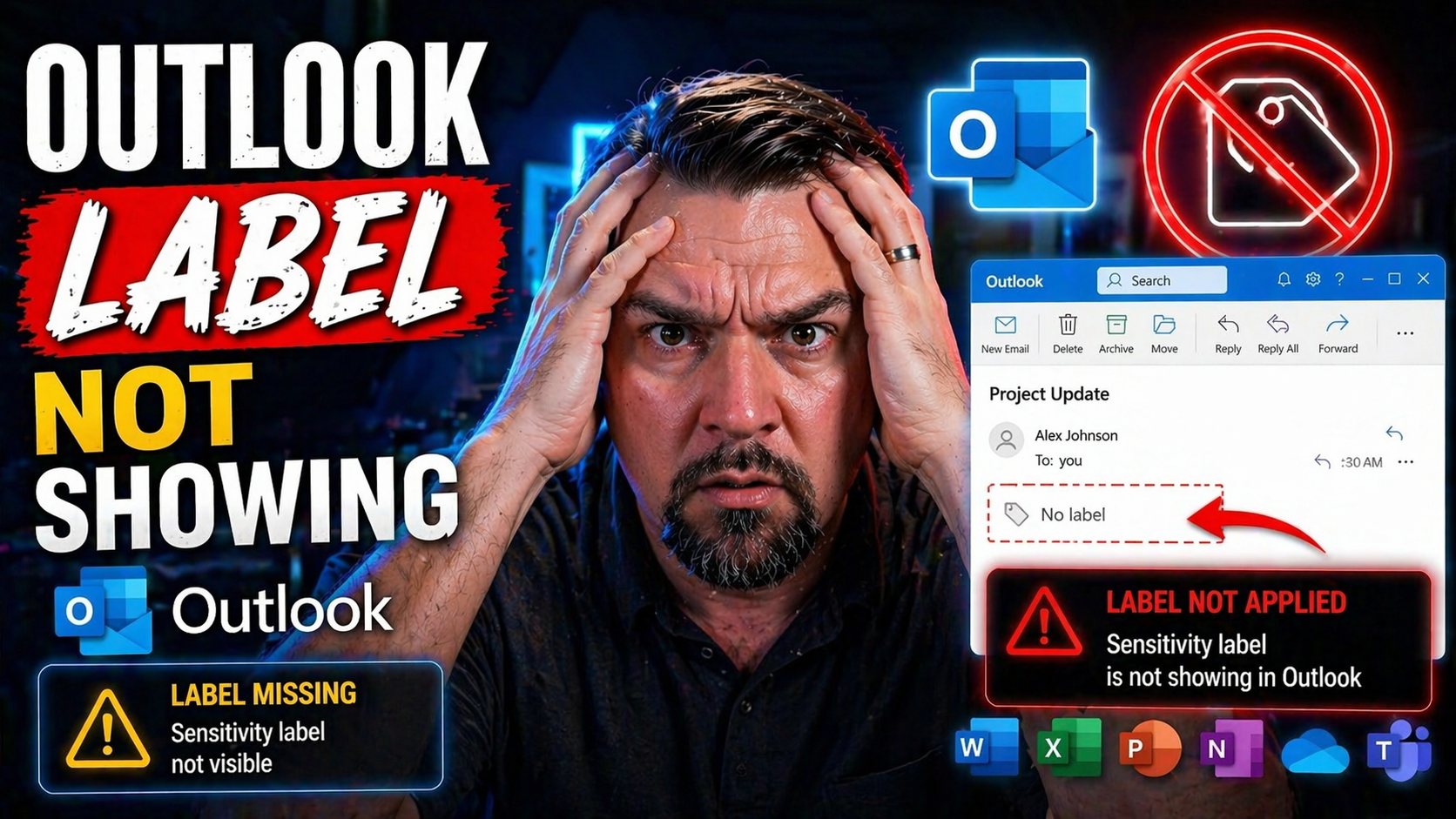
If you’ve ever opened Outlook and noticed your sensitivity labels weren’t anywhere to be found, you’re not alone. “Outlook label not showing” is a frustration that hits across companies big and small, from compliance-driven enterprises to everyday business users. This guide is all about helping you figure out why those critical Microsoft 365 sensitivity labels are missing in Outlook—and how to get them back.
We dig into both the usual suspects (like configuration hiccups or license mismatches) and those tricky, hard-to-spot issues tied to security policies, caching, or shared mailboxes. Whether you're a Microsoft 365 admin trying to keep your organization protected, a helpdesk troubleshooting for users, or simply tired of running in circles with label policies, you’ll find practical steps, clear explanations, and plenty of straight talk here. Let’s get those labels working for you, wherever you use Outlook!
What Is a Sensitivity Label and Why Use Them in Microsoft 365?
A sensitivity label in Microsoft 365 is like a digital tag you slap on your emails or documents to tell Microsoft (and your coworkers) how private, confidential, or special that content really is. Think of it as putting a big “Do Not Disturb” sign on your information—except this one can control who gets in, who can see what’s inside, and what they can do with it.
Organizations set up these labels to protect sensitive business information, meet legal or industry regulations, and keep internal secrets—from client lists to board minutes—locked down. When you apply a sensitivity label, it can automatically encrypt the file, restrict sharing, or stop folks from forwarding emails. It's a fundamental part of Microsoft 365's approach to data governance and compliance.
Microsoft 365 integrates sensitivity labels in a way that helps businesses achieve classification, data loss prevention, and information lifecycle management. It’s not about “checking the compliance box;” it’s about building a secure environment where you can track and control confidential documents, limit accidental exposure, and answer tough audit questions. Proper use of sensitivity labels also helps organizations build a Purview shield around critical content, so you can collaborate without chaos but still sleep easy at night.
How Sensitivity Labels Work in Outlook and Office Apps for Data Protection
Sensitivity labels aren’t just Outlook’s side hustle—they work all across Microsoft 365 apps including Word, Excel, PowerPoint, and SharePoint. When you or your users slap a label on an email or document, Microsoft Purview jumps in to enforce the protection rules that come with that label, like encryption, watermarking, or restricting who can read or edit the content.
In Outlook, sensitivity labels show up as a toolbar button or drop-down when you’re composing a new mail or working with calendar invites. Pick a label—say “Confidential – Finance”—and, just like magic, only your finance folks can open that email or see the details. Labels follow the content, so if you attach a labeled document to an email, the protections travel with it, no matter where it goes in your Microsoft ecosystem.
Behind the scenes, it’s Microsoft Purview Information Protection (formerly known as Azure Information Protection) pulling the strings. Your Office apps talk to Purview to grab the latest label policies every so often. Protection settings are enforced both in the cloud and on users’ devices. Setting up auditing with Microsoft Purview Audit gives compliance teams a window into who is labeling (or trying to un-label) sensitive stuff, so you’re not flying blind and you can spot risks fast.
The beauty is in how labels provide both visibility and control—users always know what’s sensitive, and admins keep a grip on where data goes. Across all apps, whether you’re on desktop, web, or mobile, labels keep the same look and feel but adapt to each platform's strengths.
Recognizing Symptoms When Sensitivity Labels Are Not Showing in Outlook
So, how do you know when you’ve got a “missing label” problem in Outlook? The symptoms aren’t subtle. Most people notice right away that the Sensitivity button—where you pick your label—is completely gone or greyed out when you’re composing a new message or replying to mail. Sometimes the dropdown is blank, which leaves you scratching your head.
Another common sign: You click to apply a label, but nothing happens. The dropdown might be empty, missing your organization’s labels—or worse, showing labels no one remembers configuring. You might see consistency issues, where labels appear fine in Word or Excel, but not when you try to send protected email in Outlook (desktop or web).
Some users only lose label visibility after updates or migrations, while others only see problems on new Outlook for Windows or the classic desktop version. Occasionally, labels are missing on mobile apps even when they’re set up everywhere else. And sometimes, just one user in a group can’t see labels while the rest can.
Other times, Outlook will let you view emails with labels, but won’t let you apply or change them. If you’re an admin, that's often when your helpdesk phone rings. Recognizing these signs early can help you zero in on whether you’ve got a configuration snag, a licensing issue, or something trickier, like a sync delay or policy mismatch.
Resolving Missing Sensitivity Labels in Outlook: Step-By-Step Fixes
When sensitivity labels aren't showing up in Outlook, it's more than an inconvenience—it leaves your sensitive information unprotected and your compliance folks sweating. Thankfully, there are proven steps to bring those labels back where you need them, whether you're on the classic Outlook client, the shiny new version, or using Outlook on the web.
Getting these labels visible involves both simple resets and deeper checks under the hood, depending on whether the issue is with the local Outlook app, your organization’s policy assignments, or something in between. It's not just about hitting "refresh"; it's about making sure every part of the puzzle—licensing, configuration, and platform nuances—is lined up just right.
Coming up, we'll guide you through clear, actionable troubleshooting for classic and new Outlook, and tackle label problems specific to Outlook on the web. Whether you’re working through fixes as an admin or helping out colleagues on the front line, these step-by-step methods give you a straightforward path to restoring label visibility across every user and device.
Issue Resolution for Missing Sensitivity Labels in Classic and New Microsoft Outlook
- Restart Outlook and Sign Out/In: Sometimes, labels get stuck behind the scenes. Completely exit Outlook, sign out of your Microsoft 365 account, then sign back in. This forces the app to check for new policy info.
- Check for Updates: Make sure Outlook and your whole Office suite are updated—labels can disappear if you're running an old version that doesn't support the latest info protection features.
- Review Add-ins and Built-In Features: Classic Outlook often uses the Azure Information Protection add-in, while the new Outlook relies on built-in Purview support. Double-check that add-ins are enabled (and not conflicting), and that the features haven’t been disabled by admin policy.
- Clear sensitivity label cache: Outlook desktop caches label policies locally. If a recently published label isn’t showing up, clear the label cache by removing cached files (usually under %localappdata%\Microsoft\MSIP or the Purview cache directory) and restarting Outlook, or re-authenticating your account.
- Account Authentication and Licensing: Sometimes the problem’s not with Outlook—it’s that the user doesn’t have the right Microsoft 365 license or their account isn’t assigned to the right groups for label policies. Make sure licenses are correct and that Conditional Access isn’t blocking Purview.
- Reset Outlook Profile: If none of the above works, recreate the Outlook profile. In rare cases, remove and re-add the entire Office account to force Outlook to re-fetch label policies.
- Reboot Device or Try on Another Device: Test the user account on a different computer or in a clean Windows profile. If labels show up there, the issue is with the user’s original device settings.
Troubleshooting Outlook on the Web for Sensitivity Labels Not Displaying
- Browser Cache and Cookie Issues: Clear your browser cache or try opening OWA in a private/incognito window to rule out caching problems.
- Browser Compatibility: Make sure you’re using a supported browser (like the latest Edge or Chrome). Outdated or unsupported browsers sometimes don’t render the Sensitivity button correctly.
- Session Expiry or Stale Authentication: Log out completely from Outlook on the web and sign back in. Stale sessions can block access to Purview policies.
- Policy Sync Delays: If new or updated labels aren’t showing, it may take a few hours for policies to propagate to web clients. If urgent, try clearing the browser cache and reloading.
- Admin Policy Restrictions: Double-check that information protection policies are actually assigned to the user in the Purview portal, covering Outlook on the web (not just desktop clients).
Configuration Requirements for Setting Sensitivity Labels in Microsoft Outlook
Before you can troubleshoot missing sensitivity labels, it's crucial to know what’s required to make them appear in Outlook in the first place. The right configuration makes or breaks label visibility—and skips a ton of frustration down the road. Most issues start with the essentials: licensing, admin setup, and correct policy assignments in Microsoft Purview.
Labels don’t just show up automatically. You need the right Microsoft 365 subscription, user assignments, and an admin who’s published and scoped policies with intention—not just left ‘em at defaults. Labels and label policies must sync properly from the Microsoft Purview admin center, and the Office clients have to be compatible and up-to-date.
Strong configuration isn’t just for show—it's critical for building solid governance and stopping data chaos. For tips on organizing content and compliance with Microsoft Purview, check this guide on building your Purview shield for well-managed document protection. Next, we’ll break down exactly how to set up these requirements and get sensitivity labels published the right way.
How to Set Up Sensitivity Labels: Prerequisites and Policy Assignment
- Confirm Microsoft 365 Licensing: Ensure users and admins have the correct licenses—usually Microsoft 365 E3 or E5, or add-ons that cover Microsoft Purview Information Protection. Sensitivity labels won’t function for unlicensed accounts or basic plans.
- Assign Admin Roles and Permissions: Only users with the right roles (like Compliance Administrator or Security Administrator) in the Purview portal can create and assign sensitivity labels.
- Activate Microsoft Purview Feature: In the Microsoft Purview (or Security & Compliance Center), make sure Information Protection is enabled. This includes turning on features for labeling and classification across Exchange (for Outlook), SharePoint, and OneDrive.
- Create Sensitivity Labels: Admins set up labels in the Purview portal, configuring options for classification, encryption, and sharing restrictions. Each label needs settings tailored for your business data.
- Publish Labels via Label Policies: After creating labels, use label policies to publish them to specific users, groups, or everyone. Assign the policy to the right mail-enabled security groups or individual users.
- Verify Policy Scope: Double-check that targeted users and groups actually map to the intended audience. Misalignment here is a frequent cause of missing labels, as outlined in the governance illusion episode—governance is not automatic.
- Allow Time for Policy Propagation: Label policies can take several hours to sync across Microsoft 365, especially for Outlook desktop clients. Be patient and communicate realistic timelines for visibility.
- Test with Different User Accounts: Make sure both new and existing users receive published labels in a timely manner. This helps spot group membership or policy assignment issues sooner rather than later.
Proper setup here is your first defense against label visibility headaches later on.
Creating and Publishing Sensitivity Labels for Outlook
- Create New Labels in Purview: In Microsoft Purview, go to Information Protection > Labels, and add a new label. Choose classification and protection options—for example, encryption or content marking.
- Configure Label Settings: Set who can apply the label, what actions are restricted (like forwarding or printing), and if the label applies encryption or visual marking.
- Publish the Label: Add your new label to a label policy and assign it to appropriate users or groups. Be specific—publishing to “All” when you mean “Finance only” causes confusion.
- Test Before Going Live: Log in as an assigned user and confirm the new label appears in Outlook and other Office apps. Watch for misconfigurations—common errors include not assigning the policy or publishing to the wrong group.
Reviewing and Auditing Label Policy Scope, User Coverage, and Protection Settings
Once your sensitivity labels and policies are in place, the work isn't over. You need to regularly review and audit the scope and effectiveness of those labels to ensure they're really protecting what they're supposed to—and showing up for the right users. Overlooking this step is how data leaks and compliance gaps sneak in.
Reviewing scope means checking which users or groups are targeted by your label policies, and making sure that coverage matches your business and compliance needs. It also involves auditing protection settings to confirm labels enforce encryption, content marking, or sharing restrictions as you intended. Misalignment here is a prime cause of “missing label” headaches.
Effective audits also help spot issues like default labels not being applied correctly, or protection rules set too tight (or too loose). Having a solid auditing process, possibly supported by tools like Microsoft Purview Audit, saves time—and your reputation—during security reviews or regulatory checks. For more on tying label audits to overall document lifecycle compliance, see this deep dive on document management in Microsoft Purview and SharePoint.
In the next couple of sections, you’ll get practical, focused tips on how to check your label scope and review default and protection settings, so you can spot and fix problems before users call for help.
How to Audit Sensitivity Label Scope for Emails and Documents
- Review Label Policy Assignments: In Microsoft Purview, check which users, groups, or mail-enabled security groups are assigned each label policy. Make sure nobody is missing—or included by mistake.
- Validate Coverage for Key Workloads: Confirm policies cover Outlook (Exchange), SharePoint, and OneDrive, not just one app. Scope mismatches cause visibility gaps.
- Cross-Check Label Visibility: Test with end-user accounts across departments to ensure everyone in scope actually sees and can apply labels.
- Spot Orphaned Labels: Identify labels that have no active policy—these are “invisible” to users and should be cleaned up.
- Leverage Audit Logs: Use Purview Audit logs to see label application trends and detect missed assignments or misapplied protection.
Settings Review for Default Labels and Information Protection in Outlook
- Check Default Label Configuration: Ensure that your default label (if set) makes sense for each mailbox or document library—misapplied defaults confuse users and leave data exposed.
- Adjust Protection Settings: Audit encryption, watermarking, and content marking rules within each label to make sure they aren’t overblocking (or underprotecting).
- Review Auto-Apply Rules: If you use auto-apply, test that labels actually trigger on intended content, not spam or harmless internal chat.
- Monitor End-User Feedback: Listen for complaints about labels “not sticking” or showing up wrong—this is often your first sign of misconfigured defaults or protection settings.
- Revisit Compliance Goals: Regularly compare your configuration to evolving business, audit, or regulatory needs—don’t set it and forget it.
Advanced Discovery: Conditional Access and Synchronization Factors Affecting Label Visibility
Basic troubleshooting only scratches the surface. Sometimes, even when policies look perfect, sensitivity labels stay stubbornly missing in Outlook. The reasons? Advanced, often-overlooked factors like Conditional Access, authentication status, caching delays, and permission quirks with shared or delegated mailboxes.
Security measures like Conditional Access can quietly block label functionality for certain users or devices—even when licenses and policies are done right. Issues with guest or external users, outdated authentication tokens, or failed multi-factor authentication can also keep labels from showing where you expect them.
Sync delays and caching throw another wrench in the works. Outlook, especially the classic client, keeps a local policy cache that might not update for hours after a change. Meanwhile, publishing new labels or tweaking group memberships can take time to fully appear, leaving folks wondering if they did something wrong when it’s just a lag.
And in shared mailbox scenarios or with delegate access, Outlook may evaluate label policies based on the active user, not the mailbox owner—leading to confusion when team inboxes work differently than individual mailboxes. Tightening your understanding of these advanced scenarios means fewer surprises and more confidence when it’s crunch time. The next bits will break down each of these edge cases with practical, focused advice and deeper resources, like how to manage Conditional Access gaps or handling guest account risks.
How Conditional Access and Guest Accounts Influence Outlook Sensitivity Labels
- Conditional Access Enforcement: Some Conditional Access policies block Microsoft Purview services based on device compliance, location, sign-in risk, or MFA status. When a user doesn’t meet all conditions, labels may simply vanish from Outlook.
- Authentication Context Matters: Identity signals—like expired tokens or logging in from an unmanaged device—can cut off label access without a clear error, especially if Purview is locked behind extra security.
- Guest and External User Limitations: Labels won’t show for most guest/external users, even in the same group as internal staff—Microsoft restricts label policies for non-licensed identities by default. Learn more about these risks and their lifecycle in this guide on managing guest accounts.
- Multi-tenant Access Edge Cases: Users accessing resources across organizations (multi-tenant) might see labels disappear if their primary sign-in tenant isn’t properly licensed or included in policy scope.
- Policy Review Needed: Double-check Conditional Access trust boundaries and regularly review access reviews for unexpected policy gaps.
Delayed Label Updates and Shared Mailbox Scenarios in Outlook
- Outlook Policy Caching: Outlook (especially desktop) caches label policies and only checks for updates every few hours. Newly published labels may take 24–48 hours to show up unless you force a policy refresh or clear the cache.
- Manual Policy Refresh (Advanced): Users can clear the Outlook cache, sign out and back in, or even nudge the service to pull new labels faster if urgent—IT may need to guide end users here.
- Shared Mailbox Limitations: If you’re working in a shared or delegated mailbox, label policies apply based on the “active” user’s rights, not the mailbox owner. If you aren’t in the correct scope or group, labels won’t appear even if you can send mail from that mailbox.
- Delegate Permissions Nuances: Send-As vs. Send-On-Behalf permissions can change how Outlook applies sensitivity labels. “Send-As” usually allows access to labels if the sender is in scope; “Send-On-Behalf” may not.
- Troubleshooting Tip: For stubborn cases, reassign mailbox permissions or test with a direct account login to confirm if identity mismatch or policy lag is the cause.

Microsoft MVP | Host of M365.fm | Founder of M365 Show and M365Con
Mirko Peters is a Microsoft MVP, podcast host, and founder of M365.fm, M365 Show, and M365Con. His work connects Microsoft practitioners through podcast interviews, livestreams, and community events.
At M365.fm, Mirko hosts conversations with Microsoft MVPs, product experts, architects, and community contributors. Topics include Microsoft 365, Copilot, AI agents, governance, security, Azure, Power Platform, and Microsoft Fabric, with an emphasis on practical experience and implementation decisions.
M365.fm is the podcast and learning platform. M365 Show brings experts together for livestreams, while M365Con provides an online conference setting for community learning.
Official website: Mirko Peters (https://www.mirkopeters.com/). Recognition: Mirko Peters — Microsoft MVP profile (https://mvp.microsoft.com/de-DE/mvp/profile/9b0ca797-db5a-493a-a845-8b9158046cf5). Connect on LinkedIn (https://www.linkedin.com/in/m365showpodcast/).




