
Owner vs Member Roles in Microsoft 365 and SharePoint: What You Need to Know
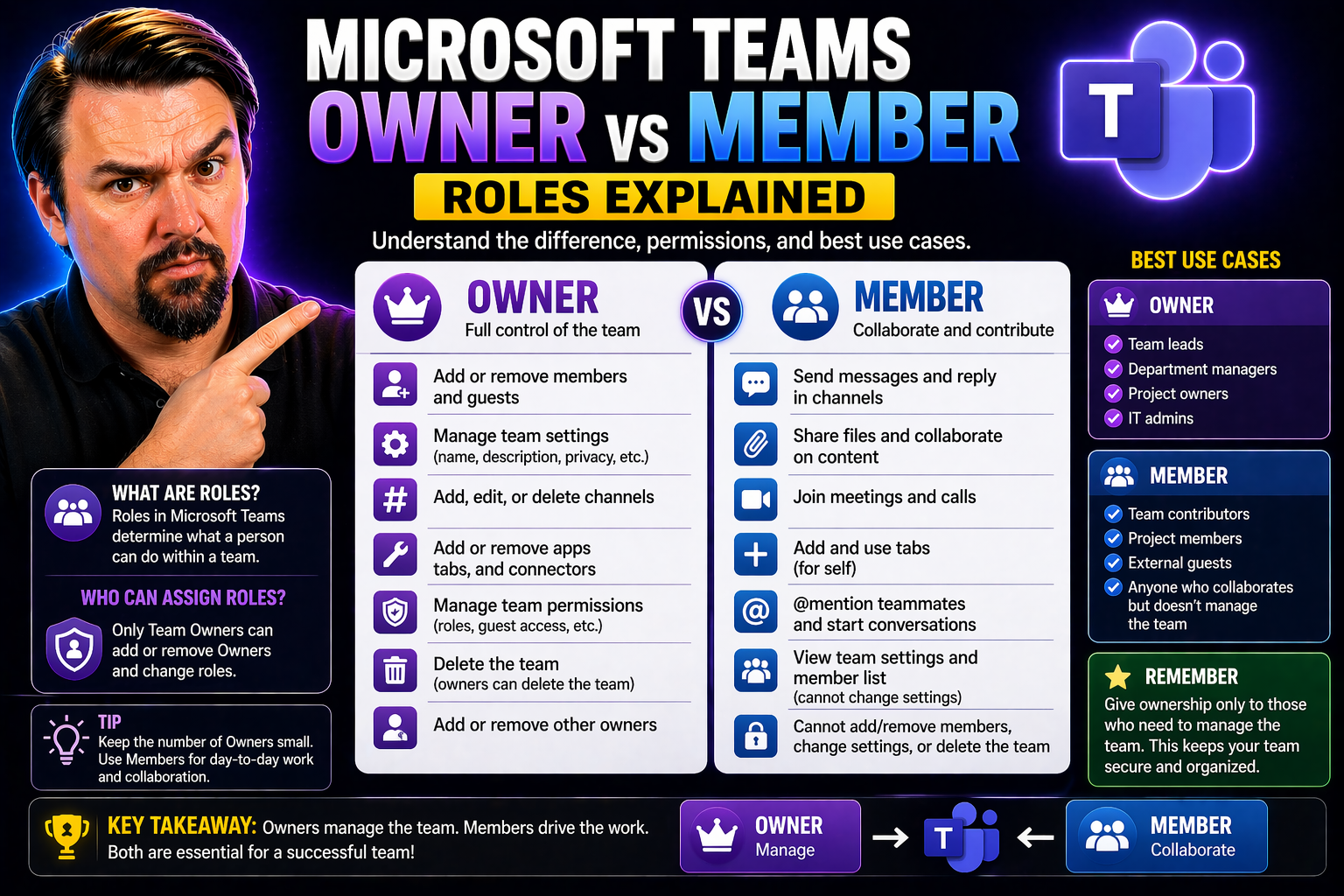
owner vs member roles in Microsoft 365 needs a clear business scenario, accountable ownership, and validated security and user-impact decisions. Start with the intended outcome, assess the supported Microsoft 365 capabilities, test with representative users, and document the operating model before expanding the approach across teams or workloads.
owner vs member roles in Microsoft 365: practical checklist
- Define the scenario, owner, and decision criteria.
- Validate access, policy, security, and user impact.
- Test with a pilot and document the support and review process.
Use Microsoft Learn for current guidance.
Last reviewed: July 2026.
When you’re collaborating in Microsoft 365 or SharePoint, roles like “owner” and “member” aren’t just job titles—they decide what you can and can’t do in your workspace. Owners get the keys to the kingdom, managing permissions and the people in your group, while members handle the everyday work within those boundaries.
Knowing the difference isn’t just helpful—it’s crucial. Assigning roles the right way keeps your company’s data safe, supports compliance, and stops things from slipping through the cracks in audits. This makes your collaboration smooth and secure, even as your teams grow or your business faces new regulatory hoops. Expect a straight-shooting look at how these roles shape teamwork, protect information, and keep everyone accountable.
What Owner and Member Role Means in Microsoft 365 Environments
Let’s break down what “owner” and “member” really mean in Microsoft 365 and SharePoint. In most groups, the “owner” is like your team manager—they set the rules, add or remove folks, and control who gets access to what. Owners can adjust permissions, update site settings, and handle security. They’re responsible for the direction and health of the group or site, especially when sensitive info or compliance is involved.
The “member” role is different. Members are your everyday users. They don’t have oversight on who joins or what settings govern the group, but they’re able to contribute: creating, editing, or deleting files (unless an owner says otherwise). Members are there to get work done, not to police access or manage rules.
This split in responsibilities keeps things clean. Owners make sure that only the right people get sensitive access, while members only see and do what they need to. If everyone was an owner, you’d risk compliance issues—think accidental data leaks or unauthorized sharing—so limiting owner roles protects your organization.
Bottom line: Clear roles help manage risk, boost productivity, and create a record of who’s responsible for what. That’s a must for any business that cares about access control, data safety, and proving compliance down the road.
Key Differences Between Owners and Members in Microsoft 365 SharePoint
- Administrative Control: Owners set site and group policies, decide who joins, and control all permissions. Members can’t manage these settings—they only use what’s set up.
- Managing Users: Owners invite or remove users from a SharePoint site or group. Members can’t remove anyone, nor can they bring in someone new without an owner.
- Content Permissions: Owners can give anyone the right to view, edit, or delete content. Members follow whatever permissions they’ve been assigned—typically full editing power, but they can’t change security for others.
- Setting Site Structure: Owners can create channels, libraries, lists, or even delete a site. Members can only use what’s already there; if they want something new, they need to ask.
- Compliance and Auditing: Owners have the ability to view audit logs, configure site security, and respond to compliance requirements. Members won’t even see most audit tools and settings.
Why does this matter? If everyone had owner-level access, it’s easy for mistakes—or worse, security violations—to creep in. Keeping things separate supports clean governance, easier audits, and confidence that sensitive data is locked down tight. For more on collaboration and governance strategy in Microsoft 365, you might check out topics like how Teams governance turns chaos into confident collaboration.
How Owners Assign Roles and Manage User Access in Collaboration Platforms
Owners aren’t just “in charge” on paper—they have the tools to shape your workspace’s membership and control who holds which role. Whether you’re in Microsoft 365, SharePoint, Slack, or a similar platform, owners decide who’s in the group, what kind of access each person gets, and when changes happen.
This responsibility isn’t just about onboarding or offboarding users. Owners are the gatekeepers for confidential documents, regulatory data, and the flow of communication across teams. They’re enforcing the rules that keep information safe, projects running smoothly, and compliance officers satisfied.
Each collaboration system—Microsoft 365, Slack, or a big enterprise suite—handles roles a little differently. Owners have to understand where their authority starts and stops, and what happens when someone’s access needs to change (like during a project or covering for an absent colleague).
In the next sections, you’ll see exactly what powers owners have in Microsoft 365, and how these compare with the setup in Slack and other enterprise platforms. Understanding these ins and outs means your workspaces stay tidy, secure, and ready for whatever comes next.
Can Owners Assign and Remove Roles in Microsoft 365?
Yes, owners in Microsoft 365 and SharePoint have the authority to assign roles and remove users. Owners can promote members to owner status, demote owners to members, and add or remove users entirely from a group, site, or team.
There are a few exceptions in very locked-down environments, where certain admin controls might limit what owners can do, but in typical setups, owners manage both roles and membership. This makes them the go-to people for user management, access rights, and role changes as your team’s needs shift.
Role Types Beyond Microsoft 365: Slack and Enterprise Roles Compared
- Slack Owner: Top-level, with full authority over workspace settings and billing—like a Microsoft 365 owner but at the global level.
- Admin: Can manage channels, add or remove members, and set up integrations, but doesn’t have access to billing or all security controls.
- Member: Everyday users who participate in conversations and channels but can’t change major workspace settings.
- Guests: Limited access for external collaborators, often only to specific channels.
- Enterprise Custom Roles: Larger platforms let you create custom roles, dialing in exactly what each group of users can see or do.
Best Practices for Planning and Adopting SharePoint Role Structures
- Define Roles Upfront: Decide who should be owners and who should be members before rollout. Don’t assign everyone as an owner—restrict that to those with true oversight responsibility.
- Align Roles to Job Functions: Make sure role assignments reflect actual job duties. Owners should be those with authority and compliance responsibility; members should be contributors, not gatekeepers.
- Set Access Policies and Limits: Use SharePoint’s permissions to set clear boundaries. Give the least access needed for users to get their job done—avoiding “overprivileged” members and owners.
- Document and Communicate Roles: Keep a record of who has which role and communicate responsibilities. This builds accountability and helps in audits or during staff turnover.
- Review Regularly: Audit access and permissions on a regular schedule to catch any drift—removing unused owners, rebalancing roles, and staying compliant.
Adopting robust governance and reviewing your role assignments will not only block security risks but also smooth out collaboration chaos. To learn how governance can make Teams or SharePoint collaboration more confident and less chaotic, visit this overview on Teams governance and secure workspace structure.
Owners or Members? Ideal Role Assignments for Microsoft 365 Groups
- Owners: Managers or Project Leads – Those responsible for the team's outcomes, security, and compliance. Owners should have decision-making authority and understand the group’s sensitive information and compliance needs.
- Owners: IT or Administrative Personnel – IT admins or compliance staff who manage access and handle escalations or audits make strong owners.
- Members: General Team Contributors – Staff whose focus is on content creation, collaboration, and routine work. Their responsibilities don’t include access control or oversight.
- Members: External Partners in Limited Roles – Partners, vendors, or contractors working on specific projects. Assign them member roles or even guest access, not owner rights.
- Avoid Over-Assigning Owner Status – Too many owners increase the risk of accidental permission changes or data leaks. Limit this designation for clear accountability.
FAQ: Frequently Asked Questions About Owner and Member Roles
- Can a user be both an owner and a member?
- No—users in Microsoft 365 groups or SharePoint are assigned one role per group at a time, not both. But someone can be an owner in one group and a member in another.
- What can members edit?
- Members typically can edit, create, and delete files and items within the permissions set by owners. Members can’t change security settings or manage other users.
- What if an owner leaves?
- If the last owner departs, Microsoft 365 often prompts admins to assign a new owner to keep things running and secure. Never leave a site or group without an owner.
- Can owners see everything?
- Owners can usually see and manage all items within the site or group, including audit trails, but some data may be restricted by higher level IT controls.
- How do role changes affect compliance?
- Changes should be logged and reviewed, since upgrades or downgrades in roles affect audit trails and data governance. Owners must handle role assignments with care to stay compliant.
Migrating to SharePoint or Microsoft 365 Today: Tips for Owner and Member Role Setup
- Map Current Permissions: Before migrating, review who has access to what in your old system. Match those permissions as closely as possible during the migration process to avoid access confusion or oversharing.
- Assign Owners Early: Identify your owners and make sure they’re trained. They should understand both their powers and the responsibility to manage roles, security, and overall site health.
- Document Every Role Change: Keep a running record of who’s made an owner or member during migration. This creates an audit trail that’s crucial for compliance (especially if you’re in a regulated industry).
- Use Built-In Tools for Easy Management: Microsoft 365 and SharePoint offer automated tools and templates for mapping roles—use them to keep your transition smooth.
- Review Access After Go-Live: Once your migration is done, double-check all role assignments for accuracy. Regular reviews help spot mistakes before they become security issues.
For advice on taming workspace chaos and tightening up governance post-migration, it’s worth looking into resources like Teams governance for confident collaboration, which can also apply to SharePoint and Microsoft 365 environments.
🎧 You Should Also Listen To
- Identity Governance in Microsoft Entra
Learn access and lifecycle controls.
- Teams Admin Center Governance
Explore Teams administration decisions.
- Microsoft 365 Governance Operating Model
Understand sustainable ownership and governance.

Microsoft MVP | Host of M365.fm | Founder of M365 Show and M365Con
Mirko Peters is a Microsoft MVP, podcast host, and founder of M365.fm, M365 Show, and M365Con. His work connects Microsoft practitioners through podcast interviews, livestreams, and community events.
At M365.fm, Mirko hosts conversations with Microsoft MVPs, product experts, architects, and community contributors. Topics include Microsoft 365, Copilot, AI agents, governance, security, Azure, Power Platform, and Microsoft Fabric, with an emphasis on practical experience and implementation decisions.
M365.fm is the podcast and learning platform. M365 Show brings experts together for livestreams, while M365Con provides an online conference setting for community learning.
Official website: Mirko Peters (https://www.mirkopeters.com/). Recognition: Mirko Peters — Microsoft MVP profile (https://mvp.microsoft.com/de-DE/mvp/profile/9b0ca797-db5a-493a-a845-8b9158046cf5). Connect on LinkedIn (https://www.linkedin.com/in/m365showpodcast/).




