
Sensitivity Label Not Applying: Troubleshooting and Solutions for Microsoft 365 and Power BI
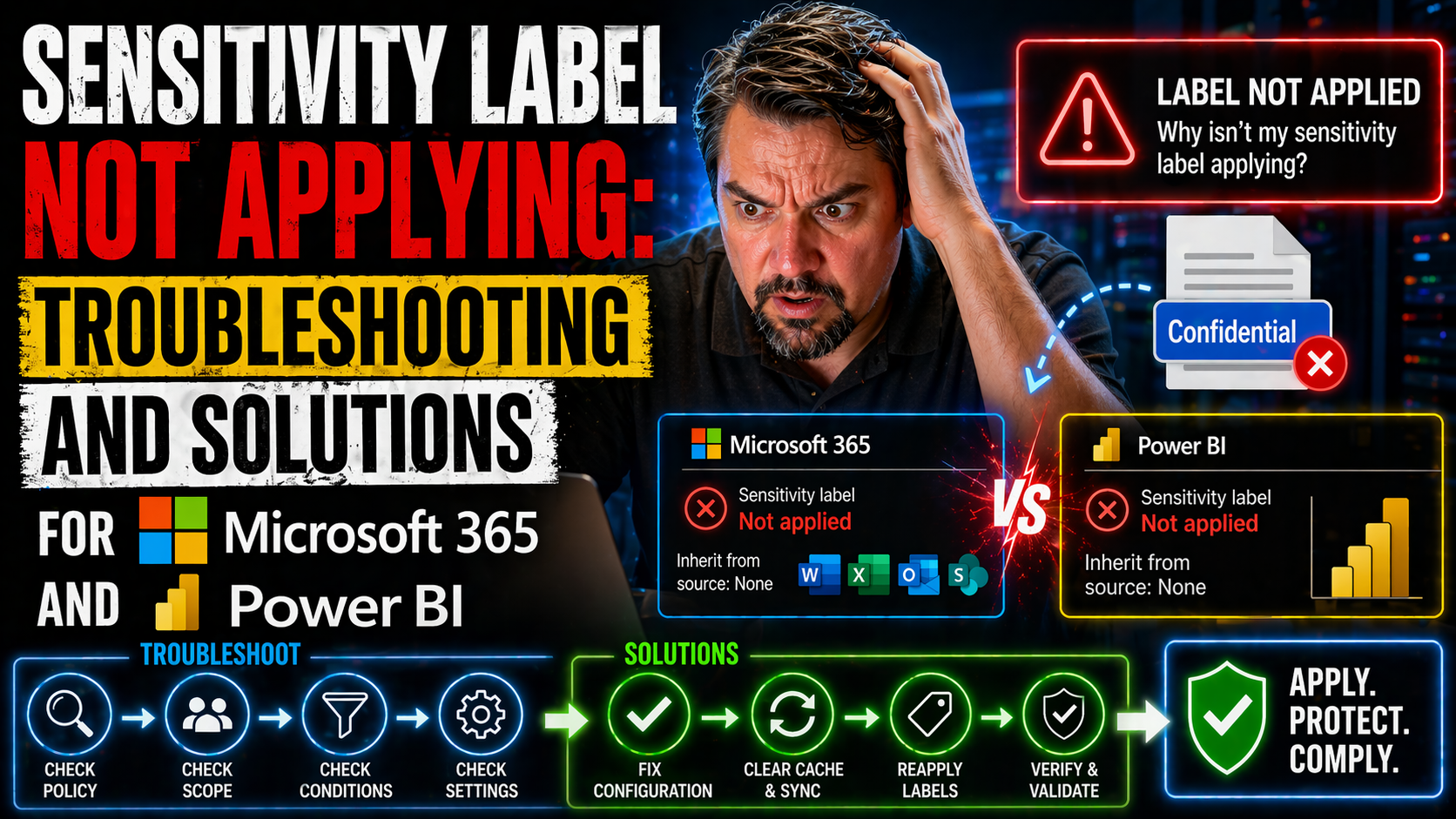
This article dives deep into why sensitivity labels might not apply the way you expect in Microsoft 365, Power BI, and related apps. If you’re puzzling over missing label options, failed automatic labeling, or stubborn configuration issues, you’re in the right place. We’ll walk through practical troubleshooting steps, call out licensing and configuration requirements, and flag the most common roadblocks faced by real-world IT teams and Power BI users.
Expect straight-up answers, clear lists of what to check, and guidance for those advanced problems that leave even the pros scratching their heads. Whether you’re supporting everyday users or rolling out security policies enterprise-wide, you’ll find insights and solutions here to keep sensitive data locked down and your compliance team breathing easy. If you’ve suspected that “one setting to rule them all” doesn’t exist, this resource will show you exactly where to look next.
Understanding Sensitivity Labels and Common Application Failures
Sensitivity labels have become a cornerstone of data security in today’s Microsoft 365 world. With cyber threats getting sneakier and more data shifting to SharePoint, OneDrive, and Power BI, it’s critical to understand what sensitivity labels actually do—and what it looks like when they go sideways.
Microsoft Purview brings data sensitivity into focus by letting organizations classify and protect files, emails, and even Power BI content. But just because labels are set up doesn’t mean they always function the way you want. There can be real surprises—buttons that go missing, default labels skipping a beat, or certain files and users being left out altogether.
This section kicks things off by exploring the basics: what sensitivity labels are meant to accomplish, why they’re so pivotal for regulatory compliance and privacy, and the most common signs that something is broken beneath the surface. You’ll get a sense of key failure patterns, from the simple “label won’t show up” to trickier problems like inheritance issues or broken automation, especially in Power BI or collaborative SharePoint and OneDrive environments.
If you’ve ever wondered “why isn’t this working?”—stick around. The next few subsections will unpack common warning signs, basic definitions, and the biggest culprits behind failed automatic labeling (including those you may not see coming). By the end, you’ll have the foundation needed to spot and nail down sensitivity label problems in your Microsoft ecosystem.
What Is a Sensitivity Label and How Should It Work?
A sensitivity label is a tag you can apply to files, emails, and various cloud content in Microsoft 365 to classify, protect, and control how information is used. These labels are managed through Microsoft Purview and help keep sensitive data—like financials, customer information, or intellectual property—under lock and key.
When applied, sensitivity labels can automatically encrypt content, restrict who can access or edit a file, and even trigger notifications if data is being mishandled. Whether you’re working in Outlook, Word, Teams, SharePoint, or Power BI, labels serve as a visible signal and an invisible shield, traveling with the document or message wherever it goes.
Labels can be set by users (manual labeling) or triggered automatically based on predefined rules (auto-labeling). The goal is a seamless workflow—once a label is in place, security and compliance policies spring into action behind the scenes, giving organizations peace of mind no matter where the file lands.
They’re absolutely central to regulatory strategies, providing key controls for compliance audits and legal defense. If your goal is to prevent document chaos and keep risk in check, building a strong sensitivity labeling program with Microsoft Purview is a foundational move. For practical advice on protecting files across SharePoint and teams, listen to this discussion on stopping document chaos with your Purview shield.
Common Sensitivity Labels Problems and What to Watch For
- Labels not appearing: The expected label options don’t show up in apps like Word, Excel, or Power BI, often due to misconfigured policies or user access issues.
- Label button is greyed out: Users see the sensitivity label button but can’t select it, which may come from missing licenses, an outdated client, or tenant policy conflicts.
- Labels not inherited: Downstream content (exports, reports, or shared files) fails to pick up the parent item’s sensitivity label, usually because inheritance isn’t working as intended or isn’t supported for that scenario.
- Auto-labeling fails: Labels set to apply by default or based on keywords don’t hit new content, a signal of sync issues or improper configuration in label policies.
- Label enforcement gaps: Users work with protected content, but encryption or access protections aren’t triggered, which exposes data to risk and signals a breakdown in enforcement settings.
Why Isn't My Sensitivity Label Applying Automatically?
- Auto-labeling policies are not targeted correctly. If you’ve set up policies in Microsoft Purview but haven’t included the exact users, groups, or locations, those labels won’t apply—even if the setting looks right at first glance.
- Licensing limitations are blocking labels. Users without the correct Microsoft 365 or Purview licenses won’t see labels or have auto-labeling work for them. For example, Power BI Pro or Premium Per User is often required for effective labeling in Power BI.
- Policy sync delays throw things off. When you update a policy or add a new label, it can take anywhere from a few hours to several days before those changes apply across all devices and clients. Until sync completes, automatic labeling may simply not trigger.
- Downstream inheritance isn’t supported or is misconfigured. Even if “downstream inheritance enabled” is checked in Power BI, not all exports, reports, or models support proper propagation. Some content types—like paginated reports or certain exported files—won’t pick up the parent label automatically.
- Device or sign-in context restricts label application. Conditional Access or Intune policies often limit label usage on unmanaged or non-compliant devices, so even well-configured auto-labeling can silently fail if devices don’t meet requirements.
- Local cache or metadata corruption in desktop apps. Occasionally, Office or Power BI Desktop clients hold onto outdated label lists, stopping new or updated auto-label rules from being displayed or applied until the cache is cleared or app restarted.
- Permission issues with B2B or guest users. Guests or external users often can’t apply, see, or inherit labels—even with edit access—due to cross-tenant, policy, or licensing boundaries.
When in doubt, auditing user activity—like in this guide on Purview auditing—can help pinpoint where automation and inheritance break down.
Licensing and Configuration Prerequisites for Sensitivity Labels
Before you can expect sensitivity labels to work seamlessly across Microsoft 365 and Power BI, you need the right foundation in place. That means making sure your licenses, tenant settings, and service configurations are all correctly aligned. Missing even a single requirement can block users from seeing or applying labels—even if policies look perfect in the admin portal.
This section explores the “plumbing” underneath the label system: which products and roles require premium licenses, what kinds of permissions are needed to view or use labels, and how label policies are scoped to reach the right users and services. You’ll also see why skipping these steps often leads to mysterious missing features, inactive buttons, or inconsistent label experiences from app to app.
If you’re troubleshooting label issues or preparing for a large-scale rollout, reviewing these licensing and setup requirements is absolutely essential. The following subsections break down each element so you know exactly what to check before going deeper into technical problems. For a better understanding of the hidden challenges in compliance and policy enforcement, check out this breakdown on Microsoft 365 compliance drift.
Licensing Requirements for Viewing and Applying Sensitivity Labels
- Microsoft Purview Information Protection (MIP) licensing: Sensitivity labeling in Microsoft 365 depends on having one of the following for each user who needs to view, apply, or auto-apply labels:
- Microsoft 365 E5, A5, or G5
- Microsoft 365 E3 with the Information Protection and Governance add-on
- Azure Information Protection P1/P2 or a comparable bundle
- Application-specific requirements:For Power BI, a Pro or Premium Per User (PPU) license is required for creating, applying, and inheriting sensitivity labels on PBIX files or content within workspaces.
- Users only consuming labeled content in Power BI (not creating or changing labels) might need lower-tier licensing, depending on workspace configuration.
- Licensing for admins and automation:Admins who create and manage sensitivity labels in the Purview portal must also have the appropriate license assigned—and may need additional permissions for PowerShell or REST API automation.
- Common gaps:Users in mixed-license environments often lose access to labels or auto-labeling when their licensing tier isn’t sufficient or is incorrectly assigned.
- B2B guests or service principals typically require special configuration since most Microsoft 365 licenses are user-based and do not automatically cover these scenarios. Data access, ownership, and governance play a part here.
How to Create a Sensitivity Label and Define Scope
- Open the Microsoft Purview portal - Start by navigating to the Purview compliance center and select “Information protection” under Data lifecycle management.
- Create a new label and define its properties - Give the label a clear name, description, and choose the right scope (files, emails, Power BI content, or all). Define what protections to apply—encryption, watermarking, and access permissions.
- Set label policy targeting - Decide who can see and use the label by targeting specific users, groups, or all account holders. Review the assignments to ensure the label appears where needed and isn’t inadvertently hidden.
- Configure default and mandatory labeling - Enable default labeling for scenarios where you want all new documents to start with a particular level of protection. Set mandatory labeling to require users to apply a label before saving or sending content.
- Publish and monitor rollout - Once you’re confident in your settings, publish the policy and communicate with your users. Regularly review adoption and labeled content stats to catch any missteps—something also discussed in this guide on audit-ready document management.
Troubleshooting Sensitivity Label Application in Power BI
Power BI has its own set of headaches when it comes to sensitivity labels—a reality that trips up even seasoned admins. You may have set everything up correctly in Microsoft Purview and across your Microsoft 365 tenant, yet Power BI sometimes throws up new challenges. These can range from the label button being inexplicably greyed out to protected PBIX files refusing to open or publish.
Other pain points include default or mandatory labels not enforcing as expected, transfers between Power BI Desktop and Service breaking label inheritance, or exported reports stripping key protections. There are also unique scenarios involving B2B and guest users, row-level security, or content access that can tangle up your governance plans.
This section tees up every major Power BI label issue you’re likely to run into. Each child heading dives into the real-world causes—and solutions—for issues like greyed-out controls, skipped enforcement, or failing to work with protected files or elevated security settings. Don’t worry—we’re not just reciting error messages here; we’re helping you close the gaps so your compliance and security strategy stays on track. Curious about the broader governance outlook? See challenges exposed by ineffective controls at the Fabric governance illusion.
Why the Sensitivity Label Button Is Greyed Out or Missing in Power BI
- Outdated Power BI Desktop version: The label feature requires the latest Desktop client. If you're running an old version, the button might not show at all.
- Missing license or insufficient policy scope: Power BI Pro, Premium Per User, or the right Microsoft Purview license is needed. No license, no label options.
- PBIX file stored outside supported locations: Some features work only with files saved in OneDrive or SharePoint, not on local drives.
- Tenant label policy not published or targeting your user: If admin hasn’t included you (or the workspace) in the policy, labels will be missing.
- Internet connectivity or offline mode: Label features rely on cloud policy sync. If you’re offline, labels may not appear.
Mandatory and Default Labeling Not Enforced in Power BI PBIX Files
- Tenant mandatory/default label not configured: Power BI requires specific tenant settings for enforcement; missing options here leave PBIX files unlabeled.
- Manual label override enabled: If users can remove or change labels, enforcement gets bypassed despite apparent “mandatory” settings.
- Workspace exclusions: Enforcement can be scoped only to certain workspaces; others slip through if not included.
- Sync delay between Desktop and Service: Newly published or created content may not pick up the label immediately due to backend processing lags.
Problems with Protected PBIX Files and Content Access
- Encryption prevents file operations: If a PBIX is protected by a label with encryption, users might be blocked from opening, saving, or publishing unless they’re assigned to the right access group.
- B2B and guest user restrictions: External collaborators typically can open or edit protected content only if their accounts are explicitly included in the label’s access policy—otherwise, files fail to load or cannot be published.
- Service principal and automation hurdles: Automated processes using service principals can’t always apply or remove labels due to unsupported scenarios or missing RBAC permissions.
- Incompatible legacy files: PBIX files created or saved with early Power BI Desktop versions might not work with newer label protections, leading to import or access errors.
- Save and publish errors for on-premise storage: If a PBIX file is saved on local storage or a non-cloud location, sensitivity label protections don’t travel with the file—causing access failures on other devices or in Power BI Service.
- Tenant configuration mismatches: Policy drift between Microsoft Purview and Power BI tenant settings can block label synchronization, resulting in “missing feature” errors or failed protected file access.
- Row-level security and data source handshake failures: When row-level security is combined with protected files, export and access breaks down unless roles and label policies are perfectly matched. For best practices here, see implementing RLS in Power BI.
Downstream Inheritance and Label Propagation Issues
In an ideal world, once you apply a sensitivity label to a dataset or a report, every child file or exported item should wear that same security “badge” wherever it goes. The reality? Downstream inheritance isn’t as bulletproof as many expect—especially across exports, paginated reports, and when content gets remixed in Power BI or other apps.
Here, we set the context for where label propagation tends to fall short. Some breakdowns are technical (like unsupported file types), while others are pure policy (for example, inheritance not being set up or being overruled by export options). It’s a complex game of follow-the-leader, and when inheritance is broken, your sensitive content is left without the expected protection.
The next subsections explain exactly why some exported Excel sheets or Power BI reports drop their sensitivity label despite being “downstream content.” We’ll also address the quirky world of paginated reports and model-based label inheritance, so you know what to watch out for—and where to invest your troubleshooting energy for the biggest overall improvement.
Why Downstream Content Doesn’t Inherit Sensitivity Labels
- Unsupported export formats: Many downstream exports, like CSV or PDF from Power BI, don’t carry original sensitivity labels because the format doesn’t support label metadata.
- Inheritance not enabled for all content types: Even when “downstream inheritance” is toggled in your Purview settings, only supported file types and data flows participate. Paginated and certain hybrid reports often break this chain.
- Manual export overrides: If users choose “Download without label” or use third-party tools, inherited labels won’t stick.
- Policy misconfigurations: Gaps in label policy scoping or tenant configuration let certain files or exports “slip through” and escape label propagation rules.
- Client-side application sync delay: If label data hasn’t refreshed in the app, newly created or inherited labels might not show until the next policy propagation.
Paginated Reports and Model-Based Label Inheritance Failures
- Paginated reports lack proper inheritance hooks: When a paginated report is built on a labeled dataset, the inheritance isn’t always automatic, especially if the connection is indirect or data sources aren’t label-aware.
- Exported paginated content strips labels: PDF, CSV, or Excel exports from paginated reports often miss sensitivity labels entirely due to export process limitations.
- Data source and model isolation: If your report’s model pulls from multiple labeled and unlabeled sources, inheritance rules get fuzzy—leading to fallback or no label at all.
- Custom connector issues: Reports using custom connectors or external APIs may fail to transmit label metadata, cutting off automatic propagation.
- Policy gaps for hybrid sources: Hybrid environments (mixing on-premise and cloud) or using multiple tenants often present policy mismatches where inheritance just isn’t enforced or supported.
- Recommended workaround: Regularly review your Purview policies and Power BI export settings. Educate users to apply a label manually to both the model and all derived reports when possible, and monitor for unlabeled exports—remember, relying solely on auto-inheritance is risky. For deep governance perspectives, review this resource on Microsoft Fabric governance.
Security, Protection, and Integration with Defender for Cloud Apps
Sensitivity labels aren’t just about sticking a sticker on a file—they bring real teeth when it comes to advanced security, like encryption and automatic enforcement across devices and cloud services. But as these protection settings grow more powerful, so does the complexity for IT teams tasked with making sure everything plays nicely together.
This section zeroes in on how protection and encryption settings tied to sensitivity labels influence content across Microsoft 365, Power BI, and integrated tools like Microsoft Defender for Cloud Apps. When a label adds encryption to a file, it changes who can access, edit, and even see a document—which sometimes results in new troubleshooting challenges if things aren’t lined up just right.
We’ll also look at how to monitor labeled content for compliance, audit access, or alert on suspicious activity, using the tools available in Defender for Cloud Apps and Purview. Think of it as a toolkit for proactive risk management and visibility. If you want more on staying ahead of compliance drift and integrating reporting, check out how to monitor compliance with Defender for Cloud.
How Protection Settings and Encryption Affect Label Behavior
When you assign a sensitivity label with encryption, you apply a new set of rules that travel with the content no matter where it goes. For documents or emails, encryption controls who can open, print, or forward files—enforcing access limits even outside your organization.
These protections can block editing or access if a user isn’t covered by the label’s policy. For Power BI PBIX files, encryption may stop users from publishing or saving content unless they’re included in the allowed group. In collaborative situations—like external sharing or B2B partnerships—labels with high protection can even block otherwise privileged users.
Certain label settings may also disable app features. For instance, if a file’s been encrypted, you might lose the ability to preview it in SharePoint or Teams. And in Power BI, row-level security and sensitivity labels have to work together or things can break down, especially for access on mobile or embedded scenarios.
Protection settings are also tightly woven with other security features—think Conditional Access, Microsoft Defender, or DLP rules. These integrations ensure a file marked as sensitive triggers alarms, blocks risky behaviors, or, if necessary, locks down the content entirely. Learn more about how all of these elements combine to secure your workplace without annoying users in this M365 security deep dive.
Monitoring Sensitivity Labels with Defender for Cloud Apps
- Label activity auditing: Defender for Cloud Apps and Microsoft Purview track label-related actions, helping spot unauthorized removals or failed label assignments on the fly.
- Policy and alert configuration: Set up alerts to notify security teams whenever sensitive information is accessed, downloaded, or shared outside policy boundaries.
- Content discovery at scale: Use automated discovery to identify unprotected content or check for compliance with label policies across your entire cloud footprint.
- Continuous compliance tracking: Monitor for drifts in compliance and get automated remediation options, as described in depth at this Defender for Cloud compliance guide.
Advanced Scenarios and Environment-Specific Limitations
Most organizations use sensitivity labels in straightforward Microsoft 365 setups. But if you venture into sovereign clouds, cross-tenant (B2B) sharing, or try automating label actions via APIs or service accounts, you’re in a different ballgame. These advanced scenarios introduce their own limitations—sometimes technical, sometimes policy-based—that can break your best-laid plans for sensitivity labels.
This section highlights what to expect in specialized environments. You’ll learn where labeling simply doesn’t work (or requires a lot of extra setup), including US Government or German cloud tenants, external B2B user collaboration, and automation scripts using service principals. These can leave you scratching your head, wondering why label features just vanish or silently fail.
Each subtopic flags unique restrictions and recommends strategies that work around or minimize those barriers. It’s especially relevant if you operate in regulated industries or juggle multiple tenants, and need to secure the gaps while remaining audit-ready. Curious about the compliance risks tied to unmanaged guest accounts? Check this breakdown on guest account lifecycle management.
Sensitivity Labels in Sovereign Clouds and B2B Collab
- Sovereign cloud restrictions: US Government and German cloud versions of Microsoft 365 frequently lack full sensitivity labeling—or support a limited subset of features compared to global tenants.
- External/B2B user gaps: B2B guests often can’t see or apply labels, even if they have edit rights, unless the label policy explicitly includes them or the tenant enables cross-tenant access.
- Policy drift in collaboration: Policies set in one tenant may not travel with files across tenant lines, leading to lost labels or defaulting to insecure settings.
- Workarounds: Use manual labels, train external collaborators, and review your policy targeting to cover guest and partner users more comprehensively.
Automating Sensitivity Labels with REST APIs and Service Principals
- API endpoint limitations: Some REST API endpoints do not yet support reading or writing label metadata, especially in Power BI or SharePoint.
- Permission and RBAC issues: Service principals need both the right Azure role and delegated permissions to manage labels, making setup tricky.
- Label hygiene automation: Use PowerShell or the Graph API for bulk label assignments (or removals), but always test quirks in your environment—service accounts can’t replicate every manual user action.
- Undocumented error messages: Unexplained failures are common with automation, so log everything and check API documentation or recent updates frequently. Automation best practices for M365 governance can change, as discussed in these PowerShell automation insights (if available).
User and Device Context Limitations That Affect Sensitivity Label Application
Sometimes sensitivity labels fail not because your license or admin setup is wrong, but because of the context in which a user is working. Things like device compliance, conditional access, and sign-in status can block label features with zero warning or visible error messages.
This section deals with problems you’ll find only in the fine print—like a user signing in from an unmanaged laptop, or a guest user who just can’t see labeling options no matter how you configure their permissions. These blocks are often controlled by Intune (for device compliance) and Azure Conditional Access policies, which might enforce stricter controls for guests, non-compliant devices, or external sharing scenarios.
We’ll break down which policies silently “turn off” labels and how to diagnose what’s happening when all your obvious configurations seem fine. This isn’t just about documents—it’s about Power BI, Teams, Outlook, and anywhere labels should show up but don’t. If you need to revisit the details on building trust into your Conditional Access policies, see this trust-focused Conditional Access policy guide.
Conditional Access, Device Compliance, and Label Availability
- Device compliance enforcement: Conditional Access and Intune can require devices to be compliant (managed, encrypted, or enrolled) before allowing any label actions within Office or Power BI apps.
- Blocked for unmanaged devices: If a user signs in from a device outside of Intune/Entra ID control, the option to apply sensitivity labels can disappear or be greyed out, with no explicit error message.
- Custom authentication context: CA policies that require MFA or location-based rules can restrict labeling to specific scenarios only—labeling fails if the session isn’t fully trusted.
- Diagnosing: Admins should review Conditional Access policy assignments and sign-in logs. If label actions only fail for certain users, the likely cause is device compliance gaps or restrictive policies. For escalated scenarios, a control loop for identity security policy drift can be essential—see best practices at this Entra ID security episode.
Guest and External User Restrictions with Sensitivity Labels
- No label support by default: B2B and external collaborators often can’t apply or sometimes even see labels, unless label policies specifically include their identities or external domains.
- Policy and permission gaps: Even with edit rights, guests might miss label support due to restrictive default tenant settings or lack of license assignment.
- Security risks with idle guest accounts: Stale or unmanaged guest accounts can bypass policies or lose label enforcement altogether; audit and restrict guest lifecycles as described in this guest account warning.
- Configuration recommendations: Regularly review label targeting, set time-limited guest access, and ensure guests are included where needed—but keep access reviews strict for compliance.
Label Application Failures Due to Application Caching and Policy Sync Delays
Here’s something plenty of guides overlook: application-side problems with label caching or slow policy syncs can stop sensitivity labels from showing up or updating, no matter how much your admin setup looks right on paper. These issues are especially common in Office desktop apps and Power BI Desktop, where local metadata or cache files get “stale” after policy changes.
When a policy refresh hasn’t reached your app, you may find new sensitivity labels don’t appear, old ones are stuck, or previous auto-labeling rules keep getting applied. This can leave users in limbo, thinking “it’s just me,” when in fact it’s a widespread policy sync or cache problem.
This section covers how to tackle these under-the-hood problems—like clearing the label cache and understanding the timeline for policy propagation across devices and platforms. If you catch yourself (or your users) running into label oddities after an admin makes policy changes, this is the first thing to check before heading to support.
Clear Sensitivity Label Cache in Office Desktop Apps
- Close all Office apps, including Word, Excel, and Outlook. Open Task Manager and make sure no Office processes are left running.
- Navigate to the label cache location: Go to %localappdata%\Microsoft\MSIP and/or %localappdata%\Microsoft\Office\16.0\LabeledDocuments (for Office 365 builds).
- Delete or rename the cache folders, including “Policy” or “Labels” subfolders, as appropriate. This clears old or corrupted label metadata for the Office apps.
- Restart your Office app. It will automatically retrieve label policies from the cloud, pulling in any new or updated sensitivity labels immediately.
- Scenarios when to use: This fix is essential after label policy edits, when updating label catalogs, or if new labels aren’t visible in the label picker. It’s a quick win before escalating deeper technical checks.
Understanding Policy Propagation Delays Across Clients
- Office desktop apps: Expect up to 24 hours for new policies or labels to propagate, especially after large changes in the Purview portal.
- Web apps (Office Online, Power BI Service): Policy updates apply more rapidly—often within 1-2 hours, but residual browser cache can delay visibility.
- Mobile and hybrid clients: Mobile apps may cache policy data for longer. Forcing a sign-out/sign-in can accelerate refresh.
- How to verify: Compare label lists in Office desktop, web, and Power BI to spot sync lags. If delays persist, escalate to your IT admin to review tenant sync health.
Silent Failures and Logging for Sensitivity Label Application Attempts
Sometimes, the trickiest sensitivity label issues are the ones you never see—no error messages, but the label just doesn’t apply or stick. These “silent failures” can drive both users and admins up the wall, especially if you’re in a regulated industry or have to pass an external audit.
This section explains where to look when label application doesn’t work but doesn’t fail obviously. It’s about digging into Microsoft 365 audit logs, the local logs on user devices (from the MIP client or Office apps), and making heads or tails of error traces. This is advanced troubleshooting territory, but it’s where you’ll find the missing puzzle piece when everything else looks correct.
We’ll outline how to access and use Microsoft Purview’s unified audit logs to hunt down failed or incomplete label assignments. Plus, you’ll get pointers for interpreting MIP and Office app logs if the UI acts like “success” but you know the result isn’t right. If you’re serious about understanding what’s happening behind the scenes, step into the world of audit and forensic tracking at Purview user activity auditing.
Use Audit Logs to Track Sensitivity Label Failures
- Access Microsoft 365 audit logs: Go to the Purview compliance portal and head to the Audit section. You’ll need audit log permissions.
- Filter for sensitivity label actions: Search for events like “Sensitivity label applied,” “Label changed,” or “Label removed.” Watch for entries where “status” is failed or incomplete.
- Review user and file history: Drill down into failed events; note the user account, device, affected file, and the error (if any).
- Isolate root causes: Look for patterns—are failures always with certain users, a specific file type, or after a policy update? This isolates policy, license, or client-side problems.
- Best practices: If compliance is on the line, upgrade to Purview Audit Premium for richer signals and longer retention. For more on forensic tracking, see this step-by-step auditing tutorial.
Analyze MIP Client and Office App Logs for Silent Errors
- Enable detailed logging: In MIP and Office apps, turn on verbose or debug logging modes via registry settings or command-line switches.
- Locate local logs: Key files live in %localappdata%\Microsoft\MSIP\Logs for the MIP client, and in Office’s \Logs subfolders.
- Check for errors after label action: Search for error codes like 0x80070005 (access denied) or “label application failed” after a user takes action.
- Correlate with support: Share logs and timestamps with Microsoft support for advanced diagnosis when user-side troubleshooting hits a wall.
Final Checks, Feedback, and Recommended Resources
You’ve made it through the key troubleshooting steps for sensitivity label issues in Microsoft 365 and Power BI. Before you throw in the towel or start a support ticket, it’s smart to review your configuration details and policy setups using a systematic checklist. Often, the last missing setting or forgotten permission is what solves things—no deep dive required.
This section wraps up your journey by summarizing the non-negotiable checks before you escalate: policy targeting, label publishing, license assignments, and enforcement settings. You’ll also find links to feedback channels, support avenues, and official best-practices resources for ongoing learning.
Think of it as both a troubleshooting pit stop and a bridge to further help. Links to authoritative community forums, recommended articles, and official Microsoft documentation are included for those tough cases where you need to dig deeper or report a new issue. For more tips on audit-ready document management, see Purview and SharePoint document chaos solutions.
Checklist for Reviewing Sensitivity Label Settings and Licensing Requirements
- Validate tenant settings: Make sure the sensitivity labeling feature is enabled and governed centrally via Microsoft Purview. Double-check tenant scope and feature toggles.
- Review label policy assignments: Verify that label policies include all intended users, groups, or guest accounts. Policy scoping issues are a leading cause of labels not appearing where they should.
- Confirm license assignments: Ensure every user and admin is licensed for Purview Information Protection, Power BI Pro/Premium, or related label-capable subscriptions.
- Check for policy propagation and sync: Inspect whether recent label or policy changes have propagated to all clients and are visible in the Sensitivity picker for key apps.
- Mandatory and default label enforcement: Confirm default and mandatory enforcement settings are active, particularly in Power BI and SharePoint, to prevent content being created unlabeled.
- Guest and B2B coverage: Review if and how external collaborators are included in label policies. Remove unused guest accounts—see more on this at the hidden danger of M365 guest accounts.
- Examine audit and activity logs: Scan Microsoft 365 audit logs for failed or incomplete label assignments. This step is essential for regulated entities and proactive IT monitoring.
- Clear label cache, if needed: Use the “clear cache” method after making policy changes to help users avoid legacy issues with old labels sticking around.
- Test all scenarios: Validate label application on both managed and unmanaged devices, guest users, and across web, desktop, and mobile platforms where needed.
How to Submit Feedback and Access Recommended Articles
- Microsoft feedback channels: Use Microsoft 365 admin center’s feedback tool or visit community forums to report new issues and contribute to the feature roadmap.
- Support escalation: Open support tickets through Microsoft 365 admin portal for unresolved or critical sensitivity label issues—be ready to share logs and detailed steps.
- Best practice resources and articles: Find deep dives and expert-led discussions, like this audit-focused guide to auditing user activity with Purview or a checklist-driven approach to building your Purview shield.
- Community learning: Stay current with evolving labeling strategies and troubleshooting tips by bookmarking recommended Microsoft Docs pages and reputable forums.

Microsoft MVP | Host of M365.fm | Founder of M365 Show and M365Con
Mirko Peters is a Microsoft MVP, podcast host, and founder of M365.fm, M365 Show, and M365Con. His work connects Microsoft practitioners through podcast interviews, livestreams, and community events.
At M365.fm, Mirko hosts conversations with Microsoft MVPs, product experts, architects, and community contributors. Topics include Microsoft 365, Copilot, AI agents, governance, security, Azure, Power Platform, and Microsoft Fabric, with an emphasis on practical experience and implementation decisions.
M365.fm is the podcast and learning platform. M365 Show brings experts together for livestreams, while M365Con provides an online conference setting for community learning.
Official website: Mirko Peters (https://www.mirkopeters.com/). Recognition: Mirko Peters — Microsoft MVP profile (https://mvp.microsoft.com/de-DE/mvp/profile/9b0ca797-db5a-493a-a845-8b9158046cf5). Connect on LinkedIn (https://www.linkedin.com/in/m365showpodcast/).




