
SharePoint Architecture Explained: A Comprehensive Guide
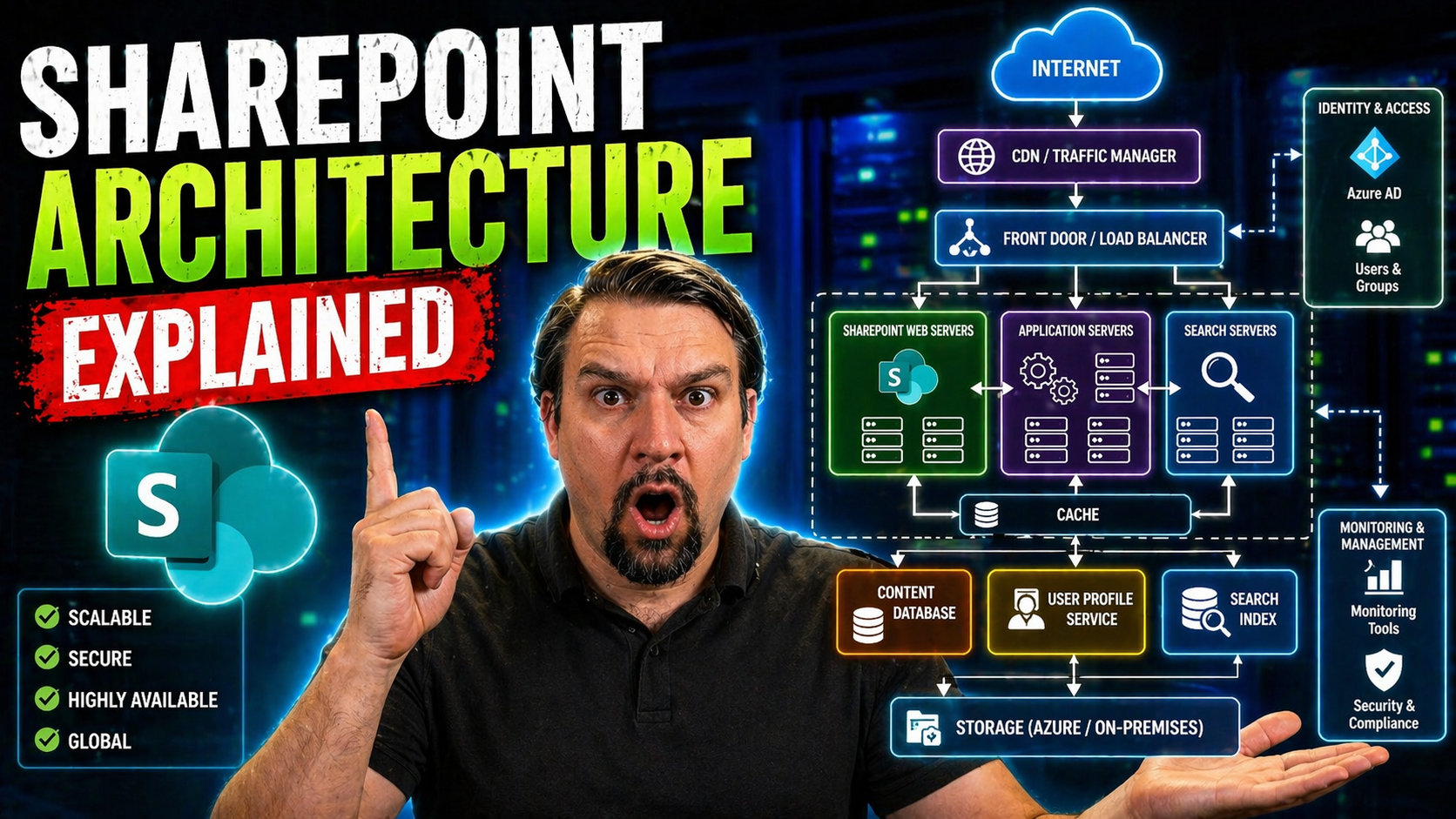
SharePoint has come a long way from just being a file cabinet for teams. Today, it's the engine powering organized content, collaboration, and security behind Microsoft 365. If your organization counts on Microsoft 365, understanding SharePoint’s structure and governance isn’t just helpful—it’s critical. Get this right, and you set the stage for seamless teamwork, robust data protection, and AI experiences like Microsoft Copilot that actually work.
This guide unpacks the design and evolution of SharePoint architecture. Whether you're wrangling document chaos or planning to future-proof your cloud, you'll find clear explanations, examples, and real-world strategies here. We'll walk through modern site models, best practices for organizing content, technical infrastructure essentials, and more. By mastering SharePoint architecture, you build a secure foundation for innovation, compliance, and efficient collaboration for everyone in your organization.
Understanding the SharePoint Backbone in Microsoft 365
SharePoint isn’t just another tool on the Microsoft 365 roster—it’s the central fabric holding your organization's content, collaboration, and security together. It quietly runs the show behind document management, sharing, intranets, and much more. Everything from Teams conversations to file storage, workflow automation, and even AI-driven assistance is rooted in SharePoint’s architecture.
Document libraries in SharePoint are the source of truth for files across Microsoft 365. When you work in Teams, those files? They’re living in SharePoint. Need to search for information across various projects or departments? That’s SharePoint Search at work, connecting you to what matters—fast.
SharePoint’s backbone is tightly connected to Microsoft 365 services, enabling smooth integrations with apps like Power Platform, Outlook, and Viva. And with new AI tools such as Microsoft Copilot, SharePoint’s architecture ensures secure, context-aware automation and content discovery. Take a closer look at how M365 Copilot improves governance and automates workflows by leveraging data that SharePoint securely manages throughout your organization.
In short, understanding SharePoint’s backbone is key to unlocking consistent access, collaboration, and strong security across all your Microsoft 365 solutions.
Upgrading From Classic to Modern SharePoint: Design for Scale Today
The leap from classic SharePoint Server sites to modern, cloud-powered SharePoint Online isn’t just an upgrade—it’s a fundamental shift. Classic designs relied on deep folder structures, site collections, and old-school page layouts. Modern SharePoint ditches those limitations for a flat, flexible architecture designed to scale with you, not trap you in technical debt.
Modern SharePoint sites are easier to use, more secure, and connect effortlessly with other Microsoft 365 apps. Users get cleaner interfaces and instant access on any device, while IT benefits from built-in compliance, better permission controls, and strong Microsoft-backed security standards.
This new approach is especially critical as you prep your environment for AI-powered tools and automation. Modern SharePoint leverages Microsoft 365 groups and is ready for integrations like Power BI dashboards, which can be embedded based on your audience’s needs. If you’re exploring how dashboards fit into Teams and SharePoint, check out this comparison: Teams vs SharePoint: The Dashboard Showdown.
Overall, moving to modern SharePoint lays the groundwork for future-proof collaboration, richer user experiences, and seamless automation with the broader Microsoft ecosystem. It’s an essential step for organizations designing at scale today.
SharePoint Structural Models: Flat, Hierarchical, and Hub Approaches
How you lay out your SharePoint environment can shape everything from daily user experience to long-term scalability. SharePoint offers multiple architectural models to organize sites and content: the flat model, the traditional hierarchical structure, and the flexible hub-and-spoke approach.
Each method carries distinct trade-offs in governance, navigation simplicity, and adaptability to business changes. Choosing the right structure helps keep content findable, ensures smooth onboarding, and supports growth without creating unnecessary clutter or bottlenecks. Up next, we’ll explore the nitty-gritty of each model and how they can work for your organization’s real-world needs.
Flat Architecture Versus Hierarchical Structure in SharePoint
- Flat ArchitectureWhat it is: Every site lives on the same level, with no nested sites or deep structures. All sites are peers, which makes the environment “flat.”
- Benefits: Easier to manage permissions and governance policies. Moving, archiving, or restructuring sites is straightforward. Flatter structures make it easier to adopt new tools, enforce consistency, and reduce accidental content silos.
- Limitations: Without careful planning, things can get cluttered. There’s no built-in visual hierarchy, so you need solid navigation and naming conventions to prevent confusion.
- Best for: Organizations that want scalable, adaptable site structures. Works well for companies embracing modern SharePoint and Microsoft 365 group-based collaboration.
- Hierarchical StructureWhat it is: Sites are built in parent-child relationships. Site collections contain subsites, which can have their own nested subsites, forming a deep tree-like architecture.
- Benefits: Built-in visual organization can mirror business departments or processes. Great for representing clear, logical relationships between teams or projects.
- Limitations: Governance is tricky—permissions and features inherit down the chain, which can accidentally open the wrong doors. Changes in business needs may require major restructuring. Doesn’t scale or integrate as natively with cloud-first features and modern Microsoft 365 tools.
- Best for: Legacy environments, highly structured businesses, or companies with limited need for flexibility or cross-functional collaboration.
- Decision PointsNeed flexibility, easy migration, or plan to use hubs/modern features? Stick with flat.
- Have tightly controlled, unchanging departments and clear content boundaries? Hierarchical might still fit—but be cautious about long-term consequences.
Using Hubs and the Hub-Spoke Model for Centralized Navigation
SharePoint hub sites bring order to your cloud environment by acting as central “hubs” that connect otherwise standalone sites. In the hub-and-spoke model, individual sites (the spokes) are linked to a hub to share navigation, unified branding, and even search scope.
This hub-and-spoke approach solves the age-old challenges of both flat and hierarchical models. Instead of rigid site trees, hubs let you group, regroup, or move sites without breaking workflows. For example, you can create a hub for each division or region, then link project sites as needed. If your business reorganizes, relinking sites is painless—instead of a massive restructuring project.
Hub hierarchies do not truly “nest,” but you can build logical relationships using multiple hubs, organizing sites by business scenario, department, or geography. Hubs also bring governance advantages: you can apply consistent themes, policies, and navigation across connected sites, making it easier for users to find what they need.
Ultimately, implementing hubs means your SharePoint architecture can adapt as your organization changes, all while keeping navigation simple and branding unified.
Content and Metadata Best Practices in Document Libraries
If you want a content environment that doesn't turn into the digital version of your messy attic, document libraries and metadata are where the magic starts. Structuring libraries the right way prevents sprawl, keeps things tidy, and makes search—as well as AI—work in your favor. Do you lean on folders, metadata, or a mix of both? The strategy you pick shapes automation, compliance, and even how confidently your team collaborates.
Up next, we’ll break down how to organize libraries for today’s needs and tomorrow’s growth. Plus, explore why having a scalable metadata system is crucial to making content discoverable and secure—with modern governance frameworks weaving Teams and SharePoint together for trust and compliance. For more on strong governance, see how Teams Governance turns chaos into confident collaboration.
Document Libraries and Metadata Versus Folders: What Matters
- Folders in Document LibrariesAdvantages: Familiar, especially for users coming from file servers or personal drives. Simple for small volumes and “quick-and-dirty” organizing.
- Drawbacks: Deep folder trees hide documents, make search less useful, and create “black holes” of information. Difficult to manage permissions at a granular level, and moving files can break links or trigger sync headaches.
- Metadata TaggingAdvantages: Enables dynamic views (“Show me all contracts for 2023”), empowers robust search, and supports automation. Metadata can describe files by project, client, or document type—with no limits from folder depth. Works great with Power Automate and Microsoft Copilot for streamlined workflows.
- Drawbacks: Needs upfront planning and user training. If metadata isn’t applied consistently, things can get messy—and automation may fail.
- Best PracticesUse folders very sparingly—if at all. Instead, design clear, required metadata fields reflecting business needs.
- Create document views based on metadata filters, not folder browsing, to support “find, don’t search” strategies.
- Automate metadata tagging with Power Platform tools, then regularly review for consistency and gaps as your environment evolves.
- Invest time upfront to train users and enforce metadata policies through governance—mitigating risks of content sprawl and broken search down the road.
Building a Scalable Metadata Strategy in SharePoint
To make your SharePoint sustainable, you need a well-thought-out metadata schema. Start by developing a common taxonomy—categories, labels, and properties that describe your content in business terms. Make sure this taxonomy aligns with your organization’s workflows and compliance needs. Consistently applying metadata across sites and document libraries is what keeps everything connected, searchable, and automatable.
Structured metadata isn’t just for keeping search results tidy—it’s foundational for security (controlling access based on tags), process automation (triggering tasks via Power Automate), and powerful AI tools like Copilot. Tag your content accurately today, and you’ll boost the quality of Copilot prompts and automation tomorrow. For ideas on how to get more from Copilot, take a look at best prompts for Microsoft Copilot.
Governance is critical for managing metadata lifecycles: set up policies to review, update, and sunset outdated terms and ensure new business needs are addressed. This dynamic taxonomy keeps your environment ready for future growth, regulatory shifts, and evolving collaboration patterns. With smart metadata, your SharePoint gets smarter, too.
Planning and Organizing SharePoint Sites by Business Need
There’s no one-size-fits-all way to arrange SharePoint sites. The most effective environments mirror the way your business operates—by department, geography, project, or scenario. Structuring your sites around real business dimensions makes it easier for employees to find what they need and for IT to support growth and innovation.
This section walks through aligning site planning to your organizational chart, common business processes, and strategic priorities. The aim? A SharePoint environment that not only supports how your business works but helps drive even better collaboration, compliance, and efficiency over time.
How to Structure Sites By Department, Geography, or Process
- By DepartmentCreate separate SharePoint sites for each major department—HR, Finance, Sales, IT, and so forth. This makes it easy to manage permissions, tailor navigation, and centralize department-specific resources. Individual teams then use these as their home base for collaboration and document management.
- By GeographyFor global or regional organizations, establish sites by office location or region. This allows local compliance, language preferences, and tailored communication, while still connecting everything under central governance (using hubs when needed).
- By Business PortfolioIf your company organizes around business units or product lines, create dedicated sites for each portfolio. Connect project-focused sites to these hubs for easy grouping and navigation—supporting flexibility as products or teams change.
- By Scenario or ProcessUse SharePoint for cross-functional needs, such as onboarding, client management, or innovation labs. Scenario-driven sites align with real workflows and can be linked together using metadata and automated processes.
- Supporting Growth and GovernanceNo matter your structure, enforce automation and lifecycle management—helped by tools like Power Platform and Graph API. To learn how automation helps maintain a healthy environment, see this article on taming Teams and SharePoint sprawl.
SharePoint Site and Page Types for Collaboration and Communication
- Team SitesThese are designed for group collaboration—project teams, departments, or committees. Integrated with Microsoft 365 Groups, team sites make sharing documents, managing tasks, and co-authoring easy and secure. Each site gets its own document library and supports real-time editing via Teams or directly in SharePoint.
- Communication SitesPerfect for broadcasting news, events, and resources to a wide audience—think corporate intranets, HR bulletins, or compliance updates. These sites provide sleek layouts and are geared toward information sharing, not day-to-day collaboration.
- Project or Event SitesUse dedicated sites to support large initiatives, temporary project teams, or major events. These can be linked to department hubs for broader discoverability and consistent governance.
- Custom Page TypesWithin each site, use standard, news, or dashboard pages. For instance, embed Power BI dashboards for data visualization—see best practices for embedding dashboards in SharePoint pages. Tailor pages for live reports, announcements, or learning resources as fits your audience.
- Impact on User ExperienceThe right site and page type enhances user productivity, adoption, and compliance. Clear site roles cut confusion and ensure users get the content and tools they need—whether they’re executives, field staff, or project leads.
Technical Architecture: SharePoint Farm Topologies and Server Roles
- SharePoint Farm ArchitectureA SharePoint “farm” is the collection of servers running your on-premises SharePoint deployment. Farms can be big or small, but their structure determines performance, reliability, and scalability.
- Server RolesWeb Front-End (WFE) Servers: Handle user requests—think browsing sites, viewing documents, or searching.
- Application Servers: Run background services, workflows, and custom business logic.
- Database Servers: Store all your content, settings, and user data. SQL Server is the core here.
- MinRolesIntroduced in SharePoint 2016+, MinRoles automatically assign and optimize server roles, reducing the guesswork for IT teams. Servers can be dedicated to specific functions, improving performance and simplifying maintenance.
- Farm TopologiesSimpler, single-server topologies are for dev or testing. Production environments scale out to multiple WFEs, app, and database servers for high availability and load balancing. Older topologies like SharePoint 2013 still shape some designs, but cloud migration is shifting the conversation.
- Zero-Downtime Patching & High AvailabilityModern SharePoint supports zero-downtime patching—so updates don’t disrupt business. Design farms with redundancy and backups to handle failures gracefully and minimize user impact.
Extensibility, Security, and Preparing SharePoint for Copilot
As SharePoint becomes the foundation for AI-powered workplaces, extensibility and airtight security move to the front of the line. Organizations need to unlock custom solutions using modern frameworks and automation tools while ensuring sensitive content stays protected. This means following best practices for permission models, lifecycle management, and preparing your environment for innovations like Copilot and the broader Microsoft 365 AI features.
In the following sections, you’ll see practical ways to stretch SharePoint with Power Platform, streamline business processes, and secure your content in a world where data privacy and compliant AI matter more than ever. For guidance on deploying Copilot securely, check out Copilot governance strategy best practices.
Extensibility With SharePoint Framework and Power Platform
- Custom Web Parts with SharePoint Framework (SPFx)SPFx lets you build modern, responsive web parts and extensions right inside SharePoint. You can create custom forms, dashboards, or branding components—perfect for specific business needs. These apps stay secure and play nicely with Microsoft 365’s interface.
- Business Process Automation with Power AutomateAutomate the boring stuff: approvals, notifications, reminders, or even complex multi-step workflows. Power Automate ties SharePoint with Outlook, Teams, and third-party services to keep work moving while reducing manual errors.
- Advanced Analytics and Dashboards with Power BIPull data from SharePoint lists and libraries, then visualize it through rich Power BI dashboards. Whether you embed these in SharePoint or display them live in Teams meetings, data becomes actionable for decision-makers. For more info, see how Teams meeting extensibility works at Advanced Teams meeting extensibility.
- Integration with Microsoft TeamsSharePoint connects with Teams to bring file storage, knowledge bases, and dashboards directly into chat and meetings. Extend Teams with custom bots, tabs, or lifecycle apps—turning meetings from talking shops into productive work sessions, all secured by SharePoint’s backend.
- Security and Compliance by DesignEvery extension—whether a custom SPFx web part or a Power Automate flow—needs least-privilege consent, data encryption, and clear role-based access. This way, extensibility doesn’t mean risk, and IT can innovate with confidence.
Security, Permissions, and AI Readiness in SharePoint Architecture
SharePoint’s security model is layered: it uses permissions assigned to groups (often tied to Azure Active Directory), with granular controls at the site, library, and even document level. Permissions can be inherited to save time, but watch out—breaking inheritance for sensitive content allows for tighter control when needed.
When you architect for Copilot and other AI tools, role-based access and disciplined data governance are non-negotiable. Copilot only surfaces information users have permission to see, so you want to be sure your library and site permissions are locked down and consistently managed. For a deep dive on keeping AI secure, see Microsoft Copilot data privacy and Copilot security model.
Zero-trust is the baseline—expect strong identity verification, encryption in transit and at rest, and audit logs tracking every access and change. Keeping your SharePoint architecture clean (with solid metadata, minimal sprawl, and clear access barriers) enables safe innovation with Copilot, guiding your organization to AI-enabled productivity while minimizing the risk of data leakage or compliance slip-ups.
Step-by-Step Planning for SharePoint Architecture Success
The most successful SharePoint environments don’t happen by accident—they’re the result of deliberate planning, structured rollout, and continuous improvement. Designing your architecture begins with a careful assessment of your organization’s needs, current pain points, and growth goals. You then follow with clear information architecture planning, requirements gathering, and phased rollout strategies so everyone comes along for the ride.
Don’t forget—agile feedback loops and governance frameworks “bake in” flexibility and adaptation, ensuring SharePoint continues to meet your needs as business evolves. For more tips on keeping collaborative spaces organized and compliant, see how Teams governance turns chaos into confident collaboration.
Avoiding Common Mistakes and Key Takeaways for Long-Term SharePoint Governance
- Overusing Folders Instead of MetadataFolders creep in fast and hide content, leading to sprawl and broken search. Use metadata for better organization and automation—training users early is key.
- Neglecting Governance and Lifecycle ManagementWithout strong policies and automated processes, sites multiply and rot sets in. Employ automated lifecycle management using Power Platform or Graph API. See more on this at managing Teams and SharePoint sprawl.
- Poor Alignment to Business StructureBuilding sites without considering departments, geographies, or business processes confuses everyone. Use hubs and strategic naming to follow your organization’s actual flow.
- Lack of User InvolvementRolling out new architecture without user buy-in guarantees low adoption and high frustration. Involve key stakeholders in design and feedback cycles.
- Skimping on Security and Permissions ManagementLoose or inconsistent permissions expose content—especially with AI and automation surfacing more data. Use granular group management and monitor for policy drifts.
Designing SharePoint Architecture for Real-World Users
Great architecture isn’t just about sites and servers—it’s about people. Ensuring users can effortlessly find, share, and create content means designing SharePoint with real jobs and workflows in mind. By aligning site structure, navigation, and content management with what employees actually do, you boost adoption and clear away digital clutter.
In the next sections, you’ll learn exactly how to use user roles, personas, and mapped user journeys to craft SharePoint that not only “functions”—it flourishes as a hub for seamless collaboration and discovery.
Applying User Roles and Personas to SharePoint Site Structure
- Tailoring for ExecutivesExecutives need quick access to company dashboards, strategic documents, and secure briefings. Create dedicated communication sites with clear, high-level navigation and strong security groups. Limit clutter and focus on key performance indicators, corporate news, and compliance updates.
- Empowering Project ManagersProject managers thrive with team sites that centralize project plans, shared task lists, and resources. Use role-based access to restrict or enable editing in project spaces, helping PMs keep teams organized and on-task without exposure to unnecessary data.
- Supporting Front Line WorkersMake routine information easy to access—policies, procedures, training guides. Use dedicated sites or pages, optimized for mobile, with targeted navigation. Shortcuts and quick links help frontline staff get what they need without digging.
- Accommodating Contractors and External PartnersExternal users often require temporary, limited access. Set up separate sites with strict sharing controls, or share only the required document libraries. Limit navigation to prevent accidental exposure to internal-only resources.
- BenefitsRole-driven architecture means users only see what’s relevant. Adoption goes up, confusion drops, and information security improves—because access is tailored by job, not one-size-fits-all.
Mapping User Journeys for Seamless Collaboration and Discovery
- Identify Key Business ProcessesMap out frequent user journeys, such as onboarding, project lifecycle, or incident management. Break the journey into stages—each with expected tasks, resources, or approvals needed in SharePoint.
- Design Sites and Hubs to Match JourneysLink sites, pages, and libraries so users move intuitively through the process. For onboarding, that means guiding new hires from training materials to forms to connection with their team.
- Leverage Automated WorkflowsAutomate steps where possible—auto-assign documents, send reminders, trigger approvals as users progress. Less manual tracking, more focus on higher-value work.
- Enable Search and DiscoveryUse metadata and search-driven layouts so users can always “find next” on their journey, no matter where they start—from desktop or mobile.
- Review and Refine Without DisruptionRegularly collect feedback, analyze adoption, and adjust architecture to align with evolving business needs—keeping collaboration friction-free.

Microsoft MVP | Host of M365.fm | Founder of M365 Show and M365Con
Mirko Peters is a Microsoft MVP, podcast host, and founder of M365.fm, M365 Show, and M365Con. His work connects Microsoft practitioners through podcast interviews, livestreams, and community events.
At M365.fm, Mirko hosts conversations with Microsoft MVPs, product experts, architects, and community contributors. Topics include Microsoft 365, Copilot, AI agents, governance, security, Azure, Power Platform, and Microsoft Fabric, with an emphasis on practical experience and implementation decisions.
M365.fm is the podcast and learning platform. M365 Show brings experts together for livestreams, while M365Con provides an online conference setting for community learning.
Official website: Mirko Peters (https://www.mirkopeters.com/). Recognition: Mirko Peters — Microsoft MVP profile (https://mvp.microsoft.com/de-DE/mvp/profile/9b0ca797-db5a-493a-a845-8b9158046cf5). Connect on LinkedIn (https://www.linkedin.com/in/m365showpodcast/).




