
SharePoint in Microsoft 365 Explained: The Ultimate Guide
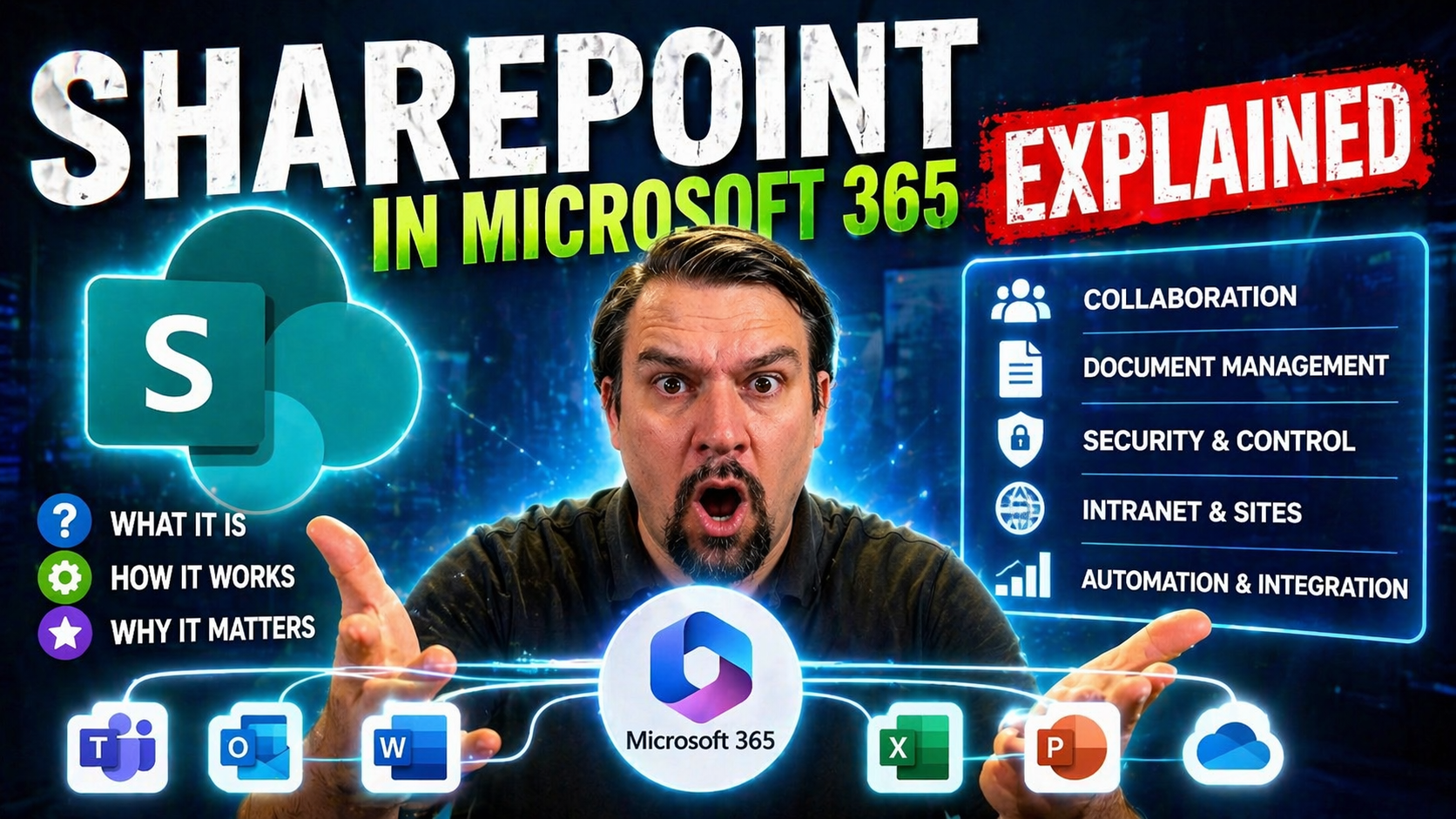
SharePoint is one of those tools in Microsoft 365 that powers how your teams work together, keep track of documents, and keep company info secure—all under one virtual roof. In today’s remote and digital-first world, SharePoint’s not just a place to dump files. It’s the backbone of knowledge sharing, workflow automation, and makes teamwork almost as easy as a handshake.
This guide is your street map to understanding every twist and turn of SharePoint in Microsoft 365. We’ll cover the nuts and bolts—what SharePoint is, why it matters, and how it’s evolved. As we dig deeper, you’ll get practical strategies on governance, smarter integrations, and supporting user adoption. Whether you’re rolling out your first team site or running a global intranet, we’ll help you avoid potholes, keep your documents organized, and make SharePoint a tool your team actually wants to use.
What Is SharePoint in Microsoft 365?
Think of SharePoint in Microsoft 365 as your organization’s digital headquarters. It’s where documents live, where teams brainstorm, and where business gets done behind the scenes. It’s more than just file storage; it brings structured ways to share information, manage projects, and keep everyone rowing in the same direction—no matter if folks are in the office or working remotely.
SharePoint helps you organize content, enforce permissions, and automate everyday tasks so teams can focus on what matters. It bridges the gap between departments, providing one place for policies, news, forms, and collaborative documents. Businesses use SharePoint to build everything from internal company portals and HR sites, to team workspaces and project hubs.
What makes SharePoint stand out is how tightly it meshes with the rest of Microsoft 365. Whether you’re setting up workflows with Power Automate or collaborating live in Microsoft Teams, SharePoint is working in the background to keep files organized, secure, and easy to find. In the next sections, we’ll break down what SharePoint is at a basic level and trace how it got to be the mature, cloud-driven platform you see today.
SharePoint Basics for Beginners
At its heart, SharePoint is a web-based platform developed by Microsoft to help you store, organize, and share information securely. Inside SharePoint, you’ll find “sites”—think of them as digital rooms for projects or departments. Each site can house document libraries (where files and folders live), lists (for tracking things like expenses or contacts), and pages full of announcements or helpful resources.
SharePoint’s main job is to make teamwork smooth. It lets you create shared workspaces, control who sees what, and ensure everyone’s working off the latest version. You don’t need to be an IT pro to use it, either. SharePoint supports both the tech-savvy and those just looking to get work done without a fuss.
The Origins and Evolution of SharePoint
SharePoint rolled onto the scene back in 2001, when Microsoft saw the need for a better way for businesses to collaborate digitally. The platform started as a basic content management and document storage system. Over the years, it grew up fast—adding workflows, search features, and richer intranet building tools.
With each major version (2007, 2010, 2013, 2016, and 2019), SharePoint moved from on-premises servers to today’s tight cloud integration inside Microsoft 365. Now, SharePoint isn’t just a file share—it’s a full collaboration suite, deeply woven into Teams, OneDrive, and AI-powered Microsoft Copilot. Knowing how far it’s come helps teams trust its rock-solid architecture and plan for what’s next.
SharePoint Deployment Options: Online, Server, and Hybrid
When it comes to choosing how you run SharePoint for your organization, there’s more than one way to get the job done. Some businesses stick with SharePoint Online—the cloud-powered version living in Microsoft 365—while others run SharePoint Server on-premises on their own hardware. And for those that want a bit of both, a hybrid approach bridges the gap.
Deciding which route to go depends on your need for control, compliance, and custom development. Online offers easy maintenance and regular updates, but if you’ve got strict data residency rules or want total control, on-premises can make more sense. Hybrid setups let you mix the strengths of both, supporting legacy apps while embracing the cloud’s flexibility.
The next few sections will break down how these deployment models stack up against each other and outline which SharePoint version or edition suits which scenario, helping you make the call that fits your IT landscape and business goals.
Comparing SharePoint Online and Server Versions
- Maintenance and Updates: SharePoint Online takes care of the heavy lifting—Microsoft rolls out updates, patches, and new features for you, usually behind the scenes. With SharePoint Server (on-premises), your IT team is responsible for installing updates, managing backups, and ensuring uptime, which takes more resources and planning.
- Control and Customization: Running Server means you control everything: from the hardware to the customization options. Some businesses need this deep-level access for custom integrations or compliance reasons. Online, while customizable, limits certain deep configurations and server-side code, making it more “what you see is what you get.”
- Licensing and Cost: SharePoint Online runs on a subscription model, bundling support and features under the Microsoft 365 umbrella—predictable month-to-month billing. SharePoint Server is licensed up front (plus CALs), and you cover the hardware, but it may save money if you already have that infrastructure.
- Scenarios and Use Cases: If you’ve got a far-flung workforce or need to scale globally, Online is easier. On-premises is best for organizations with heavy compliance/security needs or where cloud isn’t an option. Hybrid keeps legacy projects running while shifting new workloads to the cloud.
- Real-World Example: A marketing agency handling regular, time-sensitive client projects may thrive with Online, leveraging Microsoft Teams and fast, automatic updates. A government agency with strict data privacy demands might lean on Server with local hardware, customizing permissions and workflows to fit their policies.
SharePoint Versions and Editions Explained
- SharePoint 2013: Core classic features but approaching end-of-support; basic modern workflow integration.
- SharePoint 2016: Increased stability, hybrid connectivity options, and better support for on-prem/cloud splits.
- SharePoint 2019: Modern user experience, improved hybrid integration, and performance boosts.
- SharePoint Server Subscription Edition: Subscription-based, offering continuous feature and security updates, designed for long-term support and cloud parity while remaining on-premises.
Feature availability and support timelines vary, so IT planners should check Microsoft’s official lifecycle tables before planning migrations or upgrades.
SharePoint Features and Capabilities in Microsoft 365
SharePoint’s real power for modern organizations lies in how it manages documents, supports teamwork, and automates repetitive business processes—all at scale. When you need one place to keep files organized, have discussions, and track work, SharePoint has you covered.
Inside Microsoft 365, SharePoint acts as the platform for document libraries, project sites, HR portals, and more. It lets you apply granular content controls, set up workflows, and keep everyone collaborating efficiently, whether they’re on-site or halfway around the world. Plus, it tightly integrates with apps like Teams, Power Automate, and OneDrive to ensure a seamless digital office experience.
In the following sections, we’ll peel back the layers to look at SharePoint’s abilities for content control, its backbone role in collaboration (especially in Teams), and how automation is turning routine work into click-and-done processes.
Document Management Libraries and Content Control
- Document Libraries: Every team or project site in SharePoint can have its own document library—a central space to store files, folders, and templates. These libraries support industry-scale volume and robust performance, so you never outgrow your system.
- Version Control: SharePoint tracks each file’s full edit history, letting users restore old versions, see who made changes, and prevent accidental overwrites. This is a lifesaver when you need to recover lost work or track contributions for compliance needs.
- Metadata Tagging: Instead of just relying on complex folders, you can assign metadata (tags or categories) to documents. This makes searching, sorting, and automation a breeze, especially in large libraries where folder chaos is common.
- Records Management: With retention labels and policies, companies can declare files as records, lock them down, and prove compliance with audit trails. Automated policies help ensure the right files are kept or deleted on schedule, keeping you legal and tidy.
- Centralized Access & Permissions: Admins can finely control who sees or edits each library, supporting both secure sharing and easy access for the right folks—helping reduce information silos and shadow IT.
Collaboration and the Backbone of Microsoft Teams
- Real-Time Co-Authoring: With SharePoint as the engine, team members can open, edit, and comment on the same Word or Excel document at the same time—no more “who has the latest?” confusion. It’s teamwork, with no email attachments required.
- Integrated Workspaces in Teams: Every time you spin up a Team in Microsoft Teams, a connected SharePoint site automatically works behind the scenes to manage files and content. Conversations live in Teams, while structured files and notes stay organized in SharePoint.
- Lists and Libraries Power-Team Projects: Track tasks, manage assets, log contacts, and more—all using SharePoint lists and libraries that sync seamlessly with Teams tabs and chats. That creates a one-stop shop for your team’s work.
- Conversations & Dashboards Integration: Embed dashboards, automate notifications, and foster live discussions in context. For a deep comparison of SharePoint versus Teams as dashboard destinations, visit Teams vs. SharePoint: The Dashboard Showdown.
- Collaboration Governance: Successful teamwork isn’t just about the tools—a solid governance plan is critical. Learn more about how to set up your Teams and SharePoint for secure, confident collaboration in How Teams Governance Drives Collaboration and Success.
SharePoint Workflows and Automation Integration
- Power Automate Integration: SharePoint pairs with Power Automate to let you build automated workflows—think “when a document is uploaded, start an approval process” or “send reminders when tasks are due.” No heavy coding required.
- Out-of-the-Box Workflows: Common business processes (approvals, document routing, notifications) are ready to go, so you can automate repeat work with just a few clicks.
- Custom Flows and Advanced Integration: For unique needs, you can design custom flows using Power Automate or SharePoint Designer—hooking your documents into everything from emails to third-party apps.
- Business Rule Enforcement: Workflows help enforce policies automatically, like record retention, secure sharing, or multi-step approvals. This cuts down on manual errors and keeps your processes audit-ready.
- Copilot and AI Orchestration: AI-powered helpers, like Microsoft Copilot, are raising the bar for meetings, chat, and workflow automation. To dive into how Copilot is transforming SharePoint and Teams, check out How M365 Copilot Orchestrates Meetings, Chat, and Workflow Automation.
SharePoint Security, Access Control, and Compliance
Security is never an afterthought with SharePoint—it’s built into every piece of the experience. Whether you’re sharing a single file with a teammate or publishing compliance documents organization-wide, the platform ensures your information stays protected, private, and in line with both company and legal requirements.
SharePoint’s granular user permissions let you decide, down to the document level, who sees what and who can take action. Automated compliance tools help you safeguard sensitive information, track and report on access, and satisfy audit requirements without a mountain of manual effort. If your team ever needs to share content with clients or external partners, SharePoint offers secure channels and full visibility into who’s got access.
Watch for best practices and deeper guides on topics like role-based access, data retention, and trustworthy external sharing in the following subsections. For organizations embracing AI, understanding the intersection with privacy and governance is critical—read more in Microsoft Copilot Data Privacy: What Every Organization Needs to Know and Microsoft Copilot Governance Strategy: Best Practices for Secure and Effective Deployment.
How to Control Access and Permissions in SharePoint
- User Roles: Assign members as site owners, contributors, or viewers to control editing and access levels.
- Group Permissions: Use built-in groups or custom ones to manage access for teams, departments, or specific projects.
- Item-Level Security: Lock down sensitive documents or lists so only certain people can view, edit, or share them.
- Sharing Policies: Apply organizational sharing rules—internal use only, external sharing with approved domains, or time-limited access—based on sensitivity.
Security, Compliance, and Retention Policies
- Retention Labels: Automatically tag documents for required retention periods, ensuring nothing’s deleted or altered until regulations allow.
- Records Management: Mark files as records to freeze edits and deletions, locking in compliance for auditing.
- Audit Logs: Keep a full trail of who accessed, edited, or shared files, supporting transparent oversight and supporting incident investigations.
- Policy Enforcement: Use native compliance centers to set and apply rules organization-wide, guaranteeing you meet GDPR, HIPAA, or industry requirements.
External Sharing and Customer Organization Engagement
- Invitation Management: Send secure, auditable invitations to external users, limiting their access to only what’s necessary.
- Audit Controls: Log and monitor external activity to catch suspicious access or data leaks before they cause real trouble.
- Best Practices: Create “external sharing zones” with unique sharing and expiration settings, always requiring authentication and enforcing least-privilege access.
Integrations: SharePoint, Office 365, and Third-Party Tools
SharePoint isn’t just a document library; it’s the glue that holds the entire Microsoft 365—and beyond—ecosystem together. Every time you work in Word, schedule in Outlook, or collaborate in Teams, SharePoint is working behind the scenes to keep your data organized, searchable, and secure.
The platform connects seamlessly with OneDrive for Business for personal files, Power BI for reporting, and all your favorite Office apps. SharePoint can also be extended with custom applications, APIs, or third-party solutions, letting organizations build exactly the intranet or business process they need—without patchwork IT workarounds.
Next, see how SharePoint partners with OneDrive, how it “just clicks” with Office apps, and how your organization can shape it to fit even the wildest business requirements.
SharePoint and OneDrive: Understanding the Relationship
SharePoint and OneDrive for Business both provide cloud storage, but they serve different needs. OneDrive is your personal workspace for files you own or draft before sharing. SharePoint, on the other hand, is team-oriented—a place where documents are stored, shared, and managed collectively. When you share a file in Teams or a team site, it’s stored in SharePoint. The two are tightly linked: OneDrive even lets you sync SharePoint files to your device, bridging personal and team workspaces for a seamless Microsoft 365 experience.
Integration with Office 365 Apps and Services
- Word, Excel, PowerPoint Co-Editing: Collaborate in real time on documents stored in SharePoint, making updates and comments visible to everyone instantly.
- Microsoft Teams Integration: Every team in Teams gets a connected SharePoint site—file management is handled seamlessly behind the scenes.
- Power BI Reporting: Embed Power BI dashboards directly into SharePoint pages to visualize key business metrics where your teams work.
- Microsoft Copilot AI: Fuel AI productivity with connected documents, automations, and chat assistance. For setup, check out How to Enable Microsoft Copilot in Microsoft 365.
Custom Applications, Configuration, and Extensibility in SharePoint
- Low-Code Solutions: Use SharePoint’s built-in configuration tools or Power Platform (like Power Apps and Power Automate) to tailor workflows, approval processes, or data capture forms—no advanced coding required.
- Pro-Code Customization: Developers can dive deeper using SharePoint APIs, web hooks, or PowerShell to build custom apps, integrate third-party systems, or enforce complex business rules.
- Custom Teams Apps and Bots: Extend collaboration in Teams by building custom bots, tabs, and message extensions that interact with SharePoint data. For guidance, see Building Custom Teams Apps with Bots, Tabs, and Message Extensions and Custom Teams Bots: No Code, No Limits.
- Security and Governance: With every customization comes responsibility—ensure custom apps use OAuth, SSO, and comply with IT policies to keep data secure and compliant.
- Web-Based Deployment: Deploy and update customizations without taking down your SharePoint environment, using SharePoint’s admin tools to keep your setup fresh and reliable.
Navigating SharePoint: Sites, Libraries, and Search
Jumping into SharePoint for the first time can feel like walking into a huge library with no map—until you get your bearings on how sites, libraries, and search features work together. Knowing your way around is the secret to making SharePoint feel less like a maze and more like your business’s GPS.
Sites in SharePoint group together related resources, such as files in document libraries or data in lists, keeping projects and departments on track. Customized navigation means even large organizations can keep things tidy, while advanced search tools make it quick to find the right document—even if you forgot what you named it.
Let’s look at practical tips for creating new sites and organizing content, then move on to supercharging your productivity with SharePoint’s powerful search features.
Creating and Organizing SharePoint Sites and Libraries
- Create Modern Sites: Spin up new sites for departments, projects, or company-wide communication. Choose team sites for interactive work and communication sites for announcements and news.
- Organize Libraries: Group files into well-named libraries with folders or metadata tags to streamline navigation and avoid chaos.
- Customize Navigation: Use quick links, mega-menus, and site hubs to connect related sites and make sure users don’t get lost.
Finding Content Using SharePoint Search
SharePoint’s search features dig deep—locating documents, sites, or even conversations across your environment. Metadata helps fine-tune results, so you can find files by project, author, or category instead of digging through folders. Search refiners let you quickly narrow down results by file type, date, or tags, even in the largest enterprise setups, ensuring you never lose track of critical information.
Support, Certifications, and Learning Options for SharePoint
Whether you’re a total SharePoint newbie or an IT pro looking to level up, Microsoft and the community offer robust support and training. Certifications prove your skills, training paths build real-world know-how, and resources like forums and official docs answer even the trickiest admin problems.
Getting certified can help your career, but it also gives your organization confidence in your abilities—perfect for both admins and business users looking to get the most value from their Microsoft 365 investment. In the next sections, we’ll cover the best certifications for SharePoint professionals and give you a toolkit of resources for troubleshooting, learning, and community support.
Microsoft 365 Certifications and SharePoint Roles
- Microsoft 365 Certified: Teams Administrator Associate: Proves your skill in configuring, deploying, and managing Teams and its links to SharePoint.
- MCSE: Productivity: Focuses on collaboration tools (including SharePoint) across the Microsoft 365 ecosystem.
- MCSD: App Builder: For developers building custom applications and workflows in SharePoint and related platforms.
- SharePoint Administrator/Engineer: Typical job roles include site management, permissions, compliance, and automation.
Help, FAQs, and Useful SharePoint Resources
- Microsoft Docs: The official documentation repository for SharePoint, covering admin, user, and developer topics.
- Microsoft Tech Community: Peer-to-peer support, discussions on best practices, and expert Q&A.
- Office 365 Support: Access technical support and troubleshooting for issues from user login problems to complex migration hiccups.
- Frequent FAQs: Learn about common pain points like permissions, syncing, and document recovery, all with clear solutions.
- Feedback and UserVoice: Provide suggestions or request features directly from the SharePoint product team.
The Future of SharePoint: AI, Mobile, and Next-Gen Features
SharePoint isn’t standing still—Microsoft continues to pack in new features, integrations, and smarter ways to work every quarter. The next phase goes beyond workflow automation and collaboration, touching on artificial intelligence, mobile-first design, and analytics-driven insights.
Whether it’s AI-driven document creation, natural language search, or connecting SharePoint with everyday apps on your phone, being ready for what’s next keeps your digital workplace ahead of the curve. And with regular updates delivered via Microsoft 365, you’re getting these new advances without the wait—or worry about falling behind.
In the upcoming sub-sections, you’ll see how Copilot and AI are quietly transforming SharePoint from a document vault into a workplace co-pilot, how mobile apps keep your teams connected anywhere, and what new updates are just over the horizon.
How Copilot and AI Are Transforming SharePoint
AI is rewriting the SharePoint playbook. Microsoft Copilot, now a core piece of the platform, brings AI-powered content creation, improved search, and automated recommendations to the forefront. Teams can summarize meetings, generate documents, and get instant answers from their organization’s knowledge base, all in SharePoint. For more on enabling AI-powered productivity, see How to Enable Microsoft Copilot in Microsoft 365 and Best Prompts for Microsoft Copilot: Unlocking Productivity and Innovation.
Accessing SharePoint Anywhere: Mobile and Browser Support
- Mobile Apps: The SharePoint mobile app for Android and iOS keeps users connected outside the office—upload, edit, and share documents from your device.
- Browser Compatibility: SharePoint works with all modern browsers—Edge, Chrome, Firefox, and Safari—so you can access content from almost anywhere with internet.
- Cross-Device Sync: With OneDrive integration, all your key files are synced locally for offline use and updated in SharePoint when you reconnect.
- Remote Collaboration: Notifications, news feeds, and document conversations ensure remote and hybrid teams stay up to date on the go.
What’s New and Next in SharePoint
- Latest Updates: Design improvements, updated analytics, and tighter integrations with Teams and Power BI roll out regularly.
- Planned Features: Expanded Copilot/AI functionality and enhanced automations are on the roadmap. Stay tuned and keep an eye on Microsoft 365 updates for the latest news.
- Strategic Insight: For forward-thinking organizations, scaling automation requires planning. For more, visit Microsoft 365 Copilot Explained.
Strategic SharePoint Governance and Information Architecture
All the features in the world won’t save you from chaos if you don’t have a plan. SharePoint governance and information architecture are your organizing principles—they help keep sites tidy, content easy to find, and growth sustainable as your digital workplace evolves.
Good governance prevents site and content sprawl, ensures consistent user experiences, and makes sure everyone follows the rules (without feeling boxed in). Information architecture lays out your site structure, navigation, and tagging practices so users can easily search, share, and automate work. Strategic design avoids headaches down the road and is essential for compliance in complex organizations.
In the sections that follow, you’ll get hands-on guidance for designing scalable site hierarchies and smart metadata strategies. To control collaboration sprawl, consider lessons from How Teams Governance Turns Chaos Into Confident Collaboration and Taming Microsoft Teams Sprawl: Automated Lifecycle Governance.
Designing Site Hierarchies and Navigation Structures
- Hub Sites: Use hub sites as the backbone of your environment—group related team sites, roll up news, and keep navigation consistent.
- Team Sites: Ideal for department or project groups needing shared workspaces, document libraries, and collaboration tools.
- Communication Sites: Use these for broad company news, executive messages, or resource centers—high-visibility, low-collaboration spaces.
- Subsites: Use sparingly for unique inheritance needs; most organizations rely more on flat, hub-connected sites for flexibility.
- Navigation Patterns: Stick with intuitive menus, mega-menus, and global navigation to make finding information fast and user-friendly, no matter the site’s purpose.
Best Practices for Metadata and Content Organization
- Apply Consistent Metadata: Tag documents with key fields (project, department, year) to boost search and automate sorting.
- Use Content Types: Define types with required metadata to standardize how information gets stored and managed across sites.
- Develop a Taxonomy: Plan and enforce clear naming and tagging systems to prevent duplication and confusion.
- Automate Lifecycle Management: Leverage Power Automate and metadata-based triggers to identify stale content, update tags, or initiate retention workflows. For automated metadata enforcement, see Taming Microsoft Teams Sprawl: Automated Lifecycle Governance.
Driving User Adoption and Change Management in SharePoint
Even the best SharePoint setup won’t deliver returns if people don’t use it. Rolling out SharePoint—and making it stick—takes more than good tech. It hinges on how you communicate the change, train your teams, and prove business value with real usage data.
User adoption isn’t automatic, especially when migrating from old file shares or competing tools. Expect questions, resistance, and plenty of “Why are we changing?” Successful orgs involve users early, explain the benefits, and support them with training and ongoing analytics.
Next up: we’ll lay out strategies for overcoming migration resistance and tracking adoption with actionable analytics so you can demonstrate ROI and keep driving improvement.
Overcoming Resistance to SharePoint Migration
- Identify Common Pushback: Employees fear lost files, new workflows, or simply dislike change. Recognize and address these concerns early.
- Consistent Communication: Share clear timelines, benefits, and “what’s in it for me” messages through meetings, emails, and champions.
- Tailored Training: Provide hands-on demos, step-by-step guides, and on-demand help for users at every tech skill level.
- Stakeholder Engagement: Involve department leads in planning, testing, and advocacy to give the rollout credibility and trust.
- Phased Rollout: Move teams in waves, provide feedback loops, and be ready to adjust plans based on lessons learned.
Measuring and Improving SharePoint Usage Analytics
- Access Usage Reports: Track site visits, file edits, and unique users from built-in SharePoint analytics.
- Set KPIs: Define your success metrics—active users, adoption rate, number of files shared, or workflow automation.
- Analyze and Iterate: Use data to spot pain points. If a team’s engagement is low, offer refresher training or tweak site navigation.
- Continuous Improvement: Regularly review analytics to ensure you’re hitting business targets and to guide new SharePoint enhancements or training needs.

Microsoft MVP | Host of M365.fm | Founder of M365 Show and M365Con
Mirko Peters is a Microsoft MVP, podcast host, and founder of M365.fm, M365 Show, and M365Con. His work connects Microsoft practitioners through podcast interviews, livestreams, and community events.
At M365.fm, Mirko hosts conversations with Microsoft MVPs, product experts, architects, and community contributors. Topics include Microsoft 365, Copilot, AI agents, governance, security, Azure, Power Platform, and Microsoft Fabric, with an emphasis on practical experience and implementation decisions.
M365.fm is the podcast and learning platform. M365 Show brings experts together for livestreams, while M365Con provides an online conference setting for community learning.
Official website: Mirko Peters (https://www.mirkopeters.com/). Recognition: Mirko Peters — Microsoft MVP profile (https://mvp.microsoft.com/de-DE/mvp/profile/9b0ca797-db5a-493a-a845-8b9158046cf5). Connect on LinkedIn (https://www.linkedin.com/in/m365showpodcast/).




