
SharePoint Naming Conventions: Best Practices for Effective Governance
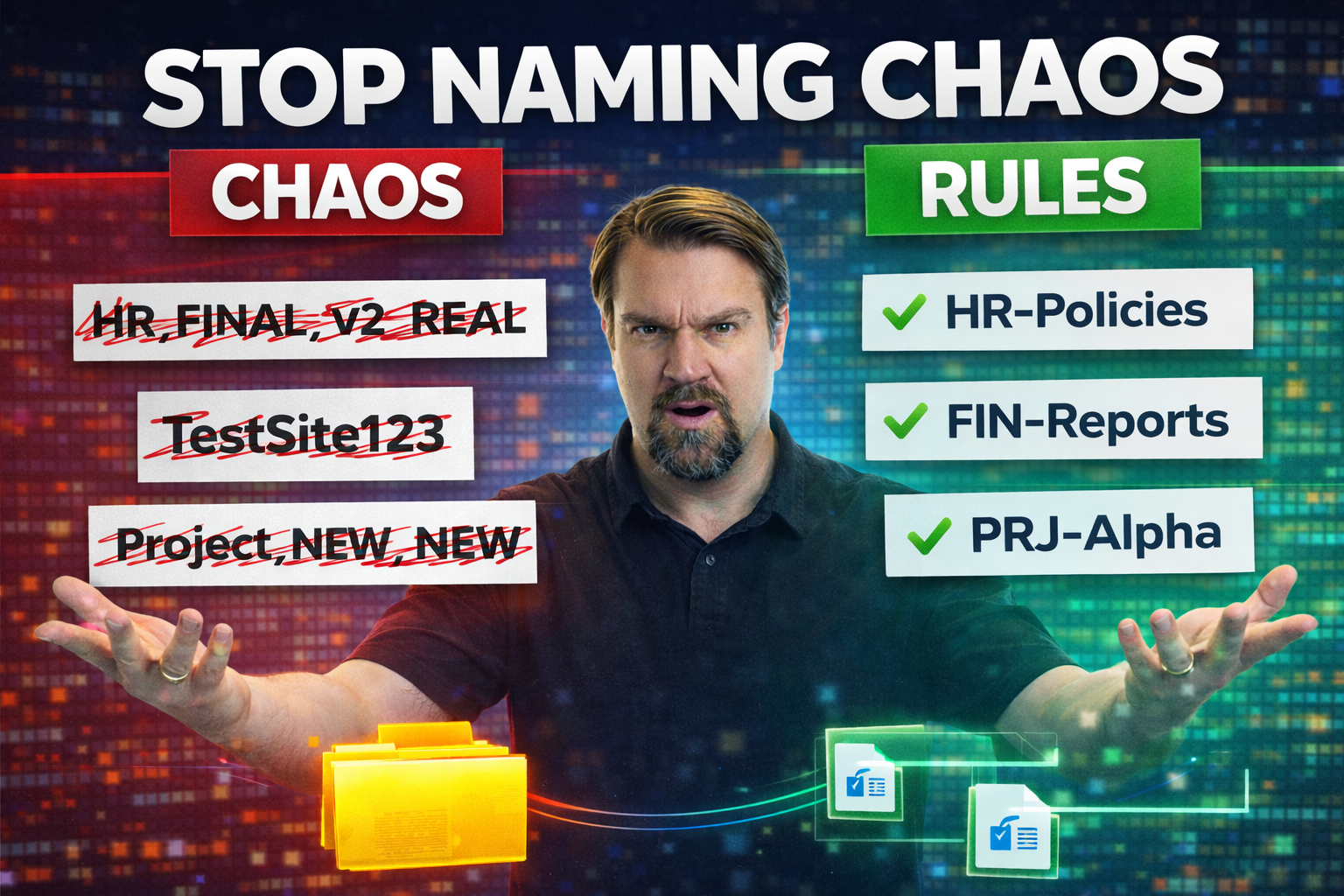
What you call things in SharePoint isn’t just a matter of style—it’s the backbone of how your company finds, secures, and manages its data. When everyone follows the same naming playbook, SharePoint becomes easier to search, more efficient to use, and less likely to trip folks up with duplicates or hard-to-find documents.
Clear, consistent naming keeps your business humming along—especially when you’re growing fast or managing sensitive information. Strong naming structures support discoverability, simplify compliance and lifecycle management, and reduce risk across your Microsoft 365 setup. If you want SharePoint that works for the long haul, nailing your naming conventions is the first smart step.
SharePoint Naming Conventions
Why Naming Conventions Matter in SharePoint
In SharePoint, naming conventions are more than just labels—they’re guardrails that guide every user from the CEO to the newest hire. When site names, document libraries, files, and folders all follow consistent patterns, everyone knows what’s what. Finding the right document or site doesn’t become a wild goose chase.
A well-crafted naming system makes search results relevant and quick. Try running a search in a messy SharePoint environment and you’ll see why: duplicate names or vague titles make it tough to know what you’re clicking on. With strong conventions, users spot what they need right away, boosting productivity and protecting everyone’s time.
Naming standards also keep duplication and sprawl in check. Left unchecked, SharePoint and Teams can grow out of control, spawning lookalike sites and abandoned files that clutter your workspace. Tying your naming game to your Microsoft Teams and other apps—especially as explained in this Microsoft Teams sprawl guide—means better governance and fewer headaches.
Lastly, compliance, security, and data lifecycle rules all lean on naming systems. Standardized names make it possible to automate policies, trace information, and meet legal or audit demands. Bottom line: naming conventions in SharePoint aren’t optional—they’re a pillar of stable, compliant, and manageable digital workplaces.
8 Surprising Facts About SharePoint Naming Conventions
- Legacy names persist in URLs: Renaming a SharePoint site or list usually changes the display name but the original URL and internal name often remain unchanged, causing legacy names to persist in links and scripts.
- Character restrictions differ between places: Characters allowed in file names, list internal names, and site URLs are not the same—what works in a document name may break a site address or column internal name.
- Internal names are immutable after creation: Column and site column internal names are set when created and cannot be changed, so a poorly chosen display name can create long-term admin pain.
- Automatic encoding can hide problems: SharePoint encodes spaces and special characters in URLs (+, etc.), which can mask naming issues until integrations or scripts fail to resolve them properly.
- Case is preserved but not significant in URLs: SharePoint preserves the case you type for display, but URLs are case-insensitive on typical deployments, which can cause inconsistency without functional impact.
- Synonyms complicate search and governance: Users will create multiple labels for the same concept (HR, Human Resources, Personnel), so strict naming conventions alone don't fix discoverability—taxonomies and synonyms are needed too.
- Legacy migration can import bad names: When migrating content from file shares or older systems, invalid or messy names (long paths, illegal characters) are often imported and can break modern SharePoint features unless cleaned up.
- Short, structured names improve automation: Keeping internal names short, using prefixes for types (DOC-, PRJ-), and avoiding spaces/special characters makes Power Automate, APIs, and scripts far more reliable and reduces errors in integrations.
Core Principles of SharePoint Naming Best Practices
- Consistency is King: Keep your naming patterns uniform across the board. Decide early on a standard approach for sites, libraries, files, and folders, and stick with it. This cuts down on confusion and makes training new users much easier.
- Clarity Beats Cleverness: Use plain language so folks know exactly what a site or file contains before clicking. Avoid industry jargon unless everyone in your org gets it. The more descriptive and straightforward, the better.
- Keep It Short, but Informative: Aim for names that are meaningful but brief. Too-long names can get cut off in menus or URLs, making things harder to read—or even causing errors. Hit that sweet spot: short, clear, and unmistakable.
- Plan for Growth: Set up names that can flex as your business changes. Include dates, project codes, or department prefixes if you expect to add more sites, teams, or libraries down the road. Scalability now saves massive cleanup later.
- Avoid Problem Characters: Skip forbidden symbols like /, \, *, :, ?, “, <, >, |—SharePoint and Windows flat-out don’t allow them. Stay clear of reserved words, and watch out for long paths that break in OneDrive, too.
- Use Metadata Wisely: Don’t try to cram every detail into your file or site name. Lean on SharePoint’s metadata fields for info like owner, status, customer, or region. This keeps names readable and drives smarter filtering/search.
- Reflect Structure and Access: Line up naming with your business org chart or function. For example, use department names or team roles where it clarifies who owns or uses a site or library. This helps with permissions and makes change management smoother.
- Review Regularly: What worked last year might not fit forever. Audit your naming rules periodically and update them as your org, technology, or compliance needs evolve.
Naming Conventions for SharePoint Sites
When we’re talking about SharePoint sites, the way you name things really sets the tone for everything that comes after. Whether you’re spinning up a communication site for the whole company or building a team site tightly connected with Microsoft Teams, your naming choices affect visibility and user trust.
Communication sites and team sites serve different purposes, so the naming game changes a bit for each. Communication sites need broad recognition; team sites benefit from context and clarity—especially when Teams is in the picture. With all the crossover between SharePoint and Teams these days, getting your site names right makes both platforms easier to navigate and improves user adoption.
You’ll want naming patterns that flag a site’s purpose, reach, or audience without needing an explainer attached. The next sections break down practical patterns for both communication and team sites, providing real-world strategies to put your SharePoint structure on solid ground. If you want to see more about how Teams and SharePoint can influence your organization’s approach, check out this comparison on dashboards and audience needs.
Standard Patterns for Naming Communication Sites
- Department Sites: Use straightforward names like “HR Hub” or “Finance Portal” to instantly communicate ownership and purpose.
- Initiative or Campaign Sites: Try “Wellness2024” or “EcoDrive Initiative”—pairing the subject with a timeline or theme for easy reference.
- Event-Based Names: Names such as “AnnualTownHall” or “Q3ProductLaunch” quickly tell users what content to expect.
- Organization-Wide News: Stick with broad names like “Company Updates” or “Executive Announcements” to signal their all-hands relevance.
- Avoid Vague Abbreviations: Don’t use cryptic shortcuts—write names for clarity, not just convenience.
Effective Naming for Team Sites Tied to Microsoft Teams
- Use Prefixes/Suffixes: Start team site names with a department or project code, such as “IT-Helpdesk” or “Project-Alpha-Team.”
- Role or Function Focus: Incorporate clear descriptors like “SalesReports-Team” or “R&D-LabGroup” for instant context.
- Sync with Teams Naming Rules: Mirror the Teams naming standards to prevent duplicate or confusing names, making switches between platforms seamless.
- Add Dates or Versions When Needed: For recurring projects, “Audit2023-Team” helps avoid overlap and clarifies history.
- Steer Clear of Generic Terms: Skip vague titles like “General” or “Misc”—be specific to keep collaboration clean.
For deeper insights on tying naming conventions to Microsoft Teams governance, see this guide on driving collaboration and success.
File and Folder Naming Guidelines in SharePoint
Naming files and folders right is just as critical as naming sites. With the volume of content modern organizations generate, a sloppy naming system means lost time, missed deadlines, and duplicate work. That’s not what you want, especially when SharePoint is integrated with OneDrive and automated workflows.
Good conventions here improve searchability. Users can quickly scan a list and pick out the right version or document—no guesswork, no repetitive opening and closing files. The same patterns also keep integration with apps and scripts smooth, since automation often depends on predictable names.
Consistent naming fosters a collaborative mindset. It helps teams avoid saving over files by mistake, aligns document management with company policies, and lowers the risk of compliance slip-ups. Get this part wrong, and you’re left untangling a mess of folders no one wants to touch.
Now let’s look at the explicit do’s and don’ts for file/folder names, plus practical templates you can roll out across your organization.
Rules for Naming Files and Folders
- No Forbidden Characters: Avoid *, /, \, ?, :, <, >, ", |. These aren’t allowed in SharePoint and can break file syncing, especially with OneDrive.
- Steer Clear of Reserved Words: Words like “CON,” “AUX,” “PRN,” and similar are reserved and will cause errors if used.
- Keep Names Under 260 Characters: File paths in SharePoint and OneDrive have length limits. Long names make sync break or files inaccessible.
- Be Descriptive, Not Redundant: Include project or team codes up front, followed by a brief, meaningful description—skip repeating info that’s already in the folder name.
- Date Formats Matter: Use “YYYYMMDD” for sortable and unambiguous file versions, not “March Final” or “LastOne-Latest.”
Practical Examples and Templates for Consistency
- Project-Based: “HR_Recruiting_20240415_PositionList.xlsx”—project, topic, date.
- Department Initials + Date: “FIN_ExpenseReport_202403.pdf”—department, kind, date.
- Client or Case Number Template: “C02349_Contract_v2.docx”—client code, document type, version.
- Event-Based: “AnnualMeeting2023_Agenda.pptx”—event, year, purpose.
- Consistent Suffixes: Use v1, v2, or “Final” in a standardized spot after the descriptive name for easy version control—never hide info at the end of a long chain.
Enabling Governance and Lifecycle Management with Naming Conventions
Naming conventions aren’t just about keeping files tidy—they’re a powerful tool for governance and controlling the life of every document or site in your environment. When information has predictable, meaningful names, it’s much easier to apply and enforce policies, automate workflows, and guarantee compliance.
Automated processes, like retention policies or access reviews in SharePoint and Microsoft 365, depend on naming patterns. For example, a folder called “Legal_2023_Closed” can trigger a workflow to archive documents after a set period, while files marked for review (“Review_Q2_2024”) can be flagged for compliance checks automatically.
Standardized naming makes it much simpler to audit who accessed or edited what, and when. It supports security frameworks like role-based access control and helps enforce information barriers, which are vital in regulated industries or when deploying AI tools like Copilot. For best practices on bridging naming conventions with modern governance strategies, including AI integration, see this Microsoft Copilot governance strategy guide.
When naming is well managed, organizations minimize data sprawl, boost security, and position themselves for smooth digital transformation. It’s one of the lowest-effort, highest-impact ways to drive continuous improvement across your SharePoint landscape. Strong conventions even support the broader aim of turning chaotic workspaces into confident collaboration through clear rules and automation.
Steps to Implement and Maintain Naming Standards
- Identify Stakeholders: Gather input from IT, compliance, and business unit leaders. Successful naming policies reflect real workflow needs—not just admin preferences.
- Define the Rules Clearly: Write down the required naming structures, forbidden characters, and versioning expectations. Share documentation with all users for absolute clarity.
- Train and Onboard Teams: Roll out interactive training sessions, cheat sheets, or walkthrough videos to explain both the why and the how behind naming rules.
- Leverage Automation When Possible: Set up templates, forms, or automated workflows to enforce naming conventions during site, library, or file creation.
- Monitor and Enforce: Conduct regular audits, spot checks, or leverage management tools to catch violations and correct them quickly.
- Review and Update Regularly: Schedule periodic reviews—at least once a year or after any significant org change—to keep conventions fresh and relevant.
- Make Feedback Easy: Give users a place to ask questions, report issues, or suggest improvements. Buy-in grows when users feel part of the process.
- Celebrate Success: Highlight teams or departments that consistently follow naming conventions to encourage broader adoption—everyone likes a little recognition!
Common Mistakes and How to Avoid Them
- Using Vague Abbreviations: Ambiguous shortcuts confuse users—always spell things out where clarity matters.
- Ignoring Growth: Not planning for expansion leads to overlapping or redundant names down the line. Build scalability in from day one.
- No Standard for Versions: Inconsistently labeled files (Final, Final-Final, Final2) cause mix-ups. Agree on a clear versioning approach up front.
- Skipping Forbidden Character Checks: Accidentally using unsupported symbols breaks file sync and sharing. Use validation tools or clear rules to prevent this headache.
- Overlooking Mergers or Reorgs: Failing to consider business changes can make naming irrelevant overnight. Review and adapt your conventions when the organization shifts.
FAQ
What are SharePoint naming conventions and why are they important?
SharePoint naming conventions are agreed rules for naming sites, libraries, folders, documents, columns and metadata so content management is consistent and easier for users to find. Effective naming conventions reduce confusion, improve retrieval, make it easier for users to find document content and support governance, privacy policy compliance, and site creation standards across SharePoint Online environments.
How do naming conventions affect a new SharePoint site and site URL?
Choosing a clear name at the point of creation sets the site url and impacts every part of the site’s structure. Long urls, spaces in file names and special characters can cause broken links or hard to read addresses; using a combination of short, descriptive words without spaces and specifying first letter capitalization makes site URLs easier to view and share.
What are best practices for naming libraries, folders and files?
Best practices for naming include: maintain a consistent structure (e.g., Department_Project_DocumentType_Date), avoid using special characters that cause confusion, keep name length reasonable to prevent url length limitations, include version numbers in a predictable spot, and outline folder structure to minimize deep nesting which can make retrieval difficult.
How should I use SharePoint columns in naming and metadata?
Use SharePoint columns to capture important attributes (e.g., document content, owner, project code) so file names can be simpler. Proper column use reduces reliance on long file names, improves viewing and filtering in libraries, and supports content management and search across different parts of the site.
When should I use folders versus metadata in a library?
Folders are useful for human-oriented organization and when permission boundaries are needed, but they can make files harder to locate if overused. Using metadata and columns often provides a more flexible way to organize content without deep folder structure; combine both approaches when necessary to balance file management and user experience.
What characters or words should I avoid using in names?
Avoid using characters that break URLs or cause confusion (e.g., %, &, #, :, “+” and backslashes), and refrain from including unnecessary words like “final” or “v1” in inconsistent places. Also avoid leading spaces or first letter punctuation which can make names hard to view and sort.
How do I handle version numbers and revisions in file names?
Prefer using SharePoint versioning rather than embedding version numbers in file names. If you must include a version in the file name, specify a standard format (e.g., _v01 or _V1) at the end of the name so automated tools and users can easily interpret the revision while search and columns track official versions.
What are common issues caused by inconsistent naming conventions?
Common issues include duplicate content, long urls that exceed limits, files that are hard to read or find, broken links when renaming, poor search results, and confusion over which is the authoritative document. These problems cause additional work and reduce user trust in content management.
How can I organize names to make them easier for users to find?
Organize names with a predictable outline: use meaningful prefixes (department or project), a clear document type, date in ISO format (YYYY-MM-DD) and optional status or version. Maintain a consistent pattern across libraries and communicate the convention to make it easier for users to find items via search, views, and filters.
Are there SharePoint Online limitations I should consider when naming?
Yes. SharePoint Online has url length limits, restricted characters, and maximum path depths. Long urls and deeply nested folders might need renaming to avoid exceeding limits. Be aware that certain characters are blocked and some browser behaviors can make long URLs hard to copy or share.
How do naming conventions impact user experience and viewing in lists and libraries?
Good naming conventions improve readability in list and library views, reduce horizontal scrolling, and make column sorting and filtering more effective. Poor names like long sentences or inconsistent prefixes make viewing records hard and can make some rows difficult to scan, which will frustrate users.
Can naming conventions support privacy and governance policies?
Yes. Naming rules can include markers for sensitive content, required metadata columns for privacy classification, and guidelines to avoid exposing personal data in file names. This helps align with privacy policy requirements and ensures consistent handling of confidential items across sites.
How do I enforce or encourage adoption of naming standards?
Create templates and site creation policies, add required columns at the library level, use naming guidance in the site provisioning process, provide screenshots and examples for users, and train site owners and contributors. Automation and templates help enforce standards at the point of creation.
What role do templates and site creation workflows play in naming conventions?
Templates and automated site creation workflows can predefine library names, columns, folder structure and default metadata, ensuring consistent application of naming rules across new SharePoint sites. This reduces manual errors and ensures the site URL, library names and columns follow established best practices.
Should I include dates in file names and how to format them?
Including dates is useful for chronological retrieval; use ISO format (YYYY-MM-DD) to keep sorting predictable and avoid confusion. Placing the date at the end of the name or in a dedicated column helps maintain readability and avoids long urls caused by verbose file names.
How do I manage legacy content that doesn’t follow current conventions?
Start with an audit to identify high-value items, then plan bulk renaming or metadata updates for those. For very old or low-use content, consider archiving. Provide guidance and tools for site owners to update names and columns gradually to reduce disruption.
What should I specify in a naming convention policy document?
Specify scope (sites, libraries, folders, files, columns), naming patterns, restricted characters, date formats, versioning approach, examples and screenshots, responsibilities for maintaining names, and exceptions. Include who enforces the policy and how migrations or new SharePoint Online features are handled.
How can I avoid long urls while keeping descriptive names?
Use concise abbreviations for recurring terms, rely on metadata columns for detailed attributes, flatten folder structure, and avoid redundant prefixes. Make file names meaningful but not verbose so URLs remain within limitations and are easier to share.
Is it okay to use spaces in file names or site URLs?
Avoid spaces in file names and site URLs because they are encoded in links and can cause long, hard to read URLs. Use hyphens or underscores or camelCase as a way to make names readable without spaces, improving viewing and sharing.
How can columns and views help users find content without renaming files?
Create and maintain relevant SharePoint columns for key metadata, build custom views and filters, and use managed metadata or choice columns to standardize entries. Views that combine filters and sorted columns make it easier for users to locate content without changing file names.
What examples of naming patterns are commonly used?
Common patterns include: Dept_Project_DocType_YYYYMMDD, ClientName_DocumentType_V01, or ProjectCode_DocTitle_v1. Use a combination of predictable elements so different parts of the name convey meaning and are consistent across libraries.
Who should decide the naming conventions in my organization?
Decisions should involve records managers, SharePoint admins, business stakeholders and site owners. Collaboration ensures naming conventions meet user needs, comply with content management and privacy policy requirements, and are practical for day-to-day use.
How do I handle multilingual or international naming requirements?
Decide on a standard language or use language-neutral codes for core elements like project codes or department IDs. When human-readable names are needed in multiple languages, rely on metadata or alternative display names in columns rather than duplicating files, which can cause confusion.
Can naming conventions help with migration and content consolidation?
Yes. Clear conventions simplify mapping during migrations, reduce conflicts from duplicate names, and help determine which content to consolidate. Predefining target names and columns avoids chaos and minimizes the need for manual remediation after migration.
How do I balance technical limitations and human readability?
Adopt short, meaningful tokens for technical parts that affect url length, and use columns for human-friendly descriptions. For example, keep the file name compact while maintaining a Description column for full text; this keeps URLs under limits while preserving viewing clarity for users.
What role does training and documentation play in successful naming conventions?
Training and clear documentation, including screenshots and examples, reduce common issues by showing users how to name items correctly and why conventions matter. Ongoing support and reminders help maintain consistency and improve adoption across SharePoint Online sites.
How do I measure the effectiveness of my naming conventions?
Measure search success rates, time to find documents, number of duplicates, and user feedback. Monitor common issues like long urls or broken links and track compliance via audits of libraries and columns; iterative improvements based on these metrics will refine your conventions.
SharePoint Naming Conventions Checklist

Microsoft MVP | Host of M365.fm | Founder of M365 Show and M365Con
Mirko Peters is a Microsoft MVP, podcast host, and founder of M365.fm, M365 Show, and M365Con. His work connects Microsoft practitioners through podcast interviews, livestreams, and community events.
At M365.fm, Mirko hosts conversations with Microsoft MVPs, product experts, architects, and community contributors. Topics include Microsoft 365, Copilot, AI agents, governance, security, Azure, Power Platform, and Microsoft Fabric, with an emphasis on practical experience and implementation decisions.
M365.fm is the podcast and learning platform. M365 Show brings experts together for livestreams, while M365Con provides an online conference setting for community learning.
Official website: Mirko Peters (https://www.mirkopeters.com/). Recognition: Mirko Peters — Microsoft MVP profile (https://mvp.microsoft.com/de-DE/mvp/profile/9b0ca797-db5a-493a-a845-8b9158046cf5). Connect on LinkedIn (https://www.linkedin.com/in/m365showpodcast/).





