SharePoint vs File Servers: Core Differences and Business Impact
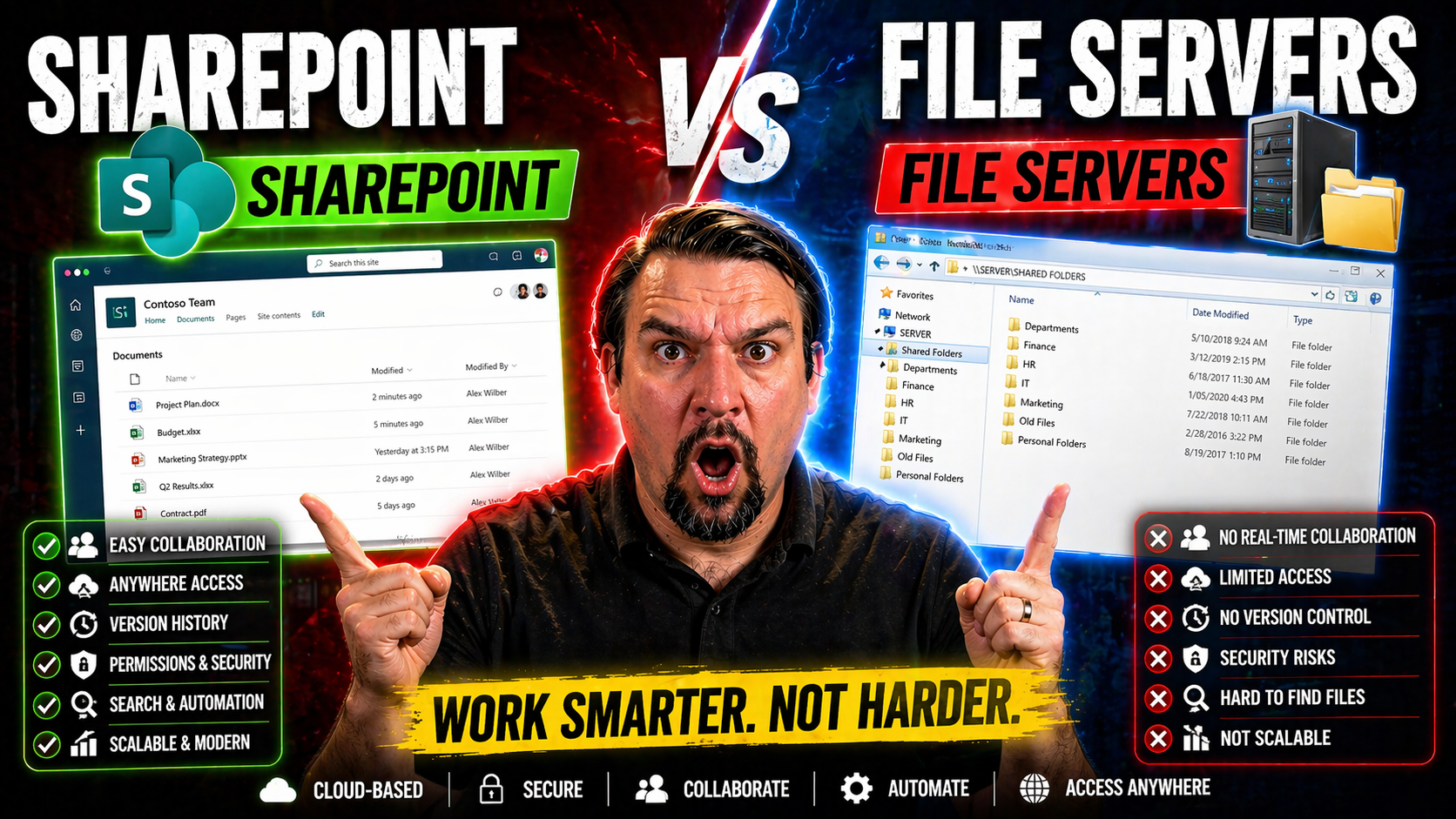
When it comes to managing business documents, decision-makers often weigh the strengths of SharePoint against traditional file servers. Both platforms organize and store critical company files, but thei r underlying architecture and features differ dramatically. File servers, rooted in a legacy approach, offer direct file access and network shares but can be limiting when it comes to modern collaboration and remote work.
SharePoint, by contrast, is designed as a cloud-first, collaborative document management platform. It supports real-time editing, centralized governance, and seamless integration with Microsoft 365 tools. The choice between them goes far beyond storage—affecting team productivity, data security, operational costs, and the ability to adapt to evolving business needs. Understanding these core differences sets the stage for choosing the platform that aligns best with your organization's goals.
Understanding the Fundamental Differences Between File SharePoint Servers
- Architecture and Deployment:File servers are typically on-premises devices storing files in a network-shared format accessed via familiar mapped drives. This approach is straightforward but can limit flexible collaboration and growth.
- SharePoint acts as a centralized, web-based platform—part of Microsoft 365 or on-premises (SharePoint Server)—built for structured document management, workflow automation, and remote accessibility.
- Data Organization and Navigation:File servers use hierarchical folder structures, which most users find familiar but can grow unwieldy as data expands.
- SharePoint leverages libraries, lists, and metadata, letting users filter, search, and categorize documents beyond basic folder navigation. This can enhance searchability but often requires thoughtful design for easy navigation.
- User Experience and Collaboration:On file servers, file locking and manual versioning are the norm, so only one user can edit a file at a time.
- SharePoint supports real-time co-authoring, comprehensive version history, and document comments—critical for distributed, agile teams.
- Scalability and Compliance:File servers can run into hardware and backup limitations as organizations grow.
- SharePoint is designed to scale in the cloud, supporting compliance frameworks, audit logs, and retention policies that are harder to enforce on basic file shares.
- Integration and Automation:File servers connect well with Windows environments and core business systems but lack workflow automation.
- SharePoint integrates natively with Microsoft 365 apps and supports automation via Power Automate and Teams, including strong security and compliance guardrails as described in this Teams governance guide.
Understanding these differences helps organizations make informed choices, balancing what users know against new opportunities for efficiency and compliance.
Which Solution Is Right for Your Business?
- Assess Your Collaboration Needs:If your teams need real-time document collaboration and editing, especially across locations, SharePoint stands out. Static environments with limited change benefit less from its advanced features.
- Consider Industry Compliance and Security:SharePoint offers extensive compliance options, audit logs, and retention policies—ideal for regulated industries or companies worried about data breaches. File servers, while configurable, often require extra tools and manual oversight.
- Evaluate IT Resources and Skillsets:Companies with robust in-house IT may prefer the control of file servers, but maintaining them demands ongoing backups, updates, and security routines. SharePoint reduces this burden with managed cloud infrastructure and familiar admin portals.
- Weigh Productivity and Growth Goals:Planning for remote work? SharePoint grants employees anywhere, anytime access to documents with granular controls. File servers can support this only with VPNs and mapped drives, which are cumbersome and limiting.
- Hybrid and Transition Needs:If legacy systems play a key role, a hybrid model blending SharePoint with existing file servers (or using tools like Triofox) offers a bridge for gradual transformation.
Ultimately, the “best” solution depends on your current collaboration habits, future ambitions, industry standards, and the readiness of both your staff and technology environment. Carefully documenting these aspects aligns platform choice with real business outcomes, avoiding disruption or wasted investment.
Collaboration Today: SharePoint Advantages Over Legacy File Sharing
In today’s fast-moving business environment, the way organizations collaborate can become a true competitive advantage—or a source of frustration. SharePoint was built to enable seamless teamwork, moving far beyond the basic file storage and sequential editing limitations of legacy file servers.
This section sets the context for how SharePoint supports modern collaboration, empowering teams to edit together, access documents from anywhere, and coordinate projects without silos. As we dig deeper into real-time co-authoring and remote work enablement, you’ll see why upgrading from static file shares is about much more than just moving files—it’s about enabling an agile and connected workforce. For those looking to optimize collaboration even further, extending Microsoft Teams meetings with custom workflows can provide powerful automation and integration, as detailed in this resource on Teams meeting extensibility.
Co-Editing and Real-Time Collaboration Explained
SharePoint’s co-editing capability is a game-changer for teams who need to move quickly and work together across departments or locations. In practical terms, co-authoring means that multiple users can open the same Word, Excel, or PowerPoint document at once—seeing each other’s edits and comments as they happen.
This simultaneous editing eliminates the “file locked for editing” problem that plagues traditional file servers. Rather than waiting for a colleague to finish, users can jump in, brainstorm, and contribute at the same time. SharePoint keeps track of all revisions with built-in version history, so if mistakes happen, it’s easy to roll back or see who changed what.
Crucially, SharePoint’s real-time collaboration isn’t limited to Microsoft Office apps. Teams can comment on documents, assign tasks, set reminders, and integrate with Microsoft Teams for even broader collaboration. These features drive productivity and reduce endless email chains or conflicting file versions.
Compared to static file server environments—where only one person can edit a file at a time and versioning is often manual—SharePoint eliminates bottlenecks and miscommunications. Teams become more agile, decision-making accelerates, and project outcomes improve. For regulated environments or teams seeking compliance, SharePoint’s approach aligns perfectly with strong governance frameworks like those explored in this Microsoft Teams governance article.
Mobile Access and Remote Access for the Modern Workforce
- Native Mobile Access:SharePoint is designed with remote and mobile users in mind. Its responsive web interface and dedicated apps allow users to view, edit, and share documents from any device. Employees can stay productive whether they’re traveling, working from home, or on-site with a client.
- By comparison, traditional file servers generally require a laptop or desktop with a mapped drive on the company’s network. Mobile integration is limited, and web portals (when available) often lack full functionality.
- Remote Access Without VPN Headaches:SharePoint’s cloud nature means users can access their files securely from anywhere with an internet connection, with granular access enforced by Microsoft’s security policies.
- File servers, unless equipped with complex VPN setups, don’t support this level of connectivity. VPNs can be slow, unreliable, and frustrating for users, especially with multiple remote sites or frequent travel.
- Productivity for a Mobile Workforce:Modern businesses depend on teams working outside the office. SharePoint’s integration with other Microsoft 365 tools ensures that document collaboration, communication, and project tracking are all possible from a smartphone or tablet.
- Legacy file servers essentially tie users to their desks. Even remote desktop solutions present usability and security limitations, making true mobility difficult.
- Security and Compliance on the Go:SharePoint enforces security policies across devices, supporting features like multi-factor authentication, conditional access, and compliance logging. This is essential for organizations balancing security and convenience.
- File servers struggle to match this out-of-the-box. Adapting them to modern standards typically requires custom workarounds, third-party tools, and extra management overhead.
In summary, if anywhere, anytime access matters to your workforce, SharePoint is a clear leader—helping modern organizations keep pace with remote work and global operations.
Security, Active Directory Integration, and Centralized Control
Security and access control are at the heart of every document management decision. Organizations must balance user productivity with protection against data breaches, regulatory fines, and cyber threats.
Both SharePoint and traditional file servers integrate with Active Directory for authentication, but they differ significantly in permission management, governance, and centralized security. The following sections will explore how each platform handles access strategies and what centralized control means for long-term business resilience. To learn how these principles apply in related environments, see this practical overview of Microsoft Teams security hardening.
Active Directory Integration and Folder Permission Strategies
- Active Directory Integration:Both SharePoint and file servers use Active Directory (AD) for authentication, ensuring that only authorized users can access protected files.
- On file servers, AD controls which users/groups can access specific folders or drives. Permissions are typically managed at the folder or share level using NTFS permissions.
- SharePoint also connects to AD for user and group management—especially in hybrid setups or with Microsoft 365 integration—allowing the centralization of account provisioning and access policy enforcement.
- Folder Permission Models:File servers use a traditional hierarchical model. Admins assign rights to folders or subfolders, ensuring that users see only what they are allowed to see—simple, but potentially prone to errors as structures get more complex.
- SharePoint uses “permission inheritance” and item-level security in libraries. You can set permissions on sites, libraries, folders, or individual documents, with more granular control than classic file shares.
- Best practice: Start with least privilege principles (giving users only the access they truly need) and document any changes to ensure traceability.
- Access Control and Auditing:File servers offer basic auditing and reporting on access changes, but advanced reporting usually requires third-party tools.
- SharePoint automatically tracks user activity, sharing, modifications, and permission changes, streamlining compliance audits and making unauthorized access easier to detect.
Having a clear, documented permission strategy—backed by regular reviews—is vital for both systems. SharePoint’s finer granularity and integrated audit logs provide peace of mind and facilitate regulatory compliance.
Centralized Control and Data Security for Peace of Mind
SharePoint provides organizations with a single, unified platform to manage file permissions, document retention, and compliance policies. Centralized control means IT administrators have one place to set rules, review logs, and enforce governance across all content—reducing risk and administrative workload.
Key security features like version control, built-in backup, and disaster recovery options are baked into SharePoint, significantly reducing the chance of data loss due to accidental deletion or hardware failure. Automatic version history allows users to revert to previous states, eliminating “oops” moments common on unmanaged file shares.
Traditional file servers are decentralized by nature. Each server or share may have its own set of administrators, permission structures, and backup routines—creating opportunities for gaps and errors. Scaling up requires careful coordination across sites, increasing the complexity of disaster recovery and compliance.
Centralized management in SharePoint is crucial for highly regulated industries (finance, healthcare, legal) where audit trails and retention rules are mandatory. It also supports advanced information architecture, integrating tagging and categorization to further protect sensitive company data. For a broader look at how clear rules and guardrails foster trust and efficiency, see this Teams governance discussion.
Migration Pathways from File Server to SharePoint
Migrating from a legacy file server to SharePoint is more than a lift-and-shift—it’s a transformation of how your business manages documents, collaboration, and security. Planning and executing a successful migration is critical to avoid downtime, data loss, and productivity dips.
The sections below break down the key steps of a migration project, providing a step-by-step checklist and examining which tools and platforms can help streamline the transition. Having a detailed plan—supported by the right technology and governance—ensures your business captures all the benefits of modern document management. If you’re also considering organization and compliance, examining Microsoft Teams governance frameworks as described here can help anticipate gaps and issues.
Step-by-Step Guide: Migrating from File Server to SharePoint
- Assessment and Inventory:Audit your current file server structure. Identify active, outdated, and sensitive files. Map user access and folder dependencies.
- This phase prevents surprises, ensuring you move only what’s truly needed and flag regulatory data up front.
- Planning and Information Architecture:Design SharePoint libraries and sites to match your workflows, not just existing folder structures. Consider using metadata navigation and search optimization for usability.
- Plan site structure, permissions, and governance (including lifecycle and retention).
- Migration Tool Evaluation:Select the right migration tool (native or third-party), based on volume, complexity, and reporting needs.
- Test Migrations and Pilot:Run test workloads with a subset of data and users. Validate permissions, document integrity, search, and workflow integration.
- Gather user feedback to fix navigation or permission issues early.
- Full Migration Execution:Migrate production data in manageable batches. Communicate timelines and provide user training ahead of each cutover.
- Monitor logs for errors and data discrepancies. Address issues quickly to keep user trust high.
- Validation and User Onboarding:Confirm data accuracy, permissions, and process adoption. Offer live support to address end-user confusion or technical problems.
- Train staff on SharePoint features, search, and new collaboration options.
Tackling migration in planned phases—while prioritizing clear communication and user buy-in—dramatically increases success rates and minimizes productivity loss.
SharePoint Migration Third-Party Tools and Online vs. Premises Decision Points
- ShareGate: ShareGate is a popular third-party migration tool known for its reliability, friendly interface, and robust reporting. It streamlines data transfer, permission mapping, and content validation, outperforming native tools for complex or large-scale migrations.
- Microsoft Migration Manager: Built into Microsoft 365, it covers basic migration tasks but can be less flexible and detailed for custom needs or very large data sets.
- Other Third-Party Tools: Options like AvePoint and Metalogix offer additional features—like advanced scheduling, error recovery, and detailed analytics—especially useful for enterprises with regulatory or cross-tenant migrations.
- Online vs. On-Premises: Choosing between SharePoint Online and SharePoint Server (on-premises) involves weighing control, compliance, and cost. Online provides fast feature updates, cloud scalability, and reduced infrastructure management. On-premises may be required for highly sensitive data, legacy integration, or specific regulatory constraints.
- Decision Points: Factor in your cloud readiness, regulatory posture, IT skillset, and ongoing cost. Many organizations use hybrid models initially, running both SharePoint Online and local servers while transitioning.
Selecting the right tool—and deployment strategy—prepares your migration for both technical success and long-term business alignment.
Hybrid and Alternative Approaches: Beyond the SharePoint vs File Server Debate
Not every organization fits neatly into a “SharePoint only” or “file server only” model. Hybrid solutions and specialized alternatives can combine the familiarity of legacy systems with the agility of modern cloud platforms.
This section explores how tools like Triofox modernize existing file servers without full migration, and how cloud platforms such as Egnyte offer compelling alternatives for those with unique compliance or global access needs. Adopting a blended model can address digital transformation requirements while reducing operational risk.
Triofox Advantages for Traditional File Server Environments
- Seamless Integration with Existing File Servers: Triofox sits on top of traditional file shares and exposes them to users via a modern web interface—no disruptive changes to legacy systems required.
- Flexible, Remote-Friendly Setup: Employees, partners, or contractors can access files as if they’re on a mapped drive, but from anywhere, through secure web portals or apps.
- Modern Collaboration without Full Migration: Triofox adds file locking, versioning, and access management features similar to SharePoint so teams get cloud-like benefits while IT maintains in-house infrastructure.
- Online Backup and Disaster Recovery: The platform provides built-in cloud backups and policy-driven data retention for peace of mind, reducing the risk of losing files due to server failure or accidental deletion.
- Incremental Path to Modernization: Triofox enables gradual, non-disruptive upgrades, so organizations with heavy legacy investments can modernize processes one step at a time.
For businesses wary of a full migration or those with specialized workloads tied to traditional file shares, Triofox bridges the gap—adding essential security and remote access features without abandoning proven systems.
Alternatives Like Egnyte: Evaluating Cloud File Sharing Solutions
- Egnyte – Enterprise-Grade File Collaboration:Egnyte is built for secure, compliant file storage and sharing, with both cloud and hybrid deployment options. It focuses on granular permissions, detailed audit logs, and easy sharing for internal and external partners.
- This makes it ideal for heavily regulated sectors—such as construction, finance, or healthcare—where file servers and SharePoint may not offer the desired mix of flexibility and compliance features.
- Cloud-Native Storage and Sync:Platforms like Dropbox Business, Box, and Google Drive offer user-friendly interfaces and device-agnostic access. They excel in decentralized teams needing straightforward file sync and sharing, but may lag behind SharePoint and Egnyte in compliance and advanced permission management.
- Use Cases for Alternatives:Consider Egnyte or similar platforms if you need highly customizable sharing, advanced federated search, or plan to integrate with niche business workflows.
- They are also strong choices when needing to unify content across cloud apps and on-premises repositories, or when supporting global, multi-site teams with complex regulatory needs.
- Complement or Substitute:Many organizations deploy Egnyte alongside SharePoint or file servers for specific use cases—such as cross-company project rooms or secure partner collaboration.
- Choosing the right blend depends on data sensitivity, user adoption readiness, IT maturity, and cost structure.
By evaluating these alternatives, businesses can build a file management ecosystem that’s secure, compliant, and tailored to real-world needs—without being forced into a binary choice.
Operational Benefits and Cost Considerations for Modern File Management
The real impact of upgrading your file management strategy shows up in everyday operations and the bottom line. Modernizing with SharePoint, hybrid tools, or cloud alternatives streamlines IT workloads, improves disaster resilience, and enhances user satisfaction.
In the sections below, you’ll find tactical breakdowns of how these solutions reduce operating costs, eliminate legacy infrastructure headaches, and offer cloud scalability for future-proofing your business. Remember, smarter file management isn’t just about saving money up front—it’s about enabling long-term agility and growth.
Reduce Cost and Replace Legacy Infrastructure with Secure Modern Solutions
- Elimination of Hardware and Maintenance:Moving to SharePoint or cloud alternatives eliminates the need for physical file servers, reducing capital expenses, floor space, cooling costs, and routine hardware replacements.
- IT admins can focus on strategic projects rather than racking, stacking, and patching aging servers.
- VPN Replacement and Simplified Remote Access:Modern solutions provide secure, browser-based or app-based access, eliminating the costs—and headaches—of maintaining secure VPN tunnels for every remote user.
- Automated Backups and Disaster Recovery:SharePoint and platforms like Egnyte integrate automated online backup and geo-redundant storage, reducing both costs and risk compared to manual backup routines on premise servers.
- Time and Productivity Savings:With search, metadata tagging, and automated document workflows, teams spend less time hunting for files and more time creating value, directly impacting business output.
- Scalable Licensing and Opex-Driven Spend:Cloud and hybrid file management solutions allow businesses to scale licensing and storage as needed, avoiding over-provisioning or stranded assets as user counts fluctuate.
Transitioning from legacy systems to modern platforms turns IT from a cost center into a productivity engine, enhancing business agility and resilience.
Scalability and Cloud Flexibility Using Amazon, Azure, and OpenStack
Cloud platforms like Amazon Web Services (AWS), Microsoft Azure, and OpenStack have transformed how businesses scale file storage and management. Unlike traditional file servers tied to physical capacity, these platforms allow organizations to rapidly increase or decrease storage, bandwidth, and compute resources as needs change.
With SharePoint Online and hybrid file solutions, storage can be provisioned instantly and costs tracked accurately—no need to predict hardware requirements years in advance. Integration with Azure or AWS makes it possible to connect SharePoint with powerful AI-driven analytics, compliance monitoring, and automated backup routines.
OpenStack, as an open-source alternative, gives IT teams the ability to build private clouds or hybrid environments with flexible policies and customization—bridging between on-premises file servers and public cloud resources. For globally distributed teams, content delivery networks and regional data residency options help ensure performance and compliance in every geography.
In short, leveraging cloud scalability and integration allows companies to meet compliance demands, manage unpredictable growth, and deliver a seamless experience for users everywhere—while keeping data secure and operations nimble.

Microsoft MVP | Host of M365.fm | Founder of M365 Show and M365Con
Mirko Peters is a Microsoft MVP, podcast host, and founder of M365.fm, M365 Show, and M365Con. His work connects Microsoft practitioners through podcast interviews, livestreams, and community events.
At M365.fm, Mirko hosts conversations with Microsoft MVPs, product experts, architects, and community contributors. Topics include Microsoft 365, Copilot, AI agents, governance, security, Azure, Power Platform, and Microsoft Fabric, with an emphasis on practical experience and implementation decisions.
M365.fm is the podcast and learning platform. M365 Show brings experts together for livestreams, while M365Con provides an online conference setting for community learning.
Official website: Mirko Peters (https://www.mirkopeters.com/). Recognition: Mirko Peters — Microsoft MVP profile (https://mvp.microsoft.com/de-DE/mvp/profile/9b0ca797-db5a-493a-a845-8b9158046cf5). Connect on LinkedIn (https://www.linkedin.com/in/m365showpodcast/).


