
SharePoint vs Teams vs OneDrive: Understanding the Best Platform for Your Collaboration Needs
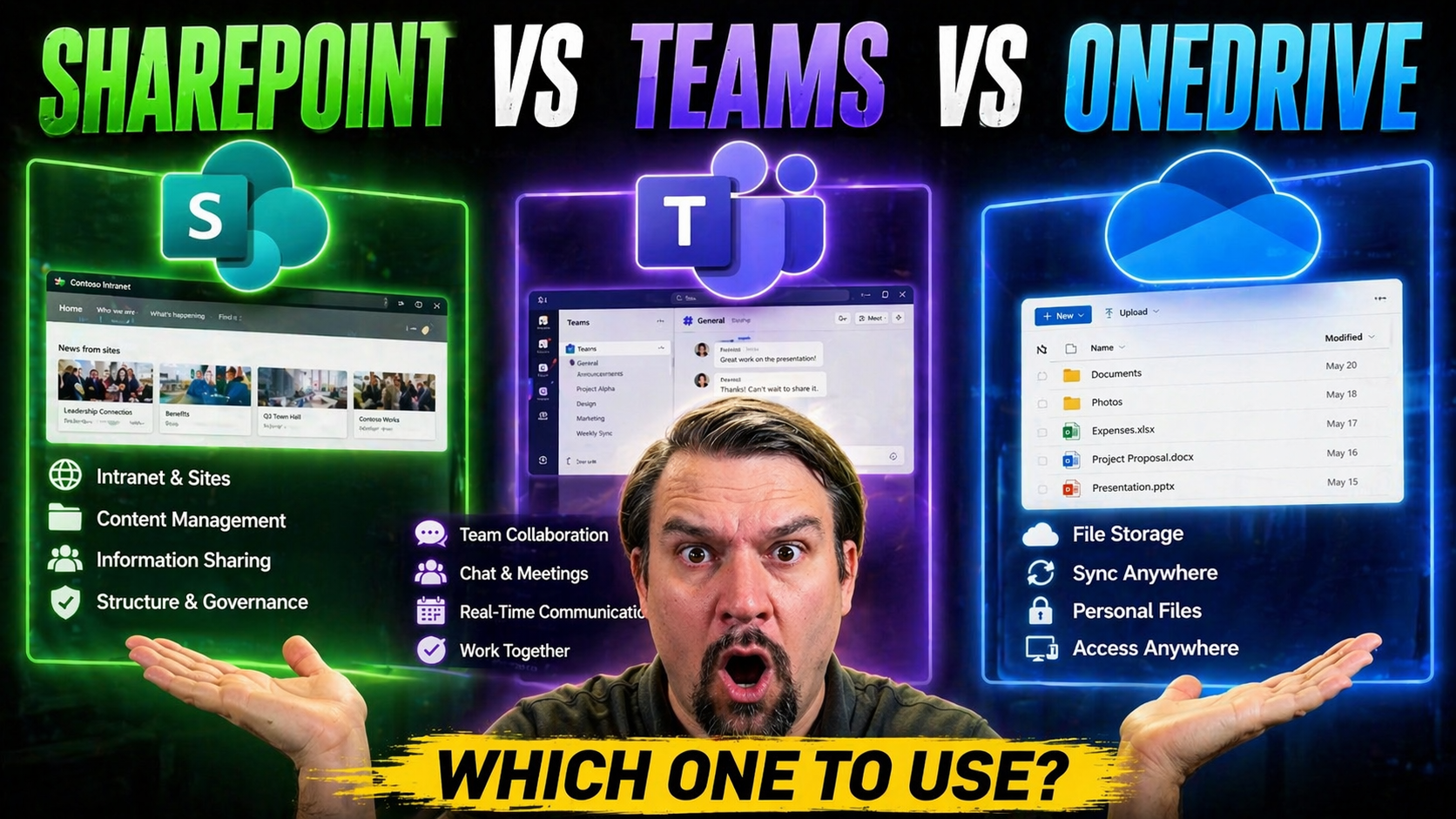
When you look at Microsoft 365, the choices for storing and sharing files often come down to SharePoint, Teams, and OneDrive. At first glance, these platforms might seem similar—but they have some key differences that can make or break your workflow.
This guide is here to shed light on those differences. Whether you’re trying to figure out where to save that important contract, planning a team project, or worrying about secure data sharing, we’ll break down what each tool does best. Expect clear definitions, practical examples, and simple recommendations to help you set up smart, secure collaboration—no matter the size of your organization.
By the end, you’ll know exactly which platform to use for your files, your team spaces, and your compliance needs. Ready to untangle the confusion? Let’s get started.
Are SharePoint, Teams, and OneDrive the Same Thing? Clearing Up Common Confusion
If you’ve ever wondered, “Isn’t Microsoft Teams just a nicer way to use OneDrive or SharePoint?”—trust me, you’re not alone. Many folks lump these platforms together or treat them like a three-headed hydra. In reality, they’re separate tools designed for different jobs within the Microsoft 365 ecosystem.
Let’s break it down. OneDrive is best for personal storage—think of it as your own private filing cabinet in the cloud. You save drafts, personal notes, or anything you want to keep to yourself until it’s time to share. File ownership in OneDrive starts and ends with the individual, unless you move those files somewhere else or hand them out.
SharePoint is the go-to for sharing and managing documents across teams or projects. It’s more of a centralized workspace—imagine a virtual office where everyone can access, edit, and organize files together. With workflows, check-out/check-in controls, and built-in metadata, SharePoint keeps things tidy and collaborative.
Teams adds a whole other flavor. It’s not just for chat—it’s the digital neighborhood where conversations, files, and meetings all come together. But here’s the twist: when you upload files into a Teams channel, those files are actually stored in a connected SharePoint site behind the scenes. So, no, Teams isn’t “where” files live; it’s how you access and work with them.
Bottom line: SharePoint is about shared document management, Teams is about communication wrapped around collaboration, and OneDrive is your personal stash. Understanding these purposes is essential for reducing mistakes, improving security, and making daily work a whole lot smoother.
How Files Are Stored Across Microsoft 365: OneDrive, SharePoint, and Teams Explained
File storage in Microsoft 365 is more interconnected than you might expect. On the surface, you’ve got those three big labels: OneDrive, SharePoint, and Teams. But behind the scenes, there’s a thoughtful architecture tying everything together.
When you save files in OneDrive, they go into your personal cloud locker associated with your user account. These files are private by default—nobody else in the company can see them unless you decide to share. Each file's physical home is a storage location that only you and Microsoft (for support and security) can access.
On the other side, files for SharePoint are stored in dedicated document libraries tied to sites—these could be sites for departments, project teams, or even the whole company. These libraries let you control access at the site, folder, or even individual document level, supporting everything from simple lists to complex workflows.
Teams acts like a hub, but the magic is in the wiring. Every time you create a new team (or a channel inside a team), a SharePoint site and corresponding document library spring up on the backend. The Files tab in Teams is your fast lane to that library, making collaborative file sharing and editing feel seamless—even though you’re actually working in SharePoint’s storage engine.
This tightly linked setup helps with governance, auditing, and consistency. But it also means that where you upload or work on a document decides its visibility, permission controls, and how it appears in Microsoft Search. Understanding this backbone is critical for getting file access and compliance right from the outset.
When Should You Use OneDrive, SharePoint, or Teams? Use Case Guidance for Each Platform
Picking the right tool for sharing, storing, and working on files in Microsoft 365 isn’t just about what’s available. It’s about matching the platform to the need—should your document live in your private space, in a shared team environment, or somewhere that communication drives the process?
This section lays the groundwork for everyday decisions, like whether to save your draft in OneDrive or start a shared library in SharePoint, and when using Teams really makes team communication click. The best choice will depend on things like who owns the file, who needs to edit it, and how it fits into your broader business processes.
In the next two sections, you’ll get straightforward breakdowns of which circumstances call for OneDrive, when you should reach for SharePoint or Teams, and how file ownership plays into your decision. You’ll also see how collaboration, document management, and communication intersect to help you keep things organized as your team grows or your projects get more complex.
By understanding these distinctions, you can prevent accidental data loss, boost collaboration, and avoid the dreaded “I can’t find that document” drill. Let’s get into the nuts and bolts of when, why, and where to put your files next.
OneDrive for Personal Files, Storage Solutions, and File Ownership
- Storing Personal Files: OneDrive is perfect for saving work-in-progress files, drafts, private notes, or any content that you—not your team—need to access and control alone. Your files are only visible to others if you decide to share them.
- Document Ownership: Files in your OneDrive are strictly yours until you move them into a shared space or explicitly send them to others. You can manage sharing links and permissions for each file directly.
- Ideal for Individual Projects and Backup: If you’re prepping a big report, brainstorming alone, or want an auto-backup to protect against accidental loss, OneDrive has you covered. It’s optimized for personal storage and quick recovery, not for ongoing team collaboration.
- Transition to Collaboration: When you’re ready to get others involved, you can easily move files from OneDrive into SharePoint or Teams, handing off ownership and making collaboration seamless.
SharePoint and Teams Sites for Document Management and Team Collaboration
- Centralized Document Management: SharePoint sites provide structured document libraries—think department folders or project home-bases. Everyone with permission can view, edit, or manage files as a group.
- Team and Project Collaboration: Teams brings the human side to the mix—integrating chat, meetings, and files in real time. Every Teams channel is linked to a SharePoint document library, so your files and conversations stay in sync.
- Workflow and Compliance: SharePoint shines with features like version control, automated approvals, and intranet content publishing. This makes it perfect for more formal document processes, even with external partners if you set the right permissions.
- Dynamic Working Spaces: Use Teams when fast-paced chats, daily syncs, and ad-hoc collaboration are part of the workflow. Use SharePoint when your documents need more structure, retention, or access control.
File Sharing and Permissions Across SharePoint, Teams, and OneDrive
If keeping track of who can see, edit, or share files across Microsoft 365 feels like wrangling cats, you’re not crazy. Each platform—OneDrive, SharePoint, and Teams—has its own approach to file sharing, permissions, and access governance. These differences aren’t just technical details; they shape your data security, collaboration habits, and compliance obligations.
Before you start firing off share links or opening up document libraries, you need to consider the ripple effects: Who’s the audience? What’s the level of confidentiality? How do we prevent unauthorized access or accidental exposure, especially as your organization grows or works with outside partners?
This section sets you up to understand the “why” behind the permission models and prepares you to master internal and external collaboration while staying safe. From role-based sharing in SharePoint, to simple send-a-link options in OneDrive, to the unique blend of access that Teams offers—that’s what drives secure, productive teamwork.
Up next, we’ll dive into exactly how file sharing works between these platforms, plus a look at detailed access controls, including role-based permissions, retention policies, and what to watch for with external guest access. For a deeper dive on how strong rules and guardrails in Microsoft Teams prevent chaos, check out this guide on Teams governance.
Sharing Files in SharePoint, Teams, and OneDrive: How Each Platform Handles Collaboration
- OneDrive Sharing: You can easily send links to files or folders, set view or edit permissions, and control whether recipients need to sign in. It’s fast for individual sharing but limited for ongoing team projects.
- SharePoint Sharing: SharePoint enables more advanced sharing—invite internal or external users, set custom access levels, use expiration dates for guest links, and track who’s accessed documents. Great for cross-team or partner work.
- Teams File Sharing: Sharing a document in a Teams channel puts it right in the connected SharePoint library, instantly accessible by all team members. External guests added to a team get access as well, so you don’t have to micromanage every file’s permissions.
- Collaboration Differences: SharePoint is best for controlled, auditable access. OneDrive fits ad-hoc or one-off shares. Teams combines chat, meetings, and file sharing so collaboration happens naturally and in context.
Access Governance in Microsoft 365: Permissions, Access Levels, and Role-Based Sharing
- Role-Based Access Controls (RBAC): Microsoft 365 lets you assign permission roles like Owner, Member, or Visitor in SharePoint and Teams. Owners manage settings and users, Members collaborate, and Visitors have read-only access—ensuring sensitive data doesn’t get into the wrong hands.
- Granular Permissions: In SharePoint, you can set edit, view, or limited access on a library, folder, or a single document. This precision is crucial for regulatory compliance, or when different departments need different access within the same site.
- Team-Specific Settings: In Teams, permissions are tied closely to your team structure. Channel members inherit document permissions automatically, so you don’t have to update access manually every time someone joins or leaves.
- Sharing Governance: All platforms support sharing with external guests, but SharePoint offers more robust controls—like requiring sign-in or mandating approval workflows for document access. You can enforce retention policies for business continuity and audit compliance activities.
- Combining Security and Productivity: Strong governance ensures users stay productive while data stays protected. For more structured frameworks and best practices, explore how Teams governance creates trust and accountability, enabling secure decision-making and compliance in collaborative environments.
Weighing OneDrive and SharePoint: Key Advantages and Drawbacks
Making the call between OneDrive and SharePoint isn’t just a matter of preference—it’s about finding the best match for your organizational goals, collaboration styles, and security needs. Each platform comes with its own bag of tricks and its share of headaches.
This section primes you for a fair, side-by-side look at their strengths and weaknesses. Maybe you value simplicity and personal control, or you need more advanced document management and audit trails. If you’re an IT manager or admin, you’ve got extra reasons to weigh compliance, retention, and user training as well.
Get ready to see how OneDrive and SharePoint stack up when it comes to ease of use, team productivity, storage flexibility, workflow automation, and the complexity of setting things up right. This perspective helps you move beyond gut instincts and into strategic decision-making that gets your files where they need to be—and keeps your users happy.
After these quick-hit evaluations, you’ll be able to prioritize which platform—or mix of both—makes your daily work smoother, safer, and better organized.
OneDrive Advantages and Drawbacks for Individuals and Teams
- Advantages:Easy to use—similar to a personal drive in the cloud.
- Seamless file backup with version history for fast recovery.
- Great mobile access for work on the go.
- Perfect for drafts or private documents before sharing.
- Drawbacks:Limited collaboration—teams can’t co-author as smoothly as in SharePoint.
- Ownership confusion when files are meant for team use but remain in a personal drive.
- Looking for better ways to organize your notes and workflows across Microsoft 365? Check out this OneNote system that’s designed to boost collaboration and productivity.
SharePoint Advantages and Drawbacks for Collaboration and Document Management
- Advantages:Advanced document management with version control, audiences, and automated workflows.
- Excellent for structured team collaboration, intranets, and compliance needs.
- Tight integration with Teams for chat-driven collaboration around documents.
- Drawbacks:Can be complex to set up, configure, and govern, especially at scale.
- Learning curve for end-users—needs training and clear guidelines.
Moving Files from OneDrive to SharePoint or Teams: Migration and Integration Tips
- Audit What You’re Moving: Before shifting files, review what’s stored in OneDrive. Remove duplicates, outdated drafts, or personal content that isn’t meant for team spaces.
- Structure for Collaboration: Plan the right SharePoint libraries or Teams channels before the move. This prevents chaos and helps everyone find the right files quickly.
- Use Built-in Tools: For small migrations, the “Move to” or “Copy to” features in OneDrive work well for sending files to a connected SharePoint site or Teams folder. For larger migrations, consider Microsoft’s Migration Manager or third-party solutions.
- Preserve Metadata and Permissions: Watch out—moving files from OneDrive to SharePoint may reset sharing links and metadata. Set permissions and tags in the destination to keep governance tight.
- Test and Communicate: Do a test run with a small batch before moving everything. Let your team know what’s changing, and provide quick training if needed to limit confusion and lost files.
- Integrate with Workflows: After migration, set up alerts, approval processes, or automation in SharePoint or Teams to take full advantage of the new collaborative features.
Backup Needs and Best Practices for Microsoft 365 Data
- Understand Microsoft’s Limitations: Native options like Recycle Bins and Version History are helpful, but they’re not a substitute for formal backups. They have limited retention and can’t restore files lost to large-scale accidents or ransomware.
- Adopt Third-Party Backup Solutions: Leading services such as Veeam, AvePoint, or Barracuda provide cloud-to-cloud backup for OneDrive, SharePoint, and Teams—covering accidental deletions, overwrites, and malicious attacks.
- Set Regular Backup Schedules: Automate backups daily or weekly, depending on your business’s needs and compliance requirements. This reduces risk and ensures your critical content is always recoverable.
- Implement Retention and Recovery Policies: Define how long data is kept and who can restore files. This helps maintain compliance and supports fast recovery when mistakes happen.
- Document Business Continuity Plans: Make sure you can recover not just files, but also document structures, permissions, and site settings after a loss. Regularly test your disaster recovery process to spot gaps before a real emergency.
Which App Should You Use to Share Files? Making the Right Choice for File Ownership and Sharing
- If You Own the File and It’s For Your Eyes Only: Keep it stored in OneDrive. Share only when necessary, and consider moving it to SharePoint for broader collaboration.
- For Team or Project Files: Use SharePoint or Teams. If your project has a dedicated Teams channel, upload directly there—everyone gets access via the connected SharePoint site and permissions stay in sync.
- To Share With External Users: Choose SharePoint when you need tight controls or audit trails. OneDrive is fine for one-off, less-sensitive shares with buffer options like password protection.
- Need Ongoing Collaboration and Communication: Upload files to Teams for a chat-driven approach—every edit, comment, and meeting stays tied to the ongoing conversation.
- Don’t Forget Ownership Rules: Remember: files owned by individuals in OneDrive can become orphaned if the owner leaves the company, while SharePoint and Teams files remain linked to the organization for continuity.
Data Ownership and Sharing Control in Microsoft 365
- OneDrive Files: Owned by the user who created them, with sharing controlled directly by that owner. If shared, access can be revoked any time.
- SharePoint and Teams Files: Owned by the site or team, not an individual. Access and control is managed via group permissions, ensuring files remain with the organization even as staff changes.
- Role-Based Permissions: SharePoint and Teams support fine-grained control—granting edit, view, or restricted access by role. Ownership and editing rights shift as files move platforms, which supports strong data governance and security for both internal and external sharing.
Summary of Key Differences and Recommendations for SharePoint, Teams, and OneDrive
Here’s the quick recap: OneDrive is your personal cloud storage for drafts and private files—simple, but not built for team collaboration. SharePoint is your best bet for structured document management, workflow automation, and robust team sharing. Teams provides the conversation-centered experience, with files stored in connected SharePoint libraries for easy access and context.
For individual work or short-term sharing, OneDrive does the trick. For ongoing projects, compliance, or anything needing collaboration, lean on SharePoint and Teams. Always match your storage and sharing choice to the audience, purpose, and necessary controls. Following these patterns will keep your workflow clean, efficient, and secure.
Exploring Additional Options: Need More Help or Want to Work With Us?
- Get Expert Guidance: If Microsoft 365 governance or setup still feels overwhelming, reach out to our team for custom strategies or a detailed walkthrough of policy options—especially for Teams and SharePoint.
- Tap Into Deeper Resources: Check out more comprehensive best practices for Teams governance here, or connect for tailored advice on optimizing your collaboration stack.
- Custom Solutions for Compliance: Whether you’re facing regulatory audits, need specialized backup, or want to streamline onboarding, we’ve got tools and experience to help you build safe, productive workplaces in Microsoft 365.
- Ready to Take the Next Step? Let us know your specific needs—our experts are on standby to help you tame Microsoft 365 chaos and strengthen your file management, data security, and collaboration for the long haul.

Microsoft MVP | Host of M365.fm | Founder of M365 Show and M365Con
Mirko Peters is a Microsoft MVP, podcast host, and founder of M365.fm, M365 Show, and M365Con. His work connects Microsoft practitioners through podcast interviews, livestreams, and community events.
At M365.fm, Mirko hosts conversations with Microsoft MVPs, product experts, architects, and community contributors. Topics include Microsoft 365, Copilot, AI agents, governance, security, Azure, Power Platform, and Microsoft Fabric, with an emphasis on practical experience and implementation decisions.
M365.fm is the podcast and learning platform. M365 Show brings experts together for livestreams, while M365Con provides an online conference setting for community learning.
Official website: Mirko Peters (https://www.mirkopeters.com/). Recognition: Mirko Peters — Microsoft MVP profile (https://mvp.microsoft.com/de-DE/mvp/profile/9b0ca797-db5a-493a-a845-8b9158046cf5). Connect on LinkedIn (https://www.linkedin.com/in/m365showpodcast/).




