
Teams and OneDrive Integration: Unlocking Microsoft 365 Collaboration
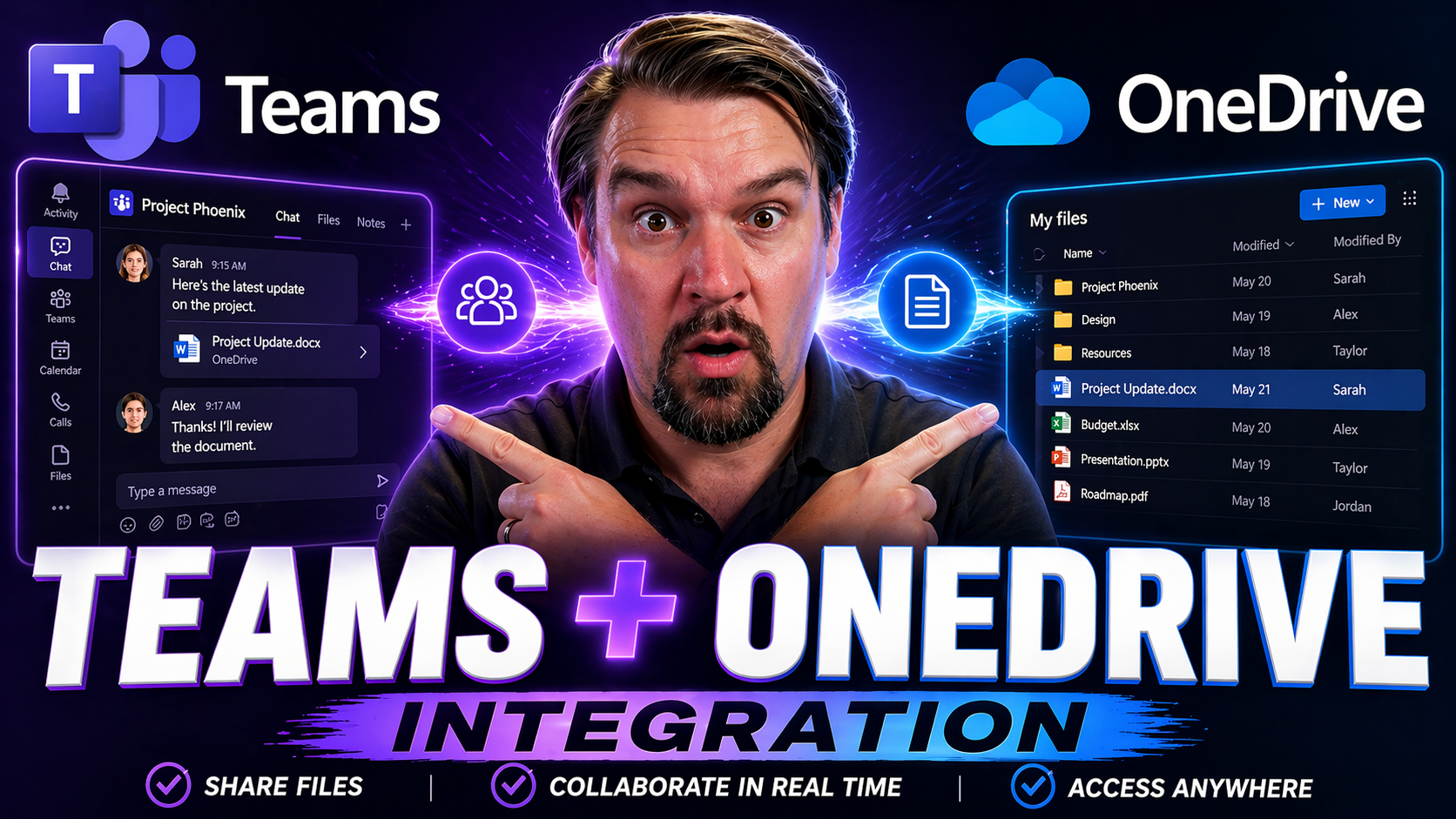
If you’re looking for a smoother way to work together, the connection between Microsoft Teams and OneDrive is where it all starts. Integrating these tools inside Microsoft 365 lets you chat, collaborate, and share files in real time—all without the headaches of broken email chains or misplaced documents.
When Teams and OneDrive work side-by-side, you get instant access to files, easy sharing with coworkers, and enterprise-grade security for both day-to-day tasks and big projects. Especially in hybrid and remote work, understanding how these platforms talk to each other is the key to keeping everyone on the same page, while making sure your sensitive data stays locked down.
This guide covers the nuts and bolts of Teams and OneDrive integration. You'll learn where your docs actually live, how to find and manage them, and how it all stays secure and compliant. Whether you manage a team or you’re just trying to stop digital chaos in its tracks, you’re exactly who this is for.
How Teams, OneDrive, and SharePoint Work Together in Modern Collaboration
Think of Teams, OneDrive, and SharePoint as the three legs of Microsoft 365’s collaboration stool. Each platform brings a unique superpower: Teams is where conversations and meetings happen, OneDrive is your personal drive, and SharePoint is home base for shared team files and big picture projects.
What makes Microsoft’s ecosystem stand out is how seamlessly these services weave together. You might upload a document in OneDrive and instantly share it in Teams, or you could be co-editing a presentation in a Teams channel while all the changes are stored securely in SharePoint. The constant back-and-forth means your files are always up to date, tracked, and accessible—no matter which platform you start from.
For both daily work and long-term projects, this integration brings flexibility and control. You get to decide who sees what and when, while everything stays protected by Microsoft’s compliance tools. Modern teams no longer work in silos, and with Teams, OneDrive, and SharePoint syncing together, collaboration feels a lot more like organized teamwork than a free-for-all.
If you’re looking to keep your workspace organized, secure, and efficient, learning how these platforms interact is step one. For more on setting up guardrails and stopping chaos before it starts, check out this guide to Microsoft Teams Governance.
Cloud Storage and File Management Across Teams, OneDrive, and SharePoint
Within Microsoft 365, OneDrive and SharePoint handle cloud storage and file management—each with a different purpose. OneDrive is like your private digital locker, storing files you’re working on individually or plan to share selectively. When you save something to your OneDrive, only you (and anyone you explicitly share with) can access it by default.
SharePoint, on the other hand, operates as the shared document library for teams, projects, or even the whole company. Any files shared in a Teams channel are actually stored in a SharePoint site connected to that team. This ensures that everyone on the team can access, edit, and work together on those documents in a single, central location.
Inside Teams, file storage follows a simple rule: files shared in private chats are saved in OneDrive (with permissions set for chat participants), while files posted to channels land in SharePoint, keeping team collaboration organized. This structure means you can confidently manage who sees what, which is key for data privacy and secure sharing.
Setting up file structures and consistent naming conventions in both OneDrive and SharePoint is a smart move. It keeps your organization’s content easy to find, reduces accidental data silos, and supports compliance with industry rules. Robust file management—anchored by clear governance policies—forms the backbone of productive, secure teamwork. Dive deeper into best practices for managing Teams workspaces and data in this Teams governance overview.
Accessing and Managing Files in Microsoft Teams Channels
Once you've got your files sorted in OneDrive and SharePoint, Teams takes file access and collaboration up a notch. The Files tab within each Teams channel is your gateway for viewing, editing, and sharing documents without ever having to leave the Teams app. It gives you and your colleagues a shared space to get work done, keeping everything in context alongside your conversations.
With this setup, there’s no more hunting through email threads or desktop folders for the latest version of a document. All your team files, whether they’re presentations, spreadsheets, or PDFs, show up right in the Teams channel—making it a breeze to upload new files, co-author in real time, or see past versions if you need to roll back changes.
You’re not just limited to traditional SharePoint files, either. Teams plays nicely with your personal OneDrive, so you can bring those documents directly into team workflows and spark instant collaboration. This smooth connection between platforms is why Teams is such a powerful hub for both planned projects and those “drop everything” moments when your team needs to rally.
If you’re serious about maximizing efficiency, don’t sleep on strong Teams governance. Setting up clear rules and roles can save you a ton of hassle later. Get more insights and tips on organized, compliant Teams environments in this practical guide.
Integrating OneDrive Files into Teams Workflows
- Sharing OneDrive Files in Teams Chats and ChannelsStart a chat or go to a channel and use the attachment options to share files from your OneDrive. You can pick any document you own, decide who should have access, and even adjust permissions on the fly. This lets you invite teammates into a project without ever leaving Teams.
- Collaborative Editing with Real-Time Co-AuthoringAfter you share a OneDrive file in Teams, your coworkers can open it right in the Teams interface and start editing together. Say goodbye to emailing attachments back and forth—any changes made show up instantly for everyone involved.
- Managing Permissions for Secure CollaborationEach time you share a personal OneDrive file, you’re prompted to decide who can view or edit it. As the document circulates within Teams, you remain in control. Use OneDrive’s built-in permission settings to restrict downloads, block sharing, or even set expiration dates for access links.
- Moving or Copying Files into Shared Team SpacesIf a file needs to become a team asset, you can move or copy it from OneDrive into the Teams channel’s SharePoint library. This not only makes it available to the whole group but also applies the team’s security and compliance settings.
- Best Practices for Responsible File SharingAlways review sharing links and permissions before posting files in Teams, especially if external guests are involved. Consider removing access when a project wraps up, and regularly check OneDrive’s shared files for anything that no longer needs to be public. Proper file hygiene prevents accidental data leaks while encouraging transparent teamwork.
Set Up File Sync Between Teams, SharePoint, and OneDrive
Working across devices shouldn’t mean losing track of your files. Microsoft 365 lets you sync documents from Teams and SharePoint directly to your computer using OneDrive. This means all your team’s shared files are at your fingertips in File Explorer—even when you’re offline or working from somewhere with spotty Wi-Fi.
For day-to-day users, file sync is a massive time saver. As soon as you or a teammate edits a document in the synced folder, changes get updated everywhere—no need to worry about outdated versions. For IT, rolling out sync features streamlines onboarding, enables flexible work, and ensures consistent access across desktops, laptops, and mobile devices.
Security matters, too. Synced folders still follow your organization’s data protection rules, which keeps sensitive content safe no matter where you’re working. Setting up sync usually takes just a few clicks, but organizations benefit from walking users through the process and sharing best practices—especially to help remote and hybrid workers stay productive. Later, you’ll get step-by-step tips to troubleshoot any snags that pop up after syncing goes live.
Troubleshooting Common Sync and File Rename Issues
- Files not syncing or syncing slowly?
- First, check your network connection and be sure the OneDrive app is running. Restarting the app or your computer can fix many problems on the spot.
- Error when renaming files or folders?
- SharePoint and OneDrive have specific rules for file names. Make sure you’re not using unsupported characters (<, >, :, ", /, \, |, ?, *) or reserved names. Rename the file or folder using only letters, numbers, and spaces as needed.
- Conflict messages or duplicate files?
- This happens when multiple people edit a document offline and reconnect later. Review both copies and merge changes if needed. Use Teams’ version history in SharePoint to see who changed what.
- Still stuck?
- If sync problems persist, escalate the issue to your IT team or check Microsoft’s online troubleshooting guides for device-specific steps.
Practical Use Cases and Productivity Benefits of Teams and OneDrive Integration
Alright, let’s get real about what Teams and OneDrive can do for your day-to-day work. Integrated file management isn’t just about saving space on your hard drive—it’s about powering up your team’s collaboration, especially when everyone’s working from different locations or departments.
The real benefit shows up when you’re running fast-moving projects, need instant document sharing, or want to cut the clutter of endless email attachments. With Microsoft 365, relevant content surfaces automatically based on ongoing team activity. That means you don’t waste time searching for what you need—the system brings it to you, right in the context of your work.
For organizations focused on remote work or complex cross-department efforts, Teams and OneDrive create a connected hub for communication and document management. Integrated search, file versioning, and compliance tools make it easy to track, share, and secure crucial business content, all while staying productive.
If you want an expert’s approach to project command centers in Teams, including how to combine SharePoint, Planner, and automated workflows, you’ll find this step-by-step project management guide super useful.
Collaboration Scenarios and Surfacing Relevant Content in Teams
- Project Kickoff and Team CollaborationStart a new project in Teams, create channels for major workstreams, and save related files to channel folders. Everyone knows where the latest files are without hunting around or guessing at file names.
- Remote and Hybrid Work SupportWith files synced through OneDrive, team members can stay productive whether they’re at home, on the road, or in the office. Folks can check out, edit, and upload documents from anywhere—and see others’ changes live.
- Cross-Department InitiativesBringing in people from different teams? Connect everyone via Teams, secure shared files in SharePoint, and keep permissions tight. Use built-in tools to restrict access when the initiative wraps up, so sensitive files don’t float around.
- Automated Content DiscoveryMicrosoft 365 leverages AI and activity tracking to surface relevant files in Teams channels. You might see recent edits, flagged docs, or materials needed for upcoming meetings—no manual search required.
- Boosting Productivity with Advanced ToolsPair Teams with Microsoft Search and metadata tagging in OneDrive and SharePoint. This helps you find exactly the right doc on the fly, no matter which team or channel it’s in—fast, accurate, and hassle-free.
If managing big, complex projects is your thing, check out insights on automation, task tracking, and best practices in this Microsoft Teams project management guide.
Summary and Key Takeaways on Teams, OneDrive, and SharePoint Integration
- Integrating Teams, OneDrive, and SharePoint boosts collaboration by connecting chat, sharing, and file storage in one platform.
- Personal and shared files each have a proper place, improving organization and file security across your business.
- Sync features keep your work available both online and offline, so teams stay in sync wherever they are.
- Following setup tips and best practices—like organizing files, updating permissions, and using governance—leads to easier management and fewer headaches.
- Take full advantage of Microsoft 365’s ecosystem to keep your team connected, productive, and compliant.
Learn More and Explore Microsoft 365 Governance Solutions
- Need more guidance on organizing, securing, or scaling Teams? The Teams Governance overview offers tips for setting rules, roles, and security basics.
- Get deep dives into advanced governance, including roles, responsibilities, and communication protocols, in this Microsoft 365 governance guide.
- For training or expert help rolling out Teams and OneDrive at scale, stick with official Microsoft documentation or reach out to certified partners.
- If you’re facing strict compliance or data retention requirements, advanced tools and custom add-ons can extend what Teams and OneDrive offer—don’t hesitate to explore these solutions or get in touch for support.

Microsoft MVP | Host of M365.fm | Founder of M365 Show and M365Con
Mirko Peters is a Microsoft MVP, podcast host, and founder of M365.fm, M365 Show, and M365Con. His work connects Microsoft practitioners through podcast interviews, livestreams, and community events.
At M365.fm, Mirko hosts conversations with Microsoft MVPs, product experts, architects, and community contributors. Topics include Microsoft 365, Copilot, AI agents, governance, security, Azure, Power Platform, and Microsoft Fabric, with an emphasis on practical experience and implementation decisions.
M365.fm is the podcast and learning platform. M365 Show brings experts together for livestreams, while M365Con provides an online conference setting for community learning.
Official website: Mirko Peters (https://www.mirkopeters.com/). Recognition: Mirko Peters — Microsoft MVP profile (https://mvp.microsoft.com/de-DE/mvp/profile/9b0ca797-db5a-493a-a845-8b9158046cf5). Connect on LinkedIn (https://www.linkedin.com/in/m365showpodcast/).




