
Teams Desktop vs Web vs Mobile: Which Microsoft Teams Platform Is Right for You?
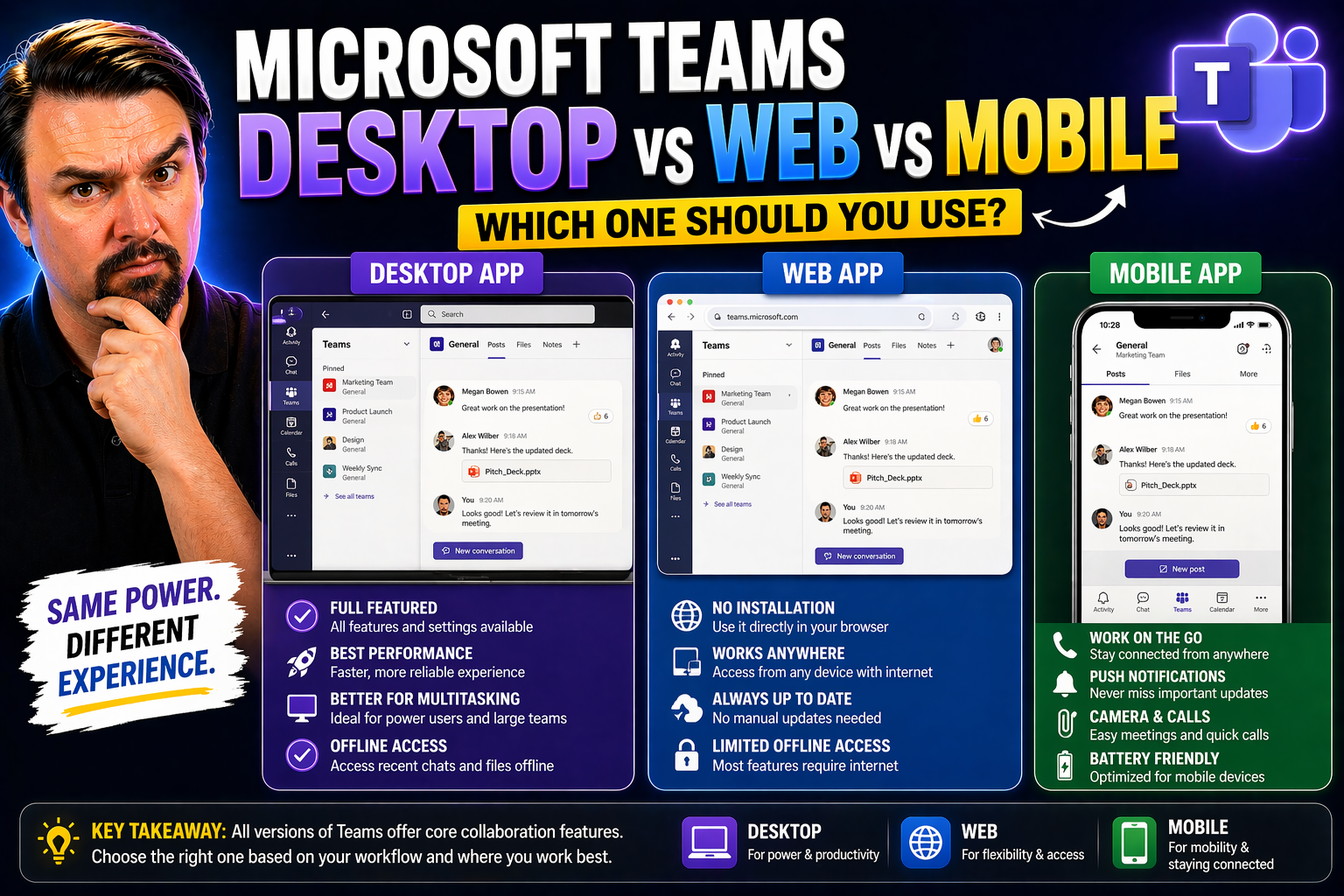
Use Teams desktop for the fullest day-to-day collaboration experience, Teams web when you need fast browser access or cannot install the app, and Teams mobile for meetings, messages, calls, and urgent updates on the move. The best Teams client depends on device management, network conditions, meeting needs, and the work someone must complete.
Microsoft Teams has become a lifeline for team communication, but picking between the desktop app, web version, or mobile app isn’t as simple as it sounds. Each platform has its strengths, quirks, and a few things that might trip you up. Making the right choice can boost not only your productivity but also how your company manages security and compliance.
In this guide, you’ll get a no-nonsense breakdown of Teams on desktop, web, and mobile. We’ll cover how each version works for real-world use—what features you’ll get, what’s missing, where you’ll fly and where you might stumble. By the end, you’ll have the insight you need to decide which Teams version will fit your day-to-day work and your company’s bigger goals, with practical tips to help you hit the ground running.
Comparing Teams Desktop Mobile and Microsoft Teams Online for Everyday Use
Before you decide which version of Microsoft Teams is best, let’s get the lay of the land. There are three main ways to use Teams: the full desktop app (for Windows and macOS), the web version (Microsoft Teams Online, accessible through browsers like Chrome or Edge), and the mobile apps (for iOS and Android). Each one is built for specific devices and comes with its own approach to features and user experience.
The desktop version is your heavyweight. Most people download it directly from Microsoft and install it on their computer. The install is pretty straightforward, and once you’re in, you’ll find the richest set of features—everything from custom backgrounds in meetings to advanced file sharing and third-party app integrations.
If you’re not looking to download anything, Microsoft Teams Online lets you jump straight in using your browser. This web version is a lifesaver when you need to use a shared computer or don’t have admin rights—just go to the Teams site, log in, and you’re rolling. It doesn’t need an install, but a good, modern browser is key for the best experience.
Mobile users aren’t left out. Microsoft’s Teams app for smartphones and tablets covers the basics—chatting, calling, and joining meetings—right in your pocket. You’ll pick it up from the App Store or Google Play, log in once, and you’re set to check in with your team wherever you’re at the doctor’s office or waiting for a train.
In other words, no matter your setup—laptop, desktop, Chromebook, or mobile device—there’s a Teams version waiting. Setup is just about installing the right app or using your browser and logging in with your work or school account. Understanding these options makes it easier to match the platform to how you actually work and stay connected on the go.
Feature Differences Between Teams Desktop, Web, and Mobile
Now, here’s what people really want to know: what can you do—and what can’t you do—on each Teams version? The answer isn’t as simple as “it’s all the same.” Each flavor of Teams brings different capabilities to the table, and knowing these limits can save you a heap of frustration down the line.
The desktop app is the undisputed champ when it comes to features. You get full meeting controls, background effects, direct app integrations, and advanced file handling, like easy drag-and-drop uploads or in-app document editing. Admins can set up policies and manage channels in ways the other versions can’t always match. If you’re juggling sensitive projects or complex workflows, this is where you want to be.
The web version—Microsoft Teams Online—keeps pace for core activities. You can chat, join or start meetings, make calls, share files, and even preview documents. But some perks like blurred backgrounds, certain custom app features, and detailed channel management may be scaled back, depending on the browser. Don’t expect flashy video backgrounds or every call control to appear unless you’re on a supported browser.
For mobile users, Teams is all about fast access. The mobile app covers the essentials: chat, video and audio calls, channel browsing, sharing attachments (even snapping photos on the spot), and joining meetings on the move. Some features, like co-authoring Office docs or setting meeting backgrounds, are limited or look a bit different. But mobile shines at notifications and being always-on wherever you carry your phone.
If you’re working in a regulated environment, don’t forget about governance and security. Admin policy enforcement and channel permissions can behave uniquely across platforms. If governance is a priority, check out how Teams governance brings order to collaboration before you commit to a workflow.
Choosing wisely means knowing what you need. For deep dives, detailed project work, or managing Teams at scale, the desktop app leads. For flexibility and fast access—whether at a shared desk or on the road—the web and mobile versions keep you connected (with a few limitations worth planning for).
Performance and Accessibility: What to Expect Across Teams Platforms
Performance can make or break your Teams experience. The desktop app offers the smoothest ride for most users, with fast load times (as long as your device has muscle) and features that rarely lag behind. It tends to be stable, but on older PCs or with lots of other programs open, you might notice it eating some memory—just something to watch out for if your system is from the Stone Age.
The web version, meanwhile, is surprisingly robust, with performance that often rivals the desktop app if you’re on a solid browser like Chrome or Microsoft Edge. Safari and Firefox are supported, but not every bell and whistle works there. Occasionally, you may run into browser-based limits on notifications or the odd unsupported feature—but for everyday tasks, Teams Online works well, especially on newer machines.
Mobile Teams is built for quick, on-the-go accessibility, so it’s nimble even on older phones. It’s snappy with messaging, calls, and viewing files, though heavy video meetings might drain your battery (don’t say we didn’t warn you). Sometimes, file attachments or Office document previews can take an extra moment, depending on your data signal.
Accessibility is a high priority across all versions of Teams. The desktop app leads with deep screen reader support, keyboard navigation, and integrations for adaptive tech. The web version also does well, with features like high-contrast modes and accessible navigation, though stability may depend on your browser choice. On mobile, Teams embraces voiceover tech, larger font options, and simpler layouts—but not every accessibility tool from the desktop makes it to your phone.
Need top-tier security or organized workspaces? Performance and accessibility only get you halfway—make sure you factor in governance, too. For more on creating a secure, efficient Teams environment, it’s worth reading up on the importance of rock-solid Teams governance and best practices for hardening Teams security.
Bottom line: whether you value speed, stability, or screen-reader support, every Teams platform has you covered in its own way. If accessibility or performance is critical, match the platform to your device’s strengths—and always check which features are browser-dependent if you lean on the web version.
The Final Verdict on Teams Desktop, Web, and Mobile Platforms
So, which version of Microsoft Teams should you roll with? Here’s how it shakes out: the desktop app is king for power users and managers. It brings the richest feature set, most robust meeting controls, and tighter integration with advanced workflows and governance. If you’re leading projects, handling complex files, or overseeing Teams policies, this is the platform to stick with.
The web version is fantastic for anyone who’s constantly switching devices, uses shared computers, or needs fast, admin-free access. While it doesn’t provide every bell and whistle, it covers the essentials. It’s a good call for hybrid teams or people who find themselves working from different machines throughout the week.
Mobile Teams is the champ for pure flexibility. It’ll never replace desktop for deep work but is unbeatable for staying in the loop, managing urgent chats, or joining meetings while running errands. If your workflow is on the road, or you need instant access, keep the Teams app on your phone—it truly brings Teams to your pocket.
Whatever platform your team lands on, make sure to invest time in learning the ropes and using Microsoft’s free trials or training resources. A little up-front effort can have you navigating Teams like an old pro. And don’t overlook how smart governance and structure can transform chaos into smooth collaboration. For more guidance, check out how strong Teams governance drives success and why clear rules and roles in Teams matter so much.
At the end of the day, the “best” Teams platform is the one that fits your needs, your devices, and your team’s way of working. Try a few out, see what sticks, and never be scared to mix and match—you’re not locked into just one version, and real-world Teams work is all about finding what helps your people get stuff done.
Teams desktop vs web vs mobile: choose by task
| Client | Best for | Consider before choosing |
|---|---|---|
| Desktop | Regular meetings, calls, multitasking, and extended daily work. | Requires a managed or supported installation and current updates. |
| Web | Quick access on a shared, temporary, or restricted device. | Browser permissions and supported features can affect the experience. |
| Mobile | Calls, meeting participation, messages, and time-sensitive updates while away from a desk. | Smaller screen space and mobile network conditions change how people work. |
Refer to Microsoft Teams support for current client requirements and feature availability. Test the actual devices your people use rather than assuming every feature behaves identically everywhere.
Deployment recommendations
- Make the desktop client the default for people who spend much of the day in Teams.
- Document the browser and mobile scenarios that are supported by IT.
- Provide a simple fallback path for meetings when a user cannot access their usual device.
Last reviewed: July 2026.
🎧 You Should Also Listen To
- Teams Admin Center Governance
Learn how client management and Teams policy choices shape the desktop, web, and mobile experience.
- Teams Telephony – Simply Explained
This episode helps readers connect client choice with reliable calling and meeting experiences.
- Microsoft 365 Governance Operating Model
Understand the governance decisions that turn several Teams clients into one consistent workplace experience.

Microsoft MVP | Host of M365.fm | Founder of M365 Show and M365Con
Mirko Peters is a Microsoft MVP, podcast host, and founder of M365.fm, M365 Show, and M365Con. His work connects Microsoft practitioners through podcast interviews, livestreams, and community events.
At M365.fm, Mirko hosts conversations with Microsoft MVPs, product experts, architects, and community contributors. Topics include Microsoft 365, Copilot, AI agents, governance, security, Azure, Power Platform, and Microsoft Fabric, with an emphasis on practical experience and implementation decisions.
M365.fm is the podcast and learning platform. M365 Show brings experts together for livestreams, while M365Con provides an online conference setting for community learning.
Official website: Mirko Peters (https://www.mirkopeters.com/). Recognition: Mirko Peters — Microsoft MVP profile (https://mvp.microsoft.com/de-DE/mvp/profile/9b0ca797-db5a-493a-a845-8b9158046cf5). Connect on LinkedIn (https://www.linkedin.com/in/m365showpodcast/).




