
The Essential Guide to Microsoft Teams and SharePoint Integration
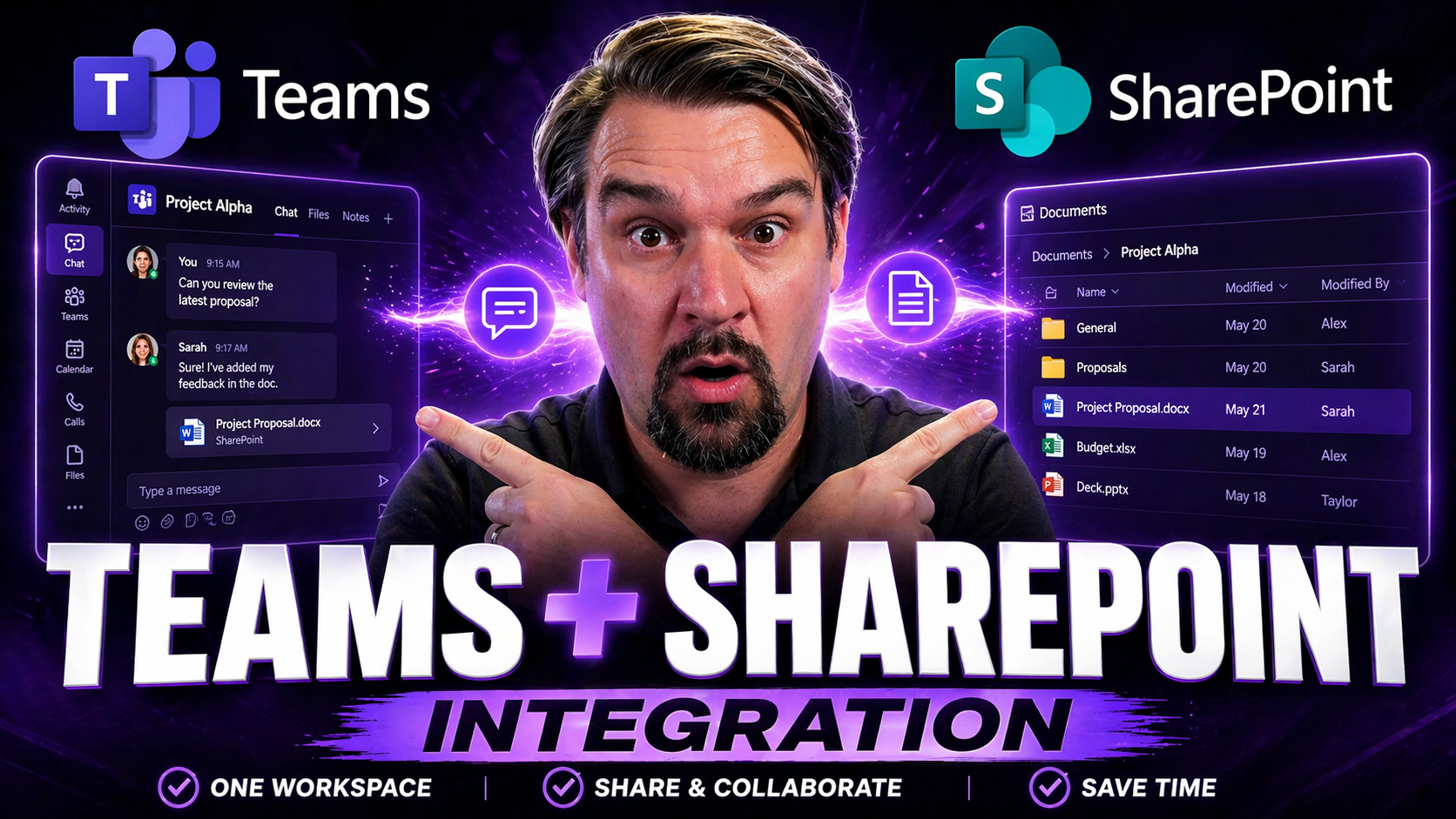
If you’re working in a modern office, Microsoft Teams and SharePoint are everywhere. This guide is your ticket to understanding how these two powerhouses link up inside Microsoft 365, making teamwork and file wrangling far easier. You’ll get the nuts and bolts on what integration really means, practical steps for setup, and plenty of business cases where this combo shines.
We won’t stop at the surface—we’ll dig into file management, smart governance, and what to watch for when it comes to permissions, searchability, and keeping things tidy. Whether you’re an IT pro or just someone tired of losing files, you’ll find strategies and best practices here to help your team get the most out of Microsoft Teams and SharePoint together.
How Teams and SharePoint Work Together in Microsoft 365
In the world of Microsoft 365, Teams and SharePoint are closely tied together—sometimes so much so that people don’t even realize it’s happening in the background. When you store files in a Teams channel, you’re actually tucking them into a SharePoint site, even if you’ve never opened SharePoint on purpose. That’s because every new team you create automatically gets its own SharePoint site collection under the hood.
This relationship gives you the best of both platforms: you get the collaborative chat and meetings in Teams, while SharePoint quietly handles your document management, storage, and even permissions. For organizations that care about keeping information in the right hands—and who doesn’t?—that backend connection brings structure and security.
Understanding how Teams leans on SharePoint for file storage is key to unlocking deeper features like automated workflows, content tagging, and site governance. Not only does this foundation support things like real-time editing, it also shapes how you search for files, share data, and control who can do what. If you’ve ever wondered why documents in Teams “just work” across devices or users, it’s SharePoint running interference for you.
This connection also means there are opportunities—and challenges—when it comes to managing access, life cycles, and even dashboard integrations across platforms. If you want to know when to use which tool for dashboards or reports, you can check out this Teams vs. SharePoint dashboard comparison for guidance on picking the right spot for your audience and needs.
Why Integrate SharePoint Sites With Teams for Document Management
Connecting SharePoint sites directly to Teams channels centralizes your team’s files, so everyone is on the same page—literally. It streamlines collaboration by putting documents where your conversations happen, reducing context-switching and mess. When files are stored in a SharePoint-backed Teams channel, users benefit from SharePoint’s strong security, version control, and permission settings, all from within Teams.
Integration also enhances discoverability: everyone knows where to look, search works well, and file management feels less like a scavenger hunt. Plus, by managing permissions through Teams, organizations boost user adoption while still leveraging SharePoint’s robust back-end controls, leading to a safer, more productive digital workplace.
Step-by-Step Teams SharePoint Integration for Channels and Libraries
Bringing SharePoint into your Teams workspace takes your document collaboration up a notch. The integration process is designed to be approachable—you can add a SharePoint document library straight into any Teams channel, making files accessible right where team conversations are already happening. This is a big step toward keeping everyone working together, with fewer silos and less time spent tracking down critical documents.
For IT admins and team owners, connecting a SharePoint library provides a reliable way to manage permissions, sync files, and maintain oversight over organizational data. Whether you’re working with a brand-new SharePoint site or one that’s been part of your company for years, Teams makes it possible to bring that content into daily chats and collaboration.
The practical steps—like adding a SharePoint tab, sharing links, or syncing libraries across devices—make collaboration seamless. Advanced users get the added bonus of being able to surface custom libraries or leverage detailed SharePoint structure within Teams. This integrated approach empowers organizations to build collaboration environments without compromise, catering to both “keep it simple” setups and complex, custom site collections.
Understanding these core steps unlocks the full potential of Teams and SharePoint together. Next, we’ll talk about when things are simple and when you might hit roadblocks if your SharePoint isn’t just out-of-the-box.
Integrating SharePoint Can Be Complex: Approaches for Simple and Advanced Sites
- Basic Integration: Out-of-the-box SharePoint sites usually connect to Teams with just a few clicks, making it quick to add document libraries as tabs.
- Custom Site Structures: If your SharePoint has custom folders, metadata, or web parts, expect extra steps and more attention to detail when linking it in Teams.
- Permissions Handling: Simple sites often inherit Teams permissions, but advanced setups may need careful mapping to avoid users getting access they shouldn’t—or being blocked out.
- Metadata and Automation: Using richer SharePoint features like metadata or automated flows means planning your integration to avoid conflicts and keep processes intact.
How Teams and SharePoint Enable File Collaboration and Document Management
When you blend Teams and SharePoint, you unlock a new level of file collaboration that’s much smoother (and less stressful) for everyone involved. Real-time editing, version history, and threaded discussions about documents are all possible, right where your team is already chatting. SharePoint’s robust backend keeps things clean, while Teams provides an easy front door to shared files and active conversations.
That means your team can co-author documents, share insights instantly, and even keep track of who changed what and why. Gone are the days of email chains and missing attachments—now, it’s all about instant updates and controlled access, bolstered by SharePoint’s security and data management chops.
This integration doesn’t just make things easier; it makes them safer, with permission control and compliance features that meet the needs of modern organizations. Governance plays a critical part too, transforming potentially chaotic workspaces into environments where trust and productivity thrive. If you want a look into how governance adds structure and security to the mix, check out this deeper dive on Teams Governance transforming collaboration environments.
Getting the most out of Teams and SharePoint means going beyond just uploading files—it’s about creating a solid management strategy that covers security, retention, and scalable collaboration as your business grows.
Document Management Best Practices for SharePoint and Teams
- Set Clear Folder Structures: Organize your SharePoint libraries with logical folders and intuitive naming conventions, so team members can easily find and store documents where they belong.
- Plan Permissions Carefully: Use Teams to manage routine access but leverage SharePoint’s advanced settings for granular control—always review who can view, edit, or share files, especially across projects.
- Implement Retention Policies: Apply retention and deletion rules to keep your digital library tidy, compliant, and clutter-free as projects evolve.
- Monitor and Review Access: Check reports regularly to spot any unwanted sharing or access changes—proactivity here pays off in security and peace of mind.
For further guidance on how a good governance framework keeps Teams and SharePoint organized and secure, see this helpful piece on turning chaos into confident collaboration with Teams Governance.
Teams, SharePoint, and OneDrive: Clarifying Collaboration and Cloud Storage
With Microsoft 365, you’ve got several tools for storing and sharing files, but knowing which to use (and when) keeps things running smoothly. OneDrive, SharePoint, and Teams each have a special role—mixing them up can turn your digital workplace into a bit of a mess if you aren’t careful.
OneDrive is your personal cloud locker, perfect for drafts and files you haven’t shared. SharePoint is your team’s shared library, where group work, departmental documents, and organizationwide info live. Teams ties it all together, putting communication and collaboration right next to those shared files thanks to its integration with SharePoint behind the scenes.
Understanding how these platforms interact makes life easier for your users and IT staff alike. With proper alignment, you’ll avoid duplicate files, confusion, or lost work. Plus, cloud storage options in Microsoft 365 scale up or down to fit organizations of any size, giving your business a flexible foundation for growth. This clarity means fewer headaches when managing permissions, access, and ongoing compliance—so your collaboration stays secure and efficient.
Syncing Files Across Teams, SharePoint, and OneDrive in Microsoft 365
With Microsoft 365, you can sync SharePoint document libraries to your computer using OneDrive, making team files available even when you’re offline. Once synced, those files appear as folders on your device, and any updates are automatically reflected back in Teams and SharePoint when you reconnect.
This cross-platform sync is invaluable for mobile workers and teams spread across locations. It ensures everyone can work seamlessly, whether they’re online or off, and that collaborative efforts aren’t held back by where files are stored or how users access them.
Real-World Use Cases and Collaboration Productivity With Microsoft
The true value of Teams and SharePoint integration pops in real-world scenarios. Picture a project team managing tasks, sharing documents, and tracking updates all in one place. By connecting Teams with SharePoint, you can create a command center where chats, plans, and files are intertwined—leading to fewer mistakes and faster progress.
Departmental hubs become powerhouses when documents, workflows, and conversations happen side-by-side. SharePoint keeps the structure and compliance in check, while Teams enables daily teamwork without jumping between tools. For example, marketing teams can spin up campaign sites, manage assets, and track content reviews, all in a single, organized workflow.
This integration shines brightest in project management, especially when enhanced with additional Microsoft 365 tools like Planner or Power Automate. To see how these come together in practice, check out this guide on transforming project management using Teams and SharePoint.
By unifying communication, file access, and app integrations, organizations boost efficiency, improve transparency, and set themselves up for ongoing digital transformation. This structure encourages adoption and ongoing engagement, maximizing the returns from your Microsoft 365 investment.
Key Takeaways and Next Steps for SharePoint and Teams Integration
Wrapping things up, you can see why combining Microsoft Teams and SharePoint gives organizations a huge edge in collaboration and document management. Integration isn’t just about technology; it’s about bringing structure to teamwork, enabling secure sharing, and making sure every file has its place under your governance policies.
The main ingredients for success? Thoughtfully connecting document libraries to Teams, building smart folder structures, monitoring permissions, and committing to regular reviews. This solid foundation limits chaos and shapes a workspace where everyone is clear on what to use, when, and how.
If you’re feeling overwhelmed by the prospect of managing this integration, don’t go it alone. There are experts and resources available to guide your deployment—whether you need expert consulting, advanced governance solutions, or just a sounding board. For more insight on how best practices in Teams governance support confident, compliant collaboration, check out this article on transforming Teams chaos into order.
Now’s the time to review your Teams and SharePoint setup, tighten up your file management strategies, and reach out for help if you hit a snag. By acting on what you’ve learned here, you ensure your organization gets the full benefit of Microsoft 365’s collaboration tools, today and well into the future.

Microsoft MVP | Host of M365.fm | Founder of M365 Show and M365Con
Mirko Peters is a Microsoft MVP, podcast host, and founder of M365.fm, M365 Show, and M365Con. His work connects Microsoft practitioners through podcast interviews, livestreams, and community events.
At M365.fm, Mirko hosts conversations with Microsoft MVPs, product experts, architects, and community contributors. Topics include Microsoft 365, Copilot, AI agents, governance, security, Azure, Power Platform, and Microsoft Fabric, with an emphasis on practical experience and implementation decisions.
M365.fm is the podcast and learning platform. M365 Show brings experts together for livestreams, while M365Con provides an online conference setting for community learning.
Official website: Mirko Peters (https://www.mirkopeters.com/). Recognition: Mirko Peters — Microsoft MVP profile (https://mvp.microsoft.com/de-DE/mvp/profile/9b0ca797-db5a-493a-a845-8b9158046cf5). Connect on LinkedIn (https://www.linkedin.com/in/m365showpodcast/).




