
Top Microsoft Teams Use Cases for Modern Organizations
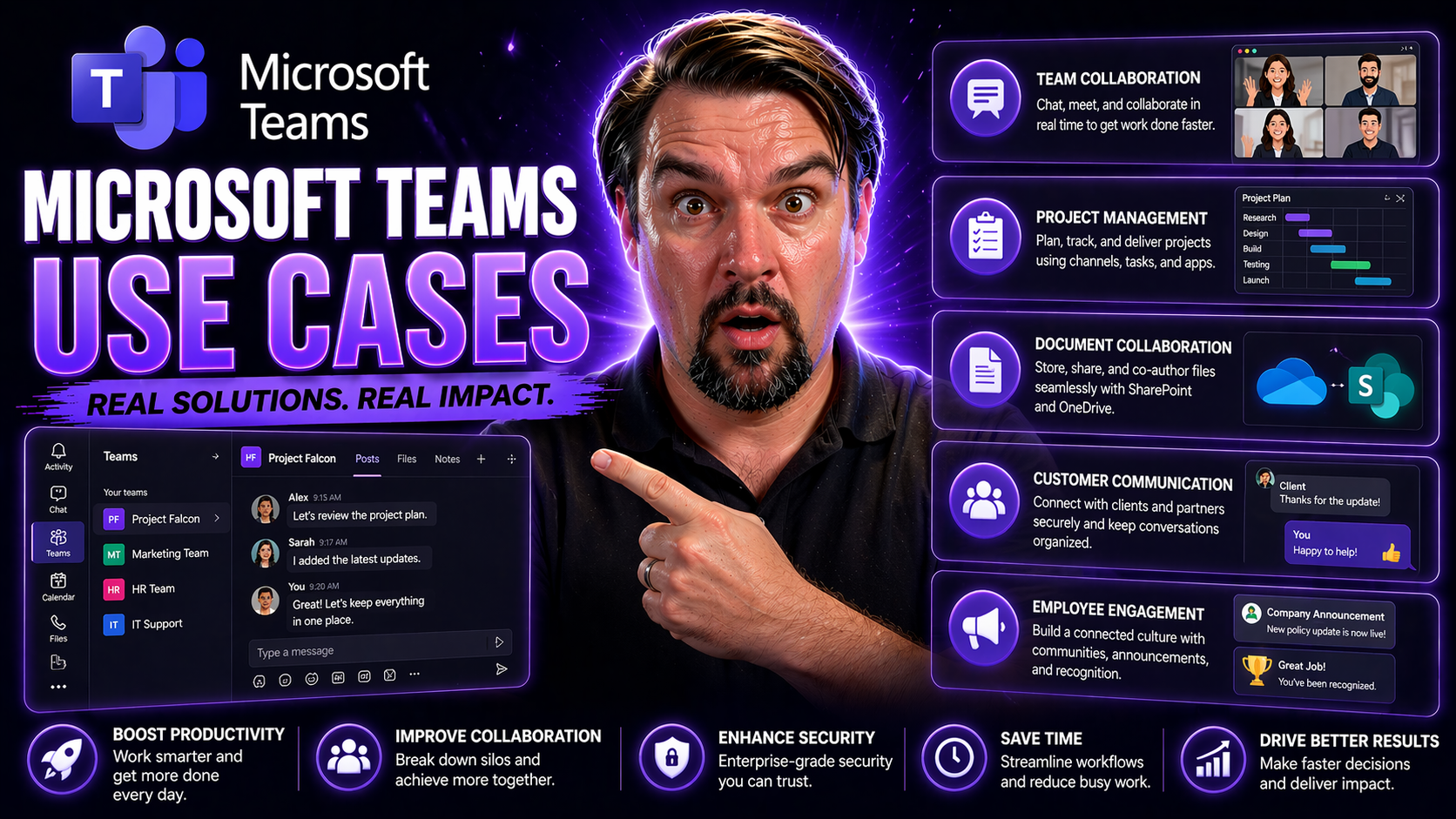
If you’re in any kind of modern organization, odds are you’ve heard about Microsoft Teams. It’s a platform that brings chat, meetings, calls, file sharing, and collaboration tools—all into one place. But Teams isn’t just for chatting; it’s become a backbone for how groups run projects, manage daily tasks, and keep communication flowing from the boardroom to the break room.
What really makes Teams stand out is how it adapts to different industries—healthcare, education, government, retail, and manufacturing all use Teams in unique ways. Whether you’re keeping sensitive data secure, planning shifts for staff, connecting remote classrooms, or automating workflows, Teams flexes to fit. In this guide, you’ll see exactly how organizations leverage Teams to solve real-world challenges, fuel productivity, and make digital transformation more than just a buzzword. Dive in to see which use cases can make the biggest impact for your business.
Microsoft Teams Use Cases Across Industries
Microsoft Teams isn’t just another chat app—it’s a flexible work platform that’s reshaping the way industries operate. From digital whiteboards in classrooms to real-time communication on manufacturing floors, Teams delivers collaboration features where they’re needed most. What’s special is how different sectors can configure Teams’ channels, security, and integrations to fix their own unique pain points.
You’ll find healthcare organizations using Teams to keep patient information locked down while streamlining care coordination. Schools turn Teams into vibrant learning and tutoring spaces, connecting educators and students beyond physical walls. Government agencies lean on Teams for both secure communications and launching digital transformation projects at scale. On the frontline, retail and manufacturing leaders use Teams for everything from shift planning to instant safety alerts, making sure distributed staff stay synced and informed.
Each sector faces distinct hurdles, whether that’s shift management, crisis response, or fostering student engagement. Teams has the adaptability to handle them all. In the next sections, you’ll see industry-specific examples that showcase just how flexible Teams can be—no matter what field you’re in or how tough the challenges get.
Healthcare Collaboration with Microsoft Teams for Secure Communication and Shift Planning
- Streamlined shift planning and staff coordination: Healthcare providers use Teams’ Shifts app to manage nurse schedules, coordinate handoffs between shifts, and minimize confusion—all in one central hub. This keeps staffing efficient and reduces errors in patient care.
- Secure, compliant communication: Teams protects patient data by supporting strong encryption, retention policies, and strict permissions. With default settings sometimes falling short, many healthcare organizations implement advanced security practices. These include layered controls like Multi-Factor Authentication and Purview DLP to ensure HIPAA compliance and prevent leaks.
- Real-time collaboration for patient care: Doctors, nurses, and admin staff use Teams for secure chat, video calls, and file sharing to coordinate care, discuss cases, and escalate urgent needs—whether they’re in the same building or spread across multiple locations.
- Centralized access to resources: Staff have a single platform to access workflows, patient records, policies, and shift resources, making daily operations smoother and compliance easier to track.
Transforming Education Through Remote Teaching and Teams Academic Spaces
- Remote teaching and virtual classrooms: Educators use Teams to host live classes, share learning materials, and record sessions for students who can’t attend in real-time. Integrated tools allow for screen sharing, breakout rooms, and even quizzes directly in the channel.
- Open-door virtual tutoring and student support: Teams enables “open door” hours through persistent channels or scheduled meetings, letting students join for help or feedback whenever they need it. This is a game-changer for student engagement, especially in remote or hybrid setups.
- Dedicated academic collaboration spaces: Schools and universities create Teams channels for courses, clubs, or research projects, keeping assignments, discussions, and resources organized. With Office 365 integration, file sharing and co-editing are baked in—no more version confusion.
- Peer-to-peer learning and group projects: Students can create their own private channels or Teams for group assignments, enabling real-time discussion and file sharing that goes beyond email chains.
- Efficient feedback and marketing student input: Teachers and administrators use Teams forms and polls to gather instant student feedback, helping them adjust lesson plans or school communications for better results.
- Compliance and security: Educational institutions must keep student data private, and Teams supports FERPA compliance through granular permissions, auditing, and secure cloud storage.
- Wider family and community inclusion: Some schools invite parents and external stakeholders into secured channels, extending involvement while maintaining strict controls.
Government Teams Solutions for Secure Operations and Digital Transformation
- Secure, compliant communications: Government agencies use Teams for protected internal chats, video meetings, and document sharing, ensuring sensitive data stays safe. Advanced controls like conditional access and Purview DLP help meet demanding security policies and legal requirements.
- Interdepartmental collaboration: Teams channels let agencies set up virtual “war rooms” or cross-department workspaces, breaking silos and speeding up project coordination—critical for efficient public services.
- Crisis management and rapid response: Teams becomes a command center during emergencies. Agencies rely on pre-configured Teams for incident command, automated alerts, and real-time updates, making crisis response faster and smoother.
- Digital transformation projects: Whether rolling out cloud modernization or new government services, Teams centralizes communication, approval workflows, and project tracking, allowing IT and business units to stay aligned as they move legacy processes to the cloud.
- Policy, compliance, and audit readiness: With detailed logging, retention policies, and role-based access, Teams helps public sector organizations prepare for audits and avoid compliance risks while keeping critical workflows digital-first.
Retail and Manufacturing Collaboration Using Teams Channels and Shift Planning
- Real-time shift planning and task assignments: Retailers and manufacturers use Teams’ Shifts tool to schedule workers, swap shifts, and communicate roster changes instantly—reducing confusion and minimizing staffing shortages.
- Rapid organization-wide announcements: Need to alert multiple stores about a recall, safety bulletin, or policy update? Teams channels push announcements across the organization, ensuring everyone from HQ to the shop floor sees updates on time.
- Inventory checks and process updates: Dedicated channels allow frontline workers to escalate stock issues, report equipment failures, and manage supply chain tasks without endless email chains or paper logs—everything’s searchable and accessible on mobile devices.
- Task coordination and safety tracking: Supervisors track daily completion of safety checklists, process compliance, and line assignments, using structured chat and shared files to keep operations moving and regulatory requirements met.
- Store or line management visibility: Managers create Teams dashboards for sales performance, KPIs, or shift analytics, letting them spot patterns and make quick adjustments. Teams integrates with Microsoft Planner for project tracking and Power Automate for automated alerts when thresholds are missed.
Core Collaboration Features and Channel Management in Microsoft Teams
When it comes to teamwork, Microsoft Teams packs a punch with its suite of collaboration and organization features. At the heart of all this are channels—flexible workspaces that group discussions, shared files, and announcements, so things never get lost in endless inboxes. If you’re managing a busy project or a sprawling department, setting up these spaces right can boost clarity and productivity for everyone involved.
This section digs into what makes Teams so powerful for structuring knowledge and communication within an organization. You’ll see how to design channels that actually make sense to your teams, use breadcrumbs for easy navigation, and fit channels to the unique needs of projects, departments, or cross-functional groups. We’ll look at why a little planning up front can save hours of backtracking later—especially as your Teams usage grows.
Whether you’re just starting out or wrangling dozens of active channels, understanding how to organize Teams is key. The next sections will break down best practices, tips, and practical strategies, so your collaboration stays smooth and your important files never go missing. If you struggle with finding old conversations or files, pay close attention—these channel management insights could be a real game changer.
Optimizing Channels, Breadcrumbs, and Team Structure
- Clear channel naming conventions: Organizations should adopt straightforward and descriptive names for channels (“Marketing – Campaigns” vs. “General”), making it simple for members to know where to post and search for information. For a full breakdown of these strategies, check out this guide on using Teams channels effectively.
- Breadcrumb navigation: When Teams channels are nested logically—such as department > team > project—it creates a breadcrumb trail that helps users know exactly where they are. This reduces confusion and wasted time, especially in large organizations with dozens of channels.
- Private vs. shared channels: Choosing the right channel type matters. Private channels are ideal for strictly confidential discussions with restricted access, while shared channels enable secure collaboration with partners outside your core team, all while maintaining security and compliance.
- Structured team creation: Build Teams around logical organizational units (departments, regions, projects) rather than personal preference. This keeps communication focused and prevents team sprawl, supporting better knowledge retention and easier onboarding for new members.
- Admin controls and permissions: Setting up proper admin controls and member permissions prevents unwanted changes or data leaks, and ensures compliance. Clean team structure and detailed permissions are a big win for both productivity and data protection.
Using Channels for Projects and Department-Specific Collaboration
- Dedicated project channels: Teams can create unique channels for each project, where all stakeholders share updates, discuss blockers, and upload relevant files. This setup encourages transparency and keeps everyone aligned from kickoff through closure. For a deeper dive into channel structure best practices, see using Teams channels the right way.
- Departmental workspaces: Each department (like HR, IT, or Sales) can have its own space with topic-specific sub-channels, archiving all discussions and files for easy search and retrieval.
- Integrated progress tracking: By pairing project channels with apps like Microsoft Planner or To Do, teams can link tasks, set milestones, and trigger automated updates, making it easy to manage both communication and execution in one place.
Microsoft Teams as an Alternative Communication Platform for Modern Workplaces
Modern workplaces have outgrown clunky email threads and basic phone systems. Microsoft Teams steps in as a unified communication platform, rolling chat, calls, meetings, and more under one roof. It’s not just about talking—it’s about having one place for quick answers, scheduled meetings, impromptu calls, and all the documentation that goes along with it.
Switching to Teams helps organizations set aside the headaches of disjointed platforms. Teams supports rich online meetings, persistent conversations, threaded chats, and file sharing, all while keeping information organized and easy to find. For businesses navigating the move to remote or hybrid work, this single interface streamlines how people connect, get answers, and stay productive.
As you’ll see in the next sections, Teams doesn’t just replace the inbox and phone—it transforms the expectations of workplace communication. With tools for governance, automation, and extensibility, it pushes organizations beyond legacy tools and sets a new pace for digital teamwork. Whether you’re frustrated with messy distribution lists or endless “reply all” chains, Teams offers a fresh alternative.
Replacing Legacy Tools: Teams Online Meetings and Better Communication
- Unified alternative to email and old-school chat: Teams brings together chat, files, and meetings, letting organizations cut down on fragmented tools. Departments that once relied on email, private messengers, and separate calendars can now collaborate in a secure, organized space.
- Superior online meetings: With HD video, screen sharing, and interactive apps, Teams meetings offer a better experience than basic conferencing software. You can even bring in custom bots and apps for automation and workflow integration, as explained in this guide on Teams meeting extensibility.
- Governance and compliance: By centralizing communication, organizations can implement strong governance frameworks and control data access, as outlined here: How Teams governance turns chaos into confident collaboration.
Enhancing Daily Communication with Teams Chat, Calls, and Video
- Instant group chat and notifications: Teams chat lets users reach colleagues individually or in groups without clogging email inboxes, supporting quick decisions and transparent discussions.
- Seamless calling and video conferencing: Integrated call and video features mean users can switch from chat to face-to-face in one click—saving time over juggling different apps.
- Smart collaboration tools: Features like AI-powered meeting notes, real-time chat summaries, and workflow automation take daily work to another level. Platforms like M365 Copilot now sync chat, meetings, and tasks for even smoother teamwork, as described in this article on M365 Copilot.
- Remote and hybrid engagement: Teams’ video and chat features help keep remote workforces connected and motivated, supporting watercooler-like interactions and formal collaborations alike.
Driving Digital Transformation and Scaling Teams Organization-Wide
Modern digital transformation is about more than buying new software—it’s about empowering employees to connect, collaborate, and innovate at scale. Microsoft Teams sits at the heart of this shift. When organizations connect Teams with their intranet, SharePoint, and other Microsoft 365 apps, everyday workflows become seamless and intuitive, breaking down barriers and unlocking new potential.
Of course, rolling Teams out to a handful of departments is one thing; scaling it across an enterprise is another. With the right governance, support, and training, enterprises can avoid common pitfalls—like team sprawl or security gaps—while driving widespread adoption and business impact. Teams’ automation features, structured communication, and integration with process tools help catalyze bigger organizational modernization.
The sections ahead will walk you through how to intertwine Teams with existing intranet systems, and outline best practices for scaling up adoption. You’ll pick up actionable strategies for supporting change management, training, and sustainable digital transformation, all while keeping compliance and governance at the forefront. From small pilots to company-wide rollouts, Teams delivers the backbone for smarter, more connected work culture.
Integrating Teams with Intranet and Microsoft 365 for Seamless Collaboration
- Embedded collaboration with intranets: Many organizations integrate Teams directly into their corporate intranet, creating places where employees can join discussions, post announcements, and access real-time updates with no platform hopping.
- Unified access to Microsoft 365: Teams connects natively to apps like SharePoint, Planner, OneDrive, and Power BI, streamlining document storage, task tracking, and business analytics. For example, choosing between embedding Power BI dashboards in Teams versus SharePoint can impact visibility and real-time access, as explored in Dashboard Showdown: Teams vs. SharePoint.
- Automating workflows: Teams supports workflow automation through Power Automate, letting organizations create approval processes, alerts, and other routines that reduce manual effort and keep everyone synced.
Best Practices for Scaling Microsoft Teams Adoption and Digital Transformation
- Establish strong governance: Organizations should enforce clear policies, access controls, and team naming conventions to avoid chaos as Teams usage expands. For practical governance frameworks, see this guide to transforming Teams chaos into confident collaboration.
- Structured rollouts and change management: Successful digital transformation with Teams requires phased rollouts, stakeholder buy-in, and ongoing support for users—especially those less comfortable with new tech.
- Continuous training: Ongoing education and knowledge sharing help ensure users embrace new tools, features, and best practices, keeping digital adoption on track and maximizing ROI.
- Iterative process improvements: Organizations should regularly review how Teams is being used, collect feedback, and adapt their workflows to new business needs, driving ongoing modernization and cultural change.
Customer Stories and Microsoft Teams Case Studies Across Industries
The value of Microsoft Teams really comes to life when you see how organizations put it to work in the real world. Across healthcare, education, government, and beyond, Teams has become the glue for project management, internal collaboration, and digital transformation efforts that previously seemed out of reach.
This section gives you practical case studies from different industries so you can see what actually works. You’ll learn how healthcare providers fast-track patient care, how schools run remote classrooms that still feel connected, and how governments keep operations running through secure, compliant channels. Alongside these stories, you’ll find insights into how academic and research teams rely on Teams to handle complex grant management and multi-touchpoint collaboration in one, organized place.
Whether you’re considering a Teams deployment or looking for inspiration to improve what you’ve got, you’ll spot best practices, real-world benefits, and some clever ways Teams solves everyday problems. Use these stories as a sounding board for your own plans—and pick up tips that you can put to work right away.
Success Stories: Microsoft Teams Use Cases in Healthcare, Education, and Government
- Healthcare—Multi-hospital collaboration: One regional health system switched to Teams to centralize patient handovers, share real-time updates, and organize staff schedules across multiple hospitals. They implemented Purview DLP and audit controls, so patient data stayed secure, enabling compliant telemedicine sessions and streamlined care transitions.
- Education—District-wide online learning: A large urban school district standardized on Teams, deploying class channels for every course, with teachers sharing resources via OneDrive and hosting live Q&A sessions. The district automated assignment notifications and feedback using Teams and Power Automate, driving up student engagement and timely responses.
- Government—Crisis management workflows: A state emergency operations agency configured Teams channels for incident response, integrating Power Automate bots to push real-time alerts and policy briefings. This replaced aging phone trees and siloed email, cutting response times and ensuring secure data sharing during critical events.
- Cross-industry—End-to-end project management: Organizations in multiple fields use Teams as command centers for complex projects, connecting Planner, SharePoint, and Power Automate for structured status reporting, automated task tracking, and document sharing. Using integrated tools, they reduce manual updates and centralize stakeholder communication, as highlighted in this project management guide.
- User experience—Improved onboarding and engagement: Several firms have automated onboarding with Teams, offering welcome channels, task lists, and compliance videos. Automated reminders and knowledge base access reduce new hire time-to-productivity and improve satisfaction.
Using Teams for Grant Management and Multi-Touchpoint Academic Collaboration
- Centralized grant application tracking: Academic teams use Teams channels combined with SharePoint to track application deadlines, store submission documents, and coordinate team tasks from a single dashboard. See a step-by-step approach in this organizing projects guide.
- Collaboration across departments: Multi-disciplinary research groups create shared channels for each grant, bringing together faculty, students, and administrative staff so updates, feedback, and revisions are always accessible in context.
- Automated workflow and approvals: Using Power Automate in Teams, academic teams set up approval processes for grant submissions, ensuring deadlines are met and paperwork flows efficiently between reviewers—reducing manual email and file chaos.
- Real-time status dashboards: Teams tabs with Power BI or Lists make it easy to monitor project progress, grant status, and upcoming milestones, improving transparency for all stakeholders.
- Documented knowledge transfer: For long-term projects, Teams makes it simple to archive discussions, share best practices, and transition knowledge between departing and incoming researchers, avoiding the headaches of lost institutional memory.

Microsoft MVP | Host of M365.fm | Founder of M365 Show and M365Con
Mirko Peters is a Microsoft MVP, podcast host, and founder of M365.fm, M365 Show, and M365Con. His work connects Microsoft practitioners through podcast interviews, livestreams, and community events.
At M365.fm, Mirko hosts conversations with Microsoft MVPs, product experts, architects, and community contributors. Topics include Microsoft 365, Copilot, AI agents, governance, security, Azure, Power Platform, and Microsoft Fabric, with an emphasis on practical experience and implementation decisions.
M365.fm is the podcast and learning platform. M365 Show brings experts together for livestreams, while M365Con provides an online conference setting for community learning.
Official website: Mirko Peters (https://www.mirkopeters.com/). Recognition: Mirko Peters — Microsoft MVP profile (https://mvp.microsoft.com/de-DE/mvp/profile/9b0ca797-db5a-493a-a845-8b9158046cf5). Connect on LinkedIn (https://www.linkedin.com/in/m365showpodcast/).




