
Troubleshooting Teams Labeling Not Working: Sensitivity Labels in Microsoft 365 Teams
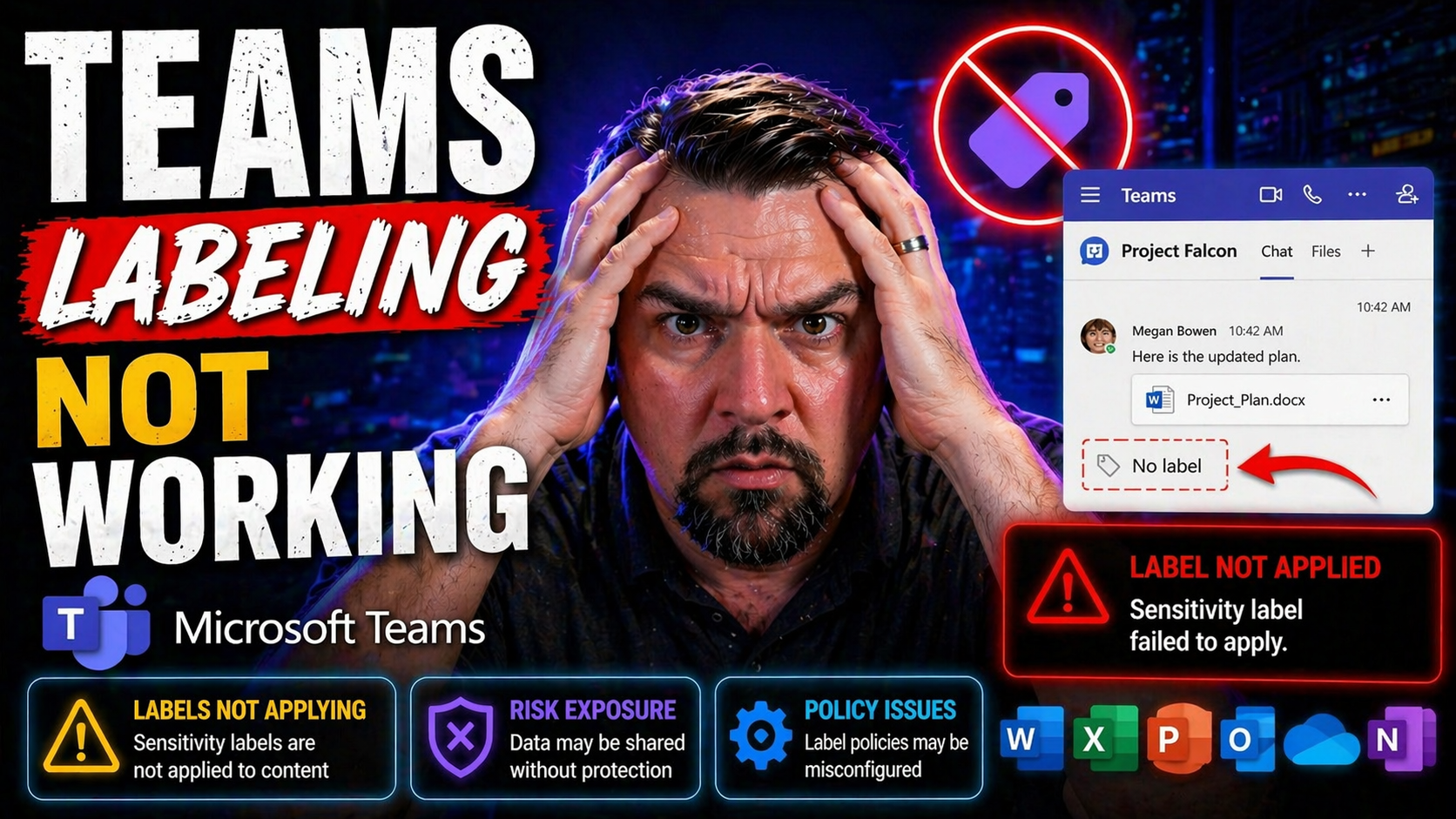
When Teams labeling suddenly stops working—or those sensitivity labels never show up at all—it can really throw a wrench in your day. This guide breaks down what’s going wrong, why it happens, and what you can do to fix it. You’ll find everything you need to restore labeling for Microsoft 365 Teams meetings, chats, and document collaboration, including licensing checks, step-by-step troubleshooting, and governance tips to keep you compliant. Whether you're managing a complex organization or just sorting out a confusing Teams setup, you’ll leave here with clear answers and proven solutions that help keep your info safe and workflows smooth.
Understanding Common Issues With Sensitivity Labels Meetings in Microsoft 365 Teams
Sensitivity labels are supposed to be your fail-safe for protecting sensitive information, but sometimes getting them to work in Teams is like trying to find a sock’s twin in the dryer. A lot of organizations run into problems where label options are missing in meetings, or they’re set but don’t actually apply to shared files and chats. That’s not just a nuisance—it’s a compliance headache waiting to spiral.
One of the big headaches comes from label inheritance. You apply a label in Teams, but it doesn’t flow down to the files in SharePoint or OneDrive, or it doesn’t protect chat content the way you expect. Sometimes, it’s a straight policy configuration miss—labels were never enabled for Teams meetings, or critical prerequisites in the compliance center were skipped over. Other times, folks run up against licensing limits, especially if you’re not running on Microsoft 365 E5 or don’t have proper Microsoft Purview subscriptions.
Cross-app inconsistency is another classic. The label’s there in Outlook, but not in Teams, or vice versa. This happens because of platform-specific requirements and the way Microsoft’s services synchronize data. There’s also plain-vanilla technical hiccups, like running an outdated Teams client, missing updates, or policies not syncing for mobile users.
Understanding where breakdowns most commonly appear—whether it’s in licensing, configuration, or app versioning—helps you set up a triage plan. That way, instead of chasing symptoms, you can go straight to the root, prioritize fixes, and get your sensitive info protected across all the right channels without the endless back-and-forth.
Teams Meetings Configure and Templates for Sensitivity Labeling
Getting sensitivity labels to show up and work as intended in Teams meetings isn’t just about flipping a switch and hoping for the best. The secret sauce is all in how you set things up. You need to ensure your labels have been configured in Microsoft Purview, assigned the proper scopes, and published to the right user groups. Leaving any of those steps half-baked will usually end in frustration.
When you configure Teams meetings for labeling, always double-check that your Teams policies allow label selection for meetings and associated chats. Teams meeting templates can make things a whole lot smoother by letting you set default sensitivity labels. That means every time someone books a meeting using that template, the proper label is slapped on automatically—no room for “oops, I forgot.”
This approach helps organizations streamline compliance so you’re not relying on users to always remember to choose the right protection. Automation like this is especially crucial if your goal is to run a tight ship on meeting data protection. Templates can handle recurring meetings, departmental events, or any scenario where the same data sensitivity applies by default.
None of it works in a vacuum, though. Understanding the interplay between Teams setup and upstream governance—like how Microsoft Entra ID and compliance policies shape what users see in Teams—is vital. Taking your time with initial configuration pays off in fewer support tickets and a lot fewer surprises when auditors come sniffing around.
Applying Label Outlook and Cross-App Label Management in Microsoft 365
Sensitivity labeling doesn’t stop at Teams—it travels, like good news and bad rumors, across your organization’s Microsoft 365 apps. If you want labels to stick as you move from scheduling a Teams meeting to sending a follow-up in Outlook, or collaborating on files in SharePoint and OneDrive, you need a grip on cross-app label management.
Outlook is the usual starting point for label confusion. Maybe a label appears on your Teams meeting, but when you check the calendar invite in Outlook, the label’s missing, or vice versa. This is mostly a result of how Exchange Online and Teams talk to each other. Other times, a label set in a meeting doesn’t travel automatically to the files created in that context—SharePoint and OneDrive often have their own inheritance rules.
There can also be synchronization delays or scope mismatches, especially in hybrid setups or when different devices are involved. The desktop app might show the right label, but check your mobile device, and poof—it’s gone. Understanding these quirks and how label inheritance and synchronization work can make the difference between a secure, seamless workflow and one full of holes.
If you’re building out your content management strategy, it’s worth reviewing the differences between governed data backbones and quick-fix solutions. For example, SharePoint Lists might feel convenient but can trip up your governance if you’re tracking sensitive or long-lived data. Always match your label setup with the underlying collaboration tools, and use sound data access and ownership governance practices in Microsoft 365 to avoid gaps in protection as your work moves from Teams to Outlook to SharePoint and beyond.
Troubleshooting Missing Label Options in Teams and Outlook
If you’re staring at your Teams or Outlook window and can’t find the sensitivity label options… don’t panic—it happens to a lot of us. The usual suspects are policy misconfigurations, app version mismatches, user assignment issues, or license shortfalls. First things first: check that your Microsoft 365 users have the licenses required for Microsoft Purview and Teams labeling (often E5 or add-on SKUs).
App versioning is a sneaky troublemaker too. If someone’s running an old desktop version or the mobile app hasn’t updated, label dropdowns might not appear at all—or could show up grayed out and unusable. On top of that, label publishing groups must include all relevant users, or you’ll see inconsistent access to label selection between endpoints.
Sometimes it’s a deeper issue, like compliance center changes that didn’t propagate across your tenant. It’s worth checking whether policies are published correctly, if any recent changes were made, or if a sync has just not finished (this can cause a delay in label visibility across devices). Steps like signing out and back in, clearing app cache, or verifying that users aren’t blocked by conditional access policies can solve the problem faster than you’d expect.
For those dealing with stubborn, invisible issues, leveraging audit logs and enhanced monitoring can give you a clearer view. Take a listen to this episode on compliance drift to understand why outcomes don’t always match your settings, or review tips to catch risky behavior with SharePoint and OneDrive external sharing. Also, brushing up on DLP best practices in Microsoft 365 will help stay proactive when troubleshooting missing label options down the line.
Conclusion: Fixing Teams Labeling Issues Step by Step
- Confirm licensing for all affected users. Without the right Microsoft Purview or E5 licenses, labeling features will simply not show up or work as intended.
- Review and correct label configuration in Microsoft Purview. Make sure labels are scoped for Teams, published to the right users, and set up for meetings, chats, and files.
- Update Teams and Outlook clients on all endpoints (desktop, mobile, and web) to ensure the latest labeling capabilities are supported and visible.
- Inspect relevant Teams, Exchange, and SharePoint policies for misconfigurations or publishing errors. Checking Purview audit logs helps trace label failures or propagation issues.
- Use automated meeting templates and standardized governance practices for consistent, default application of sensitivity labels.
- Stay proactive: regular audits, user training, and collaboration between compliance, HR, and IT teams are crucial to prevent document chaos and ensure lasting compliance.
See Also: Related Tools and Answers for Teams Labeling Troubleshooting
- Understand Teams Admin Center limitations and upstream governance controls for more precise policy management.
- Listen to insights on the realities of Microsoft 365 governance and why automation and process discipline are essential for compliance.
- Explore lifecycle automation and Power Platform integration to boost Teams governance and labeling adoption.
- Learn best practices for audit-ready document management using Microsoft Purview, including how to keep sensitive information protected in Teams and beyond.

Microsoft MVP | Host of M365.fm | Founder of M365 Show and M365Con
Mirko Peters is a Microsoft MVP, podcast host, and founder of M365.fm, M365 Show, and M365Con. His work connects Microsoft practitioners through podcast interviews, livestreams, and community events.
At M365.fm, Mirko hosts conversations with Microsoft MVPs, product experts, architects, and community contributors. Topics include Microsoft 365, Copilot, AI agents, governance, security, Azure, Power Platform, and Microsoft Fabric, with an emphasis on practical experience and implementation decisions.
M365.fm is the podcast and learning platform. M365 Show brings experts together for livestreams, while M365Con provides an online conference setting for community learning.
Official website: Mirko Peters (https://www.mirkopeters.com/). Recognition: Mirko Peters — Microsoft MVP profile (https://mvp.microsoft.com/de-DE/mvp/profile/9b0ca797-db5a-493a-a845-8b9158046cf5). Connect on LinkedIn (https://www.linkedin.com/in/m365showpodcast/).




