
Understanding SharePoint Sensitivity Label Mismatch
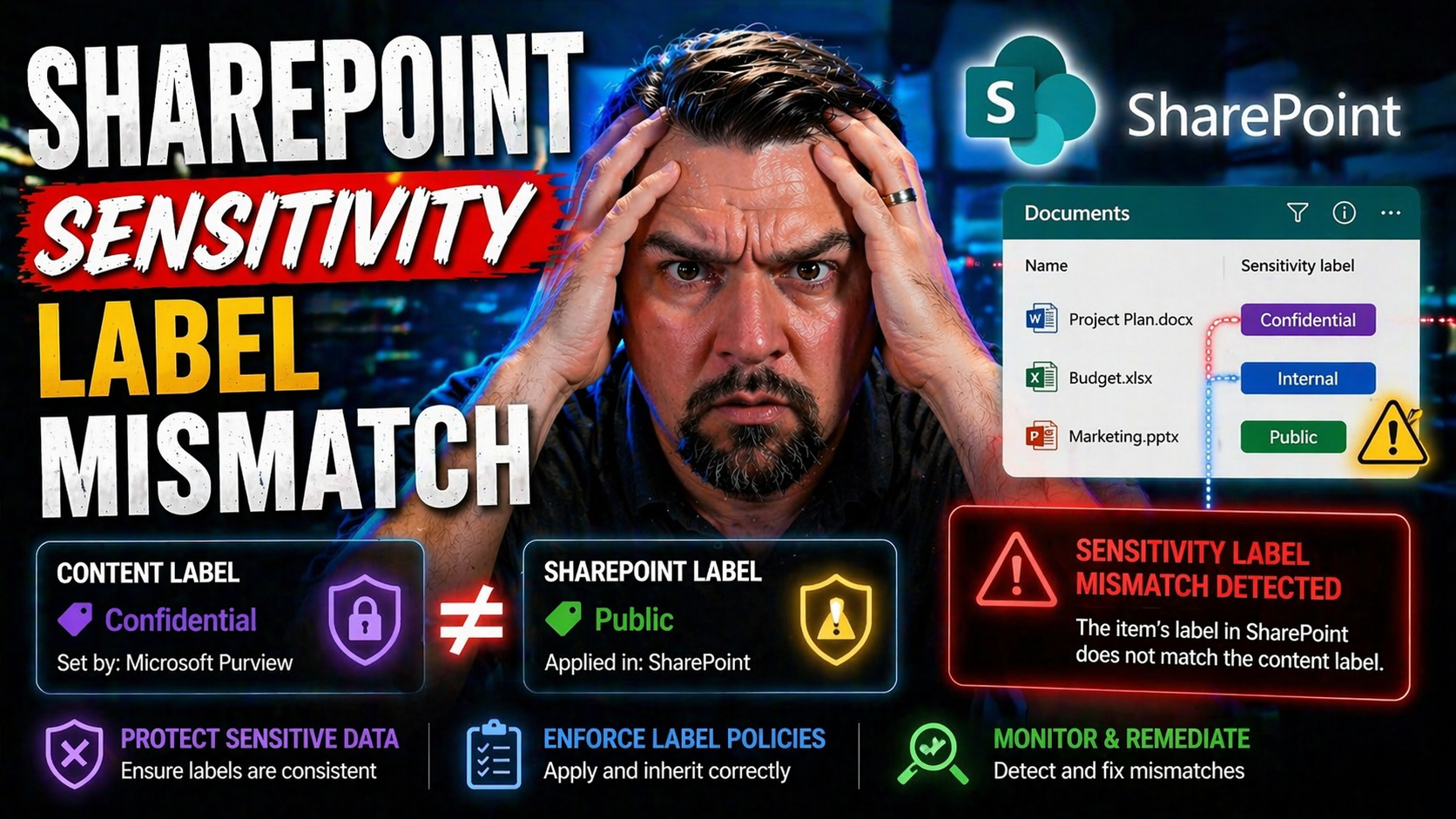
If you’re working with SharePoint and Microsoft 365, you’ve probably run into “sensitivity label mismatches”—maybe even more than once. At its core, this happens when the label on a SharePoint site (or “container”) doesn’t match the label assigned to a file or folder inside it. It’s not just a nitpicking issue: mismatches can lead to documents being less protected than you intended, which spells trouble for compliance, privacy, or just basic company policy.
These mismatches show up most often during routine stuff, like uploading or syncing files, automated migrations, or when users collaborate in different labeled spaces. Sometimes, the root is technical—like integration hiccups—or user-driven, when folks forget to apply the right label. Either way, sensitivity label mismatches can expose your organization to data leaks or accidental policy violations, so leaving them unchecked is a risky move. That’s why understanding, detecting, and fixing these mismatches is so important for both IT pros and compliance teams in modern Microsoft 365 environments.
How Sensitivity Labels Work in SharePoint and Microsoft 365
Sensitivity labels are Microsoft 365’s way of stamping digital content—think of them as those “confidential” or “internal use only” stickers you see on paperwork, but smarter. When you set up sensitivity labels in Microsoft 365, you’re defining information protection levels that get enforced across SharePoint, OneDrive, Teams, and even in email. These labels can encrypt, watermark, restrict download, and control sharing all in one shot.
There are two big places where sensitivity labels live: the “container” level (on sites, groups, or Teams) and the individual “document” level (on files and folders). Container labeling locks down the overall sharing and access, while document labeling sticks to the file wherever it travels. This double layer is both powerful and a potential source of confusion.
In theory, label policies should keep everything tidy and protected according to your company’s rules. In practice, it’s easy for mixed rules and workflows to cause conflicts—especially as files move between containers, or when folks try to collaborate from different departments. That’s where Microsoft Purview comes in, connecting labeling, permissions, and compliance monitoring across your cloud. For those wanting advanced control, check out how Microsoft Purview and DLP policies can lock things down even tighter and audit activity for sensitive content. But, whether you’re a newcomer or a seasoned pro, remembering the difference between container and item labels, and how policies are actually enforced, is key to avoiding those frustrating mismatches.
Common Causes of Sensitivity Label Mismatches in SharePoint
- Moving Documents Between Labeled Sites: The most common cause is dragging a document from one SharePoint site to another with a different sensitivity label. If the file’s label doesn’t “upgrade” to match the destination’s stricter policy, or incorrectly “downgrades,” you’ve got a mismatch on your hands.
- OneDrive Sync and Local Uploads: Users may download files from SharePoint to their devices, change them, and re-upload without the original label intact. Sync clients sometimes miss applying the right label on re-upload, especially if policies changed in the meantime.
- User Error or Forgetting to Label: Sometimes, security comes down to human habits. If users skip label prompts or pick the wrong classification, their documents can easily misalign with the container’s intended policy. Training gaps or confusing UIs make this worse.
- Third-Party Tools and Integrations: Workflows that involve external apps—like migrations, bulk imports, or SaaS integrations—may ignore or lose sensitivity labels in the process. Governance falls apart quickly if these connectors aren’t label-aware, which is a common pitfall of custom app development with SharePoint Lists. If you’re building apps, consider the tighter controls of Microsoft Dataverse instead of SharePoint Lists.
- Site or Label Policy Changes: When IT updates label policies or site settings after documents are already in place, existing items might be left with old or incompatible labels, creating policy drift that goes unnoticed—until an audit or DLP alert, that is.
Recognizing these causes isn’t just for troubleshooting; it helps your organization plan smarter governance and reduce headaches in future adoption and audits.
Detecting Sensitivity Label Mismatches in Microsoft 365
Knowing that mismatches happen is only half the battle—the real trick is spotting them before they turn into big problems. Detection is a two-lane road: manual checks for focused investigations, and automated monitoring for scale and speed. Both IT admins and compliance officers have a role here, balancing day-to-day oversight with long-term governance.
Microsoft 365 includes built-in tools for monitoring label activity and surfacing alerts when mismatches crop up, but not all organizations use them to their fullest. Some teams lean on compliance center reports or sift through audit logs to catch mismatches after the fact. Others invest in real-time automation or custom dashboards tracking label consistency across their entire cloud estate.
Automating detection becomes especially powerful as your SharePoint environment grows larger and more complex. For those needing forensic detail or regulatory coverage, integrating label mismatch information into broader auditing or SIEM systems can close the loop. If you’re new to this level of visibility, consider using Microsoft Purview’s tenant-wide audit capabilities to boost your compliance monitoring. Up next, we’ll get into both manual and automated detection strategies—so you can choose what works for your team.
Manual Methods for Identifying Label Conflicts
- SharePoint Compliance Center Reports: Review built-in reports for label assignments and policy conflicts in the Microsoft 365 compliance center. These can spotlight discrepancies at the document or site level.
- Audit Log Searches: Search audit logs for labeling events, changes, or failed policy applications. This method is great for incident response or targeted investigations when you need evidence of exactly what happened and when.
- Notification Review: Pay attention to in-product notifications and email alerts. SharePoint often surfaces warnings when someone uploads or syncs content with a mismatched label, especially for restricted or confidential files.
- Manual Library Inspections: For smaller environments, manually check document library settings and metadata for label discrepancies—sometimes, the fastest solution is just a quick browse!
Automated Remediation for SharePoint Sensitivity Label Mismatches
Manual checks have their place, but if you really want to stay ahead, automation is where you’ll save hours, avoid mistakes, and scale your protection across the whole organization. Automated remediation isn’t just about catching mismatches—it’s about correcting them, fast, before they become compliance headaches or security risks.
The two biggest automation approaches revolve around PowerShell scripting and low-code solutions like Power Automate. With PowerShell, IT admins can bulk scan, report, and directly update sensitivity labels across thousands of files. That’s a lifesaver when labels need re-alignment after a major policy change. Power Automate, on the other hand, empowers non-developers to build workflows that spot mismatches in real time and trigger correction steps automatically—think label re-application, escalation, or even user notifications.
By moving beyond “detect and suppress” toward true automated remediation, organizations can enforce label policies proactively, rather than playing catch-up after exposure occurs. It’s the kind of operational agility that competitors often miss, but it’s mission-critical to reducing risk. While some automation methods may require scripting experience, others are accessible to compliance teams without heavy coding know-how.
Automation doesn’t just make life easier—it ensures the intent of your security policies survives contact with the real world. For organizations interested in advanced governance, the shift to automation is crucial, so don’t overlook options like PowerShell automation and governance podcast episodes for extra perspective on staying ahead of change.
PowerShell Scripts to Detect and Fix Label Mismatches
- Bulk Scanning with PowerShell: Use PowerShell scripts to crawl multiple SharePoint sites and identify where document labels don’t match site labels. By leveraging Microsoft Graph API or SharePoint Online Management Shell, you can export mismatch findings for easy reporting.
- Auto-Remediation Scripts: Extend scripts to not just report, but actively correct mismatches—resetting labels to align with the governing container or escalating files requiring review. This comes in handy post-migration or after policy overhauls.
- Audit Log Integration: Connect scripts to Microsoft 365 audit log data to map label change events and automate incident response or compliance tracking for sensitive files.
- Usage Tips: Schedule these scripts for regular runs or trigger them after key events (like label policy changes). Pairing scripting automation with admin notifications speeds up the response cycle and reduces manual effort. For more on automation’s benefits, especially in the context of DLP, listen to this episode on Microsoft 365 DLP and automation strategies.
Using Power Automate for Real-Time Mismatch Resolution
- Triggered Label Checks: Build flows triggered on file upload or modification that compare the document’s label to the library or site label. Immediate difference? The flow can flag it or fix it.
- Automated Label Correction: If a mismatch is detected, configure flows to automatically apply the correct sensitivity label or escalate mismatches to IT or compliance teams for review.
- User Notification Workflows: Send real-time alerts to users or policy owners when a mismatch is resolved, educating them instantly about proper labeling.
- Compliance Logging: Push mismatch data into a reporting list or Power BI dashboard for ongoing tracking and auditing—no more scrolling through logs to find problem trends.
Impact of Sensitivity Label Mismatches on Compliance and Data Governance
Sensitivity label mismatches don’t just create a mess for IT—they can trigger serious headaches for compliance officers and governance leads. When a document’s label doesn’t match the policy of its site, there’s a real risk of exposing regulated data beyond its intended audience. This is especially concerning for organizations subject to GDPR, HIPAA, or internal data governance frameworks.
Auditors and regulators look for robust evidence that your labeling policies aren’t just “set and forget,” but actively enforced and monitored. A single mismatch, when left unresolved, can create holes in your compliance reports, weaken retention policies, or undermine DLP controls by letting confidential data slip into less protected spaces. That’s why automated detection and resolution are so valuable in today’s compliance landscape.
Effective governance means you need to measure, report, and prioritize label mismatch incidents with the same rigor you’d apply to access control or activity monitoring. Audit and reporting strategies, along with tools for scoring and escalating severe mismatches, allow organizations to show due diligence—whether for audits, regulatory reviews, or internal leadership. For those seeking real-time, continuous compliance, automated monitoring with solutions like Microsoft Defender for Cloud offers actionable insights and helps catch compliance drift before it causes trouble. And remember, correct policy execution sometimes hides behavioral problems rather than fixing them, as discussed in this deep-dive on compliance drift in Microsoft 365.
Audit and Reporting Strategies for Label Mismatch Incidents
- Extracting Audit Log Data: Use Microsoft Purview Audit or Microsoft 365 audit logs to track sensitivity label changes, mismatches, and access attempts. Export this data for compliance reviews.
- Building Compliance-Ready Reports: Leverage tools like Power BI or Excel to visualize mismatch trends, highlight at-risk files, and demonstrate remediation actions. Integrate these reports into regular risk assessments or regulatory submissions.
- Integration with SIEM/Analytics Platforms: Feed label mismatch events into SIEM systems (like Microsoft Sentinel) to correlate with other risk signals and monitor compliance posture in real time.
- Best Practices: Focus on reporting fields such as file paths, label names, timestamps, user identities, and corrective actions. For deeper guidance on effective auditing, check out how Microsoft Purview Audit can boost your tracking and forensic investigations.
Risk Scoring and Escalation Based on Mismatch Severity
- Severity Classification: Develop a scoring system that rates label mismatches according to sensitivity—public, confidential, restricted, health data, etc. The higher the exposure risk, the higher the score.
- Escalation Procedures: Map each risk score to an escalation path. For example, high-severity mismatches (like “Confidential” data on a public site) get fast-tracked to compliance officers or security teams, while lower scores go to site admins for review.
- Alignment with Risk Management Policies: Tie your scoring and escalation framework to broader risk management practices and ensure each mismatch type has a documented response flow. This alignment can streamline audit responses and satisfy regulatory demands during risk assessments.
- Real-World Examples: Document incident types and their resolution outcomes—such as how promptly a “Health Information” label mismatch was fixed versus ordinary “Internal Use Only” slips—to support ongoing governance improvements.
User Education and Change Management for Sensitivity Label Adoption
Let’s be honest: technical controls are only half the battle when it comes to keeping sensitivity labels straight. If users don’t understand the “why” or the “how” of label policies, mismatches are bound to pop up—no matter how good your scripts and workflows are. That’s why organizational change management and user education matter so much for lasting success.
Rolling out sensitivity labels in SharePoint or Microsoft 365 is more than a policy update—it’s a shift in culture. IT and adoption managers need to go beyond compliance checkboxes and focus on helping people make the right decisions at the moment of action. Training programs, practical guidance, and proactive messaging should be tuned to your company’s real-world work, not just compliance theory.
In-app nudges, contextual help, and timely communication can catch users before they label things incorrectly or move files into the wrong place. The best adoption strategies unite technical guardrails with people-powered learning. If you’re looking for a model, consider how a governed learning center can boost Copilot (and label) adoption through centralized and evergreen content. Up next, we’ll explore both how to design effective training and how in-app guidance makes all the difference when it’s time to reduce labeling errors.
Designing Training Programs to Prevent Label Mismatches
- Real-World Scenarios: Use everyday business examples to show when and why to pick a certain label. It makes it easy for users to relate and remember.
- Clear Label Priorities: Create reference charts so users know which labels trump others and when to upgrade or downgrade.
- Container vs. Document Labeling: Teach the difference between labeling a SharePoint site (container) and labeling a document, so users understand how misalignment can happen.
- Interactive Quizzes and Demos: Hands-on practice helps lessons stick—let people try labeling with feedback so mistakes are corrected safely.
- Continuous Reinforcement: Regular refresher sessions and quick micro-trainings make sure the good habits don’t fade over time.
In-App Guidance and Communication Strategies for Label Conflicts
- SharePoint Banners: Display warning banners in document libraries when a user tries to upload or move files that create label mismatches, delivering real-time context.
- Tooltips and Explanations: Provide short, helpful tooltips next to label pickers or conflict warnings to explain what’s wrong and how to fix it—no need to dig through policy PDFs.
- Viva Topics Nudges: Use Viva Topics pop-ups to serve up just-in-time training or label selection tips inside SharePoint or Teams.
- Guided Upload Flows: Add interactive flows that prompt users to confirm or correct labels before finalizing uploads, with clear “why this matters” explanations.
- Automated Notification Campaigns: Set up recurring Teams or email reminders, highlighting common errors and quick-win fixes for label issues spotted in your environment.

Microsoft MVP | Host of M365.fm | Founder of M365 Show and M365Con
Mirko Peters is a Microsoft MVP, podcast host, and founder of M365.fm, M365 Show, and M365Con. His work connects Microsoft practitioners through podcast interviews, livestreams, and community events.
At M365.fm, Mirko hosts conversations with Microsoft MVPs, product experts, architects, and community contributors. Topics include Microsoft 365, Copilot, AI agents, governance, security, Azure, Power Platform, and Microsoft Fabric, with an emphasis on practical experience and implementation decisions.
M365.fm is the podcast and learning platform. M365 Show brings experts together for livestreams, while M365Con provides an online conference setting for community learning.
Official website: Mirko Peters (https://www.mirkopeters.com/). Recognition: Mirko Peters — Microsoft MVP profile (https://mvp.microsoft.com/de-DE/mvp/profile/9b0ca797-db5a-493a-a845-8b9158046cf5). Connect on LinkedIn (https://www.linkedin.com/in/m365showpodcast/).




