
Understanding the AADSTS70000 Invalid Grant Error in Microsoft Azure and M365
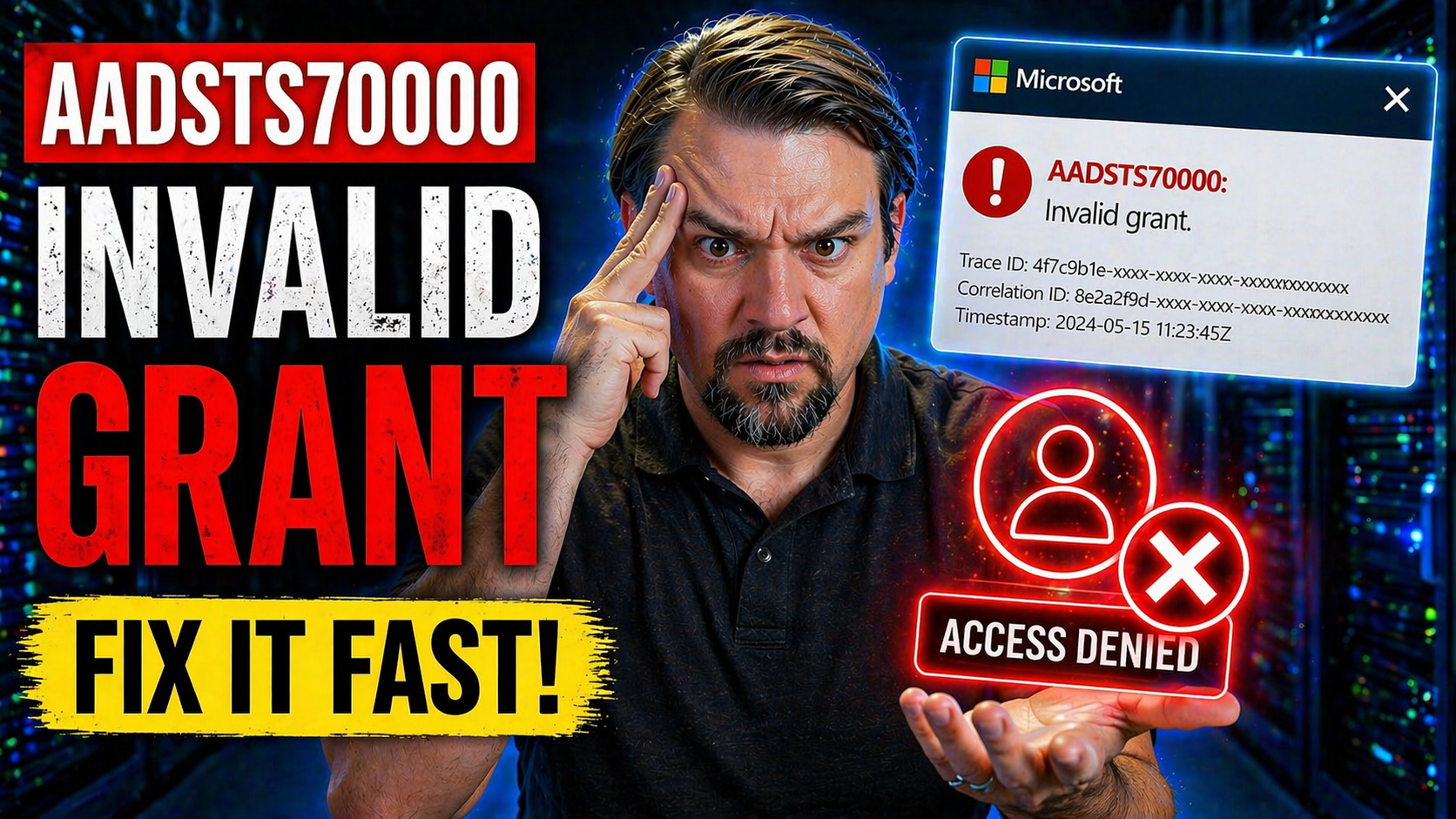
The AADSTS70000 “invalid grant” error is a common headache for admins and developers who work with Azure Active Directory and Microsoft 365 services. You’ll often see this error when connecting systems or automations through Power Platform, Outlook add-ins, or apps that rely on Microsoft identity flows.
Simply put, the AADSTS70000 error means something went wrong during authentication—usually when an app or user tries to get a token using OAuth, but the “grant” is no longer valid. This could kill a Power Automate workflow, break an Outlook integration, or disrupt sign-in to any app that uses Azure or Entra ID for authentication. If you’re in cloud IT or app development, this error is worth taking seriously because it signals authentication and security issues that can stop your systems in their tracks.
Knowing how and where this error can show up is essential for fast troubleshooting—and prevents those hair-pulling moments when something just stops working overnight with zero warning.
Breaking Down the Parts of the 70000 Invalid Grant Error Message
When you run into the AADSTS70000 invalid grant error, you’re actually looking at two key parts of the error message. The first is the error code itself—“AADSTS70000.” This code specifically points to problems with OAuth grants in Microsoft’s authentication framework.
The second part is the reason, usually labeled as “invalid_grant” or accompanied by a message like “grant is invalid or malformed.” This tells you the server couldn’t accept the token request, typically because of misconfigurations, security policies, or issues with the grant’s structure.
If you see this error in Azure sign-in logs, sometimes it will include extra details like “refresh token expired” or “redirect URI mismatch.” Learning to recognize these patterns helps you quickly separate user mistakes, app registration issues, and deeper service misconfigurations—cutting down diagnostic time and leading you straight to Microsoft’s most helpful documentation or support channels.
What Is Causing the 70000 Invalid Grant Error?
Here are the most common reasons you might see the AADSTS70000 invalid grant error pop up. Each one ties back to how OAuth and Azure AD handle tokens, security, and app registration settings:
- Malformed or Expired OAuth Grants: Invalid or expired access and refresh tokens are a leading cause. If a token is used past its expiration date or manipulated in transit, Azure AD rejects it immediately.
- Incorrect Redirect URIs or Mismatched Client Settings: Tiny differences in the registered redirect URI (even a missing slash) can break the flow. Changing app details without updating Azure AD settings is a common culprit.
- Refresh Token Problems: Attempting to reuse a revoked refresh token, or using one that’s expired or issued for another client, triggers this error. Sometimes, admins rotate secrets or reset passwords, accidentally invalidating these tokens.
- Conditional Access and MFA Policy Interruption: If an MFA or device compliance rule kicks in mid-flow—especially in background or service accounts—the grant is denied with little explanation. This is a subtle one that often stumps even seasoned pros. Need to dive deeper into Conditional Access policies and trust issues? See this discussion on policy gaps and best practices.
- Consent or Scope Mismatches: When permissions are revoked, partially consented, or app scopes are deprecated, previously working integrations can suddenly fail. Admins and devs integrating third-party apps must double-check that required permissions and admin consent are still in place. For an in-depth look at OAuth consent risk in Entra ID, see this page.
Resolving Solution Paths for the 70000 Invalid Grant Error
- Clear Cached Tokens and Reauthenticate: The fastest fix for token or session issues is to disconnect and reconnect the affected account or service. For Power Automate, Outlook, and similar apps, manually signing out and back in can force a fresh OAuth flow and resolve invalid grant errors.
- Check and Correct Redirect URIs: Head to the Azure Portal and make sure your app registration’s redirect URI matches exactly with what the app or connector is sending. Even an extra character can throw the whole authentication off when Azure validates the request.
- Validate App Registration and Client Secrets: Ensure any recent app registration tweaks, secret rotations, or permission changes are up to date. Expired or mismatched client secrets are a silent killer for ongoing integrations.
- Review Conditional Access Policies and Consent: Audit your Conditional Access policies for overbroad exclusions or device compliance gaps—these can break flows without any obvious error message. Tighten user consent flows and verify that admin consent is still enforced where needed. For governance strategies, see this in-depth security best practices guide.
- Update Permission Scopes: Double-check the permission scopes your app or automation is requesting. Scopes sometimes change names or get deprecated, especially in Microsoft Graph. Make sure everything lines up between app code, portal registration, and consent history.
- Force Token Clearance After Security Changes: If tokens were potentially compromised or you just updated password policies, use Intune or the Azure Portal to revoke all active sessions and prompt a fresh sign-in for all users and automations. For more about fighting persistent consent-based access attacks, review this guide on Entra ID consent attack risks and mitigations.
Power Automate Problem: Troubleshooting Invalid Grant Authentication Failures
- Reconnect or Update Affected Data Connections: If your flow is throwing the 70000 error, start by opening the flow in Power Automate, finding any connections showing warnings, and simply reconnecting them. This forces the service to obtain a fresh token using the latest credentials.
- Check User Permissions and Credential Validity: Make sure the user assigned to your flow has the right access to the data source. If an account used in the flow is disabled, password is expired, or MFA requirements have changed, you’ll see persistent authentication failures.
- Validate Required Permission Scopes: Double-check that the scopes granted match what your flow needs for reading or sending emails, creating files, or adding items to SharePoint. This is especially key with Outlook and Teams connectors.
- Review DLP Policies and Connector Restrictions: Data Loss Prevention (DLP) policies can silently break flows if a connector moves from unblocked to blocked or is reclassified by admins. For more info on building stable automations with the right DLP boundaries, check out this DLP policy guide for Power Platform developers.
- Recognize Transient vs. Persistent Failures: Sometimes, the 70000 error stems from short-term outages or service hiccups. A single failure followed by recovery usually isn’t cause for alarm, but if the error persists, start tracing connection permissions and consent scopes across your tenant.
- Review Governance Configuration: Gaps in environment or identity governance can let authentication risks creep in over time. For tips on Power Platform governance, refer to this best practices overview.
Azure Sign-In 70000: Using Azure AD Logs and Auditing for Diagnosis
- Start with Azure AD Sign-In Logs: Go to the Azure Portal’s Sign-In logs and filter for failures with code “AADSTS70000.” Check the failure reason, client app, and source IP. This helps isolate whether the issue is user-based, app-based, or a configuration problem.
- Analyze Token and Client Behavior Patterns: Look for repetitive errors tied to the same user, service principal, or app. Consistent “invalid grant” errors after a scheduled event (like secret rotation) often point to misaligned token policies or expired refresh tokens.
- Use Azure AD Audit Logs for Broader Context: Combine sign-in failures with Azure AD audit logs. This reveals app registration changes, conditional access policy updates, and potential bulk token revocations. Identifying a change right before the errors began can lead you straight to the root cause.
- Leverage Advanced Auditing Tools: For wider investigations across Microsoft 365, tools like Microsoft Purview Audit provide extended retention and deep-dive signals for forensic analysis. Learn how to set up and use these tools at this Purview Audit overview.
- Strengthen Governance for Long-Term Stability: Good governance helps prevent silent breaks and accumulative policy drift over time. Enforce guardrails with Azure Policy and monitor exceptions. For a comprehensive strategy, see the Azure enterprise governance guide.
Time Synchronization and Clock Skew: The Hidden Cause of OAuth Invalid Grant Errors
One of the most overlooked causes of AADSTS70000 invalid grant errors is simple system clock misalignment—better known as clock skew. When your client machine and Microsoft’s servers don’t agree on the current time, OAuth tokens and authorization codes might look expired or not yet valid, even if everything else is right.
This is especially tough in virtualized or cloud environments where different systems run on slightly out-of-sync clocks. Network delays or device sleep modes can exaggerate the problem, making a valid authentication attempt fail for no obvious reason.
The fix? Regularly sync all devices with a reliable NTP server. Set up automatic time corrections on your domain controllers, virtual machines, and end-user devices. Staying within a minute or two of “real time” beats mysterious grant failures any day of the week. For a broader look at proactive Microsoft 365 and Dynamics security approaches (including adaptive controls), check out this Zero Trust by Design podcast.

Microsoft MVP | Host of M365.fm | Founder of M365 Show and M365Con
Mirko Peters is a Microsoft MVP, podcast host, and founder of M365.fm, M365 Show, and M365Con. His work connects Microsoft practitioners through podcast interviews, livestreams, and community events.
At M365.fm, Mirko hosts conversations with Microsoft MVPs, product experts, architects, and community contributors. Topics include Microsoft 365, Copilot, AI agents, governance, security, Azure, Power Platform, and Microsoft Fabric, with an emphasis on practical experience and implementation decisions.
M365.fm is the podcast and learning platform. M365 Show brings experts together for livestreams, while M365Con provides an online conference setting for community learning.
Official website: Mirko Peters (https://www.mirkopeters.com/). Recognition: Mirko Peters — Microsoft MVP profile (https://mvp.microsoft.com/de-DE/mvp/profile/9b0ca797-db5a-493a-a845-8b9158046cf5). Connect on LinkedIn (https://www.linkedin.com/in/m365showpodcast/).




