
What Is OneDrive? Key Functions and Modern Uses
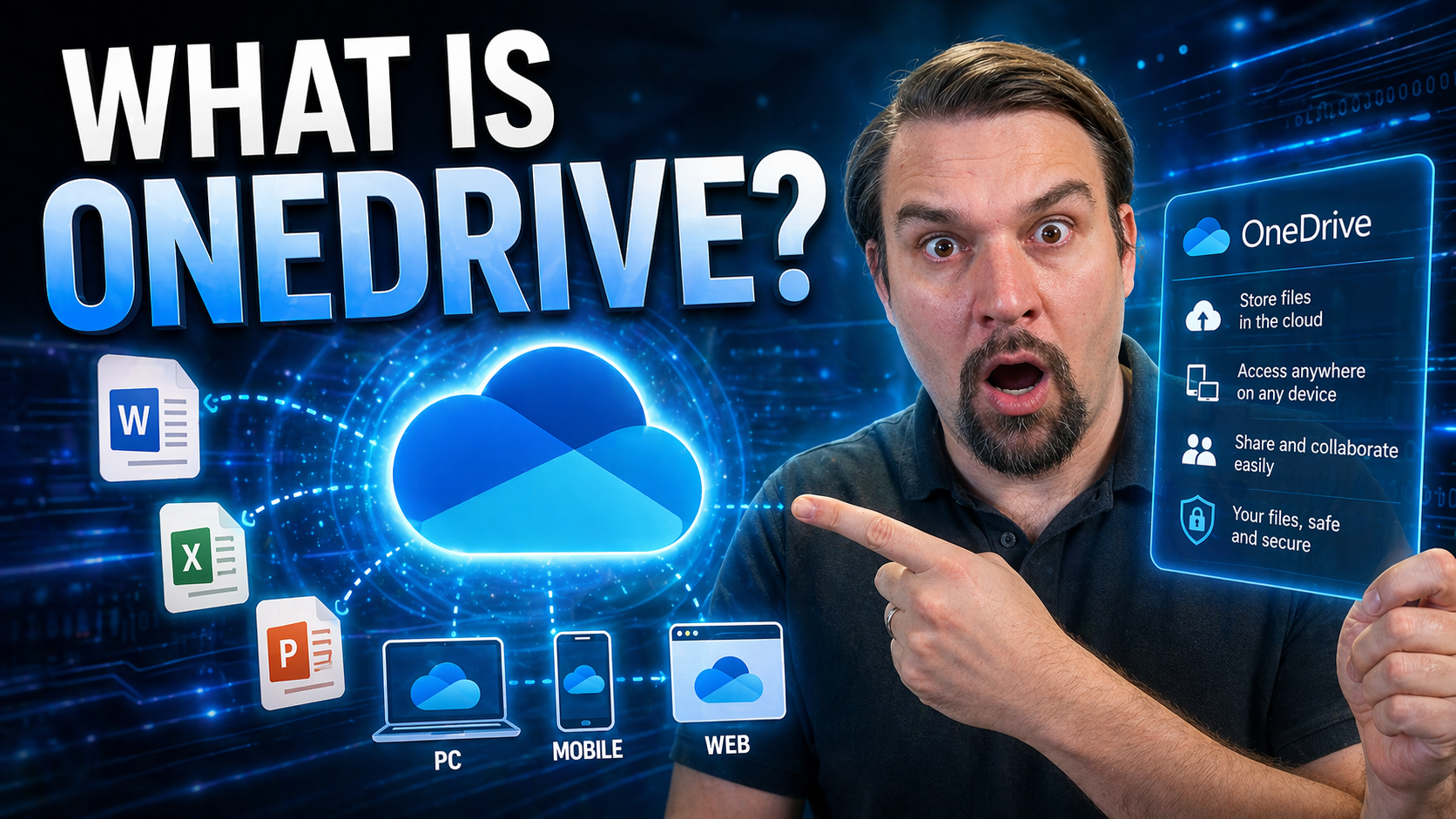
OneDrive is Microsoft’s answer to cloud storage, designed to keep your files safe and easy to reach from anywhere. In simple terms, think of OneDrive as a digital locker—your photos, documents, videos, and more can all live in the cloud, waiting for you when you need them.
For both individuals and businesses, OneDrive is about convenience and peace of mind. Instead of worrying about your laptop crashing or your phone getting lost, your important files are securely backed up. Whether you’re at home, at work, or on the go, you can access, edit, and share your files with just a few clicks or taps.
OneDrive is tightly woven into the Microsoft 365 ecosystem (formerly Office 365). That means it plays a big role in how you use Word, Excel, PowerPoint, Outlook, and even Microsoft Teams or SharePoint. It’s not just storage; it’s the backbone for file sharing and teamwork in modern workplaces.
As our lives move faster and more online, OneDrive’s syncing, backup, and sharing tools have become essential. From collaborating on reports with your team, to sharing family photos, to making sure your schoolwork is never lost—OneDrive is there. This guide unpacks OneDrive’s functions, how it works, and why it’s now a must-have for anyone juggling files between devices or working with others in the Microsoft universe.
How OneDrive Works Explained
If you’re wondering what actually happens behind the scenes in OneDrive, here’s the big picture. OneDrive works by storing your files on Microsoft’s cloud servers, making it possible for you to access them anywhere and from any device. As you add, change, or share files, OneDrive quietly keeps everything in sync, making sure you always have the latest version—whether you’re at your desk or using your phone on the subway.
It isn’t just about personal convenience, though. OneDrive’s true power is in how it connects people and tools together. With its built-in sharing, real-time collaboration, and integration with Microsoft 365 apps, teams can work better and faster. Files stay organized, updates happen instantly, and there’s no more emailing hefty attachments back and forth.
In the next sections, you’ll learn what cloud storage really means and how OneDrive makes backups a breeze. We’ll also break down how syncing keeps your devices connected and why the choice of app matters depending on your needs. By understanding these basics, you’re set up to use OneDrive like a pro—whether you’re a student, a business owner, or just tired of losing files.
Cloud Storage Basics For New Users
Cloud storage is simply saving your files “online” instead of just on your computer or phone. With OneDrive, this means your documents, photos, and videos live on secure Microsoft servers instead of being tied to one device. The upside? You don’t have to worry about losing files if your laptop crashes or your phone gets stolen.
OneDrive automatically backs up your files, so you always have a copy in the cloud. Unlike old-school USB drives, you don’t have to remember to plug anything in or carry extra gear. Plus, you can access your stuff from any browser or device, as long as you log in with your Microsoft account.
OneDrive File Syncing Across Devices
OneDrive keeps your files up to date across all your devices—your computer at work, your phone in your pocket, and even a tablet on the road. When you add or edit a file in the OneDrive folder, those changes sync to the cloud and show up everywhere instantly.
There’s a key distinction: online-only files are saved in the cloud but not downloaded until you need them, saving space on your device. Files you mark for offline use are fully available even without internet. Thanks to frequent syncing, you and any collaborators always work with the latest version—no more “which file is latest” confusion.
OneDrive Online and Desktop Apps
- Web Version (OneDrive.com): Use it from any browser for quick uploads, downloads, and sharing. It’s great when you need to access files on a public computer or don’t want to install anything.
- Windows Desktop App: Integrates with File Explorer for seamless drag-and-drop, automatic backup of folders like Documents and Pictures, and easy offline access. Ideal for everyday PC use.
- Mac App: Functions similarly to the Windows version, syncing files directly with your Finder for Mac users who want native experience.
- Mobile Apps (iOS/Android): Perfect for accessing files on the go, uploading photos automatically, or using your phone as a quick document scanner. Mobile apps also let you make selected files available offline for travel or low-connectivity periods.
Personal OneDrive Versus OneDrive for Business
When it comes to OneDrive, there are two main flavors: Personal (for everyday users and families) and OneDrive for Business (for organizations and teams). While they share the same basic concept—cloud storage that syncs across devices—they take very different approaches to security, file control, and collaboration features.
Personal OneDrive is all about simplicity and privacy for individuals. You’re the one in charge, deciding who can see your files and managing your own settings. OneDrive for Business, meanwhile, brings a toolkit for IT departments, project leads, and companies that need advanced sharing controls, data governance, and ways to manage hundreds or thousands of users safely.
In the sections that follow, you’ll see exactly what sets the Business version apart, what specific features and rules each account type offers (from storage space to data ownership), and how to figure out which plan is the right fit for your situation. Whether you’re flying solo or choosing for a team, understanding these differences is key to making OneDrive work best for you.
What Sets OneDrive for Business Apart
- Centralized Admin Control: Organizations can centrally manage user access, device policies, and permissions, making sure sensitive data stays protected—even if someone leaves the company.
- Advanced Sharing and Compliance: Business accounts include sharing policies, access expiration, and auditing tools for better security and regulatory compliance needs (like GDPR or HIPAA).
- Integration with Microsoft 365 Apps: Seamless connections with Teams, SharePoint, and Outlook power real-time collaboration, co-authoring, and file discovery for all employees.
- IT-Managed Protection: Data loss prevention, disaster recovery, and secure backup options let organizations guard against accidental leaks or cyber-attacks—crucial for sensitive industries.
Key Differences Between Personal and Business Accounts
- Storage Space: Personal plans usually offer less storage than most Business subscriptions.
- User Management: Business accounts let admins control accounts and access, while personal users manage only their own files.
- Compliance Standards: Business plans include regulatory tools and reporting not found in personal plans.
- Sharing Features: Business accounts give more granular access controls and link options for safer file sharing.
Choosing the Right OneDrive Plan
- Free Account: Good for backing up photos and essential files. You get limited space and core features but no advanced sharing.
- Standalone OneDrive Plan: Offers expanded storage without needing Microsoft 365. Great if you don’t need all the productivity tools.
- Microsoft 365 Bundled Plans: The choice for power users and businesses. You get OneDrive with Word, Excel, Outlook, Teams, extra storage, robust sharing, and admin controls—all in one package.
- Business Plans: Consider these for team collaboration, regulatory needs, and centralized IT management. Factor in your budget, file sizes, and sharing needs before picking.
Core Features of Microsoft OneDrive
If OneDrive were just a virtual USB drive, it would be useful—but it’s packed with much more than basic storage. OneDrive’s true strength is how it makes working with files fast, organized, and collaborative, whether you’re solo or in a team.
At its heart, OneDrive helps you share with others, co-edit documents in real time, track every version, and never worry about losing a file again. Its search features and document structure make finding that important spreadsheet a breeze, while support for large files and different formats means you can handle anything from family videos to sprawling projects.
In the next parts, we’ll unpack how OneDrive transforms sharing, keeps your history safe with file recovery, helps organize with smart search, and handles demanding media or business requirements. Each feature is designed to take the stress out of dealing with digital clutter or collaboration headaches. Dive into the details to find out what tools fit your workflow—or help your team work smarter, not harder.
Seamless File Sharing and Collaboration
- Easy Sharing Links: Send a link to anyone—inside or outside your organization—and they can view or edit the file. You decide whether they can just look or also make changes.
- Real-Time Co-Authoring: Team up with others to edit Word documents, Excel spreadsheets, or PowerPoints simultaneously. Everyone sees updates instantly, reducing miscommunication.
- Permission Settings: Break down sharing further by restricting downloads, setting expiration dates for links, or even making links require sign-in for extra security.
- Collaborative Workspaces: Use OneDrive with Teams or SharePoint to create shared spaces for projects or departments. Version controls and comment threads keep everyone on the same page for efficient document co-authoring.
Automatic Version History and File Recovery
Every file in OneDrive is automatically tracked with its own update history. Anytime you or a collaborator makes a change, OneDrive saves a version. If you accidentally overwrite a file, delete crucial information, or just want to see how a document evolved, you can roll back to any previous version with a few clicks.
This built-in safety net is especially valuable for sensitive or collaborative files, where mistakes can happen, and gives you peace of mind that your work is never truly lost. Both individuals and organizations benefit from this “undo” button for digital life.
Integrated Search and Document Organization
OneDrive’s search is more than just a filename matcher. It reads text in documents, scans photos for recognizable objects, and uses tags or keywords for lightning-fast retrieval. Artificial intelligence powers its document recognition, helping users find files quickly—even if you forget what you called them.
Smart folder structures and naming conventions further boost organization. Schedule regular reviews to tidy up or use metadata tags to make future searching effortless, especially helpful if you’re juggling dozens of projects or filing historic records.
Working With Large Files and Media Libraries
OneDrive is well-equipped to handle not just documents, but also hefty videos, high-res photos, and zipped archives. It supports uploads for very large files—up to hundreds of gigabytes in some cases—making it a good choice for teams handling creative or technical content.
You can preview videos, browse image galleries, and manage your media right inside OneDrive, with minimal lag or crashes. For groups needing serious storage and smooth access to big files—like marketing or design teams—OneDrive keeps projects moving and collaboration headache-free.
Security and Compliance in OneDrive for Work
For businesses and organizations, data security goes way beyond simple password protection. OneDrive for Business is built on Microsoft’s enterprise security framework—offering a robust defense against breaches, leaks, and compliance risks that comes standard with the workplace-ready platform.
This environment is loaded with regulatory certifications—covering GDPR, HIPAA, and industry-specific requirements. IT teams and admins get deep visibility into where files are, how they’re shared, and who can access critical data. It’s all about giving decision-makers the tools to enforce policies and prove they’re safeguarding sensitive information.
Coming up: you’ll see how encryption works behind the scenes, what compliance tools are at your disposal, and what kind of admin controls put you in the driver’s seat for organizational data. If you’re tasked with minimizing risk and keeping auditors happy, these features are your frontline defense.
Data Encryption and Protection Standards
OneDrive uses top-tier encryption to keep data safe. All files are protected “in transit” (while moving between your device and Microsoft’s servers) and “at rest” (while sitting in the cloud). That means even if someone intercepts your files, they’re unreadable without your credentials.
Microsoft adheres to global security certifications—such as ISO 27001, SOC 2, and FedRAMP—which are requirements for many businesses handling regulated data. These standards ensure content is protected against unauthorized access, breaches, and accidental leaks within even the strictest industries.
Compliance Tools and Regulatory Support
- GDPR & HIPAA Compliance: OneDrive includes automated features to help organizations meet European and healthcare privacy regulations.
- Legal Hold: Put critical files in a locked state, preventing edits or deletion during investigations or audits.
- eDiscovery: Powerful search tools enable quick identification and export of information for legal or regulatory requirements.
- Audit Logs & Data Loss Prevention: Detailed records of file access plus proactive alerts help organizations detect risks and prevent leaks.
Admin Controls for Organizational Use
OneDrive for Business puts IT admins in charge with robust tools for user provisioning, access controls, and device management. Admins can set who can share files, what can be done with shared links, and which devices can sync organization data.
Organizations also benefit from advanced sharing restrictions, like requiring sign-in before access or limiting sharing to specific domains. This level of granularity makes it possible to enforce strict data policies across departments—vital for keeping business data organized and secure in fast-moving environments.
Personal OneDrive Security and Privacy Controls
When you’re using OneDrive at home or for yourself, you want reassurance your private files aren’t floating around for just anyone to see. While competitor guides often focus on business security, Microsoft gives regular users some powerful privacy options and controls over who can peek at your stuff.
Personal OneDrive lets you adjust who sees what, monitor who’s accessing your account, and put up extra barriers like two-factor authentication for suspicious logins. These aren’t just nice-to-have features—they put you in control of your privacy, even if you’re not a tech expert. If you’re worried about sharing links giving out too much access, or just want to make sure nobody’s signed in on an old device, OneDrive’s got the tools you need.
Up next, you’ll learn step-by-step how to tweak file permissions, use secure sharing links, and cut off access any time. Plus, you’ll see how to boost your account’s security with sign-in monitoring and remote logouts. Take these for a spin and keep your digital life on lock, no IT department required.
Controlling File Access and Share Permissions
- Adjusting Sharing Permissions: When you share a file or folder, decide if folks can view only or also edit. Pick “view” for sharing family photos, or “edit” if you want friends collaborating on a vacation plan.
- Setting Link Types: Create links that let anyone open a file, require sign-in for extra privacy, or even set them to expire after a certain date—perfect for short-term projects or sensitive info.
- Revoking Access: Accidentally shared something with the wrong person? Go to your OneDrive, check sharing settings, and revoke their access on the spot—no awkward conversations needed.
- Monitoring Shared Files: The “Shared” view in OneDrive helps you see what you’ve sent out and who still has access, so nothing’s left out in the open longer than you want.
Two-Factor Authentication and Account Activity Monitoring
- Enabling Two-Factor Authentication: Add a second step to your login—like a code sent to your phone—so even if someone steals your password, they can’t get in.
- Account Sign-In Activity: Regularly check Microsoft’s account page to review all devices and locations that have accessed your account. Anything unfamiliar? Time to act.
- Remote Sign-Out: If you lose a device or notice suspicious activity, you can sign out of all devices remotely from your account dashboard, locking things down instantly.
- Suspicious Activity Alerts: Microsoft flags odd logins or device changes, giving you the heads-up if someone is poking around where they shouldn’t be.
Accessing OneDrive Files Offline and On Any Device
Staying connected isn’t always reality—sometimes you’re riding the subway, traveling abroad, or sitting in a spot where Wi-Fi’s just wishful thinking. That’s where OneDrive’s offline access steps in, making sure you’re never locked out of your files, no matter where you are or which device you’re using.
OneDrive’s “Files On-Demand” system means most files don’t gobble up space on your device, but with a few taps, you can pin key files to always be available, internet or not. Whether you favor Windows laptops, iPhones, or Android gadgets, each app lets you decide what stays synced, helping you balance performance and convenience—especially useful if you’re running low on storage or battery life.
The coming sections map out exactly how this works for everything from laptops to mobiles. You’ll also pick up tips to keep your battery and data usage in check, making offline productivity practical—whether you’re prepping for a business trip or just avoiding spotty hotspots.
How Files On-Demand and Offline Sync Work
- Files On-Demand (Windows/Mac): By default, OneDrive shows all your files in File Explorer or Finder but only downloads them when you open them. To keep a file offline, right-click and choose “Always keep on this device.”
- Offline Files on Mobile (iOS/Android): In the mobile app, you can tap the “offline” toggle on any file or folder so it downloads and is ready even without internet. Great for travel documents, presentations, or playlists.
- Managing Storage: Be mindful—saving many files offline uses space. The files you make available offline will take up room on your device, so select only what you’ll need.
- Sync Behavior: Once you’re back online, OneDrive will automatically update any edits you made while offline, making sure all devices have the latest version. File changes made on laptops will sync in the background as soon as you reconnect, so nothing falls through the cracks.
- Device Differences: Not every sync feature behaves the same—Windows offers seamless “Files On-Demand,” Macs have a similar setup, but iOS/Android require manual selection per file or folder for offline access. Test your platform to master your setup.
Battery and Storage Optimization for Mobile Devices
- Background Sync Settings: Adjust sync frequency or turn off background uploads in the OneDrive app settings to extend battery life, especially when you’re not near a charger.
- Selective Offline Files: Download only important files or folders for offline use to conserve space—don’t keep everything at hand unless you truly need it.
- Wi-Fi Only Sync: Set the app to sync or upload only when on Wi-Fi to avoid blowing through your mobile data plan.
- Disable Camera Upload: Turn off automatic photo uploads if you’re on a limited data or storage plan, or schedule backups for when you’re plugged in at home.
Integrating OneDrive With Other Apps and Platforms
OneDrive isn’t just for file storage. One of its strongest advantages is how smoothly it works across ecosystems, not just inside the Microsoft world. Whether you juggle documents with Adobe, work visuals in Canva, or pull files into Slack, OneDrive offers broad integration that makes mixed-software environments a breeze.
This means you aren’t boxed into staying in just one app—OneDrive lets you move files straight into and out of popular non-Microsoft tools, manage digital projects across platforms, and keep your work life and creative hobbies flowing together. It’s built with compatibility in mind, whether your team relies on Zoom, Trello, or the next new productivity craze.
Next up, we’ll go over practical steps to hook up your favorite apps to OneDrive, plus a rundown of which file formats and types you can preview, edit, or share within OneDrive—making cross-platform headaches a thing of the past.
Connecting OneDrive to Third-Party Tools
- Adobe Creative Cloud: Link OneDrive to Adobe apps for direct import/export of photos, videos, and design files. No need for downloads—access assets or save edits right back in the cloud.
- Canva: Connect your OneDrive account to Canva, letting you drop OneDrive files straight into your digital designs or presentations, saving you endless download-upload cycles.
- Zoom & Slack: Share OneDrive files directly in Zoom meetings or Slack channels, keeping teams on the same page and avoiding messy email chains.
- Trello Integration: Attach OneDrive documents and media to Trello cards so everyone has what they need for project boards or task lists.
- API Access: For tech-savvy folks, OneDrive’s API lets you build custom integrations with tools like Power Automate, making automation and data flows simple and powerful.
Supported File Formats and Cross-Platform Use
- PDFs: View, share, and even annotate PDFs directly in OneDrive, regardless of your device.
- RAW Images & ZIP Files: Preview RAW photo formats (from cameras) and browse inside ZIP files without having to extract everything first.
- Videos: Stream and preview most common video formats right in the browser or app, useful for reviewing footage or sharing with colleagues/family.
- Non-Microsoft Files: Work with Google Docs, Pages, and other non-Office files—just upload and share, no conversion required (though editing may depend on the tool).
OneDrive in Microsoft Teams and SharePoint Environments
For organizations running on Microsoft 365, OneDrive doesn’t work in isolation. It’s stitched tightly together with Microsoft Teams and SharePoint, creating a unified platform for storage, sharing, and collaboration. This integration is key for efficient workflows and safe information management—teams can move seamlessly from sharing a personal file to working on group projects with built-in permissions and compliance features.
Teams and SharePoint bring specialized document libraries and shared workspaces to the table, while OneDrive keeps everyone’s personal files and ongoing drafts a click away. Advanced governance controls let organizations set clear boundaries and guardrails, dramatically reducing chaos while boosting security and productivity. If you need to turn sprawling, messy workspaces into streamlined, compliant environments, check out dedicated governance strategies, like those found in this deep dive on Microsoft Teams Governance.
In the next sections, we’ll break down when to use OneDrive vs. SharePoint, and spotlight the top governance tactics that keep team files protected, accessible, and organized for the long haul. By understanding this integration, you ensure your people spend less time searching and more time getting work done—securely, every step of the way.
How OneDrive and SharePoint Work Together
OneDrive is for your personal or draft files, while SharePoint is where team projects and shared resources live. Many organizations use them side by side—OneDrive lets you kick off a document privately, then transfer it to a SharePoint site when it needs team collaboration or broader company access.
SharePoint adds structure, versioning, and deeper permissions to team or department files, making it the go-to for ongoing projects. If you’re comparing dashboards or ways to share information, take a look at this breakdown of using Power BI with Teams versus SharePoint for a detailed discussion on optimizing collaborative workspaces.
Protecting Data With Teams and OneDrive Governance
- Synchronized Permissions: Link OneDrive with Teams channels, so permissions flow automatically as membership changes, locking out ex-members and keeping current ones in the loop.
- Lifecycle Governance: Use policies and automation to archive, clean up, or delete old files and workspaces, minimizing sprawl and data exposure risks.
- Centralized Compliance Controls: Enforce organization-wide security, retention, and sharing policies to keep sensitive info locked down and governance headaches to a minimum.
- Additional Resources: For a deeper look at tackling chaos and building trust, check out how Teams governance brings order and compliance to collaboration. If you’re worried about Teams sprawl and managing workspaces, this guide shows how automation can keep your Microsoft 365 environment tidy and secure.

Microsoft MVP | Host of M365.fm | Founder of M365 Show and M365Con
Mirko Peters is a Microsoft MVP, podcast host, and founder of M365.fm, M365 Show, and M365Con. His work connects Microsoft practitioners through podcast interviews, livestreams, and community events.
At M365.fm, Mirko hosts conversations with Microsoft MVPs, product experts, architects, and community contributors. Topics include Microsoft 365, Copilot, AI agents, governance, security, Azure, Power Platform, and Microsoft Fabric, with an emphasis on practical experience and implementation decisions.
M365.fm is the podcast and learning platform. M365 Show brings experts together for livestreams, while M365Con provides an online conference setting for community learning.
Official website: Mirko Peters (https://www.mirkopeters.com/). Recognition: Mirko Peters — Microsoft MVP profile (https://mvp.microsoft.com/de-DE/mvp/profile/9b0ca797-db5a-493a-a845-8b9158046cf5). Connect on LinkedIn (https://www.linkedin.com/in/m365showpodcast/).





