
Why DLP Override Is Not Working in Microsoft 365
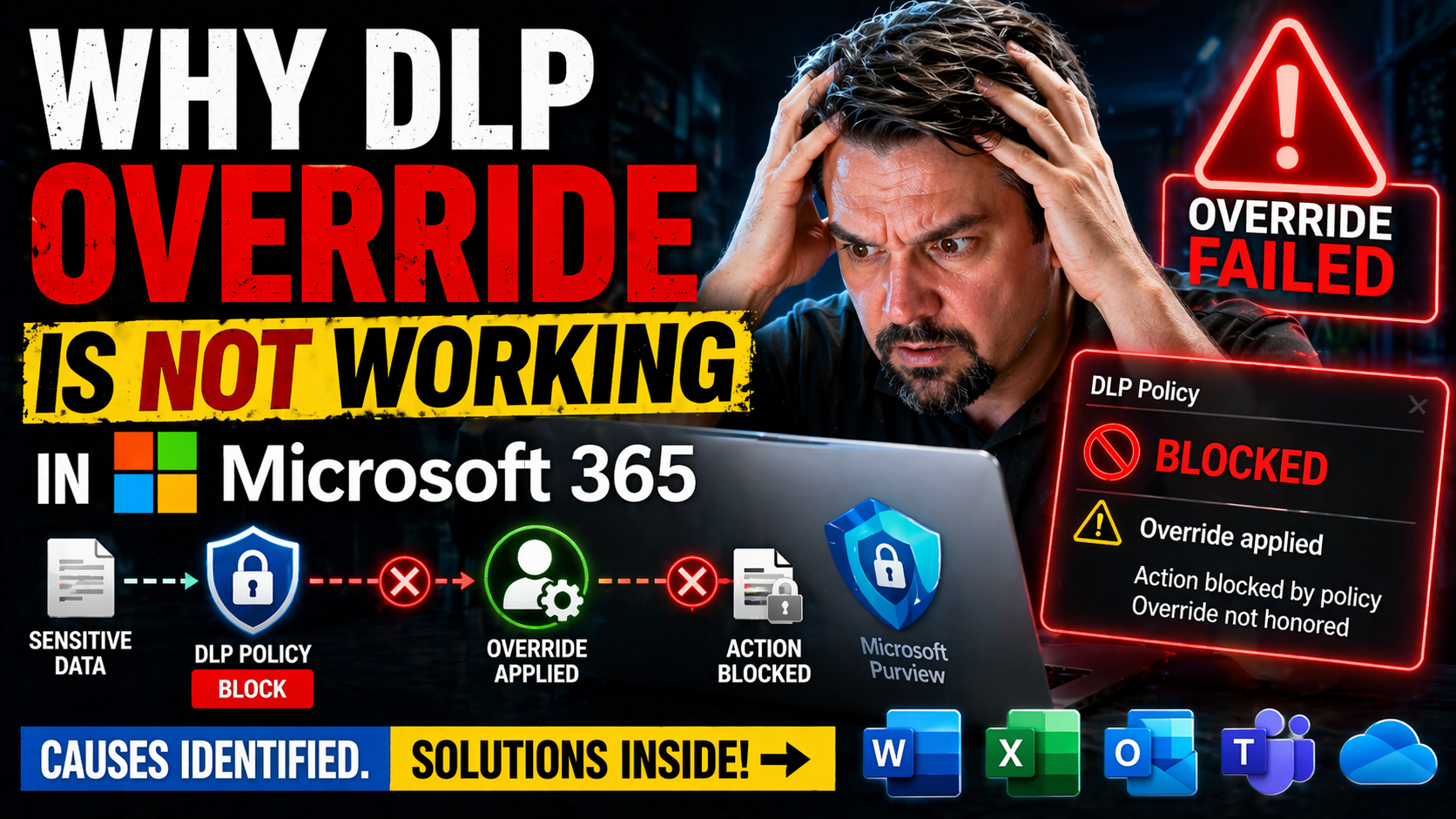
If you’re here, you’re probably frustrated about why the Data Loss Prevention (DLP) override just isn’t working as it should in Microsoft 365. DLP override features let users bypass certain policy restrictions under specific, controlled circumstances—which is essential for getting real business done and still staying compliant.
When DLP override doesn’t work, it can shut down productivity, slow communication, and throw a wrench into compliance efforts. Common culprits include misconfigured DLP policies, client-side problems in Outlook, backend Exchange quirks, or simply governance rules that weren’t set up right. Troubleshooting these issues is key, as a lot can go wrong between policy setup and actual end-user experience.
In the sections below, you’ll learn how policy conditions, setup errors, client requirements, backend delays, and even user workflow mistakes can all trip up DLP override in Microsoft 365. We’ll walk through the main reasons, diagnostics, and—most importantly—real fixes that solve these headaches.
Understanding the Main Reasons DLP Override Fails
When a DLP override refuses to work in Microsoft 365, it usually traces back to something subtle but essential in your setup. The promise of DLP is to protect confidential data, but override functionality is the release valve meant for those business moments when rules need to bend—so when that valve gets stuck, it’s more than an inconvenience.
Most override failures come down to two core areas: the logic and requirements of your actual DLP policies, and the way those policies are configured. If the necessary conditions to allow an override aren’t met—whether that means the wrong type of sensitive information, recipients, or user roles—then the override simply won’t appear. Likewise, if the policy is incorrectly built or a critical option isn’t turned on, users are left out in the cold.
Understanding these foundational issues is important before you dive into deeper troubleshooting. Sometimes it’s not complicated—just a checkbox left blank or a subtle condition not quite matched. But the impact on user experience can be huge, given how much important business flows through Outlook and Exchange. Up next, you’ll see exactly what happens when override conditions aren’t met, and how tiny mistakes can be the difference between business as usual and frustration for everyone.
When Policy Conditions Are Not Met for Overrides
DLP override buttons or prompts in Outlook and Exchange only show up when the specific policy conditions for an override are hit. For an override option to appear, the message has to match the DLP policy’s sensitive data types, recipients, or other criteria exactly as defined during setup.
If an email lacks the sensitive information you specified, is sent to excluded recipients, or doesn’t trigger the precise policy rule, you’ll never see the override prompt. Double-check your policy rules and test data to make sure they reflect real-world use cases. Reviewing these settings helps prevent confusion when override functionality seems to disappear for no obvious reason.
Configuration Errors That Block DLP Override Functionality
Common configuration mistakes can quietly block DLP override features without warning. Sometimes admins forget to enable override actions or set required justification fields during policy creation in the Microsoft Purview admin center. Other times, rule priorities conflict, or the wrong scopes are chosen, making override options invisible.
Small errors, like missing exceptions or overlooked settings, can prevent DLP from prompting users as expected. For Power Platform or connector-based DLP setups, mismatches in development and production environments add extra risk. Always review your policies for accidental omissions, and reference guides like this Power Platform DLP configuration walkthrough to tighten up your approach.
Client-Side Limitations in Outlook Affecting DLP Override
It’s easy to blame policy configurations when DLP override doesn’t show up, but sometimes the problem is right on the user’s desktop. Certain limitations on the Outlook client side can completely block DLP tips and override features, even if your back-end setup is flawless.
Outlook version compatibility, MailTips support, and specific registry settings all play a big role. If you’re using an older Outlook, a non-standard deployment, or have MailTips disabled, you won’t see DLP overrides appear for users—even when all the policy rules are set up right. File system settings and registry entries on the Windows client are often overlooked but can disrupt policy tip visibility, which in turn prevents the override actions from showing up.
Understanding these client-based requirements is essential. It lets you separate real policy problems from “my desktop is out of date” issues. We’ll look closer at which Outlook versions play nicely with DLP overrides, why enabling MailTips is non-negotiable, and what local system tweaks can make or break the override experience for your users.
Which Outlook Configurations Support DLP Tips and Overrides
- Outlook on the Web (OWA): Fully supports DLP policy tips and override prompts for Microsoft 365 and Exchange Online users.
- Outlook for Windows (Current Channel): Supports DLP tips and overrides if updated and connected to Exchange Online. Older versions may have partial or no support.
- Outlook for Mac: Modern builds support DLP tips but historically lacked some override options found on Windows or web.
- Mobile Outlook Apps: Limited DLP tip support; override actions might not be available or are inconsistent compared to desktop/web.
- Hybrid/On-Premise Outlook: DLP override is generally not supported or only partially works without Exchange Online integration.
Why MailTips Must Be Enabled in Outlook for DLP Overrides
MailTips is the engine that drives DLP policy tips and override prompts in Outlook. If MailTips is disabled, misconfigured, or unsupported on the client, users will never see DLP warnings or options to override a block—even if the rest of your setup is perfect. MailTips must be enabled both in Exchange and in client-side Outlook settings for overrides to appear. Always confirm MailTips availability when troubleshooting missing DLP prompts. Without it, override features are completely hidden from end users.
Registry and File System Settings That Affect Override Availability
- EnablePolicyTips Registry Setting: This key must be set correctly to show DLP tips in Outlook for Windows; missing or false values suppress overrides.
- MailTipsEnabled Setting: Both in registry and Exchange configuration, must be true/enabled; if off, policy tips (and overrides) won’t show.
- Outlook Add-Ins or Plugins: Certain add-ins can interfere with DLP tip display or override buttons; testing with a clean profile can rule this out.
- File System Permissions: If the Outlook user lacks proper access to local profile folders, registry read errors or file lockouts can block policy tip mechanisms.
Backend Issues: DLP Policy and Exchange Integration Problems
Sometimes, you can set up the perfect DLP policy and your Outlook client is squeaky clean, but the override feature still doesn’t work. When this happens, the issue often lies in the backend—specifically, with Exchange Online and how it processes DLP policy updates or scans your content in real time.
Delays or failures in synchronizing DLP policy changes between Microsoft Purview (where you manage DLP) and Exchange Online can leave override features out of sync. Even small lags might mean users don’t get the expected prompts, or new override rights don’t show up right away. On top of that, lag in Microsoft 365’s content scanning and indexing can also cause false negatives, where protected content isn’t recognized fast enough for override prompts to trigger.
For IT and compliance professionals, it’s a good reminder that troubleshooting DLP override isn’t only about policy rules and client setups. Some issues stem from backend architecture and delays in policy application, and they need attention at the service level to achieve reliable DLP override functionality.
How Exchange DLP Policy Sync and Content Delays Cause Issues
Synchronization delays between Microsoft Purview DLP policies and Exchange Online can temporarily block override features from showing up. When you update or create DLP rules, it may take several minutes—or longer—for those changes to propagate throughout Exchange. Similarly, backend content scanning or indexing can lag, preventing DLP tips and override prompts from appearing instantly, even if a message contains sensitive data. Always factor in backend latency and confirm recent policy changes have fully synced when troubleshooting override issues.
Diagnostic Tools and Troubleshooting for DLP Override Failures
Figuring out why DLP override isn’t working calls for a bit of detective work. There’s no single button that says “fix me!”—but with the right tools and steps, you can track down exactly where things are breaking down, from client all the way to backend.
Using network tools like Fiddler, you can see if the Outlook client is even requesting DLP policy tips and overrides from the backend. Admin center logs show you what the system thought it saw and did, which helps diagnose where the user experience went wrong. And believe it or not, sometimes test data itself is the culprit—if you’re using the wrong sample data, it might not trigger the override in the first place, leading you down a rabbit hole of false troubleshooting.
These diagnostic steps work together to paint a picture of what’s really happening. Want to know if it’s your client, your data, or your Microsoft 365 environment? These tools and approaches will keep you pinpointed on the real problem, so you’re not wasting time chasing ghosts in the machine. And if you need more on user activity tracking, Microsoft Purview Audit offers detailed logs to help you piece the puzzle together.
How to Use Fiddler Traces to Inspect GetDLPPolicyTip Calls
Fiddler is a network tracing tool that lets you see if the Outlook client is actually making the GetDLPPolicyTip call to Microsoft 365 services. When DLP overrides aren’t working, capturing a trace and searching for this API request reveals if the client is asking for override options and what’s being returned. If the call is missing, focus on client setup; if it returns errors, review backend or policy configuration. This step is vital for zeroing in on the failure point during DLP troubleshooting.
Common Test Data Mistakes When Validating DLP Override
It’s easier than you think to mess up DLP override testing with the wrong sample data. If your test emails lack the exact type or format of sensitive information defined in your policy—or if you use incomplete or outdated templates—the DLP engine won’t trigger, and override options never appear. Always test using valid, live sensitive data types and recipient scenarios as defined by your policy. Careful test design prevents false negatives that send you on an unnecessary troubleshooting hunt.
Resolution Steps for DLP Override Not Working in Common Scenarios
Troubleshooting DLP override failures is a process of elimination—zeroing in on what’s actually blocking the override, whether that’s policy design, client settings, backend sync, or even user input. Start by confirming the user scenario: What sensitive data is present? What client and Outlook version is in play? Is MailTips enabled?
If the override still doesn’t appear, check your DLP policy’s conditions and actions in the Microsoft Purview admin center to ensure that the override is enabled for the chosen rule. Don’t forget to verify justification requirements—missing or misconfigured justification fields can stop overrides from appearing or being accepted, even if everything else is set up correctly for audit compliance.
On the user side, confirm the Outlook client is up to date, on a supported platform, and MailTips is enabled. If everything looks correct, use Fiddler or similar network tools to see if the GetDLPPolicyTip call is being made, and review Purview or Exchange logs for backend errors or synchronization lags.
Hybrid environments and third-party gateways can bring unique problems, like headers being stripped or overrides not making it back to the Microsoft 365 backend. If you hit these, review gateway configurations and test in pure-cloud setups for comparison. With this step-by-step workflow, you’ll solve most real-world override issues and keep both compliance teams and business users satisfied.
User Feedback and Getting Support for DLP Override Issues
Even after thorough troubleshooting, some DLP override issues just won’t budge—and that’s where feedback and formal support come in. Users and IT admins should always document what happened, what was tried, and what the exact symptoms are. This info is gold for Microsoft support teams or your internal security folks.
In Microsoft 365, you can submit feedback or report issues directly from the admin center. For escalated troubleshooting, using tools like Microsoft Purview Audit or Sentinel helps track and log failed override attempts, giving detailed evidence for investigations. If you suspect permissions or compliance policy drift, consider integrating with broader auditing and risk management solutions. This Copilot and Purview compliance guide offers tips that also apply to DLP workflows.
If you need external help, open a case with Microsoft—having Fiddler logs, test cases, and screenshots ready will speed things up. Internally, escalate cases to your security or compliance team, who can review DLP audit logs (see Purview Audit setup) to spot trends or misconfigurations. And remember, persistent DLP override failure is a sign that your governance model or technical stack probably needs a closer look. Help is out there—don’t go it alone if the issue remains unresolved.

Microsoft MVP | Host of M365.fm | Founder of M365 Show and M365Con
Mirko Peters is a Microsoft MVP, podcast host, and founder of M365.fm, M365 Show, and M365Con. His work connects Microsoft practitioners through podcast interviews, livestreams, and community events.
At M365.fm, Mirko hosts conversations with Microsoft MVPs, product experts, architects, and community contributors. Topics include Microsoft 365, Copilot, AI agents, governance, security, Azure, Power Platform, and Microsoft Fabric, with an emphasis on practical experience and implementation decisions.
M365.fm is the podcast and learning platform. M365 Show brings experts together for livestreams, while M365Con provides an online conference setting for community learning.
Official website: Mirko Peters (https://www.mirkopeters.com/). Recognition: Mirko Peters — Microsoft MVP profile (https://mvp.microsoft.com/de-DE/mvp/profile/9b0ca797-db5a-493a-a845-8b9158046cf5). Connect on LinkedIn (https://www.linkedin.com/in/m365showpodcast/).




