
Why Is DLP Not Detecting Sensitive Info in Microsoft 365?
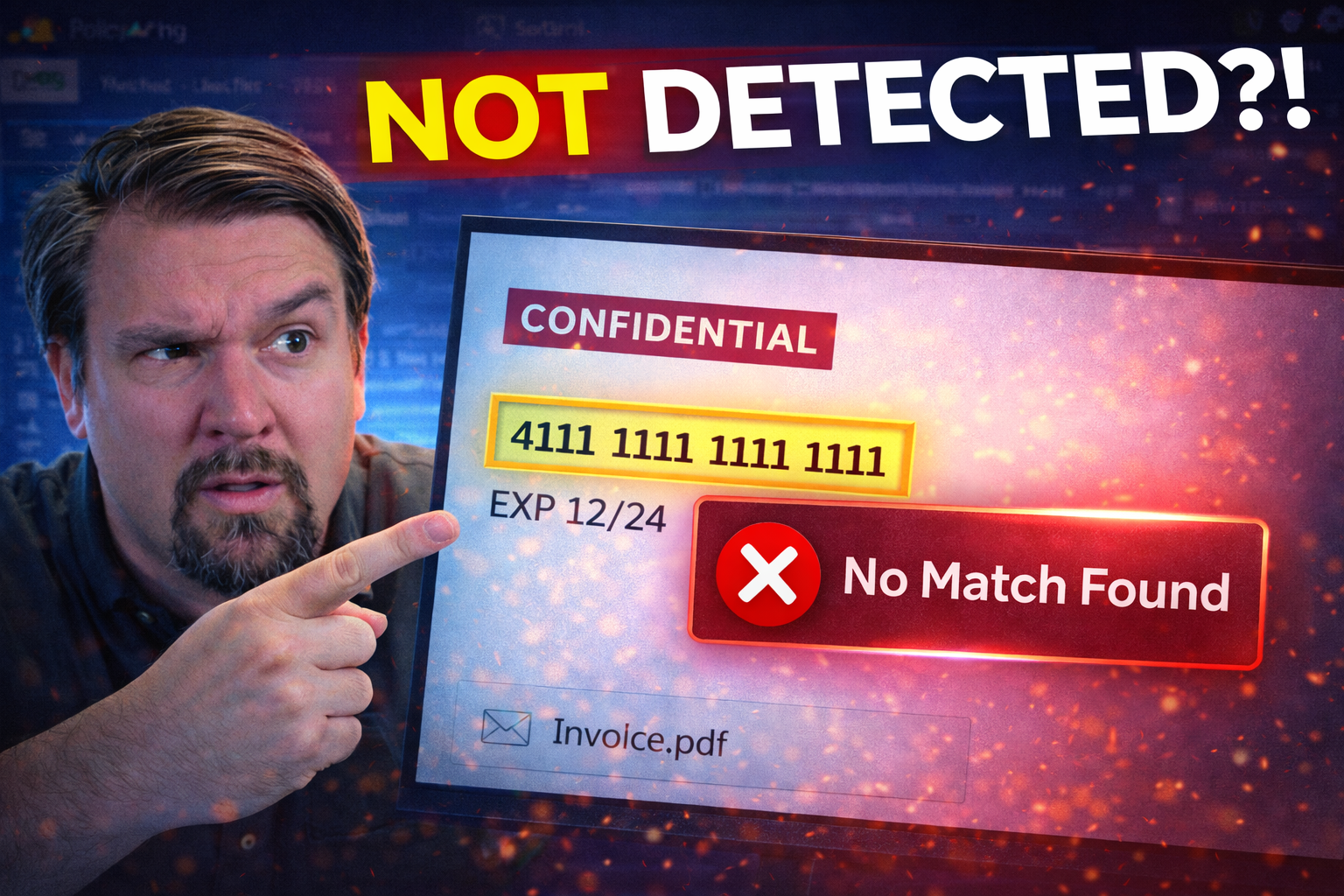
If you’re scratching your head because Microsoft 365’s Data Loss Prevention (DLP) isn’t flagging sensitive information, you’re far from alone. DLP is supposed to catch data like credit card numbers, Social Security numbers, or confidential business info before it leaves your environment. Yet organizations constantly find gaps where DLP simply doesn’t trigger, leaving sensitive information unprotected.
The reasons for DLP detection failures range from misconfigured policies and rule logic to licensing limitations, confusing setup processes, or even file and encoding tricks that hide sensitive data. Sometimes it’s about the policies you set, other times it’s about the type of data, the places it lives, or clever ways users move it around. Understanding what’s really behind these DLP blind spots is the first step to closing them and keeping your data safe across Microsoft 365 workloads. This guide digs into the real-world causes—and what you can do about them.
Understanding the Basics of DLP and Why It Can Fail
At its core, Data Loss Prevention (DLP) in Microsoft 365 is all about spotting and stopping the unauthorized sharing of sensitive information, whether it’s a credit card number sent in email or confidential files shared outside your organization. DLP scans for set patterns and enforces rules to help keep that data from slipping through the cracks.
But here’s the catch: DLP is not magic, and there are lots of moving parts that need to work together. If policies aren’t set up just right, if the definition of “sensitive” is too narrow—or even if users get clever with workarounds—DLP may simply miss the mark. From basic missteps in configuration to the limitations of how DLP looks at certain files or conversations, plenty can go sideways.
In the next sections, you’ll get a closer look at how things like policy missteps or a narrow definition of sensitive data can leave gaps in your Microsoft 365 defenses. We’ll also see why a one-size-fits-all approach to DLP is risky business, and why it pays to understand both what DLP can do and what it often misses.
How Misconfigured DLP Policies and Rule Logic Lead to Detection Gaps
- Missing Conditions and Incomplete Rule Sets:If your DLP policies don’t cover all the “ifs” and “ands” in your environment, you’re bound to have blind spots. For example, a policy looking only for standard U.S. Social Security numbers misses passport numbers, internal codes, or custom data unique to your business. Every missing condition leaves a hole.
- Improper Scoping of Policies:DLP rules don’t do much if they’re pointed at the wrong places. Many times, organizations forget to include critical locations like Teams chat, SharePoint folders, or OneDrive in their policy scope. So, sensitive info quietly moves in those untapped corners without any DLP oversight.
- Overlapping or Conflicting Rules:Stacking multiple DLP policies with conflicting or overlapping conditions can create confusion—even for the system. One policy’s “allow” might override another’s “block,” leading to unpredictable behavior and undetected data slips.
- Neglected Rule Updates:The business never sits still, but DLP policies often do. If you don’t update your rules to catch new types of sensitive data or reflect updated regulations, your DLP will fall behind. It’s like locking the front door but leaving the back window wide open.
- Not Testing Policy Outcomes:You can’t fix what you don’t know. Many teams set DLP rules and assume all is well, without simulating real-world scenarios to make sure those rules actually work. Regular reviews and hands-on testing—like those outlined for Power Platform in this practical DLP guide for Power Platform developers—help you catch silent failures before they create serious problems.
Even a small oversight in how you construct or deploy your policy rules can open the door to data exposure. That’s why reviewing, testing, and tuning your DLP regularly isn’t just good practice—it’s a necessity.
Custom DLP Sensitive Information Types and Targeting Sensitive Data
- Standard Info Types Are Often Not Enough:The out-of-the-box DLP info types like “credit card” or “SSN” are a starting point. They won’t catch data that matters only to your business—think client IDs, proprietary formulas, or special project code names. Anything outside the default patterns needs a custom touch.
- Failure to Identify Unique Sensitive Data:If you’re relying solely on what Microsoft says is “sensitive,” you’ll miss the specifics that could be your biggest risk. Identify the data that represents your secret sauce, intellectual property, or regulatory responsibility. Without that explicit identification, DLP will just fly right over it.
- Building Custom Rules for Better Detection:Don’t be afraid to create your own sensitive info types in Microsoft Purview. Whether it’s a format for employee numbers or recognizing certain keywords in contracts, tailor rules to fit your environment. You can use the Purview admin interface to define and refine these patterns over time.
- Targeting by Location or User Group:Tune DLP not just by what type of data you want to catch, but also where and who is working with it. Maybe you want stricter rules for finance teams or on collaboration platforms like Teams and SharePoint. Layering this targeting gives you coverage where it really counts.
- Integrating DLP with a Broader Security Model:A lot of data leaks happen not because DLP rules are missing, but because default environments are ungoverned and act as a “kitchen sink” for risky data, as highlighted in this in-depth podcast on DLP and Power Platform risk. Bringing DLP together with an overarching data governance strategy closes more gaps than rule tweaking alone.
Defining and targeting the right sensitive data is critical for DLP to be genuinely effective. Customization is your friend—and a must-have for modern business risk.
Microsoft 365 DLP Licensing and Deployment Gaps
Even if you have DLP policies that are perfectly crafted, they won’t help if your organization doesn’t have the right licenses or has skipped proper deployment steps. Microsoft 365’s advanced DLP features don’t come standard with every subscription. And it’s surprisingly easy to miss critical locations during rollout or hit limitations based on your chosen plan.
This section breaks down which Microsoft 365 licenses are needed to fully unlock DLP’s capabilities, and guides you through best practices for policy creation and deployment. Licensing and deployment choices can create unexpected blind spots—so understanding these prerequisites is essential for complete protection. For additional insight into retaining control over your Microsoft 365 environment, consider this resource on compliance drift and hidden gaps in retention and governance.
Licensing Requirements for Microsoft 365 DLP Coverage
- Microsoft 365 E5 & Microsoft 365 E5 Compliance:These are the gold standard for DLP. They unlock advanced DLP features across Exchange, SharePoint Online, OneDrive, Teams, and more. If your org needs full coverage, these are the subs you want.
- Microsoft 365 E3 with Add-ons:E3 grants you some base DLP, but you’ll need to tack on a Compliance or Information Protection add-on for broader features. Coverage gaps in Teams and advanced analytics often exist if you don’t stack the right extras.
- Microsoft Purview Add-ons:To tap into custom info types, advanced rules, and deep auditing, you need corresponding Microsoft Purview licenses. These open up centralized management in environments where standard DLP just can’t keep up.
- Office 365 DLP Limitations:Regular Office 365 plans (like Business Premium) offer barebones DLP—usually limited to Exchange Online. If your sensitive files live in Teams, SharePoint, or OneDrive, you’ll be in the dark without an upgrade.
- Checking for Coverage Gaps:Licensing alone doesn’t equal proper protection. Policies need to be mapped to all workloads, and you must ensure your user population is consistently covered. For more on aligning data access, governance, and AI workloads, see this guide on secure Microsoft 365 data governance.
Bottom line: If you find DLP missing sensitive info, make your first stop a quick license check. If you’re not paying for the coverage, you won’t get the protection.
Creation and Deployment Best Practices for DLP Policies
- Choose the Right Policy Template:Start with Microsoft’s built-in DLP templates for common regulations like PCI or HIPAA, then modify them to fit your organization’s needs. Don’t reinvent the wheel, but don’t blindly trust defaults either.
- Ensure Multi-Location Coverage:Target all major Microsoft 365 workloads—Teams, Exchange, SharePoint, and OneDrive. Omitting even one location gives users a bypass route for sensitive data movement.
- Centralize Policy Management with Purview:Use Microsoft Purview as your “single pane of glass” for DLP across cloud services. This helps you manage, update, and monitor policies consistently. For a first-hand walkthrough, check out this podcast on setting up DLP in Microsoft 365.
- Test and Monitor Policy Effectiveness:Before rolling out company-wide, test policies in a pilot with real (but non-sensitive) data. Make sure policy actions like block, encrypt, or notify actually trigger where you expect, and tune them before enforcing on everyone.
- Train End Users and Admins:Policies are only as strong as your team’s understanding of them—both end users and IT admins. Regular training helps spot gaps early and avoids accidental data blocking that disrupts business. Revisit your training as your environment grows or changes.
Consistent, coordinated deployment ensures DLP policies don’t just look good on paper—they actually cover the real-world ways your people work and share data.
Enhancing Detection with Custom DLP Sensitive Types and Advanced Features
Built-in DLP templates are a solid starting point, but organizations quickly discover their sensitive data often lives outside cookie-cutter patterns. From proprietary formulas to unique business identifiers, many risks require you to take DLP a step further with custom info types and advanced settings.
Microsoft Purview gives you the tools to build tailored detection—letting you recognize obscure formats, internal account numbers, or very specific content with precision. And by adjusting confidence levels and matching thresholds, you can strike the right balance between catching real risks and avoiding disruptive false positives.
The next sections walk you through building custom detection logic in Purview, tuning the accuracy of your rules, and leveraging advanced features to keep your unique data secure. For a deeper look at preventing document chaos and building audit-ready data defense, listen to this episode on building your Purview shield.
Building Custom DLP Sensitive Info Types in Microsoft Purview
- Identify the Data That Needs Special Protection:Start by mapping out data that isn’t covered by default DLP info types—like internal employee or client numbers, custom project codes, product blueprints, or regulated local identifiers. If you can describe its pattern, you can protect it.
- Define Custom Patterns in the Purview Admin Interface:Use Microsoft Purview’s user-friendly interface to build new sensitive info types. You can set pattern rules, add supporting evidence (like proximity keywords), and tune detection with more control than regular templates offer.
- Leverage Advanced Matching & Contextual Rules:For more complex scenarios—like partial matches, multiple validation checks, or requiring data to appear with other keywords—you can layer custom logic. This is especially helpful for intellectual property or compliance mandates that have gray areas.
- Test Your Custom Types Before Enforcement:Before switching from “audit mode” to full enforcement, test the new sensitive info types across your environment. Drop in real-world samples and make sure you’re catching what matters, not causing unnecessary alarms.
- Monitor and Refine for Regulatory & Audit Success:Regulations don’t stand still, and neither should your DLP rules. Use Purview’s audit logs—detailed further in this guide to Purview auditing—to fine-tune your patterns and prove compliance over time.
Custom DLP types fill the gaps left by standard templates and help you keep sensitive business information—unique to your organization—under lock and key.
Adjusting Confidence Levels and Reducing False Positives in DLP
- Set Appropriate Confidence Thresholds:DLP rules let you pick how confident the engine must be before flagging something as sensitive. Higher thresholds mean fewer false positives, but more misses. Lower thresholds can trigger more alerts—including some you probably don’t want. Adjust this slider to fit your risk appetite.
- Experiment with Match Accuracy:You can require an exact match, just a partial pattern, or look for supporting keywords near the data. Tuning this setting is key—too loose, you’ll drown in alerts; too strict, and sensitive info slips by.
- Enable User Overrides (with Care):Sometimes you want to let users override a DLP warning if they have a good reason. But document every override and review regularly to make sure exceptions aren’t becoming the rule. This is a hot topic discussed in the Power Platform DLP episode, especially around balancing security and usability.
- Review Alert and Incident Logs:Connect DLP alerts to your incident response or SIEM tools and monitor regularly. Too many false positives? Dial up your confidence level until you find your “Goldilocks” zone—just right for your team.
- Iterate Based on Feedback:The first cut of any DLP policy is rarely perfect. Get feedback from users and review alert logs to tweak rules, confidence levels, and override options regularly.
Done right, adjusting confidence levels helps you find the sweet spot—strong security, low disruption, and a DLP program your people respect (instead of working around).
Testing DLP Policies and Validating Detection of Sensitive Data
You can build the most elaborate DLP setup in Microsoft 365, but unless you actually test it, you won’t know if it works. DLP needs more than good intentions and decent policy writing—it needs ongoing validation and troubleshooting to stay relevant.
This section is all about how you simulate real-world data exposure scenarios to ensure your DLP triggers are firing in the right moments. It’s also where you’ll monitor the results, gather feedback, and keep iterating your policy approach. For an audio walkthrough on setting up and validating DLP across M365, check out this hands-on podcast.
Simulating Data Exposure and Blocking Activities in DLP Testing
- Stage Realistic Test Scenarios:Craft sample documents, emails, or chat messages containing fake—but pattern-accurate—sensitive information (like dummy card numbers or mock project codes). This helps you test if your DLP senses what it should, without risking live data.
- Test Across All Workloads:Don’t just test in Exchange, hit Teams chats, SharePoint files, and OneDrive folders as well. DLP blind spots often hide in overlooked services where policy didn’t get deployed, or interception doesn’t work as expected.
- Simulate User Actions:Try copying data, sharing externally, attaching files, or using known evasion tactics (like data pasted in images or zipped files). This approach uncovers encoding cheats or bypass tricks your DLP might miss.
- Review and Interpret Test Results:Check if policy alerts, blocks, or warnings fire correctly. If nothing happens when it should, revisit logic, scope, or even licensing for coverage gaps.
- Calibrate Policy Impact:Use DLP’s “test mode” first to see what would have been blocked or flagged. This avoids disrupting real users and lets you dial in your policies safely before flipping the enforcement switch.
Deliberate, hands-on testing is the only way to know your DLP policy truly does what you expect in the real world—not just on paper.
Monitoring DLP Issues and Iterating Based on Results
- Check DLP Logs and Alerts Frequently:DLP keeps a running history of what it flags. Dive into these logs regularly; they’ll show you missed detections, false positives, or patterns of user overrides. For advanced monitoring tips, see this detailed guide on compliance monitoring with Defender for Cloud.
- Gather User Feedback:If users report blocks on legitimate work or suspicious activity sneaks by, listen closely. User insight often surfaces gaps or operational headaches that logs alone can miss.
- Investigate Gaps and False Negatives:If sensitive data wasn’t caught, check for policy scope issues, missing rules, or limitations with file formats and encoding. Sometimes, DLP can’t scan encrypted archives or cleverly encoded files. To surface shape-shifting threats, use Purview’s advanced audit tools as detailed in this Purview audit walkthrough.
- Tune Policies and Rules Iteratively:Based on your findings, update your policies: adjust confidence levels, expand custom info types, or broaden scope as your business evolves. Ongoing tuning beats set-and-forget every time.
- Seek Outlier Cases and Unusual Activity:Watch for patterns that signal user evasion—like repeated failed attempts, odd encoding, or unexpected shadow IT usage. Counter these with behavioral analytics or endpoint monitoring for broader protection.
Iterative monitoring and feedback isn’t just about plugging leaks—it’s about building a living DLP program that adapts with the real threats your team faces. Be vigilant, be curious, and don’t let your guard down.
Protecting Sensitive Data in Modern Microsoft 365 Workloads
Gone are the days when sensitive data lived only in email and basic file shares. In Microsoft 365, that data now flows through collaborative platforms like SharePoint Online, Microsoft Teams, and new AI-powered tools like Copilot. These environments unlock productivity, but they also open fresh doors for accidental or deliberate information leaks.
To keep up, your DLP strategies need to cover not just traditional communication channels, but also the real-time, fast-paced spaces where people work, share, and create together. The upcoming sections focus on health checks for SharePoint Online and Teams, and explore how to secure AI workflows with DLP. For more on why stable governance and strong preventive controls matter, see this episode on SharePoint and AI governance and this analysis of Teams governance challenges.
Ensuring SharePoint Online Health and Preventing Sensitive Data Exposure in Teams
- Apply DLP Policies Across All Collaboration Spaces:Don’t stop at Exchange and OneDrive—make sure your DLP rules extend to SharePoint document libraries and Teams channels. Sensitive info often gets shared in places people barely notice, especially with increased remote collaboration.
- Monitor External Sharing and Third-Party Access:Use enhanced auditing and alerts to keep tabs on who’s sharing docs or inviting outside guests. The blind spot guide to external sharing in SharePoint and OneDrive details how tenant-level audits can reveal risks that default Microsoft 365 logging overlooks.
- Tune DLP for Informal, Conversational Data:DLP rules can struggle with informal messages in Teams or loosely structured SharePoint comments. Layer in contextual monitoring—looking for keywords, proximity to names, or common business phrases—to catch what keyword matching alone will miss.
- Address File, Encoding, and Shadow IT Gaps:Be aware that unsupported file types, encrypted containers, or zipped docs can slip beneath DLP’s radar. Where possible, block known risky file formats or flag unsanctioned apps that operate outside M365’s control. For more on stabilizing SharePoint data and automating reliable controls, see this best-practice SharePoint episode.
- Refine Permission Models and Ownership Clarity:Sloppy permissions fuel unwanted exposure—even the best DLP can’t monitor what’s open to all. Clear up permissions, enforce lifecycle management, and monitor for “orphaned” sites or docs without accountable owners.
Staying ahead in SharePoint and Teams requires vigilance and a thoughtful combination of technical controls, user training, and proactive policy adjustment.
Securing Microsoft Copilot and AI Workflows with DLP
- Recognize Unique AI Data Exposure Risks:AI assistants like Copilot don’t just summarize content—they generate new text, synthesize data, and can even expose sensitive info through their outputs. DLP needs to monitor not just what goes in, but what comes out of AI-powered tools.
- Embed DLP into Copilot Workflows:Use DLP and sensitivity labels to automatically classify, monitor, and block risky prompts and outputs from Copilot. For a detailed roadmap on Copilot governance, see this Copilot compliance deep dive and governed Copilot adoption strategies.
- Control Permissions and Least-Privilege Access:Ensure AI tools operate under strict, least-privilege Graph API permissions, not blanket access to all data. Oversharing or misconfigured roles can let Copilot see—and possibly leak—way more than you realize, as noted in this Copilot governance episode.
- Monitor and Audit AI Activity:Use Purview Audit and Defender for Cloud to create forensic trails on what AI prompts, responses, and actions are happening in the background. Establish clear incident response plans for when something slips through the net.
- Train AI Users and Support Ongoing Governance:Don’t leave users guessing. Provide a central learning center on Copilot use, safety, and DLP policy impact. Governance isn't a set-it-and-forget-it game—continually monitor, adapt, and feed new risks back into policy and training.
The future of data loss prevention is deeply connected to how you govern AI. Stay ahead with proactive policy, transparent controls, and a relentless focus on continuous improvement.

Microsoft MVP | Host of M365.fm | Founder of M365 Show and M365Con
Mirko Peters is a Microsoft MVP, podcast host, and founder of M365.fm, M365 Show, and M365Con. His work connects Microsoft practitioners through podcast interviews, livestreams, and community events.
At M365.fm, Mirko hosts conversations with Microsoft MVPs, product experts, architects, and community contributors. Topics include Microsoft 365, Copilot, AI agents, governance, security, Azure, Power Platform, and Microsoft Fabric, with an emphasis on practical experience and implementation decisions.
M365.fm is the podcast and learning platform. M365 Show brings experts together for livestreams, while M365Con provides an online conference setting for community learning.
Official website: Mirko Peters (https://www.mirkopeters.com/). Recognition: Mirko Peters — Microsoft MVP profile (https://mvp.microsoft.com/de-DE/mvp/profile/9b0ca797-db5a-493a-a845-8b9158046cf5). Connect on LinkedIn (https://www.linkedin.com/in/m365showpodcast/).




