
Why Label Policy Not Publishing Happens in Microsoft 365
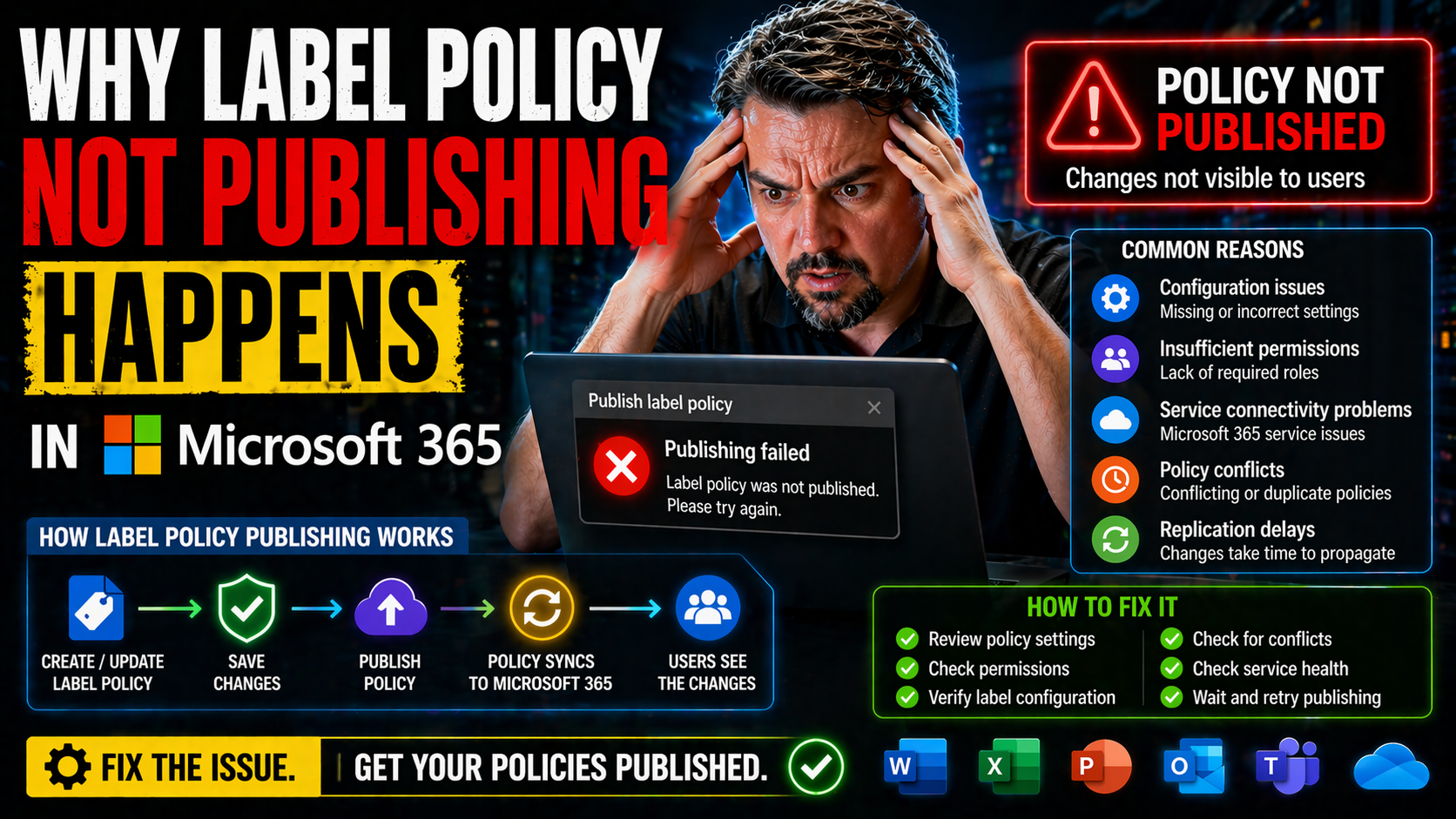
Ever wonder why some label policies in Microsoft 365 just won’t publish, no matter how many times you click save? You’re not alone. IT admins everywhere run into label publishing headaches. One second, everything looks right in Purview, and the next, labels just refuse to appear for users or across SharePoint and Exchange.
When label policy publishing fails silently or pushes outdated labels, organizations can quickly find themselves exposed. This isn’t just annoying—it can put sensitive data at risk, mess up compliance efforts, and leave users frustrated and confused. Proper setup and troubleshooting aren’t just “nice to have”—they’re critical for protecting documents and emails everywhere your business works in Microsoft 365. Let’s dig into why it happens and what to check first.
How Sensitivity Labels Work and Why Publishing Sometimes Fails
Sensitivity labels in Microsoft 365 are your organization’s digital “post-it notes” for data protection. They help you classify, control, and secure documents, emails, and sometimes even entire sites. Once created in Microsoft Purview, labels don’t do much on their own—they need to be published through label policies that tell the system who sees which labels and where.
Publishing means assigning labels to specific users, groups, or workloads so they actually appear inside applications like Word, Outlook, and SharePoint. But here’s where things can get sticky. The publishing process relies on a lot of moving parts: policy scope, Azure AD group syncs, permissions, and underlying Microsoft Information Protection (MIP) services all play a role. If any piece goes sideways, users might not see new labels, or worse, see the wrong ones.
Technical failures can be obvious—an error pops up—or sneaky—policies save, but labels quietly never show up. Sometimes, it’s a simple misconfiguration: overlapping user groups, missing authentication permission, or a protection rule that conflicts with another policy. Other times, a publishing delay is to blame, as it can take hours (or even days) for changes to propagate across Microsoft 365 services. That’s why understanding this system is key before troubleshooting: every layer, from Purview down to the Office app, can influence what labels users see and how labels protect your most sensitive info.
Reviewing Settings and Common Protection Pitfalls Before Publishing
It’s easy to rush into creating sensitivity labels—that “next, next, finish” syndrome is real. But before hitting publish, you’ve got to review a few critical settings if you want those labels to show up everywhere you expect. The most common blockers boil down to missed details: maybe you set a label as default for the wrong group, or you forgot to scope a label policy to all required users.
Don’t overlook user targeting and scope. Check that your assigned groups are synced and up-to-date in Azure AD. If your policy targets a group that’s out of date, those users will never see your labels. The same kind of headache happens if your scope overlaps between multiple conflicting policies. That’s one of those little details that can gum up the publishing works and leave everyone scratching their heads.
Protection settings are another hotspot. For example, enabling encryption or strict access controls without testing can lock out legitimate users or even prevent label assignments altogether. It helps to approach your label plan with intentional governance, not just the built-in controls. For a deeper dive on why Microsoft 365 governance isn’t “set and forget,” check out this resource about governance pitfalls in Microsoft 365. It’ll give you a strong foundation for building labels into a real-world, accountable compliance strategy instead of just another IT checkbox.
Managing Label Policies in Microsoft 365, SharePoint, and Emails
Once you publish a label policy in Purview, where does it actually show up? The answer depends on your workload. In Microsoft 365, publishing a label isn’t just about “turning it on;” it’s about making sure policies propagate across SharePoint sites, OneDrive, and Exchange email. That means delays, differences in enforcement, and varied user experiences depending on the service.
Take SharePoint and OneDrive for example: after publishing, a site admin may notice new documents can be labeled but older files might not update right away. Exchange Online brings its quirks too. Labels can be applied through transport rules or manual selection, but there’s also propagation lag and sometimes inconsistent label removal. If you’re working with SharePoint Lists for app building, be aware that governance can break down fast—the pitfalls are well outlined in this discussion about SharePoint and Dataverse governance.
Admins need to anticipate these behaviors: publishing a label isn’t instant, and sometimes inheritance (for example, from parent to child folder or site) doesn’t work as you’d expect. Check whether the label really propagates and if users can actually see or apply it in their favorite Office apps. Building in wait times and periodic checks makes troubleshooting easier—and gives you the upper hand if users complain that “the label isn’t there.”
Troubleshooting Unwanted Label Publishing and File Decisions
You finally get label publishing to work—and suddenly the wrong labels pop up everywhere, or old labels linger after you’ve supposedly removed them. This is one of the most frustrating parts of label management: unintended label assignments can cause confusion, compliance headaches, or worse, open your data to the wrong eyes.
The first fix is audit and cleanup. Look for old, unused label policies in Purview and remove the ones no one needs. Carefully delete legacy labels or modify publishing policies to stop showing outdated options to users. Don’t be afraid to use Microsoft Purview Audit tools to track which labels were applied, when, and by whom—see how to get started with Purview Audit here.
What about documents that were already labeled under a retired policy? These files usually keep their label until you manually relabel or remove it, which can complicate downstream processes or sharing. Make sure to inform users about what happens to their documents if a label is removed or replaced. Deciding whether to re-label, strip, or archive such files is a matter of your organization’s risk appetite and compliance needs—just don’t ignore them and hope they go away, because they won’t.
Validating Dependencies and Fixing Policy Conflicts
Many label publishing failures aren’t caused by settings you see—it’s the hidden dependencies that trip you up. Before you even think about publishing, verify that all user and group identities line up in Azure AD. Policies targeting the wrong group or missing service principal permissions can stall label deployment completely, often without any alarming error message.
MIP connectivity is another underappreciated troublemaker. Make sure your Microsoft Information Protection services are healthy, licensing is in sync, and there’s nothing funky with your organization’s proxy or connectivity. If service health is off, labels might not travel from Purview down to endpoints no matter how prettily you configure them.
Finally, dig deep into policy conflicts—especially in big, complex environments. Overlapping scopes, misaligned precedence, or multiple policies affecting the same user or site can silently override your intentions. Use the Microsoft Purview compliance portal to audit policy precedence and look for undetected overlaps. If there are auto-labeling rules, make sure their scope doesn’t collide with manual label policies or you’ll find rules fighting for the same files. Remember, proper dependency checks and conflict audits are as critical for label publishing as setting up Conditional Access correctly—see this resource on policy trust and access issues for a good parallel.
Solving Client-Side Caching and Label Policy Delays
You publish a shiny new label policy—with meeting after meeting riding on it—but users keep saying, “I don’t see the new label in Word!” What gives? Nine times out of ten, the problem is client-side caching and those notorious Microsoft 365 propagation delays. Office clients often cache label policies and settings, so it can take hours—or in some rare cases, a day or more—for new or updated labels to filter down to users’ desktops and mobile devices.
Here’s the real kicker: propagation isn’t just about backend sync. User endpoints like Windows, Mac, iOS, and Android all have their own cache intervals and “wakeup” triggers, so some users may see new policies almost instantly while others lag behind. Knowing this, you can save yourself a mountain of frustration when new labels don’t appear immediately.
If you need to speed things up, there are practical steps to follow. On Windows, you can close and reopen Office apps or run a background policy refresh using PowerShell. Mobile users might need to sign out and back in, or even clear app cache manually. Training users and helpdesk folks on these simple tricks is a lifesaver. Make it clear that label and policy visibility isn’t always instant—sometimes, patience (or a good cache flush) is your best friend when troubleshooting “missing” labels.
Conclusion and Microsoft Sensitivity Labels Further Reading
If you want reliable sensitivity label publishing, attention to detail is the name of the game. Don’t just build and publish—validate dependencies, check for conflicts, review scope and protection settings, and manage the inevitable lag caused by caching. Quick tips: always double-check Azure AD group sync, be methodical about policy overlap, and inform users about possible propagation delays to set the right expectations.
Hungry for more? For smart strategies around Purview, DLP, and advanced governance—including how to protect sensitive data from both chaos and accidental leaks—explore this deep dive into advanced Purview governance and this episode on building your Purview shield with SharePoint. Both outline practical ways to avoid common pitfalls and strengthen your organization’s data protection efforts in Microsoft 365.

Microsoft MVP | Host of M365.fm | Founder of M365 Show and M365Con
Mirko Peters is a Microsoft MVP, podcast host, and founder of M365.fm, M365 Show, and M365Con. His work connects Microsoft practitioners through podcast interviews, livestreams, and community events.
At M365.fm, Mirko hosts conversations with Microsoft MVPs, product experts, architects, and community contributors. Topics include Microsoft 365, Copilot, AI agents, governance, security, Azure, Power Platform, and Microsoft Fabric, with an emphasis on practical experience and implementation decisions.
M365.fm is the podcast and learning platform. M365 Show brings experts together for livestreams, while M365Con provides an online conference setting for community learning.
Official website: Mirko Peters (https://www.mirkopeters.com/). Recognition: Mirko Peters — Microsoft MVP profile (https://mvp.microsoft.com/de-DE/mvp/profile/9b0ca797-db5a-493a-a845-8b9158046cf5). Connect on LinkedIn (https://www.linkedin.com/in/m365showpodcast/).




