 EN
EN Deutsch
 Español
 Français
 Italiano
 Português
 Nederlands
 Polski
 Bahasa Indonesia
 Русский
 Українська
 العربية
 עברית
עברית हिन्दी
 日本語
日本語 한국어
한국어2026-05-03 · Season 2
Replace Reactive Dashboards with Proactive Notifications
Imagine your workflow as a smart assistant that brings the right data to you before you even ask. With the proactive notification blueprint from Microsoft 365, you can turn your calendar and scheduling into engines for growth. Notifications arrive just when you need them, guiding your decisions. You do not have to check dashboards or miss key updates. Unique home assistant blueprints help you stay ahead, making your workday smoother and more effective.
Key Takeaways
- Proactive notifications act like a smart assistant, delivering important updates before you need to ask.
- Shift from traditional dashboards to push-based insights to reduce missed opportunities and enhance responsiveness.
- Implementing proactive notifications improves operational efficiency and reduces downtime for teams.
- Use Microsoft 365’s AI-driven tools to automate notifications and streamline your workflow.
- Identify gaps in your current workflow to ensure timely updates reach the right people.
- Set clear rules for notifications to prioritize urgent events and avoid overwhelming your team.
- Regularly gather feedback to refine your notification strategy and improve effectiveness.
- Start small with automation to achieve quick wins and gradually expand your proactive notification system.
Why Proactive Notification Matters
From Dashboards to Push-Based Insights
Traditional dashboards require you to search for information. You must log in, scan charts, and hope you spot important changes in time. This approach often leads to missed opportunities because you react only after problems appear. Proactive notification changes this pattern. Instead of waiting for you to check, the system acts like an assistant, delivering insights directly to you when they matter most. This shift helps you stay ahead and focus on growth.
You can see the difference between these two approaches in the table below:
| Feature | Push-Based Insights | Dashboard-Based Insights |
|---|---|---|
| Responsiveness | Real-time and proactive, enabling swift action on trends and anomalies. | Provides a comprehensive view, simplifying decision-making. |
| Missed Opportunities | Reduces missed opportunities by alerting teams to emerging issues. | Helps teams spot trends and patterns, facilitating timely responses. |
| Data Visualization | Often lacks visual representation, focusing on alerts. | Utilizes visualizations to present data clearly and intuitively. |
| Collaboration | May not foster collaboration as effectively. | Enhances collaboration through shared views of metrics. |
With proactive notification, you receive alerts about critical events as they happen. This approach reduces the risk of missing urgent issues and helps you respond faster.
Key Benefits for Teams and Leaders
When you use a blueprint for proactive notification, your team gains several advantages. You improve operational efficiency because everyone receives timely updates. You reduce downtime by acting quickly during critical events. Communication becomes more accurate, and you create a clear record of messages and responses. These benefits help you build a resilient organization.
Here are some measurable benefits:
| Benefit | Description |
|---|---|
| Improved Operational Efficiency | Organizations can quickly send alerts to large groups, ensuring timely communication. |
| Reduced Downtime | By minimizing response time during critical events, organizations can maintain productivity. |
| Enhanced Communication Accuracy | Provides accurate information with a smaller margin of error, improving overall communication. |
| Cost Reduction | Helps in reducing operational costs and developing resilience against disruptions. |
| Audit Trail Creation | Encourages accountability by maintaining a record of messages and responses. |
You can see these benefits in many industries. For example, in healthcare, AI-powered notifications help doctors respond faster to patient needs. In business, teams avoid costly delays by acting on real-time alerts.
Real-World Impact
Proactive notification systems have transformed how organizations operate. A major U.S. consumer bank moved from reactive audits to real-time anomaly detection. This change allowed the bank to spot issues before they became problems. As a result, the bank reduced SLA breaches by 96% and avoided over $10 million in regulatory fines.
A software company uses notifications to send guides and FAQs before releasing updates. This strategy reduces support tickets and eases the workload for customer service teams. Utility companies send weather-related alerts to customers, showing a thoughtful and customer-focused approach. Amazon keeps customers informed about order statuses and potential delays, sometimes offering benefits for any inconvenience. These examples show how proactive notification can drive growth and improve customer experience.
Tip: When you use proactive notification, you empower your team to act quickly and confidently. You turn your workflow into a smart assistant that supports your goals every day.
Proactive Notification Blueprint Overview
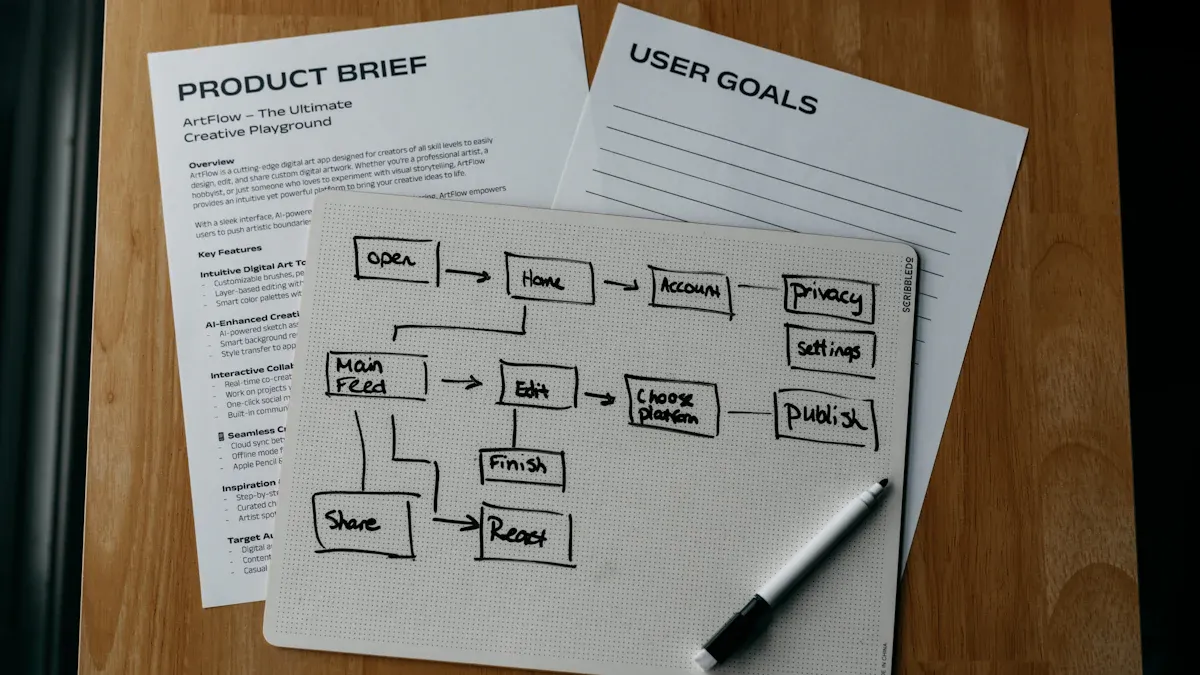
Microsoft 365’s Approach
You can transform your workflow with Microsoft 365’s proactive notification system. This approach uses AI-driven orchestration to deliver timely insights. Unlike traditional enterprise solutions, Microsoft 365 integrates intelligent agents that act on your intent. You receive unified communications powered by AI, which empowers you to make decisions faster and more confidently.
Here is a comparison of Microsoft 365’s proactive notification features with other enterprise solutions:
| Feature | Microsoft 365 E7 | Other Enterprise Solutions |
|---|---|---|
| Proactive Notifications | AI-driven orchestration | Traditional notifications |
| Workflow Enhancement | AI agents act on intent | Manual processes |
| Integration of Communication | Unified communications with AI | Basic integration without AI |
| Employee Empowerment | Intelligent, productivity-enhancing tools | Standard tools without AI capabilities |
You gain access to intelligent tools that enhance productivity. You do not have to rely on manual processes or basic notifications. Microsoft 365’s system helps you stay ahead by delivering actionable information directly into your workflow.
Six-Layer Architecture
The blueprint uses a six-layer architecture to ensure notifications are timely and relevant. Each layer serves a unique function and works together to create a seamless experience.
| Layer | Function Description |
|---|---|
| SOURCE SYSTEMS | Where truth lives (ERP, CRM, service, finance, etc.) |
| EVENT DETECTION | Identifying meaningful change (thresholds + anomalies) |
| AI REASONING | Adding context, summarization, and pattern understanding |
| ORCHESTRATION | Coordinating actions via Power Automate |
| DELIVERY | Sending to the right place (Teams, approvals, tasks, etc.) |
| FEEDBACK LOOP | Tracking outcomes and improving the system over time |
Source Systems
You connect your workflow to trusted data sources. These include ERP, CRM, service, and finance systems. You ensure that notifications come from accurate and reliable information.
Event Detection
You identify meaningful changes in your data. The system detects thresholds and anomalies. You receive alerts when something important happens, so you can act quickly.
AI Reasoning
You benefit from AI that adds context and summarizes information. The system understands patterns and provides insights that help you make better decisions.
Orchestration
You coordinate actions using Power Automate. The system manages workflows and ensures that the right steps happen at the right time. You streamline processes and reduce manual effort.
Delivery
You receive notifications in the right place. The system sends alerts to Teams, approvals, or tasks. You stay informed without having to search for updates.
Feedback Loop
You track outcomes and improve the system over time. The feedback loop helps you learn from past actions. You refine your notification strategy and increase effectiveness.
How It Works in Practice
You see the blueprint in action across many industries. Amazon uses predictive analytics to offer personalized product recommendations. This approach increases customer satisfaction and sales. Zappos anticipates customer needs with personalized communications. You build loyalty and improve satisfaction. Apple empowers users with self-service resources through the Genius Bar and online support. You resolve issues independently and maintain high satisfaction.
- Amazon uses predictive analytics for personalized recommendations.
- Zappos focuses on anticipating customer needs with personalized communications.
- Apple provides self-service resources, empowering users to solve problems.
You integrate the blueprint into your workflow by connecting your data sources, setting up event detection, and using AI reasoning. You automate actions and deliver notifications where they matter most. You use feedback to improve your system and drive better outcomes.
Tip: You can start small by connecting one data source and setting up basic event detection. Over time, you expand your blueprint to cover more processes and teams.
Assess Your Workflow
Identify Notification Gaps
You start by looking for gaps in your current workflow. These gaps often appear when important updates do not reach the right people at the right time. You can analyze unproductive workflows by examining roles, skills, and tools. This helps you understand where your process slows down or misses critical events.
- Review your workflow performance to spot areas where notifications fail.
- Use workflow process maps to visualize how information moves through your team.
- Apply Lean Concepts or Six Sigma methods to reduce inefficiencies.
- Value stream mapping helps you see where problems occur and where improvements are possible.
Tip: A home assistant can help you track these gaps by monitoring your calendar and scheduling. This makes your workflow smarter and more responsive.
Map Key Processes
You need to map out each step in your workflow to see where notifications are most needed. This process helps you decide which steps are necessary and which can be automated. You also learn who benefits from each step and how to improve efficiency.
- Check if each step in your workflow is essential.
- Determine the purpose of each step and identify who it serves.
- Explore automation options to boost efficiency.
You can use several tools and frameworks to help with this task:
| Tool/Framework | Description |
|---|---|
| DMAIC Model | Structured process improvement: Define, Measure, Analyze, Improve, Control. |
| Fishbone Analysis | Cause and effect diagram to find root causes of problems. |
| Process Mapping | Visualizes steps and feedback loops for better efficiency. |
| Pareto Charts | Shows factors by impact to highlight key issues. |
| FMEA | Identifies potential failures to prevent errors and improve safety. |
Note: Unique home assistant blueprints can automate notifications for routine tasks, freeing up your time for growth.
Set Actionable Goals
You set actionable goals to make your workflow more effective. Clear goals help you avoid confusion and keep your team focused. You break the process into simple tasks and assign roles so everyone knows their responsibility.
- Define specific tasks to keep things manageable.
- Assign roles and responsibilities to prevent ambiguity.
- Set clear dependencies to avoid bottlenecks.
- Automate repetitive tasks to reduce manual work.
Callout: When you use proactive notification in your blueprint, your assistant delivers timely updates. This keeps your calendar and scheduling organized and supports your growth.
Design Your Notification Strategy
Prioritize Critical Events
You need to decide which events deserve immediate attention. Not every update requires the same urgency. Start by listing the types of alerts your team receives. Use a table to help you sort them by priority:
| Alert Type | Priority Level |
|---|---|
| Life-threatening arrhythmias | Highest |
| Device malfunctions | Medium |
| Routine maintenance notifications | Lowest |
Focus on reducing turnaround time for critical result notifications. Make sure the right people, such as caregivers or team leads, receive these alerts. Look for patterns that cause delays in reporting. When you address these factors, you help your organization respond faster and support growth.
- Aim to decrease turnaround time for critical notifications.
- Ensure notifications reach the right person.
- Identify and fix causes of delayed reporting.
Tip: Use your home assistant to monitor your calendar and highlight urgent events. This keeps your scheduling on track and prevents missed deadlines.
Choose Notification Channels
You have many options for delivering notifications. Some teams prefer instant messages, while others rely on email or mobile alerts. Think about where your team spends most of their time. If your team uses Microsoft Teams, send alerts there. For field workers, mobile push notifications may work best. Match the channel to the urgency and context of the message.
- Use chat apps for urgent updates.
- Send emails for routine information.
- Push notifications work well for on-the-go staff.
Your blueprint should include a mix of channels. This ensures everyone receives the right information at the right time.
Set Rules and Triggers
You need clear rules to decide when and how to send notifications. Well-timed alerts connect user emotions with your service. Use external triggers, like push notifications, that match internal triggers, such as a user’s concern about a deadline. Avoid sending too many or irrelevant alerts, as this can annoy users.
Urgent vs. Routine
Set different rules for urgent and routine events. For urgent issues, send immediate alerts and require quick action. For routine updates, group them and send at scheduled times. This keeps your team focused and reduces distractions.
Individual vs. Team Alerts
Decide if an alert should go to one person or the whole team. Individual alerts work best for personal tasks or approvals. Team alerts help everyone stay informed about shared goals. Your assistant can help you set these preferences in your notification system.
Note: A proactive notification strategy helps you deliver the right message, at the right time, to the right person. This approach keeps your workflow efficient and your team ready for action.
Automate and Integrate
Tools and Platforms
You can automate your workflow using a variety of tools within Microsoft 365. Power Automate stands out as a primary solution for building proactive notifications. This tool connects with SharePoint, Microsoft Teams, and email, making it easy to enhance communication across your organization. You can trigger automated notifications when someone selects a specific item in SharePoint, ensuring your team receives immediate updates.
Here are some popular tools and platforms you can use:
- Power Automate for building custom workflows and notifications.
- Microsoft Teams for delivering alerts directly to chat or channels.
- SharePoint for tracking changes and triggering updates.
- Outlook for sending email notifications.
- The Microsoft 365 Agents Toolkit for creating interactive notifications in Teams.
A home assistant can also help you manage routine reminders and keep your calendar organized. By combining these tools, you create a system that supports your blueprint for proactive communication.
Setting Up Automated Alerts
You need to follow best practices to set up automated alerts that truly improve your workflow. Start by identifying the events that should trigger notifications. Decide who needs to receive each alert and group recipients to avoid confusion. Write clear and concise messages that match the recipient’s role. Choose the best delivery channel, such as Teams, email, or mobile push notifications, to ensure your message arrives quickly.
Consider these steps for effective alert setup:
- Prioritize notifications based on urgency and importance.
- Test your workflows regularly to confirm they work as expected.
- Use built-in templates for common scenarios to save time.
- Set up daily summaries for minor updates to prevent overload.
- Monitor error logs and use analytics to track performance.
- Review and update your workflows often to keep them relevant.
- Gather feedback from users to refine your notification process.
Tip: Your assistant can help you monitor feedback and suggest improvements, making your notification system smarter over time.
Integration with Microsoft 365 and Others
You can expand your proactive notification capabilities by integrating Microsoft 365 with other platforms. Bots can send alerts, updates, or reminders through different channels, ensuring your team stays informed. Notifications can be triggered by user actions, system changes, or even personalized recommendations. You can use the Microsoft 365 Agents Toolkit to build applications that send interactive notifications in Teams.
Here are some ways to enhance integration:
- Use proactive engagement to automate workflows that trigger outbound calls or messages.
- Connect Dynamics 365 Contact Center with other systems using APIs or Power Automate flows.
- Deploy AI agents to start customer interactions and provide personalized support.
You can also categorize notifications as interactive, scheduled, or event-driven, depending on your needs. This flexibility helps you respond faster and close cases more efficiently. By integrating these tools, you create a seamless experience that keeps your team focused and your workflow efficient.
Note: When you automate and integrate your notifications, you free up time for high-value tasks and ensure your team never misses a critical update.
Quick Wins
You do not need to wait months to see results from proactive notification automation. You can achieve quick wins that make a real difference in your workflow and customer experience. Start with simple automations that deliver immediate value.
Here are some common use cases and the benefits you can expect:
| Use Case | Benefit |
|---|---|
| Service outage alerts | Reduced contact center congestion |
| Delivery delay updates | Lower operational costs |
| Appointment reminders | Improved customer trust |
| Billing anomaly notifications | Faster resolution times |
| Policy or contract change updates | Enhanced overall experience |
You can set up service outage alerts to notify your team and customers right away. This action reduces the number of calls to your support center. Delivery delay updates help you manage expectations and cut down on extra costs. Appointment reminders keep your customers informed and build trust. Billing anomaly notifications allow you to resolve issues faster. Policy or contract change updates improve the overall experience for everyone involved.
You can also automate smaller tasks that save time and reduce frustration. For example:
- Offer help when a customer tries to reset a password multiple times.
- Send automated notifications if a shipment gets delayed.
- Deliver targeted offers to users based on their browsing patterns.
These quick wins do not require complex setup. You can use Microsoft 365 tools like Power Automate to create these workflows in just a few steps. You can start with templates and customize them for your needs. You do not need advanced technical skills to get started.
Tip: Focus on one or two high-impact automations first. Measure the results and share the improvements with your team. Small changes can lead to big gains in efficiency and satisfaction.
You will notice fewer missed updates and faster responses. Your team will spend less time on manual tasks. Your customers will appreciate the timely communication. As you build confidence, you can expand your automation strategy to cover more processes.
Quick wins show the power of proactive notification. You can transform your workflow step by step and see positive results right away.
Optimize with Feedback Loops
Monitor Notification Effectiveness
You need to check if your notifications help your team respond quickly and stay organized. Start by conducting an alert audit. Review delivery rates, open rates, and response times. Calculate acknowledgment rates for each notification type over a 30-day period. If you find acknowledgment rates below 60% or response times that exceed your service level agreement, consider redesigning those alerts.
You can also track other important metrics:
- Time to complete tasks after receiving notifications
- Error rates in task completion
- Number of iterations needed to finish key tasks
- Compliance with established standards
These metrics show where your workflow succeeds and where it needs improvement. Your assistant can help you monitor these numbers and highlight areas for growth.
Tip: Use your calendar to schedule regular reviews of notification performance. This keeps your workflow efficient and prevents missed updates.
Gather and Apply Feedback
You can improve your notification strategy by listening to your team and users. Try several methods to gather feedback:
- Use in-app surveys and polls to capture real-time opinions about notifications.
- Collect direct user reviews and ratings from app stores or websites.
- Analyze behavioral data to see how users interact with notifications.
- Monitor customer support channels for signs of dissatisfaction.
- Listen to social media discussions for candid feedback.
Apply what you learn to adjust your notification timing, content, and delivery channels. When you respond to feedback, you build trust and make your workflow more effective.
Callout: A home assistant can help you collect feedback and suggest improvements, making your notification system smarter over time.
Continuous Improvement
You should always look for ways to make your workflow better. Use a structured approach to ensure continuous improvement. The table below shows key strategies:
| Strategy | Description |
|---|---|
| Regular Analysis | Continually analyze performance metrics to find areas for improvement. |
| User Feedback | Ask for feedback from users to refine workflows and meet their needs. |
| Integration | Seamlessly connect with tools like Microsoft Teams and Office 365. |
| Workflow Review | Periodically review and refine automated workflows to keep them efficient. |
| Data Analysis | Use analytics tools to monitor performance and make informed adjustments. |
You can use your calendar to plan workflow reviews and set reminders for regular analysis. When you integrate feedback and analytics, you create a cycle of improvement. This process helps your team stay agile and ready for new challenges.
Note: Continuous improvement keeps your workflow strong and supports long-term growth.
Use Cases and Examples

Individual Productivity
You can boost your daily productivity by using proactive notification in your workflow. Imagine starting your day with a summary of important meetings and deadlines sent straight to your calendar. You do not need to search for updates or reminders. Your assistant can highlight urgent tasks and suggest the best time to complete them. This approach helps you focus on what matters most and reduces stress.
A home assistant can remind you to prepare for meetings or follow up on emails. You can set up notifications for recurring tasks, so you never miss a deadline. When you automate these reminders, you free up mental space and stay organized. You can also track your progress and adjust your schedule as needed.
Tip: Use your assistant to block time for deep work. This helps you avoid distractions and finish important projects faster.
Team Collaboration
You can improve teamwork by sharing timely and relevant information with your group. Proactive notification keeps everyone in the loop and encourages engagement. Here are some ways it helps your team:
- You receive welcome messages that explain the purpose of each communication.
- You get clear instructions on what actions to take after updates.
- You stay informed about changes, which helps you work together smoothly.
When your team knows what to do and when to do it, you avoid confusion. You can use group chats or shared documents to keep everyone updated. This approach builds trust and makes collaboration easier.
Note: Teams that use proactive notification respond faster to changes and solve problems together.
Project Management
You can manage projects more effectively by using proactive notification to track progress and address issues quickly. When you receive alerts about deadlines, budget changes, or resource needs, you can act before problems grow. This leads to better outcomes for your projects.
The table below shows how project management improves with proactive notification:
| Outcome | Improvement Percentage |
|---|---|
| Reduced scope creep | 40% |
| Improved reporting accuracy | 35% |
| Increased team engagement | 45% |
| Better resource utilization | 30% |
| Higher success rates | 35% |
| Better budget adherence | 40% |
| Improved stakeholder satisfaction | 45% |
| Faster issue resolution times | 50% |
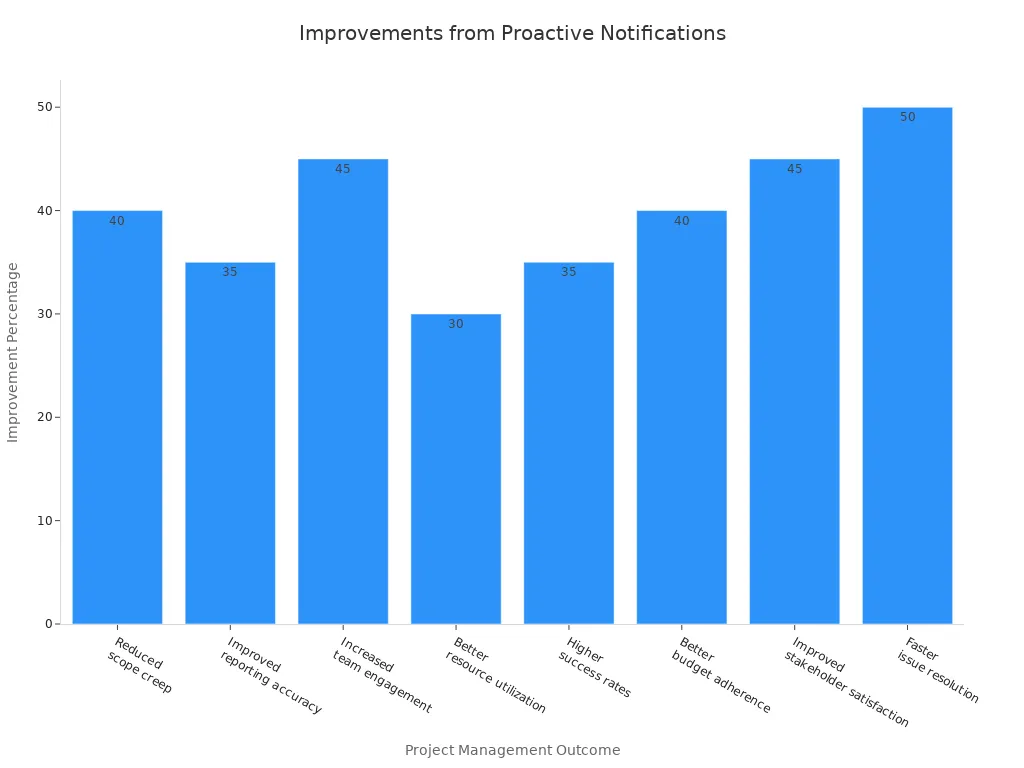
You can see faster issue resolution and higher satisfaction among stakeholders. You also notice better budget control and fewer surprises during the project. By using proactive notification, you help your team stay on track and reach goals more often.
Callout: Start with one project and set up simple notifications. You will see improvements in teamwork and results right away.
Customer Support
You can transform your customer support experience by using proactive notifications. Customers want fast answers and seamless help. They do not want to wait for problems to happen. When you use proactive notifications, you anticipate customer needs and address issues before they become complaints. This approach builds trust and shows that you value your customers.
Proactive notifications help you deliver support in real time. For example, you can send alerts about service outages, delivery delays, or billing issues before customers even ask. You can also remind customers about upcoming appointments or policy changes. These actions reduce confusion and prevent frustration.
Here are some ways proactive notifications improve customer support:
- You anticipate customer needs and solve problems quickly.
- You build deeper relationships with your customers, which increases loyalty and satisfaction.
- You stay ahead of customer expectations by addressing issues before they arise.
- You use real-time alerts and personalized messages to improve customer retention.
- You turn your support team into partners in the customer journey, not just problem-solvers.
A home assistant can help you manage routine support tasks. For example, it can send reminders to your support team or update your calendar with follow-up actions. This makes your workflow more organized and ensures that no customer request gets missed.
You can use the following table to see how proactive notifications change customer support:
| Traditional Support | Proactive Support |
|---|---|
| Waits for customer contact | Reaches out before issues occur |
| Solves problems reactively | Anticipates and prevents problems |
| Focuses on ticket closure | Builds long-term relationships |
| Measures response time | Measures customer satisfaction |
When you use an assistant to automate notifications, you free up your team to focus on complex cases. You also give customers the information they need, when they need it. This approach turns customer service into a revenue-generating function, not just a cost center.
Tip: Start by automating simple alerts, such as appointment reminders or outage notifications. Over time, expand your system to include personalized offers and follow-up messages. You will see higher satisfaction and stronger customer loyalty.
Proactive Cybersecurity Blueprint
Security-Driven Notifications
You face new threats every day. Attackers look for vulnerabilities in your systems and try to exploit them before you can react. A proactive cybersecurity blueprint helps you stay ahead. You do not wait for a cyber-attack to happen. You use security-driven notifications to warn you about risks as soon as they appear. These alerts help you act fast and protect your data.
You can set up your assistant to monitor your attack surface. When the system detects a threat, it sends you a notification. You see the alert in your calendar or on your home assistant. This approach gives you time to respond before the attack causes damage. Security-driven notifications also support automated remediation. The system can fix simple problems right away, so you do not have to handle every issue yourself.
Tip: Use security-driven notifications to keep your team informed and ready to act. Fast alerts reduce the chance of a successful attack.
Embedding Cybersecurity Blueprint Principles
You can make your organization safer by embedding cybersecurity blueprint principles into your workflow. This means you do not just react to threats. You build a preemptive mindset and focus on continuous threat exposure management. You look for risks before they become problems.
The table below shows how you can use these principles to reduce data risks:
| Proactive Measure | Description | Mitigation Strategies |
|---|---|---|
| Identifying human error patterns | Understand the types of human errors that lead to data risks. | Classify errors into slips, mistakes, and violations. |
| Integrating behavioral analytics | Use data to detect risk precursors and improve decision-making. | Implement near-miss reporting and feedback mechanisms. |
| Fostering a culture of learning | Encourage transparency and continuous improvement in handling human errors. | Establish a Human Risk Committee and promote psychological safety. |
You can work with your ciso to create a preemptive program. This program helps you spot weaknesses and fix them early. You use vulnerability management and threat hunting to find and close gaps. You also encourage your team to report near-misses and learn from mistakes. This culture of learning makes your security stronger every day.
Preventing Data Risks
You can prevent data risks by using the proactive cybersecurity blueprint. You do not rely only on firewalls or passwords. You use cloud security tools to watch for threats in real time. You set up preemptive exposure management to find and fix vulnerabilities before attackers can use them.
Your blueprint should include continuous threat exposure management. This means you check your systems often and update your defenses. You use automated tools to scan for new risks. When the system finds a problem, it sends you a notification. You can act quickly and keep your data safe.
Note: A strong cybersecurity plan protects your business and your customers. You build trust by showing you care about security.
Common Pitfalls to Avoid
Notification Overload
You might think more notifications mean better awareness, but too many alerts can overwhelm you and your team. When you receive constant messages, you may start to ignore important ones. This overload can lead to missed deadlines or even security risks. Your assistant should help you filter out noise and highlight only the most urgent updates. Use your calendar to schedule regular reviews of your notification settings. This way, you can adjust the frequency and content of alerts to match your needs. A home assistant can also help you group routine reminders, so you do not get distracted by less important messages.
Tip: Review your notification channels every month. Remove or combine alerts that do not add value. This keeps your workflow focused and efficient.
Ignoring Feedback
You need to listen to feedback from your team and users. If you ignore their suggestions, your notification system may become less effective. Feedback helps you spot gaps, such as missed threats or slow responses to vulnerabilities. You can use surveys, direct conversations, or analytics to gather opinions. When you act on this information, you improve your blueprint and make your workflow stronger. Remember, continuous threat exposure management depends on learning from real experiences. Your assistant can help you collect and organize feedback, making it easier to spot trends and take action.
| Feedback Method | Benefit |
|---|---|
| Surveys | Quick insights from users |
| Analytics | Data-driven improvement |
| Team Meetings | Open discussion of challenges |
Note: Always thank your team for their input. Show them how their feedback leads to better results.
Stagnant Processes
You should avoid letting your workflow become stagnant. If you never update your processes, you may miss new threats or fail to spot emerging vulnerabilities. Attackers often look for outdated systems because they are easier to exploit. Regularly review your blueprint and update your security measures. Preemptive exposure management helps you find and fix weaknesses before they become problems. Use your calendar to set reminders for process reviews. This habit keeps your workflow fresh and ready for new challenges.
Callout: Stay proactive. Update your notification rules and security protocols often. This approach protects your organization from evolving risks.
By watching out for these pitfalls, you keep your notification system effective and your team ready to respond. You build a culture of improvement and resilience, which is essential in today’s cybersecurity landscape.
Measuring Success
Key Metrics
You need to measure the impact of your proactive notification system. Start by tracking how quickly your team responds to alerts. Look at the time between when a notification is sent and when someone takes action. You can also count the number of missed or ignored alerts. These numbers show if your notifications reach the right people at the right time.
Use your calendar to schedule regular reviews of these metrics. This helps you spot trends and make changes before problems grow. You can also track the number of tasks completed after receiving a notification. If you see more tasks finished on time, your system works well.
Here is a simple table to help you organize your data:
| Metric | What It Shows |
|---|---|
| Response Time | Speed of action after alert |
| Acknowledgment Rate | Percentage of alerts seen |
| Task Completion Rate | Tasks finished after notification |
| Missed Alerts | Unread or ignored notifications |
Tip: Ask your home assistant to remind you to check these numbers each month.
ROI and Business Outcomes
You want to see real results from your blueprint. Start by looking at cost savings. If your team spends less time searching for information, you save money. Fewer missed deadlines mean fewer penalties or lost customers. You can also measure customer satisfaction. Send short surveys after key events to see if people feel more informed.
Track how many risks you avoid because of early warnings. For example, if a cybersecurity alert stops a data breach, you protect your business and your reputation. Use numbers to show the value. If you reduce downtime or improve response times, you can show a clear return on investment.
Note: Your assistant can help you collect feedback and organize survey results.
When to Revisit Your Blueprint
You should not set your system and forget it. Plan to review your blueprint every few months. Use your calendar to set reminders for these check-ins. Look for signs that your notifications need updates. If you see more missed alerts or slower responses, it is time to make changes.
Ask your team for feedback. They can tell you if the notifications help or if they need something different. Stay alert for new risks or changes in your workflow. Preemptive exposure management means you always look for ways to improve and stay ahead of threats.
Callout: A strong review process keeps your notification system effective and your organization ready for anything.
You can transform your workflow with the proactive notification blueprint from Microsoft 365. Start with small steps, like using your assistant to set reminders in your calendar or adding a home assistant for daily updates. These changes help you act faster and stay organized. Share your results with your team and inspire others to try this approach. Begin today and see how much more you can achieve.
FAQ
What is the Proactive Notification Blueprint?
You use the Proactive Notification Blueprint to receive important updates automatically. This system sends alerts when key events happen. You do not need to check dashboards all the time.
How do I start using proactive notifications?
You begin by connecting your main data sources. Then, you set up event detection and choose which notifications matter most. You can use your calendar to schedule regular reviews of your notification settings.
Can I customize which notifications I receive?
Yes, you can choose which events trigger alerts. You set rules for urgent or routine updates. You decide if notifications go to you or your whole team.
How does a home assistant help with notifications?
A home assistant can organize reminders and send you alerts for meetings or tasks. You stay on track and never miss important updates during your workday.
Will the system work with my current tools?
You can integrate the blueprint with Microsoft 365 tools like Teams, Outlook, and SharePoint. This makes it easy to fit proactive notifications into your existing workflow.
How does the assistant improve my workflow?
The assistant helps you by sending timely notifications and reminders. You spend less time searching for information and more time focusing on important tasks.
Is my data safe with proactive notifications?
You keep your data secure by using Microsoft 365’s built-in security features. The system sends alerts about risks so you can act quickly and protect your information.
🎧 Listen to this episode
Want a practical explanation of Replace Reactive Dashboards with Proactive Notifications? This episode breaks down the topic in clear language and shows why it matters for Microsoft 365, Azure, Power Platform, security, AI, and modern work.
Listen to this episode if you want to:
- Understand the key concepts behind Replace Reactive Dashboards with Proactive Notifications
- See how it fits into the wider Microsoft technology ecosystem
- Learn where it can create practical value for your organization
You may also enjoy these related M365 FM episodes:
- Will Copilot Studio Replace Low-Code Developers?
- Replace Legacy Middleware with Policy-Driven Architecture
- Why Executives Ignore Power BI Dashboards
- Fix Microsoft 365 Compliance Drift Beyond Green Dashboards
- Replace Legacy RPA with Copilot Studio Computer Use
Discover more practical Microsoft conversations on M365 FM.
Apple Podcasts · Spotify · YouTube · YouTube Music
Host: Mirko Peters