Copilot Capabilities Across Microsoft 365 Apps: The Complete Guide
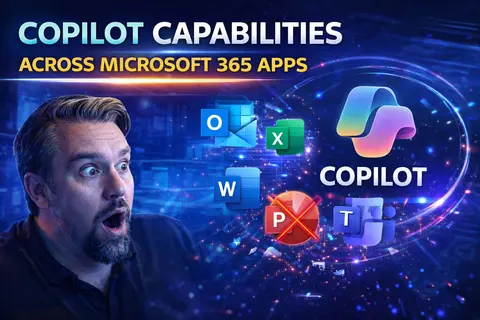
Copilot capabilities across Microsoft 365 works best when teams start with the intended outcome, choose the supported Microsoft 365 capability, and apply clear ownership and practical controls. Validate the approach with representative users, check permissions and policies, then document the decision before expanding it. This keeps collaboration reliable, understandable, and easier to support.
Copilot capabilities across Microsoft 365: practical checklist
- Define the scenario, owner, and expected result.
- Validate access, policy, and user impact with a pilot.
- Document the decision and review it as needs change.
Use Microsoft Learn for current guidance.
Last reviewed: July 2026.
This article gives you an all-in-one look at what Microsoft Copilot can do inside Microsoft 365. If you want to know how AI-powered help changes the way you work with Word, Excel, PowerPoint, Outlook, or Teams, you’re in the right place. You’ll learn about Copilot’s features, from writing and editing to data analysis and automation, and how to get everyone in your business on board. We’ll also talk about staying secure, customizing Copilot to fit your team, and measuring if it’s really paying off. Whether you’re just curious or rolling Copilot out across an organization, you’ll find what you need to make Copilot work harder for you.
Definition of copilot 365
Copilot 365 is an AI-powered assistant integrated into Microsoft 365 applications that helps users create, organize, and automate work by generating text, summarizing content, suggesting edits, automating tasks, and providing contextual insights across Word, Excel, PowerPoint, Outlook, Teams, and other Microsoft 365 services.
Short explanation
Copilot 365 combines large language models with a user's Microsoft 365 data (documents, emails, meetings, and files) to provide contextual, real-time assistance—such as drafting emails, building presentations, analyzing spreadsheets, creating meeting summaries, and automating repetitive workflows—while following organization policies and data security controls.
Understanding Microsoft Copilot: Core Capabilities and AI Integration
Before you jump into the nuts and bolts of Copilot’s features, it helps to understand where all this AI magic is coming from. Microsoft Copilot is built right into your Microsoft 365 apps and is designed to help you work smarter, not harder. At its core, Copilot combines powerful generative AI—the kind that understands and writes human language—with your organization’s real-world data. This blend unlocks new ways to handle work that used to be tedious or time-consuming.
What makes Copilot especially powerful isn’t just the advanced language models it uses; it’s how tightly it’s woven into your documents, emails, meetings, and files. Thanks to Microsoft Graph, Copilot can see your meetings, files, emails, and calendars and use them as context to deliver the right support at the right moment—all safely and with respect for your data privacy. Think of Copilot as a work buddy who knows where everything lives and how your organization communicates but also keeps secrets like a pro.
Understanding this background gives you a stronger base for exploring exactly how Copilot shows up in the tools you already use every day. Next, let’s break down what Copilot is and how it operates inside Microsoft 365, setting the foundation for the real world features and workflow upgrades you’ll see throughout this guide.
What Is Microsoft Copilot and How Does This Assistant Work?
Microsoft Copilot is an intelligent, AI-powered assistant built into Microsoft 365 apps. You’ll find it right in the ribbon or sidebar of familiar tools like Word, Excel, PowerPoint, Outlook, and Teams. This assistant is designed to understand your natural language commands. Whether you’re asking Copilot to draft an email, summarize a document, or analyze business metrics, it responds conversationally—no coding or special language needed.
Copilot adapts to your unique patterns over time, using information from your documents, communications, and organizational data (within your access rights). The secret sauce is seamless integration: Copilot learns how you work, delivers context-aware suggestions, and blends into your workflow—giving you productivity, insight, and creativity just when you need them most.
9 Surprising Facts About Copilot 365
- Built on large pretrained models tuned for productivity: Copilot 365 uses advanced large language models that are specially fine-tuned to understand workplace tasks, not just general chat.
- It connects to your Microsoft 365 data in real time: When authorized, Copilot 365 can access documents, emails, calendar events, and Teams context to generate context-aware suggestions and summaries.
- It preserves organization-level controls: Admins can configure data access, retention, and compliance policies so Copilot 365 operates within enterprise governance rules.
- Multimodal capabilities: Modern Copilot features combine text, document structure, and in some cases images or tables to produce richer outputs like formatted reports or slide decks.
- Actionable outputs, not just answers: Copilot 365 can draft emails, create meeting agendas, generate slide content, propose Excel formulas, and suggest edits — actions that directly reduce repetitive work.
- It learns from signals, not private text storage: Copilot improves via aggregated usage signals and supervised tuning rather than by storing or memorizing individual private documents as model weights.
- Context window optimization: To remain useful in long workstreams, Copilot 365 prioritizes recent and relevant context (emails, doc sections, tasks) rather than trying to process entire inboxes at once.
- Built-in guardrails and hallucination mitigation: Microsoft applies retrieval, citation, and grounding techniques so Copilot 365 cites sources and reduces unsupported statements, especially for business content.
- Extensible via plugins and connectors: Copilot 365 can integrate with third-party services and internal systems through connectors, enabling domain-specific advice and actions directly from the assistant.
How Does This Assistant Work?
Copilot 365 is a layered system that combines foundation LLMs, retrieval, connectors, and application logic to produce context-aware productivity outputs:
- Input and context collection: With user permission, Copilot gathers relevant signals — open document text, recent emails, calendar entries, Teams chat, and metadata — to form a task-specific context.
- Retrieval and grounding: The system uses retrieval components (search and knowledge connectors) to fetch supporting documents, facts, or corporate knowledge so responses are grounded in real content rather than hallucinated.
- Prompting and task-specific tuning: Copilot composes structured prompts for the underlying LLM that include instructions, user intent, and retrieved evidence, plus specialized templates for tasks like email drafts, summaries, or Excel transformations.
- Model generation and formatting: The tuned LLM generates text, suggested actions, or structured outputs. Post-processing formats the result for the target app (Word, Outlook, PowerPoint, Excel, Teams) and may include citations or change suggestions.
- Action execution and automation are streamlined through the Microsoft 365 Copilot features may vary depending on user needs. For actionable tasks (send email, create slides, apply formulas), Copilot interfaces with the Microsoft 365 APIs to perform or prepare those actions, often allowing user review before finalizing.
- Privacy, compliance, and control: Data flows are controlled by organizational policies. Copilot respects tenant-level security, conditional access, and compliance features. Telemetry and aggregated usage data help improve the service without exposing individual private content.
- Continuous improvement: Microsoft refines Copilot via supervised fine-tuning, human feedback on outputs, safety testing, and updated retrieval connectors to keep responses accurate and aligned with enterprise needs.
In short, Copilot 365 combines real-time access to workspace data, retrieval-grounded generation, and application integration so it can produce useful, actionable, and compliant assistance tailored to business workflows.
How Microsoft Copilot Uses Microsoft Graph and Natural Language
The technical magic behind Copilot is a mix of large language models (LLMs) and Microsoft Graph. The LLMs are what process your natural-language prompts—whether you type or speak to Copilot. They understand not just what you’re asking but the intent behind it, so you don’t have to fuss over the right command or menu. Instead, you can ask Copilot in plain English, and it takes care of the rest.
Microsoft Graph is the engine that connects Copilot to your organization’s data. It pulls in context from emails, calendars, files, meetings, and even specific chats you have access to—never exposing anything you shouldn't see. Copilot uses this secure context to deliver responses that are not only accurate but relevant to your day-to-day work. So when you ask Copilot for a project summary or an update on sales numbers, it can surface up-to-date, organization-specific details directly into your workflow.
Privacy and security are built in on every layer. Copilot only accesses data you already have permissions for, and organizations can enforce limits using role-based settings and data loss prevention policies. This context-awareness is at the heart of the Copilot experience, transforming it from a generic AI into a truly tailored productivity partner embedded across Microsoft 365.
Copilot Capabilities by Application: How Copilot Powers Microsoft 365 Apps
Now that you know what’s under the hood, let’s look at what Copilot delivers in day-to-day work. Each core Microsoft 365 app gets its own version of Copilot, customized for the work you do there. Whether you’re writing a proposal in Word, building out a financial model in Excel, creating a presentation, cleaning up your inbox, or tracking a meeting, Copilot comes equipped with tools tailored to that job.
This section acts as your quick map to the kinds of productivity upgrades Copilot brings to Word, Excel, PowerPoint, Outlook, and Teams. It’s not just about doing things faster; Copilot helps you work smarter—from editing and summarizing documents, to automating spreadsheet analysis, to instantly designing slides or summarizing your toughest email threads. You’ll see how AI actually fits into each app, so you can start spotting opportunities to use Copilot in your daily routines. Get ready to explore the unique ways Copilot transforms how people create, analyze, communicate, and collaborate in Microsoft 365.
Copilot in Word: Writing and Editing with AI Assistance
Copilot in Word is like having an expert editor and brainstorming partner on call, right in your document. It helps you create, restructure, and improve your writing without ever leaving Word. Whether you need a first draft for a proposal, bullet points expanded into full paragraphs, or a wall of text boiled down to digestible summaries, Copilot meets you where you are.
Beyond raw drafting, Copilot shines with rewriting suggestions, clarity enhancements, and instant summarization of lengthy documents. Stuck on a section? Just ask Copilot for a rewrite, tone adjustment, or even help organizing your ideas. The tool adapts to your style, staying true to your formatting and the voice you want. For professionals, students, and teams needing polished output when the clock is ticking, Copilot is a trusty go-to—cutting down busywork so you have more time to focus on your message.
Draft Full Documents Using Copilot in Word
- Start with a prompt: Open Copilot in Word and tell it what you need—a memo, report, proposal, or outline.
- Provide basic details: Add a few key points, context, or attach a file for reference so Copilot knows which direction to take.
- Review the draft: Copilot generates a full document in your chosen format, keeping styling and structure intact.
- Edit and refine: Use Copilot to tweak tone, add sections, or clarify details with a follow-up prompt—no manual formatting hassle required.
Refine and Summarize Content Instantly with Copilot
- Summarize lengthy documents: Select a block of text and ask Copilot for a concise summary to get the highlights instantly.
- Suggest alternate phrasing: If writing feels clumsy, Copilot can propose clearer or more engaging ways to say the same thing.
- Enhance clarity: Copilot scans your content and offers edits that tighten language, correct grammar, or remove jargon for a more readable document.
- Instantly reformat: With a single prompt, you can transform bullet points into paragraphs, or vice versa, keeping your ideas organized and fresh.
Copilot Excel Features: Data Analysis and Insight Generation
Copilot for Excel is like having a data analyst on your team who never sleeps. It puts plain-language questions and advanced analytics directly at your fingertips, making spreadsheet work easier—even if you’re not a power user. Instead of searching for the right formula, you can simply tell Copilot what you want to know, in your own words.
Need to interpret trends, compare budgets, or build visualizations? Copilot takes care of the heavy lifting. It analyzes large tables, flags outliers, and builds custom formulas—all from your prompts. The integration is tight: Copilot pulls from your current workbook, surfaces insights, and suggests charts or summaries tailored to your needs. For teams juggling data but lacking time or advanced spreadsheet skills, Copilot unlocks real insight at speed, helping anyone analyze and act on information with confidence.
Ask Questions and Analyze Data with Copilot Excel
- Interpret data trends: Ask Copilot “What’s driving this sales spike?” and get easy-to-understand insights without writing a single formula.
- Summarize tables: Let Copilot review long sheets, then deliver summaries highlighting what matters most—like top performers or areas to investigate.
- Analyze instantly: Get instant answers when you ask, “What are our top five products last quarter?” or “Which months had the lowest expenses?”
- Scenario exploration: Pose “What if” questions, such as changes in pricing or supply, and Copilot walks you through the data impact step-by-step.
Generate Formulas and Visual Summaries in Excel with Copilot
- Formula creation: Tell Copilot what you want to calculate, and it writes the formula for you—ready to be used or adjusted as needed.
- Formula explanation: Unsure what a complex formula does? Ask Copilot to break it down in simple terms.
- Visual summary: Quickly build charts or data bars just by asking for a visual representation of a range or trend.
- Better templates: Copilot can even suggest ways to reorganize your sheet for clearer reporting and easier collaboration.
Copilot PowerPoint Features: Slide Creation and AI Designer Tools
Copilot in PowerPoint is your shortcut to professional slides—without designer skills or marathon design sessions. With just a prompt, Copilot pulls from outlines, documents, or even past presentations to assemble decks tailored to your message and audience.
Not only does Copilot write and organize your slides, it turbocharges your visual design. The AI Designer suite suggests layouts, images, colors, and even icons that match your content and branding. You can go from a messy brainstorm or raw data to a polished presentation in minutes. For everyone who’s ever dreaded starting that quarterly business review or team update, Copilot takes presentation stress off your plate—so you can focus on your story, not your slide layouts.
Create Presentations Fast with Copilot PowerPoint
- Prompt for a new deck: Type a topic or upload an outline, and Copilot builds all your slides in seconds—title slides, agendas, and more.
- Repurpose content: Bring in existing docs or notes, and Copilot adapts them into cohesive slides, organized and formatted for your needs.
- Speed up revisions: Use Copilot to rewrite bullet points, expand succinct ideas, or turn data into compelling visuals—all with a quick prompt.
Optimize Slide Design with Copilot AI Designer Features
- Layout suggestions: Copilot recommends slide formats that fit your message, from timelines to comparison charts.
- Smart graphics: Pull in on-brand images, icons, and backgrounds that match your industry and presentation goals.
- Color themes: Instantly update the look and feel of your slides with designer-approved color schemes Copilot generates from your branding.
Copilot Outlook Productivity: Summarize Emails, Craft Replies, and Organize
Copilot in Outlook isn’t just another email plugin—it’s a full-on productivity turbo-boost. By weaving in AI-driven features, Copilot turns even the messiest inbox into something you can manage with much less stress. It helps you quickly get caught up, prioritize what matters, and respond faster, so you’re never buried under email mountains again.
Copilot summarizes long threads or conversations, flags important points, and can even draft thoughtful replies that sound like you. Whether you need to schedule a meeting, follow up on a customer request, or just clear out newsy threads, Copilot makes it easy. If you hate writing “just checking in” for the tenth time, or sorting hundreds of unread messages, you’ll really appreciate what Copilot brings to Outlook.
Get Quick Email Summaries with Copilot Outlook
- Thread condensation: Copilot distills messages from multiple people into a bite-sized summary, highlighting what needs attention.
- Decision highlights: Key actions, questions, or deadlines are surfaced up front so you don’t miss important details.
- Time-saver: When you’re coming back from vacation or a busy week, Copilot summaries let you get up to speed without reading every word.
Write and Prioritize Emails with Copilot Smart Replies
- Drafting assistance: Copilot writes email responses for you, using information from the thread and your previous messages to sound just like you.
- Personalization: Need to adjust the tone? Copilot can formalize, make it friendly, or keep things concise based on your prompt.
- Inbox prioritization: Copilot identifies which emails are urgent and suggests actions—like archiving, flagging, or scheduling follow-ups—saving you time and mental energy.
- Bulk responses: For common requests, Copilot can help you reply to similar messages with personalized responses in one go, reducing repetitive work.
Copilot Teams Collaboration: Meetings, Notes, and Action Tracking
Copilot in Teams is made for modern work—especially when teams are spread out or juggling multiple projects at once. It listens in during meetings, takes notes, captures decisions, and creates action items so everyone knows what matters next. Instead of chaos in the chat window or missed follow-ups, Copilot acts as a real-time collaborator.
This AI assistant creates summaries, logs meeting highlights, and even nudges the team to tackle action items. By integrating deeply with Teams’ channels, chats, and calendar data, the Microsoft 365 Copilot mobile app helps keep meetings productive, accountability high, and information accessible. That means less “Wait, who’s doing what?” and more actual progress—regardless of how many calls or projects you’ve got going.
Get Automatic Meeting Summaries from Copilot Teams
- Action-oriented notes: Copilot captures who’s responsible for what, right as items are discussed.
- Key highlights: Important decisions, open questions, and next steps are documented without anyone needing to scribble notes, thanks to the capabilities of the Microsoft 365 Copilot app.
- Instant recap: Join a meeting late? Copilot brings you up to speed so you’re never lost or left behind.
Track Tasks and Decisions in Real Time with Copilot
- Action tracking: Copilot logs tasks as they’re assigned in chat or meetings, creating an automatic to-do list for every participant.
- Decision capture: Important decisions get their own callout, so they’re easy to review and follow up on later.
- Status updates: Copilot follows up on assigned actions, reminding the team and surfacing progress in future meetings or chat threads.
- Audit-ready records: Every key task, promise, or deadline is stored with context, so you can look back and trace exactly what happened and who agreed to what.
Pros and Cons of Copilots for Microsoft 365 Apps
Overview: Copilot 365 integrates generative AI into Microsoft 365 apps (Word, Excel, Outlook, PowerPoint, Teams) to boost productivity, automate tasks, and assist with content creation.
Pros
- Increased productivity: Automates routine tasks like drafting emails, summarizing meetings, and creating reports, saving time for higher-value work.
- Improved content quality: Suggests phrasing, formatting, and structure for documents, presentations, and messages, helping users produce clearer output.
- Data-driven insights: Extracts trends, creates summaries, and generates charts from Excel data, making analysis faster and more accessible.
- Consistent styling and templates: Applies company tone, templates, and branding across documents and presentations for a unified output.
- Better collaboration: Summarizes meeting notes, action items, and threads in Teams and Outlook, reducing context switching and improving follow-up.
- Accessibility and onboarding: Helps new or less experienced users complete complex tasks with guided prompts and examples, enhancing their experience with the AI-first productivity app for work.
- Customization and extensibility: Can be tailored with organization-specific prompts, data connectors, and policies to align with workflows.
Cons
- Accuracy and hallucinations: May produce incorrect or misleading content that requires human verification, especially for complex or technical topics.
- Data privacy and security concerns: Integrating AI with organizational data raises risks around sensitive information exposure and compliance, requiring strict governance.
- Dependence and skill erosion can be mitigated by utilizing the Microsoft 365 Copilot app effectively. Overreliance on Copilot 365 can reduce users’ critical thinking and core skill development over time.
- Cost and licensing: Additional licensing, infrastructure, or premium plans may be required, increasing total cost of ownership.
- Integration and compatibility issues: May not work seamlessly with all custom apps, legacy systems, or third-party integrations used by an organization.
- Limitations with nuanced tasks: Struggles with highly specialized, creative, or domain-specific tasks that require deep subject-matter expertise.
- Change management: Adoption requires training, updated policies, and cultural adjustments to use AI responsibly and effectively.
Copilot Chat and Mobile Experience: Centralizing AI Assistance
Copilot Chat ties all the strings together, giving you a single space to talk to your AI helper across apps. Here, you aren’t switching between Word, Excel, or Outlook—just ask your questions or share your ideas, and Copilot delivers answers, summaries, or files, no matter where the info lives.
This unified conversational approach is a game-changer for centralizing tasks, brainstorming, or pulling insights from all over your Microsoft 365 world. And with Copilot’s mobile experience, you don’t have to be chained to your desk. You can ask for real-time help, create documents, or get quick answers right from your phone or tablet. This is especially handy for those on the move, balancing work at client sites, or juggling life’s many moving parts. In this section, you’ll see how Copilot extends the office with you—wherever you are.
How to Use Copilot Kit Chat Across Microsoft 365
Copilot Kit Chat serves as your “all-app” conversation hub within Microsoft 365. It’s a single place where you can ask the AI assistant for help, brainstorm ideas, generate content, or pull insights—no matter which app the information lives in. You simply type your questions or commands, using normal language, and Copilot works across your emails, calendars, files, and chats to get what you need.
The benefits are obvious: instead of jumping between Word, Outlook, Teams, or Excel, you keep the workflow rolling through one conversation-driven experience. For example, you might ask Copilot to summarize the last meeting, draft a follow-up email, and find a chart from last quarter’s sales report—all without having to search app by app.
Since Copilot Chat is consistent on every device, your experience is smoothly integrated whether you’re at your desk or using your phone. This helps you extract more value from the vast sea of company data at your fingertips while maintaining a focused, efficient workflow.
Tasks You Can Accomplish With Microsoft Copilot 365
- Create and edit documents: Draft memos, reports, or proposals with simple commands.
- Summarize emails or meetings: Quickly get up to speed on long threads or recent discussions, even when you’re behind.
- Analyze and visualize data: Ask Copilot to break down datasets, automate updates, or deliver charts in Excel.
- Get project updates: Request progress summaries, deadlines, or action items for ongoing workstreams and collaborations.
- Learn or train: Access tutorials or step-by-step guides on Microsoft 365 features whenever you need help or onboarding tips.
Get Started With Copilot Mobile for On-the-Go Productivity
Copilot Mobile brings the power of your Microsoft 365 AI assistant to your smartphone or tablet. Getting started is simple—download the Copilot app from your device’s app store, sign in with your Microsoft 365 credentials, and you’re ready to roll. The mobile app is designed for quick access: you’ll find streamlined menus, search bars for instant prompts, and an easy way to switch between active chats or tasks.
On mobile, Copilot helps with everything from generating text messages and emails, to offering fast responses about documents, meetings, or contacts. The UI is uncluttered, focusing on high-value actions so you can knock out key tasks in moments—whether you’re between appointments, in transit, or just don’t want to open your laptop.
One more thing—your history and conversation threads stay in sync between desktop and mobile. That ensures a seamless experience, letting you jump from phone to office and back without missing a beat. Copilot Mobile is perfect for anyone who needs real-time help, quick updates, or smart automation, wherever the workday takes them.
Learning, Adoption, and Engagement: Building Copilot Skills
If you want Copilot to really deliver, people need to know how to use it—plain and simple. This section covers the practical tools and support systems to get every user up to speed and excited to dig into Microsoft Copilot’s full potential. You’ll learn about guided learning kits, interactive scenarios, and teamwide communication templates that go beyond the usual technical deep-dives, making Copilot accessible to both techies and folks new to AI altogether.
You’ll also find resources for IT leaders and champions who need to engage users, track adoption, and foster a feedback culture. Plus, there’s more than just learning on offer—community boards, user groups, and ongoing events ensure you’re not left behind as Copilot evolves. This section is about setting up your team for lasting success, from launch day through the long haul of workplace transformation.
Use the Interactive Scenario Library to Skill Up With Copilot
- Role-based training: The scenario library provides step-by-step guidance tailored to different job roles—so HR, marketing, sales, or IT teams all get what’s most relevant.
- Hands-on examples: Instead of just reading, users interact with scenarios that replicate real work tasks: drafting emails, analyzing reports, or summarizing meetings, helping skills stick faster.
- Evergreen content: The library updates alongside Copilot features, keeping learning fresh compared to static documentation. It helps reduce confusion and increases confidence for everyone, not just power users.
- Governed adoption: Organizations can implement a centralized, governed Copilot Learning Center model, ensuring training is tenant-aware, measurable, and always current for seamless rollout and ROI tracking.
- Lower support burden: Guided learning cuts down on help desk tickets and support needs. Users get a single hub for latest scenarios and best practices—no more scattered resources or forgotten updates.
Leverage the Latest Learning Resources for Copilot Adoption
- Access the Copilot Learning Center for centralized, always-updated training guides and reference materials.
- Watch short, up-to-date videos that break down Copilot’s new features and practical workflows for all skill levels.
- Join live online training events and webinars, where users and experts share practical adoption tips and answer questions directly.
- Use downloadable quick start guides to onboard new employees or departments to Copilot rapidly and efficiently.
Templates and Engagement Tools to Adopt Copilot Teamwide
Driving teamwide Copilot adoption requires more than just new software—it needs engagement strategies, ready-to-use templates, and communication kits that bring everyone along for the ride. Organizations have access to a range of pre-built resources designed to educate, promote, and support Copilot rollouts at every stage.
Leadership can leverage onboarding playlists, internal training workbooks, and departmental playbooks to make sure no one is left wondering “What next?” Templates for emails, presentations, and meeting announcements are included, making it easy to communicate the “why” and “how” behind Copilot adoption.
Built-in usage dashboards and feedback forms complete the toolkit. They help you track team engagement, spot gaps, and keep the momentum rolling—ensuring the AI chat features in Microsoft 365 Copilot become a valuable habit, not just another forgotten tool. For IT admins and change leaders, these engagement tools are the secret sauce to transforming sporadic Copilot use into routine, organization-wide best practice.
Deploy Engagement Tools and Templates for Copilot
- Email launch kit: Ready-made emails introducing Copilot features and rollout plans teamwide.
- Onboarding guides: Step-by-step checklists walking new users through first login, setup, and basic usage scenarios.
- Internal comms packs: PowerPoint or Teams templates for managers to announce and advocate Copilot adoption during meetings.
- Usage measurement dashboards: Track who’s tried which features—and where follow-up training makes sense.
- Feedback forms: Lightweight tools to collect suggestions, spot pain points, and improve user experience as you go.
Strategies to Engage Users and Measure Copilot Adoption
- Gamification: Turn engagement into friendly competition with leaderboards, badges, or prizes for Copilot mastery milestones.
- Role-based communication: Customize announcements and training for each department or team, ensuring relevance and higher buy-in.
- Regular feedback loops: Create always-open channels (like Teams or SharePoint surveys) to gather suggestions or concerns and adjust rollout strategies on the fly.
- Adoption analytics: Use built-in or custom dashboards to track active usage, feature access, and learning completion—shaping where you invest in further training.
Join the Copilot Community and Discover Latest Events
- Online forums: Engage with peers and support experts in Microsoft Tech Community, Reddit, and LinkedIn user groups dedicated to Copilot tips, troubleshooting, and new feature discussion.
- User group meetups: Local and virtual groups offer hands-on workshops, real-world case studies, and networking opportunities—ideal for learning, sharing, and making connections.
- Copilot events: Microsoft hosts regular webinars, launch events, and hackathons focused on Copilot best practices and real-time demos. Attend to catch the speed latest videos and get answers directly from product teams.
- Continued learning: Subscribe to email updates, blogs, and YouTube playlists to stay on top of what’s new and how others are getting the most out of Copilot as features evolve.
Go Further With Copilot: Community Support and Continued Learning
- Participate in forums and user groups to exchange advanced Copilot tips.
- Attend Copilot-focused webinars and hackathons for continuous inspiration.
- Subscribe to newsletters or video channels covering the latest Copilot updates, tricks, and emerging best practices.
- Experiment with community-shared templates and prompt libraries to streamline your Copilot workflows even further.
Key Benefits of Building Copilot Skills for Copilot 365
Creating Copilot Skills for Copilot 365 extends capabilities, improves productivity, and customizes the AI experience to your organization’s needs. The main advantages include:
- Enhanced Productivity: Automate repetitive tasks, generate content, and surface insights directly within Copilot 365 to reduce manual work and speed decision-making.
- Custom Workflows: Tailor Copilot 365 to specific business processes by integrating domain logic, connectors, and actions that match how teams actually work.
- Contextual Relevance: Provide Copilot 365 with organization-specific data and prompts so responses are aligned with company terminology, policies, and priorities.
- Improved Accuracy: Embed validation, guardrails, and access to authoritative sources to make Copilot 365 outputs more reliable and compliant.
- Seamless App Integration: Connect Copilot 365 with internal systems, third-party apps, and Microsoft 365 services to enable end-to-end scenarios without switching tools.
- Scalable Automation: Deploy reusable skills across teams and departments so Copilot 365 can scale automation and knowledge sharing enterprise-wide.
- Better User Adoption: Deliver tailored, role-specific experiences in Copilot 365 that reduce friction and increase trust, driving faster adoption.
- Security and Governance: Implement access controls, logging, and compliance rules within Copilot 365 skills to maintain data protection and auditability.
- Competitive Differentiation: Build unique capabilities and specialized knowledge into Copilot 365 to create business value that competitors can’t easily replicate.
- Continuous Improvement: Instrument skills for telemetry and feedback so Copilot 365 can be iteratively improved based on real usage and outcomes.
Implementation Roadmap: Plan, Adopt, and Optimize Copilot
Deploying Copilot across your organization isn’t just flipping a switch—it takes thoughtful planning, smart rollout, and ongoing optimization to make the most of your investment. This part of the guide walks you through what’s needed for a successful Copilot journey, from strategy and infrastructure prep to deployment and long-term management.
It’s all about setting the right goals, establishing clear roles, and getting buy-in from leaders and everyday users alike. You’ll learn how to deliver consistent support, measure success, and evolve your approach as Copilot—and your business—grow. Follow this roadmap for best practices, so your organization can avoid common pitfalls and make Copilot stick for the long haul.
Plan and Implement a Copilot Strategy for Your Organization
- Assess business needs: Identify specific pain points, workflows, and teams that will benefit most from Copilot, so your deployment supports clear goals.
- Set success criteria: Define what success looks like—maybe it’s increased email productivity, faster document turnaround, or higher data accuracy. Use these benchmarks to measure ROI later.
- Assign roles and responsibilities: Designate project owners, Copilot champions, and IT support leads to effectively utilize Microsoft products. Make it clear who’s driving, supporting, and troubleshooting throughout the rollout.
- Prepare your infrastructure: Audit Microsoft 365 licensing and security posture, ensuring you meet requirements for Copilot integration. Update policies and enable relevant apps or modules as needed.
- Curate adoption materials: Leverage communication kits, onboarding playlists, and role-specific learning paths to prep the organization for launch.
Adopt and Manage Copilot Across Teams for Maximum Impact
- Deploy in waves: Start with pilot groups, gather feedback, and refine rollout processes before scaling organization wide. This minimizes disruption and builds early success stories.
- Manage access and compliance: Set permissions by role, sensitivity labels, and region as appropriate. Use built-in M365 controls to prevent unauthorized or accidental data sharing by Copilot.
- Create and share adoption playbooks: Build out repeatable guides and templates for future rollouts, so every team or department has a clear path to Copilot engagement.
- Monitor and optimize: Track usage and adoption analytics, identifying training gaps or process issues early. Adjust playbooks and support channels based on real-world feedback, not just theory.
Improve and Extend Copilot With Copilot Studio
- Build custom workflows: Use Copilot Studio to create automation flows and role-specific task agents that reflect your unique business needs—no outside coding necessary.
- Create reusable prompts: Design prompt libraries for departments like finance, HR, or marketing, making it easy for users to access approved responses and standardized processes.
- Enhance integration: Connect Copilot Studio automation with other Power Platform tools or third-party services, pulling actionable insights across the business all in one place.
- Iterate and improve: Collect usage data, feedback, and success stories to refine custom Copilot solutions—keeping workflows efficient and stakeholders engaged as needs shift.
Copilot 365 Implementation Roadmap: Plan, Adopt, and Optimize — Checklist
Use this checklist to guide a successful Copilot 365 rollout across planning, adoption, and optimization phases.
Plan
Adopt
Optimize
Security, Compliance, and Data Governance With Copilot in Microsoft 365
Security and compliance aren’t afterthoughts when it comes to AI, especially within the Microsoft 365 Copilot app. As Copilot automates, summarizes, and creates content across your Microsoft 365 environment, it’s critical to ensure sensitive information stays protected and every action remains auditable. This section focuses on the practical steps and best practices organizations need to keep Copilot-driven workflows secure, regulatory-compliant, and fully under control.
You’ll see how Copilot respects organizational boundaries and how to enforce least-privilege access, apply data-loss prevention, and extend sensitivity labels into the world of AI. Need to trace what the AI generated—or prove compliance to auditors? Audit trails, versioning, and governance frameworks are all built in with Microsoft Purview, Entra ID, and more. For a deeper dive into technical controls, visit this guide on keeping Copilot secure and compliant, which covers permission strategies and monitoring, or explore this governance checklist for practical rollout tips. We’ll also discuss preventing data leaks, logging AI creations for compliance, and integrating advanced governance tools—so you’re always audit-ready as you unlock new Copilot value.
Common Mistakes People Make About Security, Compliance, and Data Governance With Copilot in Microsoft 365
This list highlights frequent misconceptions and errors organizations make when adopting Copilot 365 and how to address them.
- Assuming Copilot 365 Automatically Secures Data: Believing Copilot enforces security controls by itself. Reality: Copilot relies on your Microsoft 365 security configuration (DLP, Conditional Access, encryption, identity protection). Mitigation: Apply and test security policies, review tenant-level settings, and integrate with existing security tools.
- Thinking Copilot Removes the Need for Data Classification: Expecting intelligent assistants to infer sensitivity perfectly. Reality: Automated classification helps but is not foolproof. Mitigation: Maintain and enforce a data classification and labeling strategy and validate automated labels.
- Overlooking Access Controls and Least Privilege: Allowing broad access for convenience. Reality: Copilot responses can surface data accessible to the calling identity. Mitigation: Enforce least-privilege roles, audit privileged accounts, and use Conditional Access and Privileged Identity Management.
- Not Configuring Data Residency and Storage Policies: Assuming Copilot stores or processes data only where you expect. Reality: Some processing may occur in specific regions unless configured. Mitigation: Review data residency and tenant settings, and use Microsoft Purview and Compliance Center controls.
- Neglecting Audit Logging and Monitoring: Failing to enable comprehensive logging for Copilot-related activities. Reality: Without logs, investigation and compliance reporting are limited. Mitigation: Enable audit logs, integrate with Microsoft Sentinel or SIEM, and review activity regularly.
- Expecting Copilot to be Fully Compliant Out of the Box: Assuming Copilot meets industry-specific compliance without configuration. Reality: Compliance requires tenant-level configuration and governance controls. Mitigation: Map Copilot usage to regulatory requirements and configure Microsoft 365 compliance features accordingly.
- Ignoring Prompt and Query Governance: Allowing users to query sensitive systems or paste confidential content into prompts. Reality: Prompts can expose data if not controlled. Mitigation: Create usage policies, train users, restrict connectors and external data sources, and use content filtering.
- Relying Solely on Default Privacy Settings: Leaving default telemetry and data-sharing settings unchanged in the Microsoft 365 subscription can impact performance. Reality: Defaults may not align with organizational privacy needs. Mitigation: Review and adjust telemetry, usage, and data-sharing settings in the tenant and Copilot admin controls.
- Underestimating Model Output Risk (Hallucinations): Treating all Copilot responses as authoritative. Reality: Generative outputs can be incorrect or misleading and may inadvertently expose sensitive info. Mitigation: Require human validation for critical decisions, implement guardrails, and tune system prompts and policies.
- Not Integrating with Existing Compliance Tools: Operating Copilot in isolation from Microsoft Purview, Defender, and Sentinel. Reality: Fragmented controls weaken governance. Mitigation: Integrate Copilot usage and telemetry with existing compliance, DLP, and threat detection solutions.
- Failing to Train Users on Secure Usage: Assuming users know how to use Copilot securely. Reality: User behavior is a primary risk vector. Mitigation: Provide role-based training, publish clear guidelines for prompts, data handling, and incident reporting.
- Skipping Regular Risk Assessments and Policy Reviews: Treating initial configuration as permanent. Reality: Threats, features, and usage evolve. Mitigation: Schedule periodic reviews of Copilot policies, compliance posture, and security controls.
- Ignoring Third-Party Connectors and Integrations: Granting connectors wide access without vetting. Reality: Connectors can introduce data leakage and compliance gaps. Mitigation: Vet and restrict connectors, use conditional access, and monitor third-party app permissions.
- Assuming Tenant-Level Controls Cover All Endpoints: Forgetting endpoints and client apps in the Copilot ecosystem. Reality: Data exposure can occur on unmanaged devices. Mitigation: Use endpoint management, Conditional Access, and session controls to limit exposure on unmanaged devices.
Addressing these common mistakes reduces risk and helps ensure Copilot 365 is used securely, compliantly, and in alignment with your data governance strategy.
How Copilot Handles Sensitive Data Across Microsoft 365 Apps
Copilot enforces robust data privacy and governance policies, with security at its core. All content Copilot accesses—whether in Word, Excel, Outlook, or Teams—is limited by your existing permissions. That means Copilot can only interact with data you’re already allowed to view, edit, or share based on your organization’s rules and role-based access controls.
AI-generated content in Microsoft 365 is encrypted both at rest and in transit. To prevent accidental data leaks, Copilot supports Data Loss Prevention (DLP) and sensitivity labels—ensuring confidential information stays protected even if surfaced by the AI. Organizations are encouraged to configure these policies as part of their Copilot rollout. For clear step-by-step setup, see this detailed Copilot security enforcement guide and listen to AI chat for instant answers and support. this DLP implementation podcast to optimize your defenses.
Microsoft Purview, Entra ID role groups, and Defender keep a close watch, providing real-time audit trails and monitoring of all Copilot-assisted actions. By leveraging built-in tools, IT can ensure consistent enforcement of least-privilege principles and mitigate risks of accidental information exposure—safeguarding the organization without stifling Copilot’s potential.
Audit Trails and Governance for Copilot AI-Generated Content
With Copilot, transparency and accountability matter just as much as productivity. Every action—drafted message, summarized file, or generated insight—can be logged, versioned, and traced back for review, making compliance reporting straightforward when the regulators come knocking.
Microsoft provides central logging and version control for all Copilot AI creations within your tenant, ensuring edits and content origins are fully auditable. Governance frameworks powered by Microsoft Purview and Defender enforce labeling, DLP, and role-based controls, while administrators can access detailed logs for oversight and investigation. Automated compliance reporting and policy enforcement—like auto-labeling and secure archiving—support regulatory standards in industries with strict data management needs. For in-depth governance checklists and rollout tips, check out this Copilot governance guide or learn about advanced agent auditing strategies.
Organizations can tailor compliance controls for Copilot integrations—segmenting actions by department, project, or role—and integrate with third-party monitoring tools as needed. This comprehensive oversight ensures AI-generated content is never a black box, but an accountable, controlled, and reviewable part of your digital workflow.
Customization and Extensibility: Tailoring Copilot for Your Business
Every business has its own way of working—and sometimes, the standard Copilot setup just isn’t enough. This section shows how you can move past “out-of-the-box” by connecting Copilot with your unique templates, knowledge bases, workflows, and business rules. By leveraging internal data sources (like SharePoint or enterprise databases) and building custom Copilot agents or prompts, organizations can create a productivity partner that truly speaks their language.
These advanced extensibility options are especially vital for teams with industry-specific requirements, nuanced processes, or heavy compliance needs. You’ll see how to connect internal repositories, set up guardrails, and optimize access so Copilot works for you, not the other way around. Ready to unlock new efficiencies and put Copilot to work on the tasks that matter most to your business? Let’s dive in.
Connect Copilot to Internal Knowledge Bases and SharePoint
- Integrate with SharePoint: Set up Copilot with secure SharePoint connectors, so it can search and summarize your company policies, procedures, or project docs—helping users find info without sifting through folders.
- Connect to databases: Use Copilot’s enterprise search integrations to tap into internal wikis, HR systems, or support tickets for context-aware content creation and insight delivery.
- Leverage custom indexing: Curate which sites or repositories Copilot can see, keeping sensitive or out-of-scope content isolated using disciplined schema and permission models. For best practices, check out this SharePoint AI governance guide.
- Automate updates: Set up workflows so new content or templates are indexed automatically, ensuring Copilot always has current data to support requests and answer questions.
- Test and refine access: Regularly review which internal systems are connected, fine-tuning permissions and access to maintain compliance and data integrity across your business landscape.
Build Custom Prompts and Copilot Agents for Workflow Automation
- Create department-specific prompts: Develop tailored prompts in Copilot Studio for teams like HR (leave requests), finance (expense reviews), or customer service (ticket triage), making Copilot a true partner in everyday tasks.
- Automate repetitive work: Build Copilot agents to handle routine processes—think onboarding checklists, policy lookups, or approval flows—freeing up valuable human time for more nuanced work.
- Incorporate business logic: Integrate calculations, templates, or compliance checks unique to your organization, making Copilot output consistent and policy-aligned, no matter who’s using it.
- Offer “starter kits” for other teams: Share custom prompt libraries and agent templates so different departments can spark their own workflow automation without reinventing the wheel.
- Gather feedback and refine: Monitor how agents and prompts are used in the wild, update them based on user feedback, and capture new use cases as your business evolves.
Measuring ROI and Productivity Impact of Copilot Adoption
It’s one thing to roll out Copilot—but how do you know it’s paying off? This last section is all about the numbers, metrics, and methods you need to justify your Copilot investment and track its real impact on productivity, efficiency, and business goals.
For IT leaders and business owners, success means more than just happy users. It’s measurable outcomes—like hours saved, faster completion rates, or fewer support requests. You’ll discover the most relevant key performance indicators (KPIs), plus frameworks to benchmark Copilot’s effectiveness across different teams or roles. By focusing on concrete data, you can pinpoint where Copilot delivers value and where more training or customization is needed. Let’s make sure your Copilot story adds up—not just in theory, but on the bottom line.
Key Metrics to Track After Copilot Deployment
- Time saved per document: Measure how long users take to draft, edit, or finalize documents compared to pre-Copilot averages.
- Increase in meeting productivity: Track the number of actionable meeting summaries or follow-ups generated automatically.
- Reduction in manual response time: See how quickly users respond to emails, tickets, or chat requests with Copilot’s smart replies.
- Usage analytics: Log frequency of Copilot features accessed per user, team, or department for trend analysis.
- User satisfaction ratings: Collect feedback via surveys to map perceived versus actual productivity gains.
Benchmark Copilot Effectiveness Across Departments and Roles
- Team comparison: Track Copilot usage rates and feature adoption between sales, engineering, HR, and other departments.
- Departmental productivity: Measure output improvements—like proposal volume, ticket closure, or project deadlines—before and after Copilot deployment.
- Role-based analysis: Break down KPIs by job role to spot where Copilot delivers the biggest efficiency boosts (e.g., analysts vs. frontline staff).
- Adoption benchmarking: Review onboarding speed and support requests to surface where additional training is needed.
- Effectiveness review: Compare business outcomes across pilot and main rollout groups to optimize future deployments organization-wide.
microsoft 365 copilot app
What is Microsoft 365 Copilot and how does it work?
Microsoft 365 Copilot is an AI assistant integrated with Office apps and your Microsoft account that helps you create or summarize a document, get answers and brainstorm, and interact using natural language. Grounded in your work content, it uses context from files, email, and calendars to act as a researcher and analyst, offering suggestions, polished content–create and edit, and secure ai chat capabilities.
How do I access the Microsoft Copilot app and download Microsoft 365 Copilot?
Access to Copilot typically requires a Microsoft 365 Copilot license tied to your Microsoft account or organization. To download Microsoft 365 Copilot or the Microsoft Copilot app and start installing the app, follow Microsoft 365 admin guidance or the company prompts for apps copilot security and deployment; some users may find a mobile installer or web access via office 365 portals.
Is there a Microsoft 365 Copilot mobile app and how does it differ?
The Microsoft 365 Copilot mobile app (microsoft 365 copilot mobile app) brings many ai features to phones and tablets, letting you chat with your ai assistant, ask copilot to create or summarize on the go, and use copilot notebooks for quick notes. Mobile workflows emphasize chat and quick summaries, while desktop offers deeper integration inside Office apps like Word, Excel, and PowerPoint.
What is Copilot Notebooks and how can I use them?
Copilot notebooks are an interactive workspace inside Copilot where you store prompts, drafts, and research. They act as an ai-first place to save ideas, refine outputs, ask copilot to explain or expand, and iterate on work content before moving polished content to office apps or sharing with teammates.
How does Copilot handle secure AI chat and privacy?
Microsoft builds Copilot to be grounded in your work while respecting security and data governance. Features like secure ai chat and apps copilot security controls allow administrators to manage data access, retention, and compliance so that sensitive work content stays protected within your organization’s policies.
Do I need a special license to use Microsoft 365 Copilot?
Yes, using Microsoft 365 Copilot generally requires a Microsoft 365 Copilot license or eligible Microsoft 365 subscription add-on. Licensing varies by plan and region, so check your organization's IT or Microsoft licensing documentation for access to copilot features and the 365 copilot chat is available messaging.
Can I chat with Copilot like ChatGPT?
Copilot supports conversational interactions similar to chatgpt, often labeled microsoft 365 copilot chat. You can chat with your ai assistant, ask copilot to create, ask copilot to explain, or use prompts in natural language to get context-aware responses tailored to your work content and files.
How do I use Copilot to create or summarize a document?
In Word or through the copilot app, ask copilot to create or summarize a document by describing the desired outcome using natural language. Provide context like audience, tone, or attached Excel or PDF files to let Copilot produce polished drafts, summarize recent trends or help identify key points, and then review and edit as needed.
Can Copilot work with Excel or PDF files?
Yes, Copilot can ingest and analyze Excel or PDF files to extract data, create summaries, generate charts, or answer questions about content. Ask Copilot to explain a concept using data in a spreadsheet, or to summarize a lengthy PDF for quicker review.
What does “grounded in your work” mean for Copilot?
"Grounded in your work" means Copilot uses your organization's work content—documents, emails, calendars, and files—to provide accurate, relevant answers. This grounding helps make the ai assistant for work more useful as a researcher and analyst and reduces hallucinations by relying on your actual work content.
How can I use Copilot to brainstorm or get answers?
Use prompts like "help me brainstorm ideas for a product launch" or "summarize recent trends or help identify risks" to get a stream of ideas, outlines, and action items. Copilot can generate lists, draft messaging, and propose data-driven insights to accelerate ideation and decision-making.
What is Work IQ and how does it relate to Copilot?
Work IQ is a concept and suite of features that measure productivity signals and insights; when combined with Copilot, it can inform ai suggestions about priorities, workflow bottlenecks, and content that matters most to your team, helping Copilot tailor recommendations to real work patterns.
How do I ask Copilot to explain or teach something—like a learning feature?
Use prompts such as "ask copilot to explain" or "copilot to explain a concept" to get step-by-step explanations, examples, and simple analogies. Learning – ask copilot can provide tutorials, summarize key concepts, or convert technical content into approachable language for training and onboarding.
Can Copilot edit images or help with visual content?
Copilot can assist in planning visual content and provide suggestions for images, layouts, or alt text; in some integrations it supports content–create and edit images either directly or by guiding edits in connected design tools. For advanced image editing, Copilot may integrate with specialized image tools in your workflow.
Is Copilot available for personal Microsoft accounts or only for businesses?
Availability depends on Microsoft's rollout and licensing; many Copilot features are targeted at enterprise and business Office 365 customers, though Microsoft may offer consumer pathways for an ai companion tied to a personal Microsoft account. Check official Microsoft channels for "follow Microsoft 365" announcements and availability updates.
How do administrators control Copilot access and apps Copilot security?
Admins manage access to copilot through Microsoft 365 admin centers, applying permission policies, data loss prevention, and apps copilot security settings. Controls determine who has access to copilot, which data sources Copilot may use, and whether features like 365 copilot chat is available across the organization.
Can I integrate Copilot with third-party apps or custom workflows?
Copilot integrates primarily with Microsoft apps, but Microsoft provides APIs and extensibility points for custom workflows. Organizations can connect relevant systems so Copilot has access to the right work content while respecting security and compliance rules.
How does Copilot help with email and calendar tasks?
Copilot can draft emails, summarize long email threads, propose meeting agendas, and create follow-up tasks by analyzing your inbox and calendar context. Use prompts like "ask copilot to create a meeting summary" or "create a reply that is concise and professional" to speed up routine communication.
What training or prompts work best when using Copilot?
Clear, specific prompts using natural language yield the best results. Include context like audience, desired length, tone, and relevant files (Excel or PDF files) and refine iteratively. Examples: "Create a one-page summary for executives" or "Ask Copilot to explain this chart to a nontechnical audience."
How reliable are Copilot’s answers and can it cite sources?
Copilot aims to ground answers in your organization's content and known sources; it can reference documents, emails, and files when available. For critical decisions, verify outputs against original sources, and use Copilot’s citations or links to review the underlying data.
What should I do if Copilot produces incorrect information?
If Copilot gives incorrect or misleading output, provide corrective prompts, attach the right files, or flag the answer to your admin depending on available feedback channels. Because Copilot is grounded in work content, refining the source documents and prompts improves future accuracy.
How does Copilot compare to ChatGPT for business use?
While both offer conversational AI, Microsoft 365 Copilot is designed to integrate with Office apps, your Microsoft account, and organizational data, delivering a research and analyst role grounded in work content. ChatGPT is a general-purpose model; Copilot focuses on workflows like create or summarize a document, polished content–create and edit, and enterprise security controls.
How can I try Copilot before my organization adopts it?
Look for Try Copilot or trial programs from Microsoft or request a demo through your IT team. Some organizations pilot the copilot app is your ai-first workspace with early adopters to evaluate ai features, secure ai chat, and impact on productivity before wider rollout.
Where can I find help or training for using Copilot effectively?
Microsoft provides documentation, guided walkthroughs, and learning modules on the Microsoft 365 support site. Internal training can include examples of using Copilot to create or summarize, use copilot notebooks, and best practices for prompts like "get answers and brainstorm" and "ask copilot to explain."
🎧 You Should Also Listen To
- Microsoft 365 Governance Operating Model
Learn sustainable ownership and decision models.
- Teams Admin Center Governance
Explore Teams policy and administration choices.
- AI Agents – Simply Explained
Understand AI and data governance foundations.

Microsoft MVP | Host of M365.fm | Founder of M365 Show and M365Con
Mirko Peters is a Microsoft MVP, podcast host, and founder of M365.fm, M365 Show, and M365Con. His work connects Microsoft practitioners through podcast interviews, livestreams, and community events.
At M365.fm, Mirko hosts conversations with Microsoft MVPs, product experts, architects, and community contributors. Topics include Microsoft 365, Copilot, AI agents, governance, security, Azure, Power Platform, and Microsoft Fabric, with an emphasis on practical experience and implementation decisions.
M365.fm is the podcast and learning platform. M365 Show brings experts together for livestreams, while M365Con provides an online conference setting for community learning.
Official website: Mirko Peters (https://www.mirkopeters.com/). Recognition: Mirko Peters — Microsoft MVP profile (https://mvp.microsoft.com/de-DE/mvp/profile/9b0ca797-db5a-493a-a845-8b9158046cf5). Connect on LinkedIn (https://www.linkedin.com/in/m365showpodcast/).