
Sensitivity Labels Basics: A Complete Guide for Microsoft 365 and Teams
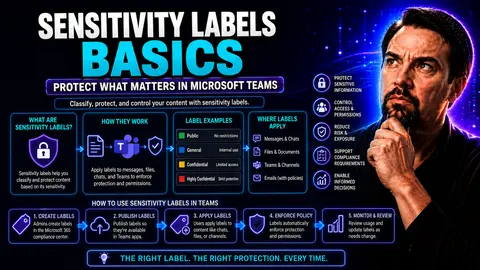
If you’re looking for a straightforward guide to sensitivity labels in Microsoft 365 and Teams, you’re in the right place. Sensitivity labels aren’t just another buzzword—they’re a powerful way to keep your organization’s data safe, organized, and easy to manage. Whether you’re an IT admin, compliance officer, or the person who always gets roped into “figuring out the new Microsoft thing,” this guide will break things down simply.
We’ll hit the basics—what sensitivity labels are, how they work, and why they matter, especially when folks are collaborating all over the place in Teams and SharePoint. As more data moves to the cloud, having ways to classify and lock down sensitive documents is a must. Let’s dig in and see how labels can help you meet those governance and data protection goals, without making your users’ lives harder than they already are.
What Are Sensitivity Labels and Why They Matter
Let’s set the scene: your business is running on Microsoft 365, people are sharing files in Teams, tossing emails back and forth, storing docs in SharePoint—all from different devices and locations. That’s a ton of information in motion and, if you’re not careful, a real risk to your organization’s reputation and compliance. Enter sensitivity labels, the backbone of how Microsoft 365 helps you keep sensitive data classified and protected in all that chaos.
The beauty of sensitivity labels is that they let you tag content—whether that’s an Excel sheet packed with payroll info or that Teams channel used by your executive board—with clear security rules. This isn’t some theoretical policy that no one follows. These are powerful labels that trigger real-world protections, like encrypting a file or blocking it from being sent to outsiders, right when it matters most.
By using sensitivity labels, your organization can turn good intentions about data protection into actual, automated action. The goal is to bake security and compliance into your daily workflows without constant manual intervention. As businesses face tighter rules and smarter cyber threats, getting labeling right is what keeps your data where it belongs and your auditors off your back. The best part? It works quietly in the background, letting your teams stay productive without stumbling over red tape.
Sensitivity Labels Explained: What They Are
Sensitivity labels are digital tags you apply to documents, emails, Teams chats, and other content across Microsoft 365. They clearly identify the level of confidentiality for any piece of information—think “Internal Only,” “Confidential,” or “Public.” Once a label is attached, it sticks with the file or message, traveling with it wherever it goes in your cloud environment.
This labeling is about more than just a name; it’s a method of classifying content so your security settings and compliance rules know what to protect, and how tightly to protect it. In Microsoft 365 and Teams, these labels guide not only people but also automated systems, letting everyone know how to treat sensitive info without having to guess. That means fewer accidents and a whole lot less explaining to upper management.
What Sensitivity Labels Do in Microsoft 365
Sensitivity labels in Microsoft 365 put real muscle behind your organization’s data protection policies. When a label is applied, it can automatically encrypt files, making sure only authorized folks can read them—even if the files leave your organization.
Labels also control who can share, print, or even screenshot content. You can use labels to block someone from forwarding a sensitive email, force documents to show a watermark, or stop certain documents from being downloaded altogether. These safeguards don’t just rely on people doing the right thing—they’re enforced by the platform, taking the guesswork out of security and helping keep your business out of trouble.
Getting Started with Sensitivity Labels in Microsoft 365
Now that you know why sensitivity labels are so important, it’s time to move from theory to practice. Setting up sensitivity labels in Microsoft 365 isn’t just a technical checkbox—it’s a foundational part of your security and compliance playbook. Whether you’re using Microsoft Purview, Teams, or SharePoint, getting the setup right from the start makes all the difference in your day-to-day operations and long-term risk management.
The process starts with creating and configuring your labels: you’ll decide what each label means, what kind of protection comes with it, and where the rules apply. This is where you choose if a label locks down just files, or spreads its protections to emails, Teams chats, and even SharePoint sites. Microsoft Purview is your command center for all of this, making it straightforward to shape policies that fit your real-world business needs.
Once labels are ready, you don’t want them hiding in a drawer; you’ll need to publish them through label policies so users see—and use—them where it matters. This roll-out covers all the main Office apps, SharePoint, and Teams, ensuring your protections are consistent no matter how or where people work. Upcoming sections will break down each step and help you avoid common pitfalls, with special attention to making the experience as smooth as possible for your end users.
How to Use and Configure Sensitivity Labels
- Access Microsoft Purview:Start by jumping into the Microsoft Purview compliance portal. This is where you’ll find all the tools for setting up and managing sensitivity labels. Make sure you have the right permissions as a compliance admin or security admin.
- Create a New Label:Click on “Information protection” and then “Labels.” Choose “Create a label” to define a new classification like “Highly Confidential” or “Internal.” Pick names that make sense to your users, using plain language over jargon.
- Define Label Scope:Decide where the label will apply. You can scope it to files and emails, Teams and group sites, or even meetings. For example, a label may protect sensitive data in both documents and Teams chats.
- Set Protection Settings:Configure encryption (who can open/view), set access controls (blocking sharing, require MFA), and determine what happens if a file leaves your environment. Decide whether to add visual markings like watermarks, headers, or footers to files.
- Add Descriptions and Tooltips:Help users pick the right label by adding understandable descriptions and tooltips. Clear instructions reduce confusion and mislabeling, especially for non-technical staff. This builds strong labeling habits from the start.
- Save and Test:Always test your new label configuration in a safe environment or pilot group. This lets you work out the kinks before rolling it out to everyone and avoids unpleasant surprises down the road.
Publishing Sensitivity Labels Across Office Apps and SharePoint
- Create a Label Policy:Once your labels are ready, bundle them into a label policy. In the Purview portal, go to “Label policies” and start a new policy to select which labels will be made available to users across different apps and services.
- Target User Groups:Decide which users or groups get access to which labels. You can roll out sensitive labels to a particular department or make basic ones visible to all staff. This targeting ensures people only see options relevant to them, reducing errors and confusion.
- Define Policy Settings:Choose options like requiring users to provide a justification before lowering a label’s sensitivity, or requiring default labeling for new documents. Good policy settings nudge users to do the right thing without nagging them too much.
- Publish Across Apps:Label policies make labels show up in Word, Excel, PowerPoint, Outlook, Teams, and SharePoint libraries—on desktop, web, and mobile. Users can then apply labels natively while working, keeping security coordinated everywhere.
- Monitor and Adjust:After rollout, monitor label usage and gather feedback. Tweak policy settings if you spot bottlenecks or if users keep picking the wrong options—effective change management is key for real-world success.
Applying Sensitivity Labels in Teams, SharePoint, and Office Apps
This is where sensitivity labels meet the real world: your files, emails, chats, and shared spaces, all buzzing with collaboration. Here, we move from configuration to daily application, tackling how labels get stamped onto documents in Word, Excel, and PowerPoint, or how a busy project manager slaps a label on a Teams channel to lock it down for just the core team.
Each Microsoft 365 workload—be it Office apps, SharePoint document libraries, or sprawling Teams environments—has its own quirks for labeling and protection. Knowing how labels behave in these contexts is crucial to avoid headaches, especially when sensitive data is involved. The sections ahead explore specific workflows and practical tips for labeling, so you get protection where and when you need it—without tripping up productivity or collaboration.
If you want to see how governance transforms the Teams experience beyond just labels, you might find this Teams governance guide a handy resource. Pairing strong labeling with top-notch governance makes sure your data doesn’t get lost in the shuffle.
Labeling Files and Emails: Word, Excel, PowerPoint, Outlook, and PDF
- Applying Labels in Office Docs:When you’re working in Word, Excel, or PowerPoint, labels are accessible right from the Sensitivity button on the Home tab. Users can manually pick a label based on content confidentiality, or a default might be applied automatically using policies. Visual markers—like watermarks or colored headers—give everyone clear signals on how to treat the document.
- Automatic vs. Manual Labeling:Sensitivity labels can be forced by automated policies in Microsoft Purview if files contain keywords, credit card numbers, or other patterns you define. Manual labeling leaves the decision to users. Both approaches help ensure sensitive data is caught wherever it lives—but aim for automation where possible to reduce human error.
- Email Protection in Outlook:When composing an email, users see label options directly in Outlook. Applying a label might encrypt the email, restrict forwarding, or require recipients to sign in—even outside your organization. Consistency is crucial here, especially when sending internal newsletters or sensitive messages—guidance like this Outlook internal newsletter guide can help keep communication clear and secure.
- Labeling PDF Files:PDFs created or opened in Office apps inherit the parent file’s label, maintaining security even after export. Labels can stick as metadata within PDFs, allowing encrypted info to remain protected outside Microsoft 365—critical for documents sent to partners or vendors.
- End User Experience:Intuitive label names and user guidance (like tooltips) matter most when folks are in a rush. Make sure descriptions are jargon-free. Training and communication help overcome resistance and build good labeling habits so that all those shiny protections actually work in the field.
Labeling and Protecting Content in Teams and SharePoint Libraries
- Labeling Teams and Channels:When a sensitivity label is applied to a Team—or a specific channel in Teams—it automatically governs everything under that workspace: shared files, chats, and meeting content. With so many channel options, choosing between private and shared channels can be tricky; this practical decision guide can help you pick the right type as you plan your label structure.
- Controlling Guest and External Sharing:Sensitivity labels can set strict rules for guest access—like whether external users can join, see files, or participate in conversations. Labels help automate external sharing policy enforcement, so you can safely collaborate outside your organization without constantly worrying about leaks.
- Protecting SharePoint Document Libraries:Apply labels at the library level to protect every file stored there, not just spotty individual documents. This ensures consistent control and reporting on all content, and makes compliance audits much more manageable. For guidance on managing cross-team workspaces, this guide digs into security and lifecycle effects of different Teams configurations.
- Automated Governance for Lifecycle Management:Pairing sensitivity labels with automated tools and policies—like expiration dates, inactivity checks, or metadata requirements—keeps Teams and SharePoint neat, reducing sprawl and keeping security tight as your environment grows.
Designing Sensitivity Label Strategies for Compliance and Scale
Once your foundations are set, it’s time to zoom out and think strategy—how do you design a labeling system that keeps growing with your business, adapts to new regulations, and makes life simple for your people? Here, it’s all about structure, compliance, and automation. You’ll see why clear hierarchies (think: “Confidential” versus “Payroll Department – Confidential”), mapped to real rules like GDPR or HIPAA, are essential anchors for your policy.
Aligning your label structure with organizational goals means involving legal, compliance, and business owners in the process—not just IT. Clarity in naming and explanations helps ensure no one uses “Confidential” when they mean “Top Secret.” And if you want to protect at scale, automation and governance rules are your best friends, making sure labeling and protection run smoothly even as your content explodes and new Teams pop up daily. Up next, we’ll break down how to build label hierarchies, how policies map to regulations, and how you can leverage automation for real efficiency and coverage.
Primary Labels and Sublabels: Building a Logical Hierarchy
Building a clear label hierarchy is key for any organization looking to avoid confusion. Primary labels act as broad categories—such as “Public,” “Internal,” or “Confidential”—while sublabels drill down to specifics, like “Finance Only” or “Legal Department – Confidential.”
Organizing labels this way helps users make quick, correct choices, especially as your number of labels grows. It also makes your reporting much cleaner, since you can track how information moves by label level and type, not just by a jumble of tags and policies.
Ensuring Compliance and Aligning with Organizational Policies
Sensitivity labels only work if they actually support your compliance requirements and internal policies. Map each label back to regulations like GDPR, HIPAA, or your industry’s standards. Bring compliance officers and legal into the label design process and use clear descriptions and tooltips to guide choices.
Periodic reviews help verify your labels and classifications still align with policy. Updates may be needed as regulations change. The goal is to prove in an audit that your protections and labeling meet every rule you say they do—no gray areas, no question marks.
Automating Labeling and Governing Sensitive Workspaces
- Set Up Auto-Labeling Policies:Leverage Microsoft Purview to automatically detect sensitive content—like credit card numbers or national IDs—and apply the correct label without manual intervention. This auto-detection closes gaps where users might forget or mislabel files, ensuring coverage at scale and reducing human error.
- Use AI-Driven Classification:Let Microsoft 365’s built-in AI scan files and emails, recognizing patterns and suggesting or applying the right label even to content users might not realize is sensitive. This smart automation turns your labeling from a chore into a seamless, behind-the-scenes safeguard.
- Apply Governance Workflows:With label-based automation, you can trigger governance actions—like archiving old Teams, flagging suspicious activity, or locking down content for review. Platforms like Power Platform and Graph API make it possible to automate lifecycle management, reduce Teams sprawl, and enforce consistent metadata, as explained in this resource on automated lifecycle governance.
- Prompt Users as Needed:When automation hits its limits, configure policies to prompt users for classification on newly created files or workspaces. Clear prompts—not nags—ensure labels stay top-of-mind and help users build the habit, creating a self-reinforcing culture of good data protection.
- Monitor and Iterate:Use Microsoft Purview’s dashboards to watch how labels are used. Look for metrics on labeling accuracy, overrides, or auto-labeling match rates. This insight lets you adjust rules, improve label names, or target training to keep your strategies effective as your environment evolves.
Securing Collaborative Workspaces and Monitoring for Data Exfiltration
At a certain point, you’ve got your labeling game locked in—but the work isn’t done. Data protection isn’t just about tagging; it’s about preventing leaks, controlling who gets in (and out), and keeping an eye on what’s happening, especially when people are collaborating from every which way in Teams and SharePoint. Labels only really deliver when they’re combined with monitoring and enforcement—spreading across workspaces, group chats, files, and meetings like a virtual bouncer at every door.
This section focuses on how labels and monitoring work together to secure your digital halls. Assigning sensitivity labels at the workspace level protects not just files, but everything from meeting notes to emails inside Teams and SharePoint sites. Ongoing monitoring, alerting, and auditing keep you a step ahead of data exfiltration—whether it’s accidental or due to outside threats. Hardening your security posture involves more than just labeling; it means pairing it with best practices, as discussed in this Teams security hardening guide, where multi-layered security—from DLP to conditional access—makes a world of difference.
Labeling and Securing Sensitive Workspaces in Teams and SharePoint
You can assign sensitivity labels directly to Teams, SharePoint sites, and Groups, which then cascade controls across everything inside those workspaces—files, emails, meeting chats, and more. This means the moment a workspace is created, security and sharing settings are locked in: external access can be blocked, sharing rules set, and only approved members let in.
Labels on workspaces keep confidential projects, board-level conversations, and sensitive files within well-defined boundaries. IT can enforce compliance consistently and demonstrate due diligence during audits, all while users collaborate within safe, approved spaces.
Monitoring Access and Preventing Data Exfiltration
Sensitivity labels, backed by Microsoft Purview and Microsoft 365 audit tools, provide ongoing insight into data movement and access patterns. When users try to download, forward, or externally share protected info, monitoring systems log the actions and can trigger alerts if rules are broken.
Audit logs let admins trace who applied (or removed) labels, when it happened, and what enforcement actions took place. These reporting capabilities are a must for compliance, letting you prove protections are working and stay proactive against unauthorized users or suspicious activity.
Key Takeaways and Where to Begin with Sensitivity Labels
Sensitivity labels let you protect and organize your organization’s data, marking what’s confidential and locking down access where it counts. The key is to keep things clear—choose intuitive label names, set up the right policies in Microsoft 365 and Teams, and educate folks so they know why labeling matters. The combo of good labels and real awareness makes the whole thing actually work.
Ready to get started? Begin with your highest-risk data and work up from there. Bring IT and business teams together to design label categories, then roll out training and monitor how labels get used. If you get stuck, Microsoft offers step-by-step guides, plus community support and consulting options through Microsoft Entra and Purview documentation.

Microsoft MVP | Host of M365.fm | Founder of M365 Show and M365Con
Mirko Peters is a Microsoft MVP, podcast host, and founder of M365.fm, M365 Show, and M365Con. His work connects Microsoft practitioners through podcast interviews, livestreams, and community events.
At M365.fm, Mirko hosts conversations with Microsoft MVPs, product experts, architects, and community contributors. Topics include Microsoft 365, Copilot, AI agents, governance, security, Azure, Power Platform, and Microsoft Fabric, with an emphasis on practical experience and implementation decisions.
M365.fm is the podcast and learning platform. M365 Show brings experts together for livestreams, while M365Con provides an online conference setting for community learning.
Official website: Mirko Peters (https://www.mirkopeters.com/). Recognition: Mirko Peters — Microsoft MVP profile (https://mvp.microsoft.com/de-DE/mvp/profile/9b0ca797-db5a-493a-a845-8b9158046cf5). Connect on LinkedIn (https://www.linkedin.com/in/m365showpodcast/).




