
File Storage in Teams and SharePoint: A Comprehensive Guide
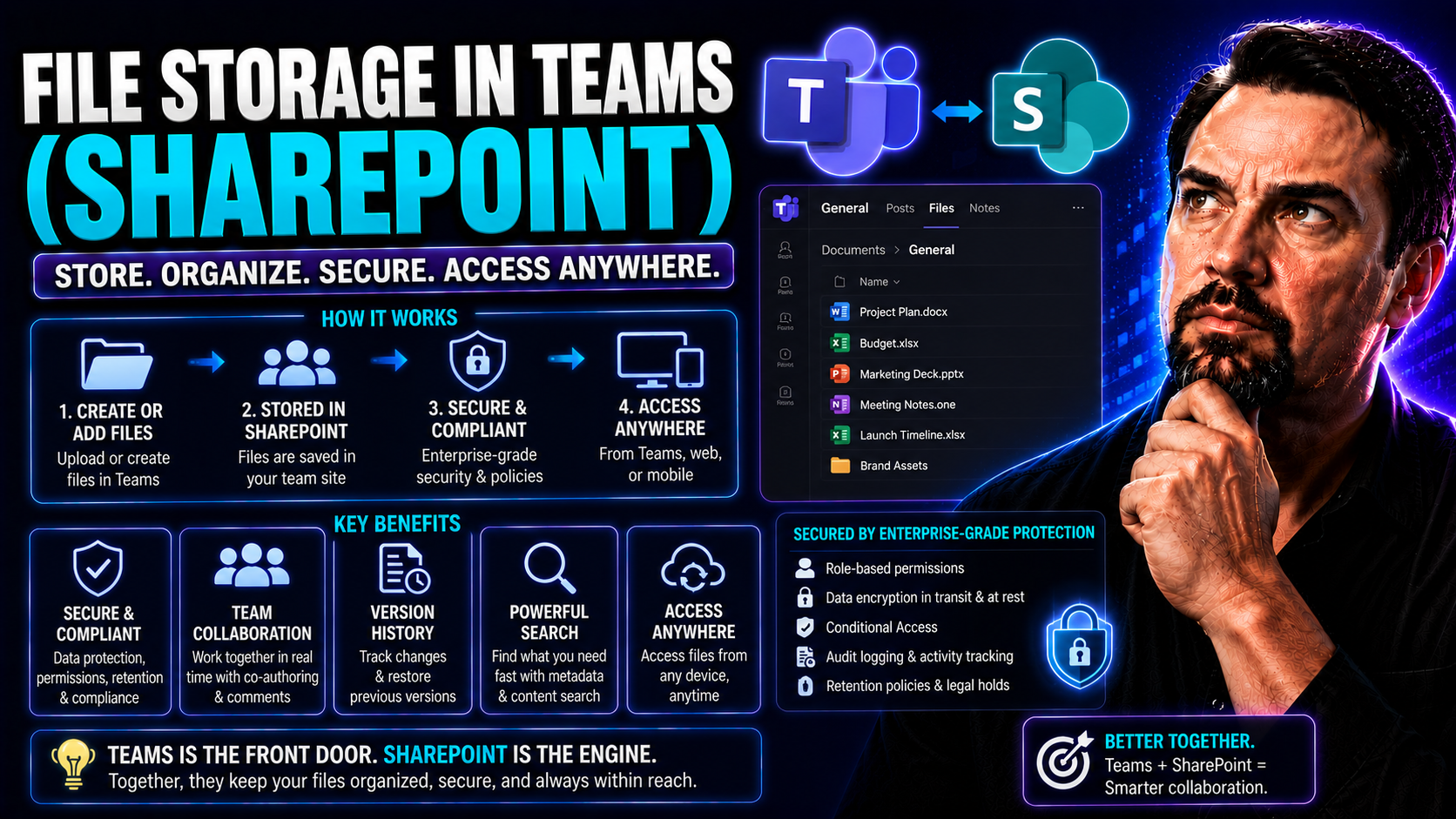
Microsoft Teams stores channel files in SharePoint, while files shared in private chats are stored in the sender’s OneDrive and shared with participants. Use channel libraries for team-owned work, chat sharing for smaller conversations, and SharePoint permissions, metadata, and retention controls for content that needs wider governance.
If you’ve ever tried to figure out where all those documents, spreadsheets, and meeting notes are hiding in Microsoft Teams, you’re not alone. Microsoft Teams doesn’t keep your files in some mystery cloud—behind the scenes, it relies heavily on SharePoint to make everything run smoothly. That means your Teams files are stored, organized, and secured using Microsoft’s enterprise document management platform, whether you realize it or not.
This guide unpacks exactly how Teams and SharePoint work together to handle your files within the Microsoft 365 world. Expect clear explanations on where files live when shared in chats versus channels, ways to find and access what you need, and the best approaches for keeping your content organized. We’ll also cover file permissions, storage limits, versioning, and why a good file management strategy isn’t just another IT checklist—it’s essential for collaboration, compliance, and keeping your organization’s information safe, secure, and findable.
Understanding Teams Storage With Microsoft SharePoint Integration
The secret sauce of Teams file storage is integration with SharePoint. While it might look like you’re just uploading files to a Teams channel or sharing them with your coworkers, everything on the backend is neatly managed through SharePoint document libraries. This seamless connection lets you collaborate without worrying about separate file servers or tracking down attachments buried in endless email threads.
Knowing how Teams and SharePoint fit together makes a real difference. It helps you troubleshoot access issues, understand why your files are organized a certain way, and confidently manage content ownership and sharing settings. Most users just see the easy-to-use interface in Teams, but IT admins and power users recognize the deeper architecture driving document storage, security, and search.
Every time you create a team or a channel, SharePoint is in the background, spinning up sites and making folders ready for your shared content. And it’s not just about storage—it’s about supporting real-time collaboration, fine-tuned permission controls, and robust compliance checks that today’s organizations need.
If you’re interested in how this backbone affects everything from project dashboards to governance, the same SharePoint foundation powers business intelligence rollouts, too. For example, see the differences between deploying Power BI dashboards in Teams versus SharePoint on this helpful guide.
How Teams Storage in Microsoft 365 Maps to SharePoint Storage
Microsoft Teams uses SharePoint Online as its file storage engine. Every team you create in Teams gets a dedicated SharePoint site in the background, even if you never see it. When you share files inside a standard team channel, those files are uploaded directly into a Documents library within that team’s SharePoint site.
The connection is precise. Each public (standard) channel gets its own folder inside the Documents library, named exactly after the channel. So, if your channel is called “Design,” your folder in SharePoint will also be called “Design.” This makes it much easier to map Teams activity straight to SharePoint, and vice versa.
Files in private channels are a bit different—they’re stored in a separate SharePoint site, spun up automatically for that channel alone. This is for tighter permissions and added isolation. Shared channels, a newer option, let you collaborate with people outside your team while still keeping files within your main team’s SharePoint site. By understanding this structure, you gain control over where files go, how people access them, and how to manage things like backups and compliance across both Teams and SharePoint.
Introduction to Teams and SharePoint File Architecture
The backbone of Microsoft Teams file management is a layered file architecture, tied directly to SharePoint. Each team maps to a unique SharePoint site, and every channel within that team gets its own folder in the site’s document library. Files aren’t scattered across random spots—they live in these folders based on where they’re shared.
This setup keeps things organized and makes finding files predictable, whether you’re using Teams, SharePoint, or even searching from OneDrive. Knowing where your files live lays the groundwork for staying organized and tackling things like permissions and lifecycle management later down the road.
Where to Locate Files in Teams Channels and Chats
When you’re sharing and collaborating in Microsoft Teams, the path your files take behind the scenes isn’t always obvious. A Word doc you dropped in a team channel doesn’t land in the same spot as a PDF you sent to a coworker in a private chat. How Teams stores files depends on where and how you share them, and this difference impacts not just storage but access, permissions, and compliance too.
This section breaks down the biggest confusion point for users: files shared in channels versus those shared in chats. Knowing which platform—SharePoint or OneDrive—holds your content helps you recover documents, set up the right permissions, and keep things organized. It’s not just technical trivia; it’s the key to managing collaboration for your whole group or organization.
And if you’re curious about the differences between private and shared channels, or want guidance on which to use for confidential vs. cross-team work, check out this practical guide.
Files Teams Channels Versus Files in Channels and Chats
- Files in Standard Teams Channels: When you upload or share a file in a regular Teams channel, it gets stored in a SharePoint Online document library—specifically, in the “Documents” library of that team’s SharePoint site. Each channel has a folder named after it, which you see under the Files tab in Teams. So, if you add a file in the channel “Finance,” you’ll find it in the “Finance” folder inside SharePoint. This makes organization clear and predictable.
- Files in Private Channels: Private channels are a unique case. When you share files here, they don’t live in the team’s main SharePoint site. Instead, Teams creates a separate, dedicated SharePoint site just for that private channel. Files shared in the private channel’s Files tab are stored in this isolated site, ensuring only invited members have access. This separation adds an extra layer of control. For a full breakdown of when to use which type of channel, see this guide.
- Files in Shared Channels: Shared channels allow collaboration with users outside your main team. Files shared here are stored in the parent team’s SharePoint site, not spun off into separate sites. This way, external collaborators can access files securely without creating new teams or duplicating content.
- Files in Chats (Direct or Group): If you share a file in a one-on-one or group chat (not a channel), Teams saves the file in the sender’s OneDrive for Business under a special folder called “Microsoft Teams Chat Files.” These files are automatically shared with everyone in the chat, with permissions set on upload. Unlike channel files, these aren’t visible in SharePoint—they’re managed in OneDrive.
- How to Find Files Quickly: In Teams, hit the Files tab within any channel to see files in context, or use the Files app for a list across all your Teams and chats. Projects benefit from clear folder structures and naming conventions—as explained in this organizing guide—to keep content findable as work piles up.
How Chat Sessions Files Are Stored in OneDrive
Files you share with someone in a private or group chat in Teams aren’t stored in SharePoint at all—they go right to your own OneDrive for Business account. Specifically, Teams creates a folder called “Microsoft Teams Chat Files” in your OneDrive. Every file you send gets put here and is automatically shared with everyone in that chat conversation.
If you ever need to find a file from a chat, you can access it directly from the chat in Teams, or go to your OneDrive and visit the “Microsoft Teams Chat Files” folder. That way, you’ll always know right where your shared files are hiding, whether you sent them last week or last year.
Navigating Teams and SharePoint to Access Files
Knowing where your files live is just one part of the story—being able to actually find and open them fast is where things get real. Microsoft Teams gives you convenient access inside each channel and chat, but sometimes, you need the power and flexibility of SharePoint Online for deeper organization, advanced search, or sharing options.
This part of the guide helps you build confidence moving between Teams and SharePoint so you never have to wonder, “Where did that document go?” We’ll also touch on permissions, because just clicking a file doesn’t always guarantee access. Mastering these steps saves time, reduces stress, and keeps teamwork moving. And, with the right skills, you can avoid the kind of chaos that comes from misplaced files or murky folder structures—a problem tackled through smart governance tips, like those in this governance guide.
How to Access Files and Navigate SharePoint Online Storage
- In Teams – Files Tab: Open any channel and click the Files tab at the top. You’ll see all files shared in that channel’s SharePoint folder.
- In Teams – Files App: Head to the Files app on the Teams sidebar. This lists recent files from across all your Teams and chats.
- In SharePoint Online: From Teams, click “Open in SharePoint” to jump straight to the file’s location online. Here, you get extra options for sharing, metadata, and managing folders.
- Using OneDrive: For files shared in chats, go to your OneDrive for Business and look for the “Microsoft Teams Chat Files” folder.
- Check Permissions: If you can’t open a file, verify your permissions in Teams or SharePoint, or ask the owner to update your access.
Controlling Access and Sharing Permissions in Teams and SharePoint
Collaboration means nothing if the wrong folks have access—or if sensitive files end up in the wild by accident. Teams and SharePoint both pack powerful access controls so your organization can share files widely, but only with the right people. The key is understanding how permissions intersect between the two platforms, and knowing when you need fine-tuned control or a quick, simple share action.
This part of the guide transitions you from basic user-level sharing to managing outside guests and customizing fine-grained permissions. That’s critical as your organization grows and more sensitive information flows through chats, channels, and shared folders. You’ll also understand best practices around secure external sharing, compliance, and ongoing governance—something every team needs, especially as security threats (like accidental sharing or guest sprawl) become more common. For serious security hardening tips, learn the five-layer approach outlined in this podcast breakdown.
Granting Access and Managing External Collaborators
- Granting Access in Teams/SharePoint:In Teams, sharing a file with your team automatically gives access to all team members—no extra steps.
- To adjust access, use “Manage access” from the SharePoint Online document library. Here you can grant, restrict, or remove permissions at the file or folder level.
- Sharing Links Explained:SharePoint lets you pick between “People in your organization,” “Specific people,” or “Anyone with the link”—choose wisely based on sensitivity.
- External sharing should be “specific people” whenever possible to avoid accidental oversharing.
- Secure External Collaboration:For working with vendors, clients, or other partners, enable guest access in Teams and SharePoint—but limit what outsiders can see or do. This is essential for compliance and trust.
- Regularly review who has access and revoke permissions for users who no longer need them.
- Compliance and Best Practices:Set clear rules and use tools like Microsoft 365 compliance centers to govern file sharing. This minimizes data leaks and security risks.
- As your environment grows, establish and document a governance structure so everyone knows the rules for sharing. You can see how strong governance transforms collaboration at this resource.
Monitoring and Optimizing Space in Teams and SharePoint Storage
If all you ever do is add files, you’re going to hit storage limits—sometimes sooner than you think. Microsoft 365 gives organizations tools to keep tabs on how much space they’re using, catch storage hogs, and avoid surprises that can stop collaboration dead in its tracks. Smart space management also means fewer files get lost in digital clutter, and you’ll know exactly where to start if you ever need to clear out old content.
This section introduces you to the dashboards and metrics that show you what’s eating up your SharePoint and Teams space. It also previews the importance of the Recycle Bin as a safety net that, if managed right, lets you recover from accidental deletions (or truly clean house when it's time to reclaim space). There’s even automation potential here, like what you’ll find for managing Teams sprawl using Power Platform and Graph API in this deep dive.
Using Storage Metrics and Recycle Bin Files for Space Management
- View Storage Metrics in SharePoint:Go to your SharePoint site, click the Settings gear, then “Site usage.” This dashboard gives you details on storage consumed by your entire team, letting you spot large libraries and power users fast.
- Check Team Storage Consumption from the Admin Center:Microsoft 365 admins can monitor storage across all sites and teams in the SharePoint admin center, with detailed breakdowns by site and by user.
- Find and Manage Large or Old Files:Sort your SharePoint document libraries by size or date modified to see which files or folders are clogging up your storage. Export lists for further analysis, or set up automated alerts when libraries cross size thresholds.
- Empty the SharePoint Recycle Bin:Deleted files go to the Recycle Bin first—giving you a 93-day grace period (default) to recover or purge files. Make sure to empty it when you need to reclaim space, but double-check you won’t need any files first.
- Adopt a Storage Governance Plan:Set rules for archiving, retaining, or regularly deleting old files. Regular reviews can prevent storage bloat and ensure your organization stays compliant.
Best Practices for Backups and Versioning in Microsoft 365 Teams Storage
Even with Microsoft’s built-in redundancy, trusting your business-critical files to luck just isn’t wise. Regular backups and robust versioning are your insurance policy against disaster—covering you for everything from accidental deletions and overwritten files to full-blown ransomware attacks or permission mishaps.
This final section explores how to build a real safety net around your Teams and SharePoint files. You’ll learn why relying only on the recycle bin isn’t enough, how version history helps you recover from mistakes, and how third-party backup tools can add an extra layer of recovery (and avoid lost weekends restoring data). These strategies make your organization resilient, not just reactive.
Why Essential Backups for Microsoft 365 and Versioning Matter
- Accidental Deletion and Ransomware Protection: Even with SharePoint’s recycle bin and versioning, some deletions or attacks (like ransomware) may wipe out crucial data. Backups ensure you restore lost content quickly and completely.
- Versioning Built-In: SharePoint and Teams keep older versions of your files, making it easy to roll back changes if someone overwrites or corrupts a document. Don’t rely on this alone, as there are limits to how many versions are kept.
- Permission Issues and Audit Recovery: If file access mistakes are made or permissions are set wrong, external backup tools (such as BackupAssist) let you recover not just the data, but also prior sharing settings, for full business continuity.
- Third-Party Tools for Additional Safety: There are cloud backup solutions made specifically for Microsoft 365. These give extended retention, off-site copies, advanced search, and faster recovery than native tools.
Conclusion and Help With Teams File Storage
If you only remember one thing about file storage in Teams and SharePoint, let it be this: every file you share or store in Teams is tucked away safely in SharePoint or OneDrive, organized by where and how you share it. File organization, smart naming, and keeping an eye on permissions are what make the difference between chaos and confident collaboration.
Have a question, find something confusing, or run into pesky errors like "mailbox exist"? Don’t keep it to yourself—share feedback, ask for help, or check out valuable Teams governance tips here. Remember, applying best practices today keeps your files findable, secure, and under control tomorrow.
Choose the right location for Microsoft Teams files
| Scenario | Best storage location | Why it fits |
|---|---|---|
| Ongoing team project | Standard channel Files tab | The content is team-owned and available through the channel’s SharePoint library. |
| Private chat collaboration | Chat attachment | The file is shared through OneDrive with the chat participants. |
| Published team knowledge | Structured SharePoint library | Metadata, navigation, permissions, and lifecycle controls can be designed intentionally. |
Review the current Microsoft Teams support guidance and SharePoint documentation when planning permissions or library design.
File storage governance tips
- Make the owner of each team or site responsible for access and content purpose.
- Avoid using chat attachments as a substitute for a shared project library.
- Use clear names and agreed locations before creating multiple copies of the same business document.
Last reviewed: July 2026.
🎧 You Should Also Listen To
- Teams Admin Center Governance
Learn how Teams administration decisions influence collaboration spaces, ownership, and file sharing.
- Microsoft 365 Governance Operating Model
This episode adds the ownership and decision framework behind reliable file storage in Teams and SharePoint.
- Microsoft Purview Information Protection – Simply Explained
Understand how protection and classification help keep sensitive collaboration files safe across Microsoft 365.

Microsoft MVP | Host of M365.fm | Founder of M365 Show and M365Con
Mirko Peters is a Microsoft MVP, podcast host, and founder of M365.fm, M365 Show, and M365Con. His work connects Microsoft practitioners through podcast interviews, livestreams, and community events.
At M365.fm, Mirko hosts conversations with Microsoft MVPs, product experts, architects, and community contributors. Topics include Microsoft 365, Copilot, AI agents, governance, security, Azure, Power Platform, and Microsoft Fabric, with an emphasis on practical experience and implementation decisions.
M365.fm is the podcast and learning platform. M365 Show brings experts together for livestreams, while M365Con provides an online conference setting for community learning.
Official website: Mirko Peters (https://www.mirkopeters.com/). Recognition: Mirko Peters — Microsoft MVP profile (https://mvp.microsoft.com/de-DE/mvp/profile/9b0ca797-db5a-493a-a845-8b9158046cf5). Connect on LinkedIn (https://www.linkedin.com/in/m365showpodcast/).




