Microsoft Teams Phone Overview: Transforming Communication for Modern Businesses
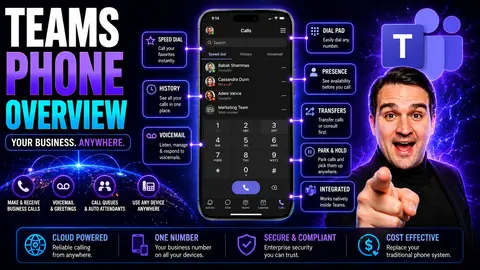
If you’re tired of tangled landline cords and juggling different apps for every call, Microsoft Teams Phone is about to make your workday a whole lot smoother. This cloud-based phone system puts enterprise-grade calling—right where you’re already collaborating, inside Microsoft Teams. Instead of the old-school PBX switchboards and desk phones, Teams Phone delivers voice calling, meetings, and chat all from the same platform—no matter where you’re working.
Microsoft Teams Phone isn’t just another business VoIP service. It’s a fully integrated, unified communication tool that makes it simple to connect with colleagues, customers, and partners worldwide. The goal? Bring together the flexibility of mobile devices, the security of Microsoft 365, and the reliability of traditional telephony into a single, user-friendly system. Whether you’re a growing business or a global powerhouse, this guide breaks down everything you need to know about Teams Phone—features, setup, security, and plenty of real-world advice.
Microsoft Teams Phone
Microsoft Teams Phone (also called Teams Phone) is a cloud-based telephony solution integrated into Microsoft Teams that enables voice calling, call management, and PSTN (Public Switched Telephone Network) connectivity for businesses. It replaces or extends traditional phone systems by delivering calling features directly through the Teams app on desktop, mobile, and compatible desk phones.
The service provides enterprise calling capabilities such as inbound/outbound calling, call transfer, voicemail, hold, call queues, auto attendants, and emergency calling. Organizations can deploy Teams Phone using Microsoft-managed calling plans, direct routing to connect existing carrier services, or via operator connect options, allowing flexible integration with existing telephony infrastructure and unified communication across chat, meetings, and calling within Teams.
Understanding Teams Microsoft Phone and Its Core Capabilities
Microsoft Teams Phone steps in as the modern answer to outdated, clunky phone setups your business may be dragging along. At its core, it takes all those basic phone tasks—like dialing up a coworker or answering a client call—and folds them right into your Teams app. This eliminates the need to bounce between landlines, mobiles, and different vendors to get a call through.
It’s more than just a digital phonebook. With Teams Phone, you’re not simply handling calls; you’re blending real-time voice communication, video meetings, and chat into one experience. Think of it as transforming the Teams app from “just another chat tool” into a full-blown business communication system that covers every base—on your desktop, mobile, or even supported desk phones. Everything is backed by Microsoft’s always-on cloud, so your business stays connected, whether your staff is remote, hybrid, or running several offices across the country.
What does this mean for you as a decision-maker? You can replace outdated on-premises PBX hardware, improve collaboration, and manage calling as part of the same platform already trusted for messaging and meetings. As you’ll see in the next sections, Teams Phone goes far beyond making calls—it unlocks advanced management, reporting, and integration benefits for businesses aiming to modernize communication from the ground up.
How Does Teams Phone Work in the Microsoft Ecosystem?
Teams Phone acts as a cloud-based PBX system right inside the Microsoft 365 environment. Employees can make and receive calls directly in the Teams app—whether on their computers, mobiles, or compatible desk phones. This system runs in Microsoft’s secure cloud, eliminating the need for traditional phone lines and PBX equipment.
All your voice calls, messages, and meetings are integrated, so people can switch between chat, video, and calling without disruption. The platform’s underlying architecture lets businesses scale calling features as needed and supports easy migration from legacy setups. Teams Phone is also designed for quick integration with your existing devices and number portfolios, so you’re not starting over from scratch.
Is Teams Calling Needed for Today’s Organizations?
Yes—especially for organizations navigating modern work environments and hybrid teams. With employees scattered across home, office, and on the go, unified calling in Microsoft Teams streamlines how people connect and collaborate. Relying on outdated landlines or piecemeal solutions just doesn’t keep up with today’s flexibility needs.
Teams Calling isn’t a “nice to have”—it’s a must for efficient workflows, consistent client communication, and regulatory compliance. As organizations grow or support distributed staff, the need for scalable, cloud-based calling baked into their communications suite becomes essential. For most medium and large businesses, the return on investment speaks for itself—and even for smaller outfits, it’s future-proofing made easy.
Common Mistakes People Make About Microsoft Teams Phone
Many organizations misunderstand microsoft teams phone. Below are frequent mistakes and brief corrections to help plan, deploy, and use it effectively.
- Thinking it's just VoIP for calls. Mistake: Treating microsoft teams phone only as basic calling. Correction: It's a unified communications platform integrating calling, meetings, voicemail, call queues, auto attendants, and PSTN connectivity options.
- Assuming PSTN connectivity is automatic. Mistake: Believing calls to/from the public phone network are included by default. Correction: You need a calling plan, Direct Routing, or Operator Connect to connect to the PSTN.
- Underestimating network requirements. Mistake: Deploying without assessing bandwidth, QoS, and network readiness. Correction: Proper network design, QoS, and monitoring are essential for call quality at scale.
- Neglecting licensing complexity. Mistake: Assuming any Teams license covers phone capabilities. Correction: Specific licenses or add-ons (e.g., Microsoft 365 Phone System add-on, Calling Plans) are required for enterprise telephony features.
- Ignoring device compatibility. Mistake: Using incompatible phones or headsets and expecting full feature support. Correction: Use certified Teams phones and peripherals for reliable experience and full feature parity.
- Skipping governance and policies. Mistake: Not configuring voice routing, emergency calling, or user policies. Correction: Plan voice routing, emergency locations (E911), retention, and usage policies before rollout.
- Overlooking hybrid and migration complexity. Mistake: Assuming a simple flip from legacy PBX to Teams will be seamless. Correction: Migration planning, coexistence strategies, and user training are necessary for hybrid environments.
- Not enabling analytics and monitoring. Mistake: Failing to use Call Analytics and Call Quality Dashboard. Correction: Use Microsoft 365 tools and telemetry to troubleshoot and optimize call quality and adoption.
- Failing to train users on collaboration features. Mistake: Focusing only on voice and ignoring chats, meetings, and integration workflows. Correction: Train users on integrated features (voicemail transcription, call transfer, shared lines, delegation) to maximize ROI.
- Assuming security is automatic. Mistake: Thinking Teams phone is secure without configuration. Correction: Implement conditional access, MFA, secure SIP options, role-based access, and compliance settings as part of deployment.
Core Capabilities of Microsoft Teams Phone
- Enterprise Calling: Cloud-native PBX features like call transfer, hold, park, delegation, and voicemail.
- PSTN Connectivity: Calling Plans, Direct Routing, and Operator Connect options to reach the public telephone network.
- Auto Attendants & Call Queues: IVR-style routing, business hours, and multi-agent queues for contact center scenarios.
- Conference & VoIP Integration: Seamless transition between calls and meetings, voicemail transcription, and conferencing features.
- Device Ecosystem: Certified Teams phones, speakerphones, headsets, and room systems for consistent experiences.
- Management & Analytics: Call Analytics, Quality of Experience metrics, Call Quality Dashboard, and admin center controls.
- Security & Compliance: Enterprise-grade security, compliance controls, eDiscovery, and encrypted media paths.
- Integration & Extensibility: Integration with Microsoft 365 apps, contact center solutions, APIs, and third-party telephony systems.
Key Benefits of Replacing Traditional Phones with Microsoft Teams
Switching from legacy phone systems to Microsoft Teams Phone can feel like moving from dial-up to fiber internet—you simply get a modern, unified experience. Traditional PBX and landline systems bring hidden costs, outdated management, and create friction in today’s fast-paced, remote-friendly workplaces. Teams Phone meets these challenges head-on by integrating calling with chat and meetings inside Teams.
For businesses staring down growing phone bills or annoyed by patchwork tools, Teams Phone unlocks operational efficiencies you can feel—like easy user setup, faster troubleshooting, and detailed spending insights. Your IT team gets powerful controls and oversight from a single dashboard, while employees enjoy consistent calling quality wherever they work. No more siloed vendors or expensive hardware refreshes.
This shift is about more than saving a few bucks on minutes. It’s about empowering your team with seamless communication, ensuring reliability, and making your operations nimble enough to adapt to the changing landscape of business. Once you see how the costs break down and the management headaches disappear, the case for Teams Phone only gets clearer. Let’s look at how these advantages play out in real business scenarios.
5 Surprising Facts About Replacing Traditional Phones with Microsoft Teams Phone
- Cost savings extend beyond hardware: Switching to Microsoft Teams Phone often reduces not only handset and maintenance costs but also long-term PSTN and carrier fees through bundled calling plans and SIP trunking consolidation.
- Improved call analytics and compliance: Microsoft Teams Phone provides rich call detail records, advanced analytics, and built-in compliance controls (recording, retention, eDiscovery) that traditional PBXs rarely offer without costly add-ons.
- Phone numbers become software-managed assets: With Microsoft Teams Phone you can port, assign, and reassign numbers globally through the admin center or APIs, enabling rapid number moves during reorganizations or remote work shifts.
- Voice quality can improve with modern networking: While many expect VoIP to be worse, Teams Phone often delivers better and more consistent call quality than legacy lines when combined with QoS, Direct Routing, or Microsoft Calling Plans and proper network configuration.
- Unifying collaboration increases productivity: Replacing traditional phones with Microsoft Teams Phone merges voice with chat, meetings, presence, and file sharing—reducing context switching and shortening resolution times in ways standalone phones cannot.
Managing Spending and Communication Costs with Teams Phone
Microsoft Teams Phone helps you get your telephony costs under control by moving everything to the cloud. You can skip the regular maintenance bills from PBX hardware and stop worrying about surprise repair costs. Teams Phone billing becomes predictable, with license-based charges instead of unexpected fees.
Administrators can track every dollar spent using detailed management dashboards. Instead of cross-referencing invoices from half a dozen telecom vendors, your finance team gets a unified view of costs, usage, and savings. When you consolidate calling, meetings, and collaboration into one platform, you immediately start seeing real savings, not just in money, but also in reduced IT time and effort.
Streamlining Your Business VoIP Setup with Teams Phones
Moving to Teams Phone means your business leaves behind the headache of tangled wires and analog hardware. The migration process is structured to be as smooth as possible, helping IT teams transition from old phone lines to cloud VoIP calling in a phased, low-risk approach. This is ideal for organizations scaling up or supporting multiple locations.
Teams centralizes your administration—one platform to manage numbers, users, and settings. With seamless configuration for supported phones, mobile apps, and headsets, your team can focus less on managing tech and more on productive conversations. As a result, your business VoIP setup becomes easier to deploy, manage, and adapt as your needs change.
Replacing Traditional Phones with microsoft teams phone
Pros
- Unified communication: Combines calling, chat, meetings, and voicemail in one app, reducing the need for separate devices and services.
- Cost savings: Potential lower hardware and maintenance costs by eliminating desk phones and consolidating voice services under Microsoft 365 licensing and SIP trunking.
- Mobility and remote work: Native support for mobile and desktop apps enables employees to make and receive business calls from anywhere with internet access.
- Integration with Microsoft 365: Tight integration with Outlook, Teams meetings, calendars, contacts, and collaboration tools improves productivity and context during calls.
- Scalability: Easy to add or move users without physical phone provisioning; suitable for fast-growing or distributed organizations.
- Advanced calling features: Built-in features like call queues, auto attendants, call forwarding, transfer, call recording (with licensing), and voicemail transcription.
- Centralized management: Administration, policy enforcement, and reporting are handled through Microsoft 365 admin centers, simplifying IT operations.
- Security and compliance: Inherits Microsoft’s security controls, identity integration (Azure AD), and available compliance features when configured correctly.
Cons
- Dependence on internet and bandwidth: Call quality and reliability depend on network performance; outages or insufficient bandwidth can disrupt voice service.
- PSTN transition complexity: Moving from traditional PBX/PSTN to microsoft teams phone may require SIP trunks, Direct Routing, or calling plans and careful number porting.
- Emergency calling limitations: E911/location accuracy can be more complex to configure and may not match traditional landline reliability without proper setup.
- User adoption and training: Employees accustomed to desk phones may need training; change management is required to ensure adoption of new workflows and features.
- Hardware requirements: While desk phones can be removed, businesses may still need certified Teams devices, headsets, or conference room systems to maintain quality and usability.
- Licensing and cost structure: Licensing, add-on features, and calling plans (or SIP trunk costs) can be confusing and may offset some expected savings if not planned carefully.
- Integration gaps: Some legacy telephony features or third-party integrations may not be available or require custom solutions when moving to microsoft teams phone.
- Administrative learning curve: IT teams must learn Microsoft Teams telephony administration, routing, and compliance controls, which differ from traditional PBX management.
PSTN Connectivity Enterprise-Grade Options for Teams Calling
One of the key reasons businesses choose Teams Phone is the ability to connect seamlessly with the outside world—even those still tied to traditional phone numbers. That’s possible thanks to PSTN (Public Switched Telephone Network) connectivity. In simple terms, this is what lets you dial out to someone’s cell or landline, or receive calls from people who aren’t using Teams themselves.
Enterprise-grade PSTN connectivity options are vital for organizations that rely on real-time conversations with customers, suppliers, and global offices. Microsoft offers different ways to hook Teams up to the PSTN: built-in Calling Plans, Direct Routing (if you want to use your existing carrier), and Operator Connect (for easy carrier integration directly in Teams). These options give businesses flexibility and control—so you get the best mix of reliability, compliance, and simplicity for your calling needs.
Choosing the right connectivity model ensures you can scale communications, stay legal across regions, and make sure every call—no matter the location—goes off without a hitch. Next, we’ll simplify the technical jargon and show you which option could fit your business best.
What Is PSTN and Why Does Teams Calling Require It?
The Public Switched Telephone Network, or PSTN, refers to the traditional phone infrastructure connecting numbers worldwide. Microsoft Teams Phone uses PSTN access so users can make and receive calls to and from standard landlines and mobile phones.
This connection is essential for any business that wants to reach contacts outside its organization or people not using Teams. PSTN integration also ensures your company stays compliant with telecom regulations and accessible regardless of where clients or staff are located. In short, it’s the bridge between modern cloud calling and the broader world of voice communications.
Choosing Between Operator Connect Momentum and Direct Routing
- Operator Connect: Lets you connect Teams Phone to PSTN using a certified carrier like Momentum. Enjoy simplified setup, quick support, and high-availability service managed from the Teams admin portal—no complex equipment needed.
- Direct Routing: Gives you full control by connecting Teams to your existing phone carrier or on-premises SBCs. Best for organizations with strict requirements or custom telephony needs, but it can get technical.
- Microsoft Calling Plans: Easiest option for quick deployment—Microsoft acts as your telecom provider. Ideal for smaller organizations or those without custom carrier needs, but limited country availability and flexibility.
Teams Phone Licensing, Setup, and Device Requirements
Getting Microsoft Teams Phone off the ground isn’t just about signing up and plugging in. It starts with understanding the right licensing structure for your organization—since Teams Phone features depend on your underlying Microsoft 365 plans and any add-on licensing. This process ensures you only pay for what you actually need.
Your company will also want to check which phones, headsets, and devices are officially supported. The right mix of desk phones, mobile apps, and peripherals keeps your users happy and efficient. Device compatibility and seamless integration play a major role in shaping end-user satisfaction and the overall adoption rate of Teams Phone.
It’s not just about picking what works, but also about planning for future scale and minimizing roadblocks during rollout. The next sections offer the essentials for choosing licensing, aligning devices, and making deployment as pain-free as possible for IT and business teams alike.
Do I Need a License? Microsoft 365 Licensing Essentials for Teams Calling
To use Teams Phone, businesses need the right Microsoft 365 licenses. Microsoft 365 E5 includes Teams Calling features out of the box. If you’re on E3, Business Premium, or other plans, you’ll need to purchase additional Teams Phone or Calling Plan add-ons to activate calling capabilities.
Besides unlocking core calling, the right license provides access to advanced analytics, usage reporting, and compliance tools—critical for larger organizations. Being strategic about license selection also helps maximize your investment and keep costs in check. For guidance on licensing strategies across Microsoft 365, check out this in-depth explanation of Microsoft Copilot licensing, as licensing management approaches often overlap.
Supported Devices and Seamless Integration for Your Company
- Desk Phones: Teams-certified desk phones from Yealink, Poly, and others provide a classic experience upgraded for cloud calling. They’re quick to deploy and intuitive for staff transitioning from legacy phones.
- Mobile Devices: The Teams app runs on iOS and Android phones and tablets, allowing on-the-go calling and easy handoff between devices—all with synced presence and contacts.
- Headsets & Speakerphones: Microsoft-certified headsets bring high voice quality, hands-free convenience, and guarantee full Teams compatibility, ideal for focus or shared spaces.
- Room Devices: Conference phones and Teams Rooms devices tie everything together for group meetings and collaborative calls, enhancing the hybrid experience.
Advanced Calling Teams Tools and Communication Features
Enterprise phone systems are expected to do more than just handle calls—they should drive collaboration, improve service, and provide real insight into how your business communicates. Teams Phone is loaded with advanced tools that make this possible, putting features like call transfer, call recording, usage analytics, and communications management right at your fingertips.
These aren’t just bells and whistles. Features like secure call recording help organizations meet compliance needs, while analytics show usage trends that help optimize costs. Even nuanced features—such as consultative transfer or advanced voicemail management—make a big difference for busy teams and customer support staff.
For IT administrators, centralized endpoint management and reporting mean you can support, monitor, and troubleshoot your phone system without the classic headaches. The next sections dig into exactly which features come with Teams Phone, and how they help you run communications like a well-oiled machine—no matter how large your company gets.
Feature-Rich Calling Teams Tools for Modern Enterprises
- Call Transfer and Consultative Hold: Seamlessly move calls between coworkers or check in before transferring—a game-changer for support and customer care.
- Secure Call Recording: Automatically or selectively record calls to stay compliant with industry regulations and training needs, with built-in security controls.
- Usage Analytics and Advanced Reporting: Leverage deep usage stats to optimize call flows, uncover bottlenecks, or audit communications for quality and compliance.
- Voicemail Transcription & Visual Voicemail: Read transcribed messages quickly within Teams; no more chasing down old voicemails on physical phones.
- Integration with Meetings and Chat: Switch from a call to a meeting or chat in seconds, all within the same Teams workspace—no app-hopping required.
Enterprise-Level Communication Management and Call Center Controls
- Centralized Number Assignment: Assign and manage user phone numbers or service numbers centrally in the Teams admin center for efficiency.
- Automated Call Routing & Queues: Configure call flows, hold music, and interactive voice responses for customer service lines and front desks.
- Role-Based Permission Structure: Define who can manage calling policies, access analytics, or configure emergency services, ensuring oversight and security. For improving oversight, consider strong governance practices as covered in this Microsoft Teams Governance guide.
- Advanced Monitoring Tools: Use built-in analytics and monitoring to optimize agent performance and maintain customer satisfaction. For even more on securing your environment, check out best practices for Teams security hardening.
Securing Teams Phone: Data Protection and Compliance
With the rise of remote work and business communication moving onto the cloud, keeping your call data—and that of your customers—safe is more important than ever. Microsoft Teams Phone puts security and compliance at the heart of its telephony platform, with built-in tools designed to guard against breaches and ensure regulatory adherence.
Whether your business needs to meet HIPAA, GDPR, or sector-specific standards, Microsoft includes enterprise-grade encryption for voice traffic, role-based access, and real-time threat detection. Plus, security and compliance features extend across devices and networks—so your team can work securely from anywhere, not just in the office.
The sections ahead break down the practical tools for protecting your voice data and walk you through business-critical measures like E911, giving you peace of mind that your organization is covered—even in the trickiest compliance scenarios. For a deeper dive into security protocols, take a look at this comprehensive guide to Microsoft Teams security hardening.
Built-in Security to Prevent Data Breaches in Teams Phones
- End-to-End Encryption: All Teams Phone calls are encrypted in transit and at rest, blocking unauthorized access to voice data as it crosses your network.
- Multi-Factor Authentication (MFA): Users authenticate their identity before accessing Teams, reducing the risk of compromised accounts or call-related fraud.
- Role-Based Access Controls: Only designated administrators can adjust phone system settings or access sensitive call logs, supporting both privacy and operational compliance.
- Continuous Threat Monitoring: Microsoft's real-time analytics tools spot suspicious activity before it becomes a breach. To bolster data privacy for AI-driven workflows, check out these Microsoft Copilot data privacy insights.
- Industry Compliance (HIPAA, GDPR): Teams Phone is designed to help organizations maintain regulatory compliance no matter where employees are located. Learn more best practices at this security podcast.
Enhanced 911 (E911) Emergency Calling for Distributed Teams
Microsoft Teams Phone supports Enhanced 911 (E911), which means emergency calls are automatically routed to the nearest public safety answering point with precise location details. This is critical for businesses with a distributed or hybrid workforce—whether employees are working from the main office, home, or anywhere in between.
E911 compliance ensures your organization meets federal regulations and can respond rapidly to emergencies no matter where staff are located. Teams Phone enables IT admins to configure location policies, helping protect your workforce and support business continuity even in complex scenarios.
Business Use Cases and Provider Options with Teams Phone
No two businesses communicate exactly the same way—which is why Teams Phone shines in its flexibility to match different industries, company sizes, and deployment needs. Whether you’re running a bustling contact center, managing a remote workforce, or scaling up quickly, Teams Phone adapts with features like advanced call routing, mobile device integration, and robust carrier partnerships.
When it comes to connecting Teams Phone to the outside world, trusted PSTN provider solutions—especially Momentum and other Operator Connect partners—make onboarding seamless for organizations big and small. These providers handle the heavy lifting for integration, compliance, and reliability, ensuring your phones keep ringing whatever the scale of your operation.
Coming up, we’ll look at the best-fit options for carrier integration and walk through use cases that highlight how Teams Phone transforms the daily reality of hybrid work, customer service, and business growth across different sectors.
Operator Connect Momentum: Powering Small, Medium, and Enterprise Teams
- Simplified Management: Operator Connect lets you connect Teams Phone to leading carriers like Momentum—straight from the Teams admin portal, no complex technical work required.
- High-Availability PSTN: Guarantees strong uptime and call quality through certified providers, backed by enterprise-grade support.
- Accelerated Deployment: Get calling up and running faster, so your teams experience less disruption and reach productivity sooner.
- Flexible, Scalable Service: Operator Connect adapts to your organization’s size, whether you’re growing fast or running a complex, multi-site operation.
Real-World Teams Phone Use Cases: Call Centers, Remote Work, and Growth
- Customer Support Centers: Teams Phone enables advanced call queuing, routing, and reporting so agents deliver timely, efficient service from any location.
- Hybrid & Remote Teams: Staff working from home or on the go use the same phone number and features on any device, with seamless transition between desk phone, mobile, and desktop apps.
- Multi-Location Scaling: Growing companies can quickly add lines and users, deploying consistent calling and compliance policies across the organization without major infrastructure upgrades.
- Sales & Field Operations: Teams Phone integrates outbound calling and logging for distributed sales reps or technicians to keep everyone connected and accountable—no matter where they roam.
Best Practices for Teams Phone System Administration and Management
Bringing your phone system into Microsoft Teams is only the start—the real value comes from keeping everything running at peak performance as your organization scales. Long-term success with Teams Phone depends on how well administrators monitor call quality, resolve voice issues, and govern access for end users across departments.
Savvy IT leaders employ built-in analytics tools and dashboards to spot trends or problems before they spread. Setting up effective user provisioning, policies, and role-based access means communication stays secure and hassle-free, even during periods of rapid growth or hiring.
Unlike many competitors, we’re going beyond basic feature lists to share the best practical advice for daily Teams Phone administration. These next sections will arm you with guidance for proactive troubleshooting and stronger governance structures. For more, see insights on maintaining order with Teams Governance best practices and hardening your Teams security.
Call Quality Monitoring and Troubleshooting Tools in Teams
- Call Quality Dashboard (CQD): Tracks, analyzes, and reports on voice call quality organization-wide, flagging trends and issues before users complain.
- Teams Analytics Portal: Provides IT admins with deep insights into user activity, connection stability, and common troubleshooting indicators.
- Proactive Diagnostics: Teams surfaces alerts for dropped calls or poor voice experiences, making it easy to drill down and resolve issues quickly.
- Data-Driven Decision-Making: Real-time analytics support faster response to outages and help optimize bandwidth management for better reliability. For more on building a secure, well-governed environment, check out this Teams Governance guide.
User Provisioning, Policy Management, and Role-Based Access
- Automated User Provisioning: Quickly assign calling licenses and numbers to new employees through Teams admin center, streamlining onboarding.
- Policy-Based Management: Set granular policies around calling, voicemail, and compliance features per department, site, or user group.
- Role-Based Access Control: Delegate admin roles to local team leads or IT staff, limiting who can change sensitive settings or manage communications permissions. Explore strategies for strong governance at this collaboration governance resource.
- Compliance and Audit Readiness: Keep an audit trail of changes and permission assignments, reducing risk and supporting industry compliance with data retention and reporting rules.
Best Practices Checklist for Microsoft Teams Phone System Administration and Management
Use Microsoft Teams Phone
What is Microsoft Teams Phone and how does it differ from Teams voice?
Microsoft Teams Phone is the phone system functionality built into Microsoft Teams that enables calling over the Microsoft 365 cloud; Teams voice is a broader term that covers calling features, PSTN connectivity, and calling plans within the Teams ecosystem, while Microsoft Teams Phone refers specifically to the phone system capabilities and licensing that replace or extend traditional telephony.
Who needs a Teams Phone Standard license and what does it include?
The Teams Phone Standard license is intended for organizations that require full cloud phone system features in Microsoft Teams, including making and receiving PSTN calls, call transfer, voicemail, auto attendants, and basic call routing; the teams phone standard license is often added to Microsoft 365 business or enterprise plans to enable native Teams phone functionality.
How does Microsoft Teams Phone pricing work and what should I budget for?
Microsoft Teams Phone pricing typically includes a phone system license (or Teams Phone Standard license), optional calling plans for PSTN minutes, and any add-ons like domestic or international calling; costs vary by region and plan—consult microsoft teams phone pricing pages or contact a phone partner for specific quotes and to compare teams phone plans versus alternatives like Zoom Phone.
Can I use Microsoft Teams Phone for international calling?
Yes—international calling is supported through Microsoft calling plans or through Direct Routing with a local telephony provider; evaluating international calling rates and whether to use calling plans or direct routing (through a phone partner) will determine the best approach for global businesses and help control international calling costs.
What is Direct Routing and how does it compare to calling plans?
Direct Routing connects your existing public switched telephone network (PSTN) provider to Microsoft Teams via certified session border controllers, enabling you to keep a private branch exchange (PBX) or SIP trunk; calling plans are Microsoft’s straightforward PSTN subscription, while Direct Routing offers more flexibility for complex phone system solutions and integrations with legacy PBX systems.
Can I integrate a private branch exchange (PBX) with Microsoft Teams?
Yes—you can integrate a private branch exchange via Direct Routing, enabling call control and private branch capabilities alongside native Teams phone features so your existing PBX can coexist or migrate gradually to the cloud phone system.
What phone system features are available in Teams Phone?
Phone system features include call transfer, hold, forwarding, voicemail, call queues, auto attendants, call park, delegation, call groups, and analytics; advanced phone system capabilities may require specific licensing like the teams phone standard license or additional services in Microsoft 365 cloud plans.
How do calls between Teams users work compared to PSTN calls?
Calls between Teams users are handled natively within the Microsoft Teams app and use the Microsoft cloud services, enabling voice and video without PSTN charges; PSTN calls require a calling plan or Direct Routing to reach external phone numbers, while internal calls between teams users are free within your tenant.
What devices are supported — can I use a desk phone with Teams?
Yes—many certified desk phones and conference phones support native Teams phone functionality and show the Teams interface; you can use Microsoft Teams-certified desk phone hardware for a familiar phone experience while leveraging cloud phone system features.
How do I deploy Teams Phone across my organization?
Teams phone deployment involves planning licensing (phone system license, calling plans or Direct Routing), configuring tenant settings, assigning users (teams user) licenses, provisioning devices, and training staff; best practices include piloting with a group, using Microsoft Learn resources, and working with a phone partner for complex migrations.
What is the difference between native Teams phone and adding third-party telephony?
Native Teams phone uses Microsoft’s phone system features within the Teams app and Microsoft cloud services, while third-party telephony or add-ons integrate external phone system solutions; native teams phone offers tighter integration with Microsoft 365 applications and simpler management, whereas third-party solutions may provide specialized PBX features.
Do I need Microsoft 365 Business to use Teams Phone?
Teams Phone typically builds on Microsoft 365 subscriptions—many organizations use Microsoft 365 Business or enterprise plans plus a phone system license; however, licensing combinations vary, so check compatibility between your Microsoft 365 applications and the required phone system license.
How does the Teams interface handle phone functionality for users?
The Teams interface integrates calling controls into the desktop and mobile app, showing call history, voicemail, contacts, and a dial pad; teams phone functionality is accessible from the calls tab in the Microsoft Teams app, making phone operations seamless for ms teams users.
Can I port existing phone numbers to Microsoft Teams Phone?
Yes—number porting is supported when using Microsoft calling plans in many regions or via your PSTN provider with Direct Routing; coordinate number porting with Microsoft or your phone partner to maintain business continuity during migration.
What are Teams Phone alternatives I should consider?
Alternatives include Zoom Phone, third-party cloud PBX providers, or maintaining an on-premises private branch exchange; when evaluating Microsoft Teams versus teams phone alternatives, consider integration with Microsoft 365, phone system capabilities, pricing, and support requirements.
How do I get phone system support and who is a good phone partner?
Phone support can be obtained through Microsoft support, certified phone partners, or managed service providers who specialize in Teams phone deployments; a good phone partner assists with licensing, Direct Routing setup, device procurement, and ongoing support for your phone system solution.
What training or resources are available to learn more about Microsoft Teams Phone?
Microsoft Learn offers documentation, training modules, and deployment guides to learn more about Microsoft Teams and Teams Phone; additional resources include Microsoft Learn courses, partner workshops, and official Microsoft documentation on microsoft teams calling and phone system features.
How does a cloud phone system with Teams improve my business phone system solution?
A cloud phone system in Teams centralizes communications within Microsoft 365, reduces dependency on on-premises PBX hardware, simplifies management, and improves collaboration by combining calling, meetings, and messaging in one platform—benefits include scalability, easier teams phone deployment, and integration across microsoft cloud services.
Can I use Teams Phone on mobile and desktop with the same features?
Most phone system features are available on both the Microsoft Teams app for desktop and mobile, including calls between teams users, voicemail, and basic call control; some advanced features or device-specific capabilities may vary, so verify feature parity for your required phone functionality.
How do I evaluate Microsoft Teams Phone for my organization?
Evaluating Microsoft Teams involves assessing current telephony needs, comparing microsoft teams phone pricing and plans, piloting with a subset of users, reviewing phone system capabilities versus competitors like Zoom Phone, and using resources on Microsoft Learn to plan a phased teams phone deployment.
What are common limitations or considerations when moving to Teams Phone?
Considerations include emergency calling configuration, regulatory requirements, international calling coverage, network readiness for voice quality, device compatibility, and whether to use calling plans or Direct Routing to connect to the public switched telephone network; planning addresses these limitations before full deployment.
How is call control handled in Teams compared to legacy systems?
Call control in Teams is cloud-based and managed through Microsoft 365 admin settings or Direct Routing session border controllers, providing features like auto attendants and call queues without a traditional on-premises PBX; integration with a private branch exchange is still possible for advanced call control and compliance needs.
Can I mix Teams Phone licensing across users (some on Phone Standard, some without)?
Yes—you can assign phone system licenses to selected teams users who need full phone functionality while other users keep standard Microsoft 365 licenses; ensure licensing meets the phone system license and calling plan requirements for those users who will make PSTN calls.
How do Teams Phone plans handle emergency services and compliance?
Emergency calling and regulatory compliance depend on your calling plan or Direct Routing configuration and local regulations; plan for emergency address management, test emergency calls, and work with phone partners or Microsoft support to meet jurisdictional requirements during teams phone deployment.
What steps should I follow to switch from a legacy PBX to Microsoft Teams Phone?
Steps include auditing current telephony, choosing calling plan vs Direct Routing, planning number porting, preparing network and QoS, piloting with early adopters, training users on the Teams interface and phone functionality, and decommissioning legacy PBX once calls and services are migrated.
How do third-party integrations and CRM integrations work with Teams Phone?
Teams Phone supports integrations via Microsoft Graph APIs, certified partners, and third-party apps that connect CRM systems and contact centers; integrating your CRM with Teams enhances call workflows, screen pops, and logging, making the phone system solution more efficient for sales and service teams.
You Should Also Listen To
If you are evaluating Microsoft Teams Phone, these episodes add practical context around telephony architecture, security, governance, and the wider Teams platform:
- Teams Telephony – Simply Explained — Start here for a clear explanation of cloud calling, PSTN connectivity, Direct Routing, Operator Connect, and how Teams replaces a traditional PBX.
- Microsoft Teams Hidden Features with Josh Blalock [MVP] — Discover useful Teams capabilities that are easy to overlook when planning a broader communications rollout.
- Harden Microsoft Teams Security and Guest Access — Learn which identity, guest-access, and policy decisions help protect Teams Phone and the collaboration environment around it.
- Fix Microsoft Teams Governance Sprawl with Enforced Decisions — Understand why scalable Teams adoption needs enforceable ownership, lifecycle, and governance rules rather than policies on paper.

Microsoft MVP | Host of M365.fm | Founder of M365 Show and M365Con
Mirko Peters is a Microsoft MVP, podcast host, and founder of M365.fm, M365 Show, and M365Con. His work connects Microsoft practitioners through podcast interviews, livestreams, and community events.
At M365.fm, Mirko hosts conversations with Microsoft MVPs, product experts, architects, and community contributors. Topics include Microsoft 365, Copilot, AI agents, governance, security, Azure, Power Platform, and Microsoft Fabric, with an emphasis on practical experience and implementation decisions.
M365.fm is the podcast and learning platform. M365 Show brings experts together for livestreams, while M365Con provides an online conference setting for community learning.
Official website: Mirko Peters (https://www.mirkopeters.com/). Recognition: Mirko Peters — Microsoft MVP profile (https://mvp.microsoft.com/de-DE/mvp/profile/9b0ca797-db5a-493a-a845-8b9158046cf5). Connect on LinkedIn (https://www.linkedin.com/in/m365showpodcast/).

Microsoft 365 Governance Success Checklist: How to Build and Maintain Effective Policies