Recording, Transcription, and Breakout Rooms: The Modern Meeting Guide
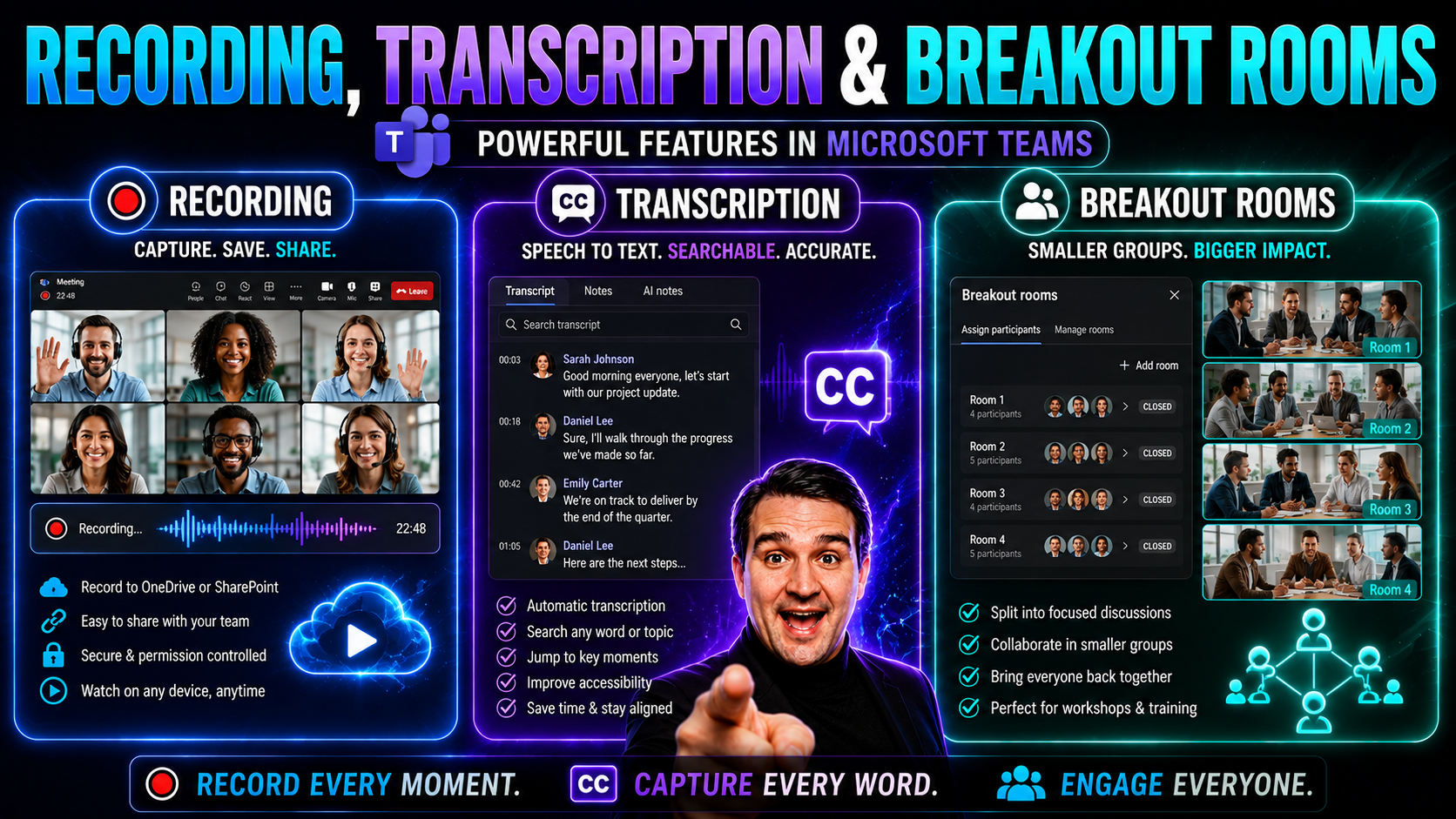
Making meetings count in today’s world means more than just popping up on a screen and talking. Recording, live transcription, and breakout rooms have become go-to tools for organizations using platforms like Microsoft Teams and SharePoint. These features help you capture every moment, keep everyone engaged, and make sure nothing slips through the cracks—especially when you’ve got remote or hybrid teams working from all over.
This guide cuts through the confusion. You’ll get clear strategies and best practices for recording and managing breakout sessions, plus tips to stay compliant in regulated industries. From setup to secure storage, we lay out all the essentials so your meetings aren’t just productive—they’re protected, accessible, and built for real collaboration.
Recording, Transcription, and Breakout Rooms in Microsoft Teams
Recording
Recording in Microsoft Teams captures audio, video, and shared screen content from a meeting and saves it to Microsoft Stream or OneDrive/SharePoint depending on tenant settings. Recordings provide a complete playback of the meeting for participants who could not attend, help with note-taking and compliance, and can be downloaded or shared according to organization policies. Hosts or presenters typically start and stop the recording, and participants are notified when recording begins.
Transcription
Transcription converts spoken meeting audio into searchable, time-stamped text in near real time or after the meeting. Teams transcriptions make meeting content accessible, enable quick review of key points, and support captioning for attendees with hearing needs or different language preferences. Transcripts are stored alongside recordings when enabled and can be searched, edited, and downloaded depending on admin settings and user permissions.
Breakout Rooms
Breakout rooms in Microsoft Teams allow meeting organizers to split participants into smaller groups for focused discussion, collaboration, or activities. Organizers can create multiple rooms, assign participants automatically or manually, move between rooms, broadcast announcements to all rooms, and bring everyone back to the main meeting. Breakout rooms help facilitate workshops, group work, and interactive sessions while maintaining control and visibility for the organizer.
Introduction to Enhanced Meeting Features
The way we run meetings has come a long way from everyone crowding into a single conference call. Breakout rooms, recording, and live transcription turn virtual meetings into real working sessions, not just talk-fests. Breakout rooms help participants dive into focused discussions, while instant recording and transcription mean no detail gets lost—great for review, accountability, and even training new team members.
Both Microsoft Teams and Zoom offer these enhanced features, though the setup and controls aren’t exactly the same. Teams leans into secure integration and compliance tools, while Zoom keeps things broad and accessible. Understanding how each platform approaches these tools prepares you to make the most of them—no matter which software your organization relies on.
Common Mistakes About Recording, Transcription, and Breakout Rooms in Microsoft Teams
Recording
- Assuming everyone is automatically notified: Hosts may think attendees always get a clear notification; some attendees miss the banner or are unaware recordings start automatically only when initiated.
- Not checking permissions and policies: Forgetting that organization policies or meeting settings can block recording for some users or meetings.
- Recording without consent: Failing to get explicit consent from participants or not announcing ongoing recording at start.
- Relying on a single recorder: Depending on one person to start recording and not having a backup can lose the recording if that person has connectivity or permission issues.
- Ignoring storage and retention limits: Not considering where recordings are stored (OneDrive/SharePoint) and retention policies that may delete or restrict access.
- Stopping recording prematurely: Believing recording continues after leaving; if the organizer/recorder leaves, recording may stop unless another eligible user is present.
- Poor audio/video setup: Assuming built-in settings suffice; low-quality audio or muted microphones make recordings unusable.
Transcription
- Assuming transcription is automatic: Transcription must be enabled per meeting or by policy; it does not always start by default.
- Expecting perfect accuracy: Automated transcripts can be inaccurate with accents, overlap, jargon, or poor audio—manual review is needed.
- Privacy and compliance oversights: Not realizing transcripts may contain sensitive data and are subject to retention/compliance rules.
- Language mismatch: Transcription may be disabled or inaccurate if the meeting language isn’t supported or properly set.
- Not sharing or saving transcripts correctly: Believing the transcript is automatically shared or preserved indefinitely; hosts must manage access and download if needed.
- Relying on transcription for verbatim minutes: Using raw transcripts as final minutes without editing for clarity, speaker identification, and errors.
Breakout Rooms
- Assuming persistent rooms across meetings: Breakout rooms are typically temporary per meeting instance unless set up specifically with templates; participants may expect continuity that doesn't exist.
- Improper participant assignment: Relying solely on automatic assignment can place participants in inappropriate groups; manual checks are often needed.
- Not giving hosts/co-hosts access: Forgetting to assign secondary moderators or failing to join rooms when needed leaves groups without facilitation.
- Failing to communicate timing and instructions: Sending participants into rooms without clear tasks, timers, or rejoin instructions causes confusion.
- Technical limitations misunderstanding: Overlooking limits on number of rooms, participants per room, or features (like recording) that behave differently in breakout rooms.
- Recording breakout sessions incorrectly: Thinking each breakout room recording will automatically aggregate; recordings may be separate or unavailable depending on permissions and setup.
- Not testing breakout features ahead of time: Running live activities without rehearsing room creation, moving participants, or sharing content can lead to delays and frustration.
Key Benefits of Recording, Transcription, and Breakout Rooms in Microsoft Teams
Recording
- Accurate reference: Preserve the full meeting for later review, reducing reliance on memory or notes.
- On-demand access: Enable team members who missed the meeting to catch up at their convenience.
- Training and onboarding: Reuse recordings for new hires, training sessions, and documentation.
- Accountability and compliance: Maintain an audit trail for decisions, approvals, and regulatory requirements.
- Improved collaboration: Share recordings with stakeholders to ensure consistent understanding across teams.
Transcription
- Searchable content: Convert spoken words into text to make meeting content searchable and easy to navigate.
- Accessibility: Support participants with hearing impairments and non-native speakers through readable transcripts.
- Efficient note-taking: Automatically capture key points, action items, and decisions without manual transcription.
- Multilingual support: Translate or export transcripts for wider distribution and understanding across language barriers.
- Time-stamped context: Link transcript text to specific moments in the recording for quick reference.
Breakout Rooms
- Focused collaboration: Allow small groups to discuss topics in depth without interrupting the main meeting.
- Interactive workshops and brainstorming: Facilitate group exercises, role plays, and problem-solving activities.
- Scalable engagement: Manage large meetings by splitting participants into manageable subgroups.
- Custom facilitation: Assign facilitators, set timers, and move participants to optimize session flow.
- Inclusive participation: Give quieter members space to contribute in smaller, less intimidating settings.
Combined Benefits
- Comprehensive records: Recordings plus transcripts ensure complete capture of both audio and text for fidelity and review.
- Enhanced learning and retention: Breakout discussions recorded and transcribed support deeper learning and easier follow-up.
- Improved accountability and follow-through: Action items from breakout sessions are documented in transcripts and recordings for tracking.
- Streamlined reporting and knowledge sharing: Share specific recorded segments and transcript excerpts to summarize outcomes and distribute insights.
What You Will Need for Effective Session Management
- Latest Software Versions: Ensure Microsoft Teams or Zoom is fully updated on all participant devices for the newest recording and transcription features.
- Permissions and Roles: Organizers and co-organizers typically control recording and transcription. Assign these roles before meetings; double-check permissions for breakout rooms.
- Compatible Devices: Use supported laptops, desktops, or mobile devices with reliable internet and working microphones for high-quality audio capture and accurate transcription.
- Sufficient Cloud Storage: Meeting recordings and transcripts are stored in OneDrive, SharePoint, or Zoom Cloud, so verify you have enough storage space and review your access settings ahead of time.
- Compliance Awareness: Familiarize yourself with your company’s privacy, consent, and retention policies before hitting record, especially if you work in a regulated field.
Managing Breakout Rooms with Recording and Transcription
Breakout rooms can transform large meetings from monologues into genuine collaboration. But once you split up participants, the real challenge is keeping tabs on what’s happening in every corner, especially when it comes to recording and transcription. Making sure every breakout room session is captured accurately isn’t just smart—it’s often required for compliance, training, or project follow-up.
In this section, you’ll find hands-on strategies for recording audio, video, and transcriptions inside breakout rooms, whether you’re using Teams or Zoom. We’ll touch on both manual and automated recording methods, so you can adapt your approach based on privacy rules, session goals, or industry regulations. You’ll also get practical tips for encouraging engagement and accountability, even when people know they’re “on the record.”
Consider this the starting line for turning scattered virtual conversations into well-documented, actionable outcomes. The details in the next subsections ensure you’re prepared—technically and legally—to support your team’s productivity without missing a beat.
Breakout Room Method for Recording Each Room Separately
- Assign a Recorder: Designate one person in each breakout room to start and stop recording, either the organizer or a trusted participant with permissions.
- Initiate Recording Individually: In platforms like Zoom, hit the record button after moving to your breakout session. Teams may require the main organizer to start recordings for each room one by one.
- Configure Transcription: Enable transcription if needed, following prompts to capture not just audio/video but also real-time text.
- Monitor Compliance: For regulated sectors, make sure the manual recording process matches both company policy and legal requirements for data capture and consent.
- Review and Save: After returning to the main room, confirm recordings and transcripts are stored correctly and securely, tagged to the correct breakout session.
Breakout Rooms Record Best Practices for Full Coverage
- Announce Recording Clearly: Always let participants know when recording begins, especially in breakout sessions, and confirm their awareness to comply with regulations.
- Assign Roles in Advance: Decide who will manage recordings and transcriptions in each room before the meeting starts to avoid last-minute confusion.
- Check Device Settings: Remind everyone to use proper microphones or headphones to ensure clear audio, which improves transcription accuracy.
- Save and Label Files Promptly: Once sessions conclude, double-check that files are saved to the correct location and labeled by room, topic, and date.
- Review Transcripts for Quality: Skim the auto-generated transcripts for major errors or omissions, especially if subject matter is sensitive or technical.
Advanced Recording Methods Across Platforms
When native features fall short or you need a more specialized approach, advanced recording solutions step in. Organizations working with either Microsoft Teams or Zoom can blend built-in features with external tools to enhance reliability, analytics, or integration. This is key for those in regulated industries, or with complex workflows that extend far beyond a single meeting.
Using third-party tools gives you more control over the way you capture, store, and use meeting data. Some offer advanced permissions, cross-platform sharing, or deeper insights—features especially useful when compliance or scalability are priorities. You’ll also find growing integration possibilities, like pulling recordings into project management or learning systems straight from the meeting platform.
We’ll outline how to pick and set up these tools, what to expect, and how everything fits with both security and privacy needs. It’s worth considering your long-term roadmap; whether you’re customizing with Teams apps, using APIs, or simply automating recap, you want your recordings to work for you both today and tomorrow. For more ideas on extending Teams, see this guide to Teams extensibility.
Method Third-Party Recording Tools Beyond Native Features
- Dedicated Recording Bots: Tools like Otter.ai or Gong can join breakout sessions as shadow “participants,” capturing audio/video and detailed transcripts beyond what Teams or Zoom allow natively.
- Cross-Platform Syncing: Third-party options often pull recordings into centralized dashboards or CRMs, perfect for organizations with hybrid setups across different meeting tools.
- Stronger Analytics: External software lets you dig deeper with keyword analysis, speaker identification, or meeting engagement stats useful for coaching or compliance.
- Enhanced Permissions: With advanced role controls, these tools can restrict access to recordings—ideal for legal, medical, or HR settings where privacy is critical.
- Scalable Storage: Offloading recordings and transcripts to secure clouds (like AWS or Azure) simplifies archiving and long-term retention management.
Intelligent Recap Advanced Features for Teams Record and Transcribe
Microsoft Teams’ intelligent recap goes beyond simple transcriptions by using AI to automatically summarize what happened in your meeting. This feature identifies action items, discusses topics, and even breaks down who said what—making it much easier to follow up or delegate tasks later.
Teams can generate interactive transcripts for both main meetings and breakout rooms, providing quick access to the exact moments you need. These recaps support compliance and make it simpler to review key conversations or evidence after the fact. Effective Teams governance is essential to ensure that sensitive data in these summaries is kept secure and only accessible to the right people.
Accessing and Using Breakout Room Recordings and Transcriptions
- Locate Recordings: After your meeting ends in Teams, find recordings in OneDrive or SharePoint folders tied to the meeting organizer. For Zoom, check your Zoom Cloud or the designated local storage folder, depending on your recording settings.
- Access Transcripts: Microsoft Teams provides downloadable transcripts in the same storage location as your recordings. Zoom supplies separate transcript files if live transcription was enabled during the session.
- Review & Edit: Use built-in tools to review and, if necessary, edit transcript files for accuracy. Make sure to fix speaker labels or unclear words, especially before sharing with teams or archiving for compliance.
- Set Sharing Permissions: Adjust sharing settings in OneDrive, SharePoint, or Zoom Cloud so only authorized users (like specific departments or compliance staff) can view recordings and transcripts.
- Distribute Securely: Share access links directly from storage platforms, or embed recordings in internal knowledge bases, project trackers, or LMS platforms for easy team reference. Limit downloads or public access to protect privacy.
- Manage Retention & Deletion: Set up retention policies to automatically manage how long recordings and transcripts are kept, especially sensitive sessions. Schedule periodic reviews or use built-in automated deletion features to reduce risks of unnecessary data exposure.
Ethical and Legal Considerations for Recording and Transcription
Recording and transcribing meetings isn’t just about hitting “record”—it’s about respecting participants, complying with laws, and building trust. Especially in healthcare, finance, and education, mishandling recorded data can land organizations in serious trouble. Even internal meetings can carry legal risk if you don’t get informed consent up front or you store data carelessly.
This section covers the key ethical and legal aspects you need to know, such as when and how you must notify or get permission from meeting attendees. You’ll also see why secure recording storage and retention policies matter—not just for laws like GDPR, CCPA, or HIPAA, but for creating a culture of privacy and respect.
The right approach isn’t just about risk avoidance; it gives teams confidence that their information is handled carefully and only used as intended. Strong privacy guardrails, like those explained for Microsoft Copilot in this data privacy guide, are at the heart of modern meeting management. Compliance isn’t a barrier; it’s part of what makes collaboration possible across departments and industries.
Informed Consent Requirements for Recording Subgroup Sessions
- Notify Participants: Before starting any recording, verbally announce or use an automated prompt so everyone in the breakout room knows they’re being recorded.
- Explicit Consent: For sensitive topics or regulated industries, ensure each participant provides written or logged consent before recording begins—document this in meeting notes or system prompts.
- Configure Consent Settings: Use Teams and Zoom features to display consent banners or require a “Join and Consent” prompt for every new breakout room entry.
- Maintain Records: Retain proof of consent along with recording metadata, especially for sectors regulated by GDPR, HIPAA, or CCPA.
- Update Policies Regularly: Work with compliance staff to revisit your consent approach anytime privacy laws or company policies change.
Data Security and Retention for Transcripts and Recordings
- Use Cloud Encryption: Store all recordings and transcripts in encrypted locations (OneDrive, SharePoint, secure Zoom Cloud) to keep content safe from unauthorized access.
- Strict Access Controls: Limit who can view, download, or share recording files, using role-based permissions configured by IT or compliance admins.
- Retention Scheduling: Set automated retention policies so data is deleted after the required period; avoid keeping recordings longer than necessary to minimize exposure risk.
- Legal Holds: For legal cases or audits, mark recordings and transcripts as “on hold” to prevent deletion—make sure your compliance platform supports this.
- Audit and Review: Regularly audit your storage location to ensure compliance with both internal and external data governance standards, and update retention schedules as regulations evolve.
Conclusion Embracing Meetings with Smarter Tools
Meetings have come a long way from endless notepads and fuzzy memories—now you’ve got integrated recording, transcription, and breakout rooms working together to drive real collaboration. With Microsoft Teams and advanced AI, every session can be captured, searched, and put to productive use, making missed details or action items a thing of the past.
By embracing these tools, your organization can boost efficiency, make compliance easier, and unlock the full value in every discussion—especially when Microsoft Teams Governance is supporting clarity, security, and accountability behind the scenes. Keep an eye out as platforms keep upping their game. The future of meetings? It’s already here, and it gets brighter every update.
Recording, Transcription, and Breakout Rooms Checklist — Microsoft Teams
Checklist to prepare, run, and follow up on meetings with recording, transcription, and breakout rooms.
Before the meeting
At meeting start
Managing breakout rooms
During the meeting and breakouts
After the meeting
Permissions, compliance, and retention
Troubleshooting and quality
Best practices
AI transcription file download
What is the difference between recording and transcription and breakout rooms in a Zoom meeting?
Recording captures the audio/video of a zoom meeting while transcription converts the spoken words into text; breakout rooms split participants into individual breakout rooms for smaller discussion, and you can choose whether to record or transcribe the main meeting or each breakout session depending on settings and platform capabilities.
Can I enable local recording and transcription at the same time?
Yes, you can enable local recording on a participant's device and also use cloud transcription and recording if the host selects those options, but local recording stores files on the recorder's computer while transcription and cloud recordings are uploaded to the meeting host's cloud account.
How do I record multiple breakout rooms simultaneously?
Most platforms do not record multiple rooms simultaneously by default; typically the host can record the main meeting and assign participants to record individually in their breakout room, or use a cloud-based solution that supports multi-room recording, but this may require an upgrade or advanced meeting plan and careful documentation of capabilities.
Is there a toolbar control to pause or stop recording in a breakout room?
Yes, the recording toolbar usually includes a record/pause/stop icon that participants or hosts with permission can use; the pause function is optional in some systems and can be used to temporarily halt recording without ending the file upload or transcription process.
How can participants self-select their breakout room instead of being assigned?
Hosts can enable a self-select option in breakout room settings to allow participants to choose a room; this self-select feature provides flexibility for scenario-based grouping and gives granular control for attendees to join a different breakout room as needed.
What happens to transcriptions after the meeting and how can I download the file?
After the meeting, transcription and recording files are processed and uploaded to the cloud if enabled; hosts can download the file from the meeting cloud portal or receive an email link, and documentation often details how to access the download icon or upload transcripts to other systems for insight and feedback.
Do I need to upgrade to get advanced meeting recording features like transcription and multiple-room capture?
Advanced meeting features, such as cloud transcription, record multiple rooms simultaneously, or granular permissions, often require an upgrade to a higher-tier plan; check the provider's documentation to confirm which features are default and which are optional paid upgrades.
Can I grant recording permissions to specific participants in a meeting room?
Yes, hosts can grant or revoke recording permissions, giving granular control over who can start local recording or initiate cloud recording and transcription, which is useful in scenarios where only certain presenters should produce official recordings.
How do I handle feedback and privacy when recording breakout rooms?
Inform participants that recording and transcription will occur, provide optional consent mechanisms, and collect feedback post-meeting using a survey or upload feedback forms; documentation should include privacy practices and how long recordings and transcriptions will be retained.
Can I pause transcription while still recording audio and later resume?
Some platforms let you pause audio/video recording while continuing or pausing transcription separately, but functionality varies; check the toolbar and recording settings to see if you can pause transcription without interrupting file upload or the recording of the meeting room.
What is the best scenario to use individual breakout rooms with recording enabled?
Use individual breakout rooms for interviews, coaching, or assessments where each participant needs a private recorded session; this allows for focused insight, easier documentation, and the ability to record multiple individual sessions for later review.
How do I select the right recording settings before I start an advanced meeting?
Before starting the meeting, review recording and transcription settings: choose local recording or cloud, enable transcription and automatic upload, set default permissions for participants, and configure breakout room behavior such as self-select and whether to allow join a different breakout room to ensure the scenario meets your needs.
Is there a way to automatically upload transcripts to a file storage or LMS after the meeting?
Yes, many platforms offer integrations or APIs to automatically upload transcription files and recordings to cloud storage, an LMS, or a documentation repository; configure the upload settings in advance or use post-meeting automation to transfer files and provide insight to stakeholders.
How do I give participants granular control over their recording options in breakout rooms?
Hosts can set granular permissions by role, enabling or disabling local recording, cloud recording, and transcription per participant or role; this lets you control who can record, whether files are uploaded, and whether participants can pause or stop recording in their breakout rooms.
What icon indicates that a session is being transcribed or recorded?
The recording or transcription status is usually shown with an icon in the meeting toolbar or next to participant names—common icons include a red dot for recording and a text or transcript icon for transcription—check your platform's documentation to identify the exact symbols.
Can attendees join a different breakout room mid-session and still have their recording follow them?
In many systems, recordings are tied to the device or host, so if an attendee joins a different breakout room they may need to restart local recording or the host must reassign recording permissions; some advanced meeting platforms offer seamless recording across rooms, but this is not universal.
You Should Also Listen To
To go beyond the controls and understand Microsoft Teams recording and transcription in real workplace scenarios, continue with these episodes:
- High-Stakes Hybrid Events with Microsoft Teams and Mesh — See how meeting design, production choices, latency, and participant experience become critical when virtual events have no room for failure.
- Build Microsoft Teams Meeting Apps and Bots — Explore how apps and bots extend the meeting lifecycle with workflows, automation, and contextual experiences.
- Microsoft 365 Copilot Adoption with Chris Hinch [Microsoft] — Understand how organizations turn transcripts, summaries, and AI assistance into habits employees actually use.
- Harden Microsoft Teams Security and Guest Access — Learn why recordings, transcripts, external participants, and meeting policies need deliberate security and governance.

Microsoft MVP | Host of M365.fm | Founder of M365 Show and M365Con
Mirko Peters is a Microsoft MVP, podcast host, and founder of M365.fm, M365 Show, and M365Con. His work connects Microsoft practitioners through podcast interviews, livestreams, and community events.
At M365.fm, Mirko hosts conversations with Microsoft MVPs, product experts, architects, and community contributors. Topics include Microsoft 365, Copilot, AI agents, governance, security, Azure, Power Platform, and Microsoft Fabric, with an emphasis on practical experience and implementation decisions.
M365.fm is the podcast and learning platform. M365 Show brings experts together for livestreams, while M365Con provides an online conference setting for community learning.
Official website: Mirko Peters (https://www.mirkopeters.com/). Recognition: Mirko Peters — Microsoft MVP profile (https://mvp.microsoft.com/de-DE/mvp/profile/9b0ca797-db5a-493a-a845-8b9158046cf5). Connect on LinkedIn (https://www.linkedin.com/in/m365showpodcast/).