
Teams Template Governance: Building a Secure and Structured Microsoft Teams Environment
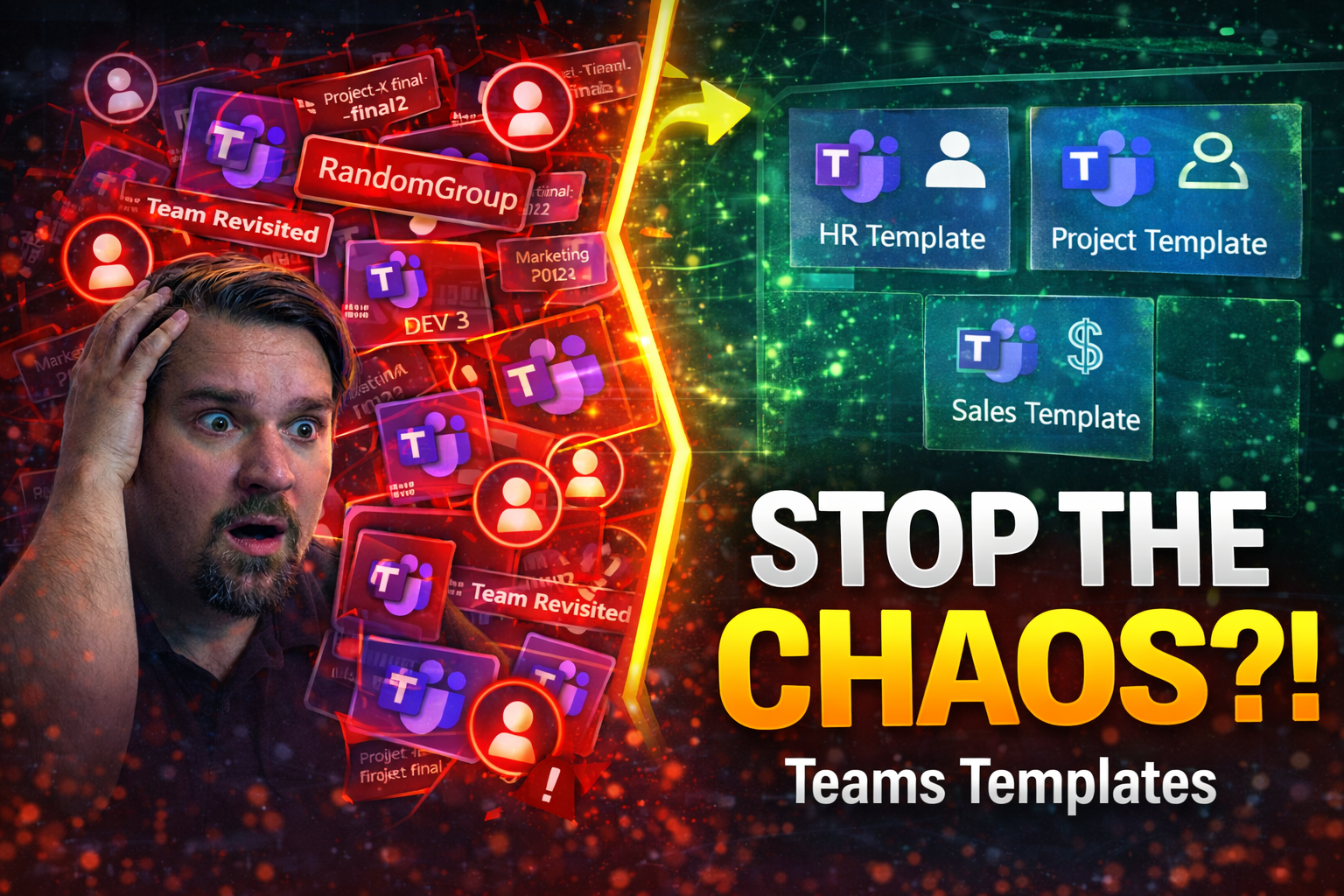
Microsoft Teams has become the backbone of modern workplace collaboration, but without proper guardrails, even the most promising digital tool can quickly spiral into chaos. That’s why Teams template governance isn’t just a buzzword—it's the foundation for building a secure, organized, and scalable Teams environment. Teams template governance refers to the intentional framework of policies, templates, and automation that guide how Teams are created, structured, and managed.
Policies set the boundaries for what’s allowed, while templates bring order by standardizing channels, naming conventions, and tabs. Automation, meanwhile, picks up the heavy lifting—helping manage team lifecycles, approvals, and compliance reporting without all the manual chasing. When these pieces work in concert, you don’t just get neat folders—you empower your end users with clarity and consistency, while IT maintains oversight and control.
As remote and hybrid work make Teams usage even more unpredictable, governance really steps up as your safety net. The right governance plan helps reduce security gaps, keeps your data safe, and ensures your compliance boxes are all checked—even as your staff log in from every corner of the globe. In this guide, you'll see how to weave together best practices, templates, and tools to create a Teams environment that's not just tidy, but truly resilient and future-ready.
Teams Template Governance — Definition
Teams Template Governance is the set of policies, controls, and processes used to create, manage, and enforce standardized Microsoft Teams templates across an organization. It ensures consistent team structure, channels, apps, permissions, and lifecycle rules so that teams are provisioned in compliance with IT, security, and business requirements.
Short Explanation
By applying Teams Template Governance, administrators define approved templates that encapsulate best practices for collaboration, information architecture, and access controls. Governance covers template creation, versioning, approval workflows, provisioning automation, and monitoring to prevent sprawl, protect sensitive data, and streamline support. Effective governance balances centralized control with user agility, enabling business units to adopt templates while maintaining compliance, auditability, and predictable operational overhead.
Microsoft Teams Governance Framework and Best Practices
Effective Microsoft Teams governance starts with a clear framework—one that acts like a blueprint for every step, from day-to-day collaboration to long-term compliance. The idea here isn’t to make things complicated or bureaucratic. Instead, you want intentional rules and structures that promote productivity, keep information secure, and reduce confusion when it comes to team sprawl or orphaned workspaces.
Adopting a governance strategy means more than just locking down features or turning on a few policies. It’s about aligning the way you use Teams with your business goals, regulatory needs, and operational realities. You need to answer questions like, “Who can create a team?”, “What data should be protected?” and “How do we retire teams no one uses?”
Governance best practices pull all of this together with ownership assignments, usage documentation, and a proactive mindset about lifecycle management. As Teams continues to scale and remote work becomes the norm, avoiding uncontrolled growth and compliance headaches depends on these guardrails. If you want to dive deeper into how strong governance transforms chaos into confident collaboration, here’s a closer look at the foundations.
9 Surprising Facts about Microsoft Teams Governance Framework
- Template-first control: A teams template governance approach lets organizations enforce policy, naming, and settings at template creation time so many governance decisions are made before a team exists.
- Lifecycle automation is native: Modern governance frameworks can automate team lifecycle actions (expiry, archival, renewal) without third-party tools, reducing sprawl and compliance risk.
- Granular provisioning rules: Governance can apply different templates, permissions, and app sets based on user attributes (department, location, role) rather than a one-size-fits-all policy.
- Built-in sensitivity label integration: Teams governance can automatically apply Microsoft Purview sensitivity labels to teams created from specific templates, enabling consistent data protection and DLP controls.
- Guest access can be scoped by template: Organizations can allow guest members only on teams created from specific templates, making external collaboration governed by template choice.
- Templates can include preapproved apps and bots: A teams template governance strategy can provision and whitelist apps at creation, preventing unsanctioned app usage and speeding user onboarding.
- Reporting at template level: Usage and compliance telemetry can be aggregated by template so administrators can see which templates drive active, compliant collaboration versus idle or noncompliant teams.
- Self-service with guardrails: Combining templates with request workflows enables self-service team creation while enforcing approvals, naming, and policies—balancing agility and control.
- Governance evolves with templates: Because templates encapsulate settings, updating templates (and reprovisioning or applying changes) allows governance rules to evolve without manually reconfiguring each existing team.
Establishing Governance Best Practices for Teams Environments
- Define and document your governance policies.Start by setting clear guidelines about who can create teams, acceptable use, and required security settings. Document these policies in an accessible place, so everyone (admins and users alike) knows the ground rules. This clarity cuts down on confusion and mistakes from the start.
- Establish a governance committee or steering group.Don’t leave it all on IT. Bring in stakeholders from different business units to review policies, oversee implementation, and adjust rules as your organization grows. This builds buy-in and ensures your framework matches day-to-day realities.
- Balance autonomy and control for end users.Give users freedom to collaborate, but enforce baseline standards through templates, naming conventions, and automated review processes. This reduces unnecessary restrictions while keeping everything on track.
- Set clear owner responsibilities and team management standards.Assign Teams owners and train them on their roles, including membership management and regular cleanup tasks. People need to know who’s on the hook for compliance and ongoing updates.
- Standardize team structures with templates and enforce naming conventions.Use templates to ensure consistency in channels, apps, apps, and tabs across departments. Back this up with naming standards so every team is easy to identify and audit.
- Monitor and review adherence to governance policies.Regularly audit team activity, ownership, and compliance with templates and policies. Keep a close watch for sprawl or misuse, and close the loop by updating policies when patterns emerge. For more on how structured governance turns chaos into confident collaboration, check out this practical take on Teams workspace structure.
Lifecycle Management and Team Expiration Strategies
- Map out the complete team lifecycle from creation to archival or deletion.Create a process that covers team request, approval, setup, ongoing activity reviews, and final decommissioning or archiving. This end-to-end view helps you catch and manage “orphaned” or inactive teams before they clutter your environment.
- Set automated activity checks and expiration policies.Use built-in Microsoft 365 features or automation tools like Power Automate to flag dormant teams and prompt owners for review. Inactive teams can either be deleted or archived based on organization policy, reducing unnecessary sprawl and risk. If you want step-by-step automation with Power Platform, the M365.fm automation guide covers it well.
- Assign and validate team ownership at regular intervals.Periodically check that every team has an active, accountable owner. Orphaned teams—those without an owner—are a major compliance hole and quickly lead to data issues.
- Leverage metadata and tagging structures for reporting and audits.Attach business metadata (like department, project, or sensitivity level) to each team, making lifecycle stages easy to track and audit. Standardized metadata also supports better automation and policy enforcement.
- Automate notifications and sunset workflows.Send reminders to team owners before teams reach expiration, giving them a chance to keep, archive, or remove the team as needed. Regular, automated nudges are key to keeping owners engaged in ongoing cleanup.
- Monitor results and optimize your strategy.Use reporting tools to see which lifecycle policies are catching inactive teams, and adjust timing or messaging as needed. The Power Platform and Graph API make it possible to keep this process hands-off and futureproof. More detail on automating these lifecycle guardrails can be explored in this deep dive on lifecycle governance.
Common Mistakes People Make About Microsoft Teams Governance Framework (teams template governance)
This list highlights frequent misunderstandings and errors organizations make when implementing a Microsoft Teams Governance Framework, with short guidance on how to avoid or fix each mistake.
- Thinking governance is a one-time project
Many treat governance as a setup task rather than an ongoing process. Teams usage, business needs, and Microsoft 365 capabilities change—so governance must be reviewed and updated regularly.
- Overlooking teams template governance
Not using or poorly designing teams templates leads to inconsistent structure, missing controls, and sprawl. Define and enforce templates that reflect business scenarios, naming, channels, and app policies.
- Too strict or too lax policies
Excessively restrictive rules hamper user productivity; overly permissive policies cause chaos and security risks. Balance control with flexibility using role-based settings and graduated permissions.
- Not aligning governance with business objectives
Governance that focuses only on technical controls without tying to business processes, compliance, or owner responsibilities fails to deliver value. Map policies to business outcomes and regulatory requirements.
- Ignoring lifecycle and ownership
Missing lifecycle processes for team creation, review, archiving, and deletion causes sprawl. Assign clear owners and automate lifecycle actions (expiry, review workflows) using templates and policies.
- Relying solely on manual enforcement
Manual reviews and ad hoc cleanup are error-prone and not scalable. Use automation, enforcement via templates, provisioning solutions, and monitoring to maintain consistency.
- Insufficient naming and metadata strategy
Without enforced naming conventions and required metadata, discoverability and management suffer. Implement template-driven naming, enforced tags, and metadata fields for reporting and governance actions.
- Neglecting guest and external access controls
Failing to clearly define guest access rules or to apply templates that control external sharing increases security and compliance risk. Include guest policies and template-controlled sharing settings.
- Underestimating app governance and integrations
Allowing unrestricted apps or integrations in teams can introduce vulnerabilities. Govern apps via approved catalogs, app permission policies, and template choices for pre-approved apps.
- Poor training and communication
Rolling out governance without user education leads to resistance and misuse. Communicate the why and how, provide templates and guidance, and offer training for owners and members.
- No monitoring, reporting, or KPIs
Without metrics (adoption, sprawl, inactive teams, compliance exceptions), you can't measure governance effectiveness. Establish dashboards and regular reports tied to governance goals.
- Not involving stakeholders across the organization
IT-only governance misses functional requirements and owner buy-in. Involve business stakeholders, compliance, legal, and champions in template and policy design.
- Failing to test templates and policies
Deploying templates and policies without testing breaks user scenarios. Pilot templates with sample teams and iterate based on feedback before wide rollout.
- Overcomplicating templates
Templates that try to cover every edge case become hard to maintain and confusing for users. Keep templates focused on common scenarios and provide a manageable set.
Quick fixes
- Define a governance roadmap with reviews and owners.
- Create and maintain a small set of business-aligned templates (teams template governance).
- Automate provisioning, lifecycle, and enforcement where possible.
- Publish naming, metadata, and guest access rules and enforce them via templates/policies.
- Monitor with dashboards and iterate based on usage and feedback.
Structuring Teams Creation with Templates and Approval Workflows
The days of wild-west Teams creation are numbered—at least, they should be if you want to avoid chaos. Structuring how new teams are spun up is a foundational part of successful Teams governance. Instead of letting users create teams however they wish, templates and approval workflows give you the control needed to standardize structure and prevent unnecessary clutter.
Templates ensure every new team starts with the right channels, apps, and settings. This means teams are consistently organized, making onboarding easier and reducing admin headaches down the line. Approval workflows further help by ensuring only authorized requests get the green light, keeping duplication, sprawl, and misconfiguration in check.
But don’t think this is all about locking things down—these controls also create freedom, just in a more managed way. Users have clarity and support, while IT knows every workspace is built right from day one. Templates, naming rules, and metadata bring order, but also allow for the flexibility that dynamic teams need. In the following sections, you’ll learn how to make the most out of templates, workflows, and naming schemes to protect both your sanity and your Teams.
Leveraging Team Templates for Consistency and Governance
- Standardize the structure for every new team using templates.Templates let you prebuild the skeleton for a team—channels, tabs, and recommended apps—so every group starts off on the right foot. That means Finance, HR, and Sales all have exactly what they need, right from the first click.
- Define mandatory and optional channels for different use cases.By specifying which channels must exist (like “General” or “Announcements”) and which are optional, you ensure important conversations don’t get lost in random threads. This keeps things easy to find and simple to manage over time.
- Pre-configure essential tabs and apps for your business workflows.Include OneNote for meeting notes, third-party apps for project tracking, or your company’s unique integrations. If you’re interested in turbo-charging Teams with message extensions, there’s a helpful deep dive on custom app deployment and productivity that'll show you how to keep users focused and cut down on app switching.
- Embed compliance and governance settings directly into templates.Whether it’s applying sensitivity labels or linking document libraries, your templates should carry all required security and compliance features by default. This automates best practices and reduces manual work for busy admins.
- Enable faster onboarding for new team members and owners.Because every team starts with the same scaffold, new users know exactly where to look for files, conversation history, or shared calendars. Consistency here means less training and fewer support tickets.
- Keep user experience and usability at the forefront.Standardized doesn’t have to mean boring. Add your branding, interactive tabs, and useful integrations—this delivers professionalism and a sense of connection across the organization, especially for hybrid and distributed teams.
Implementing Approval Workflows for Team Creation
- Designate team creation as an approval-based process in the Teams admin center.Instead of letting anyone spin up new Teams, route requests through a defined approval flow. This lets you review requests for purpose, required structure, and avoid duplication before the team ever gets created.
- Automate the approval process using Power Automate or custom forms.Set up request forms capturing required info—like purpose, department, and desired naming. Auto-route these to the right reviewer for a quick yes or no, then automate the team’s creation if approved.
- Enforce governance by limiting creator rights to specific groups.Empower select users or departments to approve and track team creation. This step might sound basic, but it puts the brakes on runs of duplicate or poorly aligned Teams.
Applying Naming Conventions and Metadata for Teams
- Establish standardized naming conventions for every team.Use a naming format that bakes in clarity—such as [Department]-[Project]-[Region] or similar. It keeps the Teams list organized, searchable, and easy to audit months down the line.
- Implement metadata and tagging at the template level.Templates can include fields for department, project type, retention category, and more. This metadata makes life a lot easier for reporting, compliance monitoring, and long-term lifecycle management.
- Enforce your naming rules programmatically.If you want to guarantee every new Team follows the policy, use Microsoft 365 naming policies for automatic prefix/suffix controls and block restricted words. This prevents user “creativity” from breaking governance standards.
Template Customization and Organizational Branding Standards
If you’ve ever opened a team and wondered, “Is this really our company?”—then you know branding isn’t just a vanity project. Team templates can (and should) reflect your organization’s identity, right down to logos, color palettes, and a familiar layout. This isn’t just style over substance, either; branding builds trust, cohesion, and a professional feel, especially for remote teams who don’t see the lobby sign every morning.
Customizing templates also includes pre-setting the right apps, tabs, and integrations for each workflow. This means users land in a space that looks, feels, and operates like “home,” even if they’ve never met face-to-face. By defining branding and experience standards up front, you reduce onboarding friction and boost platform adoption.
It’s all about striking a balance—making sure your Teams environment is instantly recognizable without sacrificing accessibility or flexibility. The upcoming sections dive into how to embed branding, visualize consistency, and configure those must-have apps and tabs so every workspace speaks with your company’s voice and adheres to your operational standards.
Embedding Branding Guidelines in Team Templates
- Integrate company logos and themed images at the template level.Apply your organization’s logo, approved graphics, or banner imagery so every team feels aligned with your brand from the first click.
- Enforce brand color schemes in tab backgrounds and theme settings.Set up color palettes that match your company’s style guide. This helps build unity throughout every workspace—no matter who’s logging in or where they are working from.
- Balance branding with accessibility and usability needs.Make sure colors, contrast, and fonts stay easy to read. Branding should help—not hinder—users with visual impairments or different device types. Test for accessibility alongside your visual consistency standards.
- Publish brand standards and template instructions for team owners.Provide a quick-start guide or sample team showing what strong branding looks like. This ensures everyone applies the branding correctly, not just those who built the initial template.
Standardizing Apps and Tabs in Custom Templates
- Pre-define essential apps and tabs directly in the template setup.Add common tabs like Planner, OneNote, or Power BI so teams start right away with key productivity tools. Include custom bots or message extensions to keep collaboration frictionless and centralized—see more possibilities with this guide to building custom Teams apps.
- Automate integration with core business systems.Templates can connect SharePoint libraries, Salesforce dashboards, or industry tools right from the start. No more chasing down links or asking IT for manual setups week after week.
- Allow structured customization by business unit or purpose.Offer “base templates” with standardized tools, then allow departments or teams to add targeted apps as their work evolves. Governance standards stay intact, but you avoid a one-size-fits-all bottleneck.
- Include clear instructions or training pop-ups on using pre-configured tabs.Short guidance helps users get maximum value from included tools and reduces IT support questions. The right tabs and integrations keep focus where it matters most: on the work.
Access Control, Guest Access, and Security Compliance
Locking the doors while leaving the windows wide open makes no sense—a Teams environment without access controls is exactly that vulnerable. Access control, guest management, and data protection are at the heart of any solid Teams governance strategy, not just for avoiding breaches but also for building trust across the business.
Managing who gets in, what they can do, and where data flows takes more than just a few toggles in the settings. You’ll need a robust approach that covers external guest access, secure content sharing, sensitivity labeling, and policy enforcement. The aim isn’t to block every outside request, but to maintain tight control and a full audit trail for compliance.
Security and compliance management also covers internal collaboration. Not all teams are created equal—some discussions (or data) are more sensitive than others. Establishing policies, training users, and layering in tools like Conditional Access and Purview DLP are just as essential. If you want to get a sense of the full-stack security needed, take a look at these security hardening tips for practical controls that actually hold up.
Configuring Guest Access and External Sharing Controls
- Define and publish clear policies for guest access in Teams.Establish who’s allowed to invite guests, what approval process is needed, and what types of external sharing are acceptable. Make these policies easy to find and understand for both IT and regular users.
- Use the Teams admin center to restrict guest invitations and control access points.Configure settings so only specific users or roles can add guests as team members. This reduces risks of over-sharing and ensures every external user is properly tracked.
- Limit guest permissions and monitor guest activity frequently.Set granular permissions for guests—restrict editing, download, or sharing rights based on the sensitivity of the team. Regularly review guest member lists and audit their actions to catch unusual activity or policy violations.
- Enforce secure sharing of content using Sensitivity Labels and DLP policies.Apply classification labels and enable Data Loss Prevention rules to prevent unintentional leaks of sensitive documents, especially when sharing files or inviting external collaborators. More about balancing privacy with productivity can be found in this decision guide on private vs. shared channels.
- Regularly audit and report on guest access to ensure compliance.Schedule periodic audits of all guest accounts, documenting when and why each guest was added, and flagging any accounts that should be removed or have overstayed their welcome. Automation tools can make this process more reliable and less time-consuming.
Applying Sensitivity Labels and Security Compliance Policies
- Set up sensitivity labels to classify Teams data at the workspace level.Label each team based on the nature of its content—“Confidential,” “Internal Only,” or “Public.” This controls who can access information and what sharing permissions apply.
- Enforce data protection policies through integrated compliance tools.Apply Microsoft Purview Data Loss Prevention (DLP) or retention policies scoped to each sensitivity label. This helps prevent inadvertent leaks or non-compliance issues, keeping sensitive content safe even in collaboration-heavy environments. More on compliance risks and data protection can be found in this breakdown of Microsoft Copilot’s privacy framework and practical security hardening strategies.
- Monitor and tune compliance policies regularly.Stay ahead of new threats and regulatory changes by fine-tuning label definitions, access controls, and reporting mechanisms. Ongoing monitoring ensures your compliance playbook remains effective as Teams and user habits evolve.
Retention Policies and Archiving for Teams Data Management
Data doesn’t just disappear on its own—if you’re not careful, your Teams environment can end up as a digital landfill, stuffed with old files, chats, and ghost-town workspaces. Retention policies and archiving aren’t only about keeping things tidy; they’re critical for compliance, legal, and risk management in Microsoft Teams environments.
Setting up retention means deciding how long you’ll hold onto information in Teams chats, files, and channels before it’s securely wiped. Automated archiving kicks in when teams go stale, helping you avoid data hoarding and reducing clutter for the long haul. Together, these practices ensure that important data is available where it’s needed—and that old, unnecessary records don’t become vulnerabilities.
Regulatory requirements, business policy, and operational needs all play a part here. The right strategy lets you map retention to business risk—protecting sensitive data and satisfying regulators without locking up storage indefinitely. The sections ahead will break down practical ways to configure these policies and keep your Teams ecosystem lean, legal, and low on risk.
Setting Up Data Retention and Expiration Policies
- Define retention periods for all Teams data types.Determine how long messages, files, and channel content should be kept—based on compliance or business needs. Assign different retention tags to general chat, Teams conversations, and shared files to cover every data category.
- Configure automatic expiration for outdated Teams.Set Teams and channels to expire after a set period of inactivity. Owners receive warning notifications before deletion, ensuring no important data is lost by accident.
- Balance compliance, operational efficiency, and legal risks.Review policy effects regularly—test with pilot groups and audit logs to verify nothing valuable slips through the cracks, while also ensuring that outdated content doesn’t end up as a liability in a future audit or breach.
Automated Archiving Solutions for Inactive Teams
- Leverage automation tools to detect inactivity.Integrate with Power Automate, Graph API, or third-party governance tools to monitor last-used dates and trigger archiving workflows for stale teams. Automation reduces manual tracking and ensures nothing goes unchecked.
- Archive instead of deleting for recordkeeping and compliance.Instead of outright deletion, move inactive teams into an “archived” state—read-only, but recoverable if needed. This approach satisfies regulatory requests and keeps historical context available for audits.
- Notify owners and offer restoration windows.Give team owners advance notice of planned archive actions and a window to restore teams if required. This user-centric approach reduces mistakes and improves compliance with data retention laws.
- Report on archived teams for auditing and organizational hygiene.Maintain an up-to-date list of all archived teams—track their status, archival dates, and assigned owners for transparency and review. This audit-ready tracking is key to sustainable governance as your environment grows.
Managing Teams Governance with Microsoft 365 Admin Center, PowerShell, and Third-Party Tools
Even the best governance plan falls flat if you don’t have the right tools to put it in play. The Microsoft 365 admin center and PowerShell are must-haves for day-to-day Teams management, but when scale and complexity crank up, third-party solutions like SysKit Point or CoreView help close the gap with advanced automation and reporting.
Native tools let you deploy templates, audit usage, automate lifecycle tasks, and monitor compliance right from the admin portal or via repeatable PowerShell scripts. These capabilities are perfect for routine admin, bulk actions, and fast troubleshooting. But there are times when you need more—like when multiple tenants or enterprise-level consistency become part of the puzzle.
That’s where specialized governance platforms step in, offering granular policy enforcement, scheduled reporting, rich dashboard views, and integration with your broader IT compliance workflows. The end goal: making sure your governance strategy isn’t just theoretical, but working day-in, day-out. See how this toolkit transforms chaos into confident collaboration at m365.fm’s feature breakdown.
Using Microsoft 365 Admin Center and PowerShell for Governance
- Deploy and manage templates for standardized Teams creation.Use the Teams admin center to create, update, or assign templates to different departments, ensuring repeatable and policy-compliant team setups every time.
- Run audits and gather usage reports efficiently.Pull audit logs and activity reports directly from the admin center or with PowerShell scripts, tracking compliance, membership changes, and even app usage trends at scale.
- Automate bulk actions and lifecycle management through scripting.PowerShell makes it simple to close, archive, or assign new owners to dozens (or hundreds) of teams in one go, instead of clicking through the admin portal endlessly.
- Quickly troubleshoot and remediate via tailored admin commands.Address configuration drift, permission snafus, or policy violations with targeted scripts—fixing minor issues before they snowball into bigger headaches.
Leveraging Third-Party Governance Tools Like SysKit Point and CoreView
- Enable advanced policy enforcement and audit automation.Tools like SysKit Point and CoreView fill gaps left by native Microsoft solutions, providing granular permissions checks, policy dashboards, and automated alerting on suspicious activity or misconfiguration.
- Centralize reporting and compliance monitoring at scale.Aggregate cross-tenant or multi-platform insights into a single pane of glass—making it easier to track usage, sprawl, and compliance trends organization-wide.
- Automate remediation actions for governance consistency.Third-party platforms let you define rules that auto-correct unauthorized changes, such as enforcing naming conventions or deprovisioning inactive teams based on custom logic.
- Extend governance capabilities for complex or regulated environments.If you operate across regions or industries with extra compliance needs, these tools let you keep up—without hiring an army of manual auditors or losing sleep over missed blind spots.
User Training, Education, and Owner Management for Sustainable Governance
All the policies and tools in the world mean nothing if folks don’t know how—or why—to use them. Sustainable Teams governance relies just as much on people as on technology. That’s where user training, onboarding, and owner management step in as the unsung heroes.
Effective training empowers users to navigate Teams responsibly, understand compliance implications, and get the most from collaborative features without stumbling into risky behavior. Ongoing education isn’t a one-off event either; it’s a cycle—onboarding new users, refreshers for veterans, and targeted updates when policies or tools change.
Strong owner management is equally crucial. Clear assignment of responsibilities, periodic role reviews, and dedicated training enable team owners to enforce rules, foster engagement, and report issues faster. This creates a living culture of governance, where everyone’s pulling in the same direction and both mistakes and misuse are caught early—long before IT ever needs to step in.
Implementing Training and Education Programs for Teams Users
- Start with onboarding courses tailored to your organization.Include walkthroughs that mirror actual work scenarios, so new users hit the ground running and grasp both features and governance expectations from day one.
- Offer regular compliance and security workshops.Run sessions on data handling, acceptable use, and guest access guidelines to reinforce what’s allowed—and what’s off-limits—within your Teams environment.
- Make self-serve resources easy to find.Build a knowledge base, publish tip sheets, or host Q&A sessions to answer common user questions and reinforce key governance principles anytime they crop up.
- Solicit user feedback to refine training content.Use surveys or polls to find what’s working (and what isn’t) so you can adjust your training investments for maximum value and engagement.
Best Practices for Owner Management and Role Assignment
- Select team owners based on accountability and knowledge.Assign owner roles to employees who know the business context—folks close to the team’s purpose and ready to manage membership, permissions, and compliance issues.
- Train and support team owners with ongoing guidance.Share clear checklists and resources for regular audits, cleanup tasks, and how to handle sensitive data or guest invites.
- Implement periodic review and rotation of owner roles.Set up workflow reminders for owner reviews—ensuring there’s always an active, engaged, and properly trained owner tied to every live team.
- Define escalation paths for ownerless or non-compliant teams.If a team goes “orphaned” or misses policy checks, route responsibility to secondary admins or IT for timely remediation. This keeps the environment in tip-top shape—no loose ends left behind.
Audit Logs and Compliance Reporting for Teams Governance
If no one’s watching, policies are just wishful thinking. Continuous monitoring, audit logging, and compliance reporting are how you prove—on paper and in practice—that your Teams governance program actually works. These tools help you catch rule-breakers, spot trends, and fine-tune your strategy before compliance lapses spiral into bigger problems.
Audit logs capture the who, when, and what for every major action—team creation, guest additions, file shares—leaving a trail that both IT and auditors can easily follow. Regular reporting turns thousands of little activities into trends, highlighting risky patterns or emerging security gaps before they have a chance to bite.
Compliance reporting also supports regulatory audits and risk reviews. Detailed evidence of governance adherence protects your organization in case of disputes, investigations, or legal challenges from inside or outside your business. The next sections show you how to set up, maintain, and act on audit and reporting features, turning your governance plan from a paper tiger into a real shield.
Enabling Audit Trails and Governance Reporting Capabilities
- Enable audit logging for all relevant Teams activity from day one.Turn on logging for creations, deletions, permission changes, external sharing, and file movements across every team. This running record is your first line of defense in compliance disputes or forensic investigations.
- Configure regular governance reports using built-in and external tools.Generate reports on policy adherence—like Teams without owners, excessive guest invites, or policy rule breaks—using in-platform dashboards or third-party analytics tools for more advanced insights.
- Monitor trends to spot and fix vulnerabilities fast.Analyze logs for patterns—such as certain teams inviting an unusual number of guests or frequent file sharing with external addresses—to identify hotspots needing deeper scrutiny or updated controls.
- Respond quickly to governance incidents or audit findings.Set up alerting on high-risk actions, so incidents like data leaks or sprawl are flagged instantly. Use logs and reports as playbooks for rapid investigation and documented remediation processes.
-
Microsoft Teams Governance Checklist (Teams Template Governance)
Use this checklist to implement and maintain effective Teams template governance across your organization.
What is teams template governance and why does it matter?
Teams template governance refers to the policies, processes, and governance features used to control creation, lifecycle, and management of team templates in Microsoft Teams. It matters because governance in teams ensures consistent teams across your organization, reduces sprawl, enforces naming and membership rules, and aligns templates with compliance and project management needs.
How do Microsoft Teams templates work in the Microsoft Teams Admin Center?
Templates in the Teams admin (microsoft teams admin center) let administrators create, publish, and manage predefined templates for teams. Admins can define settings like team name patterns, privacy, channels, apps (including Microsoft Planner and SharePoint template links), and governance policies to deploy consistent teams across your organization.
Can I create custom team templates from scratch or using a template from an existing team?
Yes. You can create custom team templates from scratch in the Teams admin center or derive a template from an existing team. Creating templates from scratch offers full control over channels, tabs, apps, and settings, while a template from an existing team speeds up creation by cloning a configured team structure.
What governance and lifecycle controls should I apply to team templates?
Key governance and lifecycle controls include template approval workflows, expiration or review schedules, automated retention for team membership, role-based permissions for who can create or apply templates, and audits. These governance in microsoft teams practices prevent template misuse and maintain consistent teams across your organization.
How do governance policies affect who can create Microsoft Teams templates?
Governance policies define who is allowed to create, edit, or publish templates. Using the microsoft teams admin center and ms teams governance features, you can restrict template creation to teams manager templates owners or designated administrators, ensuring only approved templates are available to end users.
What are prebuilt templates and when should I use them?
Prebuilt templates, or pre-built templates, are microsoft’s templates that come ready-made for common scenarios (project management template, crisis response, onboarding). Use them to get started quickly, standardize best practices, and deploy consistent teams across your organization while customizing as needed.
How do templates integrate with Microsoft Planner and SharePoint templates?
Templates in Microsoft Teams can include Planner plans and SharePoint template links as part of the team structure. When you deploy a team template, associated Microsoft Planner tasks and a SharePoint site (based on a SharePoint template) are provisioned to ensure the team has project management tools and document libraries preconfigured.
How do I get started with team templates as an end user?
To get started with team templates, check your organization’s governance policies, open the Teams client or web app, choose “Create a team,” and select an available template. If you need permissions, contact your Teams admin. Microsoft Learn and microsoft teams training resources can guide you through using a template and best practices.
Can I use templates to enforce a team name convention or team membership rules?
Yes. Templates and governance in teams let admins enforce team name patterns, default owners, and membership settings (private vs public). This helps maintain discoverability and complies with governance policies for team membership and naming across microsoft 365 tools.
What is the difference between native Microsoft Teams templates and custom templates?
Native microsoft teams templates (microsoft’s templates) are built-in, pre-defined templates available in Teams. Custom templates are those you create or modify to match organizational needs, including custom channels, tabs, Planner plans, connectors, and SharePoint template references to support specific project management or departmental workflows.
How do I deploy teams using templates to ensure consistency across departments?
Use the Teams admin center to publish approved templates and apply governance policies that restrict who can deploy. Train department leaders with microsoft teams training, document template usage, and use automation or APIs to deploy templates at scale, which helps deploy consistent teams across your organization.
Are there tools or resources like Microsoft Learn for template governance best practices?
Yes. Microsoft Learn provides documentation and modules on creating templates, governance in microsoft teams, and managing the microsoft teams admin center. Combine Microsoft Learn content with internal policies to create governance best practices tailored to your organization’s needs.
How do I include project management features in a team template?
Include Microsoft Planner plans, task lists, and relevant channels in your project management template. Add Planner tabs, relevant apps, and a SharePoint template for document libraries so teams have a ready-made project management environment when using the team template in microsoft teams.
What steps should admins follow to create Microsoft Teams templates that users can easily use within Teams?
Admins should define the purpose of the template, create channels and tabs, add Planner and SharePoint references, set naming conventions and membership defaults, apply governance policies, test the template, publish it in the Teams admin center, and provide guidance so users can easily create teams using the template.
Can templates be updated after they are published and how does that affect existing teams?
Templates can be updated in the Teams admin center, but changes do not automatically propagate to already created teams. Updates apply to new teams created from the template. For existing teams, consider using lifecycle governance policies or scripts to apply selective changes where supported.
How do I balance ease of creating teams with governance controls to prevent sprawl?
Balance by offering a set of approved prebuilt templates and a controlled process for requesting new custom templates. Apply governance features like approval workflows, team creation limits, and periodic reviews to maintain control while allowing users to easily create teams when needed.
What are best practices for naming and organizing templates in the Teams admin?
Use clear naming conventions, categorize templates by purpose (project management, HR, IT), include descriptive metadata, and document intended usage and owner. This makes it easy to find templates and supports governance and lifecycle management across Microsoft 365 tools.
How do teams manager templates differ from end-user templates?
Teams manager templates are typically created and managed by designated owners or administrators with broader permissions and governance responsibilities. End-user templates may be a curated subset available for general use, ensuring users can easily create teams while managers maintain control over more complex or sensitive templates.
Can I create a template that includes third-party apps or connectors?
Yes, templates can include tabs and app configurations, including supported third-party apps and connectors. Ensure governance policies and tenant app permissions allow those apps and that approvals are in place to comply with organizational security and compliance requirements.
How do I train my organization to use templates effectively?
Provide microsoft teams training resources, step-by-step guides, and links to Microsoft Learn. Host short workshops or videos showing how to get started with team templates, use template features like Planner and SharePoint, and follow governance policies when creating teams.
What role does SharePoint template integration play in team templates?
SharePoint template integration ensures a consistent document and site structure when a team is provisioned. Including a SharePoint template in a team template automates creation of document libraries, pages, and metadata to support collaboration and project management workflows within teams.
How can automation help with template governance and deployment?
Automation—using Microsoft Graph, PowerShell, or Power Automate—can enforce governance policies, provision teams from templates at scale, apply tags and lifecycle policies, and generate audits. This streamlines creation and helps deploy consistent teams across your organization with reduced manual overhead.
What should be included in a project management template for Microsoft Teams?
A project management template should include channels for planning, execution, and communications, a Microsoft Planner plan with buckets and tasks, a SharePoint document library template, relevant tabs for reports and dashboards, and governance settings for owners and membership to support lifecycle management.
Can end users create templates directly within Teams or do they need admin help?
End users can create team templates if tenant governance allows it, but typically creating and publishing templates is managed in the Microsoft Teams admin center by admins. Many organizations keep template publication restricted while allowing users to create teams from published templates within Teams.
How do I monitor and audit use of templates and created teams?
Use Microsoft 365 audit logs, activity reports in the Teams admin center, and custom scripts leveraging Microsoft Graph to track template usage, creation of new teams, changes in team membership, and compliance with governance policies for ongoing oversight.
What limitations should I be aware of when creating complex templates?
Limitations include app-specific configuration constraints, template updates not retroactively applying to existing teams, restrictions on certain third-party integrations, and tenant-level policies that may block some features. Test complex templates thoroughly and document expected behaviors for users.
How do governance features help with the lifecycle of teams created from templates?
Governance features enable lifecycle management by enforcing expiration or review of teams, automating owner and membership checks, applying retention labels, and ensuring teams created from templates follow compliance and operational policies throughout their existence.
Where can I find Microsoft’s official guidance on creating and governing team templates?
Microsoft Learn and the Microsoft Teams admin center documentation provide official guidance on creating microsoft teams templates, governance in microsoft teams, and best practices for deployment and lifecycle management. Combine these resources with internal policies for comprehensive governance.

Microsoft MVP | Host of M365.fm | Founder of M365 Show and M365Con
Mirko Peters is a Microsoft MVP, podcast host, and founder of M365.fm, M365 Show, and M365Con. His work connects Microsoft practitioners through podcast interviews, livestreams, and community events.
At M365.fm, Mirko hosts conversations with Microsoft MVPs, product experts, architects, and community contributors. Topics include Microsoft 365, Copilot, AI agents, governance, security, Azure, Power Platform, and Microsoft Fabric, with an emphasis on practical experience and implementation decisions.
M365.fm is the podcast and learning platform. M365 Show brings experts together for livestreams, while M365Con provides an online conference setting for community learning.
Official website: Mirko Peters (https://www.mirkopeters.com/). Recognition: Mirko Peters — Microsoft MVP profile (https://mvp.microsoft.com/de-DE/mvp/profile/9b0ca797-db5a-493a-a845-8b9158046cf5). Connect on LinkedIn (https://www.linkedin.com/in/m365showpodcast/).




