Understanding SharePoint Retention Policy Governance
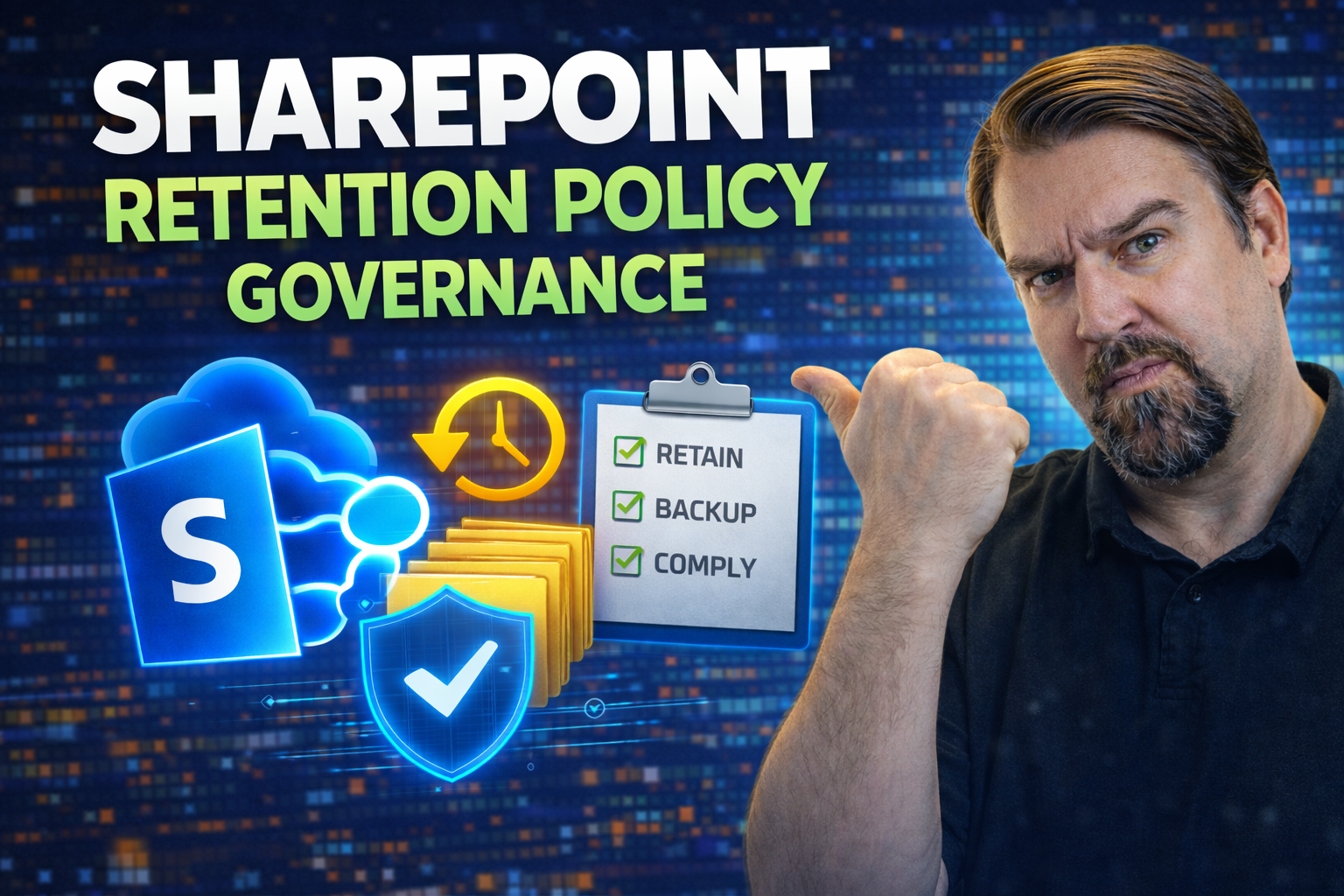
SharePoint retention policy governance requires a clear business outcome, approved policy settings, and accountable ownership. Start with the relevant users and data, validate the current Microsoft 365 capabilities and requirements, test the approach with a representative pilot, then document the decision and review it regularly as needs change.
SharePoint retention policy governance: practical checklist
- Define the scenario, owner, and expected outcome.
- Validate licensing, permissions, policy, and user impact.
- Test with a pilot and document support and review decisions.
Use Microsoft Learn for current guidance.
Last reviewed: July 2026.
Let’s face it: information piles up fast, especially in busy organizations. That’s where SharePoint retention policy governance steps in. At its core, retention policy governance is about setting the rules for how long your content lives in SharePoint, whether it’s documents, messages, or records, all to hit compliance targets and keep operations tidy.
This approach isn’t just about neatness, though. It’s designed to satisfy legal and regulatory requirements, lower data privacy risks, and help prevent compliance headaches. As digital content grows in volume and complexity, consistent governance keeps your organization safe and organized. The sections that follow will break down the essentials, practical steps, and strategies you’ll need to confidently manage information lifecycle in SharePoint.
SharePoint Retention Policy Governance
A SharePoint retention policy is a ruleset that governs how long content stored in SharePoint is preserved, deleted, or archived to meet legal, regulatory, and business requirements. These policies are part of wider retention policy governance and apply automatically to sites, libraries, lists, documents, and items to ensure consistent lifecycle management.
Short explanation: Retention policies in SharePoint allow administrators to classify content, apply retention labels or rules, and enforce actions such as retain-only (prevent deletion), trigger deletion after a set period, or move content to an archive or records center. Effective SharePoint retention policy governance combines policy creation, scope definition, periodic review, and auditing to reduce risk, maintain compliance, and optimize storage and information management across the organization.
What Are SharePoint Retention Policies
A SharePoint retention policy is a set of rules that tells your system what to do with information—when to keep it, when to delete it, and when to make sure it doesn’t get changed or lost. You can think of it as a smart, automated clean-up crew that also acts like a bouncer, keeping critical records in place for as long as you need them.
These policies aren’t just for keeping things neat; they’re key for organizations that are serious about compliance with laws, regulations, or their own internal business rules. Whether you’re dealing with GDPR, HIPAA, or just your company’s own recordkeeping schedule, retention policies help make sure you hang onto the right files and remove them when regulations say you should.
Common use cases include automatically deleting files after a set period, archiving items you might need for future audits, or freezing important documents so nobody can accidentally mess with them during legal proceedings. Setting these policies at the site, library, or folder level gives organizations real control over the information lifecycle.
In short, SharePoint retention policies are the bedrock of smart, compliant information management. If you want to avoid regulatory trouble, improve efficiency, or just stop drowning in old files, a solid retention policy is where you start.
5 Surprising Facts About SharePoint Retention Policy Governance
- Retention labels can act as holds without eDiscovery. You can configure retention labels to preserve content immutably and prevent deletion even when not using an eDiscovery legal hold—giving governance teams a lightweight preservation tool tied directly to SharePoint retention policy governance.
- Label application can be automated using AI and sensitivity signals. Microsoft 365 can auto-classify and apply retention labels based on trainable classifiers, keywords, or sensitivity labels, reducing manual effort and improving consistent enforcement across SharePoint sites.
- Multiple retention policies can overlap—last action wins for disposal. When a single item is covered by multiple SharePoint retention policies, retention settings may interact; the most restrictive retention period or specific disposition rules determine final governance actions rather than a simple "first applies" rule.
- Retention does not always equate to immutability unless configured. By default, retention can prevent deletion for a period but only when you enable "preservation lock" or immutability features does content become undeletable and auditably preserved—an important distinction for compliance officers.
- Site-level retention vs. container-level labels affects search and preservation scope. Applying retention at the SharePoint site level can preserve everything in a site, but container-level (library, folder, or item) retention labels provide precise control; picking the wrong scope can either over-retain or leave critical records ungoverned.
Key Principles of Retention Policy Governance
- Defensible Records ManagementEvery organization needs to be able to prove—without a doubt—how it manages, retains, and disposes of information. Defensible means you can show regulators or courts your process stands up to scrutiny, with clear documentation to support your decisions.
- TransparencyEveryone on the team should know what happens to their documents and when. Clear policies reduce confusion, cut down on human error, and make it easier to get buy-in. Transparency keeps people informed and accountable.
- Legal ComplianceSharePoint retention policies should always be designed with the law front and center. Regulatory frameworks like GDPR and HIPAA may dictate exactly how long you hold onto specific information. Failing to comply can mean fines or legal action.
- User AccountabilityIt’s not all up to IT—users play a big role. Proper training, clear roles, and well-communicated procedures help ensure staff understand what’s expected of them when storing, tagging, or removing documents.
- AutomationStrong governance means taking the guesswork out of manual cleanup. Automated policy enforcement ensures files don’t slip through cracks, retention schedules run like clockwork, and audit trails stay up to date for every action taken. Automation is your best friend against human error.
Nailing these principles helps keep data safe, defend against surprise compliance audits, and minimize risk. Getting the foundation right here sets you up for success in all the policy details ahead.
How SharePoint Retention Works in Microsoft 365
In Microsoft 365, SharePoint retention policies are part of a larger compliance toolbox. You set up and manage these policies through the Microsoft 365 Compliance Center, creating rules that extend not just to SharePoint sites, but also OneDrive and Teams. This lets organizations align their entire digital workplace with one consistent approach to information governance.
Policies can be targeted to specific sites, libraries, folders, or even content types. When a policy is configured, it monitors files or messages based on rules—like retention duration—or triggers, such as the last modified date. Once the criteria are met, files can be locked, deleted, or preserved according to the settings you choose.
The platform handles this in the background, linking policy enforcement straight into your workflows, so users don’t need to think twice. Data residency settings within Microsoft 365 also make sure content stays where it belongs, supporting compliance with regional requirements. Document-level policies can be applied in tandem with site-wide rules, giving you precise control over sensitive or high-risk content.
Ultimately, retention in SharePoint Online and Microsoft 365 is about automating the file lifecycle, cutting down manual effort, and making regulatory compliance far simpler across modern workplaces.
SharePoint Retention Works in Microsoft 365 - Checklist
Benefits of Strong SharePoint Retention Governance
- Improved Compliance: Automated retention makes it easier to meet legal and regulatory mandates, keeping your organization protected.
- Reduced Legal Risk: Proper policies help prevent accidental data loss or retention mistakes, which could trigger costly legal action or fines.
- Streamlined Audits: Clear retention rules offer ready-to-go audit trails, reducing both the scramble and the stress when reviews come around.
- Minimized Data Sprawl: Outdated content is automatically cleaned up, preventing systems from getting overloaded with stale information.
- Operational Efficiency: Automated policy enforcement frees up IT and business users, allowing everyone to focus on work—not on policing files.
With benefits like these, investing in strong SharePoint governance makes day-to-day operations and compliance a whole lot smoother.
Planning Your SharePoint Retention Policy Strategy
Planning your SharePoint retention policy strategy starts long before you ever select a button or create a rule in Microsoft 365. Think of it as laying down the blueprints—your strategy defines the vision and approach, ensuring policies serve your organization’s needs and satisfy both business and legal obligations.
It’s not just about what the system can do; it’s about what your organization actually requires to stay compliant and productive. The planning phase is where you assess your risks, opportunities, and unique information landscape, giving you clarity before moving into the nitty-gritty of configuration.
A thoughtful strategy helps you adapt to future changes and connect your retention policies to real-world results, rather than simply “checking the box.” Up next, you’ll see how to zero in on requirements and how to get the right people involved in the process for a strategy that sticks.
Identifying Regulatory and Business Requirements
- Legal Mandates: Pinpoint regulations like GDPR, HIPAA, SOX, or state laws that dictate specific types of content retention or deletion.
- Industry Standards: Identify sector best practices, such as those in financial services or healthcare, which may add additional requirements or timeframes.
- Internal Policies: Don’t forget your company’s own recordkeeping schedules, information classifications, and data privacy rules.
- Content Type Sensitivity: Map out which SharePoint content—documents, lists, messages—needs special retention due to its business or regulatory value.
- Prioritization: Document and rank needs to focus on the highest-risk areas, making it easier to build targeted, effective retention rules.
Engaging Stakeholders for Successful Governance
- IT Professionals: Manage policy implementation, maintenance, and technical troubleshooting, ensuring smooth operations.
- Legal & Compliance Officers: Interpret regulations and translate them into practical policy requirements.
- Records Managers: Own the organization’s file schedules and best practices for information management.
- Business Users: Provide insight into daily processes, highlighting where retention supports or disrupts productivity.
- Communication Pathways: Set up clear channels and regular updates so everyone understands their roles and how policy decisions are made.
Configuring Retention Policies in SharePoint Online
Once you’ve mapped out a strategy and gathered your requirements, it’s time to put those plans into practice. Configuring retention policies in SharePoint Online is all about translating your policies into specific, actionable settings in Microsoft 365.
This means deciding which content to target, setting the rules for how long different types of information should stick around, and automating what happens when those periods end. The setup phase is where your organization’s compliance goals, business needs, and technical capabilities all meet.
The following sections will walk you through practical steps for policy creation, and share best practices so your tech works for—rather than against—you. You’ll learn the “how” for both the setup and the ongoing management of retention policies.
Step-by-Step Guide to Setting Up Policies
- Define the Retention RequirementsReview your documented legal and business requirements. Determine how long content should be kept and what should happen after the period expires—should it be deleted, archived, or preserved?
- Select Content Types or LocationsDecide what content needs a policy—entire SharePoint sites, specific document libraries, folders, or particular content types. Be precise to avoid policy conflicts.
- Access Microsoft 365 Compliance CenterGo to the Microsoft 365 Compliance Center, which is the hub for creating and managing retention policies across SharePoint, OneDrive, and Teams.
- Create a New Retention PolicyFollow the wizard to name your policy, set retention lengths, and choose actions. For example, you might retain files for seven years and then delete them automatically.
- Publish and Assign the PolicyApply the policy to selected sites or groups. Double-check your selections, as misapplied policies can lead to accidental deletions (ouch!).
- Test and MonitorBefore rolling out to everyone, test your policy on a sample site or library. Make sure it works as planned and adjust as needed. Keep an eye on user feedback and audit logs for issues or surprises.
Stick with this step-by-step process to ensure your retention policies are watertight, compliant, and tailored for your organization’s environment.
Best Practices for Policy Management and Updates
- Periodic Review: Revisit policies regularly to ensure they match current laws and business needs.
- Comprehensive Auditing: Use audit logs to spot gaps and verify that policies are being enforced across all sites.
- Controlled Updates: Test changes in a controlled environment before rolling them out organization-wide.
- Exception Handling: Have a documented process for requesting and approving rare exceptions to standard retention schedules.
- Centralized Management: Where possible, manage policies centrally to streamline updates and avoid duplication.
Common Challenges in Retention Governance
- Policy ConflictsOverlapping or conflicting policies can result in data being deleted too soon or retained too long. Avoid this by regularly reviewing overlapping scopes and establishing clear priorities.
- User ErrorsMistakes happen, especially with manual tagging or applying exceptions. Mitigate with automation and ongoing user training, so everyone understands the policies in play.
- Legacy DataOld content stored under previous rules can trip up compliance efforts. Migrate or standardize this data to fit current policies, using tools to flag and handle exceptions.
- Complex Organizational NeedsBig organizations often have many business units, each with unique requirements. Use centralized governance, templates, and communication channels to address these complexities.
- Adapting to Microsoft 365 ChangesMicrosoft continuously updates features in SharePoint and related services. Stay up-to-date with best practices and leverage community forums to adjust quickly as things evolve.
- Data SprawlExcessive data growth, similar to Teams sprawl, can be checked with automated clean-up and centralized policies. Consider the guidance on taming digital sprawl from related fields in lifecycle management, like the suggestions in this article about managing Teams sprawl.
Recognizing and addressing these challenges will help your organization build a more resilient and effective governance plan.
The Importance of Auditing and Monitoring Retention Policies
Auditing and monitoring your SharePoint retention policies isn’t just a nice-to-have—it’s a must for keeping your organization squeaky clean and compliant. Regular audits ensure that policies are correctly set up, enforced, and aligned with ever-changing regulations.
Microsoft 365 provides audit logs and reporting tools that let you track activities, spot anomalies, and confirm your retention settings are working as expected. Alerts and scheduled reviews help you catch issues early, supporting ongoing risk mitigation.
By proactively reviewing and updating your policies, you keep your data secure, demonstrate compliance, and stay ahead of any regulatory curveballs the future might throw at you.
SharePoint Retention Governance: Key Takeaways and Next Steps
- Review and Update Regularly: Make it a habit to check your retention policies often, so they always reflect current regulations and business needs.
- Build Cross-Functional Teams: Bring IT, legal, records, and business users together for policy planning and enforcement—a team effort gets better results.
- Prioritize Automation: Use Microsoft 365 tools and automated processes to minimize manual work, reduce risk, and improve consistency.
- Stay Educated: Don’t stop learning! If you want to see how solid governance improves collaboration and data security, take inspiration from the Teams governance insights in this guide on building confident collaboration through governance.
- Act Now: Don’t wait for an audit or data breach. Start strengthening your SharePoint retention governance today, and build a safer, more efficient digital workplace.
learn about retention: retention policies and retention labels for SharePoint and OneDrive
What is a SharePoint retention policy and retention label?
A SharePoint retention policy or retention label is a rule that governs how long content is kept, whether it’s deleted automatically, and how it’s preserved to meet compliance. Retention policies usually apply broadly (sites, Microsoft 365 groups, or OneDrive), while retention labels mark items individually or by auto-apply label policies to control the start of the retention period or to trigger disposition reviews.
How do retention policies and retention labels work with content in SharePoint?
Retention settings work with content by either applying a site-level policy that makes items subject to a retention policy or by applying retention labels that mark items. Labels can be applied manually, auto-applied, or by using adaptive policies; they determine the start of the retention period such as start the retention period on creation or modification, and define what happens when the retention period expires.
Should I use a retention policy or retention label for my organization?
Whether to use a retention policy or retention label depends on your needs: use a retention policy for broad, static policy scopes for retention across many locations, and use retention labels when you need granular control, labeling that marks items, or to allow users to apply a retention label to specific documents and emails. Many organizations use both together for data lifecycle management.
How do I create and configure a retention policy in Microsoft Purview?
To create a retention policy, go to the Microsoft Purview portal (previously Microsoft 365 compliance center), choose Create a new retention policy, select locations (SharePoint sites, OneDrive accounts, Exchange, Teams), define the period in the retention policy, decide whether to retain or delete, then release the policy for retention and save. Configure a retention policy to include or exclude specific sites and to set whether retention settings to be applied start at creation, modification, or when the item was labeled.
How do I use retention labels and auto-apply retention label policies?
Retention labels can be created in the Microsoft Purview portal and published to users or auto-apply retention label policies can be configured to find content by keyword, sensitive information type, or other conditions. Once a retention label is auto-applied or manually applied, it controls the start of the retention period and whether the content is preserved or disposed when the retention period expires.
What is the start of the retention period and end of the retention period?
The start of the retention period is the trigger defined in the policy or label (such as created date, last modified, or when a retention label is applied). The end of the retention period occurs when that period expires (for example, seven days for the retention in short-term scenarios or years for records), and at that point the policy can delete content or initiate a disposition review.
How long does it take for retention to apply to SharePoint content?
Long it takes for retention to take effect varies: a new retention policy or label assignment can take up to 24 hours to start, and in some scenarios Microsoft documentation notes that processing across SharePoint and OneDrive can take up to 7 days. Many changes are visible sooner, but allow time for Microsoft Purview processing and indexing.
Will retention work for SharePoint and OneDrive files stored in SharePoint?
Yes, retention works for SharePoint and OneDrive and covers files stored in SharePoint document libraries as long as the site or library is included in the policy or the file is marked with a retention label. Files subject to retention settings are preserved from deletion and are discoverable via eDiscovery while the policy is in effect.
How do policies and retention labels work with Microsoft 365 groups and SharePoint sites?
Retention policies can target Microsoft 365 groups and their associated SharePoint sites. When a Microsoft 365 group is included, files in the group's SharePoint site and mailbox are subject to the period in the retention policy. Retention labels can also be applied to items in those sites to provide additional or different retention rules.
Can retention settings be inherited or assigned differently across sites?
Retention settings can be configured at different scopes. For SharePoint sites, policies are typically applied at the site level; labels applied to items can automatically inherit the retention settings if configured to do so. You can assign the same retention settings to multiple sites or create more granular label-based rules when different retention is required across content types.
How do I set up a SharePoint retention that auto-applies labels?
To set up auto-apply retention label policies, create the retention label in Microsoft Purview, define conditions (keywords, sensitive info types, locations), and enable auto-apply. Publish the label policy to the desired SharePoint locations. The system will scan content and automatically apply the retention label that marks items matching the criteria.
What happens when the retention period expires for SharePoint content?
When the retention period expires, the configured action occurs: the content can be deleted automatically, permanently removed, or flagged for a disposition review depending on the policy. Messages about retention policies and disposition actions are available to administrators, and the Microsoft Purview portal logs retention activity for compliance reporting.
Can I change or remove retention labels after they’re applied?
You can change or remove retention labels, but if content is subject to a retention policy that prevents deletion, removing the label may not immediately remove retention protection. Some labels create immutable holds; to change behavior you may need to adjust the label configuration in the Microsoft Purview portal or create a new retention policy and allow time for changes to propagate.
What are static policy scopes for retention vs adaptive policies?
Static policy scopes for retention target fixed locations such as specific SharePoint sites, OneDrive accounts, or Microsoft 365 groups. Adaptive policies, on the other hand, use conditions to dynamically include content or locations based on attributes, enabling broader or more flexible coverage as content or organizational structure changes.
How do I configure retention settings to be applied when a file is modified?
When creating a retention policy or label, set the start of the retention period to "last modified" so the retention period begins from the file's most recent modification date. This ensures that retention is refreshed when users update content, and the retention period will be recalculated accordingly.
Does SharePoint classic and communication sites support retention labels the same way?
Most modern retention features are supported across SharePoint modern team sites and communication sites; however, SharePoint classic experiences may have differences. Microsoft Learn and Microsoft Purview documentation indicate which features apply to classic site collections; always verify compatibility before relying on specific label behaviors in classic sites.
How do I see which content is subject to a retention policy or label?
Administrators can use the Microsoft Purview portal reporting and site-level retention settings to view which sites, libraries, and items are subject to retention. eDiscovery and auditing tools help find content included in the retention policy. Users may see messages about retention policies in files that indicate an item is subject to retention settings.
Can I create a retention policy that applies only for seven days for the retention testing?
Yes, you can create a new retention policy with a short period such as seven days for the retention testing. Define the period in the retention policy and target a test site or Microsoft 365 group to validate behavior before deploying broadly. Allow processing time when you start the retention to see actual results.
How do retention policies interact with legal holds and eDiscovery?
Retention policies and retention labels complement legal holds and eDiscovery by preserving content for a defined retention period. Legal holds can supersede deletion actions to ensure content remains available for investigations. Use Microsoft Purview’s eDiscovery features to search and export data subject to retention or holds.
What is the recommended approach to governance for SharePoint retention policy governance?
Best practice is to build a governance plan that combines retention policies for broad coverage with retention labels for granular control, document data lifecycle management rules, use Microsoft Purview portal for centralized configuration, and follow Microsoft Learn guidance. Define roles for admins, compliance officers, and site owners, and test policies in pilot sites before full rollout.
How do messages about retention policies affect end users in SharePoint and OneDrive?
End users may see messages about retention policies when opening or deleting files, informing them that the item is subject to a retention label or policy. These messages explain why deletion is blocked or why a preservation action exists, helping users understand governance and compliance requirements.
Can I apply a retention policy only to specific libraries or folders?
You can apply retention labels to specific libraries or use auto-apply rules to target content by metadata or keywords. For broad retention policies, scope is typically site-level, but selective exclusions and label-based targeting let you implement more precise control over which libraries or folders are subject to retention.
How long does it take after I create a retention policy for it to start applying?
After you create a retention policy, it can start applying within hours but may take up to 24 to 72 hours to fully propagate, and in some rare cases up to seven days depending on content indexing and service processing. Allow time for the Microsoft Purview portal to apply policies across SharePoint and OneDrive.
What tools can I use to monitor and report on retention policies and retention labels?
Use the Microsoft Purview portal for policy creation and reporting, the audit log search for activity around retention, and eDiscovery reports to validate preservation. Regularly review compliance reports in Microsoft 365 to ensure retention settings work with content and to track which items are subject to retention policies.
SharePoint Retention Policy: Key Terms Defined
🎧 You Should Also Listen To
- Microsoft Purview – Simply Explained
Explore retention and compliance context.
- Microsoft 365 Governance Operating Model
Learn ownership and decision controls.
- AI Agents – Simply Explained
Understand responsible Microsoft 365 adoption.

Microsoft MVP | Host of M365.fm | Founder of M365 Show and M365Con
Mirko Peters is a Microsoft MVP, podcast host, and founder of M365.fm, M365 Show, and M365Con. His work connects Microsoft practitioners through podcast interviews, livestreams, and community events.
At M365.fm, Mirko hosts conversations with Microsoft MVPs, product experts, architects, and community contributors. Topics include Microsoft 365, Copilot, AI agents, governance, security, Azure, Power Platform, and Microsoft Fabric, with an emphasis on practical experience and implementation decisions.
M365.fm is the podcast and learning platform. M365 Show brings experts together for livestreams, while M365Con provides an online conference setting for community learning.
Official website: Mirko Peters (https://www.mirkopeters.com/). Recognition: Mirko Peters — Microsoft MVP profile (https://mvp.microsoft.com/de-DE/mvp/profile/9b0ca797-db5a-493a-a845-8b9158046cf5). Connect on LinkedIn (https://www.linkedin.com/in/m365showpodcast/).



