
Top Benefits of Microsoft Teams for Businesses
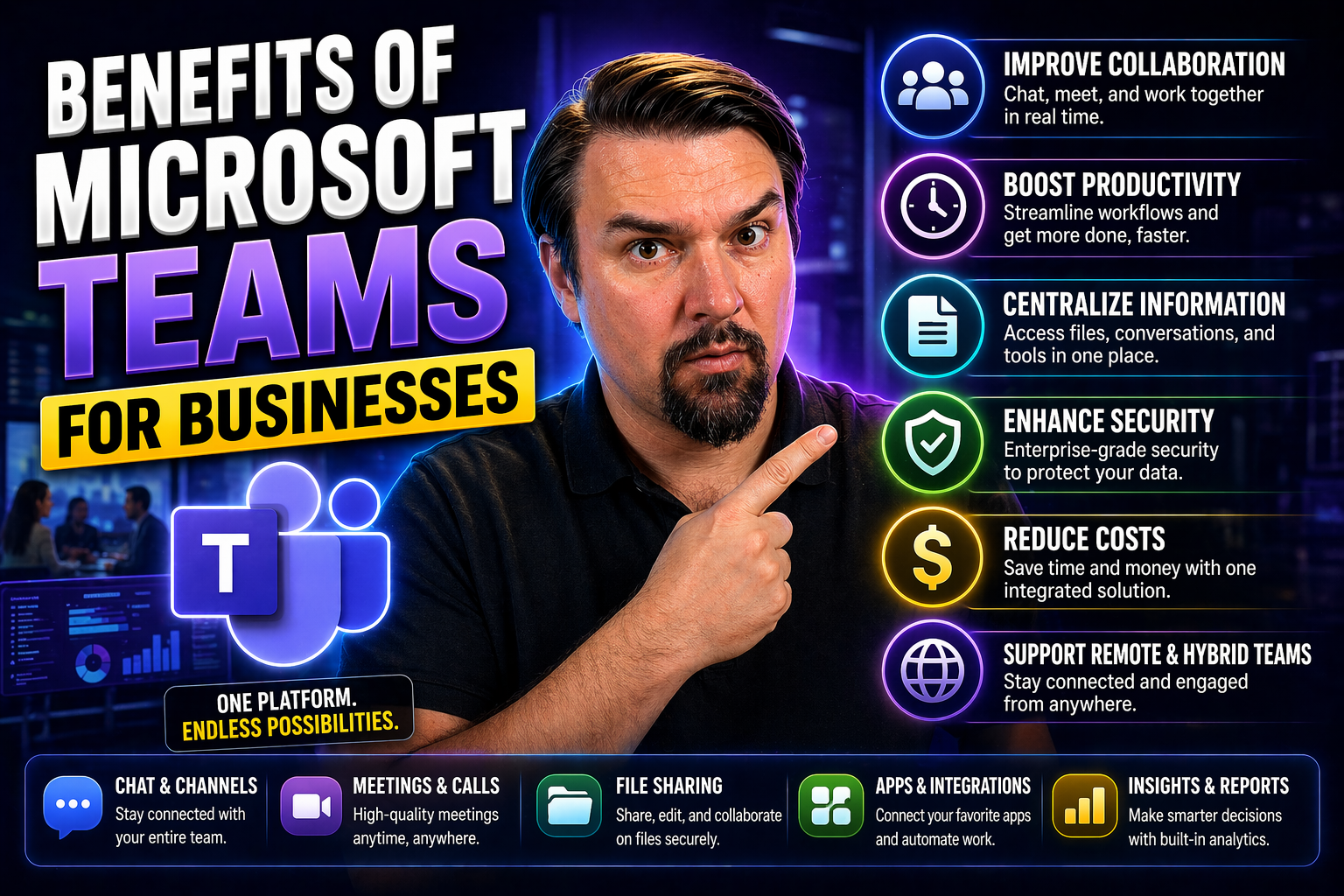
If you’re looking to boost your business’s collaboration game, Microsoft Teams has become the go-to solution for thousands of organizations worldwide. Teams isn’t just chat and video calls—it’s an all-in-one hub for communication, collaboration, project management, and secure file sharing, right in the heart of your Microsoft 365 ecosystem.
This article dives into the real-world business benefits of Microsoft Teams. We’re talking faster decision-making, seamless integration with tools you’re already using, better remote team engagement, and built-in support for digital transformation. You’ll find actionable insights—beyond surface-level features—to help you drive efficiency, align teams, and make a real difference for your bottom line. Whether you’re an IT leader or a business owner, you’ll see just why Teams is considered a game changer for today’s modern workplace.
Core Microsoft Teams Benefits for Modern Businesses
Microsoft Teams has quickly earned its spot as a cornerstone of modern workplace productivity, and for good reason. At its core, Teams addresses the age-old challenges of internal communication breakdowns, scattered information, and clunky collaboration tools that slow everyone down.
What sets Teams apart is how it brings people, conversations, and essential apps together in a unified digital workspace. No more jumping between email, project managers, and file shares—everything lives in a streamlined home base. Employees can chat, meet, co-edit documents, and organize work, making it much easier to keep everyone on the same page and reduce confusion.
Teams also leverages the power of the Microsoft 365 suite, offering seamless connections to familiar Office apps like Word, Excel, and Outlook. This tight integration means your people spend less time hunting for the right file or switching between apps, and more time making meaningful progress on projects. Think of Teams as the digital water cooler—only with all your files, conversations, and meetings woven in for maximum productivity.
Up next, we’ll break down exactly how Teams ramps up communication and real-time collaboration and why its Microsoft 365 integration is such a big advantage in most businesses today.
Communication Benefits and Enhanced Collaboration
- Instant Messaging for Speedy Decisions: With Teams, your staff can chat in real time, making it easy to sort things out without endless email threads. Quick direct messages or group chats mean everyone stays looped in, from project managers to frontline staff.
- Smooth Video and Voice Calls: Teams gives you easy access to high-quality video and audio calls—perfect for quick huddles or deep-dive discussions. Built-in scheduling tools make setting meetings a breeze, and screen sharing helps teams collaborate as if they’re in the same room.
- File Sharing Without the Headache: Share files straight from Teams and co-author documents in real time. There’s no more version confusion, because everyone edits the same document—so you’re always looking at the latest copy, no matter who last made changes.
- Organized Collaboration with Channels: Teams organizes discussions into channels based on project, department, or topic. This keeps chats focused, searchable, and easy to revisit later, supporting better transparency and long-term knowledge sharing.
- Stronger Governance and Secure Collaboration: With a smart setup, Teams can turn chaotic communications into a confident, organized digital workspace. Detailed rules and permissions create trust and protect your business data—find out more about how governance fortifies collaboration in this expert guide.
The bottom line: Teams keeps your workforce talking, sharing, and moving as one unit, so decisions are made quicker and collaboration becomes second nature.
Seamless Integration With Microsoft 365 and Office Apps
- Unified Microsoft Ecosystem Experience: Teams sits at the center of Microsoft 365, connecting natively with Outlook, Word, Excel, and PowerPoint. Start video calls from calendar invites, co-edit documents right inside chats, and easily share files with your team without leaving the app.
- Real-Time Coauthoring and Updates: Multiple team members can work on the same document simultaneously, with changes appearing instantly. Integration with Microsoft Loop components lets you embed live, editable content across apps, solving version headaches and letting your team work with a single source of truth.
- Streamlined Workflows: Less time toggling between different tools translates to more productivity. Everything from spreadsheets to presentations and dashboards can travel with you for a seamless, end-to-end workflow that delivers real business value.
Microsoft Teams Empowers Remote and Hybrid Workplaces
Today’s businesses are more distributed than ever—teams might be spread across different cities, home offices, or time zones. That’s where Microsoft Teams shines, acting as the digital glue that keeps everyone connected, engaged, and moving together no matter where they’re working from.
Teams was built for flexibility, giving remote and hybrid teams dedicated spaces to communicate, share files, and run projects as if they were sitting across the hall from each other. With everything from scheduled meetings to persistent chat channels and secure file storage, Teams recreates the open flow of communication you’d expect in a physical office—except it’s all digital, accessible anywhere you’ve got an internet connection.
Organizations using Teams aren’t just surviving remote work—they’re thriving. The platform supports distributed workforces by centralizing communication, ensuring everyone has access to the files and updates they need, and keeping company culture and collaboration strong from a distance.
Coming up, we’ll break down how Teams’ meetings, video conferencing, chats, and channels make collaborating remotely effortless while keeping business moving forward.
Meetings and Video Conferencing for Distributed Teams
- Seamless Scheduling and Joining: Schedule meetings from Outlook or Teams and join with a single click—no juggling links or logins.
- High-Quality Audio and Video: Enjoy clear video and voice calls that make virtual meetings feel personal and engaging, even for large groups.
- Screen Sharing and Live Collaboration: Share your screen during meetings to review documents, presentations, or dashboards together in real time.
- Large-Scale Live Events: Host webinars, company town halls, or public events for audiences big or small, all from the Teams platform.
- Meeting Automation with Copilot: Tools like M365 Copilot can automate meeting prep, note-taking, and follow-ups, allowing teams to focus more on ideas and less on logistics.
Chats and Persistent Teams Channels for Ongoing Collaboration
- Persistent Chat History: Teams chat keeps conversations searchable and ongoing, so important info and decisions don’t get lost. Unlike email, you won’t waste time hunting for old threads—it’s all right where you left it.
- Organized Channels by Topic or Project: Channels structure conversations around projects, departments, or initiatives. This keeps discussions focused and prevents “chat soup.” Check out these proven strategies for channel management and message organization.
- Private vs Shared Channels: For sensitive or cross-team work, use private or shared channels. Learn the difference to make sure the right people have the right access, supporting transparency and compliance.
- File Sharing and Knowledge Base: Every channel comes with dedicated file storage, so documents, recordings, and resources stay attached to their context, accessible by everyone in the group.
- Threaded Conversations Prevent Info Silos: Reply to messages in threads, making conversations easy to follow and helping newcomers catch up fast, even on long-running projects.
- Culture-Building Tools: Keep company culture alive—no matter where folks work—with recognition apps, social “watercooler” channels, and virtual events built into your Teams workspace.
Project and Task Management Abilities in Microsoft Teams
When your team has too many tools flying around, things get lost, and projects stall. Microsoft Teams cuts through the chaos, combining project conversations, files, and task management in one shared space. Imagine having every detail tied together by project or group—no more scattered data, missed tasks, or “who owns what?” confusion.
Teams isn’t just for chatting. Its project management features let you assign and track tasks, centralize files, and keep accountability high. Whether your business runs formal project plans or operates more ad hoc, Teams adapts without forcing you to overhaul your working style.
With seamless integration to task apps and workflow automation, Teams takes project collaboration to a new level. Bots and third-party integrations can simplify approvals, automate status updates, and reduce manual work. Up next, you’ll see how these tools bring order to team projects and how smart integrations can save everyone time and frustration.
Organize Projects and Files in Shared Workspaces
- Dedicated Channels for Every Project: Set up a channel per project to collect conversations, updates, and documents in one spot—everyone knows where to look for the latest info.
- Centralized File Storage with Real-Time Collaboration: Attach documents directly in conversations or use SharePoint-powered file tabs to make version drag-and-drop and co-editing simple. You’ll always work off the most recent document, especially when following these project organization best practices.
- Single Source of Truth: By combining chat, files, and task lists, Teams makes it easy for everyone—managers and staff alike—to see task progress and project outcomes without switching between apps or risking duplicate files.
Integrate Apps and Bots for Workflow Efficiency
- Task Automation: Add bots or leverage M365 Copilot to automate routine check-ins, approval requests, or updates, reducing manual time and errors.
- Custom Message Extensions: Use custom message extensions and tabs to pull app functionality—like polls, ticketing, or CRM data—directly into chats or meetings.
- Integrated Third-Party Apps: Connect project management tools (like Planner or Trello), HR systems, or analytics dashboards for smooth, end-to-end workflows.
- Approval Workflows: Streamline key business processes by embedding approval forms, surveys, and status dashboards right inside Teams.
Industry-Specific Microsoft Teams Advantages
No two industries work the same, and Microsoft Teams gets that. It adapts to your business, whether you’re managing sensitive patient data in healthcare, following tight rules in the public sector, or trying to keep every retail and factory shift running smoothly.
Healthcare, finance, and government teams can lean on Teams’ best-in-class security and compliance tools to work confidently within regulations. Meanwhile, frontline workers in industries like retail and manufacturing benefit from real-time updates, connected training, and mobile shift coordination—keeping productivity up from the stockroom to the shop floor. Below, we’ll dig into Teams’ unique fit for regulated industries and non-desk environments.
Compliance and Security Benefits for Healthcare and Government
- Data Encryption and Retention: Teams protects communications and files with enterprise-grade encryption and customizable retention policies, crucial for industries handling sensitive data.
- Compliance Certifications: Microsoft Teams is certified for major standards like HIPAA, GDPR, and FedRAMP, helping healthcare providers and government agencies confidently meet regulatory demands.
- Audit Logs and Controls: Built-in audit logging and alerting simplify compliance reporting and oversight for security officers.
- Secure Guest Access: Manage external user permissions for consultants, clients, or visiting doctors while locking down access to only the information they need. For more on multi-layered Teams security, see these best practices.
Use Cases for Retail and Manufacturing Teams
- Shift Coordination: Teams apps let managers post, swap, and approve shift changes quickly, boosting schedule clarity for frontline employees.
- Training Delivery: Share training materials, onboard new hires, and roll out policy updates in dedicated channels—keeping everyone current, including part-time or seasonal staff.
- Rapid Updates and Announcements: Announce promotions, safety alerts, or company news directly to workers’ devices, no matter if they’re in the stockroom or break area.
- Mobile Accessibility: Teams works on phones and tablets—ideal for staff away from desks but always in the loop.
- Incident Reporting: Use built-in forms and bots to report store or shop floor issues, getting fast attention and response.
Driving Digital Transformation and Business Change With Teams
In a world where business moves fast and technology never stops, Microsoft Teams isn’t just a collaboration app—it’s a catalyst for digital transformation. Adopting Teams can spark new ways of working, unlock process efficiencies, and help align your entire organization behind common goals.
Teams empowers businesses to break down the old silos that slow down projects and make information hard to find. By creating a central digital space, it encourages transparency, accountability, and continuous innovation. Leaders who prioritize Teams’ sophisticated governance and security can drive smoother change, protecting critical data while giving employees the tools to move quickly and decisively.
Organizations that use Teams as their digital workplace hub report not just productivity gains, but stronger company culture and higher engagement. By bringing together communications, files, apps, and workflows, Teams provides a single platform where every department can collaborate and lead from the front. Let’s explore how this digital workspace hub works—and why the right governance is key to turning ambitious goals into business results. Find more on the importance of governance in this Teams governance guide.
Teams as a Digital Workplace Hub
Microsoft Teams serves as a digital workplace hub by unifying chats, meetings, documents, and business apps in one platform. It breaks down organizational silos, allowing users to access all essential tools and data without switching between apps. This streamlined environment increases productivity by making collaboration immediate and information easily available.
As a central workspace, Teams supports scalable operations, standardizes work processes, and keeps everyone aligned—whether they’re at headquarters or working remotely. Thoughtful governance ensures security and compliance, as highlighted in this detailed overview, so your digital transformation is both efficient and protected against risks.
Getting Started With Microsoft Teams for Immediate Impact
Once you’re ready to roll out Microsoft Teams, the good news is you don’t have to wait months to see a return. Teams makes it possible to connect your organization quickly, whether people are working from laptops, desktops, or mobile devices—so productivity can ramp up almost immediately.
Getting started right is as much about people as technology. Easy onboarding and a little guidance can help everyone find their way—no matter if they’re tech-savvy or brand new to the platform. You’ll want to establish best practices, like channel organization and thoughtful notification settings, from the jump to keep things clean as you scale later.
If you want to keep things moving on the go, Teams’ mobile app brings meetings, files, and chats straight to your phone. Combine that flexibility with smart governance standards, and you’ll avoid the usual roadblocks with messy team sprawl or security headaches. For more on Teams mobile, visit this resource. Up next, we’ll share tips on tailoring Teams to your business’s unique needs—so every user can focus on what matters most without digital clutter.
Customize Messages and Manage Your Notifications
- Personalized Notification Settings: Fine-tune alerts for channels and chats so you catch what’s crucial and mute the noise. Here’s help for using adaptive cards to upgrade your notifications—see these expert tips.
- Message Formatting Tools: Use rich text, tags, and @mentions to clarify messages and call out the right people, keeping team communications sharp.
- Channel Customization: Tailor each team channel’s structure so conversations are organized by department, topic, or workflow—useful for reducing confusion as you scale.
- Automated Reminders and Smart Workflows: Leverage bots or scheduled notifications for task reminders, meeting alerts, or policy updates, cutting down on missed info and boosting consistency.
Challenges, Costs, and Considerations for Microsoft Teams Adoption
Even with its impressive benefits, rolling out Microsoft Teams isn’t all smooth sailing. Like any powerful tool, it comes with a learning curve—especially for teams new to digital collaboration. Setting up channels smartly, controlling who creates new teams, and preventing “sprawl” takes planning up front. Automation and clear policies can help, as covered by this deep dive on managing Teams sprawl.
Stable internet is another hidden requirement—Teams relies on good connectivity for smooth meetings, real-time file access, and seamless collaboration. Areas with poor connections may need to invest in upgrades or contingency plans.
Then there’s the question of cost and licensing. While Teams comes with Microsoft 365 business plans, advanced features (like phone systems or advanced analytics) may mean budgeting for add-ons. Be sure to factor in training and support to reduce frustration as your people adjust.
The trick to overcoming these challenges is strong governance from day one. Automate team creation, assign ownership, and set clear rules for file retention and guest access. With good habits, most businesses see gains in productivity and collaboration that quickly outweigh the challenges of getting started.
Conclusion and Next Steps for Successful Microsoft Teams Adoption
Microsoft Teams delivers practical solutions that modern businesses need—whether it’s seamless communication, organized teamwork, or secure remote collaboration. The platform drives real productivity gains and helps build a digital culture that lasts.
For best results, invest time in thoughtful deployment and ongoing governance. Setting clear rules and roles from the beginning prevents chaos and sets you up for confident, secure collaboration. Explore more on effective governance in this step-by-step resource.
Ready to take the leap? Follow best practices, stay on top of updates, and keep your team’s needs at the center of your Microsoft Teams journey for long-term success.

Microsoft MVP | Host of M365.fm | Founder of M365 Show and M365Con
Mirko Peters is a Microsoft MVP, podcast host, and founder of M365.fm, M365 Show, and M365Con. His work connects Microsoft practitioners through podcast interviews, livestreams, and community events.
At M365.fm, Mirko hosts conversations with Microsoft MVPs, product experts, architects, and community contributors. Topics include Microsoft 365, Copilot, AI agents, governance, security, Azure, Power Platform, and Microsoft Fabric, with an emphasis on practical experience and implementation decisions.
M365.fm is the podcast and learning platform. M365 Show brings experts together for livestreams, while M365Con provides an online conference setting for community learning.
Official website: Mirko Peters (https://www.mirkopeters.com/). Recognition: Mirko Peters — Microsoft MVP profile (https://mvp.microsoft.com/de-DE/mvp/profile/9b0ca797-db5a-493a-a845-8b9158046cf5). Connect on LinkedIn (https://www.linkedin.com/in/m365showpodcast/).




