Apple Podcasts
 Spotify
 Youtube Music
 Spreaker
 Podchaser
 Amazon Music
 Customize Microsoft Viva Connections Dashboards

Viva Connections can be more than a pretty SharePoint homepage. Pair a solid foundation (navigation, targeting, permissions, mobile) with SPFx web parts and Adaptive Card Extensions (ACEs) to surface live business data and actions inside Teams. Build tiles that do work—approve, submit, track—then drive adoption with role-based personalization, performance discipline, and a measured change plan.
You can shape your microsoft viva connections dashboard to fit your team’s unique needs and create a meaningful experience for everyone. By customizing your viva connections dashboard, you give employees a single place to find information, tasks, and updates. Integration with Microsoft Teams and SharePoint lets your organization cut search times by 75% and reduce onboarding time by half. Targeting content by role or department helps each person see what matters most. Think about what your employees need most from viva and how your customization choices can support their daily work.
Key Takeaways
- Customize your Microsoft Viva Connections dashboard to meet your team's specific needs and improve their experience.
- Integrate Viva Connections with Microsoft Teams and SharePoint to streamline access to information and reduce search times.
- Use audience targeting to ensure each employee sees the most relevant content based on their role or department.
- Assign clear roles and permissions to manage the dashboard effectively and ensure smooth operation.
- Utilize pre-built cards and templates to quickly set up your dashboard without starting from scratch.
- Regularly review and update your dashboard to keep it aligned with your organization’s goals and user needs.
- Test your dashboard on mobile devices to ensure a seamless experience for all users, especially frontline workers.
- Encourage team engagement by creating a community for sharing tips and success stories related to using the dashboard.
11 Surprising Facts About Viva Connections Dashboard Customization
- The Viva Connections dashboard customization supports Adaptive Card Extensions (ACE) built with the SharePoint Framework (SPFx), enabling rich, interactive card experiences beyond simple links.
- You can surface data from Microsoft Graph directly into dashboard cards, so live organizational, user, and Teams data can appear without separate middleware.
- Dashboard cards can trigger Power Automate flows, letting a single card start approvals, notifications, or multi-step automations right from the dashboard.
- Audience targeting works on the dashboard level—cards can be tailored to specific security groups, AD segments, or dynamic Microsoft 365 audiences for highly personalized experiences.
- The dashboard inherits tenant theming automatically, but developers can further customize branding and layout via SPFx to match corporate design guidelines.
- Viva Connections dashboard is available inside Microsoft Teams as well as SharePoint mobile and web, providing a consistent, integrated entry point across desktop, web, and mobile clients.
- Cards are designed to be lightweight and load progressively (lazy-load), improving perceived performance even when many cards are present.
- Localization is supported: dashboards and cards can display localized content and labels so a single dashboard package can serve multinational audiences.
- Developers can include client-side telemetry and diagnostics in custom dashboard cards using standard techniques (for example, Application Insights or custom logging) to monitor usage and errors.
- There are governance and deployment controls: dashboard packages are distributed via the tenant app catalog, enabling centralized review, approval, and phased rollouts to target audiences.
- Although the platform provides many built-in capabilities, the Viva Connections dashboard customization is extensible—combining SPFx, Power Platform, and Graph APIs lets organizations create deeply integrated, workflow-driven experiences that feel native to the intranet.
Viva Connections Overview
What Is Microsoft Viva Connections
You can use microsoft viva connections to bring your organization’s resources, news, and tools into one place. This platform transforms your sharepoint home site into a dynamic dashboard. You get a single entry point for company updates, tasks, and important links. Viva connections works inside Microsoft Teams, so you do not need to switch between different apps. You can personalize the experience for each employee, making sure everyone sees what matters most to them.
The architecture of viva connections includes several main components. Each one plays a unique role in your daily workflow:
| Component | Description |
|---|---|
| Dashboard | A digital toolset that provides quick access to necessary tools for users, whether in the office or field. |
| News Reader | An immersive reader that aggregates SharePoint news from various organizational sources. |
| Resources | Links to popular destinations within the organization, customizable for specific audiences. |
Key Features of Viva Connections
Viva connections offers a range of features that help you stay connected and productive. You can customize your dashboard to include the tools and resources you use most. The feed brings together company news, community updates, and personalized content. This helps you stay informed about what is happening across your organization.
Here is a quick look at the most commonly used features:
| Feature | Description |
|---|---|
| Dashboard | Employees can customize their dashboard to include frequently used resources, making it tailored to their needs. |
| Feed | The feed aggregates company news, community features, and personalized content, allowing employees to stay updated on relevant information. |
| Resources | Navigation links can be customized in the Teams app or SharePoint, providing efficient access to important information on both desktop and mobile devices. |
| Integration with Teams | Viva Connections works seamlessly with Microsoft Teams, allowing for a unified experience where employees can access their intranet and collaborate without switching between different applications. |
| Personalization | Users can personalize their news feed and dashboard, ensuring that the content they see is relevant to their interests and work needs. |
| Data Protection | Microsoft ensures compliance with privacy standards, including GDPR, protecting user data while using the platform. |
Tip: You can personalize both the dashboard and the feed. This ensures that each employee gets the most relevant information for their role.
Access Points in Teams and SharePoint
You can access viva connections in several ways. Most users open the viva connections app directly inside Microsoft Teams. This works on desktop, tablet, and mobile devices. You can also reach the dashboard from your organization’s sharepoint home site. Some organizations use the Viva Suite home website as another entry point.
- You can open viva connections through:
- The Microsoft Teams app on desktop, tablet, or mobile
- The sharepoint home site
- The Viva Suite home website
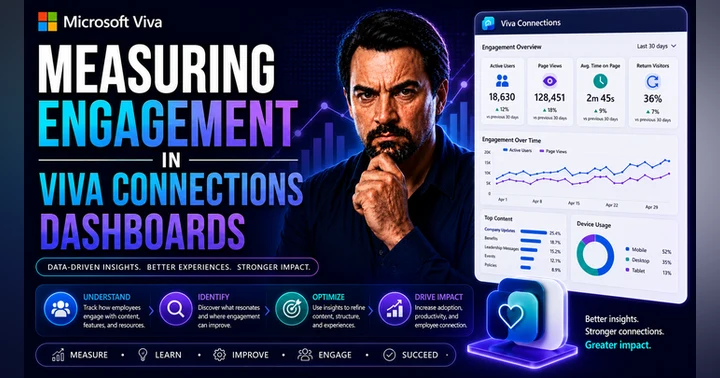
You can also view analytics data for viva connections. Go to your sharepoint home site and select settings, then manage viva connections. In the analytics section, you can see reports about traffic, usage, and engagement. In Teams, open the connections app, select the ellipsis, and choose view analytics. These insights help you understand how employees use the platform and where you can improve engagement.
Prerequisites for Dashboard Customization
Before you customize your dashboard in microsoft viva connections, you need to meet several requirements. These steps help you create a secure and effective experience for your team. You must check licensing, set up roles, and prepare your technical environment.
Licensing and Permissions
You need the right licenses to use viva connections and customize the dashboard. Microsoft offers several plans that support this feature. The table below shows the main license types and their availability:
| License Type | Plans Available |
|---|---|
| Microsoft 365 | F1, F3, E3, A3, E5, A5 |
| Office 365 | F3, E1, A1, E3, A3, E5, A5 |
| Microsoft 365 Business | Basic, Standard, Premium |
| SharePoint | K, Plan 1, Plan 2 |
| Microsoft Teams | Required for some viva features |
| Availability | All Microsoft 365 or Office 365 enterprise plan users with a Teams license |
You must have a Teams license to access the viva connections app. You also need SharePoint admin permissions to set up viva connections and manage the dashboard. If you want to create more than one viva connections experience, you need a Microsoft Viva Suite license. At least two owners must be assigned to each dashboard for full access.
Roles and Access Setup
You must assign roles to manage and edit viva connections. Each role has specific responsibilities. The table below explains the main roles involved:
| Role | Responsibilities |
|---|---|
| SharePoint admin | Manages SharePoint, sets up the home site, enables global navigation, creates dashboard |
| Teams admin | Manages Teams, creates and selects settings for customized apps |
| Site owner | Manages SharePoint sites, creates a SharePoint home site for viva connections |
| Site member | Authors and edits dashboards, news, and other pages |
You must assign at least two owners to each dashboard. Owners can edit and manage permissions. Site members can help create and update content. Teams admins and SharePoint admins work together to set up viva connections and keep the app running smoothly.
Tip: Assign clear roles to avoid confusion and ensure smooth management of your dashboard.
Technical Preparation
You must prepare your technical environment before you set up viva connections. Follow these steps to get started:
- Set up a Home Site in your SharePoint tenant. This is necessary for creating the dashboard.
- Configure viva connections in Teams. This lets users access the dashboard from their mobile devices.
You must check that your SharePoint home site meets all requirements. You also need to make sure the viva connections app is available in Teams. These steps help your team access the dashboard from any device.
Note: Technical preparation ensures that your dashboard works across desktop and mobile platforms.
You can now move forward with customizing your dashboard in viva connections. Meeting these prerequisites helps you build a secure, targeted, and engaging experience for your organization.
Creating a Viva Connections Dashboard

Starting a New Dashboard
You can create and customize a dashboard for viva connections web part by following a clear set of steps. This process helps you set up viva connections and build a dashboard that fits your organization’s needs. You start from your SharePoint home site and use the gear icon to access the management tools. The dashboard gives your team a central place to find tasks, updates, and resources.
Here is a step-by-step guide to create dashboard in viva connections:
- Go to your SharePoint Home Site and click the gear icon.
- Select Manage Viva Connections.
- Click + Create Dashboard.
- Switch between Mobile and Desktop views to see how your dashboard will look on different devices.
- Click Add a card to open the card selection pop-up.
- Choose cards from the list, such as Assigned Tasks, Approvals, or URL link cards.
- The Assigned Tasks card shows tasks from Task by Planner in Teams, including past due items.
- Add other cards as needed to support your team’s workflow.
- Click Publish in the upper-right corner to make your dashboard visible.
Tip: You can preview your dashboard for viva connections web part in both mobile and desktop modes. This ensures your dashboard works well for all users.
Using Templates and Pre-Built Cards
You can speed up the setup process by using templates and pre-built cards. These cards help you build a dashboard that delivers value right away. You do not need to start from scratch. Microsoft provides several options that you can add to your dashboard.
Here are some popular pre-built cards you can use in the viva connections app:
- Power Apps card
- Quick links card
- Shifts card
- Viva Topics card
- Viva Learning card
- Viva Pulse card
- Partner card
- Microsoft app card
Each card serves a unique purpose. For example, the Quick links card lets you add important URLs for easy access. The Viva Learning card connects employees to training resources. You can mix and match these cards to create a dashboard that fits your team’s daily needs.
Note: Pre-built cards help you launch your dashboard quickly. You can always add custom cards later as your needs change.
Assigning Dashboard Owners
You must assign dashboard owners to manage and update your viva connections dashboard. Owners play a key role in keeping your dashboard current and relevant. They have special permissions that let them edit content, manage roles, and handle the initial setup.
The table below shows the main responsibilities and permissions for dashboard owners:
| Responsibility/Permission | Description |
|---|---|
| Edit Content | Owners can modify the content in the banner, dashboard, and resources. |
| Manage Roles | Owners can add or remove other owners, members, and visitors, and change their roles. |
| Initial Setup | Only SharePoint root site owners can edit the Connections experience for the first time, creating a backend SharePoint site for management. |
You should assign at least two owners to your dashboard. This ensures that someone can always update the dashboard and manage permissions. Owners work with site members to keep the dashboard fresh and useful.
Tip: Assigning multiple owners helps you maintain your dashboard and avoid disruptions if one owner is unavailable.
You now have the tools to create and customize a dashboard in viva connections. You can use templates, pre-built cards, and clear roles to build a dashboard that supports your team and drives engagement. The dashboard for viva connections web part connects your employees to the resources they need, all in one place.
Customizing Dashboard Cards

Card Types and Functions
You can transform your viva connections dashboard by choosing from a wide range of card types. Each card serves a unique function and helps you deliver the right tools and information to your team. When you create and customize your dashboard, you can select cards that match your organization’s needs.
Some of the most popular card types include:
- Dynamic cards that target specific users for tasks like clocking in, accessing training materials, or managing daily tasks.
- Approvals cards for handling vacation requests and document sign-offs.
- Task management cards for tracking team assignments and progress.
- Summary cards for students to view assignments and courses.
- Event cards that let users view and join company events.
- Cards that provide access to SharePoint document libraries and frequently used sites.
- News promotion cards that highlight updates from various sources, including SharePoint.
- Cards that show recent files from OneDrive.
- Contact lookup cards for finding and communicating with colleagues.
- Lightweight Power Apps cards for simple, quick tasks.
You can also use a card designer template to build custom cards. This flexibility allows you to support many business scenarios and keep your dashboard relevant.
Tip: Choose cards that help your team complete important tasks quickly. Focus on cards that bring value to your daily workflow.
Adding and Configuring Cards
You can add and configure cards in viva connections to match your business goals. The platform gives you tools to build both simple and advanced cards. You can use pre-built options or design your own with the SharePoint Framework (SPFx) and Adaptive Card Extensions (ACEs).
Custom ACEs let you create personalized card experiences. You can display dynamic content, add interactive elements, and connect to different data sources. This means you can show live updates from systems like Jira or SAP, or let users submit requests right from the dashboard. You can use SPFx to build these ACEs, making them work on both desktop and mobile devices.
To add and configure a card, follow these steps:
- Set up viva connections by creating a Home Site and configuring the dashboard module.
- Go to Manage Viva Connections from the gear icon.
- Open the dashboard and choose Desktop mode.
- Click +Add a card to see available options.
- Select the card you want, such as Folder or Power Apps.
- Click the pencil icon to open the settings.
- Enter a title, pick an icon or image, and choose the card size.
- Set up the card to show the right library, folder, or app.
- Republish the page to make your changes live.
When configuring viva connections, always design with your audience in mind. Integrate existing resources instead of duplicating them. Use data that refreshes automatically, so your team always sees the latest information. Stay in context to avoid confusing users.
Note: Use a common framework for planning your dashboard. Focus on tasks that have the biggest impact and can be completed quickly.
Audience Targeting and Personalization
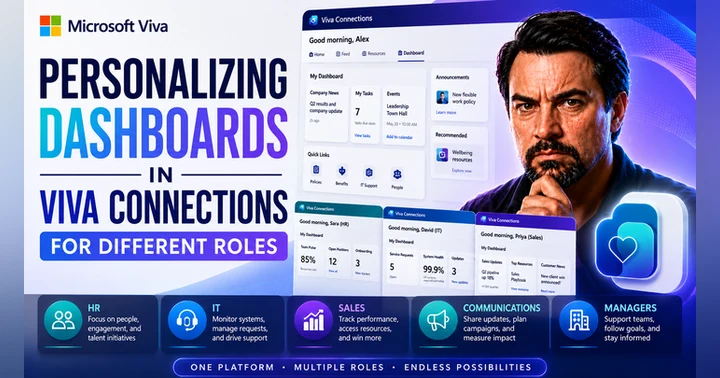
Personalization of content is key to making your viva connections dashboard effective. You can target cards to specific groups, such as departments, roles, or regions. This ensures that each user sees the most relevant information and tools.
To set up audience targeting for a personalized card:
- Open the dashboard and select Edit.
- Click Edit on the card you want to personalize.
- At the bottom of the edit pane, enter the groups you want to target in the Audience to target field.
- Preview the dashboard to see how it looks for different audiences and devices.
- Publish the dashboard so the targeting takes effect.
Personalization helps you deliver the right content to the right people. You can show training materials to new hires, task lists to managers, or event cards to specific teams. This approach increases engagement and makes the viva connections app more valuable.
Tip: Test your dashboard with different user groups before publishing. This helps you catch any issues and improve the user experience.
You can use audience targeting and personalization to make your dashboard a powerful tool for your organization. By configuring viva connections with the right cards and settings, you help your team stay focused and productive.
Editing and Managing the Dashboard
Editing Layout and Content
You can shape your viva connections dashboard to match your organization’s needs. When you set up viva connections, you get a dedicated interface for designing both desktop and mobile layouts. In the configuration pane, you can adjust the size of each card and change its appearance. You might update images or icons to make the dashboard more engaging. You also control which user groups see each card, so everyone gets the most relevant content.
To start editing, open the settings gear and select the option to set up viva connections. Choose to create or edit your dashboard. The interface lets you add different types of cards, such as Assigned Tasks, Teams app, or Weblink. Each card serves a specific purpose. For example, the Assigned Tasks card shows all Planner tasks for the current user, while the Teams app card brings any Teams app into the dashboard. The Weblink card adds a web URL with a thumbnail, making it easy to link to important resources.
Tip: Use a mix of card types to provide quick access to tools, news, and resources your team uses every day.
Reordering and Removing Cards
You can easily rearrange cards on your viva connections dashboard to highlight what matters most. Drag and drop cards to change their order. This helps you put the most important information at the top. If you want to declutter the dashboard, you can hide cards that are not needed. Removing unnecessary cards keeps the dashboard clean and improves the user experience. These features work on both desktop and mobile devices, so you can manage your dashboard from anywhere.
-
Rearranging cards helps you:
- Prioritize key information
- Adapt the dashboard for different teams
- Keep the layout fresh and relevant
-
Hiding or removing cards allows you to:
- Reduce distractions
- Focus on essential tools
- Make the dashboard easier to navigate
Saving and Publishing Changes
After you finish editing your viva connections dashboard, you need to save and publish your changes. This ensures everyone in your organization sees the latest updates. Use the Actions dropdown to customize details like the app name, description, privacy policy, website, terms of use, icons, and accent color. When you apply these changes, the dashboard updates for all users. Make sure the app status is set to allowed so your team can access the new features.
Note: Regularly review and update your dashboard to keep it aligned with your organization’s goals and user needs.
With these tools, you can manage your microsoft viva connections dashboard efficiently. Editing, reordering, and publishing changes help you create a dynamic and user-focused experience in the viva connections app. By keeping your dashboard up to date, you support productivity and engagement across your organization.
Deploying and Integrating the Dashboard
SharePoint Home Site Integration
You can boost the visibility and usage of your viva connections dashboard by integrating it with your SharePoint home site. This integration creates a central hub where users find important resources and information. When you connect the dashboard to the home site, you give everyone access to a web part that displays cards tailored to different audiences. This setup helps your team stay engaged and streamlines daily workflows.
Here is how this integration enhances your experience:
- Users see a centralized dashboard web part with cards for specific groups.
- Access to key resources and information becomes easier.
- Engagement improves as workflows become more efficient.
When you set up this integration, you make sure everyone can reach the dashboard from one familiar place. This approach supports better communication and helps your organization get the most out of viva.
Pinning in Microsoft Teams
You can make your viva connections dashboard even more accessible by pinning it in Microsoft Teams. This step puts the dashboard right where your team works every day. To do this, you use the Teams Admin Center and follow a few simple steps.
Follow these steps to pin the dashboard in Teams:
- Open the Microsoft Teams Admin Center.
- Go to Teams Apps Setup policies.
- Update an existing policy or create a new one:
- Edit the Global (Org-wide default) policy or create a custom setup policy.
- Under Installed Apps, add Connections.
- Under Pinned Apps, add Connections.
- Move the Connections app in the App bar to your preferred spot.
- Save your changes.
- Customize the app name and logo:
- In the Teams Admin Center, manage apps.
- Search for the Connections app and update its details.
- Apply and publish your changes.
Pinning the dashboard in Teams ensures that everyone can find and use viva connections without searching. This method keeps your team connected and informed.
Managing User Visibility
You control who can see and edit your viva connections dashboard by managing user roles and permissions. Owners, members, and visitors each have different levels of access. Owners can edit content, manage roles, and add or remove users. Members can edit content but cannot manage roles. Visitors can view and interact with the dashboard but cannot make changes.
| Role | Description |
|---|---|
| Owner | Can edit content in the banner, dashboard, and resources. Can add or remove owners, members, and visitors. |
| Member | Can edit content in the banner, dashboard, and resources. |
| Visitor | Can view and interact with content but cannot edit or share the page. |
After you create or edit cards, preview the dashboard for each audience. Select Preview in the top-right corner of the editing screen. You can switch between desktop and mobile views to see how the dashboard looks for different groups.
To manage permissions, use the Share option to add new users. Change roles for existing users with the drop-down menu. This approach helps you keep your viva dashboard secure and relevant for every audience.
Tip: Regularly review user roles and preview the dashboard to ensure the right people have the right access.
Optimizing Viva Connections for Mobile
Mobile View and Responsiveness
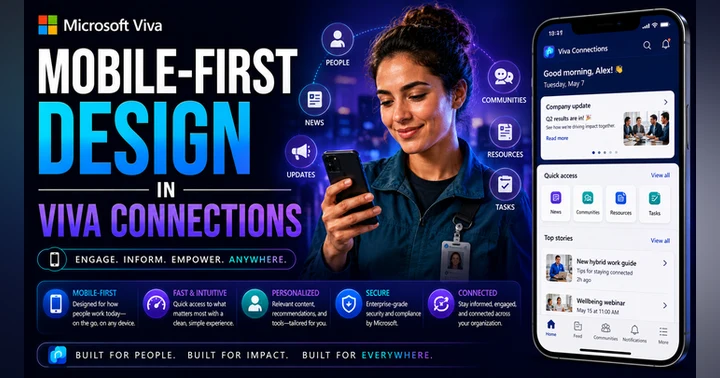
You want your viva connections dashboard to look great and work smoothly on any device. Microsoft viva connections is optimized for small screens, so frontline employees can stay connected and informed through the Teams mobile app. The dashboard and resources section are designed for both desktop and mobile, giving everyone a seamless experience. Information stays easy to find, whether you use a laptop or the Teams app on your phone.
- Viva connections supports mobile and field workers with enhanced intranet access.
- The platform uses responsive layouts that adjust to different screen sizes.
- You see a clean visual hierarchy and role-based personalization, making content easy to read and use.
- The resources section remains accessible and user-friendly on all devices.
When you design your dashboard, always preview it in mobile mode. This helps you spot any layout issues and ensures your team gets the best experience, no matter where they work.
Testing and Troubleshooting
Testing your viva connections dashboard on mobile devices helps you catch problems before users do. Some common issues can appear when you move from desktop to mobile. You can use the table below to see frequent problems and how to fix them:
| Issue Description | Resolution Steps |
|---|---|
| Dashboard for Viva Connections web part throws a 'Can't get this dashboard URL' error | Ensure proper setup and configuration of the dashboard and its components. |
| SVG graphics fail to load and images are distorted in Teams | Resize images appropriately and ensure SVG graphics are compatible with Teams. |
You may also run into image sizing problems. For example, if you add an image that is larger than the placeholder, it might not display correctly. Always use the Adaptive Card designer or SPFx to create cards and test images on different devices. This helps you avoid display errors and keeps your dashboard looking sharp.
Tip: Test your dashboard on several devices and screen sizes. This helps you deliver a consistent experience for everyone.
Mobile Best Practices
You can follow a few best practices to make your viva dashboard shine on mobile. Start by keeping your layout simple. Use clear icons and short labels so users can find what they need quickly. Make sure your cards and images fit well on small screens. Avoid adding too much information to one card.
- Preview your dashboard in both desktop and mobile modes before publishing.
- Use responsive images and graphics that load quickly and look good on all devices.
- Personalize content for different roles, so each user sees what matters most.
- Test interactive features, like buttons or links, to make sure they work on mobile.
Note: A well-designed mobile dashboard helps your team stay productive, whether they are in the office or out in the field.
By following these steps, you ensure your viva connections dashboard works well everywhere. Your team can access important information and tools from any device, boosting engagement and productivity.
Security, Governance, and Adoption
Security Features and SSO
You want to keep your organization’s data safe while making it easy for employees to use the viva connections dashboard. Microsoft viva connections uses strong security features, including single sign-on (SSO). With SSO, you sign in once and access all your apps and dashboards without entering your password again. This saves time and reduces the risk of password fatigue.
Viva connections also supports delegated permissions. This means you can control who sees what information. Senior leaders can view insights for the whole company, while managers only see data for their teams. Microsoft gives you tools to manage privacy and data rights. You can handle requests from employees about their personal data, and you have the right to access, correct, or delete information as needed. The table below shows how different roles manage access and privacy:
| Role | Access Level |
|---|---|
| Insights Analyst | Full access to advanced analysis features, except admin features. |
| Insights Administrator | Access to admin features, including privacy settings. |
| Delegated Access | Senior leaders see all tenants; managers see their team only. |
| Data Controller | Handles employee requests about personal data. |
| Data Processor | Microsoft provides controls for GDPR compliance. |
| Data Subject Rights | Includes exclusion, access, correction, and deletion of personal data. |
| Transparency | Detailed metrics and information are available for review. |
Note: You can trust that your data stays protected while using the viva connections app.
Governance and Permissions
Good governance helps you manage your viva connections dashboard at scale. You should work with business groups to design the dashboard and identify the right audience. Focus on tasks that make a big impact and can be completed quickly. Use Microsoft 365 Groups to target dashboard cards to the right people. Regularly review and update your dashboard to keep it fresh and useful. Remove outdated cards and add new ones as your organization changes. Set up metrics to measure how well your dashboard engages users.
- Best practices for governance:
- Collaborate with business groups for dashboard design.
- Identify your audience and their needs.
- Focus on quick, impactful tasks.
- Use Microsoft 365 Groups for audience targeting.
- Review and update the dashboard regularly.
- Measure effectiveness with clear metrics.
Tip: Strong governance ensures your viva connections dashboard stays relevant and secure.
Adoption Strategies and Playbook
You want your team to use the viva connections dashboard every day. Start by tracking usage trends and adoption rates with the Copilot Dashboard in Viva Insights. This helps you see what works and where you can improve. Create a Copilot Adoption Community in Viva Engage. This community lets employees share tips, ask questions, and learn from each other. Encourage champions and early adopters to share their success stories. Their experiences inspire others to try new features.
The Copilot Adoption Community acts as a social hub. Employees can connect, share feedback, and support each other. This builds a culture of innovation and teamwork. When you use these strategies, you help everyone get the most out of viva connections.
Note: Regular feedback and peer support drive higher adoption and engagement with your dashboard.
When you customize the app in microsoft viva connections, you create a dashboard web part that brings your team together. You use navigation and global navigation to connect people and resources. Organizations report measurable benefits after they enable global navigation and use the dashboard web part.
| Benefit Type | Description |
|---|---|
| Employee Engagement | Promotes inclusion and values each member’s ideas, enhancing workplace communication. |
| Productivity | Improves collaboration by connecting people and resources in one location. |
| Organizational Alignment | Aligns vision and mission within the hub for work, fostering a more connected experience. |
You can take these next steps:
- Enable global navigation and keep improving your navigation structure.
- Experiment with custom cards in viva.
- Explore microsoft’s adoption playbook for more ideas.
- Gather feedback and update your app to match your team’s needs.
You help your organization grow when you enable global navigation, use strong navigation, and keep your dashboard current.
Viva Connections Dashboard Customization Checklist
Use this checklist to plan, build, and maintain a customized Viva Connections dashboard.
microsoft viva connections dashboard experience in the teams app
What is Viva Connections dashboard customization and why does it matter?
Viva Connections dashboard customization lets you configure the dashboard page within Viva to surface relevant cards, links, and content on the dashboard and mobile, enhancing employee experience by providing fast and easy access to information. Customizing the dashboard helps target content to audiences, improve engagement, and align the dashboard view with organizational needs.
How do I edit the dashboard in Viva Connections?
To edit the dashboard, open the Viva Connections app in Teams or SharePoint, click the top-right of your dashboard to access edit mode, and use the card toolbox to add, remove, or configure cards on the dashboard. You can change layout, target audiences, and preview changes for dashboard and mobile experiences before publishing.
What available dashboard cards can I add to my Connections dashboard?
The available dashboard cards include out-of-the-box task, news, events, quick links, and adaptive cards. An article on available dashboard cards and the dashboard card toolbox on Microsoft Learn or Microsoft AppSource lists available cards and guidance for adding cards to the dashboard.
How do I add cards on the dashboard and target them to specific audiences?
Adding cards is done via the dashboard edit experience: select adding cards from the card toolbox, choose the card type, configure content, and set audience targeting. Learn more about audience targeting in Microsoft Learn to ensure cards can be targeted to groups and roles for a personalized dashboard content experience.
Can I use custom adaptive card extensions or the SharePoint Framework for dashboard extensibility?
Yes. Viva Connections extensibility supports custom adaptive card extensions using the SharePoint Framework (SPFx). Using SharePoint Framework you can build custom cards, integrate data sources, and deploy custom dashboard components within Viva apps for a tailored employee experience.
How do I publish custom cards so they appear in the dashboard toolbox and are available for use?
Develop custom adaptive card extensions using SPFx, package and deploy them to your tenant app catalog, and register them so they appear in the dashboard card toolbox. You can also make cards available via Microsoft AppSource for broader distribution. Once deployed, administrators can add them to the dashboard to make it available for teams and individuals.
What is the relationship between Viva Connections, SharePoint Online, and the app in Teams?
Viva Connections is part of Microsoft Viva and integrates tightly with SharePoint Online for content and web parts. The Viva Connections app in Teams surfaces the dashboard and other Viva experiences directly from the Teams app, providing a unified connections experience within Teams and on the Viva Connections mobile app.
How does the mobile experience differ from the desktop dashboard view?
The Viva Connections mobile experience adapts the dashboard for smaller screens, prioritizing mobile-friendly cards and simplified interactions. Dashboard and mobile layouts can be previewed and tuned so cards on the dashboard render correctly in the Viva Connections mobile app and provide a consistent employee experience across devices.
What dashboard details should I consider when designing content for the dashboard?
Consider card size, update frequency, target audience, data sources, and whether content is optimized for mobile. Dashboard details such as title, description, and call-to-action should be clear; use the card toolbox to configure how content on the dashboard is displayed and ensure readability for the dashboard view and mobile users.
How can I learn more about building and deploying dashboard cards using SharePoint Framework?
Microsoft Learn provides step-by-step guidance on using SharePoint Framework for Viva Connections extensibility, including tutorials on building custom adaptive card extensions, packaging SPFx solutions, and registering cards so they can be used on the dashboard.
Can I edit the Viva Connections dashboard directly from the Teams app?
Yes, you can edit the dashboard directly from the Viva Connections app in Teams. The Teams app exposes the edit the dashboard experience and the card toolbox, allowing administrators and authors to add cards, configure dashboard content, and publish changes without leaving Teams.
What is the dashboard card toolbox and how do I use it?
The dashboard card toolbox is the UI for managing available cards and configuring their content and settings. Use the toolbox to add available dashboard cards, customize properties, set audience targeting, and preview how each card will appear on the dashboard and in the Viva Connections mobile app.
How does Viva Connections extensibility benefit the employee experience?
Viva Connections extensibility lets organizations extend the dashboard with custom cards and integrations, surface relevant SharePoint Online content, and use custom adaptive card extensions to deliver personalized, actionable information. This improves the employee experience by connecting people with the tools and content they need where they work.
Where can I find available cards or extensions to use on the dashboard?
Available cards and third-party extensions can be found in Microsoft AppSource, the SharePoint Framework samples gallery, and documentation on Microsoft Learn. Administrators can also deploy custom cards from their tenant app catalog to make them available dashboard cards in Connections.
How do I ensure dashboard content is secure and complies with permissions in SharePoint Online?
Dashboard content should reference secure SharePoint Online sources and respect existing permissions. When adding cards that surface SharePoint content, verify that content permissions and audience targeting are configured correctly so users only see content they're authorized to access.
🚀 Want to be part of m365.fm?
Then stop just listening… and start showing up.
👉 Connect with me on LinkedIn and let’s make something happen:
- 🎙️ Be a podcast guest and share your story
- 🎧 Host your own episode (yes, seriously)
- 💡 Pitch topics the community actually wants to hear
- 🌍 Build your personal brand in the Microsoft 365 space
This isn’t just a podcast — it’s a platform for people who take action.
🔥 Most people wait. The best ones don’t.
👉 Connect with me on LinkedIn and send me a message:
"I want in"
Let’s build something awesome 👊
If you've ever rolled out a new SharePoint dashboard, only to watch your users ignore it completely, you’re not alone. What if you could make Microsoft Viva Connections the homepage they’ll actually use — and customize every tile, data feed, and workflow step by step?Let’s break down how to extend Viva Connections with SPFx web parts and adaptive card extensions, and what it really takes to get end-user adoption.
Why Most Viva Connections Dashboards Fall Flat
If you’ve ever sunk hours into building a SharePoint homepage, only to watch your users ignore it and go straight back to Outlook or Teams, you’ll know exactly how underwhelming dashboard adoption can be. It’s a pattern a lot of us recognize: leadership gets excited, IT gets asked for a modern, all-in-one place—and then nobody uses it. Here’s the odd part: the technology works, the dashboard loads, the tabs point to the right places, but you log in after week one and usage has already flatlined. It stings a bit when you realize your “central hub” is just collecting digital dust, right next to that abandoned OneNote section from two years ago.The theory behind Viva Connections is promising: one dashboard that connects your team to announcements, resources, personalized links—right inside Teams. The reality, though, is a little different. Even after a textbook rollout, the adoption numbers usually fizzle after the initial push. There’s often a mismatch between what IT thinks employees need—like a clean announcements feed or a link to HR policies—and what staff actually use day-to-day. For many, Teams already feels like the only doorway they need, with files, chat, and a calendar a click away. And if users have built their own shortcuts in Outlook or saved links to OneDrive, why go hunting through a dashboard that feels generic and disconnected from their real work?Disconnected systems are one of the biggest culprits here. Every organization has pockets of data: maybe purchase orders live in SAP, tickets in Jira or ServiceNow, and files scattered across Teams, SharePoint, and personal drives. The out-of-the-box Viva Connections dashboard often stops at surfacing a few SharePoint pages, a news web part, and some static links. It can feel like a half-hearted attempt to glue things together that—if you’re honest—weren’t designed to work smoothly with each other in the first place. Generic layouts don’t help, either. Those default square tiles give you a polished start, but if they all link out to things your users either never visit or already have a faster way to access, engagement drops fast. It’s like adding a fancy new button to the coffee machine that nobody asked for.And then there’s personalization—or the lack of it. Imagine logging in to a dashboard and seeing the same weather widget whether you’re working in finance, HR, or IT support. If solutions aren’t tailored, they become invisible. After a while, employees scroll past the dashboard because they already know there’s nothing new or—more importantly—useful for them as individuals. One regional sales team I worked with went live with a Viva dashboard featuring links, company news, and an embedded Yammer conversation. Within a month, traffic dropped to almost zero. In their post-mortem, they found the links were all reused from a previous SharePoint site, the news was months old, and the Yammer thread hadn’t been updated since launch. Worse, nobody had set up audience targeting, so sales folks in Europe saw the same content as the back-office staff in Asia. That one-size-fits-no-one approach made the dashboard feel irrelevant from the start.Research backs this up: according to several digital workplace studies, the top reasons employees avoid new platforms aren’t visual design or a lack of training—it’s because the content isn’t personally meaningful and the apps they actually need are missing. IT’s focus tends to be on rolling out features, ticking compliance boxes, and keeping the navigation organized. But users—especially in hybrid workplaces—just want a fast way to get to their stuff, no matter where it actually lives in the stack. It’s easy to forget we’re not just pushing information out; we’re competing with established habits and shortcuts built up over years.So, how do you fix it? The trick isn’t swapping out tiles or adding a chatbot. The real solution is to treat Viva Connections like a system, not just another SharePoint landing page. Every layer—navigation, permissions, data sources, interactivity—needs to play a role and connect back to actual business workflows. When those pieces start to work in sync, usage doesn’t just go up, people start expecting more out of the dashboard—they ask for new integrations, surface missing data, and push for more automation.That’s when things get interesting. But before you can customize, you need a dashboard that fits your actual environment—without breaking everything else you rely on day to day. So where do you even start when building a foundation that doesn’t collapse under its own weight?
Building the Foundation: Setting Up a Dashboard that Fits Your Ecosystem
Ever tried flipping on a fancy new Teams app—only to kick off a SharePoint permission nightmare, or watch a different app break in the background? Rolling out Viva Connections isn’t much different. It’s never just a click-and-go. If you try to layer a dashboard on top of messy, overlapping M365 workflows, you’re almost guaranteed headaches—and worse, user complaints. Let’s be honest: most of us don’t get to start with a blank slate. Instead, your organization’s M365 setup is already packed with legacy site collections, random permission groups, and maybe a few half-baked intranet projects “pending migration” for the last six months.Plugging Viva Connections into that reality can feel less like opening a new app, and more like coming home to fix a leaky pipe—while the rest of the family is in the kitchen making breakfast. You can’t just bulldoze whatever’s already there. Even something as basic as enabling the dashboard can ripple out: restructure your SharePoint navigation and suddenly links break for one team; add a custom web part and the load time for mobile users starts creeping up; adjust audience targeting, and you accidentally hide HR forms from the Finance group for a week. These are the things nobody puts in the demo videos, but they’re the reason half of these projects never get past the “pilot” stage.Think of it like kitchen renovation while the house is still full. The dashboard is your new countertop—shiny and promising but only useful if the sink, cabinets, and oven still line up and work when you’re done. You can’t move the fridge to another room just because the tile looks nicer; everything still needs to fit around the way people actually cook. The same goes for setting up Viva Connections. If you drop the dashboard in without thinking through what else is in the “digital kitchen,” you’re just shifting messes around instead of solving them.A team I worked with in healthcare tried going live with Viva Connections out of the box—same navigation for everyone, basic permissions copied over from SharePoint, and no real mapping to what staff did day-to-day. Adoption just crawled. Then, instead of guessing what users might want, they asked each department manager to choose the four business apps or resources their teams actually used. Suddenly, the Finance team saw links to expense claims, the nursing staff had shift schedules on their front page, and IT support could surface their ticket status directly on the dashboard. Usage didn’t just rise—it kept climbing six months later. The key? The dashboard wasn’t a fixed poster; it was a window into actual business processes. The layout changed as the needs changed. People noticed because those tiles finally gave them a shortcut to something they’d otherwise have to dig around for—no more ten-click journeys just to file paperwork.But to get there, you really have to nail the basics. Start by sorting out your site structure. If News lives in ten different sites or you’ve got duplicate pages everywhere, users will end up with broken links or mismatched branding. Audience targeting isn’t just a “nice to have”—it means you can surface a dashboard experience tailored even across roles or geographies, instead of forcing everyone to scroll through irrelevant content. Permissions? Get those wrong, and you’ll either lock out the very people you’re trying to help, or worse, open the door to sensitive data without meaning to. Don’t leave governance to the last minute—it’s cheaper to get policies right now than to rebuild things at scale after six months of confused access requests.And don’t forget the one sticking point that trips up even the savviest admins: everything you build for desktop needs just as much attention on mobile. The Viva Connections app inside Teams isn’t just a shrunken version of your SharePoint dashboard. Visual layouts, navigation, and even security behave differently when users flip from laptop to phone. A tile that fits neatly on the web can overflow or break on mobile, and things like adaptive cards or custom web parts might perform flawlessly in a browser but sluggishly—or not at all—on an iPhone. Testing both sides is slow but saves support tickets later.When you get that foundation right, something shifts. Instead of complaints about needless dashboards, you start to hear requests for more integrations or questions about advanced functionality. Users notice when things actually work. A dashboard that’s woven into the flow of work becomes more than a digital roadmap—it’s the launchpad for custom features and real productivity gains, without tearing up your existing systems in the process.So, with the build-out solid and the ecosystem mapped, you’re ready to try something with more horsepower than just link tiles. Custom web parts and new data-driven components open the next chapter. Let’s see how deep you can go when you unlock the full power of your dashboard.
Unlocking Custom Power: SPFx Web Parts for Data and Interaction
You’ve seen them—those dashboards with the same row of impersonal tiles: company news, a static policy link, maybe a weather widget nobody ever checks. It’s a familiar sight, and it’s a big reason users glaze over when they open Viva Connections. But you don’t have to settle for generics. With the SharePoint Framework—SPFx for short—you can actually surface the real data your team relies on every day, build interactive forms right into the dashboard, and visualize information in a way that gets people’s attention. That’s where things start to feel less like a static homepage and more like an actual productivity tool.SPFx is Microsoft’s development model for building custom web parts, which means you can pull in live reports, connect to business systems, or spin up forms users can complete directly from their homepage. Out of the box, you get a starter kit of basic tiles, but with SPFx, you unlock the option to make those tiles do real work. Suppose your operations team tracks safety incidents and needs up-to-the-minute numbers. Sure, you could email spreadsheets around, but why not surface an incident tracker right inside Viva? That’s exactly what one facilities team did—they built an SPFx web part that pulled incident data from an underlying list, gave colored indicators for escalations, and let managers submit new reports in the same workflow. The dashboard stop being an ignored noticeboard—it became the first tool employees checked every morning.Of course, getting started with SPFx isn’t as simple as hitting “install.” You need to spin up the right development environment: Node.js at the right version, Yeoman generator, and the SharePoint Workbench for local testing. There’s a particular kind of pain that comes from missing a version dependency after you thought everything was ready, but it does force you to keep things up to date. Once the environment is sorted, scaffolding your web part is straightforward if you’re used to React or similar frameworks—but hiccups are common your first time out. Maybe your authentication fails, or CORS blocks a third-party API you want to call. Packaging and deploying is another spot where snags pop up—especially if you’re moving from test to production and run into governance or permissions mismatches. It sounds nitpicky, but these roadblocks add up. If you skip over them, your sleek new tile might never leave the dev tenant.Building for Viva Connections also means thinking about more than just the web browser. The Teams mobile client handles things differently. A grid layout with five tiles that looks clean on a laptop might jam up on a phone, forcing users to scroll endlessly or, worse, lose functionality completely. Consider how forms present or how much data you ask to load up front—what’s snappy on desktop can lag on mobile, especially over flaky Wi-Fi. The facilities team that rolled out their incident tracker learned just how much it matters: everything clicked in the desktop demo, but the mobile version rendered half the text off-screen and slowed to a crawl any time someone uploaded an image. That kind of “small stuff” is the difference between a hero tile and another support ticket.Then there’s security. SPFx gives you the tools to call Microsoft Graph, talk to internal APIs, or hook into external data—provided you mind your permissions. Roll out a web part that surfaces sensitive data, and suddenly, the wrong audience could see information they’re not cleared for. On top of that, deploying custom web parts means keeping an eye on performance. Every extra API call or heavy visual can drag your dashboard’s load times, which is exactly the kind of thing that makes users sidestep the dashboard altogether. A finance team I worked with once deployed an SPFx chart plugged into a legacy reporting system; it pulled so much data so fast that every user noticed lag, and IT quickly yanked it back for a revamp.If you want the dashboard to stay relevant, don’t drop in every possible feature. Focus the custom web parts on workflows and data people need almost every day—think ticket status, approval requests, or KPI summaries. The visual impact can be dramatic: a before-and-after look at a retail group’s dashboard showed a transformation from nine bland links to three interactive charts, a supply order form, and live queue status for stores. Adoption tracked almost perfectly with the change. Users logged in more often and actually interacted with the dashboard, not just glanced at it.But sometimes your data lives outside Microsoft 365, or you need to bridge systems Viva wasn’t designed for. That’s where Adaptive Card Extensions come in, letting you pull in information from far beyond SharePoint alone.
Connecting the Dots: Adaptive Card Extensions and External Integrations
Getting data from outside your Microsoft 365 environment onto a Viva Connections dashboard is a bit like updating your house with smart technology—except half the devices speak different languages and the user manual is missing pages. This is where Adaptive Card Extensions, or ACEs, can pull weight. Suddenly, the dashboard isn’t fenced in by SharePoint; it becomes an actual command center that surfaces live feeds from tools your teams check constantly, like ticketing or project management systems. But the shine wears off fast if connection issues or clunky logins remind users why they used to go straight to the source instead.Say your company manages support tickets in Jira or ServiceNow. It’s not uncommon for IT or customer service to live in those apps, while the rest of the business barely acknowledges them. Linking those worlds is where ACEs can actually change daily flow. With an ACE, you can embed open tickets, show status updates, and push critical alerts right onto the Viva Connections homepage. For example, a support manager wants to see unassigned high-priority tickets across all teams in a single glance, so they set up an ACE that queries Jira, pulls filtered data, and presents it inside a card. No more shuffling between browser tabs or missing escalations because no one saw the email in their cluttered inbox; now, the information sits exactly where work already happens.It sounds ideal, but the process isn’t plug-and-play. First, you need to set up the ACE itself—this involves using the SPFx extension generator, configuring card views, and handling data retrieval with whatever APIs your external systems expose. Here’s where the fun starts: external APIs change endpoints, alter authentication methods, or impose strict limits on data calls, all of which can break your carefully crafted card with little warning. And while Microsoft Graph is predictable if you’re deep in M365, systems like Jira often use OAuth 2.0 or other custom methods, so you’ll end up wrangling access tokens, refresh cycles, and consent prompts. It’s not just coding—it’s ongoing API relationship maintenance.Let’s talk authentication for a minute, because it’s the linchpin for why ACEs succeed or quietly fail. Service accounts seem convenient, but security teams usually clamp down and require tighter controls. So you configure user-delegated auth, only to be hit with pop-up consent requests or permission scopes that users ignore or misunderstand. A finance group rolling out a ServiceNow ACE hit this wall: after three days, half their team stopped using the dashboard because authentication expired in the background and cards stopped updating. What finally worked was a mix of single sign-on and proactive guidance—basically, walking users through a one-time login the first time the dashboard loaded and embedding a status message if authentication failed. It wasn’t a work of art, but suddenly cards were populated again.Device compatibility is another silent saboteur. You get everything running, demo looks crisp on desktop, but then your VP opens Teams on their phone and half the card text is missing or images don’t render. ACEs use adaptive cards, which are meant to resize, but the Teams mobile client has a few quirks—like ignoring some layouts or timing out data loads. Sometimes, it’s about small details, like text sizes or button spacing, but other times entire card actions can disappear. You end up switching between devices, tweaking JSON payloads and layout settings, and occasionally shipping mobile-specific variations to avoid a support nightmare.Where ACEs really click is when they don’t just display a static feed, but become entry points to business processes—opening ticket details, triggering approvals, or linking directly into deeper workflows. They’re not just widgets scrolled past on the homepage; they’re how people move work along without context switching. When deployed carefully, ACEs are woven right into the flow, and adoption numbers spike because employees see their world represented.Troubleshooting does not vanish with ACEs in play. APIs can slow or change, integrations break during updates, or users lose permissions. Best practices here become vital—handle error states gracefully, keep users informed with fallback messaging, and always monitor authentication for silent failures. It’s less about a perfect launch, more about continuous adjustment. Because when it works, ACEs can turn your dashboard from a nice-to-have into an essential window on daily operations that actually gets used.So what happens when those custom web parts, ACEs, and foundational work all operate together in one dashboard? That’s the moment where things finally start to feel like the digital workspace everyone was promised.
Conclusion
If you stop treating Viva Connections as just another SharePoint landing page and instead treat it as something living that adapts, the whole idea of a digital workspace starts to make sense. Dashboards land differently when every component links back to real workflows and daily pain points. So here’s a challenge: what’s the one custom tile or integration your users keep asking for, but you’ve never tried building? Even one thoughtful addition can shift adoption. If you want more ideas grounded in actual Microsoft 365 rollouts, be sure to hit subscribe—there’s always another puzzle just around the corner.
Get full access to M365 Show - Microsoft 365 Digital Workplace Daily at m365.show/subscribe

Founder of m365.fm, m365.show and m365con.net
Mirko Peters is a Microsoft 365 expert, content creator, and founder of m365.fm, a platform dedicated to sharing practical insights on modern workplace technologies. His work focuses on Microsoft 365 governance, security, collaboration, and real-world implementation strategies.
Through his podcast and written content, Mirko provides hands-on guidance for IT professionals, architects, and business leaders navigating the complexities of Microsoft 365. He is known for translating complex topics into clear, actionable advice, often highlighting common mistakes and overlooked risks in real-world environments.
With a strong emphasis on community contribution and knowledge sharing, Mirko is actively building a platform that connects experts, shares experiences, and helps organizations get the most out of their Microsoft 365 investments.