
Adaptive Cards Explained: The Future of Dynamic Collaboration in Microsoft Teams
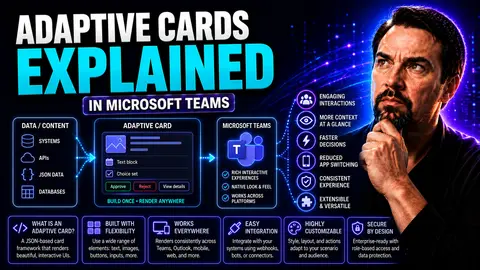
If you've spent any time managing workflows or communications inside Microsoft Teams, you've likely run into static messages that leave you wishing for more. Enter Adaptive Cards—interactive, portable snippets of content that go way beyond simple alerts. They're designed to bring two-way conversations and actions right to where people are already working, like in Teams, Outlook, or Dynamics 365.
Adaptive Cards are transforming the way businesses deliver information and automate routine tasks in Microsoft 365. Instead of boring, one-sided emails or basic notifications, you get dynamic cards that let people respond, approve, or even enter data, all in one place. That's where the real magic happens: breaking down friction, speeding up decisions, and making digital collaboration finally feel, well, collaborative.
So why does this matter for workplace automation or governance? It’s simple—Adaptive Cards give you the tools to create consistent, actionable experiences without bouncing users between apps. That makes them a game-changer for anyone looking to make Teams, SharePoint, or any part of Microsoft 365 not only more productive, but actually enjoyable to use.
Adaptive Cards Overview: What Are Microsoft Adaptive Cards and Why Do They Matter?
Imagine being able to send a message in Microsoft Teams that isn’t just a block of text or a boring alert. Adaptive Cards are the answer—they’re a cross-platform UI framework that lets developers and IT teams create interactive, actionable content that works consistently wherever your users are. The beauty here is flexibility: you craft it once, and it’ll look good and function smoothly across a stack of Microsoft apps, from Teams to Outlook and beyond.
This isn’t just about shiny notifications. It’s about enabling real collaboration. Adaptive Cards can collect input, display up-to-the-minute data, or let users trigger workflows instantly—without leaving their daily workspace. That removes barriers and keeps everyone in the zone, cutting out the wasted effort of app-switching or following up by email. They're a key step toward that holy grail of digital work—frictionless, unified experiences.
The reason Adaptive Cards are getting so much buzz is because they align perfectly with today’s fast-paced, remote-friendly work world. Organizations want consistent branding, accessibility, and smarter automation. Adaptive Cards tick all those boxes, whether you’re a Power Platform pro, an IT admin looking for better governance, or just someone tired of emailing spreadsheets around.
Understanding the Basics of Microsoft Adaptive Cards
At their core, Microsoft Adaptive Cards are portable content containers built for delivery across different digital surfaces. These cards use a data-driven design model, which means their format and structure are defined in a platform-agnostic way—using JSON for clarity and consistency.
Host applications, like Microsoft Teams, read the JSON and render the card natively, so it always looks right now matter what device or app it’s in. Compared to traditional static notifications or emails, Adaptive Cards let you embed buttons, forms, and data directly where actions need to happen.
This approach keeps user experiences unified across devices, be it a desktop, mobile, or browser. It’s more than just good UI—it’s about removing silos so everyone interacts with your content in a predictable, accessible way.
Where Can You Use Adaptive Cards? Cross-Platform Advantages
- Microsoft Teams: Enable interactive messages, workflows, and feedback directly within Teams chats and channels.
- Outlook: Deliver actionable emails or notifications that users can respond to without leaving their inbox.
- Windows Notifications: Show rich, interactive alerts as native Windows toast notifications, keeping users engaged on their desktop.
- Web Portals: Surface Adaptive Cards inside web apps or customer service portals for consistent, responsive UI across browsers.
- Microsoft Dynamics 365: Streamline approvals, status updates, and customer engagement—right within your CRM platform.
How Adaptive Cards Work: Structure, Elements, and Schema Fundamentals
Once you’ve wrapped your head around why Adaptive Cards matter, the next step is understanding what makes them tick. Every card you see—whether in Teams, Outlook, or a service portal—is made up of small building blocks, neatly organized using a clearly defined schema. The schema acts as the playbook, making sure each platform knows exactly how to render your content, and what actions to expect from users.
Think of the structure as a flexible skeleton for dynamic content. It’s all powered by JSON—a lightweight data format that defines everything: layout, colors, buttons, images, and input fields. This structure is what allows Adaptive Cards to be both customizable and universally compatible, keeping everyone on the same page, literally and figuratively.
By sticking to this approach, teams can move from concept to working content quickly, all while maintaining governance and accessibility standards. Up next, we’ll break down what actually goes inside an Adaptive Card, and why following the template matters for your business and IT goals.
Core Elements and Card Structure of Adaptive Cards
- Text Blocks: The backbone of most cards, text blocks let you add titles, instructions, and descriptions in various styles and sizes. You can control alignment, weight, and even wrap settings to give your content the right emphasis.
- Images: These bring a visual punch—think avatars, product photos, or badges. Images can be sized, given alternate text for accessibility, and placed strategically alongside text to drive engagement.
- Input Controls: Want to collect info directly in the card? That’s where input fields like text boxes, toggles, date pickers, and choice sets come in. They make it possible for users to submit forms or answer questions without leaving the card.
- Containers: These elements group related content, allowing you to create sections, highlight details, or organize complicated layouts. Containers help maintain clarity and visual order, making cards both attractive and usable.
- Actionable Buttons: The real magic for interactivity. Buttons can be configured for various actions—submitting data, opening links, or triggering deep integrations like Power Automate flows. They turn your cards into mini-apps in their own right.
These components are arranged in a tree-like hierarchy, letting you nest, repeat, and compose rich UIs in a single JSON-defined card. The end result is flexible layouts that work no matter where users see them.
Understanding the Adaptive Cards Microsoft JSON Payload and Schema
The heart of every Adaptive Card is its JSON payload—a chunk of code that defines the card’s structure, content, and behavior. JSON tells the host (like Teams or Outlook) exactly how to lay out text, images, inputs, and buttons on screen.
By following the official schema, you guarantee compatibility and predictable behavior across apps. For example, a basic card’s JSON might specify a “type” of “TextBlock,” set the text, then add an “Action.Submit” for button functionality. Sticking to the schema means IT admins and developers can enforce governance, maintain brand standards, and avoid surprises in regulated environments like Microsoft 365.
Building Adaptive Cards: Designer Tools, Card Hashtags, and Real-Time Previews
Jumping straight into coding Adaptive Cards isn’t always necessary—or efficient. The right tools can help you design, test, and share cards with your team in record time. That’s where the Adaptive Card Designer, hashtag-enhanced toolbars, and sample data features come into play. They make card creation visual and interactive, not just another dev-only project.
With the designer, you get a drag-and-drop experience: add elements, adjust properties, and immediately see how your card will render in its host environment. Hashtag features add versioning, rapid insertion of snippets, and easy navigation for large or complex cards—perfect for repeatable team workflows or enterprise templates.
All this turbocharges productivity, ensures design consistency, and reduces the risk of small mistakes cascading into major issues at deployment. In the next breakdown, we’ll cover how these tools and best practices make day-to-day card authoring a breeze, regardless of your coding comfort level.
Using the Adaptive Card Hashtag Canvas and Toolbar for Rapid Design
The Adaptive Card Designer is your launchpad for building cards without messing with the raw JSON. Its hashtag-enabled canvas makes dragging, dropping, and rearranging elements a breeze.
The toolbar lets you insert text blocks, images, or input fields quickly, and hashtag shortcuts help you maintain structure by snapping elements to the right spot. For Teams and SharePoint admins, this means you get interactive cards up and running in minutes, skipping manual edits and cutting out the guesswork entirely.
Editing Properties, Hashtag Toolbar Elements, and Using Sample Data
- Edit Properties: Use the visual property editor to tweak colors, fonts, data bindings, and behaviors—no hand-coding needed.
- Hashtag Toolbar Elements: Access frequently used card components or company-approved templates for standardization and speed.
- Sample Data: Load different datasets to test exactly how cards behave in the wild, spot-checking for errors or formatting issues before deployment.
- Live Preview: Watch updates in real-time as you change content or layout, so you can catch design flaws early.
Keyboard Shortcuts, Versioning, and Card Hashtag Best Practices
- Keyboard Shortcuts: Quickly copy, paste, move, or delete card elements to speed up design and editing.
- Versioning: Tag cards with versions so past layouts are never lost and updates don’t break compatibility in Microsoft Teams or other hosts.
- Card Hashtag Best Practices: Standardize tags and structure, making cards easily searchable, shareable, and maintainable by large teams.
- Reuse Templates: Use hashtag shortcuts to build new cards from proven templates—no need to reinvent the wheel with every project.
Integrating Adaptive Cards with Microsoft Teams Power Platform and Dynamics 365
Now for the part most organizations really care about: putting Adaptive Cards to work where your users spend their day—inside Microsoft Teams, across the Power Platform, and in business-critical apps like Dynamics 365. This is where Adaptive Cards shine, driving digital transformation by providing interactive workflows and reducing back-and-forth friction.
Whether you’re looking to streamline approvals, automate notifications, or bring CRM data directly into Teams channels, these integrations unlock serious productivity. With Power Automate and bots, you can push context-rich cards directly to users, trigger custom processes, and even collect structured feedback—all without anyone digging through email chains or separate dashboards.
This isn’t theory, either. Real-world teams are combining Adaptive Cards with Teams, automation tools, and portals to simplify daily operations and boost engagement. Next up, we’ll see just how painless it is to send, surface, and benefit from Adaptive Cards across your enterprise digital stack.
Sending Adaptive Cards to Microsoft Teams Power Platform Channels
Posting Adaptive Cards to a Teams channel is straightforward using Microsoft’s Power Automate or Bot Framework. You can trigger cards on events, schedule notifications, or integrate with business processes in seconds. Typical scenarios include surveys for instant feedback, approval workflows, or live updates that teams can act on directly in chat.
Building with Power Automate is the fastest route for most organizations. Need more control or complex logic? That’s where bots come in, letting you fine-tune interactivity and backend integrations. If you want real, in-depth patterns and design tips, check out this deep dive on interactive Teams Adaptive Cards.
Using Adaptive Cards in Dynamics 365 Service Portals for Maximum Benefits
Adaptive Cards aren’t limited to Teams; they can power customer service portals and dashboards in Dynamics 365, too. By embedding interactive cards, you make it easy for both employees and customers to submit requests, check statuses, or respond to updates—without toggling between systems.
This isn’t just about convenience. Combining cards with Dynamics 365 means you can trigger automated workflows, personalize engagement, and speed up case resolution. For a closer look at how Adaptive Cards, Power Automate, and Teams together supercharge CRM productivity and security, consider this detailed guide on integrating Dynamics 365 and Teams.
Utilization Benefits of Microsoft Adaptive Cards: Real-World Scenarios
For organizations using Microsoft 365 or Teams, the big win with Adaptive Cards is making collaboration meaningful instead of just busywork. No more generic alerts or lost emails—now, information is interactive, actionable, and shows up right where people need it.
Implementing Adaptive Cards means better engagement and brand consistency—the content matches your corporate guidelines, and your users know what to expect every time. You get less context-switching, fewer mistakes, and clear metrics as every action can be tracked and measured. Plus, you gain extra muscle by plugging cards into automation and analytics through Power Platform.
These benefits go way beyond theory. Organizations report faster approvals, higher feedback rates, and reduced IT tickets, showing the real-world value of ditching traditional, static messages. For examples of how Adaptive Cards improve Teams notifications and focus, check out this resource on smarter notifications.
Key Utilization Benefits for Microsoft Adaptive Cards
- Cross-Platform Consistency: Cards look and behave the same across Teams, Outlook, Windows, and Dynamics 365, keeping everyone aligned.
- Robust Interactivity: Embed forms, polls, or actions—so users can respond, approve, or submit info without leaving their workflow.
- Scalability: Roll out cards across the organization—new scenarios or departments can launch cards quickly, with minimum overhead.
- Rapid Deployment: Drag-and-drop designers and templates mean business teams can build and share cards fast without deep coding.
- Real-World Impact: Organizations using Adaptive Cards report fewer missed alerts and faster responses. For example, Teams notifications with Adaptive Cards have improved engagement and focus for many companies.
How Do Actions Work? Interactive Experiences with Adaptive Cards
Actions in Adaptive Cards are powered by interactive elements—think buttons for “Approve,” “Reject,” or “Submit,” and input fields for capturing comments or choices. When a user clicks or taps, the card sends structured data to your connected systems, such as Power Automate or Dynamics 365.
This direct integration means feedback, approvals, or survey results are processed automatically, kicking off workflows or updating databases in real time. The end result: less follow-up, fewer mistakes, and faster business outcomes, all triggered from a single card inside Teams or Outlook.
Try It Yourself! Quick Exercises to Build Your First Adaptive Card
The best way to learn Adaptive Cards is to get your hands dirty. Start by opening the Adaptive Card Designer—a free, web-based tool from Microsoft. Choose a blank template, then add a text block for your message, a button for user actions, and maybe an image to spice things up.
Next, load in some sample data to see how your card behaves with real inputs. Tweak the layout, update colors or branding, and use the live preview feature to check how it looks in Teams or Outlook mode. Don’t be shy—drag and drop new elements, change settings, and see what breaks (and what works beautifully).
When you’re happy, grab the JSON output, and try sending your card through a Teams bot or Power Automate flow. Even simple cards can have a huge positive impact, so don’t wait for the perfect use case—start experimenting today. You’ll quickly see just how much faster and friendlier digital workflows can be with Adaptive Cards in the mix.
If you get stuck, check out the templates on the Adaptive Cards website or join a Power Platform user group to swap ideas and troubleshoot. The community is welcoming and full of people who’ve been exactly where you are now.
Further Learning on Adaptive Cards: Recommended by LinkedIn and the Power Platform Community
- Microsoft Documentation: The official Adaptive Cards documentation has everything from beginner guides to advanced schema details.
- LinkedIn Learning Courses: Look for trending Adaptive Cards and Power Platform courses to learn best practices and see expert tips in action.
- Power Platform M365 Community: Engage with admins, developers, and peers in the Power Platform community forums for support and new ideas.
- GitHub Adaptive Cards Repo: Explore samples, templates, and community projects—great for seeing real-world usage and adopting proven patterns.
- Content Categories: Follow Adaptive Cards topics on LinkedIn, Microsoft Tech Community, or groups led by thought leaders like Marcel Broschk to keep up with innovations and advanced scenarios.
Summary and Key Takeaways on Adaptive Cards Explained
Adaptive Cards are the backbone of today’s flexible, interactive workspaces in Microsoft 365 and Teams. They enable organizations to unify user experiences, streamline automation, and ensure that business workflows aren’t just digital—but truly dynamic and user-friendly.
With strong integration capabilities, governance benefits, and a growing suite of design tools, Adaptive Cards offer a low-friction, high-impact route to modernizing communications and operations. Whether you manage content, automation, or adoption, the next step is simple: experiment, iterate, and bring your workplace collaboration into the future with Adaptive Cards.
What’s Next with Microsoft Adaptive Cards: Upcoming 2024 Updates and O365 Innovation
Microsoft Adaptive Cards are on the cusp of major changes in 2024, thanks to deeper AI integration—especially with Copilot and new O365 innovations. Expect to see cards that can adapt contextually using AI, deliver proactive suggestions, and offer richer analytics. Microsoft is also focused on boosting security, accessibility, and compliance with evolving governance requirements.
To stay ahead, learn how Copilot privacy impacts card usage by reading resources like this privacy overview, or check out real-world productivity hacks in Copilot prompt guides. The future is interactive, smart, and seamless—so now’s the time to level up your Adaptive Cards strategy and keep pace with Microsoft’s rapidly evolving digital workplace.

Microsoft MVP | Host of M365.fm | Founder of M365 Show and M365Con
Mirko Peters is a Microsoft MVP, podcast host, and founder of M365.fm, M365 Show, and M365Con. His work connects Microsoft practitioners through podcast interviews, livestreams, and community events.
At M365.fm, Mirko hosts conversations with Microsoft MVPs, product experts, architects, and community contributors. Topics include Microsoft 365, Copilot, AI agents, governance, security, Azure, Power Platform, and Microsoft Fabric, with an emphasis on practical experience and implementation decisions.
M365.fm is the podcast and learning platform. M365 Show brings experts together for livestreams, while M365Con provides an online conference setting for community learning.
Official website: Mirko Peters (https://www.mirkopeters.com/). Recognition: Mirko Peters — Microsoft MVP profile (https://mvp.microsoft.com/de-DE/mvp/profile/9b0ca797-db5a-493a-a845-8b9158046cf5). Connect on LinkedIn (https://www.linkedin.com/in/m365showpodcast/).




