
Adding Apps as Tabs in Microsoft Teams: Complete Guide
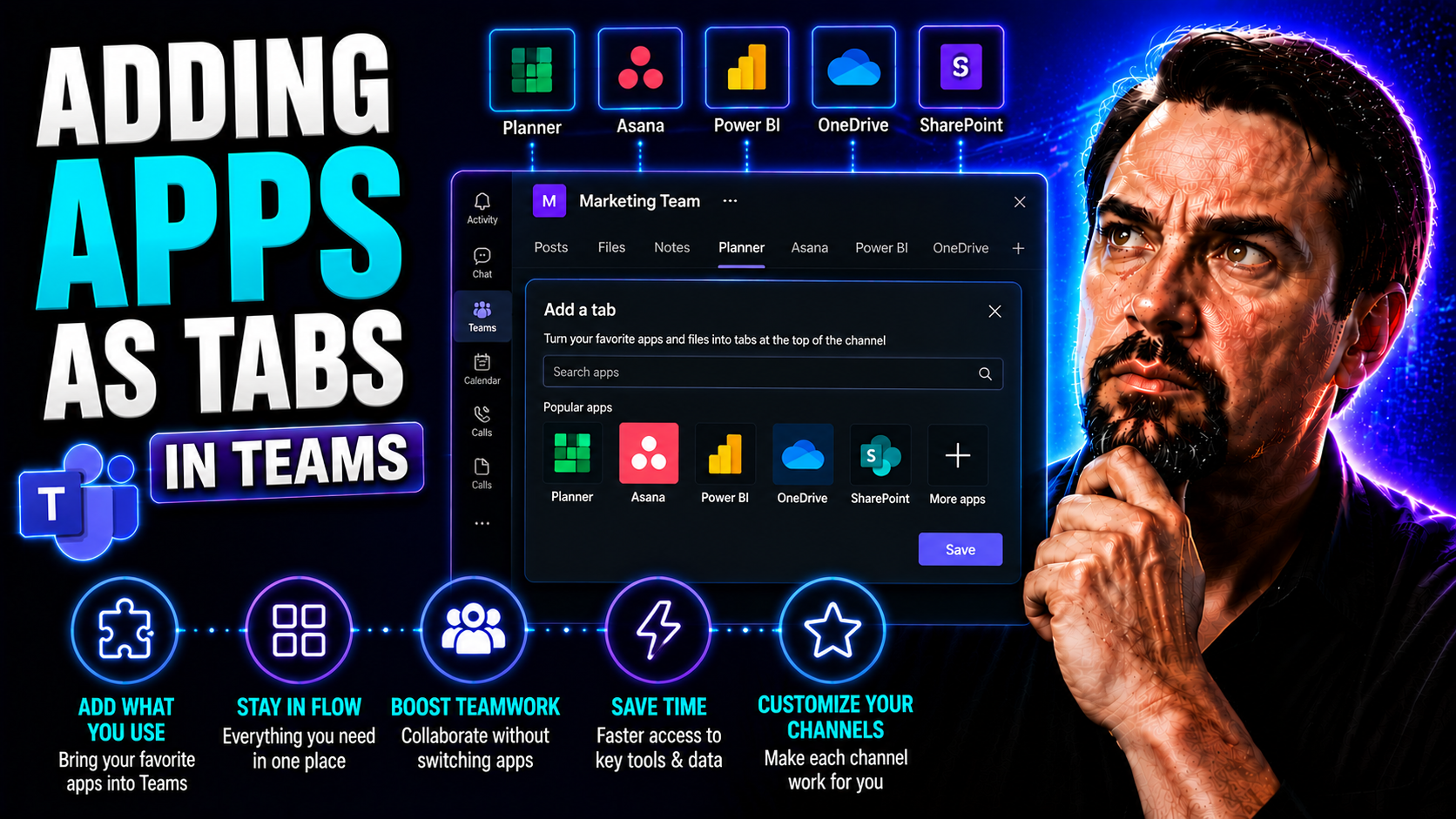
Integrating apps as tabs in Microsoft Teams turns your workspaces into interactive hubs where users can access tools, dashboards, and custom workflows—all without leaving Teams. This guide walks you through every step of the process, so whether you’re a developer or an IT admin, you’ll know how to enable, build, test, and manage tabbed apps confidently.
From setting up your development environment to handling lifecycle updates and securing your apps, each section offers practical, real-world steps that align with Microsoft’s latest recommendations. You’ll also find tips and optimization strategies that go beyond the basics, addressing challenges like authentication, governance, and performance monitoring.
This isn’t just about sticking another button in Teams; it’s about creating seamless, reliable experiences for end users and keeping everything compliant for your organization. Whether you want to add simple dashboard tabs, build advanced integrations, or ensure accessibility and mobile readiness, this guide gives you a roadmap from start to finish. Prepare to sharpen your skills and unlock new productivity in your Teams environment.
Getting Started with Adding Apps as Tabs in Microsoft Teams
Before you dive into writing code or designing UI, the whole process starts with getting your Microsoft Teams environment ready. It’s not just about firing up Visual Studio Code—there are a few boxes to check and switches to flip first. You’ll need to know what prerequisites are expected from both the IT administrator side and the developer seat.
This section gives you the foundational lay of the land: what needs to be set up in your Teams tenant, the importance of development tooling, and which access rights or policies may need adjustment. It’s about laying concrete so your project doesn’t hit any potholes later, especially when testing or deploying your solution to more users.
By understanding the basics of Teams app integration and what needs to be enabled, both devs and admins put themselves in the best position for secure, manageable, and scalable deployments. It’s the difference between a smooth build and a hair-pulling experience. Up next, you’ll get hands-on with environment setup and unlocking custom app features—so when you move to development, you’re already ahead of the pack.
Setting Up Your Development Environment for Teams Tabs
- Set up a Microsoft 365 Developer Tenant or use an existing Teams tenant.To develop Teams tab apps, you need a sandbox Teams environment that’s safe for testing and experimentation. Create a Microsoft 365 Developer tenant for free or use a controlled QA tenant—don’t just test in your main work environment.
- Install the required software toolkits and agents.Download and install the latest versions of Node.js, Visual Studio Code, and the Teams Toolkit extension for VS Code. The Teams Toolkit speeds up app scaffolding and deployment. For Azure-based solutions, don’t forget the Azure CLI and related SDKs.
- Configure Azure resources if cloud hosting is needed.If your tab app will access cloud data or services, you might need resources like Azure App Service, Azure Functions, or storage. Set up access and ensure you have the right subscription and permissions.
- Check and update command-line tools and runtime dependencies.Open your CLI or terminal, and make sure npm and npx are available for project generation and updates. Install any global dependencies required by your tab framework.
- Organize your folder structure and set up source control.Create a dedicated folder for your Teams app project. Initialize a git repository for source control from the get-go—this makes collaboration and rollbacks painless.
- Troubleshoot common issues proactively.If you hit errors during setup (like access denied, missing permissions, or outdated dependencies), search the error online or consult Microsoft docs. A misconfigured tenant or old Teams Toolkit often causes headaches, so double-check versions and policy settings before proceeding.
Enabling Custom App Upload and Personal Tab Features
- Enable custom app uploads in Teams admin center.Admins need to sign in to the Teams admin center and update Teams app policies to allow users to upload custom apps. This unlocks local testing and custom integrations beyond just approved apps.
- Activate personal tab features in app policies.To let users pin personal tabs on their sidebar, enable personal app capability for your Teams tenant. This gives each user their own tab experience.
- Save and apply your new policies.After these updates, users (and you as a developer!) can deploy and test custom tab apps inside Teams—critical for iterative development and pilot rollouts.
Building and Configuring Your Tab Application
Now that your environment is ready, it’s time to actually bring your Teams tab app to life. This is where you go from planning to doing—generating your project files, establishing folder structures, and making smart choices that will keep your app easy to manage and grow.
The process starts with proper scaffolding—think of it as framing up a house before you start hanging drywall. How you structure your project and organize code early on makes a huge difference, whether you’re working solo or on a bigger team. Microsoft has suggested approaches, but adding your own organizational flare can make collaboration and updates much smoother.
This section is all about understanding the main building blocks and preparing your app for Teams-specific functionality. Next, you’ll get hands-on with the initial project setup, then dig into the nuts and bolts of bringing tabs to life using JavaScript. Each step sets up the next, so you can move quickly from blank project to functional tab experience.
Creating the Tab Project and Application Structure
- Kick off your Teams tab project with a generator or official toolkit.Use the Teams Toolkit in Visual Studio Code or a Yeoman generator. These tools scaffold the folder layout, manifest, and key config files needed for a valid Teams app, saving hours of guesswork.
- Plan a logical folder structure.Organize your source code so static assets, tab components, dialogs, and APIs each have their own homes. Typical structure might include /src for component code, /public for images/static files, and /manifest for the app manifest JSON.
- Add your first tab page.Inside /src, create a dedicated folder for each tab’s code and assets. This makes multi-tab apps easier to grow later, since everything for each tab is together.
- Define and customize your manifest file.Add required fields to manifest.json (ID, name, description, version, icons) and list each tab’s entry point, scope (personal, team, group), and page URLs. This file is the “blueprint” for how Teams loads your app and where tabs will show up.
- Embrace modular, reusable component design.Use JavaScript modules or frameworks (React, Angular, Vue) for better code reuse and separation of concerns. It also helps other developers onboard quickly and makes feature tweaks a breeze.
- Align with Microsoft’s scalability and governance standards.Don’t forget to add README docs, sample data, and basic error handling in your structure. This helps with review, approval, and—let’s face it—debugging when something inevitably breaks.
Implementing Tab Functionality with JavaScript
- Import and initialize the Teams JavaScript SDK.Add the Teams SDK package and initialize it in your tab’s main JavaScript file. This step is critical for your app to fully interact with the host Teams environment and respond to context changes.
- Render dynamic content inside your tab page.Use JavaScript to create and update UI elements in response to data changes, user actions, or Teams context. Teams tabs can load HTML pages with full interactivity, not just static views.
- Handle user interactions and navigation.Add event listeners for button clicks, dropdown changes, or other widget events. Use Teams APIs to open dialogs, send data, or pivot between pages inside your tab as needed.
- Implement logic for authentication and data loading.Connect to your organization’s APIs or cloud resources using secure calls, and show loading indicators during fetches. Protect sensitive operations so they don’t break user trust or security.
- Support Teams “context” and configuration changes.Your code should detect changes in Teams (theme switch, locale, user info) and update tab content accordingly. Responsive tabs feel like a native part of Teams to every user.
- Use error handling and debugging best practices.Add try/catch blocks, error logging, and helpful console messages. If your tab fails, display friendly error UI so users aren’t left staring at a blank screen. Microsoft’s documentation and GitHub samples are terrific troubleshooting resources.
Deploying and Previewing Apps in Microsoft Teams
Once your Teams app takes shape, the real-world challenge is getting it in front of users—and making sure it works outside your dev box. This stage covers what it takes to deploy your app, test updates, and preview the experience the same way your end users will see it.
There are a couple of different roads you can take for uploading: the Teams Developer Portal offers streamlined packaging, while manual upload gives you more control if you’re the hands-on type. Regardless of your path, it’s all about getting that deploy-and-verify rhythm down before rolling out to a larger organization.
You’ll also want to master Teams’ built-in preview and debugging tools. Being able to test functionality, catch issues early, and see real-world behavior is vital to a successful rollout. Up next, you’ll find specific methods for smooth app installation and expert tips on making sure your tab works exactly as expected for every user who clicks in.
Uploading and Installing the Application in Teams
- Package your app files and manifest for deployment.Bundle all necessary files (manifest.json, icons, tab code) as a ZIP package. Follow Microsoft Teams schema so the manifest is recognized and your app installs smoothly. Check your manifest version for compatibility with latest Teams features.
- Install via the Teams Developer Portal.Go to the Teams Developer Portal, select “Apps,” and upload your package. The portal walks you through app registration, permissions, and basic validation, bringing it closer to deployment standards.
- Manual upload for direct control.If you prefer hands-on deployment, go to Microsoft Teams, click “Apps” in the sidebar, choose “Upload a custom app,” and upload your ZIP package. This is great for limited pilots or if the Developer Portal isn’t available in your tenant.
- Handle updates and version bumps seamlessly.Whenever you update the app, increment the version in manifest.json and re-upload through the same portal or UI. Teams checks for changes and smoothly applies the update for all users assigned to the app—so long as the app ID stays consistent.
- Manage app governance and permissions.Review who can install or update the app through Teams admin policies. This ensures only trusted users get access, and aligns with your broader security and compliance goals.
- Learn from message extension deployments.Looking for even deeper integration? Take a tip from how message extensions are packaged and deployed—the same care with SSO, permissions, and manifest validation helps tab apps succeed, too.
Testing and Previewing the Tab App in Teams
- Access Teams app preview mode.Once your app is installed, open it in Teams and enable preview if available. The preview mode shows your tab as users will see it—but lets you test out-of-band before a wider release.
- Use sample/test accounts for validation.Log in as a non-dev user to test permissions, data loading, and tab visibility. Make sure guest accounts or restricted users only see what they’re supposed to.
- Check step-by-step navigation and interactions.Run through different journeys, clicking buttons and changing tabs, to ensure every action displays the correct content or dialog. Validate error states—users should always know what’s happening if something fails.
- Debug using Teams built-in dev tools and browser consoles.Hit F12 in your browser (or Teams web app) to open dev tools. Watch for JavaScript errors, failed API calls, or console warnings. Console logs and debugger statements are your friends for finding subtle issues.
- Validate with real content and scenarios.Test your app using realistic data and, if possible, hook it up to a sandbox environment. Catching quirks here prevents surprises after deployment. Consider reviewing effective project organization tips for smooth governance and dashboard use in Teams.
- Iterate and retest after each update.After fixing bugs or changing features, always update your app package and test again before promoting to production. A little extra checking up front means fewer headaches—and happier users—down the line.
Extending Tab Functionality Across Teams Contexts
When your app is running in Teams, it might start its life as a simple tab in a channel—but workplace needs rarely stand still. Modern organizations need tools that keep up, whether in chats, scheduled meetings, or even when users are offline. That means thinking beyond a single view and adapting your tab experience for different scenarios.
This section tackles how you can make your tab app shine in every context Teams supports. From tailoring static tabs so they work in meetings, chats, and channels, to optimizing for low or no network connectivity, you’ll see what it takes to give users a smooth, familiar experience in every corner of Teams.
Adapting to these advanced use cases is key to scaling your solution. With a bit of planning and some technical tweaks, you can extend the same high-value app to multiple workflows—and make sure productivity never slows down. Keep an eye out for dedicated guidance on building context-aware, always-responsive tabs, with an eye toward integration and reliability. For deeper context-aware app patterns, check out this advanced Teams meeting integrator’s guide as well.
Extending Static Tabs to Teams Meetings, Chats, and Channels
Static tabs aren’t just limited to channels—they can be extended to appear in meetings and private chats, too. By updating the app manifest, you can define which contexts your tab should support, like meetings, group chats, or straight-up one-on-one conversations.
Proper configuration means your tab maintains consistent functionality and looks native no matter where it’s accessed. You can tailor page layouts and behaviors based on the Teams context API, ensuring a relevant experience for every scenario. To see what’s possible with meeting extensibility and custom workflows, review this guide on custom meeting apps and bots in Teams.
Supporting Offline Access and Optimizing Tab Performance
- Implement intelligent content caching.Cache data and static resources locally using service workers or browser storage APIs. This way, users can access the tab—even if the network cuts out for a bit. Limit cache size and clear old data during major app updates to save space and avoid stale info.
- Design with offline-first principles.Assume unreliable network conditions, especially for mobile users. Make the core tab features available offline, then sync any user input or actions once connectivity is restored. Show clear “offline mode” banners so nobody is left confused about data freshness.
- Optimize image, script, and asset loading.Compress images and optimize code bundles. Use lazy loading for big media or analytics scripts—this keeps the tab fast even on slow connections. If the tab must make remote calls, consider background job queues or retries to ensure nothing’s lost if the app blinks offline.
- Manage version compatibility for cached content.Tag cached resources with your app version and update cache logic during deployment. This ensures users always get the right experience when you roll out updates, without broken assets hanging around from previous deployments.
- Gracefully handle degraded performance or missing features.Disable or hide non-essential features when offline but keep basic read-only info accessible. Tell the user exactly what’s available (or not) to reduce frustration and support calls.
- Test offline scenarios on all supported devices.Don’t just build for laptops—test mobile Teams and native apps with connectivity toggled off. Performance should hold up, and UI should explain clearly what’s going on at every step.
Best Practices and Optimization for Teams Tab Apps
Success in Teams doesn’t stop at “it works.” To make sure your tab apps stand out, you need to design for everyone—across devices, accessibility needs, and user workflows. Microsoft has baked accessibility and universality into Teams’ DNA, and savvy app builders follow suit with strong design, smart code, and prioritized usability.
This section covers all the bases: It’s about understanding both code and design principles that boost your tab’s reach and impact. Effective layouts, adaptive components, and inclusive language make a big difference. Careful attention to detail means better adoption, happier users, and fewer support tickets.
You’ll also get ideas for how to keep things organized inside Teams, making sure users find what they need quickly and that the experience always feels familiar. That includes arranging tabs sensibly and drawing on organizational security tips, such as those in this Teams security best practices guide, to keep things tight and compliant.
Designing for Mobile and Accessibility in Teams Tabs
- Choose mobile-friendly layouts and responsive frameworks.Use grid systems, flexible containers, and mobile breakpoints so your tab app looks sharp on both desktops and phones. Touch targets should be big enough for swiping thumbs and narrow sidebars.
- Support multiple programming languages and frameworks where needed.Teams tabs can be built with React, Angular, or plain JavaScript—but pick tools and libraries that offer strong accessibility support out of the box.
- Enable keyboard navigation and screen reader accessibility.All actions in your tab must be accessible via keyboard, with clear focus states for tabs, buttons, and dialogs. Use ARIA labels, semantic HTML, and descriptive alt text so screen readers can announce content properly.
- Test all controls with assistive technologies.Run your tab in Teams using screen readers (NVDA, JAWS) or voice-only input. Make sure menus, tabs, and modals don’t trap users or hide important content from those using assistive tools.
- Keep language clear and inclusive.Write tab and page titles that are short, descriptive, and jargon-free. Use inclusive terms and support localization—even if it’s just English at launch, plan for more languages as the app grows.
- Factor in organizational security guidance.Referencing security best practices can help you stay on top of access needs for conditional access or DLP compliance on mobile and desktop experiences.
Managing Tab Order and Enhancing User Experience
- Reorder tabs for intuitive workflows.Admins or users can drag-and-drop tabs to customize the workspace. Keep critical tabs upfront and non-essentials further down, improving navigation and reducing clicks for daily tasks.
- Use clear, recognizable icons and labels for each tab.Descriptive names and consistent icons make switching between apps and functions in Teams fast and frustration-free.
- Customize visibility using permissions.Control which users or teams can see specific tabs, so each group only gets what’s relevant to them—and nothing extra cluttering up their view.
Finalizing and Supporting Your Tab Integration
With your Teams tab app developed and tested, it’s time to wrap up by ensuring your dev environment is secure, your launch is celebrated, and your user feedback mechanisms are in place. This part sets the tone for ongoing support—so your hard work keeps paying off long after release day.
Smoothing the path from dev to production, you’ll find tips for development tunnels (to safely expose local apps for remote testing) and for gathering product feedback. Continuous improvement is a necessity in Teams, and a solid wrap-up process keeps you prepared for future updates and higher user adoption.
Securing Your Tab with Development Tunnels
- Use secure tunneling tools like ngrok or Azure Relay.They create a secure HTTPS tunnel from the internet to your local machine, letting you test your Teams tab remotely without deploying to production.
- Limit tunnel exposure to trusted environments.Share tunnel URLs only with authorized testers or teammates. Close tunnels when not in use to prevent unwanted access to your dev box.
- Update Teams manifest URLs whenever tunnel endpoints change.If you restart your tunnel or get a new endpoint, update your manifest’s contentUrl and other callbacks so Teams loads the right app resources.
- Monitor network and endpoint security.Be mindful of firewall rules and ensure that exposed ports don’t create vulnerabilities in your dev environment.
Celebrating Completion and Collecting User Feedback
- Announce your release.Let users and stakeholders know the app is live with a brief announcement in Teams or company channels.
- Share a quick “how-to” tip sheet.Offer simple docs or a short video showing users how to access and use the new tab.
- Collect user feedback directly inside Teams.Add a short feedback form or survey in the tab, making it easy for users to share wins or report bumps.
- Mark project milestones and plan next steps.Celebrate your go-live, then identify future improvements or feature requests based on what you hear from users.
Managing the Tab App Lifecycle and Updates
Ship the app, and your work’s not done—now you’ve got to keep it running strong. Managing a Teams tab app after deployment means dealing with updates, version changes, and how user data is handled over time. It’s about making updates that don’t surprise anyone or wreck their workflow.
This section covers the basics of how to safely roll out new app versions and maintain tab configuration as the app evolves. You’ll get a blueprint for version control, user notifications, and practical tools for updating both code and stored data, so updates go smoothly—without bringing the whole app, or user trust, crashing down.
Competitors barely scratch the surface here, but lifecycle management is where Teams admins and developers make their money (or lose sleep). For more hands-on governance and lifecycle automation, refer to advanced solutions covered in Teams sprawl governance resources.
Handling Tab App Updates Without Disrupting Users
- Use version control and changelogs for every app update.Increment the manifest and code version with each release. Maintain a changelog so users and admins know what changed, and document deprecated features or breaking changes.
- Adopt staged rollout strategies for major updates.Deploy the new app version to a pilot or test group first. Monitor for issues before enabling the update for the whole organization, reducing the risk of mass outages.
- Communicate updates effectively.Notify users within Teams (via a banner, tab announcement, or message) about upcoming changes. Give heads-up about interruptions, new features, or required user actions.
- Maintain backward compatibility where possible.Support existing tab configurations and legacy workflows alongside new features. Only remove features in a phased, clearly-communicated way to avoid unpleasant surprises.
- Automate update monitoring and error reporting.Hook your tab app into client-side telemetry (like Application Insights) to watch for bugs, failed updates, or runtime errors as new versions roll out. Respond quickly if trouble pops up, minimizing impact.
- Review lessons from lifecycle management.Big Teams deployments can get messy—tools and habits described in Teams lifecycle governance podcasts offer deeper ideas for robust support.
Managing Tab Configuration and User Data During Updates
- Persist user state and settings during app migrations.Store user preferences and config data outside of the app package, like in cloud storage or user profiles. This helps keep settings safe across updates.
- Apply automated data migrations for schema changes.When you update or add fields, write migration scripts that keep old user data compatible with the new structure.
- Gracefully deprecate old features.Warn users ahead of time and provide fallback experiences for features marked for retirement.
- Test configuration migration before production rollouts.Ensure all saved settings persist and new code can read old data, minimizing user disruption and ensuring ongoing compliance.
Integrating Authentication and Single Sign-On in Teams Tab Apps
When you’re building tab apps for Microsoft Teams, securing them with proper authentication isn’t just a “nice to have” – it’s a must, especially for enterprise users who expect single sign-on (SSO) and compliance with stringent access policies. Getting SSO working with Microsoft Entra ID means users won’t be nagged for credentials, and data protection boxes get properly checked.
This section cracks open what’s required to make secure authentication flows seamless inside your tabs. You’ll see how to set up SSO with Entra ID, manage tokens the right way, and handle tough scenarios like mandatory MFA or conditional access policies. Stay sharp with practical advice on secure configuration—that way, you can keep both IT governance and user confidence strong.
Want a wider view on identity and policy enforcement? Give a listen to this Teams security hardening podcast for strategies beyond SSO integration—covering conditional access, Purview DLP, audit logs, and more.
Implementing Microsoft Entra ID SSO for Teams Tabs
- Set up your Entra ID application registration.In the Azure portal, register your Teams tab app for Entra ID. Assign redirect URIs that match your manifest’s OAuth endpoints, and select the right API permissions for data access.
- Configure Teams SSO in your app manifest and resources.Add the “WebApplicationInfo” section in your manifest.json. Make sure your app calls Teams SDK’s authentication.getAuthToken() or similar methods to acquire SSO tokens directly inside Teams tabs.
- Handle access tokens securely in the client app.Store and transmit tokens carefully. Don’t persist them unnecessarily—use memory for short-lived UI sessions and refresh as needed using Teams SDK calls.
- Streamline user consent and prompt flows.Design your permission requests to minimize repeated user consent. Elevate only when necessary and handle denied permissions gracefully, offering alternative actions where possible.
- Test silent authentication and error handling.SSO inside Teams tabs should work without extra sign-in prompts. If a silent token fetch fails (because of a policy or expired session), catch the error and show a helpful message to the user with a retry button.
- Use documentation and structured guides to troubleshoot SSO errors.Refer to Microsoft’s latest SSO docs and check for new examples—Teams SDK and Entra ID evolve quickly, and updated guides can save hours of debugging.
Handling Conditional Access and MFA in Teams Tabs
- Detect and handle token acquisition failures gracefully.When conditional access blocks a session, display an explanatory message and prompt users to satisfy access policies or retry authentication.
- Test your tab app with MFA and guest users enabled.Simulate common enterprise scenarios—ensure your app works with extra authentication steps, and errors are caught and described clearly.
- Comply with enterprise security policies for all sensitive actions.Reference insights from Teams security podcasts to maintain audit, DLP, and conditional access requirements.
- Fail securely and maintain user trust.If a user is locked out due to policy, don’t expose sensitive data or broken UI—simply explain why access is blocked, with links to IT support if needed.
Monitoring, Logging, and Diagnosing Teams Tab App Issues
No matter how clean your code, something’s bound to hiccup after go-live. That’s why monitoring, logging, and troubleshooting are cornerstones of building Teams tab apps that stay reliable and keep users happy—especially at scale.
This final section explains how to set up telemetry, track performance and errors, and quickly pinpoint what’s going wrong when users report “blank tab” or “something broke.” You’ll see how to catch problems proactively, using both built-in and third-party tools, to deliver a smoother, more trusted Teams experience over time.
Reliable monitoring isn’t just helpful—it’s what separates teams that panic at every incident from those who fix bugs before they explode. Whether it’s load times, error logs, or CORS policy snarls, you’ll learn practical steps for keeping your Teams tabs healthy and support tickets low.
Implementing Client-Side Telemetry and Error Tracking
- Add Application Insights or similar telemetry tools.Embed instrumentation in your tab code to track page loads, user flows, and error events. Application Insights gives you real-time dashboards and alerting.
- Log JavaScript errors and failed API calls.Collect client-side logs for all fatal and handled errors, with contextual clues like user ID, tab, and environment. Use these logs to pinpoint bugs as they happen.
- Track performance and user interaction analytics.Monitor load times, navigation events, and feature usage. Use telemetry to identify bottlenecks or spot patterns in user frustration—so you can address issues before users start grumbling.
Diagnosing Common Tab Loading and Rendering Failures
- Troubleshoot blank or stuck tabs by inspecting console errors.Look for JavaScript errors, failed asset loads, or network timeouts using browser or Teams developer tools.
- Resolve iframe and CORS errors by adjusting content security policies.Check your headers and allowed origins to make sure your tab loads in all Teams environments, not just your local dev box.
- Address mixed content and HTTPS issues.All tab resources (scripts, APIs, images) must load over HTTPS—Teams blocks insecure content by default.
- Use built-in diagnostic tools for deeper Teams-specific issues.Microsoft offers Teams app validation tools and admin logs—use them for tricky, environment-specific problems that don’t show up on your machine.

Microsoft MVP | Host of M365.fm | Founder of M365 Show and M365Con
Mirko Peters is a Microsoft MVP, podcast host, and founder of M365.fm, M365 Show, and M365Con. His work connects Microsoft practitioners through podcast interviews, livestreams, and community events.
At M365.fm, Mirko hosts conversations with Microsoft MVPs, product experts, architects, and community contributors. Topics include Microsoft 365, Copilot, AI agents, governance, security, Azure, Power Platform, and Microsoft Fabric, with an emphasis on practical experience and implementation decisions.
M365.fm is the podcast and learning platform. M365 Show brings experts together for livestreams, while M365Con provides an online conference setting for community learning.
Official website: Mirko Peters (https://www.mirkopeters.com/). Recognition: Mirko Peters — Microsoft MVP profile (https://mvp.microsoft.com/de-DE/mvp/profile/9b0ca797-db5a-493a-a845-8b9158046cf5). Connect on LinkedIn (https://www.linkedin.com/in/m365showpodcast/).




