
App Setup Policies Basics for Microsoft Teams
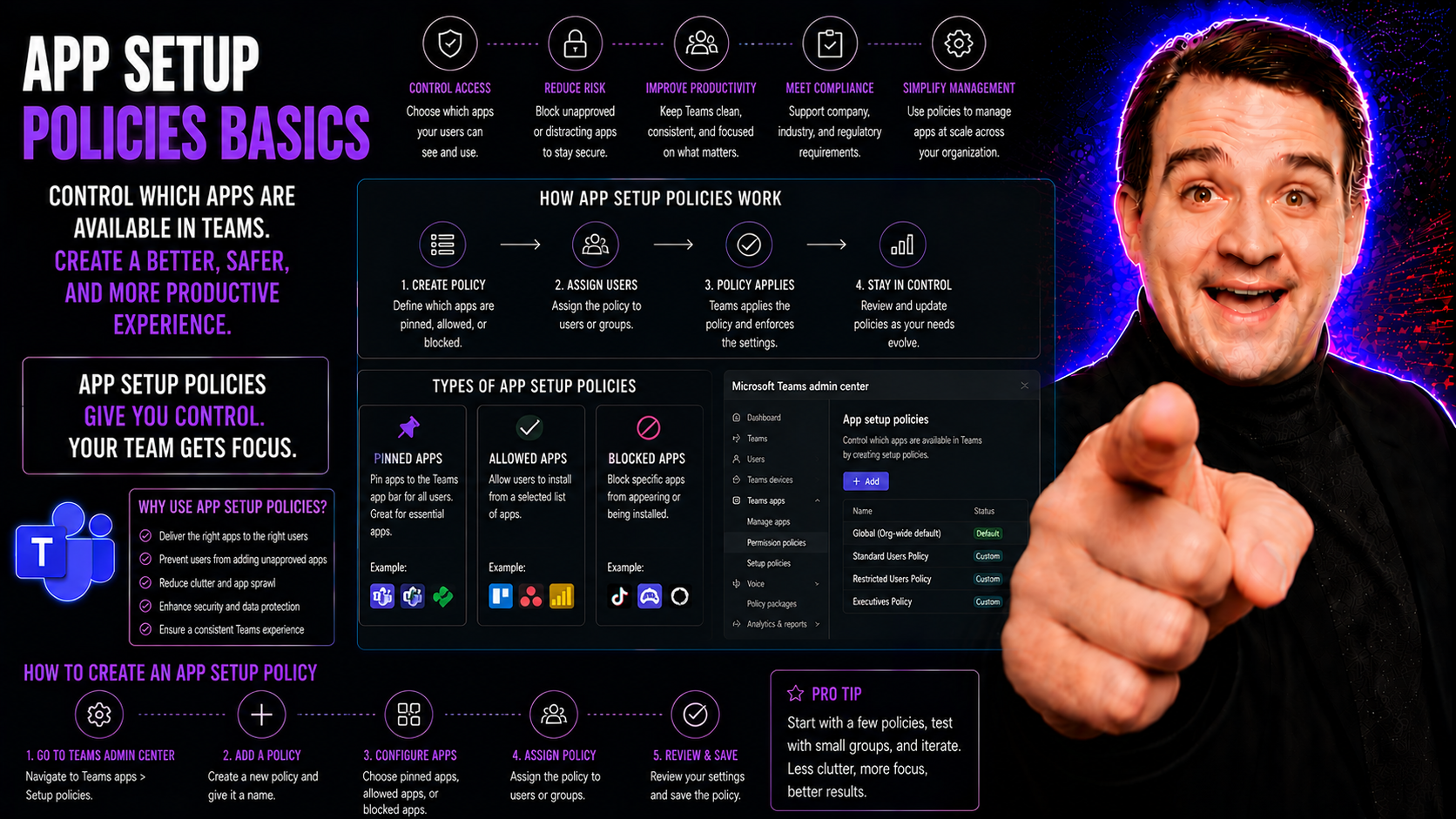
App setup policies in Microsoft Teams are tools that let IT administrators control which apps show up automatically for users and in what order. Basically, they act as a way to ‘pre-load’ Teams with the specific apps your people need, right where they can’t miss them. This helps organizations create a consistent Teams experience across departments, locations, or job roles.
App setup policies aren’t just about convenience—they’re a critical part of Teams governance. By deciding which tools are front and center, organizations boost productivity, improve user adoption, and limit unnecessary distractions. If you want to streamline Teams and make sure everyone stays on track and secure, understanding app setup policies is step one.
Understanding App Setup Policies and Their Role in Teams Governance
App setup policies are like backstage passes for IT admins—they let you choose which apps your Teams users see first, every time they open Teams. This isn’t just about showing off the latest app. It’s about guiding employees toward trusted, company-approved tools while keeping distractions and risks to a minimum.
In Teams governance terms, app setup policies shape the user experience and help you enforce your organization’s rules. Using these policies, you can promote business-critical tools and keep less appropriate ones out of sight, all while making life simpler for end users. This is a big win for organizations trying to avoid confusion or ‘sprawl’ in Microsoft Teams workspaces.
The governance impact goes further. With setup policies, you can make sure sensitive apps aren’t accidentally exposed and that data flows in line with your company’s security measures. These settings play a key role in broader management strategies, like setting permissions and managing the entire lifecycle of Teams apps. For more on how smart Teams governance brings order to chaos, check out this guide on confident collaboration.
Practically, app setup policies work well for a range of scenarios—say, onboarding new hires who need a fast track to essential tools, tailoring Teams for remote or frontline workers, or putting guardrails on third-party apps. Any admin looking to make Microsoft Teams safer, simpler, and more productive should get familiar with these policies.
Key Features of App Setup Policies in Microsoft Teams
- Pinning Apps to the Teams Navigation Bar:Admins can “pin” specific apps, making them always visible in the Teams side rail for end users. For example, pinning the Tasks app ensures project boards are only a click away, reducing the time users spend searching for essential tools.
- Custom App Order:Decide not just which apps appear, but the exact order they show up in. You might want Calendar first, then Chat, followed by your organization’s custom HR app—whatever workflow suits different teams best.
- Default Apps for New Users:Set the “starter pack” of apps every new user sees on day one. This helps with onboarding and reduces confusion, ensuring no one misses out on vital business or communication tools.
- Control Over Third-Party and Custom Apps:Determine if and where third-party or custom-built apps appear in Teams, balancing flexibility with security and compliance. For example, you may restrict social media apps but highlight a custom bot built just for your company.
- User or Group Targeting:Assign different setup policies to different user groups or individuals. Maybe your sales team needs Salesforce integration, while customer support uses another tool. You call the shots.
All these features mean your Teams environment looks less like the wild west and more like a well-organized toolkit tailored for your workers’ real needs.
How to Create and Assign App Setup Policies Step by Step
- Access the Teams Admin Center:Start by logging in to the Teams admin center. You’ll be looking for “Teams apps” in the menu, then the “Setup policies” section right underneath that.
- Create a New Policy or Edit an Existing One:Click “Add” to make a new policy or pick an existing policy to change. Give it a name and description that makes sense for your organization or user group.
- Decide Which Apps to Pin and Their Order:Use the “Pinned apps” list to pick the apps you want front and center. Drag them into the order you want users to see. For example, you might have Chat, Calls, Tasks, and a custom app pinned in that exact sequence.
- Add or Remove Apps as Needed:You can add Microsoft, third-party, or custom apps—just make sure the ones you choose support pinning and aren’t restricted by wider admin policies.
- Assign the Policy to Users or Groups:Go to “Users,” select the people or groups, then assign your shiny new policy. It can take a little while for the changes to show up, so don’t worry if it’s not instant.
- Review and Test:Before rolling out big changes, assign the policy to yourself or a small group to check everything works smoothly. That way, there are no surprises for the wider company. If you’re curious about making your Teams apps even more powerful, dive into advanced Teams app extensibility techniques for added punch.
These steps keep the setup straightforward and help you avoid missing easy things—like forgetting to drag your most important app to the top spot.
Best Practices for Managing and Troubleshooting App Setup Policies
- Review Policies Regularly:Don’t “set and forget.” Schedule regular reviews to keep app setup policies aligned with changing business priorities and Teams updates. This also helps avoid “policy bloat” and unnecessary clutter. Consider taking inspiration from security strategies in Teams security hardening to strengthen your approach.
- Monitor User Feedback:Check in with end users about their experience. Sometimes an app you think is essential is barely used, or something important is buried too deep. Feedback can highlight usability issues or missing tools.
- Handle Policy Conflicts Early:If users belong to multiple policies, conflicts can happen. Make sure your most important rules are clear and documented, and regularly verify who’s assigned which policies to avoid confusion.
- Troubleshoot When Apps Don’t Appear:If a pinned app isn’t showing, check rollout status and user assignments, and confirm the app is both approved and installed. Sync issues are common, so give it some time and double-check the policy settings if problems persist. For systematic issue-solving, see this step-by-step Teams troubleshooting guide.
- Keep Governance Front and Center:Real Teams governance isn’t just about policies on paper—it’s about making policies that stick. Don’t fall for the “illusion of control.” Stay hands-on, keep your outcomes actionable, and focus on clarity and enforcement, as discussed in this Teams governance podcast.
Following these best practices, you’ll set yourself up for a much smoother ride managing app setup policies—and you’ll dodge a lot of the headaches admins run into when environments get messy.

Microsoft MVP | Host of M365.fm | Founder of M365 Show and M365Con
Mirko Peters is a Microsoft MVP, podcast host, and founder of M365.fm, M365 Show, and M365Con. His work connects Microsoft practitioners through podcast interviews, livestreams, and community events.
At M365.fm, Mirko hosts conversations with Microsoft MVPs, product experts, architects, and community contributors. Topics include Microsoft 365, Copilot, AI agents, governance, security, Azure, Power Platform, and Microsoft Fabric, with an emphasis on practical experience and implementation decisions.
M365.fm is the podcast and learning platform. M365 Show brings experts together for livestreams, while M365Con provides an online conference setting for community learning.
Official website: Mirko Peters (https://www.mirkopeters.com/). Recognition: Mirko Peters — Microsoft MVP profile (https://mvp.microsoft.com/de-DE/mvp/profile/9b0ca797-db5a-493a-a845-8b9158046cf5). Connect on LinkedIn (https://www.linkedin.com/in/m365showpodcast/).




