
Automating Notifications in Teams: A Complete Guide
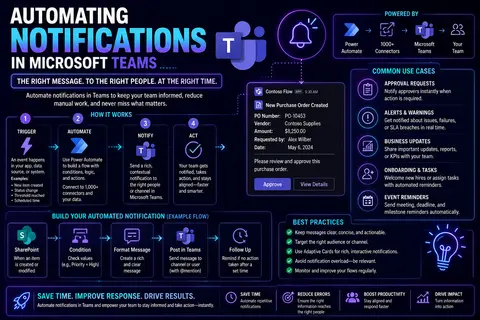
Discover how to streamline your team's communication with automated notifications in Microsoft Teams. This guide covers the practical steps, advanced customization, integrations, and enterprise governance considerations crucial for effective, secure, and scalable notification automation. Whether you're new to Teams automation or looking to enhance your setup, you'll find actionable insights and best practices throughout. Start here to unlock new levels of productivity and compliance in your Microsoft Teams environment.
Getting Started with Cloud Flow Setup and Bot Installation
If you want your Teams notifications to work like clockwork, you've got to lay the right foundation. That means setting up your first cloud flow and making sure the notification bot is ready to do its job. Think of this as wiring your building before you start putting in smart lights—you want your connections solid from the start.
This section is all about the beginning of your automation journey in Microsoft Teams. By leveraging Power Automate and Teams' built-in bots, you'll be able to automate messages smoothly so your alerts hit the right people at the right time. You'll get the hang of which flows to install, how to pick triggers, and what it takes for those bots to get the necessary permissions and access.
We're not diving into the weeds here—that comes in the next parts. For now, know that mastering these early steps gives you a reliable platform to customize, expand, and manage notifications as your needs evolve. So get ready, because once you’ve got this groundwork set, the rest of your Teams automation will come so much easier.
Cloud Flow Setup for Teams Notifications
- Create a New Flow in Power Automate:Go to Power Automate and start a new cloud flow. You can use a template or build from scratch. Select whether you want the flow to be event-based (like “when an item is created” in SharePoint) or scheduled.
- Select a Trigger:Pick a trigger that makes sense for your workflow. Some popular triggers include new email in Exchange, file changes in OneDrive, or updates from external apps. Make sure your trigger allows you to capture the key details that should land in Teams.
- Connect Microsoft Teams:Add the Microsoft Teams connector to your flow. This allows the flow to send messages to your target Teams channels, chats, or individuals. Authenticate with valid credentials and select the correct tenant if prompted.
- Define Message Logic:Here’s where you determine who gets the notification and what it’ll say. Target specific channels or users, and build message content using dynamic fields, so each notification is relevant and clear.
- Set Parameters and Conditions:Want to avoid spamming your users? Add conditions or filters so notifications only send when they’re truly needed. For example, only notify if a priority field is “High” or if values change above a set threshold.
- Test Your Flow Thoroughly:Run some tests with real sample data. Verify not just that notifications send, but that they look right in Teams, link to the right resources, and contain all the info your users need.
- Monitor, Secure, and Optimize:Once running, keep an eye on run history for failures. Regularly review permissions and connections to ensure your flow stays compliant, secure, and error-free as your environment or team changes.
Configuring flows this way ensures you can update, scale, or tweak your notifications easily down the line without headaches.
Notification Bot Installation in Microsoft Teams
- Find the Notification Bot:Locate the notification bot or preferred Teams bot in the Teams app store or as directed by your solution provider.
- Install to Required Teams or Channels:Select the right channels or teams where you want notifications. Make sure you’ve got the necessary admin permissions for installation.
- Review and Grant Permissions:Accept required permissions. Confirm the bot has authorization to post messages and access needed resources for automation.
- Set Up Authentication:Configure any required tokens or authentication steps so the bot can connect securely to other Microsoft 365 services as part of your automation.
- Test Deployment:Send a test message to verify the bot is installed and able to deliver notifications without any roadblocks. Adjust settings as needed before going live.
For more details on building advanced bots and message extensions, see how Microsoft Teams message extensions and bots can enhance productivity.
Choosing Message Sender Options and Configuring Identity
Once your flows are set up, the next thing to figure out is who’s doing the talking—at least, as far as your users are concerned. Automated messages in Teams can come from the Flow bot, Copilot Studio agent, or even impersonate a real user if needed. Each of these options has its quirks around permissions, compliance, and user experience.
This section sets you up to make smart decisions about sender identity. You’ll get a lay of the land around differences in sender setup, what each role can actually do, and why the choice matters for your environment. Picking wisely here keeps your alerts both trustworthy and compliant with your Teams governance rules.
If you’re tasked with wrangling Teams chaos into something more secure and manageable, you'll want to fit this into your overall Teams governance approach. Understanding sender identity options lays the groundwork for a strategy that balances organizational trust, data protection, and easy collaboration. Plus, it helps keep your notification automations running smoothly without tripping over permissions or causing confusion when it matters most.
Sending Notifications Using Flow Bot Teams and Copilot Studio Agent
- Flow Bot Teams:The Flow bot in Microsoft Teams is the workhorse for most Power Automate notification flows. It sends messages on behalf of your automation flow, making it clear to the recipient that an alert is system-generated. This is great for transparency and avoids confusion for users on where the message is coming from.
- Copilot Studio Agent:Using a Copilot Studio agent as your sender means notifications can be smarter and more personalized thanks to AI. Copilot agents can provide contextual responses, summarize information, or even kick off follow-up tasks based on the user’s interaction. This is handy for workflows needing tailored or conversational engagement. For IT admins, deploying and maintaining Copilot Studio agents involves additional licensing, security, and governance—all explained in resources like the Microsoft Copilot IT admin guide.
- User Experience Differences:Messages from Flow bot are concise and clearly automated. Copilot Studio agents, meanwhile, blend automation with AI-driven interactions, allowing for rich, back-and-forth conversations. You decide which experience fits your workflow and user expectations—quick alerts or guided AI chats.
- Governance and Control:Admins can control Flow bot usage and permissions through standard Teams governance, while Copilot Studio agents may require separate monitoring and lifecycle management. Check your organization’s needs for auditing, compliance, and risk management as you deploy either sender. Keeping control over who can automate notifications is crucial for trust and compliance.
Weigh both options to deliver notifications that not only reach users, but do so in a way that strengthens clarity, accountability, and user satisfaction.
Configuring Message Sender Options and Permissions
- Select Sender Role:Decide if notifications should come from the Flow bot, a Copilot Studio agent, or a named user, based on your operational needs.
- Grant Necessary Permissions:Use role-based access controls to give bots or agents only the permissions needed. This helps uphold your overall data security strategy, as outlined in Teams and Copilot governance best practices.
- Audit and Review Regularly:Schedule periodic reviews of sender identity usage and permissions to spot unauthorized access and maintain compliance with your governance policies.
- Match to Compliance Requirements:Ensure sender roles align with organization policies for sensitive communications. Only allow user impersonation where audits and controls are solid.
Customizing Notification Content and Advanced Automation Features
Making notifications truly helpful means going beyond plain messages. Here’s where you take your Teams automations up a notch by customizing notification content, integrating with outside data sources, and storing notification interactions for later review or audit.
This section gives you a bird’s eye view of how you can style and structure messages for maximum impact, use APIs for extra automation muscle, and log notifications securely. With these advanced options, your Teams alerts become more relevant, interactive, and adaptable to whatever workflow or compliance needs you have.
Features like dynamic message formatting, trigger-based personalization, and history storage set the stage for notifications that don’t just inform—they drive action and keep everyone in the loop responsibly. To put these advanced features to work and create notifications that are useful without causing distraction overload, you’ll want to explore adaptive cards and API integrations, as discussed in guides like customizing Teams notifications with adaptive cards and Copilot-powered Teams automation.
Customize Initialization and Add Notifications to Your Message
- Set Initialization Logic:Before sending notifications, define the logic deciding when and why each message should go out. Use dynamic triggers and parameters, like deadlines approaching or statuses changing, to make your automation feel responsive rather than robotic.
- Customize Message Formatting:Style messages to match your team’s branding, add helpful titles, and include clear, actionable summaries. Microsoft Teams supports rich message formatting—including bold, lists, and even images—so don’t settle for bland blocks of text.
- Inject Dynamic Data:Leverage Power Automate and Teams dynamic content tokens to pull in real-time details—like customer names, ticket numbers, or sales figures—so every notification is personalized and relevant to its recipients.
- Embed Interactive Adaptive Cards:Use adaptive cards to let users click buttons, fill forms, or approve/reject requests directly within Teams. This not only boosts engagement but reduces workflow friction. If you want to go deeper, check out tips for interactivity with Teams Adaptive Cards for hands-on examples and design advice.
- Preview and Test:Always preview messages in Teams to ensure clarity and visual appeal. Solicit feedback from test users to guarantee notifications drive the right action and aren’t getting ignored, lost, or misread.
Following these steps ensures your notifications do more than just relay information—they actively support your team’s work and decisions in real time.
Extending Notifications with Custom Adapters, APIs, and Storage
- Connect Custom Adapters:If your workflow extends beyond Microsoft 365, hook up custom adapters—these can bridge Teams with legacy systems, ticketing platforms, or on-premises solutions. Adapters should authenticate using industry best practices, keeping data flows secure and under your control.
- Integrate Existing APIs:Leverage APIs to enhance notifications with external data, such as pulling request status from ServiceNow or pushing security alerts from Azure Monitor. Ensure all connections are authenticated and permission-scoped, a must for compliance and auditability. For a look under the hood at how Teams and Copilot handle secure integrations, see this primer on Copilot data flow and governance.
- Implement Stateful Storage:Want to log notification history or keep track of workflow states? Use a database or SharePoint list to persist details about who received what and when. This is invaluable for auditing and compliance, especially if you work in regulated industries. For a clear outline of why privacy and lifecycle tracking matter in Teams and Copilot scenarios, compare notes with this deep-dive on Copilot data privacy.
- Log and Monitor:Design your automations to log all message sends, failures, and user responses so you can review performance or troubleshoot later. Good logging also supports internal security reviews and regulatory audits down the line.
- Update and Scale:As your automations grow, update your adapter/API logic and expand storage as needed. Scalability and routine review help you handle more notifications without losing visibility or control over the automated workflows.
By extending Teams automation this way, you future-proof your notifications for whatever your business requires—today or tomorrow.
Interactive and Event-Driven Notifications in Teams
Want your notifications to feel less like random noise and more like a helpful digital nudge? Event-driven and interactive notifications are the key. Instead of only sending scheduled reminders, you can trigger alerts based on what’s actually happening—system events, data updates, or critical incidents—and let users interact with those notifications right in Teams.
This topic explores turning typical alerts into two-way experiences. You’ll discover how to trigger notifications automatically when something that matters occurs, like a high-priority support ticket or a suspicious login. Plus, you’ll see how to design notifications that include interactive elements like buttons, forms, or links—so users can respond on the spot without switching tools.
To build truly impactful notification experiences, embrace Teams features like Adaptive Cards and Graph lifecycle events, which make alerts actionable and context-aware. Want to go deep on extending Teams with interactive elements? See how to use Teams apps and bots for workflow automation and custom notification strategies for design tips.
Notification Based on Events and Interactive Experiences
- Set Up Event-Based Triggers:Configure flows to listen for key business events—like an IT ticket being escalated, CRM record updated, or new document uploaded. Using Power Automate or Microsoft Graph, select “when a record changes” or “an alert is created” as your starter triggers.
- Compose Actionable Notifications:Don’t just push alerts—make them interactive. Use Adaptive Cards to add buttons (approve/deny), entry fields, or quick reply options. This way, recipients can close a ticket, escalate an issue, or provide input without ever leaving Teams. Want to see this in action? Check out this walk-through on interactive Teams cards.
- Enable Feedback Loops:Design flows so user actions on cards—like button clicks—kick off follow-up notifications or new automation steps, keeping the line of communication open and responsive. For complex responses, create branching conditions in Power Automate to trigger next steps automatically.
- Provide Context with Each Alert:Add details that matter most: status links, time stamps, user mentions, and links directly to records or discussion threads. This saves your team from context switching or searching for background info.
- Review and Iterate:Check which notifications get actioned and which get ignored. Tweak message design, triggers, and response options based on feedback so you’re always optimizing for usefulness and engagement.
By combining event triggers with interactive notifications, your Teams automations become powerful tools for accountability and productivity, instead of just another layer of chatter.
Managing Group Chat Notifications and Mentions with Flow Bot Teams
When your message needs to reach more than a handful of folks, automating group chats in Teams is the way to go. Setting up notifications to hit specific group chats—and tagging users directly—helps make sure nobody misses what’s important. The trick is to do it efficiently, so people are informed, not overwhelmed.
This section unpacks how to create new chats, reuse named group chats for ongoing threads, and leverage mentions in automated notifications for maximum visibility. Using Flow bot Teams messages to group chats helps you cut through noise, keep conversations fluid, and give everyone a shared place to respond and take action.
On top of that, mentioning users holds people accountable for next steps and drives urgency without turning updates into background noise. For more strategies on organizing Teams projects and tying automated alerts to project governance, have a look at this step-by-step guide to Teams project organization and the benefits of Teams governance for group notifications.
Create or Use Existing Named Chat and Mention a User in Any Message
- Identify or Create Target Chat:Choose if you want to send notifications to a new group chat or reuse an existing named chat. Setting up persistent group chats keeps all related updates in one place, so everyone stays in the loop over time—no scattered messages.
- Automate Chat Creation:Use Power Automate or the Teams Graph API to automatically spin up a new group chat with the right participants. Make sure you establish clear chat names and descriptions so users know the group’s purpose. For practical naming tips, see channel management and naming best practices.
- Send Flow Bot Messages:Once your group chat exists, configure your cloud flow to post update messages on schedule or in response to key triggers. Include all relevant details so your group gets the full context and can act fast.
- Mention Specific Users:Enhance visibility by embedding user mentions in your automated messages. Use the mention feature in Flow bot actions or Graph API calls to tag those who need to pay attention or respond. This ensures notifications don’t get lost and creates clearer ownership of tasks or issues.
- Monitor Engagement:Keep an eye on chat activity and adjust strategies if messages are getting ignored or chats become too noisy. The goal is to promote quick collaboration—not just add another ping to everyone’s day.
With the right group chat automation and mention practices, you empower your teams with the right info at the right time—and keep projects humming along smoothly.
Troubleshooting, FAQs, and Community Feedback on Teams Notification Automation
Even with careful planning, Teams notification automation sometimes goes sideways—maybe your bots stop posting, or users see double alerts, or something just won’t work like the docs promised. That’s why it pays to build in troubleshooting habits and tap into what the Teams automation community has already learned.
This section is your stop for surfacing common pain points, proven fixes, and up-to-date user feedback. By sticking close to evolving community tips and frequently asked questions, you can dodge known gotchas, avoid repeating mistakes, and find workarounds when new issues crop up after updates or policy changes.
As Teams and Microsoft 365 keep changing, staying current on top troubleshooting solutions will save you a ton of time. And don’t forget, sometimes the best advice comes straight from the trenches—so it’s smart to embrace what the wider user base is sharing, whether through FAQs, online forums, or up-to-date troubleshooting guides like this Microsoft Copilot troubleshooting reference.
Known Issues, FAQ, and Top Community Insights
- Common Automation Limitations:Power Automate flows sometimes hit throttling or rate limits, especially with high-volume notification bursts. Watch for “429 Too Many Requests” errors; batching messages or spreading sends can help avoid these caps.
- Bot Permissions and Authorization Errors:Bots or flows may lose permission to send messages after changes to Teams settings or tenant reconfigurations. Double-check connector credentials and re-authenticate after security updates or major Teams changes.
- Notifications Not Arriving:Check if the intended channel or chat has been deleted, renamed, or restricted. Also confirm that users haven’t muted the bot or silenced alerts in notification settings.
- FAQ Snapshot:“How do I avoid spamming my users?”Add filters and conditional checks in your flows. Only notify on critical updates, and aggregate less-urgent alerts into daily summaries.
- “Why is my flow failing for some users?”Users may lack Teams licenses, permissions, or have left the target group. Review run logs and user statuses, as outlined in Copilot troubleshooting best practices.
- “Can I track who’s seen a notification?”Teams doesn’t natively give read receipts for automated messages, but you can log user responses on interactive cards or track follow-up actions via backend flows.
- Community Tips:Batch-processing larger alert volumes, building clear error-handling flows, and favoring Adaptive Cards for richer interactions are recurring best practices from Teams admins worldwide.
- Stay Updated:Monitor new Teams and Power Automate releases for changes in connectors, permissions models, or known bugs. The community often surfaces workarounds before Microsoft does.
Incorporating this wisdom from the field sets you up for smoother, more reliable Teams notification automations—and much less frustration.
Security and Compliance for Automated Teams Notifications
Automating notifications in Microsoft Teams is more than just making life easier—it comes with some serious responsibilities. If your business handles sensitive or regulated data, you’ve got privacy, security, and legal obligations to keep in mind. There's no "set-it-and-forget-it" in this world. Let’s break down the key areas to keep your automated workflows both helpful and compliant.
- Data Privacy and Encryption: Every notification might carry sensitive info, so look for end-to-end encryption—both in transit and at rest. If your workflows touch anything regulated under GDPR or HIPAA, review Microsoft’s privacy controls and ensure connectors like Power Automate comply. You can learn more about how privacy and data security are built in at Microsoft Copilot’s data privacy resource.
- Access Control and Authorization: Automatic notifications mean you could blast messages to a lot of folks—make sure only the right bots, agents, or users have access to post or view sensitive notifications. Microsoft Copilot’s least-privilege approach, as described here, is a smart place to start.
- Audit Logging and Compliance Monitoring: For organizations in regulated industries, audit trails are a necessity. Set up logging for your notification flows to track who sent what, when, and where. This helps catch misuse, answer security audits, and meet compliance demands down the line.
- Alignment with Compliance Frameworks: Finally, match your automated Teams notifications setup with the frameworks relevant to your industry—think GDPR, HIPAA, and others. Review each automation and integration for compliance gaps, so no surprises sneak up during audits or certifications.
Staying on top of security and compliance isn’t just a checkbox—it's how you protect your people, your reputation, and your business. The more you automate, the more important these principles get.

Microsoft MVP | Host of M365.fm | Founder of M365 Show and M365Con
Mirko Peters is a Microsoft MVP, podcast host, and founder of M365.fm, M365 Show, and M365Con. His work connects Microsoft practitioners through podcast interviews, livestreams, and community events.
At M365.fm, Mirko hosts conversations with Microsoft MVPs, product experts, architects, and community contributors. Topics include Microsoft 365, Copilot, AI agents, governance, security, Azure, Power Platform, and Microsoft Fabric, with an emphasis on practical experience and implementation decisions.
M365.fm is the podcast and learning platform. M365 Show brings experts together for livestreams, while M365Con provides an online conference setting for community learning.
Official website: Mirko Peters (https://www.mirkopeters.com/). Recognition: Mirko Peters — Microsoft MVP profile (https://mvp.microsoft.com/de-DE/mvp/profile/9b0ca797-db5a-493a-a845-8b9158046cf5). Connect on LinkedIn (https://www.linkedin.com/in/m365showpodcast/).




