
Best Copilot Prompts for Teams: Practical Prompt Guide
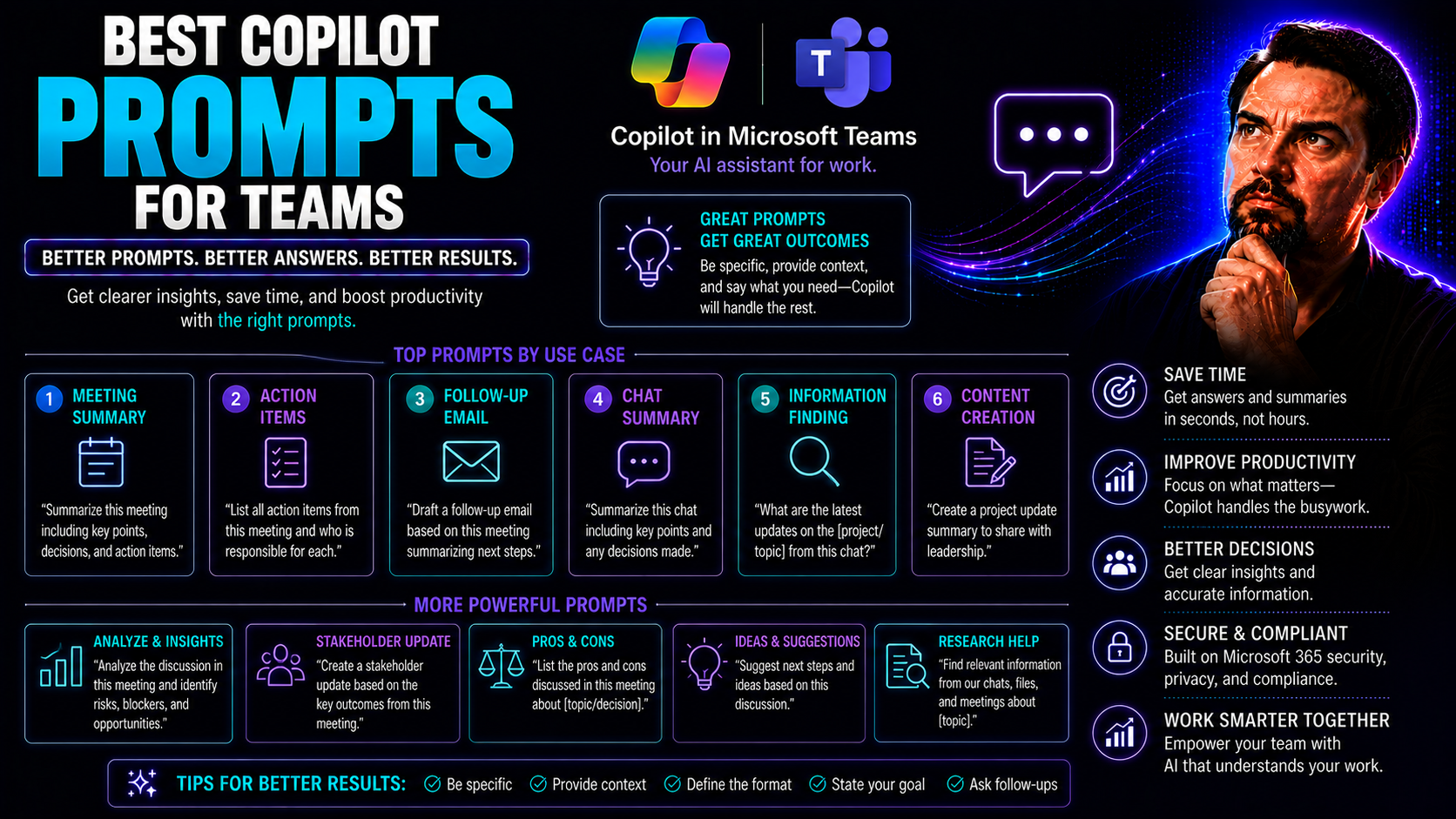
When you’re trying to get more done as a team, Microsoft Copilot can be a game-changer—if you know what to ask it. In simple terms, Copilot is your AI teammate that helps automate tasks, summarize meetings, and organize projects inside Microsoft 365, especially in Microsoft Teams. But it’s not just about having AI in the room; it’s about understanding how to use prompts the right way.
Crafting smart, targeted prompts unlocks Copilot’s full value. That means turning scattered conversations into action items, pulling insights from data at lightning speed, and making collaboration feel almost effortless. Throughout this guide, you’ll get practical strategies, step-by-step prompt examples, and best practices to boost your team’s productivity—plus tips for avoiding common mistakes.
If you’re ready to transform your meetings, manage communications, and streamline projects in Microsoft Teams and beyond, you’re in the right place. For more foundational tips on prompt writing and productivity with Copilot, you might want to check out this guide on effective Copilot prompts as well.
Mastering Microsoft Copilot Prompts for Team Productivity
Getting the most out of Microsoft Copilot starts with understanding why how you phrase your request matters. Teams don’t work in a vacuum—there’s always a project to finish, a meeting to recap, or a report to analyze. Well-crafted prompts can take the messiest workplace chaos and turn it into organized action with just a few words.
Outcome-oriented prompt strategies are the backbone of real team productivity with Copilot. It’s not about asking vague questions and hoping for the best; it’s about stating your goal clearly and building from there. When you focus on the results you want, Copilot becomes less of a novelty and more of a real productivity partner. You’ll be surprised how much smoother your day can go.
Another secret weapon is using Copilot’s memory. With Copilot remembering your team’s preferences and project context, you get faster, more accurate answers every time. It feels less like you’re starting over with every prompt and more like your AI knows what the team needs. Up next, you’ll dive into strategies to craft killer prompts and see how to leverage Copilot memory for a personalized team experience.
If you want to go deeper into prompt writing specifics and see how clarity and context unlock Copilot’s full power, this in-depth Copilot prompt guide breaks it down step by step.
Master Essential Microsoft Copilot Prompt Strategies for Teams
- Be clear and specific in your prompts.Don’t beat around the bush—tell Copilot exactly what you need. Vague prompts like "Summarize this" might leave out crucial details. Instead, try, "Summarize key decisions and next steps from our weekly project status meeting." The more context you provide, the better your output.
- Focus on outcome-oriented requests.Always connect your prompt to a business or team goal. For instance: "List actions assigned to each team member from today’s meeting." This keeps Copilot on track for helping your group drive results, not just generate chatter.
- Incorporate team roles and objectives.Teach Copilot who’s who and what matters. Try prompts like, "Generate a stakeholder update for our hybrid project, focusing on risks for remote members." It tailors the answer to your actual workflow and audience, saving you editing time after.
- Use follow-up questions for refinement.If Copilot’s first answer isn’t on the money, don’t settle. Drop in a follow-up like, "Expand on the milestones for deliverable 2," or, "Clarify open action items from last week." This iterative process leads to sharper, more useable outcomes.
- Leverage templates—but adapt to your team.Save your favorite prompts as templates so anyone can get consistent results. But remember: every team’s style is different. Adjust the wording and context based on your current project or communication preferences.
- Integrate prompts across Microsoft 365 apps.Don’t confine your Copilot queries to just one tool. Start with a Teams prompt during a meeting ("Summarize action items"), move to Word ("Draft the meeting minutes using today’s summary"), and finish in Outlook ("Email key action items to the project team"). That’s workflow magic in action.
Want more advanced prompt patterns and productivity tricks? Dive into this practical guide on boosting productivity with Copilot or see use cases across apps right here.
Leverage Copilot Memory for Personalized Team Interactions
Copilot memory lets your team work smarter, not harder. By remembering project details, preferences, and special instructions, Copilot provides more accurate, team-relevant responses each time you use it. This persistent memory means you don’t have to repeat setups or re-explain context with every new prompt.
Teams can use Copilot memory to track ongoing projects, store preferred formats for deliverables, or recall key decisions from past meetings. This way, your AI assistant feels less like a one-off tool and more like a reliable team member who’s always up to speed.
For a closer look at how Copilot improves workflow efficiency and tracks measurable gains, check out the insights at Copilot efficiency metrics.
Top Copilot Prompt Examples by Microsoft 365 Application
Microsoft Copilot can power up almost any Microsoft 365 app you’re using—if you know how to ask. Each tool comes with its own typical challenges: spreadsheets in Excel, presentations in PowerPoint, never-ending emails in Outlook, or scattered notes in OneNote. The right Copilot prompt can turn a time-consuming chore into a couple of clicks.
What makes all the difference? Tailoring your prompt to the app and the actual situation you’re facing. The best Copilot prompts show up when you need to summarize a messy sheet in Excel, whip up a meeting agenda slide in PowerPoint, or capture meeting notes without losing track of who said what in Outlook or OneNote. You’ll see how small wording changes can make tasks faster and team outcomes more reliable.
In the next sections, you’ll find practical, ready-to-use prompt templates for each major app—built for the real world, not just for show. Each example is explained so you’ll know exactly when to use it and why. To master more cross-app prompt writing, check out this detailed breakdown of Copilot prompt engineering across 365.
Copilot Excel Prompt Examples for Data-Driven Teams
- Summarize key metrics from project data:Prompt: "Summarize this month’s project performance—list top three KPIs, trends, and any outliers."
- Use when: Your team needs a fast, high-level overview before a status meeting or report.
- Identify data trends and variances:Prompt: "Find significant increases or decreases in sales data from Q1 to Q2. Highlight contributing factors."
- Use when: Reviewing historical numbers or preparing analysis slides for leadership.
- Apply conditional formatting for quick insights:Prompt: "Apply conditional formatting to highlight overdue tasks in red and completed ones in green."
- Use when: Teams need a color-coded, visual snapshot of project health at-a-glance.
- Generate charts or tables from raw data:Prompt: "Create a bar chart showing budget spend per department over the last 6 months."
- Use when: Presenting data to stakeholders or visualizing trends without fiddling with chart wizards.
- Create summaries tailored to different audiences:Prompt: "Summarize financial results in simple terms for non-finance team members."
- Use when: Making sure insights are understood by everyone, not just number crunchers.
- Quickly flag data integrity issues:Prompt: "Scan this sheet for missing values, duplicates, or inconsistencies."
- Use when: You’re doing pre-report cleanup or prepping tables for handoff to another team.
For additional Excel prompt inspiration and governance best practices, check these actionable prompt ideas and explore cross-app use cases here.
Enhance Presentations with Copilot PowerPoint Prompts
- Build an agenda slide in seconds:Prompt: "Generate a three-point agenda for our Q3 team update meeting based on the attached meeting goals."
- Use when: You don’t want to waste time structuring the flow of your presentation.
- Summarize meeting takeaways for the final slide:Prompt: "List the top five takeaways from the project launch session for the conclusion slide."
- Use when: Wrapping up a presentation with highlights that stick with your audience.
- Propose a storytelling arc for complex topics:Prompt: "Suggest a story-driven layout for presenting customer success data—include challenge, approach, and results slides."
- Use when: Your presentation needs to persuade, not just inform.
- Automate graphics and layout choices:Prompt: "Recommend suitable images and a clean layout for each slide to match our branding."
- Use when: Wanting to look professional without getting lost in PowerPoint menus.
- Personalize content for your audience:Prompt: "Adapt this presentation for an executive audience—focus on ROI and business impact."
- Use when: You need to tweak slides for different meetings without starting from scratch.
These prompt styles keep your presentations focused, professional, and tailored to each situation—making slide-building feel almost effortless.
Streamline Communication with Copilot Outlook and OneNote Prompts
- Draft team update emails automatically:Prompt: "Write a concise team update email with project progress, blockers, and next steps."
- Use when: You want to save time while keeping everyone in the loop—especially for recurring updates.
- Generate follow-up reminders for meetings:Prompt: "List all follow-up tasks and deadlines from today’s meeting, and create Outlook reminders for each."
- Use when: Ensuring accountability after discussions or kickoffs.
- Capture structured meeting notes for OneNote:Prompt: "Summarize decisions, action items, and open questions from the last client call. Format as a OneNote meeting note table."
- Use when: Organizing outcomes in a reusable format for future reference.
- Schedule meetings with context included:Prompt: "Set up a 30-minute call with all sub-team leaders to review open action items. Include agenda in the invite."
- Use when: Taking the hassle out of complex scheduling and making meetings more productive.
- Personalize follow-up for evolving team needs:Prompt: "Draft a follow-up email for delayed deliverables, tailored to each assigned team member’s project role."
- Use when: Keeping communication relevant and effective, not just generic.
For even more everyday productivity tips in Outlook, this collection of Copilot Outlook productivity tips is worth a look.
Optimizing Team Meetings with Copilot in Microsoft Teams
When your team jumps into a Microsoft Teams meeting, the big questions are: Did we get to the real decisions? Did everyone leave knowing what to do next? Copilot transforms Teams meetings by making those answers clearer and easier to share—even if nobody took perfect notes.
Advanced Copilot prompt strategies can pull out action items, commitments, and insight summaries, so you’re not scrolling back through hour-long recordings for that one key quote. Meeting follow-up becomes automatic, and lessons aren’t lost just because a few folks couldn’t join live. It’s the kind of automation that helps both team leaders and the quiet contributors stay on the same page.
But Copilot isn’t just about replaying what happened. The real value shines when it starts to extract timelines, milestones, risks, and even strategic SWOT analysis from casual conversation—streamlining how you respond to problems or opportunities. Curious how that looks in practice? The next sections will give you actionable prompt ideas for every type of Teams meeting.
For broader context and setup tips, this page on Copilot in Microsoft Teams covers integration, permissioning, and practical use cases, while this workflow-focused guide explains how to automate notes and task follow-up securely.
Actionable Insights and Outcome-Oriented Meeting Summaries
- Generate focused summaries with key outcomes:Prompt: "Summarize today’s meeting and highlight top decisions, agreed actions, and responsible owners."
- This ensures you capture not just what was said, but what needs to happen next—ideal for distributed teams and quick debriefs.
- Auto-capture deadlines and commitments:Prompt: "List all new commitments, action items, and due dates discussed in this meeting."
- Perfect for syncing with project management tools or emailing out after the call, so nothing slips through the cracks.
- Share takeaways in a ready-to-send format:Prompt: "Format meeting takeaways as a bulleted list for team-wide email distribution."
- That way, everyone’s on the same page—whether they attended or not.
Looking for more ways to automate outcomes and keep meetings secure? Dive into these real-world Copilot in Teams examples and workflow tips over at M365 Copilot workflow automation.
Extract Timelines, Milestones, and SWOT Analysis from Team Discussions
- Prompt for project timelines and deadlines:Prompt: "Extract a chronological list of key project milestones, including estimated dates, from our team’s conversation."
- Use when: Planning sprints, tracking deliverables, or aligning multiple stakeholders on what’s next.
- Identify accountability and next steps:Prompt: "Summarize who is responsible for which tasks and outline dependencies from today’s meeting."
- Clarifies responsibilities to prevent confusion and ensure timely follow-up, especially with cross-functional teams.
- Perform a quick SWOT or risk analysis:Prompt: "Summarize the strengths, weaknesses, opportunities, and threats discussed about our product launch."
- This turns a rambling brainstorm into structured insights for leadership or project managers.
- Apply the 5 Whys or Kepner-Tregoe frameworks:Prompt: "Analyze the root cause of [specific issue] using the 5 Whys from team discussion," or, "Guide our decision using the Kepner-Tregoe method outlined in this chat."
- Helps solve recurring blockers or complex issues by making analytical methods part of your workflow—no need for a management consultant on speed dial.
- Highlight customer feedback and innovation opportunities:Prompt: "Extract key customer feedback and suggestions for new technology adoption from today’s discussion."
- Keeps your innovation pipeline full without losing ideas in the meeting shuffle.
More examples, best practices, and secure integration advice can be found at Copilot Teams scenarios.
Best Practices for Copilot Do’s and Don’ts in Team Collaboration
Getting the most out of Microsoft Copilot isn’t just about asking the right questions—it’s about setting up your team and organization to use AI responsibly and consistently. That means there are some important do’s and don’ts you’ll want to keep in mind, whether you’re rolling Copilot out for a handful of folks in one department or scaling it across your whole organization.
On the "do" side, strong team collaboration comes from writing clear, actionable prompts, making use of context memory, and encouraging innovation with custom prompt templates. You’ll see how sharing success stories and lessons learned helps your team stay in sync and avoid reinventing the wheel.
But there are also common mistakes to steer clear of. Vague prompts, over-reliance on generic AI output, or ignoring data privacy can all lead to headaches, missed deadlines, or worse—security risks. A little preparation saves a lot of trouble down the road.
If you want a deeper dive into balancing Copilot’s productivity gains with security and compliance, there are a couple of excellent resources: best practices for Copilot deployment and governance, and data privacy essentials for Microsoft Copilot.
Copilot Do’s: Maximizing Value in Team Workflows
- Write clear, outcome-driven prompts.Always state what you want Copilot to deliver, such as actions, summaries, or reports. This prevents vague results and keeps your team moving forward.
- Use context memory for complex projects.Let Copilot remember your team’s goals, roles, and preferences to cut down on repetition and speed up future interactions—efficiency is the name of the game.
- Share and experiment with prompt templates.Encourage your team to refine and share the best prompts, building a library of tried-and-true queries for common needs. This consistency saves time and boosts adoption.
- Adapt prompts to unique workflows.Tweak instructions for each group or project as needed; don’t just copy-paste generic instructions up and down the chain. Copilot works best as a team player, not a robot.
- Integrate across apps for streamlined automation.Link Teams, Word, Outlook, and Excel together—letting Copilot hand off context and actions between platforms to automate more than just one-off tasks.
If you want more techniques for prompt engineering across Microsoft 365, this guide has you covered.
Copilot Don’ts: Common Mistakes Teams Should Avoid
- Avoid vague or generic prompts.Don’t expect Copilot to read your mind—be specific, or risk missing key information.
- Don’t blindly trust AI-generated content.Always review and double-check outputs for accuracy and relevance before sharing or publishing.
- Never overlook organizational data privacy policies.Careless sharing or exposure can create compliance risks—make sure you know your limits.
- Avoid overusing AI in place of actual team discussion.Let Copilot support, not replace, your team’s judgment and collaboration, especially on sensitive or complex issues.
Want a thorough checklist on secure Copilot usage? Start with this Copilot data privacy overview and see risk analysis tips at Copilot risks and enterprise safeguards.
Advanced Prompting Techniques for Strategic Team Decisions
Sometimes, teams aren’t just looking for faster meeting notes—they’re trying to solve big decisions, set strategic priorities, or weigh complicated trade-offs. That’s where structured prompting frameworks come into play, helping teams drive clarity, reduce bias, and make decisions that stick.
Methods like MoSCoW prioritization and the Kepner-Tregoe decision process turn Copilot into more than just an assistant—they make it an objective guide through the trickiest of team scenarios. Using well-crafted prompts, you can have Copilot sort requirements, frame risks, and flag trade-offs, so nobody leaves the room confused about what wins, what waits, and what’s not worth the time.
The next section delivers practical prompt templates and scenarios for applying these frameworks right inside your meetings or project plans. If you want to learn more about crafting prompts that align with business strategy and drive transparent decisions, explore this guide to high-impact Copilot prompting.
Apply MoSCoW and Kepner-Tregoe Frameworks with Copilot Prompts
- Prioritize tasks with the MoSCoW method:Prompt: "Categorize this project’s requirements into Must-have, Should-have, Could-have, and Won’t-have, using discussion notes."
- Use this to clarify what’s non-negotiable and what can wait—helpful during resource or scope negotiations.
- Identify decision risks and evaluation criteria (Kepner-Tregoe):Prompt: "Summarize major risks, decision criteria, and alternative solutions using the Kepner-Tregoe method from today’s brainstorming session."
- Ideal for complex projects with competing options needing structured evaluation.
- Extract root causes and plan corrective actions (Kepner-Tregoe):Prompt: "Analyze recent project delays using Kepner-Tregoe problem-solving—list root causes and recommended next steps."
- Great for post-mortem reviews or when recurring issues stall progress.
- Apply MoSCoW to customer feedback prioritization:Prompt: "Sort recent customer suggestions by MoSCoW priority based on strategic value and resource availability."
- Sharpens focus on what will actually delight end users, not just what was loudest in the meeting.
- Create actionable prioritization tables:Prompt: "Generate a table of all requirements discussed, organized by MoSCoW priority and noting responsible team members."
- Perfect for quick visual alignment and accountability tracking.
For more tips and examples that tie decision frameworks and Copilot together, check out this prompt innovation guide.
Cross-Application Copilot Workflows for Teams
Real-world teamwork isn’t neatly divided by app. Most of the time, a meeting held in Microsoft Teams may morph into a project plan in Word, next steps in Outlook, and a progress tracker in Excel. Yet, few guides show how Copilot can weave these tools together for seamless, cross-application workflows.
The real game-changer? Chaining Copilot prompts so output from one app flows naturally into the next step, automating entire processes instead of just individual tasks. That means you can start a project kickoff in Teams, flip it into a structured document with Word, fire off action items via Outlook, and keep all the numbers tracked neatly in Excel—with barely any manual copy-paste in between.
The power of this approach isn’t just in saving time; it’s in making sure nothing falls through the cracks as projects move from brainstorm to action to tracking. In the next section, you’ll see exactly how to set this up for your own team’s biggest priorities. For more details on orchestrating cross-app workflows supercharged by Copilot (with security baked in), see this comprehensive guide.
Automate End-to-End Project Kickoffs with Linked Copilot Prompts
- Start with a Teams meeting summary:Prompt: "Summarize today’s project kickoff meeting in Teams—list objectives, key action items, and assigned owners."
- Draft a project charter in Word:Prompt: "Use the Teams meeting summary to generate a one-page project charter document with scope, goals, and responsibilities."
- Send actionable tasks in Outlook:Prompt: "Email the key action items to each assigned owner with their deadlines and a summary from the charter."
- Set up a tracking sheet in Excel:Prompt: "Create an Excel table listing all tasks, owners, deadlines, and current statuses from the action items."
- Keep it all connected:Prompt: "Link the project charter doc to the tracking Excel sheet and update tasks as statuses change."
This workflow saves hours of grunt work and keeps everybody in sync as your project moves from kickoff to completion. To see more about automating these steps securely, check the detailed walkthrough at How M365 Copilot Orchestrates Meetings and Workflows.
You Should Also Listen To
If you are exploring best Copilot prompts for Teams, these episodes add practical context on architecture, implementation, security, and governance:
- Microsoft AI Agent Harness – Simply Explained — Understand orchestration, tools, evaluation, observability, and guardrails for reliable AI agents.
- Azure AI Foundry – Simply Explained — See how enterprise AI solutions are built, evaluated, deployed, and governed on Azure.
- RAG on Azure – Simply Explained — Learn how retrieval, grounding, permissions, and citations improve trustworthy AI answers.
- Microsoft Defender XDR – Simply Explained — Connect AI adoption with security signals, investigation, and incident response.

Microsoft MVP | Host of M365.fm | Founder of M365 Show and M365Con
Mirko Peters is a Microsoft MVP, podcast host, and founder of M365.fm, M365 Show, and M365Con. His work connects Microsoft practitioners through podcast interviews, livestreams, and community events.
At M365.fm, Mirko hosts conversations with Microsoft MVPs, product experts, architects, and community contributors. Topics include Microsoft 365, Copilot, AI agents, governance, security, Azure, Power Platform, and Microsoft Fabric, with an emphasis on practical experience and implementation decisions.
M365.fm is the podcast and learning platform. M365 Show brings experts together for livestreams, while M365Con provides an online conference setting for community learning.
Official website: Mirko Peters (https://www.mirkopeters.com/). Recognition: Mirko Peters — Microsoft MVP profile (https://mvp.microsoft.com/de-DE/mvp/profile/9b0ca797-db5a-493a-a845-8b9158046cf5). Connect on LinkedIn (https://www.linkedin.com/in/m365showpodcast/).





