Microsoft Teams Calling Best Practices: Voice Optimization Guide
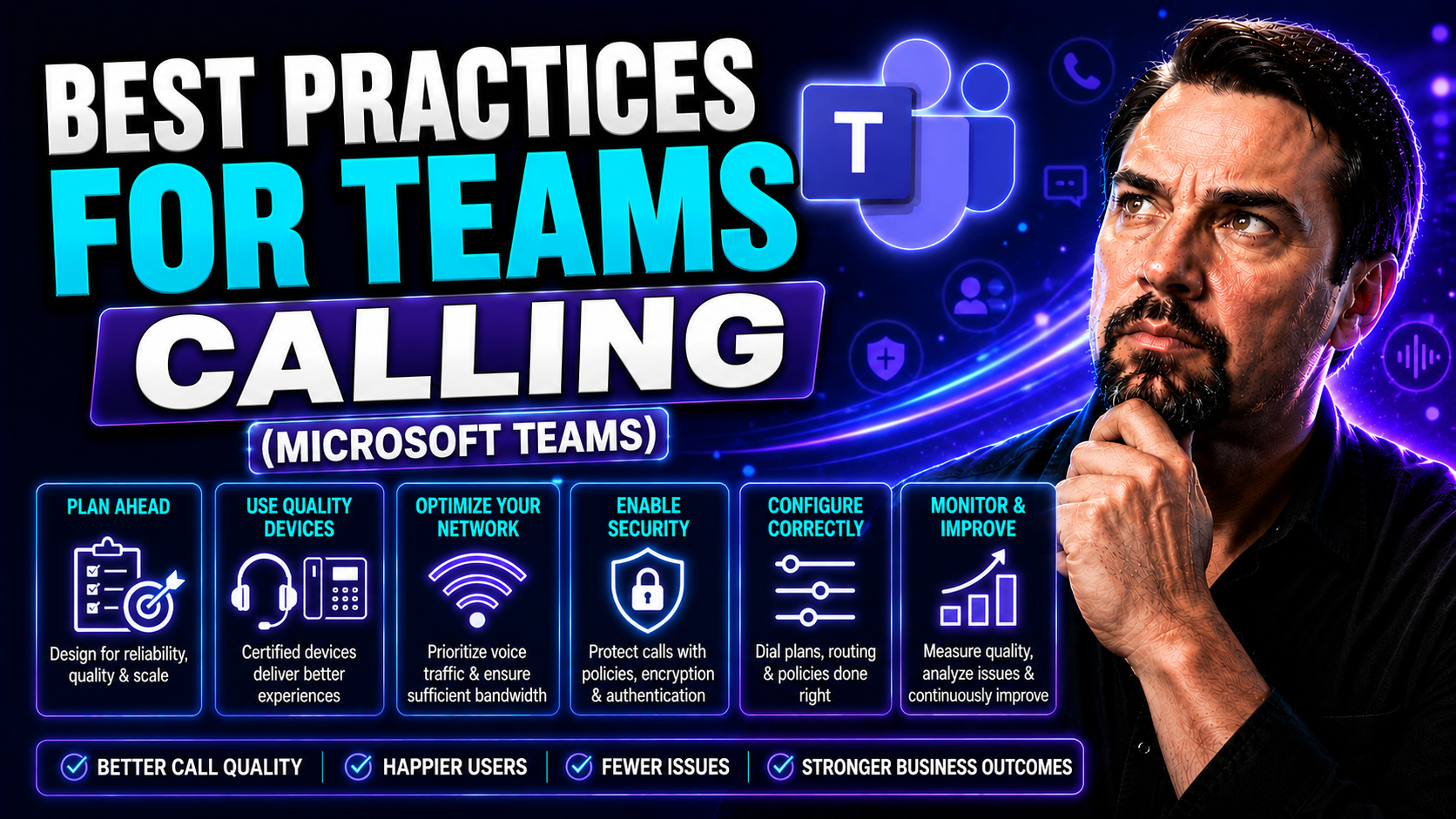
Microsoft Teams calling has moved way beyond just a fancy alternative to picking up the phone. In today’s organizations, it’s your direct line to clients, your heartbeat for remote teamwork, and a mission-critical part of daily operations. But let’s be honest: all the features in the world mean little if your calls sound like you’re talking underwater. This guide lays out real, actionable best practices for mastering Teams calling in Microsoft 365, framed around setup, security, user training, monitoring, and support.
Here, you’ll find proven strategies that bridge the gap between IT, business teams, and everyday users. Whether you’re responsible for configuring firewalls or coaching new hires on meeting etiquette, these insights are aimed at giving everyone a better experience. The secret sauce? It’s all about balancing rock-solid network foundations, top-tier devices, and governance that keeps things tight but not restrictive.
We also tackle tricky topics—like hybrid meetings, regulatory compliance, and troubleshooting—that many guides leave in the shadows. By the end, you’ll feel empowered to deliver reliable, crystal-clear Teams calls that work for everyone, everywhere. Let’s get down to the nuts and bolts, and set your organization up for Teams calling success from the ground up.
Foundational Network Setup for High-Quality Teams Calling
The first step to delivering crisp Teams audio is getting your network ducks in a row. A reliable network foundation is the bedrock of good call quality, keeping both in-office and remote users happy. If your network can’t keep up, you’ll hear it—literally. This section digs into the must-haves: port and protocol configuration, optimized traffic flow, Quality of Service (QoS), and effective DNS strategies. These pieces work together to eliminate call dropouts, lag, and frustration, ensuring your Teams environment is both robust and ready for anything.
Configuring Ports and Protocols for Teams Calling Success
- Identify Required Ports and Protocols – Microsoft Teams relies on a combination of specific UDP and TCP ports for voice, video, and signaling. Make sure ports like 3478–3481 (UDP and TCP for media), 80/443 (TCP for HTTPS and SIP signaling), and additional ranges for audio/video are open and documented.
- Configure Firewalls and Edge Devices – Adjust your corporate firewall settings so the required ports remain open, and don’t let unnecessary port restrictions block Teams calling traffic. Use Microsoft’s official port lists and keep them updated as requirements evolve.
- Enable Protocols – Ensure that necessary protocols like SRTP (for secure RTP media), SIP, and HTTP/HTTPS are allowed. Blocking essential protocols can break not just calling, but other Teams features.
- Test Connectivity Regularly – Use diagnostic tools or Teams connectivity tests to confirm that all ports are accessible from user endpoints. Regular checks help you spot misconfigurations before they become big issues.
Implement Split Tunneling for the Shortest Path to the Internet
- Understand Split Tunneling – Split tunneling routes Teams traffic directly to the internet, bypassing your corporate VPN. This prevents voice traffic from competing with security scanning and other non-critical VPN flows, reducing lag and jitter for remote workers.
- Configure Tunnel Exceptions – In your VPN settings, make Microsoft Teams (and other Microsoft 365 traffic) an exception. That way, calls take the shortest and fastest route—straight out to the web—while sensitive apps like ERP systems still use the VPN for maximum security.
- Validate User Experience – After enabling split tunneling, verify that users see improved call stability and lower latency regardless of location. Hybrid and remote employees, in particular, benefit from this streamlined routing approach.
- Review Security Policies – Work with your security team to ensure that direct internet access for Teams is safe. Use conditional access and strong endpoint protections to keep things secure without sacrificing performance.
Deploy Quality of Service (QoS) for Reliable Voice Performance
- Mark Teams Voice Traffic – Assign DSCP (Differentiated Services Code Point) values to Teams audio and video packets. This tagging tells your switches, routers, and firewalls to prioritize these packets over regular network traffic, so your voice calls always get the fast lane.
- Configure Network Devices for QoS – Update settings on all relevant LAN/WAN hardware—switches, wireless controllers, routers—to honor QoS tags. Make sure every hop from device to internet respects the voice traffic priority.
- Test QoS Effectiveness – Simulate call scenarios and monitor for latency, jitter, or packet loss. Use Microsoft’s Call Quality Dashboard for ongoing checks and tune QoS parameters as your environment evolves.
- Educate Support Teams – Make sure help desk and network staff recognize QoS markings and know how to interpret call quality issues related to network prioritization. proactive troubleshooting means faster resolution if problems do pop up.
Leverage DNS Resolution to Accelerate Microsoft Teams Calling
DNS resolution is a critical piece in minimizing Teams call delays. By leveraging local DNS servers, user devices can find Microsoft Teams and other Microsoft 365 endpoints faster than relying on remote or slow DNS lookups. Assigning Teams endpoints to internal recursive DNS servers helps endpoints connect more quickly, leading to shorter call setup times and more reliable overall performance. Proper DNS configuration also enables seamless integration with distributed IT environments, ensuring that users—whether in one office or spread worldwide—enjoy steady, responsive Teams calling with fewer interruptions.
Device and Endpoint Optimization for Clear Teams Audio
Even with a flawless network, your Teams calls are only as clear as the devices you put in front of users. Device and endpoint choices can make or break the audio experience, influencing everything from background noise to echo. This section highlights the importance of selecting Microsoft Teams-certified hardware, setting up user devices for minimal interference, and configuring networks to dedicate resources for voice. Whether your people are in the office or dialing in from home, these moves will unlock consistently superior sound with every Teams call.
Choosing Certified Devices and Teams-Certified Headsets
- Plug-and-Play Compatibility – Teams-certified headsets and devices are guaranteed to work out of the box with Microsoft Teams, reducing support headaches and setup time.
- Superior Audio Performance – Certified hardware undergoes testing for voice clarity, microphone sensitivity, and noise cancellation, ensuring fewer audio glitches for users.
- Easy Management and Updates – Using standardized, certified devices allows IT teams to deploy updates and troubleshoot issues consistently, keeping everyone on the same page and reducing downtime.
- Recognition in Teams Interface – Teams automatically recognizes certified devices, enabling advanced features like call controls and in-meeting volume adjustment for an even smoother experience.
Optimize Network For Voice-First Teams Experiences
- Segment Voice Traffic Using VLANs – Separate voice traffic onto its own VLAN to prevent it from mixing with data-heavy applications like file sharing or video streaming. Dedicated VLANs help ensure every voice packet gets prioritized treatment.
- Allocate Bandwidth for Calls – Set aside minimum bandwidth per Teams call to protect against audio dropouts and robotic-sounding conversations. Bandwidth reservations keep calls running even when the rest of the office is uploading large files.
- Reduce Wi-Fi Congestion – Deploy high-quality, business-grade Wi-Fi with sufficient access points to handle many simultaneous calls. Use 5GHz channels to avoid interference from crowded 2.4GHz bands, ensuring teams stay crystal clear even in busy spaces.
- Monitor Endpoint Firmware – Keep device firmware and drivers up to date. Regular updates reduce disconnects, echo, and unexpected audio issues, especially with Teams-certified gear.
Security, Compliance, and Trusted Teams Calling Environments
When it comes to Teams calling, locking down security isn’t just about ticking boxes—it’s about protecting privacy, sensitive data, and your organization’s reputation. This section gets practical on bypassing proxies, avoiding antivirus slowdowns, and rolling out policies that uphold compliance mandates. With Teams calling woven into everyday business, you want to prevent risk without tripping performance. You’ll also see how governance and oversight play a starring role in a secure, trusted Teams setup. For detailed security hardening strategies, including Conditional Access and data retention policies, check out these Microsoft Teams security best practices.
Bypass Proxies and Exclude Teams Microsoft Calling from Antivirus Scanning
- Bypass Inspection Proxies for Teams Media Traffic – Proxies that inspect or delay media streams can seriously degrade Teams audio and video. Configure your network to let Teams media traffic bypass these proxies, ensuring real-time performance for every call.
- Exclude Teams Processes from Antivirus Real-Time Scanning – Intense antivirus scanning can delay or even block audio streams. Add Microsoft Teams’ executable files, folders, and services to your antivirus exclusion list so that security tools don’t accidentally tank your call quality.
- Revisit Network Security Best Practices Regularly – As security threats and Teams features evolve, keep your bypass and exclusion rules current. For an up-to-date five-layer approach to securing Teams, refer to this Teams hardening guide.
Secure and Monitor Your Teams Microsoft Calling Environment
- Apply Conditional Access and Data Loss Prevention – Enforce policies that control who can access Teams calling, from which locations, and under which circumstances. Purview DLP ensures confidential data never leaks during a call or meeting.
- Govern with Smart Roles and Audit Controls – Use Teams governance policies to define clear roles, permissions, and workflows. Regularly audit activity logs to spot unauthorized use or misconfigurations. For insights on transforming collaboration through strong governance, see this Teams governance discussion.
- Monitor Teams Environment Continuously – Set up alerting and reporting to catch potential threats or compliance issues early. Ongoing monitoring helps deliver a stable, trusted Teams calling experience for everyone, every day.
User Training and Adoption of Teams Calling Best Practices
Even the best technology struggles if folks don’t know how to use it right. Building great Teams calling habits takes more than just handing out headsets and hoping for the best. This section gets into the real talk—educating users, sharing easy wins for call quality, and empowering people to host truly engaging meetings. By encouraging the same Teams etiquette organization-wide, you’ll not only smooth out the kinks but also maximize your ROI on every Teams investment. Want to see how governance can help keep your team focused and secure? Dive into these governance best practices.
Educate Users on Calling Best Practices for Microsoft Teams
- Check Devices Before Calls – Encourage users to test microphones, speakers, and camera settings before joining meetings to prevent last-minute technical hiccups.
- Use the Mute Button – Promote the habit of muting when not speaking to prevent background noise from distracting others during calls.
- Position Microphone Properly – Teach users to position their mic close enough for clarity, but not so close that it picks up every breath or keyboard click.
- Pick Quiet Environments – Whenever possible, make calls from quiet locations to minimize noise disruptions for everyone on the call.
Tips for Crystal-Clear Teams Calls and Hosting Engaging Virtual Meetings
- Opt for Wired Connections – Recommend using wired Ethernet over Wi-Fi to reduce the risk of choppy audio or sudden disconnects, especially in critical meetings.
- Choose Teams-Certified Headsets – Reinforce the importance of certified headsets; they cut down on echo, deliver better isolation, and enhance overall call clarity.
- Minimize Distractions – Encourage closing other bandwidth-hogging apps, putting mobile phones on silent, and turning off notifications to keep the focus on the conversation at hand.
- Master In-Call Controls – Show users how to quickly mute/unmute, adjust volume, or bring up background blur during a call. These controls keep meetings running smoothly.
- Use Engagement Tools – Promote features like screen sharing, virtual hand raising, live reactions, and integrated apps to keep distributed teams involved. Discover even more ways to level up your Teams meetings, from custom apps to bots, in this guide to Teams meeting extensibility.
By combining device best practices with engagement techniques, you’ll find your virtual meetings getting more productive, interactive, and well—just more human. People stay connected, ideas flow, and your business benefits from better communication all around.
Advanced Call Management Features: Delegation, Forwarding, and Voicemail
There’s more to Teams voice than just picking up and dialing out. Unlock real efficiency by using smart features like call delegation, intelligent forwarding, and versatile voicemail options. This section breaks down these powerful tools, showing both admins and business users when, why, and how to use them. With a bit of setup, Teams calling becomes a truly flexible platform for collaboration—no matter how busy your day (or calendar) gets.
Using Delegation and Advanced Teams Management for Smarter Scheduling
- Assign Delegate Permissions – Enable assistants or team members to make, receive, or transfer calls on behalf of executives or managers. This frees up time and keeps communication moving swiftly.
- Leverage Advanced Scheduling Tools – Connect Teams calling with group calendars or scheduling integrations to ensure meetings and calls are booked efficiently—no more double-bookings or missed calls.
- Integrate with Department Workflows – Automate call routing to shared mailboxes or specific queues to streamline customer service and internal hand-offs. See how governance and smart permission management empower organized collaboration in this governance resource.
- Build Cross-Department Collaboration – Set delegation and management rules that allow teams across departments—like sales and support—to collaborate seamlessly through shared calling resources.
Configuring Call Forwarding and Voicemail in Teams Calling
- Set Up Advanced Call Forwarding – Define rules for redirecting incoming calls during busy periods or after hours, ensuring important calls always reach the right team member or escalation path.
- Record Professional Voicemail Greetings – Encourage users to create custom voicemail messages that provide clear, helpful instructions and set expectations for return calls.
- Manage and Monitor Voicemails – Regularly check voicemail messages through Teams or email notifications, so no important inquiry ever falls through the cracks.
Monitoring Performance and Continuously Improving Teams Calling
To keep Teams calling reliable as your business grows, you need to keep a finger on the pulse. Proactive monitoring and analytics let you catch call quality dips, spot trends, and respond before users even notice an issue. In this section, you’ll learn about the built-in analytics tools available in Microsoft Teams and essential practices for interpreting data. Embrace continual review and iteration—because the best Teams experiences are the ones that keep getting better over time.
Monitor with Built-In Analytics and Follow Essential Monitoring Practices
- Access Teams Admin Analytics – Start with the Teams Admin Center, where detailed usage metrics and call quality reports are available by user, device, or location. Tracking trends here is your first defense against rising call issues.
- Dive Into Call Quality Dashboard (CQD) – The Call Quality Dashboard reveals deeper insights, like jitter, packet loss, and latency by region or department. Break down data by device, building, or even individual user to pinpoint root causes of recurring problems.
- Set Up Regular Monitoring Routines – Don’t wait for users to complain. Schedule routine checks of analytics dashboards, set alerts for threshold breaches, and review weekly or monthly QA metrics to catch issues early.
- Act Quickly on Trends – When you notice a spike in call failures or a region with consistent degradation, escalate the issue to network or support teams immediately. Regular vigilance leads to faster fixes and happier users.
- Encourage Feedback Loops – Ask users to report issues using Teams’ built-in feedback, which ties directly to your analytics and troubleshooting efforts. Combine automated monitoring and user input for a full picture of call health.
By weaving analytics into your daily and weekly routines, you foster a proactive, data-driven culture. Not only do you improve user trust, you also position your organization to catch issues before they snowball into larger IT headaches.
Partnering With Providers Who Support Your Teams Calling Environment
No matter how sharp your in-house skills, there’s real value in working with outside experts who live and breathe Microsoft Teams calling. This section serves as your roadmap to choosing the right provider—one who supports direct routing, understands Microsoft’s constant updates, and responds when the stakes are high. With the right partner behind you, you can innovate faster, fix problems quicker, and evolve your Teams environment ahead of the pack.
Choose a Provider Who Supports Teams and Get in Touch for Expert Assistance
- Check Microsoft Teams Certification – Ensure your provider is validated to deliver Teams calling solutions, including direct routing and global deployment support.
- Look for Proven Troubleshooting and Migration Skills – Pick a partner who has hands-on experience solving Teams calling issues and migrating complex voice environments.
- Evaluate Responsiveness and Availability – Confirm that your provider offers 24/7 support and clear escalation paths for urgent Teams calling challenges.
- Seek Strategic Guidance – A great provider should offer not just setup help, but advice on scaling, compliance, and new feature adoption to keep your business competitive.
When you work with the right Teams provider, you gain a partner invested in your long-term calling success and are always ready to help you accelerate business momentum—whether you’re planning, optimizing, or troubleshooting your Teams environment.
You Should Also Listen To
If you are researching Microsoft Teams calling best practices, these episodes add practical context on architecture, operations, security, and governance:
- Teams Telephony – Simply Explained — Understand the calling architecture behind Teams voice, routing, and telephony operations.
- Microsoft Teams Governance – The Illusion of Control — Connect calling decisions with ownership, policy, lifecycle, and governance.
- Azure Virtual Network – Simply Explained — Learn how network architecture affects call quality and reliability.
- Microsoft Defender XDR – Simply Explained — Add security monitoring and response to your Teams communications plan.

Microsoft MVP | Host of M365.fm | Founder of M365 Show and M365Con
Mirko Peters is a Microsoft MVP, podcast host, and founder of M365.fm, M365 Show, and M365Con. His work connects Microsoft practitioners through podcast interviews, livestreams, and community events.
At M365.fm, Mirko hosts conversations with Microsoft MVPs, product experts, architects, and community contributors. Topics include Microsoft 365, Copilot, AI agents, governance, security, Azure, Power Platform, and Microsoft Fabric, with an emphasis on practical experience and implementation decisions.
M365.fm is the podcast and learning platform. M365 Show brings experts together for livestreams, while M365Con provides an online conference setting for community learning.
Official website: Mirko Peters (https://www.mirkopeters.com/). Recognition: Mirko Peters — Microsoft MVP profile (https://mvp.microsoft.com/de-DE/mvp/profile/9b0ca797-db5a-493a-a845-8b9158046cf5). Connect on LinkedIn (https://www.linkedin.com/in/m365showpodcast/).