Microsoft Teams Channels Explained: Complete Guide
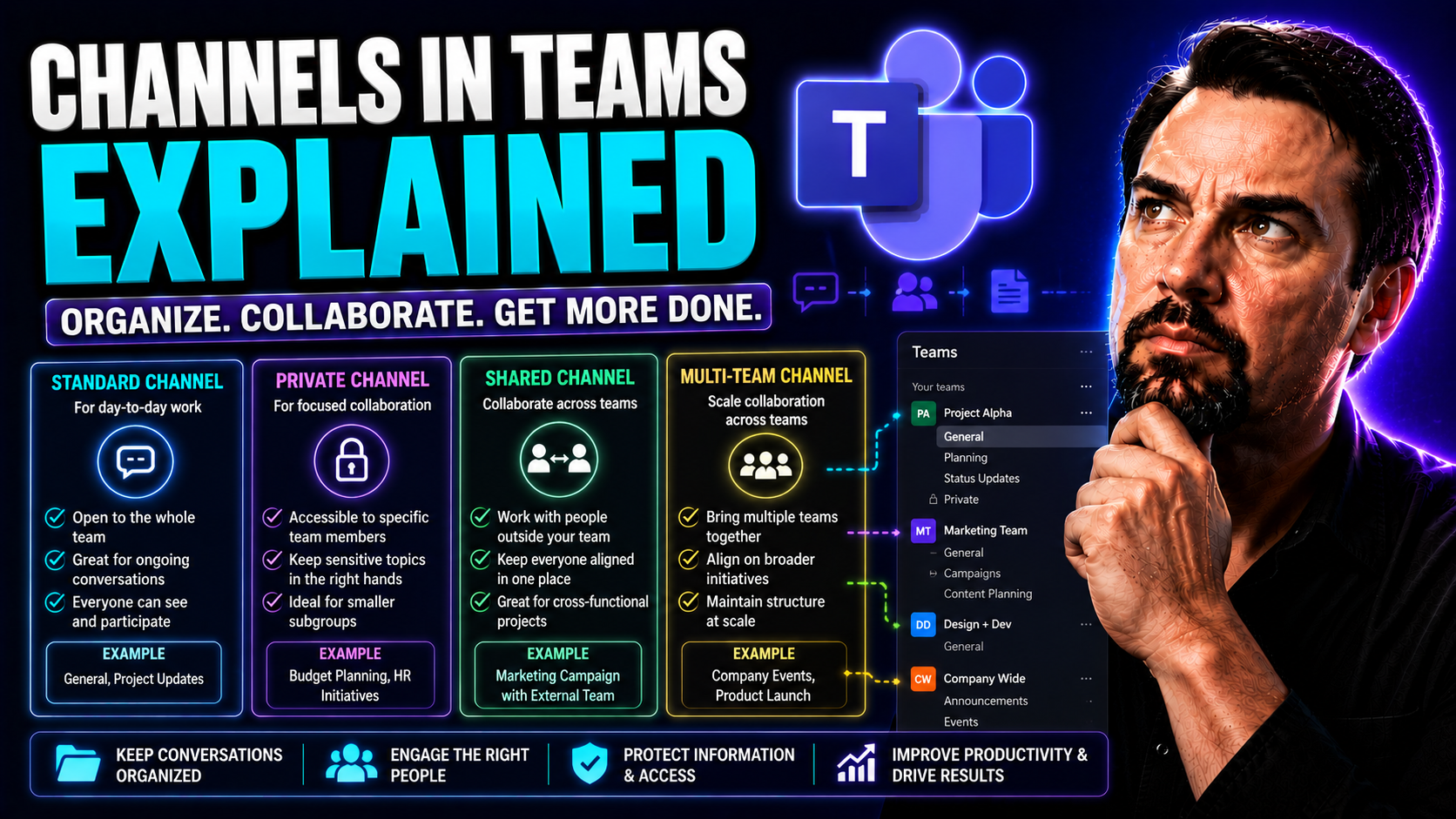
If you’re looking to get a solid grip on Microsoft Teams channels, you’re in the right place. This guide unpacks what channels actually do inside Teams, why they matter for real-world teamwork, and the nitty-gritty details that can save you headaches later. Channels aren’t just digital chat rooms—they’re the backbone of conversation, file sharing, and collaboration in modern workplaces. We’ll walk through the different types of channels, show you how to set them up the smart way, and share tough-earned tips for keeping things tidy and secure as your teams grow. By the end, you’ll know how channels can transform your team’s workflow, boost security, and keep everyone working in sync—no IT degree required.
Overview of Microsoft Teams Channels and Their Purpose
At their core, channels in Microsoft Teams are dedicated spaces for bringing the right people together around a topic, project, or department. Think of a “team” as your digital version of an organization or working group; channels are like rooms within that building, each focused on a specific conversation or workflow. Every team is made up of multiple channels, letting you break up discussions and files logically by project or function.
Team-wide announcements, brainstorming sessions, and project milestones—all of these get clearer and less cluttered when they live in their own channels. Channels centralize all relevant messages, shared documents, and even app integrations for one specific topic. You won’t have to chase down lost emails or hunt through ten different file folders just to keep up.
This structure gives both structure and flexibility. Need a public spot where everyone in the team can join the conversation? That’s a standard channel. Handling sensitive info only a select crew should see? Private channels lock it down. Need to work with another team or an outside partner? Shared channels are your answer. Over time, you’ll find that getting your channels right is half the battle in making Microsoft Teams work for you—not against you. For more insights and in-depth guidance, take a look at this practical overview on using Teams channels effectively.
Channels for Collaboration and Communication in Microsoft Teams
Channels are where the magic happens when your group needs to get things done together. Instead of scattered emails and endless meetings, Teams channels put conversations, files, and apps in one place, right where they belong. This means everyone stays in the loop, and all your team content is easy to find.
Real-life teamwork gets a boost from organized channels. For example, project channels keep all feedback and files at your fingertips, while general channels help your entire team stay up to date without digging through clutter. By bringing everything together—including notifications, files, and tools—channels keep collaboration focused and efficient. Ultimately, channels are the backbone of strong, connected teamwork in Microsoft Teams.
Types of Microsoft Teams Channels: Standard, Private, and Shared
Not all channels are created equal. Microsoft Teams gives you three main flavors—standard, private, and shared—each with its own purpose and perks. Understanding these differences is key for building clear, secure, and productive workspaces.
Choosing the right channel type isn’t just about who gets to chat. It’s a balance between collaboration and control. Standard channels keep the conversation open for the whole team, private channels help you protect sensitive topics, and shared channels break down walls between departments or even organizations entirely. Failing to match the channel type to your needs can lead to confusion, lost info, or even compliance headaches.
In the next sections, we’ll break down each kind—what it’s for, when to use it, and the security side of things. By knowing which type fits your workflow, you can keep your Team organized and your information flowing exactly where it should. When teams get this right, they save time, protect their data, and work smarter together, every day.
Standard Channels as Default Spaces for Team Collaboration
Standard channels are the bread and butter of Microsoft Teams. Every time you create a new team, you get a standard “General” channel by default. These channels are open to all team members—no private invitations, no hidden doors.
Here’s where you hold open discussions, drop general announcements, and share files the whole team needs. It’s all about transparency and making sure everyone stays up to speed. Whether you’re planning a project, hashing out ideas, or just keeping day-to-day updates in one spot, standard channels keep communication accessible for the whole crew.
They do have some limits—everyone in the team sees what happens here, and things can get noisy if not structured right. The key is to use descriptive channel names and keep each one focused on a real topic, which stops clutter before it starts.
Private Channels and Access Control for Sensitive Collaboration
Private channels are where you keep things under wraps. When you need to work on confidential projects, budgets, or anything sensitive, private channels let you lock down access to only the chosen few. Regular team members don’t even know the channel exists unless they’re invited—it’s that private.
You get full control of who can join, view files, and read messages. This makes private channels perfect for HR matters, leadership discussions, or any department that deals with confidential info. Just remember: with great privacy comes great responsibility, so keep track of who owns each private channel and make sure access lists stay up-to-date. Want a deeper dive on when to choose private channels? Check out this guide comparing private vs shared channels in Teams.
By managing permissions carefully, you can comply with company policies and reduce the risk of accidental leaks, all while keeping collaboration humming along for the people who need it most.
Shared Channels for Collaboration Across Teams and Organizations
Shared channels open the gates for teamwork with folks outside your standard team, or even outside your company. Need to loop in another department or a partner organization? Shared channels let you do it without having to add everyone to your main team or mess around with guest access.
This kind of channel smooths out collaboration that crosses team or business boundaries—work together in real time, share files, and chat, all in one spot, without switching tenants. Security and permissions remain tight, and oversight is easier. For practical pros and cons plus governance tips, see this shared vs private channels decision guide and this overview.
Shared channels are perfect when your work straddles multiple teams, outside partners, or departments that need to stay aligned—but you want control without opening up your entire workspace.
Getting Started With Channels in Microsoft Teams
Getting your channels set up right from day one makes all the difference. Before you invite your team, you’ll want to plan out how your channels will be structured. That means thinking about how your projects, departments, or workflows fit together, and building channels that keep things organized and easy to find.
From naming channels clearly to deciding which type is best for each purpose, these first steps stop chaos before it starts. Good structure helps new team members get up to speed quickly and makes it a breeze to find old conversations or files later. As your team grows, those early decisions will keep you from drowning in disorganized channels down the road.
The following sections cover hands-on, step-by-step instructions to create channels, assign owners, apply permissions, and use smart naming conventions. You’ll also get tips for cutting down on clutter, keeping your sidebar neat, and making sure your channel structure scales up as your company does. This foundation is crucial for long-term efficiency and less time spent hunting for lost info.
How to Create and Organize Channels in Microsoft Teams
- Pick the right channel type: Decide whether you need a standard, private, or shared channel based on who needs access and the sensitivity of the info.
- Name it clearly and consistently: Use a naming convention that reflects the project, team, or purpose (for example, “Project-Launch” or “HR-Private”). Clarity beats cleverness here.
- Add a helpful description: Include relevant details in the channel’s description so team members know what belongs there and what doesn’t.
- Assign ownership early: Set at least two owners who can manage permissions, settings, and keep the channel organized as things evolve.
- Add the right people (or access): For standard channels, everyone in the team gets in by default. For private and shared channels, invite just who’s needed and double-check access controls.
- Structure for growth: Plan channels for each major project or department, not for every task—too many channels create clutter. For more detailed, project-driven setups, see this step-by-step project organization guide.
Organizing Channels to Reduce Clutter and Streamline Navigation
- Stick to consistent naming: Establish a simple naming pattern so channels line up logically in your sidebar—think “Marketing-2024” instead of inside jokes.
- Group channels by function or project: Arrange channels around ongoing efforts, departments, or large projects to make navigation a breeze for everyone.
- Use descriptions and tabs: Help users know where to post or find resources by adding key details and relevant apps as tabs within each channel.
- Regularly clean house: Archive or remove unused channels to keep your workspace tidy (automatic lifecycle tools can help here). For tackling Teams sprawl at its root, read this breakdown on automating governance.
- Pin and favorite important channels: Encourage team members to pin their most-used or key project channels for faster access and fewer clicks.
Lifecycle Management and Governance for Teams Channels
Creating channels is just the start—long-term success means managing each channel’s full lifespan. Without a plan, channels multiply, get abandoned, and contribute to “sprawl,” making it tough to find what matters, stay compliant, or secure confidential info.
Lifecycle management covers everything from onboarding new channels, defining their purpose, and setting governance rules to reviewing channel activity and archiving or deleting channels that have served their purpose. Regular reviews help you spot inactive, redundant, or abandoned channels and clean them up to keep things tidy. Automated tools and policies, like those described in this in-depth Teams governance guide, make the process smoother by flagging or even archiving idle channels automatically.
Channel ownership transition is key too. When owners leave or change roles, have a clear process for transferring responsibility, updating descriptions, and documenting ongoing projects to avoid orphaned channels. Governance frameworks also support compliance by ensuring data retention, content discovery, and audit logging are handled right. For an even deeper dive, read how Teams governance brings order to chaos.
In short, smart channel lifecycle management keeps your digital workspace healthy—less clutter, more clarity, and better protection for sensitive info.
Best Practices for Strategic Channel Management and Long-Term Success
- Use clear, scalable naming conventions: Adopt organization-wide standards like “Project-Name-Year” so channels are easy to find and search as you grow. This also helps with onboarding new team members and reduces confusion.
- Group channels logically: Structure channels by function, department, or project, instead of by individual task. This prevents silos and keeps related work together, enabling better visibility across teams.
- Maintain healthy notification settings: Encourage team members to adjust their notification preferences for each channel—muting what’s irrelevant and following what matters—so important updates aren’t drowned out by noise.
- Regularly review and archive inactive channels: Set a cadence (quarterly or bi-annually) to identify and archive or delete unused channels, trimming the clutter for everyone. Automate this whenever possible to keep the environment fresh and secure.
- Streamline migrations and transitions: Have a process for moving channels or consolidating them as team structures shift—avoid starting from scratch, and document channel purposes so switching owners is painless and nothing gets lost in the shuffle.
- Harden channel security and compliance: Regularly update permissions and apply data protection policies—learn more with this Teams security hardening guide.
- Document and communicate governance rules: Make sure every team knows how channels should be used, who’s responsible for what, and what to do if needs change. For more on effective governance, see this detailed guide to Teams governance.
You Should Also Listen To
If you are researching Microsoft Teams channels, these episodes add practical context on architecture, operations, security, and governance:
- Teams Telephony – Simply Explained — Understand the calling architecture behind Teams voice, routing, and telephony operations.
- Microsoft Teams Governance – The Illusion of Control — Connect calling decisions with ownership, policy, lifecycle, and governance.
- Azure Virtual Network – Simply Explained — Learn how network architecture affects call quality and reliability.
- Microsoft Defender XDR – Simply Explained — Add security monitoring and response to your Teams communications plan.

Microsoft MVP | Host of M365.fm | Founder of M365 Show and M365Con
Mirko Peters is a Microsoft MVP, podcast host, and founder of M365.fm, M365 Show, and M365Con. His work connects Microsoft practitioners through podcast interviews, livestreams, and community events.
At M365.fm, Mirko hosts conversations with Microsoft MVPs, product experts, architects, and community contributors. Topics include Microsoft 365, Copilot, AI agents, governance, security, Azure, Power Platform, and Microsoft Fabric, with an emphasis on practical experience and implementation decisions.
M365.fm is the podcast and learning platform. M365 Show brings experts together for livestreams, while M365Con provides an online conference setting for community learning.
Official website: Mirko Peters (https://www.mirkopeters.com/). Recognition: Mirko Peters — Microsoft MVP profile (https://mvp.microsoft.com/de-DE/mvp/profile/9b0ca797-db5a-493a-a845-8b9158046cf5). Connect on LinkedIn (https://www.linkedin.com/in/m365showpodcast/).