Microsoft Teams Usage Reports: Complete Admin Guide
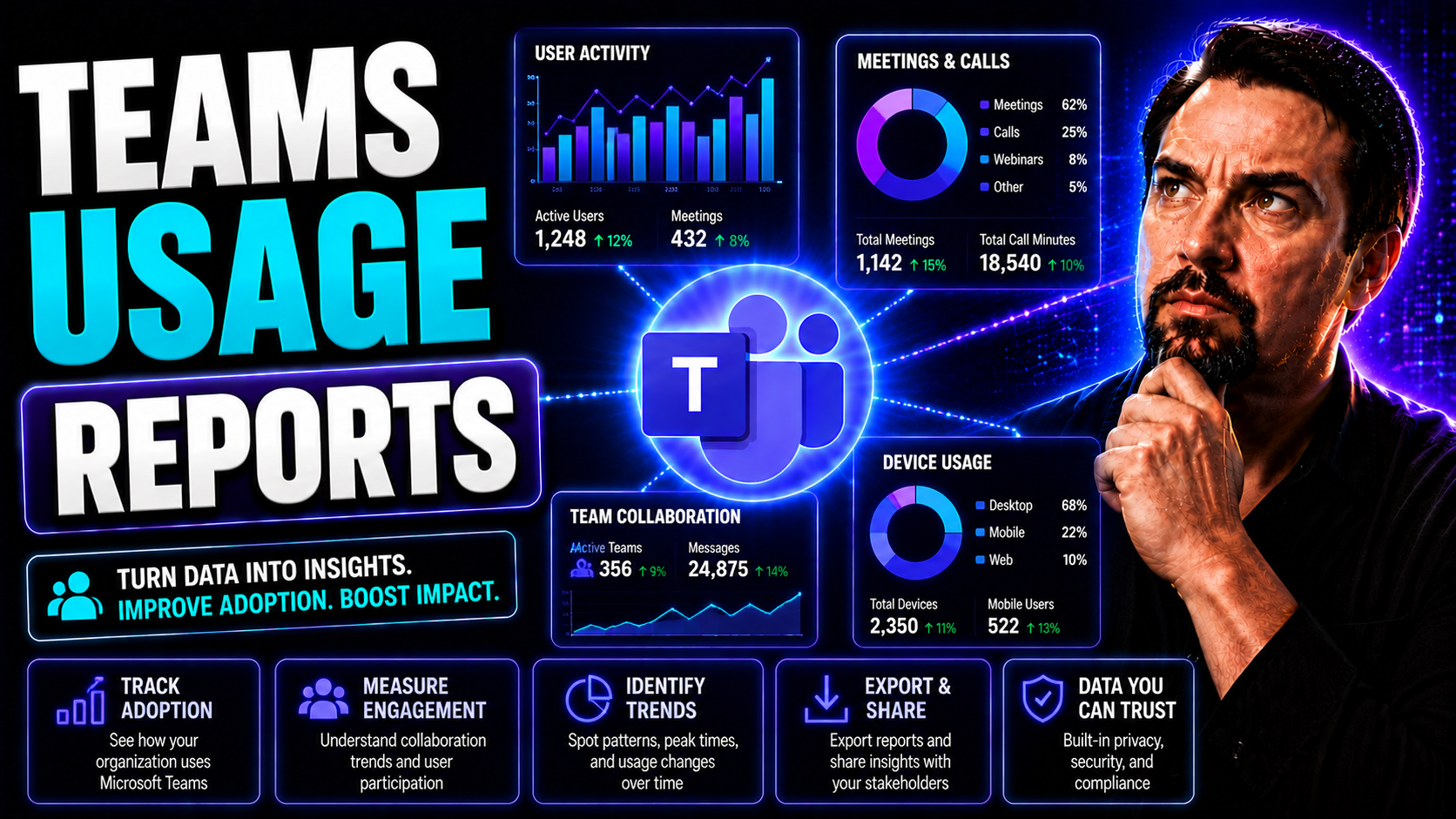
Microsoft Teams usage reports have become the front lines for keeping your digital workplace in order. These analytics tell you who's using what, for how long, and where those pockets of collaboration—or chaos—are hiding. Teams reports aren’t just for IT whizzes; they're for any leader or admin trying to boost productivity, keep data safe, or prove Teams’ value to the higher-ups.
In this guide, you’ll see exactly how to track Teams adoption and engagement, unravel the numbers behind active users and devices, and navigate the built-in and advanced tools for custom reporting. We’ll cover actionable reporting strategies, real-world scenarios, and even touch on privacy and benchmarking. Whether you’re fighting Teams sprawl or gunning for digital transformation, you’ll get what you need to make smart decisions, measure your success, and keep collaboration on the rails.
Understanding Microsoft Teams Usage and Key Metrics
Before you start pulling reports and dashboards, it’s important to understand what “usage” actually means in the world of Microsoft Teams. Think of usage as a pulse check on how your organization is working together—whether folks are chatting, teaming up on projects, or just lurking with an open window. Measuring usage isn’t only about numbers; it’s about the story behind your adoption journey and where opportunities or problems might be hiding.
Organizations use Teams usage metrics to answer critical questions: Are new hires adopting Teams? Are remote staff actually collaborating, or is everyone working in silos? Is your investment in Microsoft 365 paying off in increased engagement and less reliance on old-school email? The data tells you more than just “who’s online”—it reveals trends, gaps, and areas where training, communication, or even policy changes are needed.
The details—the actual metrics and data points—are what let you dig into user behavior, channel activity, and device patterns. In a moment, we'll break down specific metrics you need to care about, like active users, chat messages, and more. But first, let’s get clear on what Teams usage reports really are—and why they’re a cornerstone for governance, compliance, and success in the digital workplace.
What Teams Microsoft Usage Reports Are and Why They Matter
Teams usage reports are built-in analytics tools within Microsoft 365 that reveal how people in your organization use Microsoft Teams. At their core, these reports deliver critical visibility into patterns of collaboration, communication, and the overall health of your digital workplace. Think of them as your scoreboard for engagement—showing whether employees are connecting, collaborating, and benefiting from the platform.
Why do these reports really matter? For starters, they help you gauge adoption rates and spot areas where Teams usage might be lagging. Maybe your rollout’s going great in marketing, but IT keeps ignoring the platform entirely. Usage reports give you the evidence you need to target training, coach teams, or introduce new features where they’ll do the most good. They also play a major role in compliance and governance initiatives, letting you monitor for security risks, maintain regulatory standards, and steer clear of data sprawl or shadow IT headaches.
In real-world terms, leaders use usage analytics to justify investment in Microsoft 365, secure executive buy-in for further projects, and demonstrate ROI. IT managers and governance teams rely on these reports to manage active and inactive teams, reduce wasted resources, and keep collaboration tidy and secure—if you want an organized, productive workspace (not a wild west), you need to know who’s doing what and where. For an example of how structured governance powered by Teams data transforms collaboration, check out this article on confident collaboration through governance.
Ultimately, Teams usage reports are not just a technical feature—they are a vital business tool for monitoring, optimizing, and future-proofing your digital workspace. Reading them regularly arms you with insights to tackle low adoption, streamline team activity, and move your organization forward with confidence.
Key Metrics in Teams Microsoft 365 Usage Reports
- Active Users: Tracks the number of unique users who interacted with Teams during a given period. This is your core adoption metric, showing you whether people are actually logging in, participating in meetings, or sending messages.
- Active Channels: Indicates the number of channels within Teams that had activity (messages, file posts, calls, etc.). Active channels reflect collaboration health—if many channels are inactive, it might signal disengagement or unnecessary sprawl.
- Chat Messages: Counts the messages sent in both private and group chats. A rise in this number usually shows increased peer-to-peer communication and engagement, while drops could suggest users are not leveraging Teams for daily discussions.
- Channel Messages: Tallies the number of messages posted directly in team channels (different from private chats). High activity here means more transparent, open collaboration versus siloed communication.
- Meeting Activity: Measures the number and duration of Teams meetings. Monitoring meeting frequency and participation helps spot shifts in collaboration patterns and offers clues to remote work effectiveness.
- Device Usage: Breaks down the types of devices used—desktop, web, or mobile. This helps IT understand mobility trends and optimize support for remote or hybrid environments, especially if certain teams prefer mobile over desktop or vice versa.
- File Interactions: Shows how often users share, view, or collaborate on files within Teams. High file interaction means people are making the most of Microsoft 365’s integrated experience, while low numbers might suggest training needs or feature underuse.
- Guest Activity: Monitors activity by external users and guests, which is vital for keeping an eye on secure external collaboration and compliance with data sharing policies.
Paying close attention to these metrics lets you recognize positive trends, flag red flags before they grow, and benchmark your Teams usage against industry standards for continuous improvement.
Accessing and Navigating Teams Microsoft Usage Reports in Microsoft 365
Knowing what to measure is one thing; knowing where to find those numbers is another. Microsoft 365 offers multiple entry points for Teams usage analytics, each designed to cater to different admin roles and levels of expertise. Whether you're a global admin, a reporting specialist, or a team owner, Microsoft gives you several dashboards loaded with insights into Teams activity.
This section sets up everything you’ll need to get hands-on with the reporting tools. You’ll get oriented to the Microsoft 365 Admin Center—the launchpad for organization-wide stats—and the dedicated Teams Admin Center, where you can really drill into detailed analytics for specific teams or users. Think of these as the front and back doors to your workspace's data.
Don’t worry—each sub-section walks you through step-by-step. You’ll know how to navigate to usage reports, make sense of the numbers, and actually apply these insights in your day-to-day work. If you want to stop guessing and start acting on real Teams usage data, this is where the process begins.
Accessing Teams Microsoft Usage Reports in the Microsoft 365 Admin Center
The Microsoft 365 Admin Center is your main dashboard for high-level, organization-wide Teams usage data. To access these reports, you’ll need a role such as global admin, global reader, or a relevant admin permission. Once inside the Admin Center, you’ll find the reports under the “Reports” section, with a dedicated “Usage” tab for activity across Microsoft 365 services—including Teams.
Click on the “Usage” tab, then select “Microsoft Teams” from the available product list. Here, you’ll see summary tiles with highlights like active users, messages sent, and device usage, all visualized with tidy graphs and tables. The central dashboard makes it easy to spot trends and compare usage over different timeframes, such as 7, 30, or 90 days.
Dive deeper by filtering reports by location, department, or usage type, depending on your permissions. You can also export the underlying data to Excel or CSV for even more granular analysis, or to combine with external data sources as part of a broader reporting initiative. These visualizations help even non-technical staff quickly understand the organization’s digital engagement health and track progress over time.
By making these high-level dashboards part of your routine, you gain quick visibility into Teams adoption, engagement gaps, and where you might want to drill deeper using more specialized analytics tools.
Using the Microsoft Teams Admin Center for Deeper Analytics
If you’re looking for more granular details or want advanced sorting, jump into the Microsoft Teams Admin Center. This dedicated portal offers analytics and reporting at the team or user level, not just in aggregate. Here, service admins gain access to deeper insights—think: activity by specific teams, message types, and user behaviors over customizable timeframes.
Advanced filters, downloadable reports, and visual comparisons make it simple to spot abnormal trends, track specific group performance, or zero in on governance issues. It’s a next-level experience for organizations that prioritize fine-tuned oversight. For a peek at how data-driven governance unlocks new levels of collaboration, explore strategies in this article.
Advanced Methods for Custom Teams Usage Reporting
Sometimes the default reports in Microsoft 365 just don’t cut it—especially if you need deeper analysis or highly tailored data. Here’s where advanced reporting methods step in. PowerShell scripts and third-party analytics tools fill the gaps, letting your organization extract, visualize, and automate Microsoft Teams usage data far beyond what’s possible with built-in dashboards.
This section introduces you to hands-on approaches for custom Teams reporting. Whether you’re scripting your way to highly detailed CSV exports or leveraging powerful platforms like AdminDroid, you’ll find options to suit every technical level and reporting requirement.
Stick around for real-world script walkthroughs, sample outputs, and a breakdown of when it makes sense to invest in premium reporting solutions. These advanced methods give you control—so you can surface only the insights that matter to your organization, and deliver them the way leadership expects.
Method PowerShell Script for Teams Usage Extraction
For organizations needing data that goes deeper than what’s offered in the Microsoft 365 Admin reports, PowerShell scripts are a game changer. Using PowerShell, admins can automate the extraction of detailed Teams usage data—enabling custom columns, filters, and exports tailored to whatever reporting questions the business has.
This method works by connecting securely to Microsoft Teams through PowerShell modules, running parameters for chosen date ranges, and capturing user, team, and channel activity. Results can be exported to CSV, Excel, or piped directly into business intelligence tools for next-level analysis or dashboard creation. The entire process can even be scheduled for hands-free, periodic reporting that keeps your leadership or governance team up to speed.
Many IT pros combine PowerShell with automation platforms (like Power Automate or Graph API) for even more sophisticated lifecycle management and governance monitoring. For inspiration on taming Teams lifecycle and reporting with automation, check out this guide on automating Teams governance with Power Platform and Graph API.
If you’re looking to take full control over your Teams usage analytics, PowerShell scripting is your launch pad for truly custom, deeply actionable reports that native dashboards just don’t deliver.
Script Execution Steps for Teams PowerShell Reporting
- Install PowerShell Modules: Make sure you have the Microsoft Teams PowerShell module installed—run Install-Module -Name PowerShellGet and Install-Module -Name MicrosoftTeams.
- Authenticate: Launch PowerShell and connect to Teams with Connect-MicrosoftTeams. Enter your admin credentials when prompted.
- Run Usage Script: Execute your PowerShell script, specifying date ranges and data columns (e.g., channels, activity types, user IDs).
- Export the Data: Use Export-Csv to output results to a CSV or Excel file for further analysis or dashboarding.
- Schedule or Automate: Consider setting up your script as a scheduled task for recurring, automated reporting—keeping governance and leadership informed effortlessly.
Sample Output and Script Highlights for Teams PowerShell Data
- Output Example: Expect a CSV or table with columns like Team Name, Activity Count, Last Active Date, User Email, and Channel.
- Custom Filters: Scripts can include custom filters to show only inactive teams, specific date ranges, or sort by message count.
- Automation Ready: Multiple scripts support automatic notifications or email alerts for flagged teams, monthly summaries, and customizable thresholds.
- Integration: Data easily feeds into Power BI or other analytics tools for deeper visualizations and executive-ready dashboards.
Method Third-Party Tool: Enhanced and Customized Teams Usage Reports
While PowerShell gives you raw control, third-party reporting tools like AdminDroid offer a polished, visual experience designed to make Microsoft Teams analytics accessible to everyone—IT pros and business users alike. Platforms like AdminDroid go beyond the built-in reports by packing in pre-built dashboards, advanced filtering, historical trend analysis, and reporting automation features.
With tools like these, you get thousands of configurable reports: active and inactive users, channel growth, guest access, external file sharing, device statistics, compliance tracking, and more. Most third-party solutions also include export capabilities (PDF, CSV, Excel) and custom alerting to nudge admins about usage anomalies or compliance breaches.
One of the biggest draws is ease of use—no scripting required. You can usually deploy these analytic platforms in minutes, connect them to Microsoft 365, and start benchmarking your Teams usage against your own historical data or even industry standards. Audit logs, role-based access, and compliance options bring peace of mind, especially for larger organizations with stricter governance needs.
Bottom line: Third-party analytics tools turn Teams usage data into actionable, executive-level insights without technical hurdles—perfect for organizations seeking advanced, maintenance-free reporting and governance uplift.
Identifying and Managing Inactive Teams and Underused Resources
It’s one thing to track activity, but it’s just as important to keep an eye on what’s not happening in your Teams environment. Inactive or underused teams pile up for all sorts of reasons—staff changes, completed projects, or failed pilots. Leaving them unaddressed increases clutter, raises security risks, and eats away at storage and licensing costs.
This section zooms in on identifying those dead zones and underutilized resources, offering practical methods for pinpointing, analyzing, and taking action. Detecting low-activity teams isn’t just an admin chore; it’s vital for governance, compliance, and maintaining a healthy, organized digital workplace.
We’ll also cover smart automation tactics for monitoring team lifecycle, setting up scheduled reports, and reducing the manual legwork needed to keep your Microsoft Teams environment lean and compliant. If you’re ready to take back control and run a tight ship, you’re in the right place. For insight on automating sprawl management at every stage—request, creation, and retirement—see how hidden mechanics fix Teams sprawl in this deep dive.
Inactive Teams Practical: Finding and Analyzing Microsoft Teams with Low Usage
- Use Built-In Usage Reports: Start by reviewing channel and team activity in the Teams usage reports. Metrics like “last activity” or “channel messages” quickly signal which teams haven’t seen action in 30, 60, or 90 days.
- Run Custom PowerShell Scripts: For more flexibility, use PowerShell to export teams sorted by activity timestamp or membership changes. This lets you pinpoint dormant teams, even if they fly under the radar of standard reports.
- Leverage Advanced Filters: Use filters for team size, type (private/public), and number of active channels. This helps target resources that are idle but use up storage or present information security risks.
- Flag and Review Candidates: Compile a list of flagged teams and share it with relevant owners or business units. Engage directly with owners about archiving, merging, or revamping team usage through communication and training.
- Governance Actions: Don’t just archive instantly—sometimes a team just needs a nudge: guidance on better usage, or coaching on features. Escalate true deadwood for deletion or archiving as part of your regular digital hygiene routine.
This approach makes governance practical, keeping your Microsoft Teams environment clean, efficient, and compliant—for the long run.
Automating Team Activity Monitoring with Scheduled Reports and Scripts
- Schedule Usage Reports: Automate weekly or monthly exports of Teams activity data so you’re always in the loop without manual checks.
- Recurring PowerShell Scripts: Set up scripts to run on a schedule and flag inactive teams, sending alerts via email or Teams channels to IT or governance leads.
- Owner Notifications: Use scripting or workflow tools to nudge team owners when inactivity’s detected—prompting timely cleanup decisions.
- Lifecycle Governance: Automate archival or deletion processes based on preset inactivity thresholds to maintain digital hygiene. For a full lifecycle solution using Power Platform, Graph API, and Power BI, see this practical automation guide.
Overcoming Data Gaps in Teams Microsoft Usage Reporting
No reporting tool is perfect—and native Teams reports are no exception. The built-in dashboards and APIs have some well-known blind spots, so organizations often struggle to get the whole picture when it comes to digital collaboration, compliance, or external sharing across Microsoft 365.
This section uncovers what’s missing in standard Teams analytics, why it matters, and how you can supplement gaps using additional data sources—especially when it comes to SharePoint file activities and external collaboration. A modern reporting strategy shouldn’t live in silos. Instead, bring together Teams, SharePoint, and other Microsoft 365 apps so you get one clear view of how your people are working (or not working) together.
The following breakdowns will help you assess the limits of native tools, identify critical data holes for your governance or security goals, and offer creative, practical solutions for closing those gaps. For more on connecting dashboards across Teams and SharePoint and tailoring reports to your audience’s needs, check out this comparison of dashboard deployment.
Data Gaps and Challenges in Teams Activity Detail API
- Limited Message Content: Reports and APIs often show how many messages were sent but not the message content or detailed context—restricted for privacy and security reasons.
- App Usage Blind Spots: Granular app usage (such as which Teams apps or bots are most used) is not exposed, making it tough to track adoption of third-party integrations.
- User Context Restrictions: Anonymized or aggregated user data can hinder tracking engagement trends at department or location level, complicating compliance audits.
- Real-Time Limitations: Some API data is delayed or updated only daily, preventing true live analytics for critical governance decisions.
Understanding these gaps is necessary for advanced reporting, compliance monitoring, and executive decision-making—especially if your sector’s regulations demand more detailed insight.
Supplementing Reports with SharePoint File Activities and Permissions Insights
- File Access Tracking: Add SharePoint file access logs to show who’s accessing, editing, or sharing files linked to Teams channels.
- Storage Reporting: Cross-reference SharePoint storage consumption data to catch team sprawl or identify high-usage projects that might need attention.
- Permission Changes: Monitor SharePoint permission changes to detect risky external sharing or inappropriate internal access—crucial for compliance audits.
- External Collaborator Metrics: Fold in data on external guest access from SharePoint to complete the picture of collaboration beyond your organization’s walls.
- Combined Power BI Dashboards: Use Power BI to blend Teams and SharePoint metrics, delivering holistic, role-based dashboards optimized for everyone from IT to the executive suite. For how these approaches serve different audiences, see the analysis at this dashboard comparison.
By supplementing Teams reports with SharePoint insights, you ensure that governance and productivity strategies are informed, proactive, and above all—whole.
You Should Also Listen To
If you are researching Microsoft Teams usage reports, these episodes add useful context on the architecture, governance, operations, and security decisions behind the topic:
- Microsoft Teams Governance – The Illusion of Control — Turn usage reporting into governance actions around ownership, adoption, and lifecycle.
- Azure Virtual Network – Simply Explained — Understand the infrastructure context behind connectivity and call-quality data.
- Teams Telephony – Simply Explained — See how usage and calling reports support voice operations and planning.
- Microsoft Defender XDR – Simply Explained — Learn why security activity belongs in the wider operational reporting picture.

Microsoft MVP | Host of M365.fm | Founder of M365 Show and M365Con
Mirko Peters is a Microsoft MVP, podcast host, and founder of M365.fm, M365 Show, and M365Con. His work connects Microsoft practitioners through podcast interviews, livestreams, and community events.
At M365.fm, Mirko hosts conversations with Microsoft MVPs, product experts, architects, and community contributors. Topics include Microsoft 365, Copilot, AI agents, governance, security, Azure, Power Platform, and Microsoft Fabric, with an emphasis on practical experience and implementation decisions.
M365.fm is the podcast and learning platform. M365 Show brings experts together for livestreams, while M365Con provides an online conference setting for community learning.
Official website: Mirko Peters (https://www.mirkopeters.com/). Recognition: Mirko Peters — Microsoft MVP profile (https://mvp.microsoft.com/de-DE/mvp/profile/9b0ca797-db5a-493a-a845-8b9158046cf5). Connect on LinkedIn (https://www.linkedin.com/in/m365showpodcast/).