
Microsoft Teams Updates Management: Admin Guide
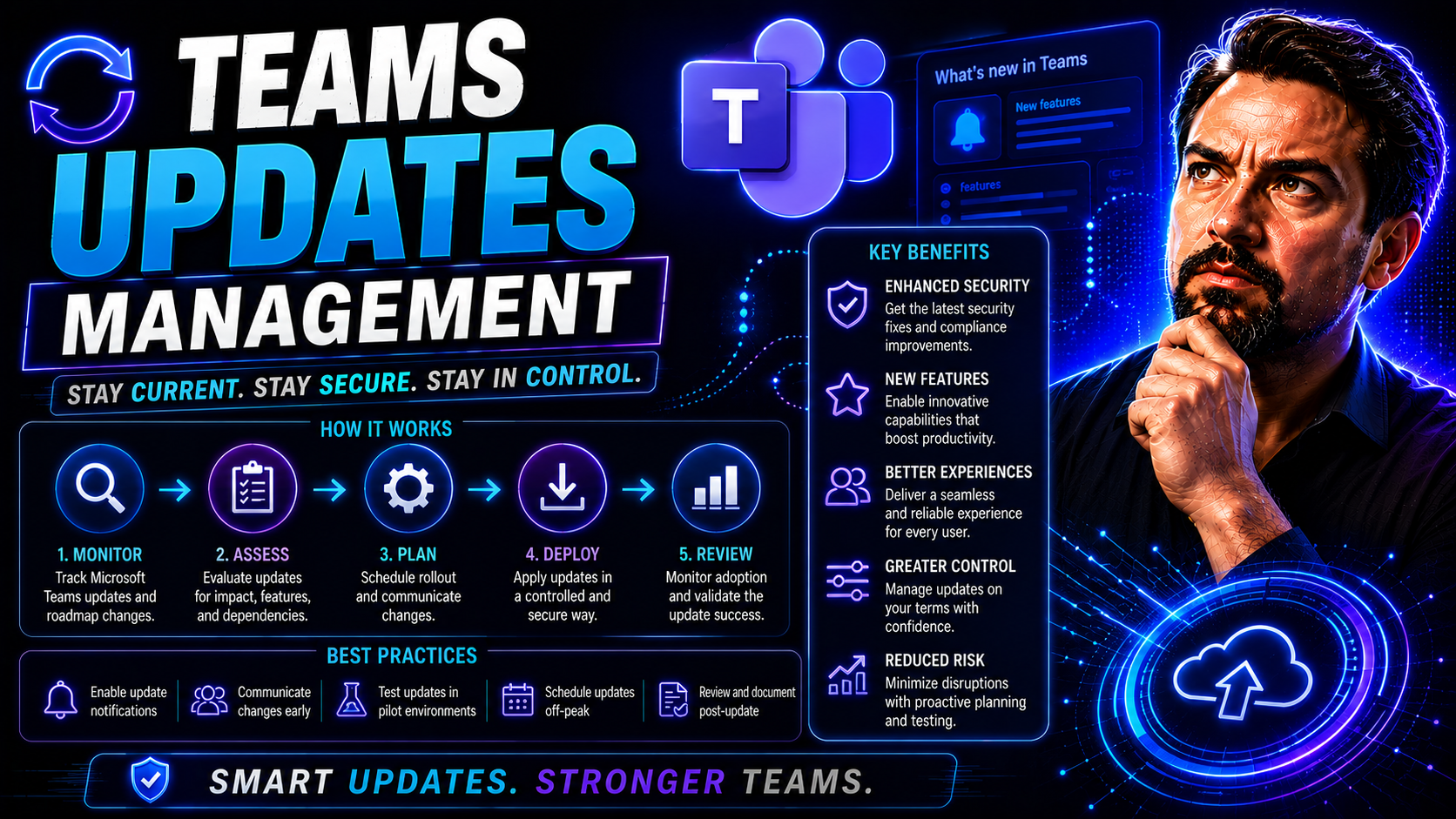
Keeping Microsoft Teams updated across your entire organization isn’t just a technical checkbox—it’s ground zero for secure, smooth, and productive collaboration. Updates don’t just deliver bug fixes and features; they reinforce compliance and security, squash threats, and improve the user experience. But managing Teams at scale, across Windows, Mac, VDI, and mobile devices? That’s a juggling act that requires the right strategy so you don’t drop the ball.
This guide lays out everything you need to wrangle Teams updates efficiently, from understanding the rules behind Microsoft’s modern lifecycle policy, to leveraging dashboard-driven compliance, to communicating changes and training your users. Whether you’re an IT admin at a Fortune 500 company or supporting a distributed, hybrid staff, you’ll find actionable frameworks that keep updates on schedule and users in the loop.
We’ll highlight how to monitor update compliance with real-time dashboards, automate notification and rollout processes, and address network impact in big environments. You’ll also get a sneak peek at the Teams roadmap for 2025 and beyond, with a practical look at what’s coming and how it’ll affect your operations. Let’s get started on building an update management strategy that’s future-proof, resilient, and doesn’t turn your workday upside down.
Microsoft Teams Update Management Essentials
If you want Teams to run like clockwork, you have to get a grip on how updates are rolled out and kept on track. Teams update management means understanding not just “where” the updates come from, but “how” and “when” they show up for your users. Microsoft ties Teams to a modern lifecycle policy, which means updates aren’t just occasional—they’re expected, and they come with set support timelines that keep you out of the danger zone for security and features.
Update channels and release cadences are what set the rhythm: you decide how fast (or slow) your organization sees new features or fixes, and you set the expectation for interruptions (or, better yet, the lack of them). Reliable management depends on matching update schedules to your business needs, infrastructure, and user expectations. This is where good governance and structured planning pay off big time for IT admins.
As you move through the following sections, you’ll see how Microsoft Teams lifecycle policies drive these updates, what your options are for update channels and intervals, and how to juggle the technical differences between desktop, VDI, Windows, and Mac setups for both everyday and specialized environments. We’ll look at best practices and pitfalls, laying the groundwork for efficient, low-pain update rollouts across your entire ecosystem.
Understanding Microsoft Teams Lifecycle and Update Schedules
The Microsoft Teams lifecycle is built on Microsoft’s modern lifecycle policy, which ties each Teams client version to a regular cadence of support, updates, and eventual retirement. Every new release, whether it’s a small bug fix or a big feature drop, enters the update command chain on scheduled intervals. These intervals—often biweekly for the core desktop app—are set by Microsoft and provide a predictable rhythm for IT teams to plan around.
Updates arrive automatically through the Teams client, and Microsoft expects organizations to keep pace with these releases. Microsoft generally supports only recent versions and announces end-of-support dates for older versions well in advance. If you fall outside of that window, you risk losing security patches and fixing critical issues, leaving your organization exposed.
Following a set schedule helps with adoption and reduces user frustration. Fixed intervals, like every two or four weeks, keep the experience stable and let you time training and communications so features don’t take users by surprise. Organizations that nail the update cadence also make it easier to enforce governance and compliance, as every Teams instance stays close to what the admins can support, test, and secure.
Sophisticated lifecycle management tools—like Power Platform, automation, and reporting through Power BI—bring even more control. For insight on how automation helps maintain order and minimize risk, check out this resource on automated lifecycle governance in Microsoft Teams.
Choosing Teams Update Channels and Release Schedules
Microsoft Teams offers multiple update channels to match how much “early access” you want to provide to users. The main channels are the Regular (default), Public Preview, and targeted Early Access or Insiders channels. Each channel carries its own level of risk and reward—Regular is all about stability, while Public Preview and Early Access let power users and IT pros get ahead of the curve, but with the potential for unfinished features or rare bugs.
Choosing your update channel is a big decision in managing user experience. Early Access is ideal for pilot groups, testing, or giving advanced notice of feature changes to champions and trainers. The Regular channel is what you’ll roll out to everyone else when you want predictable, reliable behavior. Scheduled intervals for these channels determine when new releases actually land on devices, ranging from immediate for preview channels to staged rollouts on the standard track.
Each update channel’s pros and cons come down to balance. Early channels can accelerate training and feedback, but demand more attention from IT. Regular channels reduce disruptions but might delay feature adoption. Mixing and matching (pilot groups in preview, most in regular) is common to combine risk management with the benefits of new features as they hit. Setting this up right sets the tone for how your organization handles change and keeps control over user impact.
Managing Teams Desktop and VDI Update Methods
The process of updating Teams differs depending on where it’s running. On standard desktop clients—think company laptops, desktop PCs—Teams auto-updates itself as long as the user’s got the app running and hasn’t blocked updates. These desktop devices rely on content delivery networks, leverage Windows Update, or use managed distribution via enterprise tools for the actual update files.
On Virtual Desktop Infrastructure (VDI), things get trickier. Teams runs in environments where user sessions could be persistent or non-persistent (wiped after logout), requiring careful planning. In VDI, you often use a special version of Teams optimized for virtual workloads, and updates may be applied through image management or separate software delivery tools. This approach avoids the overhead of every user session downloading gigabytes of updates and helps keep performance in check.
It’s not just about technical differences—update exceptions are common, especially for shared workstations or specialty setups. Here, IT needs flexibility, with options for manual updates, scheduled deployments, or policies that pause updates when certain circumstances call for it. Optimizing Teams updates in both desktop and VDI scenarios is essential for maintaining performance while avoiding breakage and unexpected downtime.
Best Practices for Teams Client Updates on Windows Devices
- Enable Teams auto-update by default via Microsoft 365 admin controls. This keeps most devices current without intervention.
- Use Windows Update for Business or Microsoft Intune to monitor Teams versions across your device fleet; set update rings for pilot and production.
- Regularly audit update compliance with device-level reporting and resolve failures promptly to avoid outdated clients.
- Test new builds in a pilot group before general rollout to catch device-specific issues early.
- Document all Teams client configurations and exceptions to streamline future updates and troubleshooting.
Update Methods for Teams VDI and Specialized Elements
- Persistent VDI: Integrate Teams updates into your master image and schedule regular refreshes to minimize drift.
- Non-persistent VDI: Use application layering or FSLogix to maintain up-to-date Teams versions per session without full redeployment.
- Leverage enterprise software deployment tools (like SCCM or Intune) for targeted manual or automated updates across specialized environments.
- Assign dedicated update windows to avoid performance conflicts with user activity or business-critical functions.
- Maintain clear logs of update status and rollback procedures for fast recovery if an update causes issues.
Configuring and Troubleshooting AutoUpdate for Teams
Getting Teams to update itself reliably—without constant manual checks or user complaints—comes down to setting up Microsoft AutoUpdate (MAU) the right way. MAU is at the heart of the update process for both Mac and, increasingly, Windows environments. Proper configuration prevents users from missing important security fixes, features, and compliance updates.
But setup is only half the battle. IT teams must also deal with permissions, network settings, and device management controls that affect how MAU behaves. Run into issues? You’ll find troubleshooting strategies here, with the next sections stepping you through configuration, quick-fix checklists, and systematic problem solving.
As you move forward, you’ll get clear, step-by-step instructions for both platforms plus a look at the most common pitfalls—and how to dig out when things don’t go according to plan. This structure ensures that Teams updates stay on autopilot, reducing the need for costly manual interventions or unhappy users stuck on old versions.
Configure MAU for Teams: Mac and Windows
Setting up Microsoft AutoUpdate (MAU) for Teams is what keeps updates running with minimal fuss. On Mac, MAU is a system-level process that regularly checks for, downloads, and installs the latest Teams client—often in the background, provided users don’t block notifications or permissions. Windows users are seeing more MAU involvement, especially as part of unified Microsoft 365 update policies that tie together desktop apps for seamless management.
For Mac, MAU installs with Office apps and manages Teams by default. Admins can use device management systems (like Jamf or Intune) to push MAU configuration profiles, enforce automatic update settings, and require minimum app versions. On Windows, Intune and Configuration Manager now provide more granular MAU controls, letting IT set rings and deploy app updates automatically—ideal for large or hybrid fleets.
Both platforms demand proper user and system permissions. MAU requires administrative rights to update certain files, so ensure users or device management agents have what they need. Cross-platform coverage is managed with MDM policies, ensuring that every device receives updates—even if users are remote, work from home, or travel. Troubleshooting permissions, network restrictions, and device management hiccups is key to keeping MAU humming along and Teams users always up to date.
Common Issues with MAU Configuration and Teams Updates
- Update permissions denied: MAU fails to update Teams when it lacks administrative access; resolve by correcting account rights.
- Stale or stuck client: Device freezes on an old Teams version due to network restrictions or incomplete downloads; clear cache or restart update process.
- Conflicting versions: Multiple Teams installs (work and personal) cause MAU confusion; standardize on one installation per device.
- Error codes (like 30088-1015): Usually indicate missing files or registry corruption; a repair or clean reinstall may be required.
- MAU not recognized by device management: Ensure configuration profiles are current and scoped to the right devices for automatic update enrollment.
How to Troubleshoot MAU Configuration Failures
- Check administrative permissions: Verify the user or device is granted the rights needed to update Teams. If restricted, elevate access or run updates as an administrator.
- Review MAU logs: On Mac, the log files are under /Library/Application Support/Microsoft/MAU2.0/Microsoft AutoUpdate.log; on Windows, check Event Viewer or Intune for error messages.
- Confirm network connectivity: Ensure endpoints can reach Microsoft update servers. Proxy, VPN, or firewall rules are common culprits for blocked updates.
- Flush update cache: If Teams or MAU stalls on a pending update, clear temporary files and trigger the update process again.
- Resolve version conflicts: Uninstall duplicate or side-loaded Teams clients. Stick with a single deployment method (either managed by IT or user-installed).
- Test with device management tools: Use Intune, SCCM, or Jamf to re-push MAU configuration and monitor update status centrally.
- Escalate for persistent issues: If standard steps fail, open a support ticket with Microsoft and supply detailed logs to accelerate root cause analysis.
Teams Client Update Behavior and Background Processes
If you’ve ever wondered, “When does Teams actually update itself?”—this is your section. Teams updates are handled mostly in the background, designed to avoid disrupting the user’s flow whether they’re in a meeting, deep in chat, or just letting the app sit idle. But the timing and triggers of those updates can affect everything from security coverage to user frustration.
Next, we’ll break down what happens when Teams is idle versus when it’s being actively used. You’ll get a sense of the logic the Teams client uses to detect, check for, and apply updates. Understanding these mechanics makes IT’s job easier when it comes to planning updates, communicating with end users, and troubleshooting reports of “missing” new features or problems after updates land.
This knowledge also helps with change management: if you know when disruption is possible, you can warn users effectively, plan trainings, and head off unnecessary help desk tickets before they pile up.
Teams Idle and Active States: Update Triggers and Timing
Teams is designed to check for updates quietly, aiming to minimize disruptions to your users. Typically, the Teams client polls Microsoft’s update servers once every few hours—whether the app is idle, minimized, or in light background use. Most updates are downloaded and staged without any visible user prompts, happening unobtrusively in the background.
When an update’s ready to install, Teams usually waits until the app is idle or in a low-usage state to avoid interrupting meetings or critical work. If a restart is required, Teams prompts the user with a gentle notification, offering the choice to “Restart now” or “Later.” Updates are commonly finalized at app relaunch or system reboot if the user delays.
For IT teams, timing communications and training around these idle/active patterns is key. Encourage users to periodically restart Teams to ensure the latest updates are applied promptly. Knowing how and when updates install lets you reduce anxiety, manage expectations, and avoid awkward surprises the next time a big feature change drops.
How a Microsoft Teams Update Reaches the End User
The journey of a Teams update starts at Microsoft’s cloud servers, where new client versions are published and staged for release. When a user’s Teams client checks in—following its set polling schedule—it requests metadata describing the latest version. If the client is eligible (based on channel, device config, and update rings), the new build is downloaded in the background.
Delivery optimization kicks in, often using peer-to-peer methods (when enabled) or leveraging Windows Delivery Optimization to minimize WAN usage. Once the update is fully downloaded and validated, it’s staged for install. Teams then applies the update either at the next restart, after a period of inactivity, or when the user manually triggers it.
This process is optimized to handle patchy connectivity, bandwidth constraints, and even VDI or roaming scenarios. Failed or partial installs are automatically retried, and error states are surfaced to IT via admin dashboards or device management alerts. The process ensures that most users never realize an update happened—unless there’s a dramatic change or a rare hiccup.
Managing Teams Updates on Windows, Mac, and Mobile Devices
Teams isn’t just a Windows desktop app anymore—it’s everywhere, living on Mac, mobile, and all kinds of specialty peripherals. Keeping all these devices up to date means knowing the unique twists and system requirements, whether you’re managing hundreds of office workstations, remote laptops, iPhones, or video room equipment.
This section is your staging ground for device-specific tips. We’ll quickly walk through the nuances of updating Teams on Windows and Mac (including some quirks of screen sharing), before heading into mobile and hardware territory. You’ll see best practices, troubleshooting hints, and ways to tune update behavior for every endpoint in your environment.
We’ll also touch on how device governance, compliance, and security go hand in hand with update discipline, building a stable user experience no matter what kind of gadget gets thrown into the mix.
Updating Teams Devices on Windows and Mac Platforms
- Enable automatic Teams updates through Microsoft 365 admin or Intune, ensuring devices stay current without user intervention.
- Set up version compliance checks so IT is alerted if endpoints fall behind the required Teams client level.
- On Mac devices, watch out for stricter app permissions—screen sharing may require reauthorization after updates.
- Regularly review system requirements, as older hardware may fall behind on Teams capabilities and screen sharing performance.
- For more on governance to prevent chaos and improve collaboration, see Microsoft Teams Governance best practices.
Screen Sharing and Compatibility for Mac Devices
Screen sharing with Teams on Mac comes with its specific set of rules. Teams leverages macOS’s native screen sharing system, which means each update can trigger permission prompts or break screen sharing until permissions are refreshed. Users often need to reapprove camera, microphone, or screen recording access after significant Teams updates or macOS upgrades.
IT should be proactive here: communicate upcoming changes, remind users to check permissions in System Preferences, and provide clear troubleshooting steps. Compatibility problems can also be tied to outdated macOS versions, so ensure endpoints meet supported system requirements. Addressing these edge cases improves meeting quality—especially in companies running a mix of device types and OS versions.
Ensuring Reliable Teams Updates for Mobile and Hardware Peripherals
- Set mobile app update policies through your MDM solution—auto-updates keep Teams features current and compatible with backend services.
- Guide users to enable device notifications so feature rollouts and teams mobile ringtone updates aren’t missed.
- Before adding or updating hardware (like headsets or smart displays), confirm Teams compatibility—outdated firmware or drivers can cause audio/video problems.
- For specialty devices such as Meta Quest headsets, check for supported Teams versions and specific update instructions from both Microsoft and the device vendor.
- Monitor bandwidth and connectivity, particularly for mobile users on variable networks, to avoid update failures and inconsistent experiences.
Collaboration Features and Key Improvements from Recent Teams Updates
Teams isn’t standing still—its updates bring a regular supply of fresh features that directly improve how your folks collaborate. The pace of innovation picks up every year, from AI-powered meeting tools to chat customizations and slicker layouts. Staying on top of these changes means you get more productive meetings, clearer communication, and fewer “How do I…?” tickets sent your way.
In the next sections, we’ll explore standout innovations. First, you’ll see how Microsoft Copilot is being woven into Teams, transforming everything from meeting notes to chat summaries with real AI brains. Then, we’ll check out what’s new in meeting layouts, chat options, and accessibility features—stuff your users will notice immediately (if your update strategy keeps them current, that is).
Keeping users informed and trained on these improvements boosts morale, drives adoption, and maximizes ROI from your Teams investment. Consider this your playbook for making Teams not just work—but work for everyone.
Enabling AI with Copilot in Teams Meetings and Chat
Copilot in Microsoft Teams is more than a buzzword—it’s a real shift in how meetings, chats, and calls flow. Copilot uses AI to create meeting summaries, capture action items, and deliver quick context so nobody’s left behind. With features like copilot summaries context and threads copilot, participants get a digest of what mattered, even if they missed the live session.
In chat, Copilot highlights decisions made, tags next steps, and can even bring up relevant documents using chat access copilot. During calls, Copilot makes delegation seamless, letting users assign follow-ups on the spot. These enhancements save you time, reduce manual note-taking, and keep everyone coordinated—no matter how packed their calendars might be.
Security and compliance stay at the forefront, ensuring Copilot’s AI is only accessing information users are authorized to see. For deeper insight into Copilot’s real-world value, including productivity gains and compliance, see examples of Copilot in action for Teams or explore how M365 Copilot orchestrates meetings, chat, and workflow automation.
Meeting and Chat Experience Upgrades Through Updates
- Annotation of shared windows: Users can annotate directly on a single-shared window in meetings, making collaboration visual and interactive.
- More accurate transcripts: AI-powered transcription improvements provide smarter, more accurate meeting records—even in dynamic group conversations.
- Customizable Teams chat: Users can personalize their chat interface, pin important messages, and use new formatting options for clarity and organization.
- Reshaped meeting layouts: Updated Teams layouts give everyone a better view—focus on active speakers, new gallery arrangements, and immersive backgrounds.
- Automatic language detection: Teams can now detect multiple spoken languages in meetings and transcribe or translate conversations on the fly.
- Bug fixes and performance: Ongoing updates squash known issues, enhance reliability, and keep the app lightweight for all devices.
- For guidance on bringing order to collaboration, see Teams governance strategies.
Security and Compliance Benefits of Teams Updates
Patching Teams isn’t just about new toys—it’s a must for tightening security, closing compliance gaps, and giving users granular control over their privacy. As the workplace becomes more connected, each Teams update layers on improved defenses against phishing, malware, and accidental data leaks.
Major subtopics below cover how Teams protects against malicious content, provides transparent trust signals, and empowers users to control sharing, notifications, and privacy. Security is a core reason to keep updates rolling, so every new version you deploy should help lower the risk profile of your organization.
Where possible, tie update policies to risk management frameworks and documented governance practices. For extra security insights—including conditional access and Purview DLP techniques—check out these Teams security hardening best practices.
Malicious Content Detection and Trust Indicators in Teams
Teams includes built-in malicious content detection designed to block unsafe links, suspicious files, and known threats. Files and URLs sent in chats or shared in meetings are automatically scanned against Microsoft’s global threat intelligence network. If Teams detects anything suspicious, it either blocks the content or alerts the user with a clear warning label, keeping your users out of trouble.
Trust indicators are visible, like a lock icon for secure external guests or badge alerts for verified senders. Microsoft continuously updates Teams’ threat detection toolkit, adapting to new phishing or malware techniques. These controls are always evolving—often updated via app releases or back-end cloud services—so users and IT get fresh defenses without extra configuration.
Security in Teams is tightly integrated with Microsoft 365, leveraging Azure AD for authentication and services like Purview for data loss prevention. To understand how Copilot’s security model layers into this picture, read about Microsoft Copilot’s security principles in Teams.
User Controls for Sharing, Notifications, and Data Privacy
- Customizable meeting recaps: Users can adjust which details appear in meeting recaps, enabling privacy and focus on actionable outcomes.
- Granular sharing controls: Teams allows users to restrict file sharing, limit forwarding, and control audience settings for sensitive conversations.
- Notification management: The Teams app lets users fine-tune which alerts, badges, and banner notifications they receive, reducing distraction while staying informed.
- Preview and message controls: Users can preview messages and attachments before opening, adding a layer of safety and control against unwanted content.
- Data privacy toggles: Teams administrators and end users can configure granular privacy levels, aligning with compliance needs and personal preferences.
- Interested in Teams’ approach to privacy? Check out how Copilot maintains data privacy in Microsoft 365.
Proactive Compliance Monitoring for Teams Updates
You can’t manage what you can’t measure—especially when Teams updates need to reach every hand in the company. This section fills a gap in most documentation by laying out how IT can actively monitor update compliance, flag outdated clients, and keep the audit logs squeaky clean before decisions come down from the top (or from Microsoft itself).
You’ll see how to use up-to-the-minute dashboards that give real-time visibility into device-level update status—across Windows, Mac, and VDI. Reporting tools help admins pinpoint trouble spots, automate remediation, and provide audit evidence when needed. Subsections will cover the nuts and bolts of integrating Teams update data into your central enterprise management, notably with Intune and Configuration Manager.
Building automated compliance checks and reporting leaves you better prepared against both external threats and internal compliance reviews. For a broader view on lifecycle management and automation, explore this discussion on automated Teams lifecycle governance.
Real-Time Teams Update Compliance Dashboards and Reporting
Real-time compliance dashboards make it possible for IT to monitor Teams update status across large, distributed fleets. These dashboards show which devices—whether Windows, Mac, or VDI—are running the latest Teams release, which are lagging, and which might have missing or failed installs. Most tools use color-coded widgets to flag issues, generate automated alerts, and feed summary reports to admins and leadership.
Dashboards often integrate with device management platforms such as Microsoft Intune, giving granular insight down to individual device IDs, departments, or office locations. Actionable insights from these dashboards let IT identify outdated clients fast and push updates or remediate problems before they snowball into support incidents or security threats.
For reporting, most solutions offer scheduled exports, drill-down diagnostics, and audit-ready logs—making it easy to show compliance status during reviews or security checks. Tying these dashboards into lifecycle management tools enhances their value, ensuring Teams remains fully patched and compliant everywhere it’s used.
Integrating Teams Update Data with Microsoft Intune and MEM
- Centralize Teams update signals by ingesting device health and software reports into Intune/MEM dashboards.
- Set automated update compliance triggers with policies that alert IT or self-remediate when a device falls out of date.
- Schedule regular reports and export logs for audit documentation and compliance tracking.
- Integrate with Power BI for custom visualization of Teams update status across regions or business units.
- Automate escalations for persistent update failures, tying support cases directly to management consoles.
User Communication and Change Management for Teams Updates
Even the smoothest Teams update can feel bumpy if you don’t keep users looped in from start to finish. IT pros may have the technical nuts and bolts locked down, but change management is what keeps resilience high and ticket volume low. Communication and training aren’t just courtesy—they’re key to getting adoption without resistance when new features or UI changes arrive.
We’ll look at how to notify users ahead of big rollouts, using smart templates and in-app messages, and how to build quick training “microcontent” that delivers learning in brief, actionable bursts. Collectively, these strategies fill a common documentation gap: bridging tech updates to the realities of human behavior and reducing headaches at every level.
Think of this section as your toolkit for high adoption, fewer complaints, and happier users—turning “Another Teams update?” from groans into curiosity or even excitement about new capabilities.
Proactive Notification Strategies for New Teams Features
- Segment your audience: Target communications to specific groups—early adopters, managers, frontline workers—based on their feature-readiness.
- Use templated communications: Build reusable email or in-app templates that highlight what’s changing, when, and why it matters.
- Leverage in-app notifications: Configure Teams admin center to push timely pop-up banners, teasers, or quick tips as new features launch.
- Time notifications strategically: Avoid overwhelming users with alerts. Schedule communications around big releases and business cycles for maximum attention.
- Gather feedback and tune messaging: Encourage users to reply with questions or comments, adjusting your comms to clear up confusion and improve the next rollout.
- For more newsletter and comms techniques, check the Outlook-based system at building targeted internal newsletters in Microsoft 365.
Building Training Microcontent for Update Awareness
- Short videos: Create 2-minute explainers for specific new features, maximizing attention while minimizing disruption.
- Tip sheets and quick guides: One-pagers or infographics focused on top changes and what users need to know right away.
- Just-in-time learning: Launch training content as features go live—not weeks before or after—to boost adoption.
- Embed microlearning in Teams: Use Teams channels or tabs to surface training “in context” where users already work.
- Gather usage metrics: Track who engages with microcontent to fine-tune the timing, format, and topics of future training.
Managing Network Impact of Teams Updates in Large Organizations
When hundreds—or thousands—of people download a Teams update at the same time, it can hammer your organization’s network. That’s why update management isn’t just about endpoints; it’s also about bandwidth, routing, and avoiding those mid-morning network slowdowns that frustrate everyone from the C-suite to the call center.
This section shares how to use peer caching and Windows Delivery Optimization to stretch bandwidth further, especially in branch offices or remote sites. We’ll also discuss frameworks for staggering, or throttling, updates regionally and by network load, so critical business units aren’t all updating at once and grinding work to a halt.
If your environment includes global offices, split VPN tunnels, or sensitive business cycles, the following details will help you keep updates predictable and network performance healthy during rollout windows.
Peer Caching and Delivery Optimization for Teams Client Updates
Peer caching and Windows Delivery Optimization let Teams clients share update files locally, slashing WAN and internet bandwidth requirements. With peer caching, once one device in a subnet receives an update, others in the same group can “borrow” the installer, reducing repeated downloads from Microsoft servers. This works especially well in distributed offices, call centers, or education environments.
Windows Delivery Optimization extends this even further: it allows both LAN and internet-wide peer updates, and is fully integrated with Windows Update and Microsoft 365 update policies. IT can configure delivery limits, cache durations, and peer group boundaries for full control. Challenges mainly revolve around DNS resolution, device firewall settings, or devices leaving their subnet before updates finish—so IT should monitor logs and tweak settings as needed.
Peer caching can’t do it all; mixed environments and VDI may need layered strategies. But tuned right, delivery optimization becomes an insurance policy that updates roll out smoothly without chewing up network capacity, especially during high-velocity feature releases.
Staggered Update Rollout Planning by Regional Network Capacity
- Schedule updates in waves: Push updates to low-utilization regions first, then follow with larger offices or bandwidth-priority sites.
- Coordinate with business stakeholders: Avoid planned network saturations during critical events like financial close or large online meetings.
- Monitor bandwidth in real time: Adjust rollout pacing dynamically based on observed network load during update windows.
- Utilize split tunneling for VPN: Route Teams update traffic directly to Microsoft, leaving critical business traffic on dedicated routes.
- Document escalation paths and fallback options: Keep a playbook in case rollout must be paused or rescheduled midstream.
Microsoft Teams Updates Roadmap for 2025 and 2026
Microsoft’s Teams roadmap is filled with innovations—many powered by AI, smarter automation, and new immersive experiences that aim to keep your users ahead of the productivity curve. Planning for these changes now means you can test, train, and integrate new features early, making rollout smoother for everyone.
Below, we lay out what’s coming for 2025: new assistance tools, richer reactions, and more automation at your fingertips. We’ll go even further into 2026 and beyond, where virtual and in-person events blend, device integration expands (hello, Meta Quest), and collaboration tools get immersive upgrades.
For IT and business leaders alike, knowing the roadmap means you’re not caught off guard. Want insight into how Copilot and AI are reshaping Teams and the broader Microsoft 365 ecosystem? Browse this complete Copilot guide for IT admins and dive into Copilot’s practical use cases before the wave arrives.
What’s Coming in Teams Updates for 2025
- Advanced assistance with Copilot: Bring AI-driven summaries, meeting recaps, and proactive workflow suggestions into more elements of the Teams experience.
- Trigger workflows from messages: Users can launch Power Automate flows directly from Teams messages, speeding up everything from approvals to escalations.
- Faster emoji and reactions: Enhanced emoji picker with instant access and support for custom, keyword-driven reactions speeds up how users respond in meetings and chat.
- Workflow automation on tap: Integrate key business processes—HR, expense, onboarding—without leaving the Teams interface, making daily tasks frictionless.
- Universal search upgrade: AI-powered, context-aware results from chat, meetings, files, and integrated business systems for better knowledge access.
- For more on Copilot’s integration, explore real-world Copilot examples in Teams.
Major Teams Enhancements Planned for 2026 and Beyond
- Host virtual immersive events: Support for large-scale, interactive virtual events—including 3D breakout spaces and hybrid meeting tools—bridges remote and onsite audiences.
- Expanded town halls: Upgrades let teams hold bigger, more interactive town halls, with rich polling, transcription, and AI-powered highlights for every attendee.
- Meta Quest headset integration: Full VR and AR support inside Teams, so participants can join immersive meetings or collaborative brainstorms using next-gen devices.
- Device management unification: Enhanced admin controls bring Teams device, endpoint, and compliance management together in harmonized dashboards.
- Cross-app AI: Expect improvements that connect Teams’ AI brains with Outlook, SharePoint, and Power Platform for seamless context switching and productivity workflows.
You Should Also Listen To
If you are researching Microsoft Teams updates management, these episodes add useful context on the architecture, governance, operations, and security decisions behind the topic:
- Azure Virtual Network – Simply Explained — Learn which network architecture and connectivity choices influence Teams quality and performance.
- Microsoft Teams Governance – The Illusion of Control — Use governance and ownership models to turn performance data into repeatable operational improvements.
- Teams Telephony – Simply Explained — Understand the calling metrics and architecture behind reliable Teams voice performance.
- Microsoft Defender XDR – Simply Explained — See how security monitoring complements Teams health and operational monitoring.

Microsoft MVP | Host of M365.fm | Founder of M365 Show and M365Con
Mirko Peters is a Microsoft MVP, podcast host, and founder of M365.fm, M365 Show, and M365Con. His work connects Microsoft practitioners through podcast interviews, livestreams, and community events.
At M365.fm, Mirko hosts conversations with Microsoft MVPs, product experts, architects, and community contributors. Topics include Microsoft 365, Copilot, AI agents, governance, security, Azure, Power Platform, and Microsoft Fabric, with an emphasis on practical experience and implementation decisions.
M365.fm is the podcast and learning platform. M365 Show brings experts together for livestreams, while M365Con provides an online conference setting for community learning.
Official website: Mirko Peters (https://www.mirkopeters.com/). Recognition: Mirko Peters — Microsoft MVP profile (https://mvp.microsoft.com/de-DE/mvp/profile/9b0ca797-db5a-493a-a845-8b9158046cf5). Connect on LinkedIn (https://www.linkedin.com/in/m365showpodcast/).





